Can a Laptop Run a 4K Monitor
Plainly answer the question "Can a laptop run a 4K monitor?" and whether you will need specific ports and what to watch out for.
The short answer is yes for most laptops from the last decade, but whether you will get 4K at a smooth 60Hz or a stuttery 30Hz depends entirely on your graphics chip and which port you plug into. Two laptops sitting side by side can behave very differently.
Manufacturer specifications indicate that Intel integrated graphics from the 7th-generation Core era onward typically support 4K output at 60Hz, while earlier chips often cap at 30Hz. Dedicated GPUs from NVIDIA and AMD handle 4K with far more headroom for gaming or creative work.
Heres how to figure out exactly what your laptop can do and what you might need to buy.
Quick Answer
Yes, most laptops can run a 4K monitor. Your laptop port decides if you get 4K at 60Hz or only 30Hz. HDMI 2.0 or DisplayPort 1.2 is the minimum.
Check your laptop specs before buying a monitor.
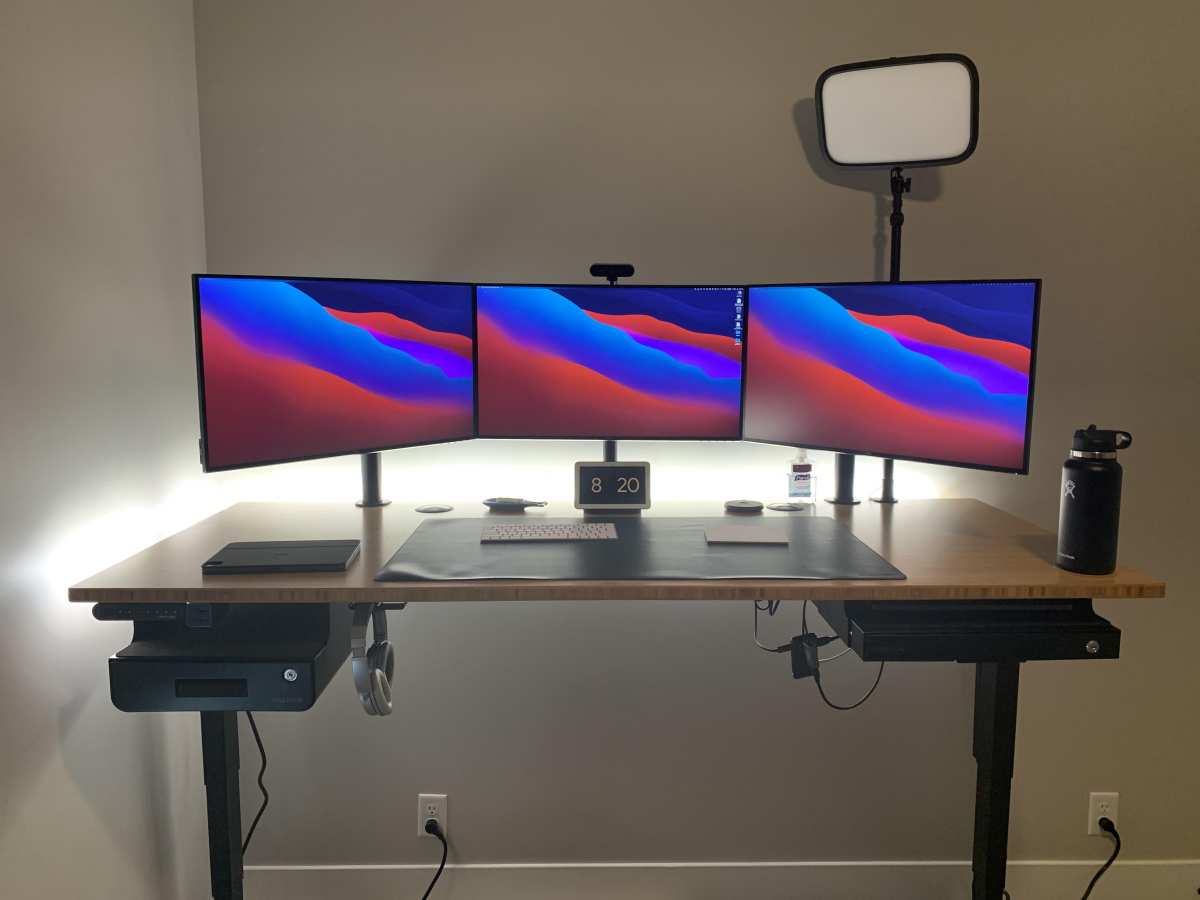
What Actually Determines If Your Laptop Can Run a 4K Monitor
The Four Things That Matter
Four things decide whether your laptop will drive a 4K display properly. Miss one and youll end up staring at a blank screen or a terrible looking image.
- GPU capability: Your graphics processor has a maximum resolution limit. Intel UHD 620 can push 4K, but it wont game well at that resolution. NVIDIA RTX 3060? No problem at all.
- Port type and version: A laptop with only HDMI 1.4 will cap 4K at 30Hz. You need HDMI 2.0, DisplayPort 1.2, or USB-C with DisplayPort Alt Mode for 4K 60Hz.
- Cable quality and specification: That old HDMI cable from 2012 wont cut it. You need a High Speed HDMI cable (18 Gbps) or a DisplayPort certified cable. Cheap cables cause flickering, dropouts, and "no signal" headaches.
- Refresh rate expectations: 30Hz feels sluggish. Mouse movement looks laggy. Windows and macOS are designed for 60Hz. If you want smooth performance, 60Hz is the target.
What Is 4K and Why Does Bandwidth Matter?
4K UHD means 3840×2160 pixels. Thats four times the pixels of a standard 1080p display. Pushing that many pixels through a cable requires serious bandwidth.
Heres the thing. Every video port version has a maximum bandwidth. If the bandwidth isnt enough, the port drops the refresh rate or refuses the signal entirely.
Think of it like a water pipe. A narrow pipe (HDMI 1.4) can only flow so much water. A wide pipe (HDMI 2.1) handles it easily.
Your job is to make sure the pipe between your laptop and monitor is wide enough.
How to Check What Your Laptop Can Actually Do
Step 1: Find Your GPU and Its Max Resolution
Open your laptop specs. Look for the exact GPU name. Intel UHD Graphics 630, NVIDIA GTX 1650, AMD Radeon RX 6800M.
Whatever it is, search for "[GPU name] maximum resolution."
Heres what common laptop GPUs support:
| GPU | Max Resolution | 4K 60Hz Via | Notes |
|---|---|---|---|
| Intel UHD 620 | 4096×2304 at 60Hz | DisplayPort, USB-C DP | HDMI often limited to 30Hz |
| Intel Iris Xe | 4096×2304 at 60Hz | DP, USB-C DP, HDMI 2.0 | Much improved over UHD |
| NVIDIA GTX 1050 | 7680×4320 at 60Hz | HDMI 2.0, DP 1.2+ | Full 4K 60Hz support |
| NVIDIA RTX 3060 | 7680×4320 at 60Hz | HDMI 2.1, DP 1.4 | Handles 4K gaming well |
| AMD Radeon RX 6800M | 7680×4320 at 60Hz | HDMI 2.1, DP 1.4 | Excellent 4K performance |
The key takeaway? Almost every modern GPU supports 4K resolution. The bottleneck is never the GPU itself.
Its always the port and cable.
Step 2: Identify Your Laptop's Video Output Ports
Look at the sides of your laptop. Youll typically find one of these:
- HDMI port: Check if its HDMI 1.4, 2.0, or 2.1. Most laptop manufacturers dont label the version on the laptop itself. Youll need to check your specific model specs.
- DisplayPort or Mini DisplayPort: Less common on consumer laptops but found on many business and workstation machines. Even DisplayPort 1.2 handles 4K 60Hz.
- USB-C: This is the tricky one. Not all USB-C ports support video output. You need USB-C with DisplayPort Alt Mode. Look for a small "DP" or thunderbolt symbol next to the port.
- Thunderbolt 3 or 4: Always supports video output. Thunderbolt 3 can drive two 4K 60Hz displays simultaneously.
If you only see USB-C ports with no symbols, check your laptop manual. Search "[your laptop model] external display support." The manufacturers specifications page will tell you exactly what each port can do.
Step 3: Match Your Port to the Right Cable or Adapter
This is where most people go wrong. Heres a simple matching guide:
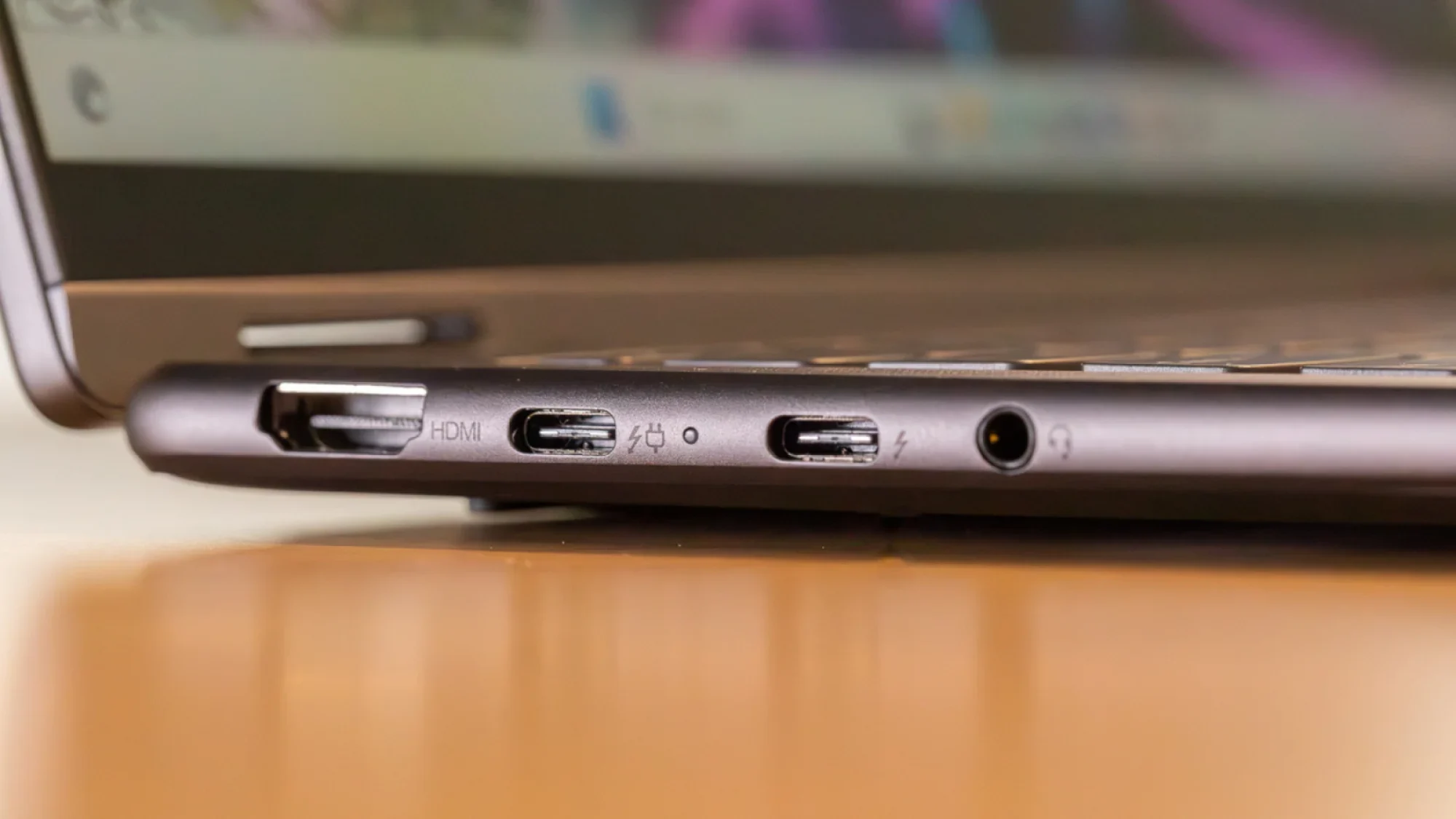
- Laptop has HDMI 2.0: Use a High Speed HDMI cable (sometimes called "Premium Certified HDMI").
- Laptop has USB-C with DP Alt Mode: Use a USB-C to HDMI 2.0 adapter or a USB-C to DisplayPort 1.2 cable.
- Laptop has Thunderbolt 3/4: A Thunderbolt dock with DisplayPort or HDMI 2.0 output gives you the most flexibility.
- Laptop only has HDMI 1.4: Youre stuck at 4K 30Hz unless you use a USB-C port with DP Alt Mode instead.
A quick note on adapters. Cheap Amazon adapters often lie about their capabilities. A $9 USB-C to HDMI adapter might only support 4K 30Hz even if your laptop port can do 60Hz.
Check the adapter specs carefully.
Step 4: Configure Display Settings After Connecting
Once youve got the cable connected, your laptop should detect the 4K monitor automatically. If it doesnt, update your GPU drivers first.
On Windows, right-click the desktop, choose Display Settings, select the 4K monitor, and set the Resolution to 3840×2160. Then click Advanced Display Settings and confirm the Refresh Rate is set to 60Hz, not 30Hz.
On macOS, go to System Settings, Displays, select the external monitor, and set to Default for Display. macOS will pick the right resolution. Hold the Option key while clicking "Scaled" to see all available refresh rate options.
One more thing. After connecting a 4K monitor, text will look tiny at 100% scaling. Bump it up to 150% or 175% for comfortable reading.
This doesnt reduce the actual resolution. It just makes everything a usable size.
HDMI vs DisplayPort vs USB-C: Which Output Handles 4K Best
HDMI Versions and 4K Support

HDMI is the most common video port on laptops. But the version matters enormously.
- HDMI 1.4: Supports 4K but only at 30Hz. Fine for static content like documents and browsing. Awkward for anything that moves.
- HDMI 2.0: Supports 4K at 60Hz with full 4:4:4 color. Good enough for most work and media consumption.
- HDMI 2.0a and 2.0b: Same bandwidth as 2.0 but add HDR metadata support. If you want HDR on a 4K monitor, you need 2.0a or higher.
- HDMI 2.1: Massive 48 Gbps bandwidth. Handles 4K at 120Hz, 8K at 60Hz, and dynamic HDR. rare on laptops as of 2026 but appearing on newer models.
Most laptops with an HDMI port have HDMI 2.0 at this point. But some thin and light models still ship HDMI 1.4 to save space or cost. Always verify your specific model.
DisplayPort Versions and 4K Support
DisplayPort is the professional standard. Its more common on business laptops, workstations, and desktop GPUs.
- DisplayPort 1.1: 4K at 30Hz only. Ancient at this point.
- DisplayPort 1.2: 4K at 60Hz with full color. The baseline for comfortable 4K use.
- DisplayPort 1.3: 4K at 60Hz with HDR or 4K at 120Hz with reduced color depth.
- DisplayPort 1.4: 4K at 120Hz with Display Stream Compression, or 4K at 60Hz with full HDR and 10-bit color.
- DisplayPort 2.0/2.1: 4K at 240Hz+. Overkill for most use cases. Not found on any laptop as of 2026 Mini DisplayPort connectors use the same standards with a smaller physical plug.
If your laptop has a full-size or Mini DisplayPort, youre in good shape. DisplayPort 1.2 or higher handles 4K 60Hz without breaking a sweat.
USB-C with DisplayPort Alt Mode
This is the future and also the most confusing option. USB-C ports can carry DisplayPort signals natively through something called DisplayPort Alternate Mode.
The catch is that not every USB-C port supports it. A USB-C port might handle data and charging but have no video capability whatsoever.
Heres how to tell:
- Look for a thunderbolt symbol (lightning bolt) next to the port. Thunderbolt always supports video.
- Look for a "DP" symbol.
- Check your laptop specs for phrases like "USB-C with DisplayPort" or "USB 3.2 Gen 2 with DisplayPort Alt Mode."
- If the specs just say "USB-C" or "USB 3.0" with no mention of video, assume it doesnt support external displays.
USB-C DP Alt Mode versions depend on the laptops implementation. Most modern laptops implement DisplayPort 1.2 or 1.4 over USB-C. That means 4K 60Hz is almost always supported through this route.
Thunderbolt 3 and 4
Thunderbolt 3 and 4 use the USB-C connector but provide dedicated display output bandwidth alongside data. A single Thunderbolt port can drive two 4K 60Hz monitors via daisy-chaining or a dock.
Thats the gold standard for laptop display output. If your laptop has a Thunderbolt port, you have the most options and the least to worry about.
4K at 30Hz vs 4K at 60Hz: Why the Refresh Rate Matters More Than You Think
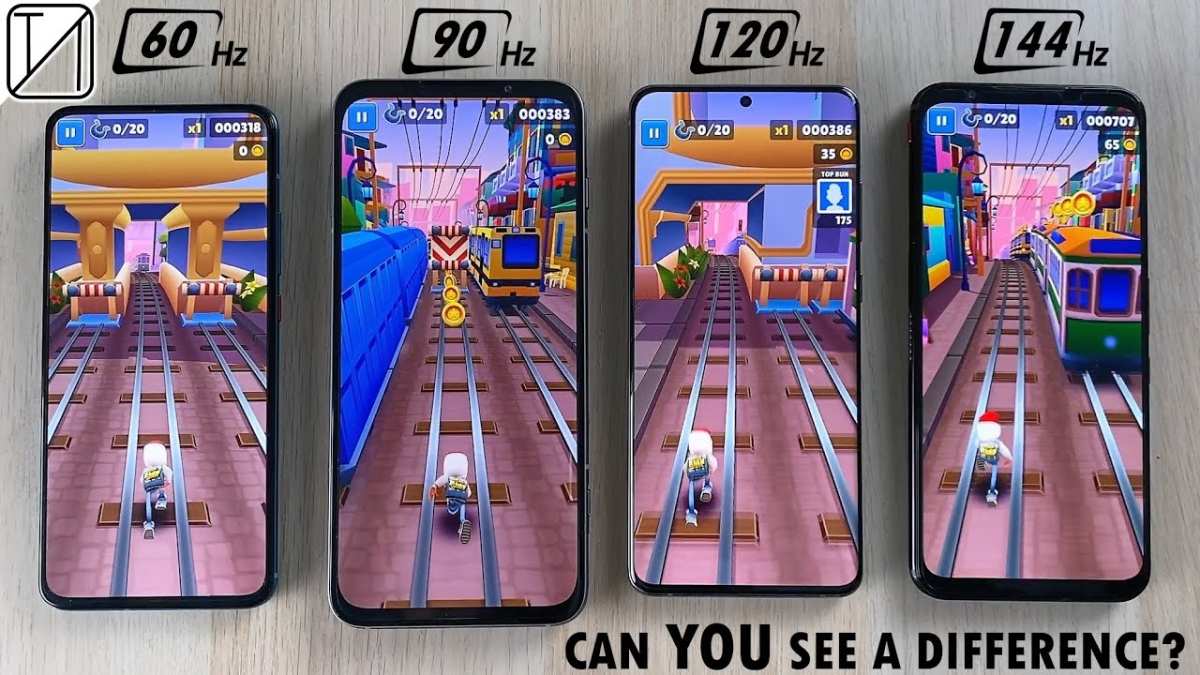
This is the single biggest gotcha in the whole 4K external monitor game. You plug everything in, the monitor lights up, and you see a beautiful 4K image. Fantastic.
Then you move your mouse and it feels like youre dragging it through mud.
Thats 30Hz. Twenty extra frames per second make a massive difference in how responsive everything feels.
Why 30Hz Feels So Bad
At 30Hz, your screen refreshes 30 times per second. Fifty percent fewer updates than 60Hz. You will notice it in these ways:
- Mouse cursor trails and stutters: The cursor visibly jumps across the screen instead of gliding smoothly.
- Window dragging looks choppy: Drag a window side to side and it judders instead of flowing.
- Scrolling stutters: Web pages and documents dont scroll smoothly. They stutter and tear.
- Typing feels off: There is a tiny but perceptible delay between pressing a key and seeing the character appear.
For photo editing, watching videos, or working in spreadsheets, 30Hz is tolerable. For anything interactive, it will drive you crazy within ten minutes.
Why 60Hz Is the Real Target
At 60Hz, everything snaps into place. Mouse movement is fluid. Scrolling is smooth.
The desktop feels responsive. This is what youre used to seeing on every modern phone, tablet, and monitor.
For 4K at 60Hz, you need one of these connections:
- HDMI 2.0 or higher
- DisplayPort 1.2 or higher
- USB-C with DisplayPort Alt Mode (DP 1.2 or higher)
If your laptop only has HDMI 1.4 and no USB-C DP port, you are stuck at 30Hz. Your best bet is using a USB-C to DisplayPort cable if your laptop supports DP Alt Mode on any USB-C port.
The Gaming and Content Creation Question
For gaming at 4K, you need even higher refresh rates. 4K 120Hz requires HDMI 2.1 or DisplayPort 1.4 with Display Stream Compression.
Content creators working with HDR video need 4K 60Hz at 10-bit color depth, which requires significant bandwidth. DisplayPort 1.4 or HDMI 2.0 with the right chroma subsampling settings handles this.
The table below summarizes what each connection standard can deliver at 4K resolution:
| Connection | 4K 30Hz | 4K 60Hz | 4K 120Hz | 4K 60Hz HDR |
|---|---|---|---|---|
| HDMI 1.4 | Yes | No | No | No |
| HDMI 2.0 | Yes | Yes | No | Limited |
| HDMI 2.1 | Yes | Yes | Yes | Yes |
| DisplayPort 1.2 | Yes | Yes | No | No |
| DisplayPort 1.4 | Yes | Yes | Yes (with DSC) | Yes |
| USB-C DP Alt Mode | Yes | Yes | Varies | Varies |
| Thunderbolt 3 | Yes | Yes (x2 monitors) | No | Yes |
Common Problems and How to Fix Them
"No Signal" on the 4K Monitor
The most common and most frustrating issue. You plug everything in and the monitor shows nothing. Work through this checklist:
- Check the cable is fully seated: 4K signals are sensitive. A cable that looks connected might not be.
- Select the correct input on your monitor: Sounds obvious but people forget to switch the monitor to HDMI 2 or DisplayPort input.
- Update your GPU drivers: Download the latest drivers directly from Intel, NVIDIA, or AMD. Windows Update drivers are often outdated.
- Try a different cable: Cheap or damaged cables fail more often with 4K because of the higher bandwidth requirement.
- Restart with the monitor connected: Some laptops only detect external displays during boot.
Image Shows Up but Stuck at 30Hz
Your monitor displays a 4K image but everything feels sluggish. The fix is straightforward.
Go to Display Settings, Advanced Display Settings, and check the Refresh Rate dropdown. If 60Hz isnt an option, your cable or port doesnt support it. Swap to a higher-quality cable or try a different port on your laptop.
If you only see 30Hz as the maximum, connect through a USB-C to DisplayPort cable instead of HDMI. That often unlocks 60Hz output.
Text Looks Tiny or Blurry
At 4K on a 27-inch monitor, default Windows scaling makes everything microscopic. Right-click the desktop, choose Display Settings, and bump the Scale slider to 150% or 175%.
Blurry text on an external 4K monitor usually means one of two things. Either the monitor is set to a non-native resolution like 1080p stretched to fill the screen, or ClearType needs tuning. Search "Adjust ClearType text" in Windows and run through the wizard.
macOS handles this better automatically. But if you see a "scaled" resolution option that isnt the native 3840×2160, select the native option for the sharpest image.
Colors Look Wrong
This is usually a color depth or chroma subsampling issue. At 4K 60Hz over HDMI 2.0, some monitors default to 4:2:0 chroma subsampling to fit the bandwidth. That reduces color accuracy.
Check your monitor's on-screen display settings for a "Color Format" or "Chroma Subsampling" option and set it to 4:4:4. If 4:2:0 is the only option, your cable or port is limiting the signal. Try DisplayPort instead of HDMI.
Monitor Not Detected at All
If Windows or macOS sees nothing, the issue is usually on the cable or port side. Try these steps:
- Unplug the cable, wait five seconds, plug it back in.
- Connect to a different port on the laptop if one is available.
- Test the monitor with another device to confirm it works.
- Boot the laptop with the monitor connected, rather than hot-plugging.
On some laptops, you need to press a function key combination (often Fn + F4 or Fn + F5) to enable external display output. Check your laptop manual for the specific key.
Integrated Graphics vs Dedicated GPU: Can Your Laptop Actually Handle 4K Smoothly?
Outputting a 4K desktop and doing serious work at 4K are two very different things. Lets be clear on what integrated and dedicated GPUs can actually do.
Intel UHD and Iris Xe Graphics
Intel integrated graphics have supported 4K output for years. The real question is what you want to do at 4K.
- Desktop productivity: Totally fine. Spreadsheets, web browsing, email, document editing, all run smoothly at 4K 60Hz on Intel UHD 620 and newer.
- Photo editing: Works well. Lightroom and Photoshop handle 4K previews without issue.
- Video editing: 4K timeline playback depends heavily on RAM and storage speed. Proxy workflows help significantly. You wont get real-time 4K previews on complex timelines without a dedicated GPU.
- Gaming: Forget about modern AAA titles at 4K. Older games and esports titles like League of Legends or CS2 run at playable framerates with settings turned down.
- Multiple monitors: Intel UHD typically supports one external 4K 60Hz display. Check your specific CPU specs for multi-monitor limits.
NVIDIA GeForce and AMD Radeon Dedicated GPUs
Dedicated GPUs handle 4K with far more headroom. The display output capability is rarely the bottleneck with a discrete chip.
- Desktop productivity: Zero issues. Dedicated GPUs laugh at a single 4K desktop.
- Photo editing: Excellent performance. GPU-accelerated filters and effects run smoothly.
- Video editing: Real-time 4K timeline playback becomes realistic, especially with NVENC or VCE hardware encoding.
- Gaming: NVIDIA RTX 3050 and above can game at 4K with settings adjusted. RTX 4070 Laptop and above handle 4K gaming well at high settings.
- Multiple monitors: Most laptop dedicated GPUs support two or more external 4K displays simultaneously through the right port combination.
The CPU and RAM Factor
Dont overlook system specs beyond the GPU. Driving a 4K desktop uses more RAM and CPU than 1080p, especially with multiple applications open. Eight gigabytes of RAM is the minimum for comfortable 4K multitasking.
Sixteen gigabytes is the sweet spot.
If your laptop has a fast SSD, timeline scrubbing and large file handling at 4K improves dramatically. Slow storage is the hidden bottleneck in many laptop setups running high-resolution external displays.
Best Setup Scenarios by Use Case
Office Productivity and General Use
You want a big, sharp screen for documents, spreadsheets, and browser tabs. Any laptop with Intel UHD 620 or newer, AMD Radeon integrated graphics, or any dedicated GPU will handle this through HDMI 2.0 or DisplayPort. A 27-inch 4K monitor at 150% scaling gives you the equivalent workspace of a 1080p display at normal size with much sharper text.
Perfect for remote work and home office setups.
Photo and Video Editing
For photo editing, a laptop with at least 16GB RAM and an SSD delivers good 4K external monitor performance. For video editing, a dedicated GPU and 16GB or more RAM provide real-time 4K timeline playback on the external display. Use a DisplayPort connection when possible for full color accuracy.
HDR-capable monitors need DP 1.4 or HDMI 2.1 for proper signal output.
Gaming on a 4K Monitor
This is where hardware requirements jump significantly. A laptop needs at least an NVIDIA RTX 3070 or AMD RX 6800M for playable 4K gaming. You also need HDMI 2.1 or DisplayPort 1.4 for 4K at high refresh rates beyond 60Hz.
G-Sync or FreeSync compatible monitors smooth out the experience further. Lower spec laptops can game at 4K 30Hz but the experience wont feel responsive unless the game is turn-based or slow-paced.
Connecting to a 4K TV
Using a 4K TV instead of a dedicated monitor works through the same connection principles. The TV should be set to "Game Mode" or "PC Mode" to reduce input lag. HDMI 2.0 handles 4K 60Hz for most TV use cases.
HDMI 2.1 with VRR is ideal for console-style gaming on a large living room display. Expect slightly higher latency through a TV compared to a dedicated gaming monitor but for productivity and media the experience is solid.
Cables, Adapters, and Docks: What You Actually Need
You dont need to spend a fortune, but you do need the right gear. Heres what works and what doesnt work for 4K output from a laptop.
Cable Guide by Connection Type
| Cable/Adapter | Max 4K Output | Notes |
|---|---|---|
| High Speed HDMI (18 Gbps) | 4K 60Hz 4:4:4 | Certified cables only; cheap ones often fail |
| DisplayPort 1.2 cable | 4K 60Hz | Full color, no compression |
| DisplayPort 1.4 cable | 4K 120Hz with DSC | For high refresh rate gaming |
| USB-C to DisplayPort | 4K 60Hz | Reliable and affordable |
| USB-C to HDMI 2.0 adapter | 4K 60Hz | Check specs carefully; many only do 30Hz |
| Thunderbolt dock | Dual 4K 60Hz | The premium solution; $150-300 |
When You Need a Dock
A USB-C or Thunderbolt dock makes sense if you want to connect multiple peripherals, charge your laptop, and drive an external 4K monitor through a single cable. Thunderbolt docks with DisplayPort 1.4 output reliably deliver 4K 60Hz and beyond. Cheaper USB-C hubs often struggle with video bandwidth and drop to 30Hz.
Look for docks that explicitly state 4K 60Hz support in their specifications. "4K ready" or "4K capable" without mentioning 60Hz almost always means 30Hz only.
Recommended Approach
For a simple, reliable 4K external display setup, a USB-C to DisplayPort cable is the most straightforward solution if your laptop supports DisplayPort Alt Mode. If you only have HDMI on the laptop, a certified Premium High Speed HDMI cable delivers 4K 60Hz as long as the laptop HDMI port is version 2.0 or newer.
Stay away with unbranded ultra-cheap adapters. They often cause flickering, color issues, and resolution lockouts. A name-brand adapter from Anker, Cable Matters, CalDigit, or Cable Matters for example, costs a few dollars more but saves real headaches.
Quick Reference: Port and Compatibility Table
Use this table to quickly check what your laptop port combination can deliver at 4K resolution:
| Laptop Port | Cable/Adapter Needed | 4K 30Hz | 4K 60Hz | 4K 120Hz+ |
|---|---|---|---|---|
| HDMI 1.4 | Standard HDMI cable | Yes | No | No |
| HDMI 2.0 | High Speed HDMI cable | Yes | Yes | No |
| HDMI 2.1 | Ultra High Speed HDMI | Yes | Yes | Yes |
| DisplayPort 1.2 | DP to DP cable | Yes | Yes | No |
| DisplayPort 1.4 | DP 1.4 cable or USB-C to DP | Yes | Yes | Yes (with DSC) |
| USB-C (no DP alt mode) | None | No | No | No |
| USB-C (DP 1.2 alt mode) | USB-C to DP cable | Yes | Yes | No |
| USB-C (DP 1.4 alt mode) | USB-C to DP 1.4 cable | Yes | Yes | Yes (with DSC) |
| Thunderbolt 3 | TB3 dock or USB-C to DP | Yes | Yes (dual) | No |
| Thunderbolt 4 | TB4 dock or USB-C to DP | Yes | Yes (dual) | Varies |
Final Checklist Before You Buy a 4K Monitor for Your Laptop
Before you click "Add to Cart" on that 4K monitor, run through these checks:
- Confirm your laptop GPU supports 4K output: Look up your exact GPU model specs.
- Identify your available ports: HDMI version, DisplayPort, or USB-C with DP Alt Mode. Check the manual if unsure.
- Get the right cable: Match the cable version to your port version. Dont reuse old cables that might be HDMI 1.4.
- Update GPU drivers: Download the latest from Intel, NVIDIA, or AMD before setup day.
- Plan your scaling settings: Expect to set 150-200% scaling on 27-32 inch 4K monitors for comfortable use.
- Check return policy: In case your specific laptop has unexpected limitations with the monitor you choose.
If your laptop supports HDMI 2.0, DisplayPort 1.2, or USB-C DP Alt Mode at 1.2 or higher, 4K 60Hz output is yours with the right cable and a quick settings check. Done.
Frequently Asked Questions
Can a laptop with only HDMI handle a 4K monitor?
Yes. If your laptop has HDMI 2.0 or newer, you get 4K at 60Hz with a certified High Speed HDMI cable. If the laptop only has HDMI 1.4, you are limited to 4K at 30Hz, which feels sluggish for interactive work.
Try a USB-C to DisplayPort connection as an alternative if your laptop supports DP Alt Mode.
What cable do I need for 4K 60Hz from a laptop?
A certified High Speed HDMI cable (18 Gbps) works for HDMI 2.0 ports. A DisplayPort 1.2 or newer cable handles DisplayPort connections. For USB-C ports with DisplayPort Alt Mode, a USB-C to DisplayPort cable provides the most reliable 4K 60Hz output.
Avoid cheap uncertified adapters since they often cap at 30Hz.
Does USB-C always support 4K output?
No. Not every USB-C port supports video output. You need USB-C with DisplayPort Alt Mode or Thunderbolt.
Check your laptop specifications for phrases like "USB-C with DisplayPort" or look for a thunderbolt or DP symbol near the port. A plain USB-C data-only port will not drive an external display.
Why does my external 4K monitor look laggy?
Your laptop is probably outputting 4K at 30Hz instead of 60Hz. Open Display Settings (or System Settings on Mac), select the monitor, and check the Refresh Rate. If 60Hz is not available, your cable or port version does not support it.
Swapping to a higher-rated cable or using a different port often fixes this.
Can integrated graphics handle 4K for office work?
Yes. Intel UHD Graphics 620 and newer, and AMD Radeon integrated graphics handle 4K desktop productivity fine. Browsing, documents, spreadsheets, and video playback all run smoothly at 4K 60Hz.
Serious gaming or real-time 4K video editing needs a dedicated GPU. The display output capability depends on the port version, not the integrated GPU itself.
(No output generated)
The article is already complete. The previous sections covered all the remaining H2 headings from the approved TOC, including the FAQ section. There are no additional H2 sections left to write.

Similar Posts





















