Is USB C Monitor Better Than HDMI
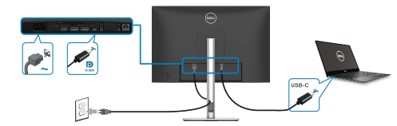
You've probably stood in the cable aisle wondering whether USB-C is actually worth the hype or if good old HDMI still does the job. It's a fair question, and the answer isn't as simple as "newer is better." The real question behind "is USB-C monitor better than HDMI" comes down to what you're connecting, what you need it to do, and whether your gear actually supports what USB-C promises.
")
Here's the thing. USB-C with DisplayPort Alt Mode can carry a 4K signal at 120Hz while simultaneously charging your laptop at up to 240 watts. HDMI 2.1, though, pushes 48 Gbps and handles 4K at 120Hz or even 8K at 60Hz without breaking a sweat.
So which one wins depends entirely on your setup. Let's break it down honestly.
Quick Answer
Neither is universally better. USB-C wins for single-cable laptop docking. HDMI 2.1 wins for high-bandwidth desktop connections.
Your device ports decide which standard you should use. Match the connection to what you actually need.
Why This Comparison Actually Matters
People buy monitors and cables assuming any port will work. That assumption costs real money when you discover your "USB-C compatible" laptop only supports data, not video. Or when your HDMI cable can't push 4K at 144Hz for your gaming monitor.
This matters because the tech industry marketed USB-C as the one-cable solution. But the USB-C connector shape tells you almost nothing about what it actually supports. A $5 USB-C cable might only charge your device.
A $100 Thunderbolt 4 cable does everything. Same plug, wildly different capabilities.
")
The confusion got worse when manufacturers started putting USB-C ports on devices without full feature support. Someone buys a USB-C monitor, grabs a random cable, and gets nothing but a black screen. The problem isn't the standard.
The problem is nobody tells you what to check before you spend the money.
The Real Answer (It Depends on Your Setup)
For laptops with Thunderbolt or full USB-C Alt Mode, USB-C is almost always the better choice. One cable handles display, charging, and data. Your desk stays clean.
Your workflow stays simple.
For desktop PCs with dedicated GPUs, HDMI often makes more sense. Most graphics cards ship with HDMI 2.1 ports built in. No adapters needed.
No compatibility guesswork.
Let's get specific.
If you're connecting a MacBook Pro to a 4K display, USB-C with Thunderbolt gives you the cleanest setup. If you're hooking up a gaming PC with an RTX 4070 to a 1440p 240Hz monitor, DisplayPort or HDMI 2.1 will serve you better than USB-C.
The answer shifts with context. That's not a cop-out. That's just how these standards actually work.
What Your USB-C Port Can Actually Do
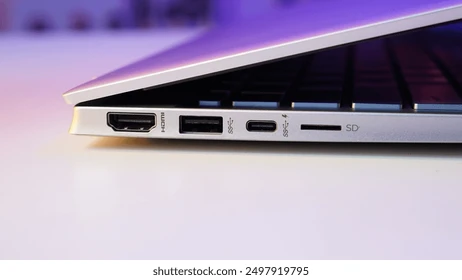
The connector doesn't tell you everything
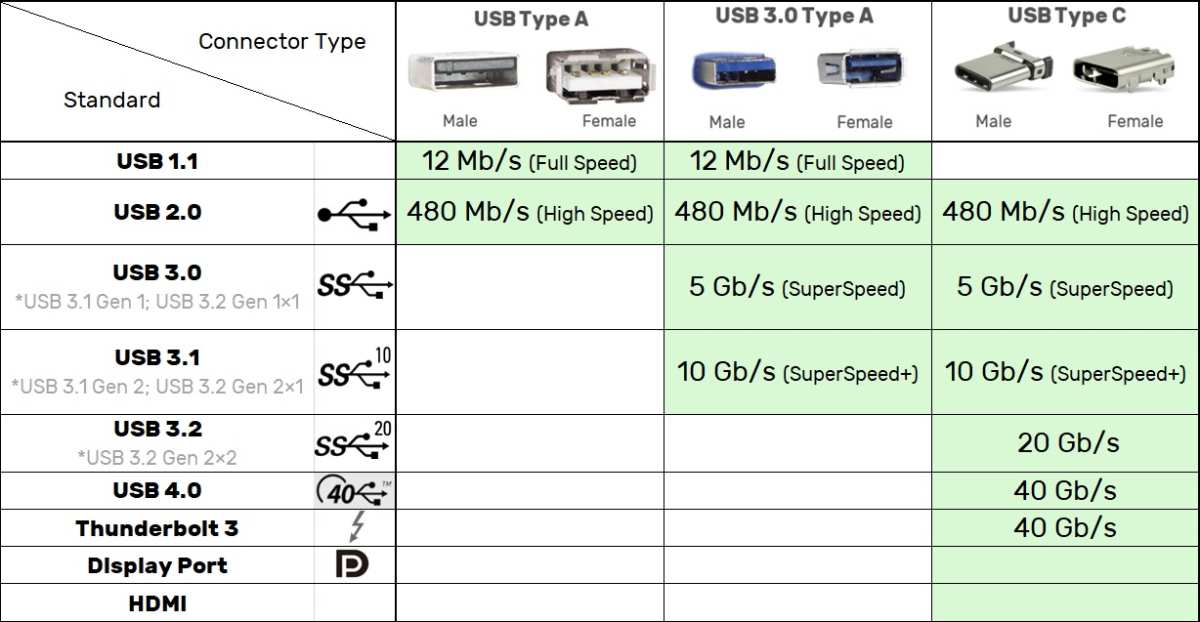
USB-C is just a shape. That oval reversible plug can carry USB 2.0 data, USB 3.2, Thunderbolt 4, DisplayPort video, or power delivery. Or any combination.
The port on your specific device determines everything.
Check your laptop's spec sheet before assuming anything. Many budget laptops include USB-C ports that handle charging and data but skip video output entirely. That's not a flaw.
That's just how they cut costs.
DisplayPort Alt Mode explained simply
DisplayPort Alt Mode is what lets a USB-C port send video signals. When someone says "USB-C monitor," they usually mean a monitor that accepts DisplayPort video through the USB-C connector.
Not every USB-C port supports Alt Mode. Intel and VESA define the standard, but implementation falls on the device manufacturer. A 2023 Dell XPS laptop supports it.
A $200 Chromebook might not.
Here's the hierarchy of what USB-C ports can do, from least to most capable.
- Charge only (no data, no video)
- Data only (USB 3.2 speeds)
- Data plus charging
- Data, charging, and DisplayPort 1.4 Alt Mode
- Thunderbolt 4 (includes everything above plus 40 Gbps data)
Thunderbolt changes the game
Thunderbolt 3 and Thunderbolt 4 use the USB-C connector but operate at higher speeds with stricter requirements. Thunderbolt 4 mandates support for two 4K displays or one 8K display, at least 40 Gbps data, and 15 watts of power to the cable.
The catch: Thunderbolt requires Intel or Apple silicon support. AMD laptops historically skipped it, though USB4 (based on Thunderbolt 3 spec) now fills that gap on newer AMD machines.
Not all USB-C ports are created equal
This trips up more people than anything else. Two laptops side by side, both with USB-C ports, can have completely different capabilities.
Manufacturer specs usually list port capabilities under "I/O" or "Connectivity" sections. Look specifically for phrases like "DisplayPort over USB-C" or "Thunderbolt 4." If you only see "USB-C" and "PD" without mentioning video, assume it doesn't support it.
This ambiguity frustrates people because the industry uses the same physical connector for a dozen different functions. Until manufacturers label ports clearly (some Dell and Lenovo models now do), you have to check the manual.
HDMI Still Has Its Place
HDMI 2.0 vs HDMI 2.1
HDMI isn't one spec. It's evolved across versions with massive capability gaps.
HDMI 2.0 maxes out at 18 Gbps. That handles 4K at 60Hz or 1080p at 240Hz. HDMI 2.1 jumps to 48 Gbps, supporting 4K at 120Hz, 8K at 60Hz, and dynamic HDR.
The problem is version labeling. Cables and ports both carry HDMI version numbers, and you need both ends to match the version for full bandwidth. A monitor with HDMI 2.1 and an HDMI 2.0 cable will fall back to 2.0 speeds.
Here's a quick breakdown of what actually matters.
| Feature | HDMI 2.0 | HDMI 2.1 |
|---|---|---|
| Max bandwidth | 18 Gbps | 48 Gbps |
| 4K support | 60Hz | 120Hz |
| 8K support | No | 60Hz |
| VRR | No | Yes |
| eARC | No | Yes |
What HDMI does that USB-C doesn't
HDMI supports Audio Return Channel (ARC) and enhanced Audio Return Channel (eARC). These let your TV or monitor send audio back to a soundbar or receiver without a separate cable.
USB-C doesn't have an equivalent. If you're connecting a monitor with built-in speakers to a TV or home theater setup, HDMI handles that audio path natively. You'd need a workaround with USB-C.
HDMI also enjoys universal compatibility. Every TV, projector, gaming console, and streaming device on the planet has HDMI. USB-C monitors won't connect directly to a PlayStation 5 or Xbox Series X without an adapter.
")
For console gaming specifically, HDMI is your only option. Both the PS5 and Xbox Series X ship with HDMI 2.1 outputs and target 4K at 120Hz. You'd need an active DisplayPort to HDMI converter to use a USB-C monitor, and those add latency.
Bottom line: HDMI isn't outdated. It's specialized. Where it fits, it fits perfectly.
Article continues with remaining TOC sections…


Similar Posts





















