Can Touchscreen Monitors Run on Battery
Can touchscreen monitors run on battery? Yes, but only if you have the right monitor or the right external power solution. Most standard touchscreen monitors ship without any battery capability at all.
They expect a wall outlet and nothing else.
The good news is that a growing number of portable touchscreen monitors now include built-in lithium-ion batteries, and you can also power many USB-C-compatible touchscreen monitors with the right external battery pack. The catch is understanding wattage requirements, USB-C Power Delivery specs, and realistic battery life expectations before you invest in the wrong setup.
Quick Answer
Yes, some touchscreen monitors run on battery. A handful of portable models include built-in rechargeable batteries. Many USB-C touchscreen monitors can also run on compatible external battery packs.
Standard AC-powered touchscreen monitors need a portable power station or inverter. Battery life typically ranges from 2 to 6 hours depending on screen size and brightness.
Why Most Touchscreen Monitors Don't Run on Battery (and Which Ones Actually Do)
Here's the reality. The vast majority of touchscreen monitors on the market in 2026 are designed to plug into a wall outlet. They don't have batteries.
They don't have power management circuitry for DC input beyond what USB-C provides. They just expect AC power, full stop.
That said, there are two categories that do work on battery power.
Category 1: Monitors with built-in batteries. These are purpose-built portable displays. They ship with an integrated lithium-ion battery, a charging circuit, and firmware that manages power draw. Think of them as the monitor equivalent of a laptop, a self-contained unit you can use anywhere.
Category 2: USB-C monitors that accept external battery power. Many modern portable touchscreen monitors accept power over USB-C using the USB Power Delivery (USB-PD) standard. If your battery source can deliver the right voltage and wattage through USB-C PD, the monitor runs. No built-in battery needed.
The confusion most people run into is assuming all USB-C monitors can run on any power bank. That's not how it works. The monitor's power requirements and the power source's output profile have to match.
We'll break that down in detail below.
The Power Problem: Why Touchscreen Monitors Are Power-Hungry
Touchscreen monitors draw more power than non-touch displays of the same size. The touch sensor layer, whether it's capacitive or resistive, adds power consumption on top of the display panel itself.
Here's what you're typically looking at.
| Screen Size | Typical Non-Touch Power Draw | Typical Touchscreen Power Draw |
|---|---|---|
| 10.1" | 6–10W | 8–14W |
| 13.3" | 8–12W | 12–20W |
| 14" | 10–14W | 15–25W |
| 15.6" | 12–18W | 20–35W |
| 17" | 15–22W | 25–40W |
| 21.5"+ | 20–30W | 30–65W |
Manufacturer specifications for popular models confirm this range. A 15.6" ASUS ZenScreen with touch, for example, pulls around 22 watts under normal use. Some larger or brighter panels push past 40 watts.
Why does this matter? Because most consumer power banks top out at 45W or 65W USB-C output. A monitor drawing 35W leaves very little headroom on a 45W power bank.
And if your monitor needs 60W or more, a standard power bank won't cut it.
Brightness is the biggest variable. Running a touchscreen monitor at 100% brightness can nearly double its power draw compared to 50%. If you're trying to maximize battery life, turning down brightness is the single most effective thing you can do.
Option 1: Monitors With Built-In Batteries
This is the simplest path. You buy a monitor that already has a battery inside, charge it, and use it anywhere. No compatibility guessing.
No wattage math. It just works.
Several manufacturers make these as of 2026. ASUS has models in their ZenScreen line. Espresso makes a premium battery-powered touchscreen display aimed at professionals.
Lenovo and ViewSonic have offered portable touchscreen monitors with integrated batteries in various product cycles.
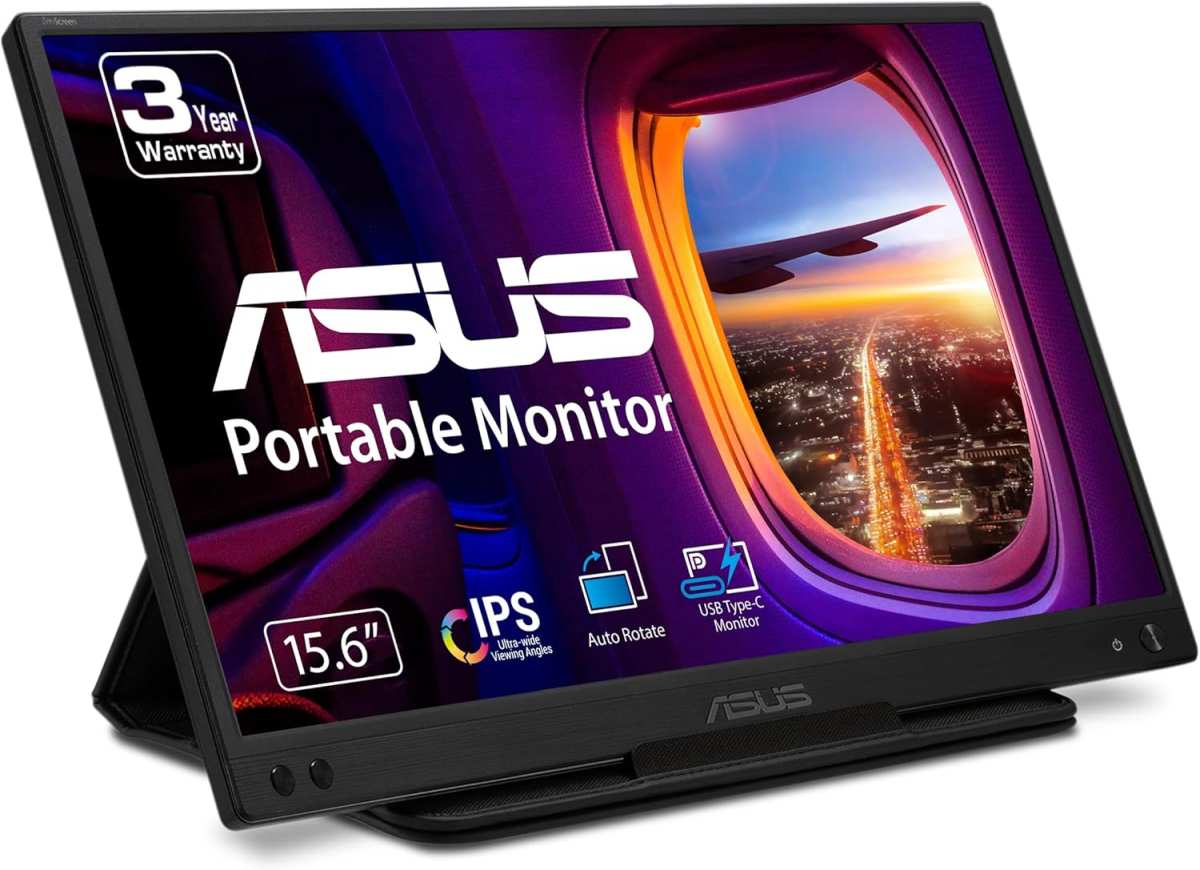
What to expect from built-in battery monitors:
- Battery life of 2 to 5 hours at moderate brightness
- Weight between 1.5 and 3.5 pounds
- Screen sizes from 10" to 17"
- Prices starting around $250 and reaching $800 or more
- USB-C charging with passthrough (you can use it while charging)
- Battery level indicator in the on-screen display
Pros of built-in battery monitors:
- No external battery to carry or match
- Clean, single-cable setup for video and power
- Designed and tested as a complete system
- Usually includes power management firmware
Cons of built-in battery monitors:
- More expensive than non-battery equivalents
- Battery degrades over 2, 4 years of regular use
- Heavier than non-battery portable monitors
- Limited model selection compared to standard monitors
- When the battery eventually dies, you're replacing the whole unit or living with reduced portability
Built-in battery monitors make the most sense if you want a grab-and-go solution and don't want to think about power compatibility. You're paying for convenience, and for many mobile professionals, that's worth it.
Option 2: Powering a Standard Touchscreen Monitor With an External Battery
This is where things get more flexible and more complicated. If you already own a USB-C touchscreen monitor, or you want to choose from a wider range of monitors, you can power it with an external battery. But you need to get the specs right.
Understanding Wattage Requirements
Before you buy anything, check your monitor's power requirements. Look at the label on the back, the spec sheet on the manufacturer's website, or the included power adapter. You need to know two things: the voltage (V) and the amperage (A), or the total wattage (W).
Multiply volts by amps to get watts. A monitor rated at 19V and 2.1A draws about 40 watts. That's your target number.
Your power source needs to deliver at least that many watts, ideally 10, 20% more. A monitor that pulls 35W should have a power source capable of 40W or more continuous output. Running a power source at its absolute limit generates heat and reduces efficiency.
USB-C Power Delivery: The Key to Making It Work
USB Power Delivery is the standard that makes battery-powered monitors practical. USB-PD allows devices to negotiate voltage and current levels over a USB-C cable, up to 240W in the latest specification (USB PD 3.1).
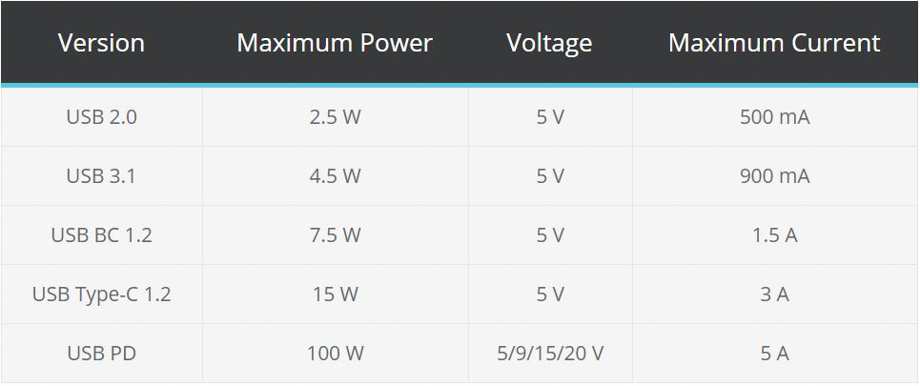
The USB-IF (USB Implementers Forum) defines the PD profiles. Here are the common ones you'll encounter.
| USB-C PD Profile | Voltage | Max Current | Max Power |
|---|---|---|---|
| PD 2.0/3.0 Default | 5V | 3A | 15W |
| PD 3.0 | 9V | 3A | 27W |
| PD 3.0 | 15V | 3A | 45W |
| PD 3.0 | 20V | 3A | 60W |
| PD 3.0 | 20V | 5A | 100W |
| PD 3.1 | 28V | 5A | 140W |
| PD 3.1 | 36V | 5A | 180W |
| PD 3.1 | 48V | 5A | 240W |
Most touchscreen monitors that accept USB-C power fall into the 45W to 65W range. That means you need a power bank or power station that supports a 15V/3A (45W) or 20V/3.25A (65W) PD profile.
Critical detail: Not all USB-C ports on power banks support Power Delivery. Many power banks have a USB-C port that only outputs 15W (5V/3A). That's fine for phones.
It won't run a monitor. You need a power bank that specifically advertises 45W, 65W, or 100W USB-C PD output.
Power Banks vs. Portable Power Stations
For monitors drawing 45W or less, a high-wattage USB-C power bank can work. Look for models rated at 65W or 100W USB-C PD output with at least 20,000mAh capacity. At 45W draw, a 20,000mAh power bank (at 3.7V nominal, roughly 74Wh) will run a monitor for about 1.5 to 2 hours.
A 26,800mAh power bank at 100Wh gives you closer to 2 to 2.5 hours.
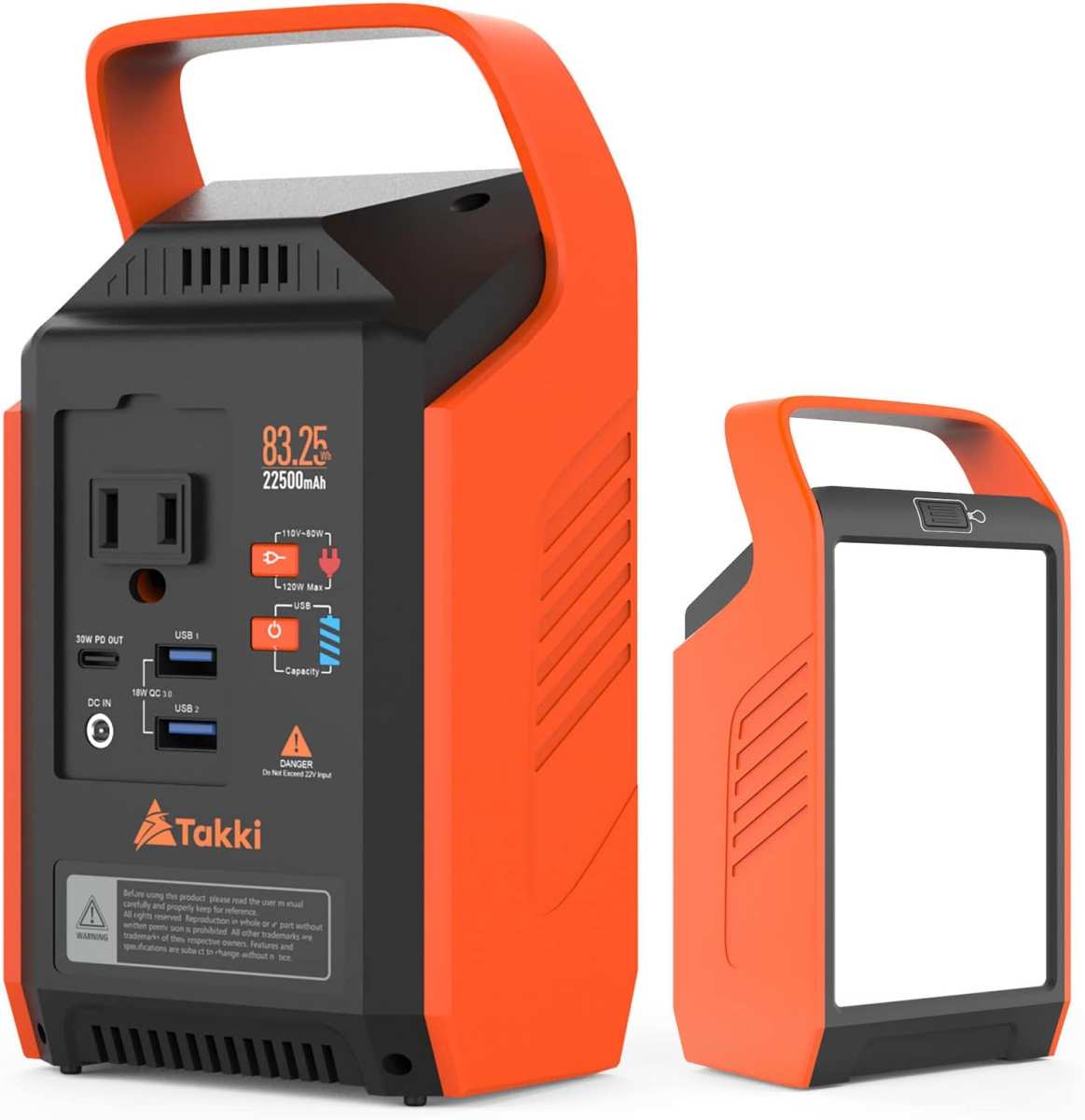
For monitors drawing 65W or more, or if you need longer runtime, a portable power station is the better choice. These are larger battery units with AC outlets, USB-C PD ports, and capacities measured in watt-hours (Wh). A 300Wh portable power station can run a 40W monitor for roughly 6 to 7 hours, accounting for conversion losses.
We'll cover portable power stations in the next section.
Key takeaway: Match your power source's USB-C PD output profile to your monitor's input requirements. If your monitor needs 20V/2.5A (50W), your power source must support a 20V profile at 3A or higher. A power bank that only outputs 5V won't negotiate the right voltage, and the monitor simply won't turn on.
Option 3: Using a Portable Power Station for Extended Runtime
If you need serious battery life, a portable power station is the answer. These are compact battery generators with AC outlets, USB-A ports, and USB-C PD outputs. They're designed for camping, emergency backup, and off-grid work.
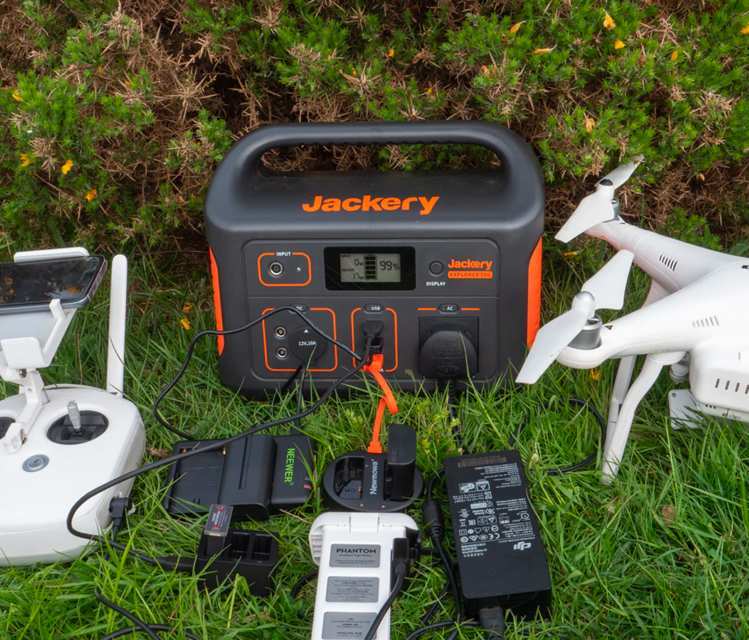
A portable power station lets you plug in your monitor's standard AC adapter. No USB-C PD compatibility worries. No voltage negotiation.
Just plug in and run.
How to size a power station for your monitor:
- Find your monitor's wattage (check the label or spec sheet).
- Multiply by the hours of runtime you need.
- Add 15% for inverter conversion losses.
- Choose a power station with at least that many watt-hours.
Example: A 30W touchscreen monitor running for 5 hours needs 150Wh, plus 15% losses, so roughly 175Wh minimum. A 250Wh power station handles that comfortably.
Pros of portable power stations:
- Works with any monitor, no USB-C PD compatibility needed
- AC outlet means you use the monitor's included power brick
- Much longer runtime than power banks
- Can power other devices simultaneously (laptop, phone, lights)
- Capacities from 150Wh to 2000Wh+
Cons of portable power stations:
- Heavier than power banks (5 to 30+ pounds)
- More expensive ($150 to $1000+)
- Larger physical footprint
- Fan noise on some models under load
- Need to keep charged between uses
Portable power stations are the right choice for field work, outdoor setups, and situations where you need a touchscreen monitor running for a full workday without access to outlets.
Real-World Battery Life: What to Actually Expect
Manufacturer claims and real-world results don't always match. Here's what aggregate user reports and power calculations show for common setups.
| Setup | Monitor Power Draw | Battery Capacity | Expected Runtime |
|---|---|---|---|
| 15.6" touchscreen + 20,000mAh 45W PD power bank | 25W | ~74Wh | 2–2.5 hours |
| 15.6" touchscreen + 26,800mAh 65W PD power bank | 35W | ~96Wh | 2–3 hours |
| 14" touchscreen + 250Wh power station | 20W | 250Wh | 8–10 hours |
| 15.6" touchscreen + 500Wh power station | 35W | 500Wh | 10–12 hours |
| Built-in battery monitor (varies by model) | 15–30W | 40–80Wh | 2–5 hours |
These numbers assume moderate brightness, around 50, 60%. Running at full brightness cuts runtime by 30, 40%. Cold weather also reduces lithium-ion battery capacity.
In near-freezing conditions, expect 20, 30% less runtime than rated.
Video playback and touch-heavy use increase power draw compared to static display. If you're constantly touching the screen, zooming, and scrolling, the touch controller stays active and draws more power.
Comparison: Battery Solutions for Touchscreen Monitors
Here's a side-by-side look at the three main approaches.
| Factor | Built-in Battery Monitor | USB-C PD Power Bank | Portable Power Station |
|---|---|---|---|
| Ease of use | Excellent | Moderate | Good |
| Compatibility worries | None | Must match PD profile | None (uses AC outlet) |
| Typical runtime | 2–5 hours | 1.5–3 hours | 6–12+ hours |
| Weight added | Built into monitor | 0.5–1.5 lbs | 5–25 lbs |
| Cost | $250–$800+ | $50–$150 for battery | $150–$600 |
| Works with existing monitor | No (must buy new monitor) | Yes (if USB-C PD input) | Yes (any monitor) |
| Best for | Grab-and-go simplicity | Light travel and short sessions | Full-day field work |
Choose built-in battery if: You want the simplest experience and are willing to pay for it. You're buying a new monitor anyway and portability is your top priority.
Choose a USB-C PD power bank if: You already own a compatible USB-C monitor and want a lightweight, affordable battery solution for short sessions of 1, 3 hours.
Choose a portable power station if: You need all-day runtime, you're using a monitor without USB-C power input, or you're powering multiple devices in the field.
Common Mistakes That Kill Your Setup (And How to Avoid Them)
Mistake 1: Using a power bank without USB-C PD. A standard USB-C power bank outputs 5V/2.1A (about 10W). Your touchscreen monitor needs 15V or 20V. The monitor won't power on.
Always verify your power bank supports USB Power Delivery at the right wattage.
Mistake 2: Ignoring cable quality. Not all USB-C cables support PD at high wattage. You need a cable rated for the power level you're using. A cable rated for 60W won't safely carry 100W.
Look for e-marked cables that specify their wattage rating.
Mistake 3: Forgetting about video signal. USB-C can carry power and video simultaneously, but not all monitors support this. Some monitors have a USB-C port for power only and require a separate HDMI or DisplayPort connection for video. Check your monitor's manual before assuming a single USB-C cable handles everything.
Mistake 4: Running the battery to zero. Lithium-ion batteries last longer when you keep them between 20% and 80%. Deep discharges stress the cells and reduce overall lifespan. Recharge before you hit 10%.
Mistake 5: Expecting laptop-level battery life. Touchscreen monitors aren't optimized for battery efficiency the way laptops are. Laptops throttle processors, dim displays, and enter low-power states aggressively. Monitors don't do this.
Your runtime will be shorter than you might expect from a similar-capacity battery.
Mistake 6: Buying based on mAh alone. Milliamp-hours don't tell you the full story. Watt-hours (Wh) is the meaningful number for comparing battery capacity across different voltages. A 20,000mAh power bank at 3.7V holds 74Wh.
A 15,000mAh power bank at 4.2V holds 63Wh. The mAh number looks bigger but the Wh number is smaller.
Who Actually Needs a Battery-Powered Touchscreen Monitor?
Not everyone does. For most people, a standard touchscreen monitor plugged into the wall is perfectly fine. But for certain use cases, battery power is essential.
Strong use cases:
- Field photographers and videographers reviewing shots on location
- Construction and architecture teams reviewing plans on-site
- Trade show exhibitors working without reliable venue power
- Mobile POS vendors at markets and pop-up events
- Remote educators teaching from locations without outlets
- Emergency response teams setting up mobile command stations
- Van life and RV travelers who want a touchscreen workstation
- Military and defense personnel in field operations
Weak use cases:
- Home office users near outlets
- Conference rooms with wall power
- Studio environments with permanent setups
- Anyone who can simply use a laptop instead
If you're in the "weak" category, a laptop with a touchscreen gives you everything a battery-powered monitor provides, plus a built-in computer. You don't need a separate monitor.
If you're in the "strong" category, a battery-powered touchscreen monitor fills a specific gap that nothing else quite covers.
Costs and What You'll Actually Spend
Here's a realistic pricing breakdown as of 2026.
| Solution | Typical Cost Range | What You Get |
|---|---|---|
| Built-in battery touchscreen monitor | $250–$800 | Complete portable display with integrated battery |
| USB-C PD power bank (65W, 20,000mAh+) | $50–$150 | External battery for compatible USB-C monitors |
| Portable power station (250–500Wh) | $150–$400 | Multi-device battery with AC outlets and USB-C PD |
| USB-C PD cable (e-marked, 100W) | $10–$25 | Properly rated cable for high-wattage PD |
If you're starting from scratch and want a built-in battery monitor, budget at least $300, $500 for a quality 15.6" model. If you already own a USB-C touchscreen monitor, a 65W PD power bank for $60, $100 is the most affordable path to battery power.
Portable power stations cost more upfront but offer the most versatility. A 250Wh station at $200, $300 can run a monitor, charge phones, and power small accessories simultaneously.
Expert Tips for Getting the Most Out of Your Battery-Powered Setup
Lower your brightness first. Dropping from 100% to 50% brightness can extend runtime by 40, 60%. Most people run monitors brighter than they need to, especially indoors.
Disable unused ports. If your monitor has USB-A ports, speakers, or an unused HDMI input, some models let you disable features in the on-screen display menu to save power.
Use a single USB-C cable when possible. If your monitor supports USB-C Alt Mode for video and power over one cable, use it. Carrying one cable instead of two is simpler and there's less to manage.
Keep your battery between 20% and 80% for daily use. Lithium-ion batteries are healthiest in this range. You don't need to charge to 100% before every use. Topping off at 80% is better for long-term battery health than always charging fully.
Carry a short, high-quality USB-C cable. Longer cables can cause voltage drop at high wattage. A 3-foot e-marked cable rated for your wattage level is ideal.
Pre-cool or pre-warm your battery if working outdoors. Lithium-ion batteries perform poorly below 32°F (0°C) and can temporarily lose 20, 30% capacity. Keep the power bank in an inside pocket close to your body in cold weather.
Final Decision Guide: Which Setup Is Right for You?
You want a built-in battery monitor if: You're buying new, you value simplicity, and you need 2, 5 hours of portable touchscreen use. You're willing to pay $300+ for a clean, all-in-one solution.
You want a USB-C PD power bank if: You already own a compatible USB-C touchscreen monitor, you need 1.5, 3 hours of runtime, and you want the lightest, most affordable battery option.
You want a portable power station if: You need 6+ hours of runtime, you're using a monitor without USB-C power input, or you're powering multiple devices in the field.
You don't need any of this if: You work near outlets, you can use a laptop instead, or your use case doesn't actually require a separate touchscreen display.
Frequently Asked Questions
Can I use any power bank to run a touchscreen monitor?
No. You need a power bank with USB-C Power Delivery output rated at 45W or higher. Standard power banks that only output 5V/2A (10W) won't power a touchscreen monitor.
Check both the wattage and the USB-C PD profile before buying.
How long does a touchscreen monitor last on a power bank?
It depends on the monitor's power draw and the power bank's capacity. A 20,000mAh power bank running a 25W monitor gives roughly 2 to 2.5 hours. A 26,800mAh power bank at 65W output running a 35W monitor gives about 2 to 3 hours.
Does touch input use more battery than just displaying an image?
Yes, but not dramatically. The touch controller adds a few watts of power draw. If you're displaying a static image with minimal touch interaction, you'll get slightly longer runtime than heavy touch use with constant interaction.
Can I charge and use a touchscreen monitor at the same time on battery?
Most USB-C monitors with PD input support passthrough charging. You can plug in a charger and use the monitor simultaneously. The battery charges while the monitor runs.
This effectively gives you unlimited runtime with access to a charger.
Will a battery-powered touchscreen monitor work on an airplane?
Lithium-ion batteries under 100Wh are generally allowed in carry-on luggage on most airlines. A built-in battery monitor with a battery under 100Wh is typically fine. Power banks under 100Wh are also allowed.
Always check your specific airline's policy before flying.

Similar Posts





















