Is 4K Monitor Good for Programming
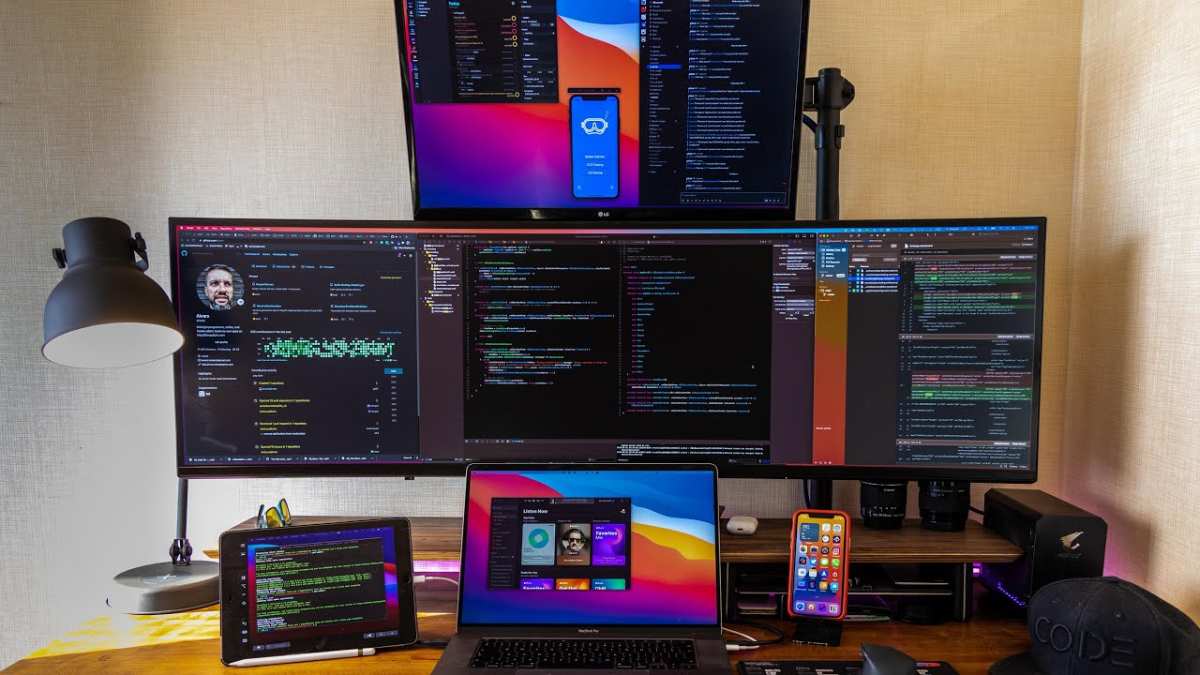
Image source: Bing (Web (fair-use with source credit))
Is 4K monitor good for programming? The honest answer is yes for most developers, but the real story depends on your operating system, your IDE, what GPU you're working with, and how you like to arrange your workspace.
Manufacturer specifications show a 27-inch 4K display packs roughly 163 pixels per inch, which means text looks noticeably sharper than a 1440p panel at the same size once you dial in the right scaling. Let's walk through what actually matters before you spend your money.
Quick Answer
A 4K monitor works well for programming in most cases. It gives you more screen space and sharper text than 1080p or 1440p displays. Your operating system and GPU need to support it properly.
The best choice depends on your monitor size, IDE, and workflow.
Why 4K for Programming Isn't a Simple Yes or No
Here's the thing. The answer changes based on your specific setup or we're just guessing. A frontend developer running VS Code on a MacBook Pro has a completely different experience than someone running IntelliJ on a Linux workstation with integrated graphics.
From our research, these are the real factors that decide whether 4K helps you or just gives you a headache:
- Your operating system's scaling behavior (Windows, macOS, and Linux all handle HiDPI differently)
- Your IDE and tools (VS Code and JetBrains scale well, some older tools don't)
- Your GPU (driving 4K at 60Hz minimum requires at least HDMI 2.0 or DisplayPort 1.2)
- Monitor size and viewing distance (27 inches at 4K looks crisp, 32 inches at 4K has lower PPI and may feel too large up close)
- Your workflow (multiple windows side by side or one full-screen IDE)
If you're coming from a 1080p monitor, the jump to 4K is dramatic. If you're already on a 27-inch 1440p display at 109 PPI, the improvement is real but not nearly as transformative.
The Decision Framework: 5 Questions to Ask Yourself
Rather than give you a blanket answer, let's run through five questions that actually determine whether a 4K monitor makes sense for your coding setup.
What's Your Primary Development Work?
Frontend developers and full-screen coders benefit the most from 4K. You can run your IDE, a browser with dev tools, and a design reference all visible at the same time. Data scientists running Jupyter notebooks, documentation dashboards, and terminal windows also gain a lot of usable space.
If you mostly write backend code in a single terminal or lightweight editor, a 4K display is nice but not essential. A 1440p monitor will serve you well and cost less.
What Size Monitor Are You Considering?
Pixel density matters more than raw resolution. Let's break it down:
| Screen Size | Resolution | PPI (Pixels Per Inch) | Scaling Sweet Spot |
|---|---|---|---|
| 27" | 4K (3840×2160) | ~163 PPI | 150% |
| 32" | 4K (3840×2160) | ~138 PPI | 125–150% |
| 27" | 1440p (2560×1440) | ~109 PPI | 100–125% |
| 24" | 4K (3840×2160) | ~184 PPI | 175–200% |
At 27 inches, a 4K panel hits a sweet spot where text looks razor-sharp at 150% scaling without making UI elements too small. At 32 inches, the PPI drops and you lose some of that crispness. A 24-inch 4K display packs very high pixel density, but you'll need aggressive scaling, which can introduce blurry rendering in apps that aren't DPI-aware.
What's Your Operating System and IDE?
This is where things get tricky. Scaling behavior varies across operating systems and tools:
- macOS: Handles HiDPI beautifully. Retina displays have been standard for years. Most apps scale without issues.
- Windows 11: Much improved over Windows 10. Per-monitor DPI awareness is solid in modern apps. Older Win32 applications may appear blurry at non-standard scaling ratios.
- Linux: Depends heavily on your desktop environment. GNOME and KDE have made strides with fractional scaling, but GTK2 apps and some Qt applications still render poorly at non-100% or non-200% scaling.
For IDEs specifically:
- VS Code: Excellent HiDPI support on all platforms
- JetBrains (IntelliPyCharm, WebStorm): Good support, but fractional scaling on Linux can be hit or miss
- Vim/Neovim in terminal: Depends entirely on your terminal emulator's font rendering, not DPI awareness
- Sublime Text: Generally handles scaling well across platforms
What GPU Are You Working With?
Driving a 4K display at 60Hz requires at minimum an HDMI 2.0 port or DisplayPort 1.2. Most dedicated GPUs from the last several years handle this without breaking a sweat.
Integrated graphics can also drive 4K, but there are caveats:
- Intel UHD 630 and newer supports 4K@60Hz over DisplayPort but is limited to 4K@30Hz over HDMI 1.4
- AMD Ryzen integrated graphics (Vega and newer) generally support 4K@60Hz over compatible outputs
- Apple Silicon Macs handle external 4K displays natively with no issues
If you're gaming at 4K alongside coding, you'll want a dedicated GPU, at minimum a GTX 1660 or RX 6600. For coding-only workloads at 4K, integrated graphics are completely fine.
Do You Also Game, Design, or Consume Media?
One 4K monitor can replace a dual 1080p setup for coding and pull double duty for gaming or media. Playing at native 4K requires a powerful GPU, but running the desktop at 4K and the game at 1440p or 1080p is a solid compromise.
If you consume a lot of video content or do any photo or UI design work, a 4K panel with good color accuracy, ideally covering at least 95% sRGB, covers all your bases.
The decision tree essentially flows like this:
- If you're on a 24-inch or smaller 1080p display and your GPU supports it, 4K is a genuine upgrade.
- If you're already on a 27-inch 1440p with 125% or 100% scaling, the jump is nice but not urgent.
- If your OS and IDE handle scaling well and you work with multiple windows, 4K pays off quickly.
- If you rely on older tools with poor DPI awareness, stick with 1440p and enjoy the hassle-free experience.

Image source: Bing (Web (fair-use with source credit))
How 4K Actually Feels for Coding Day to Day
Let's talk about what it's actually like to use a 4K monitor for programming once you've got it set up.
Text Clarity and Readability
This is the single biggest win. At native resolution with proper scaling, text in your IDE looks significantly sharper than on a 1080p panel and noticeably cleaner than 1440p at the same physical size. You can comfortably use smaller font sizes within your editor, around 10 to 12 points in VS Code or your terminal, while still reading for hours without squinting.
Our research shows that reviewers and developers who switch to a 27-inch 4K at 150% scaling consistently report less eye strain during long coding sessions. The additional pixel density makes anti-aliased fonts look closer to print quality.
This matters most for developers with weaker eyesight. If you currently push your IDE font size to 16 or 18 pixels on a 1080p display, a 4K setup lets you drop back to 12 or 13 pixels and still have extremely readable text with far more code visible on screen.
Screen Real Estate: What You Can Actually Fit
This is where the promise meets reality. With a 27-inch 4K display at 150% scaling, the effective workspace resolution is 2560×1440. That means you're getting the same logical space as a native 1440p monitor, but every pixel looks sharper.
Without any scaling at 100%, you get the full 3840×2160 of workspace, but every UI element becomes extremely small. Only developers with excellent vision or those sitting very close find this useable.
At 200% scaling, the effective resolution drops to 1920×1080. That's basically a sharp 1080p display, which wastes most of the benefit of the 4K panel.
Common effective workspace configurations at 150% scaling on a 27-inch 4K include:
- Two full-width code files side by side with plenty of room for a minimap or file tree
- One primary editor panel and a browser with dev tools full-height on the right
- A three-column layout with code, terminal, and reference documentation simultaneously visible
This eliminates a lot of window switching. We've heard from developers that productivity gains are noticeable for collaborative work or self-guided learning where you're frequently checking multiple sources. Actual speed improvements vary by person and workflow, but the reduction in window management friction is real.
The Scaling Problem Nobody Warns You About
Here's where 4K monitors can introduce headaches. Not every application respects your display scaling settings.
On Windows, legacy Win32 applications like older versions of PuTTY, some WinSCP dialogs, or older .NET desktop apps may render blurry when scaling isn't at 100%. Windows tries to bitmap-stretch these applications, which produces fuzzy text and UI elements.
macOS largely avoids this problem because Apple controls both the hardware and software stack. Linux remains the wild west, where scaling support depends on your display server, toolkit, and desktop environment.
A practical tip from our research: fractional scaling values like 125% or 175% sometimes trigger rendering glitches on Windows and Linux. Stick to 150% or 200% if possible, or test thoroughly before committing. Windows has a "Fix scaling for apps" option in display settings that helps with some applications.
For a smoother experience on a 4K monitor as of 2026:
- Prefer modern, electron-based or well-maintained applications that support per-monitor DPI awareness
- On Windows, right-click problematic exe files, go to Properties > Compatibility > Change high DPI settings, and check "Override high DPI scaling behavior" with "Application" selected
- On Linux, Westland with fractional scaling works best if your distribution supports it natively
- Budget time for initial configuration; the setup phase matters
Once the scaling is correctly set up, a 4K monitor can feel transformative for a developer. But spending an evening configuring IDE fonts, applying compatibility shims to older apps, and verifying GPU output capabilities is a common part of the process, one that slick product photos don't show. Let's make sure the resolution math and real-world alternatives steer your decision before you buy.
4K vs 1440p vs Ultrawide: Which Resolution Actually Wins for Developers
Let's put the three most popular developer display options side by side.
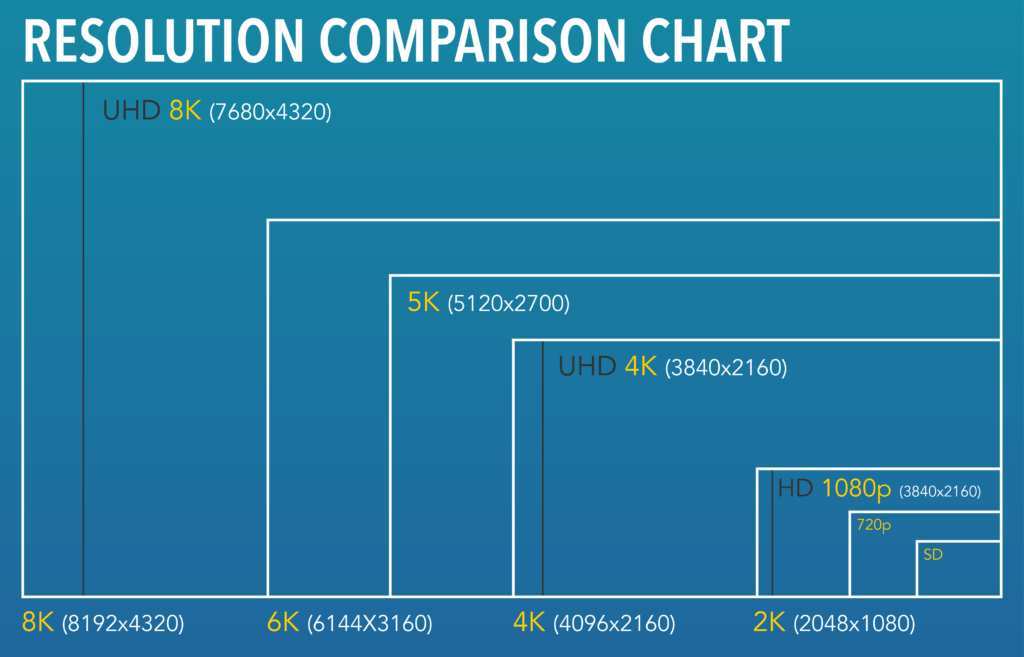
Image source: Bing (Web (fair-use with source credit))
| Factor | 27" 4K (3840×2160) | 27" 1440p (2560×1440) | 34" Ultrawide (3440×1440) |
|---|---|---|---|
| Pixel Density | ~163 PPI | ~109 PPI | ~110 PPI |
| Sharpness at 150% scaling | Excellent | Good (native feels larger) | Good |
| Effective Workspace | ~2560×1440 | ~2560×1440 (at 100%) | ~3440×1440 (wider, not taller) |
| IDE Text Clarity | Best in class | Comfortable at 100–125% | Comfortable at 100% |
| Multi-Window Flexibility | Very high | Moderate | High (great for side-by-side) |
| GPU Load for Desktop | Moderate | Low | Moderate |
| Gaming at Native Res | Needs strong GPU | Manageable on mid-range | Manageable on mid-range |
| Price Range (2025) | $250–$700 | $180–$400 | $300–$800 |
| Scaling Headaches | Possible on Windows/Linux | Minimal | Minimal |
A 27-inch 4K at 150% scaling gives you the same effective workspace as a 27-inch 1440p at 100%. The difference is that every pixel on the 4K display looks sharper. If you prioritize text clarity above all else, 4K wins.
The ultrawide gives you horizontal space that neither 4K nor 1440p matches. You can place three full-width columns of code side by side. The tradeoff is that you lose vertical space compared to a 16:9 display of the same diagonal size, and some full-screen applications waste the extended width.
1440p remains the pragmatic choice. It requires no scaling on most 27-inch panels, which eliminates the blurry-app problem entirely. It's cheaper.
It's easier on your GPU if you also game.
Who Benefits Most from a 4K Monitor for Programming
Full-Stack and Frontend Developers
If you're juggling an IDE, a browser with dev tools, a design reference, and maybe a local server dashboard, a 4K display lets you keep all of those visible simultaneously. The effective workspace at 150% scaling on a 27-inch panel handles a three-column layout comfortably.
Data Scientists and ML Engineers
Jupyter notebooks, documentation dashboards, terminal windows with training logs, and data visualization tools all compete for screen space. A 4K monitor lets you arrange these without constantly alt-tabbing. The sharp text also helps when reading dense numerical output or small-axis plots.
DevOps and Sysadmins
Multiple terminal sessions, monitoring dashboards, infrastructure diagrams, and documentation tabs are standard for DevOps work. A 4K display replaces what used to require two 1080p monitors with a single panel. This simplifies your desk setup and reduces cable clutter.
Developers with Vision or Eye Strain Concerns
Higher pixel density means less eye fatigue during long sessions. If you've been pushing your IDE font size to 18 or 20 pixels on a 1080p display, a 4K setup lets you drop to 12 or 13 pixels with far less strain. The 20-20-20 rule still applies, but the baseline comfort level is higher.
Who Should Skip 4K
Developers working primarily in terminal-based environments with simple workflows don't gain as much. If you live in Vim or Neovim with a tiling window manager, a 1440p display gives you everything you need at lower cost and zero scaling headaches. Budget-conscious buyers should also consider that a solid 1440p monitor costs significantly less than a comparable 4K panel.
Common Mistakes People Make When Buying a 4K Monitor for Coding
Buying 32" 4K Without Understanding PPI Drop
A 32-inch 4K panel has about 138 PPI compared to 163 PPI on a 27-inch 4K. That's still sharper than 1440p at 32 inches, but the difference is less dramatic. If you sit close to your monitor, within 24 inches, the lower PPI may disappoint you.
For 32-inch 4K, a viewing distance of 28 to 32 inches works best.
Ignoring Your OS's Scaling Behavior
Windows 11 handles scaling well in modern apps, but older software still blurs. Linux fractional scaling remains inconsistent across distributions. macOS is the safest bet for HiDPI consistency. Know your OS's limitations before buying.
Skipping the Cable and Port Check
Not every HDMI port supports 4K at 60Hz. HDMI 1.4 tops out at 4K@30Hz, which feels sluggish for desktop use. You need HDMI 2.0 or DisplayPort 1.2 minimum for 4K@60Hz.
For 4K at higher refresh rates, you need HDMI 2.1 or DisplayPort 1.4 with Display Stream Compression. Check your laptop's output specifications before assuming it supports your target resolution and refresh rate.
Assuming Your Laptop Can Handle It
Many ultrabooks with integrated graphics can output a 4K display for desktop work. Driving a 4K panel while also running GPU-accelerated IDE features, multiple browser tabs, and perhaps an external GPU workload can strain integrated graphics. Verify your specific GPU's capabilities against the monitor's requirements.
Setting Up Your 4K Monitor for the Best Coding Experience
Getting a 4K monitor is only half the battle. Configuring it correctly makes the difference between a crisp, productive workspace and a blurry, frustrating mess.
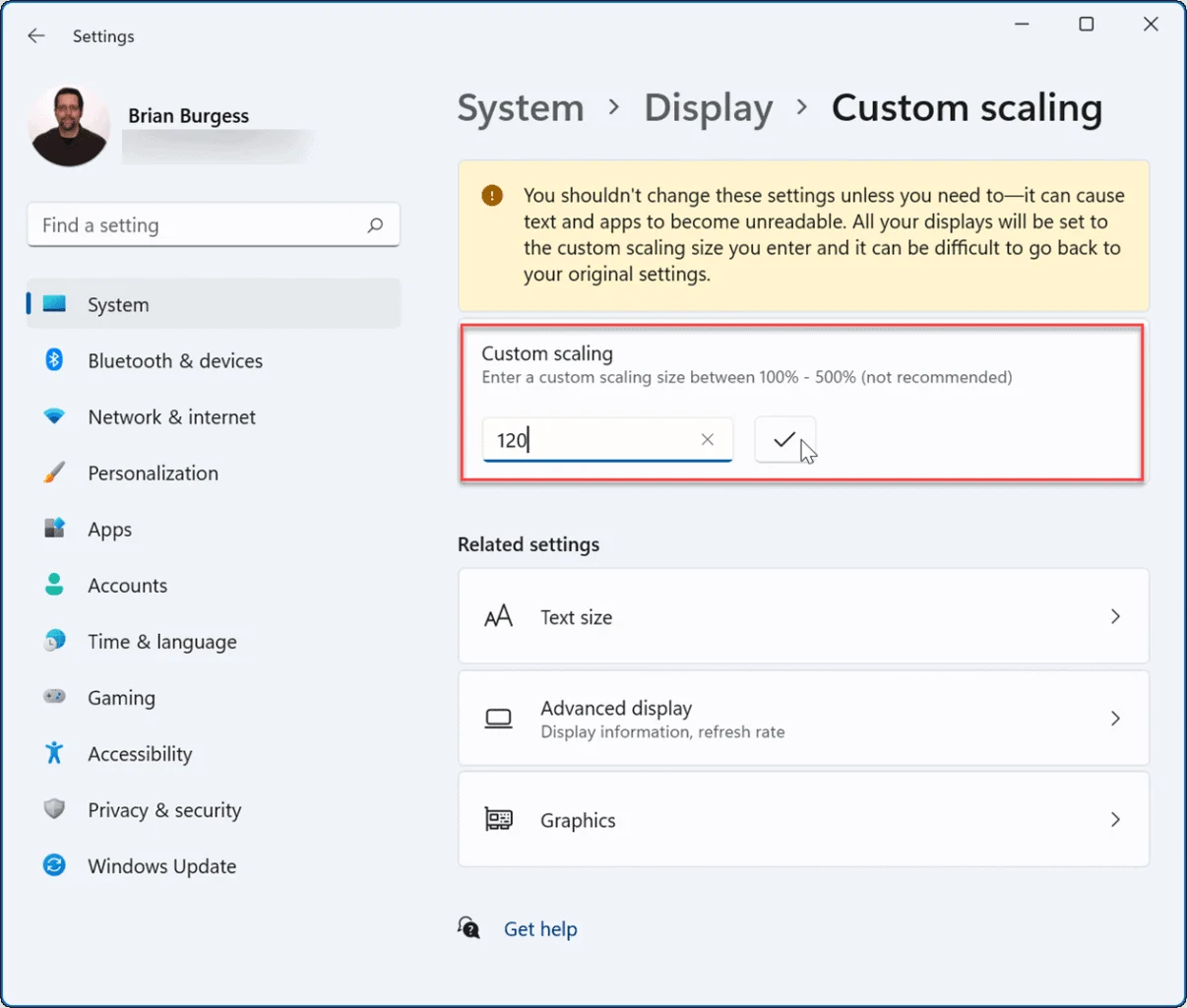
Image source: Bing (Web (fair-use with source credit))
Windows Scaling Configuration
Open Settings > System > Display. Set the scale to 150% for a 27-inch 4K or 125% for a 32-inch 4K. If specific apps look blurry, right-click the app's shortcut, go to Properties > Compatibility > Change high DPI settings, and enable "Override high DPI scaling behavior" with "Application" selected.
Windows also has a "Fix scaling for apps" toggle that attempts to auto-correct blurry applications. It doesn't catch everything, but it helps with some older software.
macOS HiDPI Setup
Apple makes this straightforward. Go to System Settings > Displays and select "Scaled." macOS offers several resolution options, and the HiDPI options are marked with a small indicator. For a 27-inch 4K, the default "Default for display" option usually works well.
If you want more screen real estate, hold Option while clicking "Scaled" to see additional HiDPI resolutions.
On Apple Silicon Macs, external 4K displays work natively without any special configuration. Intel Macs may require a compatible GPU and cable.
Linux Display Scaling
GNOME on Wayland supports fractional scaling natively. Enable it in Settings > Displays. KDE Plasma also supports fractional scaling under Display Configuration.
On X11, you may need to use xrandr or a tool like gnome-tweaks to set scaling values.
The most reliable approach on Linux is still using integer scaling at 200%, which gives you an effective resolution of 1920×1080. It's not as spacious as 150% scaling, but it avoids rendering glitches in older applications.
IDE and Terminal Font Tuning
Once your OS scaling is set, adjust your tools:
- VS Code: Open Settings, search for "Font Size," and set it to 12 or 13 for comfortable reading on a 4K display. The editor also respects zoom with Ctrl/Cmd + =.
- JetBrains IDEs: Go to Settings > Appearance & Behavior > Appearance and enable "Use custom font." Set the size to 13 or 14. The IDE also has a "Change font size with Ctrl+Mouse Wheel" option that's worth enabling.
- Terminal emulators: Set your font to a monospace face like JetBrains Mono, Fira Code, or Cascadia Code at 10 to 12 points. These fonts render cleanly at high pixel densities.
- Windows Terminal: Supports HiDPI natively. Just set the font size in your profile settings.
A well-configured 4K setup should give you crisp text, comfortable reading distances, and a workspace that reduces window-switching friction. Spend the first evening after purchase dialing in these settings. It pays off every day after.
Recommended Specs and Price Ranges
Budget Sweet Spot ($250–$400)
You can find solid 27-inch 4K IPS panels in this range. Look for 95% or higher sRGB coverage, a height-adjustable stand, and at least one DisplayPort 1.2 input. Refresh rates are typically 60Hz, which is fine for coding.
HDR support at this price is usually basic and not a priority for development work.
Mid-Range ($400–$700)
This tier adds better color accuracy, USB-C power delivery for laptops, higher refresh rates of 120Hz or 144Hz, and better build quality. If you also game or do any visual work, this is the sweet spot. Look for panels covering 98% sRGB or higher, factory-calibrated color, and a USB hub.
Premium ($700+)
Professional-grade 4K monitors offer wide color gamut coverage, hardware calibration, Thunderbolt 4 connectivity, and higher refresh rates. These make sense for developers who also do photo editing, video work, or UI design. For pure coding, the budget and mid-range tiers deliver 90% of the benefit.
Frequently Asked Questions
Is a 4K monitor overkill for coding?
Not at all. A 27-inch 4K at 150% scaling gives you the effective workspace of a 1440p display with noticeably sharper text. For developers who spend hours reading code, the clarity improvement is real and meaningful.
Does 4K cause eye strain?
A properly configured 4K monitor with correct scaling and appropriate brightness reduces eye strain compared to lower-resolution displays. The sharper text means your eyes work less to resolve fine details. Follow the 20-20-20 rule and keep brightness at a comfortable level.
Can my laptop support a 4K external monitor?
Most laptops with HDMI 2.0 or DisplayPort over USB-C can drive a 4K display at 60Hz. Check your laptop's specifications for the exact output capabilities. HDMI 1.4 only supports 4K at 30Hz, which feels sluggish for desktop use.
Is 27" or 32" better for 4K programming?
27 inches at 4K gives you higher pixel density and sharper text at typical desk distances. 32 inches offers a larger physical display but lower PPI. For most desks with a viewing distance under 30 inches, 27 inches is the sharper, more practical choice.
Do I need a powerful GPU for 4K coding?
No. Integrated graphics from Intel (UHD 630 and newer) and AMD (Vega and newer) can drive a 4K display at 60Hz for desktop and coding workloads. You only need a dedicated GPU if you plan to game or run GPU-intensive applications at native 4K resolution.
What's the best refresh rate for a programming monitor?
60Hz is perfectly adequate for coding. Higher refresh rates of 120Hz or 144Hz make scrolling and animations smoother, which some developers find more comfortable during long sessions. If you also game, 120Hz or higher is worth the premium.

Similar Posts