Can Touchscreen Monitors Be Used for Kiosks
Can touchscreen monitors be used for kiosks? Yes, absolutely, and they are the backbone of most self-service deployments out there right now. The catch is that the term "touchscreen monitor" covers a huge range of hardware, from cheap consumer panels that will die in weeks to commercial-grade displays built to run 24/7 for years.
The real question isn't whether it can be done. It's which type of touchscreen monitor fits your specific kiosk environment. Get that wrong and you're looking at ghost touches, Failed calibrations, overheating, or a screen that's unreadable within six months.
Get it right and you've got a reliable self-service station that pays for itself in under two years.
Let's walk through the decision tree so you land on the right hardware the first time.
Quick Answer
Touchscreen monitors are widely used in kiosk deployments across retail, healthcare, hospitality, and transit. Commercial-grade touchscreen monitors are purpose-built for 24/7 operation with higher brightness, better impact resistance, and longer lifespans than consumer panels. Consumer touchscreens can work in low-traffic, controlled indoor environments but tend to fail quickly under heavy public use.
Your best choice depends on where the kiosk sits, who's using it, and how often.
The Decision Tree: Which Touchscreen Monitor Actually Works for Your Kiosk
Here's where we earn our keep. The right touchscreen for a kiosk isn't a single product category. It's the output of a few key decisions about your environment, your users, and your operational demands.
Skip this and you're guessing. Walk through it and you know exactly what to spec.
Step 1: Where Is the Kiosk Going? (Indoor, Semi-Outdoor, or Full Outdoor)
This is the first branch of the tree because environment dictates almost everything else: brightness requirements, IP rating, operating temperature range, and even the touch technology itself.
Indoor, climate-controlled (malls, offices, hospitals, hotel lobbies) gives you the most flexibility. Almost any commercial touchscreen will work here. A standard 350-to-500-nit display is plenty bright, and you don't need aggressive weather sealing.
This is also where a consumer-grade touchscreen might survive if the traffic is light.
Semi-outdoor (covered walkways, drive-throughs, open-air pavilions) is where things start to get tricky. You need higher brightness (at least 1,000 nits), an IP54 or IP65 rating on the front panel, and an operating temperature range that handles humidity swings. Condensation becomes a real enemy here, so optical bonding on the display is strongly recommended.
Full outdoor (street-level wayfinding, parking, transit stops, parks) is the harshest scenario. You're looking at 1,500 to 3,500 nits for sunlight readability, IP65 minimum, IK08 or better for impact resistance, and an operating temperature range that handles everything from -20°C to 50°C. Consumer monitors have no business here.
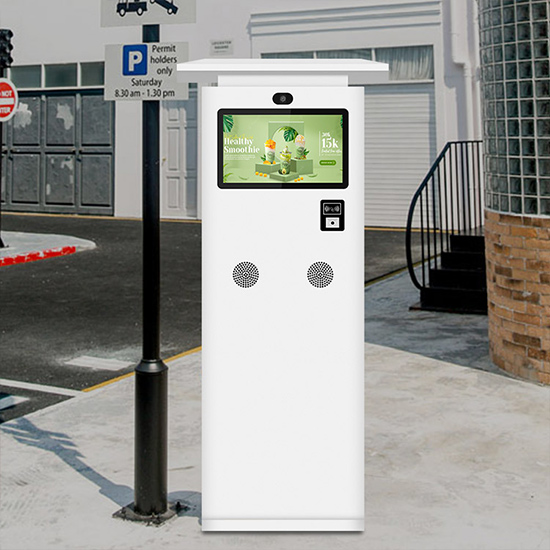
Key spec quick reference by environment:
- Indoor: 350-500 nits, IP54 or no rating needed, 0°C to 40°C operating range
- Semi-outdoor: 1,000-1,500 nits, IP65 front panel, -10°C to 45°C
- Full outdoor: 1,500-3,500 nits, IP65 full enclosure, -20°C to 50°C or wider
Step 2: How Will People Interact With It? (Bare Fingers, Gloves, Occasional, 24/7)
This branch determines your touch technology and your durability requirements.
Bare-finger, occasional use (wayfinding, directory lookup, museum exhibits) is the lightest lift. Standard projected capacitive (PCAP) works great here. It's responsive, supports multi-touch gestures, and feels familiar because it works like a smartphone.
Bare-finger, high-frequency use (self-ordering in quick-service restaurants, patient check-in at hospitals) demands a more robust PCAP panel with good palm rejection and a durable top glass. You want a minimum IK08 rating because people jab screens harder when they're frustrated.
Glove use (medical environments, cold-weather outdoor kiosks, industrial settings) narrows your options significantly. Standard PCAP struggles with thick gloves unless it's specifically calibrated for it. Look for PCAP panels with adjustable sensitivity modes or consider infrared touch, which works with any object regardless of conductivity.
Pens, styluses, or accessibility aids (EMR support) matters for certain accessibility and signage applications. If your kiosk needs to accept a stylus or accessibility pointer, EMR-compatible overlays are worth the premium.
24/7 operation (transit hubs, airports, always-on retail) puts stress on every component. Consumer panels are typically rated for 8-to-12 hours of daily use. Commercial kiosk displays carry MTBF ratings of 30,000 to 50,000 hours or more, and their backlights are built for continuous operation without accelerated degradation.
Step 3: What Touch Technology Actually Fits? (PCAP vs. Resistive vs. IR)
This is where the rubber meets the road. Each touch technology has strengths and hard limitations, and picking the wrong one for your scenario is the most common kiosk hardware mistake we see. We'll break them all down in detail in the next section, but here's the decision logic in tree form:
- If your users are bare-fingered and you need a crisp, responsive experience: PCAP
- If you need glove compatibility or work in a dirty/wet environment where false touches are a problem: IR or Resistive
- If you need the highest optical clarity for a premium visual experience: SAW or PCAP with optical bonding
- If budget is tight and the kiosk is indoors with low traffic: Resistive can work, but expect to replace it sooner
Step 4: Consumer vs. Commercial Kiosk Displays: The Gap Nobody Warns You About
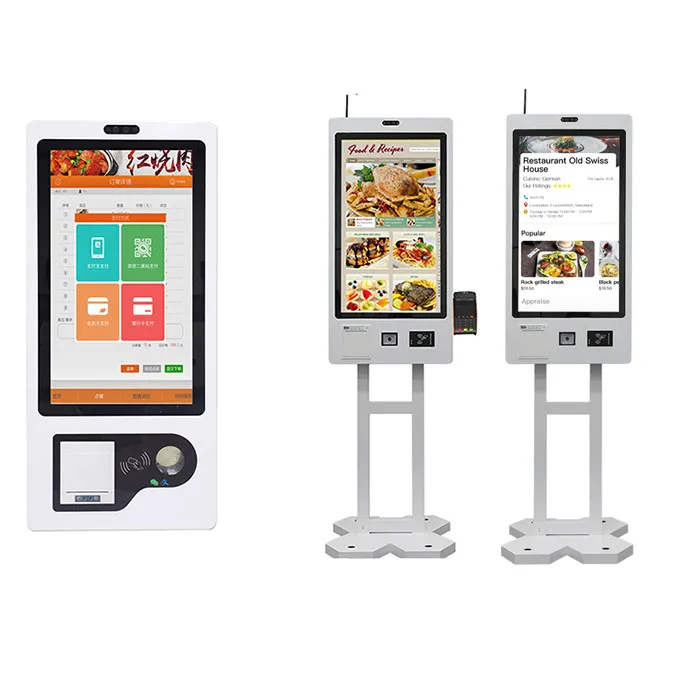
Here's the reality check. You can buy a consumer touchscreen monitor for $200, mount it in a box, and call it a kiosk. Some deployments even work fine this way, but only under very specific conditions: low-traffic, indoor, supervised, and not mission-critical.
Commercial kiosk-grade touch monitors start around $500 and run up to $2,500 or more. That premium buys you:
- Higher brightness panels rated for continuous operation
- IK and IP ratings for impact and environmental protection
- Wider operating temperature ranges
- Optical bonding options to prevent condensation
- Longer MTBF ratings (30,000 to 50,000+ hours)
- Dedicated kiosk-mode firmware with better touch controller stability
- Warranty terms that actually cover commercial, continuous-use deployments
When a consumer panel can work:
- Indoor office lobby visitor registration with moderate foot traffic
- Supervised retail environments with staff nearby
- Short-term deployments or events (days to weeks, not months)
When you must go commercial:
- Any unsupervised public-facing kiosk
- 24/7 operation
- Outdoor or semi-outdoor locations
- Payment or healthcare environments where downtime has real consequences
- High-traffic retail, transit, or quick-service restaurant self-ordering
The hidden cost nobody factors in is the total cost of ownership. A $300 consumer panel that fails after eight months and costs two hours of technician time to swap out, plus the lost revenue from downtime, quickly overtakes the $900 commercial panel that runs for five years.
Touch Technology Compared: What Works and What Fails in Kiosks
Now let's get specific. Each touch sensing technology behaves differently, and the differences matter enormously when you're designing a kiosk that needs to work reliably without someone babysitting it.
Projected Capacitive (PCAP)
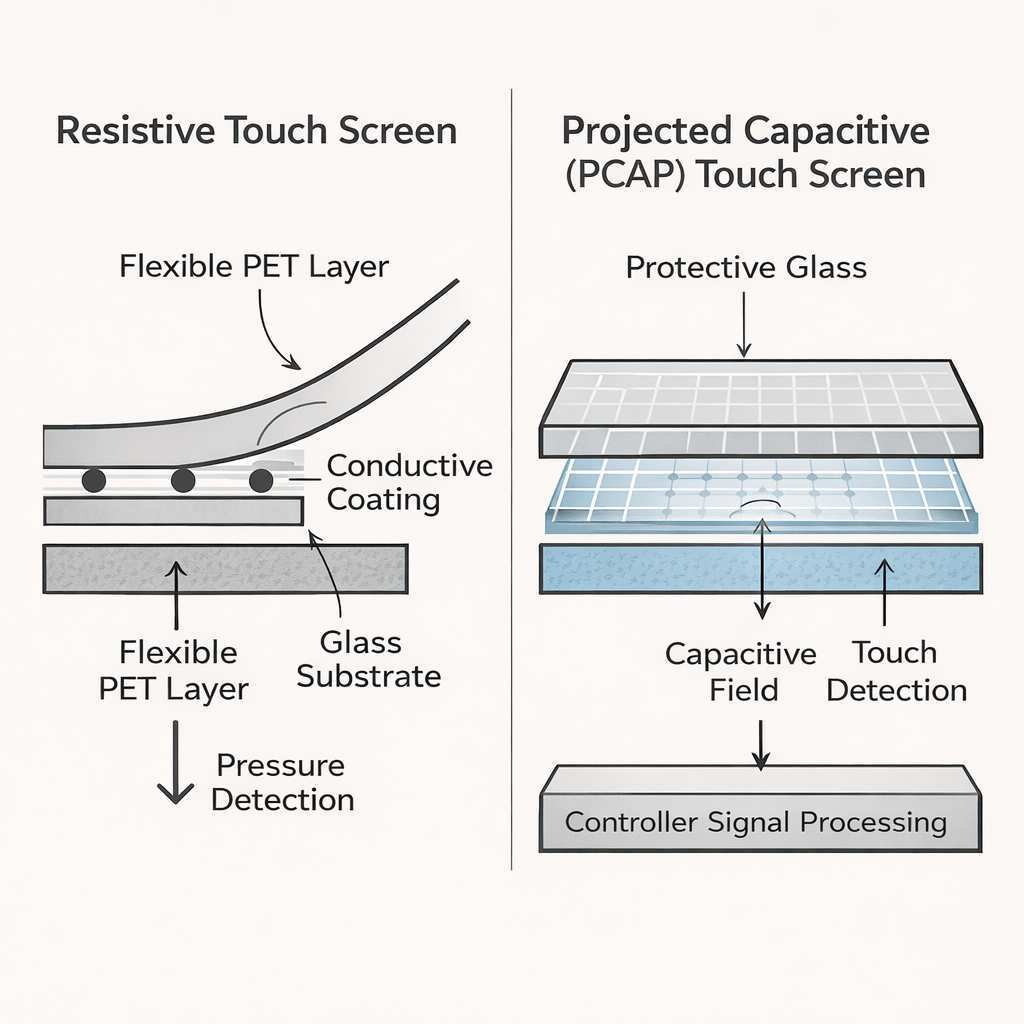
PCAP is the dominant touch technology in kiosk applications as of 2026, and for good reason. It's the same tech in your smartphone: a grid of capacitive sensors behind the glass that detects the electrical charge in your fingertips. Multi-touch comes naturally, gestures like pinch and swipe are built in, and the clarity is excellent since the sensor layer is minimal.
PCAP works beautifully for bare-finger interaction in indoor environments. Response times sit under 10 milliseconds on quality panels. You get 10-point, 20-point, or even 32-point multi-touch support.
Palm rejection has gotten much better in recent controller firmware revisions, which matters when users lean on the screen.
The limitations? Standard PCAP doesn't work through thick gloves. It can false-trigger from water droplets on the screen in outdoor installations.
And cheap PCAP panels with poor controller firmware suffer from calibration drift over time, especially in temperature-variable environments.
Best for: Indoor wayfinding, self-ordering, check-in kiosks, museum exhibits, retail price lookups
Not ideal for: Outdoor kiosks without optical bonding, gloved-use scenarios, heavy moisture environments
Resistive Touch (5-Wire and 8-Wire)
Resistive touch is the old-school approach. Two flexible layers with a small air gap between them. Press the screen and the top layer contacts the bottom layer, registering the touch point by voltage change.
It works with anything: bare fingers, gloves, styluses, credit cards, whatever you press against it.
That "anything can trigger it" quality is both the strength and the weakness. Resistive is cheap, which makes it tempting for budget deployments. But it's less durable over time because the flexible top layer wears down, scratches, and eventually loses accuracy.
Optical clarity suffers because those extra layers between you and the display absorb light and reduce contrast.
Modern 8-wire resistive is better than the old 5-wire stuff, but it still can't match PCAP for feel or longevity. Touch response times run around 20 milliseconds. You lose multi-touch entirely.
Best for: Budget-conscious indoor deployments where gloves may be used, industrial control panels, legacy systems
Not ideal for: Multi-touch applications, high-traffic public kiosks, premium visual experiences
Infrared (IR) Touch
Infrared touch frames a grid of IR beams across the screen surface. When your finger breaks a beam, the controller calculates the touch point. Because it relies on light interruption rather than conductivity or pressure, it works with any object: gloved hands, styluses, thick protective overlays.
IR touch handles gloved use and dirty environments well. Response times are solid, sitting around 8 to 12 milliseconds. You also get multi-touch support on higher-end models.
Optical clarity is strong since the sensor sits at the edges rather than over the panel.
The downsides are real, though. The bezel around the IR sensor adds border width, which can complicate flush-mount kiosk designs. Dust, debris, or heavy condensation inside the bezel can block beams and cause false touches or dead zones.
Low-quality IR panels struggle with ambient light interference in outdoor settings.
Best for: Medical gloved-use kiosks, heavily vandalized public environments, industrial HMI panels, very large format displays
Not ideal for: Flush-bezel kiosk designs, outdoor installations with extreme dust or moisture, low-ambient-light environments where IR noise from sunlight is a problem
Surface Acoustic Wave (SAW)
SAW uses ultrasonic waves across the glass surface. A touch absorbs part of the wave energy, and the controller calculates the position. The optical clarity is unbeatable: the glass is essentially glass and nothing else for the touch layer.
Superior clarity makes SAW a favorite for museum exhibits, high-end retail, and gallery installations where visual quality is paramount. Touch response times are comparable to PCAP, and multi-touch is supported.
The drawbacks? SAW is sensitive to surface contaminants. Water, dirt, or heavy grime on the glass can disrupt the wave patterns and cause dead zones.
It's also the most fragile of the common touch technologies because the sensing depends on the glass surface staying pristine. Repair costs run high when SAW glass gets scratched or etched.
Best for: High-end indoor installations where optical clarity is the priority, museum exhibits, luxury retail displays
Not ideal for: Public kiosks where the screen gets dirty or handled roughly, food service environments with grease, outdoor installations
Side-by-Side Touch Technology Comparison Table
| Feature | PCAP | Resistive (8-Wire) | Infrared (IR) | SAW |
|---|---|---|---|---|
| Touch object | Bare finger (or thin glove) | Anything | Anything | Bare finger, soft stylus |
| Response time | <10 ms | ~20 ms | 8-to-12 ms | <10 ms |
| Multi-touch | Yes (10-to-30-point) | No | Yes (select models) | Yes |
| Optical clarity | Very good | Reduced | Good | Best |
| Impact resistance | Good (chemically strengthened glass options) | Moderate (top layer wears) | Varies by bezel design | Low |
| Glove compatibility | Limited (needs sensitivity tuning) | Full | Full | Not ideal |
| Outdoor moisture handling | Poor without overlay | Poor | Moderate to poor | Poor |
| Approximate price range (21.5" commercial) | $400-to-900 | $200-to-500 | $450-to-1,000 | $500-to-1,200 |
| Best kiosk use case | Indoor public, self-order, check-in | Budget indoor, gloved industrial | Medical gloved, large format | Museums, gallery exhibits |
What Specs Actually Matter for Kiosk Touch Monitors
Touch technology gets most of the attention, but the supporting specs make or break a kiosk deployment. Here's what experienced integrators look at beyond the touch layer.
Brightness and Nits
Brightness is measured in nits (candelas per square meter). For indoor kiosks, 350 to 500 nits is standard. Step into a window-adjacent or sunlit lobby and you'll want 750 to 1,000 nits to stay readable.
Full outdoor environments demand 1,500 to 3,500 nits, with the high end reserved for direct sunlight exposure. Consumer monitors typically ship at 250 to 350 nits, which is why they look washed out the moment you place them near a window or under overhead glare.
IP Rating (Dust and Water)
IP ratings follow the IEC 60529 standard and tell you how well the enclosure resists solid objects and liquids. For most indoor kiosks, IP54 on the front panel is enough: it protects against splashing water and limited dust. Outdoor kiosks need IP65 minimum on the full enclosure: dust-tight and resistant to water jets.
If your kiosk faces direct pressure washing for cleaning, IP66 is worth the upcharge.
IK Rating (Impact Resistance)
The IK rating scale (IEC 62262) measures mechanical impact protection on a scale from IK00 to IK10. An IK08 rating means the panel withstands 5 joules of impact, roughly equivalent to a 1.7-kilogram weight dropped from 30 centimeters. Public-facing kiosks in unsupervised areas should be at least IK08.
In vandalism-prone areas, IK09 is the safer bet.
Operating Temperature Range
Consumer screens are rated for roughly 0-to-40 degrees Celsius, which is fine for office temperature control and nothing else. Commercial outdoor touch displays extend that range to -20-to-50 degrees Celsius or even -30-to-60 on specialized models. If your kiosk lives in Minnesota winters or Arizona summers, this spec isn't a footnote: it's a survival requirement.
Check both the operating range and the storage range. The storage range is wider by about 10 to 15 degrees on most panels, but anything that fires up outside the operating range risks immediate failure. Heater and cooler add-ons exist for enclosures, but they add cost, power draw, and another potential failure point.
MTBF and Panel Lifespan
MTBF stands for mean time between failures, a statistical measure of reliability expressed in hours. Commercial kiosk panels typically rate at 30,000 hours at minimum, with many rated to 50,000 hours. That translates to roughly 5.7 years of continuous 24/7 operation at 30,000 hours, or 9.5 years at 50,000.
Consumer-grade panels rarely publish MTBF data, and when they do, it's often in the 15,000-to-20,000-hour range.
Backlight degradation is the primary longevity factor. LED backlights lose brightness over time, usually rated to maintain 50 percent of initial brightness by the end-of-life figure (L50). A panel rated L50 at 50,000 hours won't be dead at that point, but it'll be noticeably dimmer.
Budget for a brightness headroom margin of 20 to 30 percent above your minimum readable brightness so the display stays legible even as it ages.
Other specs worth a quick look: touch point count (10-point is standard and more than enough for kiosks), panel resolution (1920×1080 is fine for most kiosk user interfaces; 4K matters only for detailed image or map content with close viewing distances), and VESA mount pattern compatibility (check that your enclosure or stand actually matches the 75×75, 100×100, or 200×200 layout on your chosen panel).
Common Mistakes That Kill Kiosk Touchscreen Deployments
Mistakes here are expensive. A failed kiosk deployment costs you the hardware, the enclosure, the installation labor, software reconfiguration, and the brand damage of a non-functional public-facing terminal. Here are the ones we see over and over.
Using a Consumer Touchscreen in a 24/7 Public Environment
This is the most common failure mode, and it's almost always a cost-driven decision that backfires. A procurement team sees a $300 consumer touch monitor versus a $900 commercial panel, saves the budget line item, and six months later they're swapping out a dead, dim, or unresponsive screen in a busy lobby. Consumer panels aren't rated for continuous operation, their backlights degrade faster, and their touch controllers drift out of calibration under heavy use.
The math only works in favor of the cheap panel if you plan to replace it every few months and don't count technician labor.
Ignoring Thermal Management Inside Enclosures
Kiosk enclosures trap heat. A touchscreen panel, a mini PC or media player, a power supply, and maybe a receipt printer all generate heat inside a confined space. Without proper ventilation or active cooling, internal temperatures easily exceed the panel's rated operating range on warm days.
Symptoms include touch drift, display discoloration, backlight shutdown, and premature LED failure. A $20 fan or some well-placed vents prevents thousands of dollars in early replacements.
Skipping Optical Bonding When It's Needed
Optical bonding fills the air gap between the touch glass and the LCD panel with a clear adhesive or resin. This reduces internal reflections, improves contrast and perceived brightness, and prevents condensation between the layers in humid or variable-temperature environments. For indoor, climate-controlled kiosks it's a nice-to-have.
For semi-outdoor and outdoor installations, it's effectively mandatory. Without it, fog layers form between the glass layers and the display becomes unreadable until conditions change.
Forgetting About Glove Use and Accessibility
Medical facilities, cold-weather outdoor kiosks, and industrial environments often require gloved-hand operation. If you spec a standard PCAP panel without glove-mode firmware, your kiosk becomes unusable for a chunk of your target audience. It's not just about gloves, either.
ADA compliance in the United States requires that kiosks be accessible to people with limited reach, visual impairments, and those using accessibility aids like head pointers or mouth sticks. A touchscreen that only responds to bare fingertips fails people who rely on assistive tools. Build for glove compatibility and adaptive interaction from the start, not as an afterthought retrofit.
Mismatching Touch Controller and Kiosk Software
Touch panels communicate with the host computer through a controller chip, usually over USB using the HID (human interface device) protocol. Generic HID support in Windows, Linux, and Android is good enough for basic touch, but advanced features like palm rejection thresholds, glove mode, multi-touch gesture mapping, and calibration persistence often require specific controller drivers. If those drivers aren't compatible with your kiosk software or operating system, you get erratic behavior that looks like hardware failure but is actually a software installation problem.
Always confirm driver support for your chosen driver and operating system combination for the exact touch controller chip before committing to a panel.
Real-World Kiosk Scenarios: What Works Where
Theory is fine, but real deployment examples show how these decisions play out. Here are four common scenarios and what the right touchscreen choice looks like for each.
Indoor Retail Self-Order Kiosk
A clothing store or fast-casual restaurant needs a self-order station running 12 to 16 hours a day, indoors, under controlled lighting and temperature. Foot traffic is high during peak hours. Users are bare-fingered, impatient, and sometimes press harder than they need to.
Recommended spec: 15-inch or 21.5-inch commercial PCAP panel, 400-to-500 nits, IK08 rating on the display glass, and a PCAP controller with glove mode firmware enabled in of for bare-finger precision with fallback glove tolerance. Most integrators pair this with an Intel NUC or similar small form-factor PC running a locked-down Windows or Android OS in kiosk mode.
Outdoor Wayfinding Terminal
A city park, campus, or transportation hub installs an outdoor directory kiosk exposed to weather, direct sunlight, cold winters, and heavy public use around the clock. This is the hardest environment for any touchscreen.
Recommended spec: 21.5-inch or 27-inch commercial PCAP panel with optical bonding, 2,500-to-3,500 nits brightness, IP65 full enclosure, IK09 impact rating, integrated heater for cold-start reliability down to -20°C, and a weather-sealed media player behind the display. Some integrators prefer IR touch here because gloved and wet-hand interaction is more common outdoors. Budget for this tier starts around $1,500 to $2,500 per touch display unit.
Healthcare Patient Check-In
Hospitals need kiosks that clinical staff and visitors use throughout the day. Gloves are constant during medical procedures. The lobby environment is climate-controlled but the kiosk sees 24-hour operation because emergency departments never close.
Sanitization happens multiple times per day with disinfectant wipes that can degrade cheap screen coatings.
Recommended spec: 19-inch or 21.5-inch PCAP display with anti-fingerprint nano-coating that withstands daily chemical disinfection, IP54 front panel, glove-compatible PCAP controller with configurable sensitivity preset profiles, and an easily cleanable enclosure without crevices where contaminants collect.
Quick-Service Restaurant Self-Service
This is one of the highest-volume kiosk use cases in the industry. Customers tap through menus with bare fingers, occasionally sticky from food, for hundreds of transactions per day. The environment is climate-controlled but busy with constant staff cleaning.
Recommended spec: 21.5-inch PCAP panel rated for 400-to-500 nits, IK08 minimum to handle the occasional frustrated jab, bezel design that resists liquid drips toward the touch controller board, IP54 front panel to survive the daily wipe-downs, and a rated continuous operating profile of 16-plus hours per day minimum.
Pricing and Budget: What You'll Actually Spend
Kiosk budgets fall apart when planners price the touchscreen as a standalone item and forget the surrounding components. Here's what realistic pricing looks like as of 2026.
Consumer Touch Monitors
15 to 24-inch consumer touch displays range from $150 to $600. They work for low-traffic indoor deployments where cost is the primary constraint and occasional downtime is acceptable. These come with standard one-to-two-year consumer warranties that typically exclude commercial or continuous-use claims.
Commercial Open-Frame Kiosk Displays
Most professional kiosk builds use open-frame touch monitors designed to be mounted inside a custom enclosure. Expect to pay $500 to $1,500 for commercial units in the 15-to-22-inch range. At this tier, LED backlight life, enclosure-friendly mounting frames without plastic housings, and integrated touch-over-USB interfaces become standard.
For semi-outdoor or outdoor units with optical bonding and high-brightness panels, pricing jumps to $1,000 to $2,500.
All-in-One Kiosk-Grade Panels
Panel PCs with integrated computing (onboard CPU, RAM, storage) cost $900 to $2,500+ depending on the touch size and the IT environment they target. These reduce cable clutter and simplify deployment because the computer and the display share one enclosure and one power supply. Panel PCs complicate repairability since a failed backlight means pulling the whole unit, but the trade-off makes sense where installation space is tight and simplicity is valuable.
Hidden Costs
Enclosures run $300 to $1,500 depending on material, size, weather rating, and finish. Thermal management adds $50 to $300 for fans, filters, or heater elements. Cable management, power conditioning, surge protection, and custom mounting brackets collectively add another $100 to $500 per terminal.
Finally, consider integration and installation labor, which can exceed the hardware cost for complex deployments. Therefore, plan your total budget around roughly two to three times the price of the touchscreen panel alone, covering everything from bolts to commissioning for a complete installation.
Compliance and Accessibility: What You Can't Afford to Ignore
Kiosks are public-facing by nature, and public-facing means regulated. Ignore accessibility and legal requirements and you risk lawsuits, fines, and forced retrofits that cost far more than building it right the first time.
ADA Requirements (US)
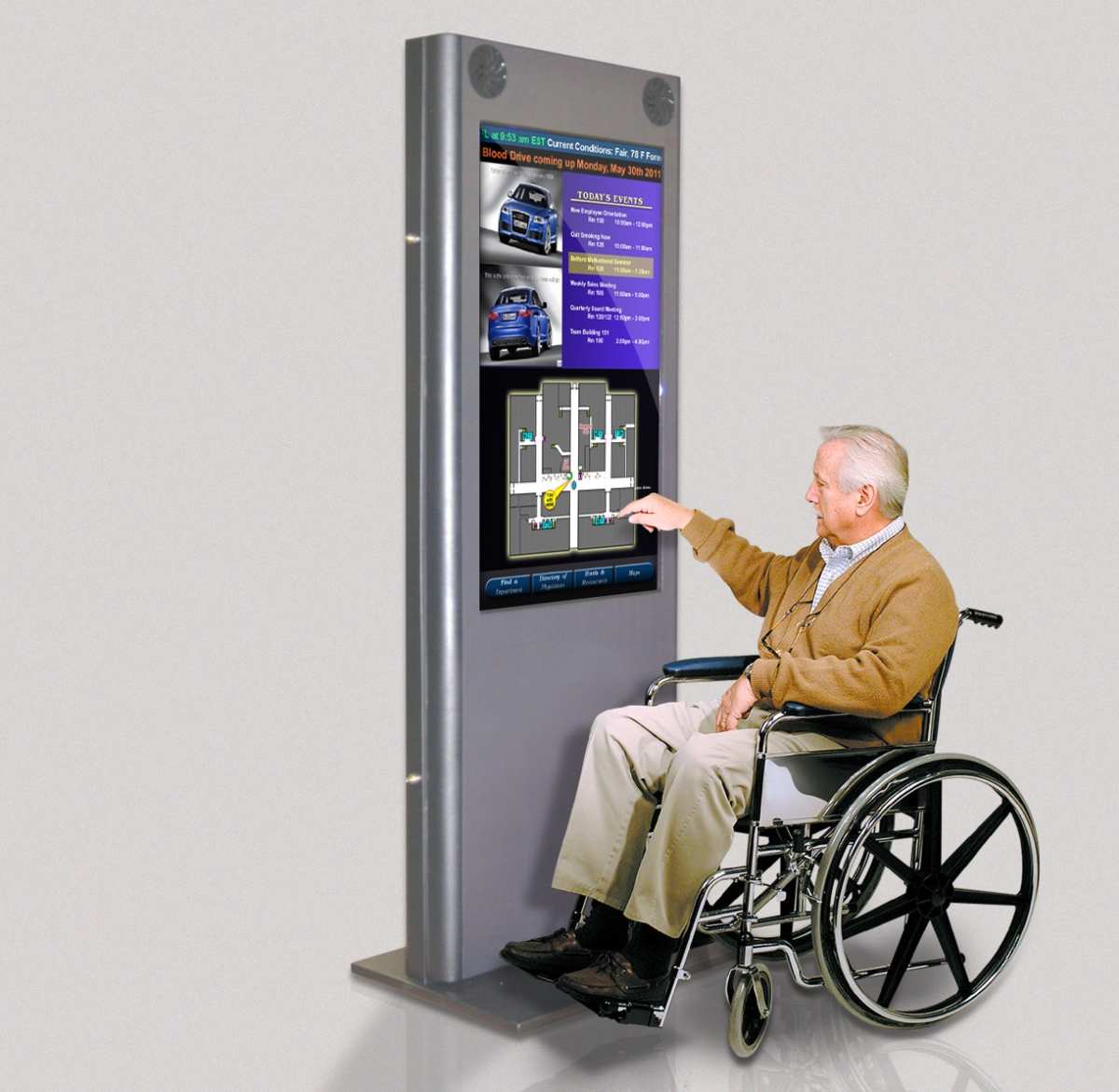
The ADA Standards for Accessable Design set specific requirements for interactive kiosks. Forward and side reach maximums dictate how high the touchscreen can be mounted, with the operable parts no higher than 48 inches for a forward approach or 46 inches for a side approach over an obstruction. You need to provide a clear floor space of at least 30 by 48 inches in front of the kiosk for wheelchair positioning.
Audio output and tactile controls are mandatory where visual information is displayed.
The 2010 ADA Standards apply to most public accommodations, and enforcement actions have increased in recent years specifically targeting non-compliant self-service kiosks. The Department of Justice has made it clear that digital kiosks are covered under Title III, whether they handle payments, information, or check-in.
EN 301 549 and European Standard
In Europe, EN 301 549 is the accessibility standard for ICT products and services, harmonized under the European Accessibility Act. It covers similar territory to ADA but with additional requirements around assistive technology interoperability. Kiosks that operate across multiple regions need to satisfy both US and EU requirements simultaneously, which typically means designing to the stricter standard.
Safety Certifications (UL, CE, FCC)
UL 62368-1 covers safety requirements for AV and IT equipment. Most commercial kiosk displays hold this certification. CE marking demonstrates conformity with relevant EU directives including the Low Voltage Directive and the EMC Directive.
FCC Part 15 certification addresses electromagnetic emissions for the US market. Missing certifications can block installation in commercial buildings that require code compliance for every connected piece of equipment.
Maintenance and Long-Term Reliability
Kiosks need ongoing care, not just good hardware. Plan maintenance from day one or pay for reactive repairs later.
Cleaning and Sanitization
Standard glass cleaners are fine for occasional surface dust, but outdoor kiosks in high-pollution environments benefit from pH-neutral cleaners that won't attack optical bonding adhesives. Avoid ammonia-based sprays on anti-glare and anti-fingerprint coatings since they degrade the surface treatment over time. Follow the manufacturer's approved cleaning agents list if one is provided.
Calibration and Touch Drift
PCAP panels can develop minor calibration drift with large ambient temperature swings. This is most noticeable near doorways or HVAC vents. Schedule quarterly touch-response checks using the panel's built-in diagnostic utility, and verify that taps register accurately at all four corners and the center of the display.
Preventive Maintenance Schedule
Inspect ventilation filters monthly in dusty locations. Replace clogged filters before they choke airflow. Clean cooling fan blades every six months to maintain rated airflow.
Examine cable connections at the same interval for any signs of looseness caused by vibration or thermal cycling. Keep a spare touch controller board with the correct firmware revision on site so a failed board can be swapped in minutes rather than days.
Frequently Asked Questions
Are regular touchscreens suitable for outdoor kiosks?
Consumer touchscreens lack the brightness, weatherproofing, and temperature tolerance for outdoor kiosk deployment. Specialized high-brightness touch displays with IP-rated enclosures, optical bonding, and thermal management systems are necessary for reliable outdoor operation.
How long do commercial kiosk touchscreens last?
Commercial kiosk touch panels rated at 30,000 to 50,000 hours MTBF deliver roughly 5 to 9.5 years of continuous 24/7 operation before needing replacement, depending on environmental conditions and maintenance practices.
What size touchscreen is best for kiosks?
The 15-inch to 27-inch range covers most kiosk use cases. Billboards, directories, and menu boards benefit from larger sizes closer to 27 inches, while transactional kiosks, check-in stations, and point-of-sale terminals typically use 15-to-21.5-inch displays.
Do kiosk touchscreens work with gloves and wet hands?
Standard PCAP works fine with bare fingers but struggles with thick gloves or wet conditions. If your kiosk will be used outdoors, in medical environments, or by anyone wearing gloves, choose a PCAP controller with glove-mode firmware or switch to infrared touch technology.
What is the best operating system for a touchscreen kiosk?
Windows, Linux, Android, and Chrome OS all offer kiosk-mode configurations that lock the system to a single application for security. Your choice depends on the kiosk software you plan to run and your team's familiarity with each platform, since locking down the OS to a full-screen kiosk shell is achievable on all four.
Final Decision Guide: Is a Touchscreen Monitor Right for Your Kouchscreen Monitor?
If your kiosk will sit indoors with moderate traffic, even a commercial-grade panel with open-frame mounting is a safe and cost-effective choice. When the environment is harsh, the foot traffic is heavy, or the kiosk must run without constant supervision, commercial-grade hardware with proper thermal management and high-brightness panels is unavoidable. Consumer screens work only as a short-term, low-risk stopgap, never as a permanent foundation.
Your touchscreen is the single point where a person physically interacts with your service, so that hardware needs to feel reliable and responsive every single time.
When a Touchscreen Monitor Is the Right Call
You need an interactive self-service interface for tasks like ordering, check-in, payment, wayfinding, or data entry where replacing a staffed counter with a digital terminal saves labor cost, reduces wait times, or extends service hours. The users are general public or semi-guided with minimal staff assistance, and you have a suitable climate-controlled or weather-protected location with reliable power and network access. In this scenario, touchscreen kiosks deliver measurable ROI within 12 to 24 months compared to staffing a manual service point.
When You Should Look at Alternatives
If your environment is extremely wet, corrosive, or high-risk for physical attack, consider non-touch digital signage with remote interaction through mobile QR codes or QR scan. Unless your audience absolutely needs visual selections or direct interaction, touch adds pain. When the user journey requires heavy text entry, voice interfaces or mobile-first interactions may outperform a kiosk touchscreen.
Always compare whether the simplest solution serves the user efficiently before defaulting to an expensive touchscreen installation.
Your Next Steps
Start by documenting your environment category, expected usage hours per day, glove requirements, and accessibility constraints. Match those answers against the decision tree to narrow your touch technology and panel type. Request manufacturer spec sheets that confirm MTBF ratings, IP ratings, touch controller driver support for your chosen operating system, and performance at the temperature extremes your kiosk encounters.
Plan your total budget at around two to three times the touchscreen price, adding enclosures, thermal management, integration, and installation as a complete unit. Order a single evaluation unit and install it in a test configuration to expose potential environmental or software issues before committing to a large fleet.

Similar Posts





















