Can Touchscreen Monitors Be Used for Presentations
Can touchscreen monitors be used for presentations? Yes, absolutely, but whether it actually works smoothly for you depends on what laptop you have, what ports are available, and what you expect "touch" to do during your talk. We've looked into this across manufacturer specs, AV integration guides, and real user feedback to give you the honest breakdown.
The core issue is that "touchscreen" and "presentation-ready" aren't the same thing. A Dell P2424HT or ASUS ProArt PA148CTV can absolutely accept touch input, but your operating system needs to support it, your cables need to carry the data, and your presentation software needs to respond meaningfully. As of 2026, Windows handles this well. macOS doesn't support it natively at all. If you are exploring similar hardware setups, see our detailed guide on whether touchscreen monitors be used for kiosks.
Let's walk through what matters.
The Short Answer (It Depends on Your Setup)
Touchscreen monitors work great for presentations. You get real-time annotation, intuitive slide navigation, and audience interaction. The catch is your laptop and cables must support touch data.
Check both before you commit.
Why Most People Get This Wrong
Here's where the frustration comes in. Most people assume a touchscreen monitor behaves like a tablet. You plug it in, you touch the screen, and things happen.
That assumption falls apart fast.
Let's hit the big three problems head-on.
macOS doesn't support touch input. If you're on a MacBook or iMac, no external touchscreen will respond to finger input through Apple's native OS. Apple has never added touch HID stack support to macOS. Period. Readers evaluating this setup should also consider whether oled monitors be used vertically for comparative benchmarks.
Some third-party workarounds like Touch-Base exist, but they're unreliable for live presenting. We'll cover your alternatives later.
HDMI carries video but not touch. This catches so many people. You plug in an HDMI cable from your laptop to the monitor. Great, you see your desktop on screen.
But touch doesn't work. Why? HDMI only transports video and audio.
Touch data needs a separate USB connection between the monitor's touch controller and your computer. If your monitor supports USB-C Alt Mode, one cable handles both. If you're on HDMI or DisplayPort, you need that extra USB cable connected too.
Most presentation software barely uses touch features. Microsoft PowerPoint for Windows supports basic tap-to-advance and ink annotation. Google Slides lets you advance slides. Keynote?
Touch support is minimal even on iPad. The software layer matters as much as the hardware. If your workflow depends on pinch-to-zoom, multi-finger gestures, or complex touch interactions inside your slides, you'll be disappointed.
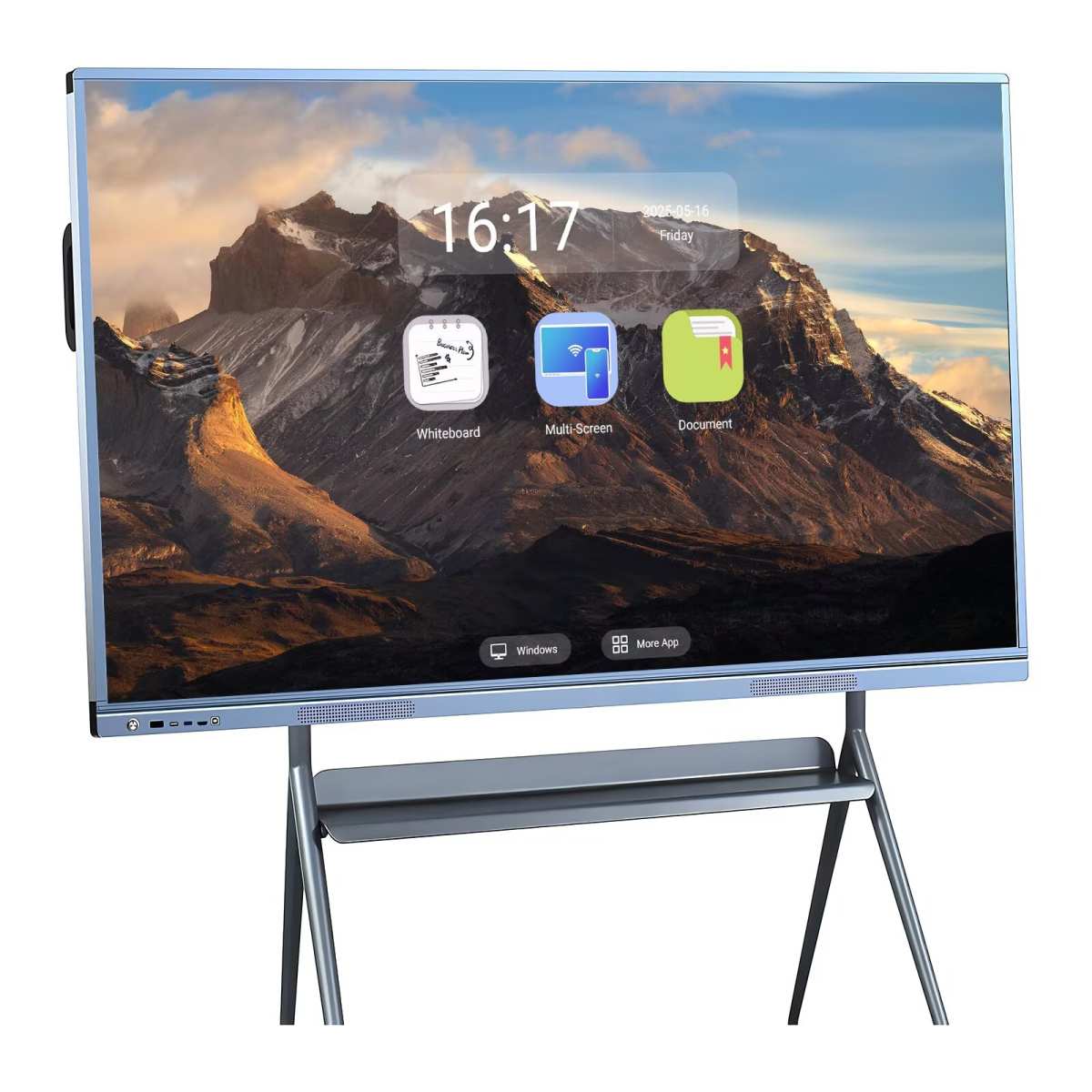
What Actually Matters: The 5 Questions to Ask Yourself
Before you buy anything or restructure your setup, run through these five questions. Your answers determine whether a touchscreen monitor solves your problem or creates new ones.
What's your laptop's operating system?
This is the gatekeeper question.
- Windows 10 or 11: You're good. Plug and play touch support is built in.
- macOS: You're not getting native touch input. Period. Skip to scenario three for your options.
- ChromeOS: Partial support. Some USB-C touch displays work, but verify with your specific Chromebook model.
- Linux: Kernel-level touch support exists, but desktop environment integration varies wildly. GNOME handles it well. Others? Test first.
What cables or ports do you actually have?
Check your laptop's ports before you buy a monitor.
- USB-C with Alt Mode: Best case. One cable for video, data, and touch.
- HDMI only or DisplayPort only: You'll need a separate USB-A or USB-B cable for the touch signal. Budget for cable management.
- Thunderbolt 3 or 4: Works brilliantly. Carries everything over USB-C.
- USB-A only (no video out): Not practical for driving a touchscreen display.
Do you need touch on the main screen or the audience's screen?
This distinction trips people up. If you're standing at the laptop and the touchscreen is facing the audience across the room, you're not touching it. The touchscreen only helps if you're standing at or near it.
For audience-facing interaction, you want the touchscreen mounted where they can reach it, not where you're controlling from a distance.
Are you presenting solo or passing control around?
Solo presenting with touch works fine. You stand at the screen, tap, annotate, and advance. But in collaborative settings where multiple people interact with the screen, you need multi-touch support.
Check that your monitor handles 10 or more simultaneous touch points. Most modern capacitive touchscreens cap at 10 points. Some interactive flat panels support 20 or 40.
Do you need pen annotation or just finger touch?
Finger tap to advance slides? That's easy. But if you want to write equations, sketch diagrams, or annotate precisely, you need pen-capable touch.
EMR (electromagnetic resonance) technology, like what Wacom and Microsoft Surface Pen use, gives you pressure sensitivity and palm rejection. Capacitive stylus tips work too, but without palm rejection, your wrist creates phantom touches. Know which type you need before purchasing.
Scenario 1: You're on Windows with USB-C
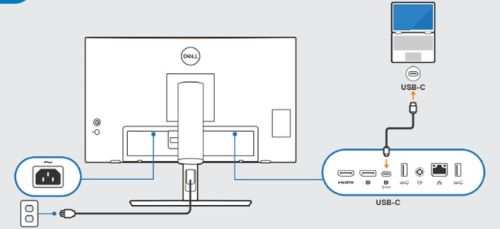
This is the ideal setup. If your Windows laptop has a USB-C port that supports Alt Mode (DisplayPort over USB-C), you're in luck. One cable from your laptop to the monitor handles video output, touch data input, and often power delivery to charge your laptop too.
What works plug-and-play
Dell's P-series touch monitors (like the P2424HT), ASUS ProArt displays with touch, and ViewSonic's TD-series all work seamlessly when connected via USB-C to a compatible Windows machine. Windows 10 and 11 auto-detect the touch HID device. No driver installation needed in most cases.
Quick calibration checklist before your presentation
- Connect the USB-C cable. Confirm video output and charging.
- Verify touch response by tapping the desktop.
- Run the built-in Windows touch calibration tool (search "Calibrate" in Start, then "Calibrate the screen for pen or touch input").
- Open your presentation software. Test advance, pen annotation, and any gesture controls.
- Disable screen saver and sleep mode. A sleeping touchscreen mid-presentation is not fun.
- Turn off pointer trails and animation effects that might lag behind touch input.
When this setup works fine versus when it becomes a headache
It works fine in small meeting rooms, personal demos, and classrooms where you're standing right at the screen. It becomes a headache when you need the touchscreen mounted across the room and you're mirroring from a laptop at your seat. Touch requires physical proximity.
If you're not near the screen, the touch capability is wasted. In that case, pair a wireless presenter clicker like the Logitech Spotlight with the touchscreen as your audience-facing display, and don't plan on using touch yourself.
Recommended monitors for this scenario
- Dell P2424HT (24"): USB-C with 65W power delivery. Solid touch response. Around $400-$500.
- ViewSonic TD2455 (24"): Dual USB-C ports, 10-point touch. Around $450.
- ASUS ProArt PA148CTV (14") Portable if you travel. USB-C, built-in dial for quick adjustments. Around $500.
If you need larger than 24 or 27 inches, look at interactive flat panels instead. We cover those in scenario four.
Scenario 2: You're on Windows with Only HDMI or DisplayPort
No USB-C on your laptop? You can still use a touchscreen monitor, but you need two cables instead of one. One cable for video (HDMI or DisplayPort) and one for the touch signal (typically USB-A to USB-B or USB-A to USB-A).
The cable clutter problem and how to manage it
Running two cables from your laptop to the monitor is manageable but not elegant. In a permanent installation like a classroom or conference room desk, you can route both cables through a cable channel or under-desk tray. For portable setups where you're connecting and disconnecting daily, the extra hassle adds up fast.
Weigh that against how often you actually need the video output and fully understand the required connection paths.
What actually needs to happen for touch to work over HDMI
Your monitor receives video over HDMI. Separately, its touch controller needs to send HID (Human Interface Device) reports to your computer over USB. The touch controller is built into the monitor's housing.
It communicates via USB, not HDMI. So both cables must be connected and recognized by Windows. If someone unplugs the USB touch cable by accident, the display still shows your slides, but touch stops working.
The monitor looks fine. You just can't interact with it.

Similar Posts





















