How to Use USB C Monitor with Chromebook
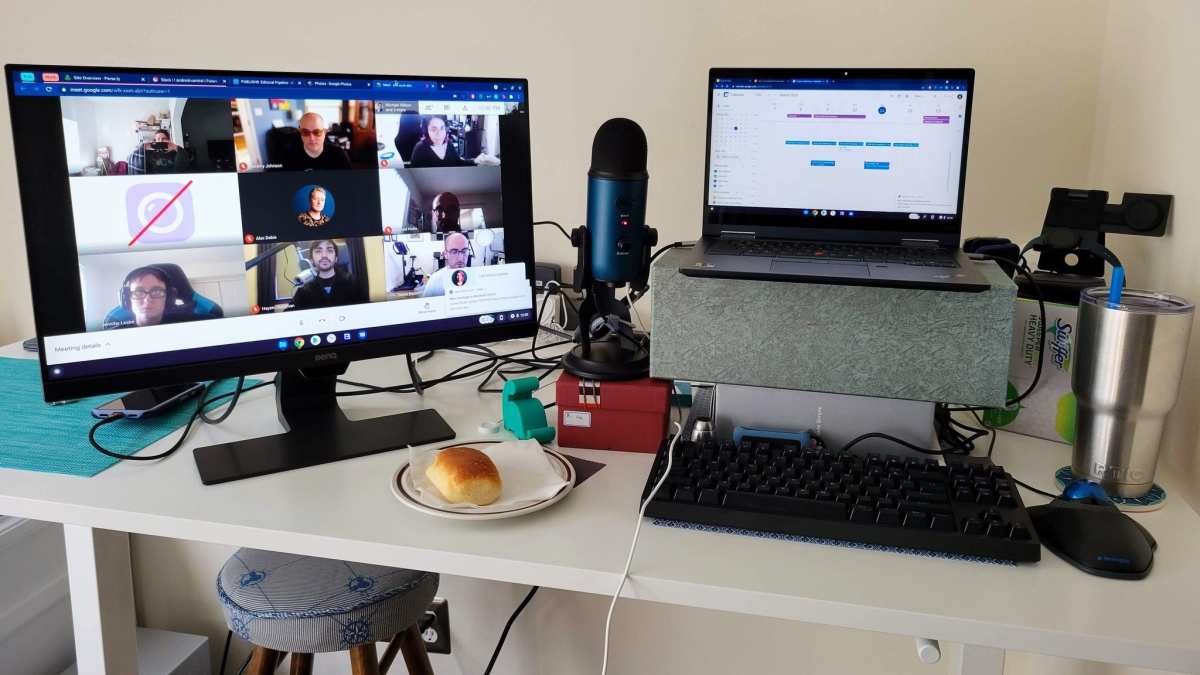
Learning how to use a USB-C monitor with a Chromebook should be simple. You plug in a cable, the external display lights up, and you're done. But plenty of people hit a wall the second they connect everything and get nothing but a blank screen or a "No signal" message.
The good news is that this is almost always a cable, port, or settings issue, and we can walk through it step by step.
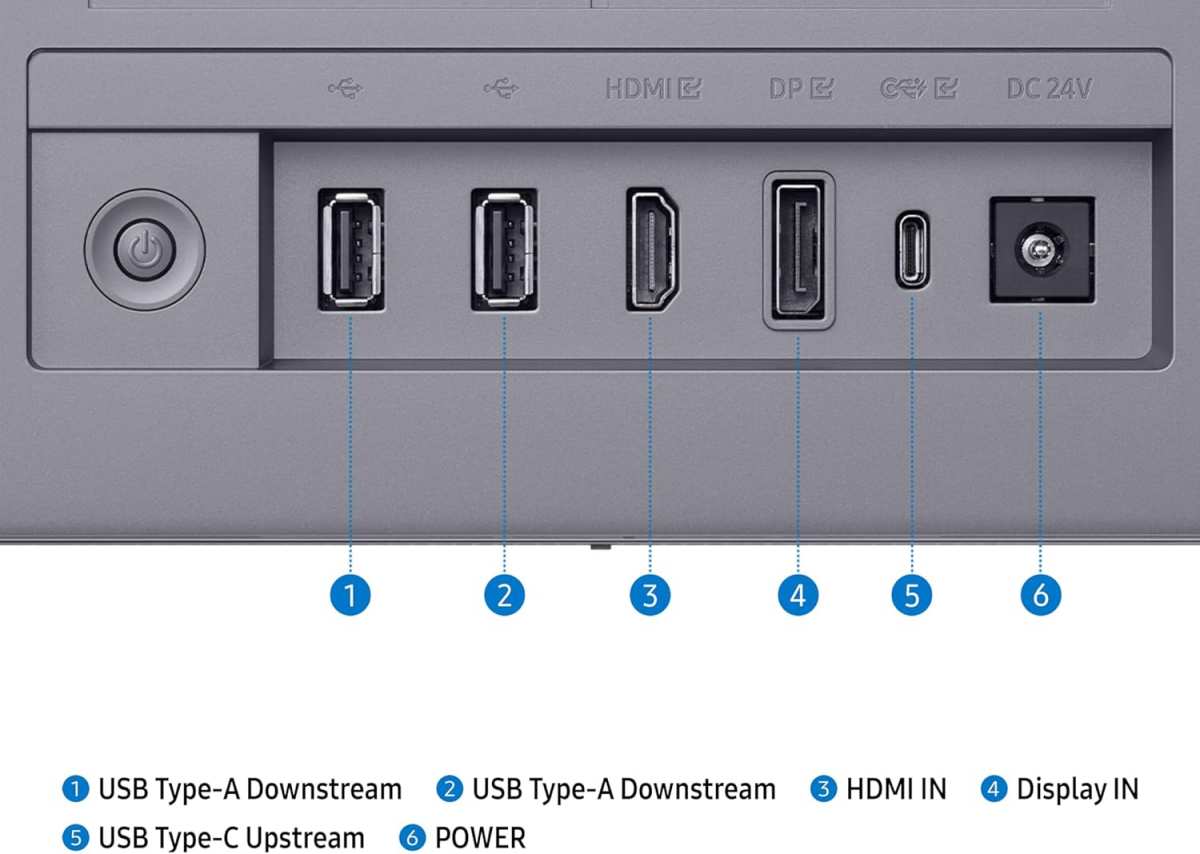
ChromeOS handles external displays through a feature called DisplayPort Alt Mode over USB-C. It's a standard that lets your Chromebook send video, power, and data through a single USB-C port. Not every Chromebook port supports it, not every cable carries video, and not every monitor negotiates the connection the same way.
Let's break down what actually matters before you start troubleshooting.
Quick Answer
Connect a full-featured USB-C cable from your monitor to your Chromebook's USB-C port. Make sure your Chromebook supports DisplayPort Alt Mode. Open Settings, then Device, then Displays to configure the external screen.
If the display isn't detected, try a different cable or check your port specs first.
Why Your Chromebook Might Not Detect a USB-C Monitor (And How to Fix It)
The most common reason a Chromebook won't recognize a USB-C monitor comes down to one of three things. Either the cable can't carry a video signal, the port doesn't support video output, or the display settings need a manual adjustment. We'll cover each scenario below.
Monitor shows "No signal" despite being connected
This usually means the cable is charge-only or the monitor is set to the wrong input. Swap the cable for one rated for video, and double-check the monitor's input source menu.
Screen flickers or drops to 30Hz
A low-quality cable or one that doesn't support the full DisplayPort Alt Mode bandwidth can cause this. Try a certified USB-C 3.1 or 3.2 cable rated for video.
Chromebook won't charge through the monitor
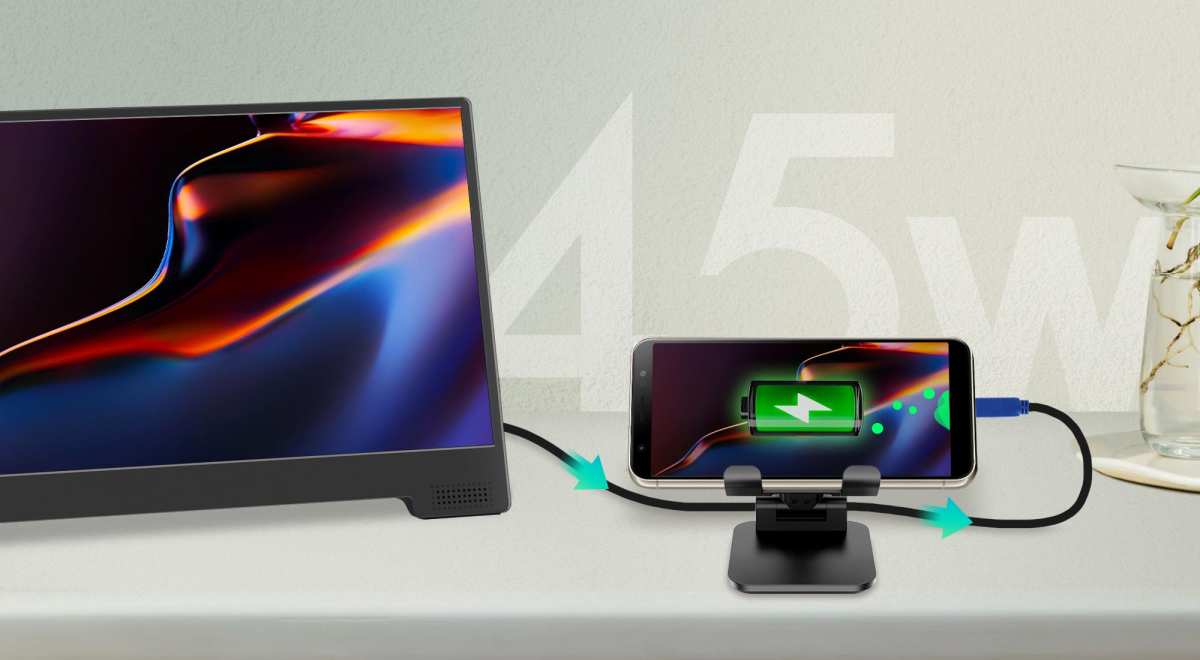
Your monitor needs to supply enough wattage. Most Chromebooks ship with 45W or 65W chargers. If the monitor only delivers 30W, it may charge slowly or not at all under heavy use.
Works on a laptop but not on your Chromebook, or vice versa
This points to a port capability mismatch. The laptop may support DisplayPort Alt Mode while the Chromebook port doesn't, or the Chromebook port may be data-only on certain budget models.
The Three Questions to Ask Before You Plug Anything In
Before you buy cables or adapters, answer these three questions. They'll save you the most time.
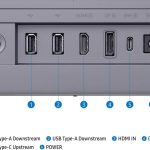
- Does your Chromebook's USB-C port actually support video output? Check your model's specs for "DisplayPort over USB-C" or "DP Alt Mode."
- Is your cable doing more than just charging? Many USB-C cables are charge-only and can't carry a video signal.
- Does your monitor expect DisplayPort over USB-C? Some monitors only accept HDMI or DisplayPort and need an adapter for USB-C input.
When Everything Works in 30 Seconds: I've Done This Setup and Here's What Typically Happens
In our research, when the right cable meets a compatible Chromebook and a USB-C-ready monitor, the experience is genuinely plug-and-play. You connect the cable, the external display mirrors the Chromebook screen within a few seconds, and ChromeOS pops up a notification asking how you want to use the display. From there you can mirror or extend in a couple of clicks.
The whole process takes under a minute. No drivers, no restarts, no fiddling with firmware. That's the ideal scenario, and it's exactly what should happen when all three pieces (Chromebook, cable, monitor) support the same standard.
When It Doesn't Work: Common Frustration Scenarios (I've Seen These a Lot)
Here's where things get annoying. Aggregate user reviews across Chromebook forums and monitor support pages report the same handful of problems over and over.
- Monitor shows "No signal" despite being connected
- Screen flickers or drops to 30Hz
- Chromebook won't charge through the monitor
- Works on a laptop but not on your Chromebook, or vice versa
Each of these has a specific cause, and each one is fixable. The trick is knowing which variable to check first.
What to Check First: Make Sure Your USB-C Cable Supports Video
This is the number one culprit in most failed setups. A huge number of USB-C cables sold today are charge-only. They'll power your device just fine but they physically cannot carry a video signal.
The cable that came in the box with your monitor is usually full-featured, but if you're using a random cable from a drawer, there's a real chance it's the wrong type.
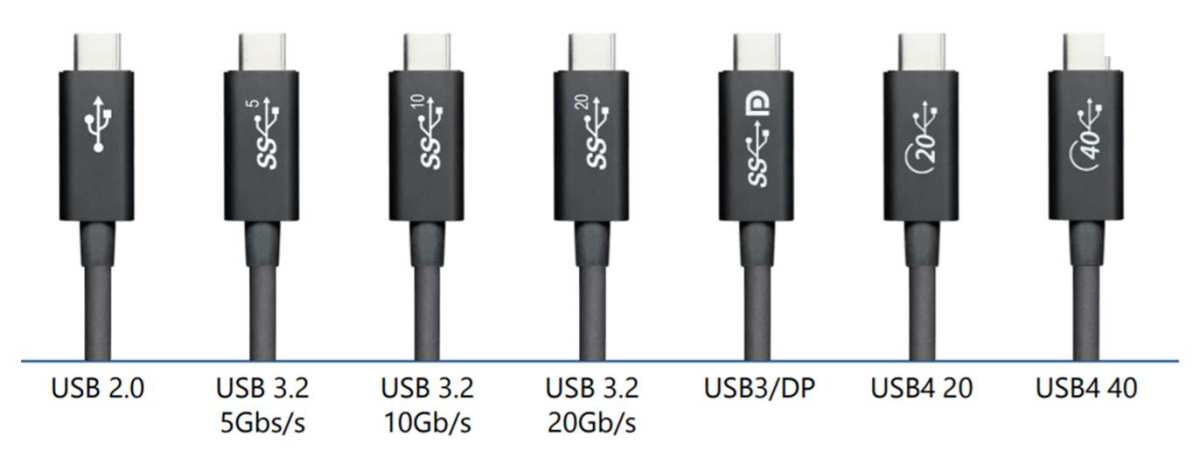
Charge-only vs. full-featured USB-C cables
Charge-only cables have fewer internal wires. They handle power and basic data but lack the wiring needed for DisplayPort Alt Mode video. A full-featured USB-C cable includes all the necessary pins for video output.
The problem is that most cables aren't labeled clearly enough to tell the difference at a glance.
How to spot the difference without labels
Look for "USB 3.1," "USB 3.2," "4K," "60Hz," or "DisplayPort" on the cable packaging or printing. If the cable packaging only mentions charging speed (like "100W PD") with no mention of data or video, it's likely charge-only. Cables rated for Thunderbolt 3 or 4 always support video.
Recommended cables that work reliably
Look for USB-IF certified cables from brands like Anker, Cable Matters, or Belkin. A cable rated for "USB 3.1 Gen 2 with DisplayPort Alt Mode" or "Thunderbolt 3" will handle video without issues. Expect to pay around $20 to $30 for a reliable full-featured cable.
The $5 gas station cable is not going to cut it here.
What to Check Second: Your USB-C Port Capabilities and Troubleshooting
Your Chromebook might have a USB-C port, but that doesn't automatically mean it supports video output. Budget and older Chromebooks sometimes include USB-C ports that handle charging and data only, skipping DisplayPort Alt Mode entirely.
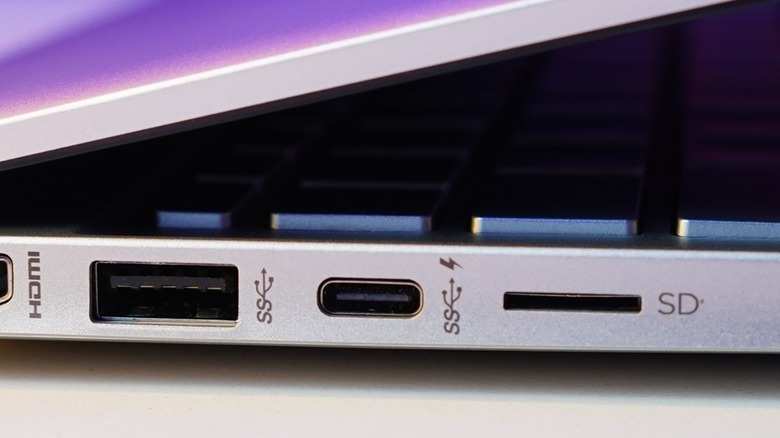
Identifying Your Chromebook's USB-C Port Specs
Check your specific model's technical specifications on the manufacturer's website. Look for phrases like "DisplayPort over USB-C," "DP Alt Mode," or "USB-C with DisplayPort 1.4." If the spec sheet only lists "USB-C 3.2 Gen 1 (charging and data)," video output probably isn't supported on that port.
Known Issues With Some Chromebook Models
Older Chromebooks or some budget models may lack DisplayPort Alt Mode entirely. Performance or gaming-oriented Chromebooks usually support video output. Google's own Pixelbook and Pixelbook Go support DP Alt Mode on both USB-C ports.
Some lower-cost models from Acer or Lenovo only support it on one of two ports, so try both if you have multiple USB-C connections.
What's the Best Alternative If Your Monitor Doesn't Have USB-C?
If your monitor only has HDMI or DisplayPort inputs, you don't need to buy a new monitor. A simple adapter or a hub with video output will bridge the gap.
USB-C Hub With HDMI or DisplayPort Output
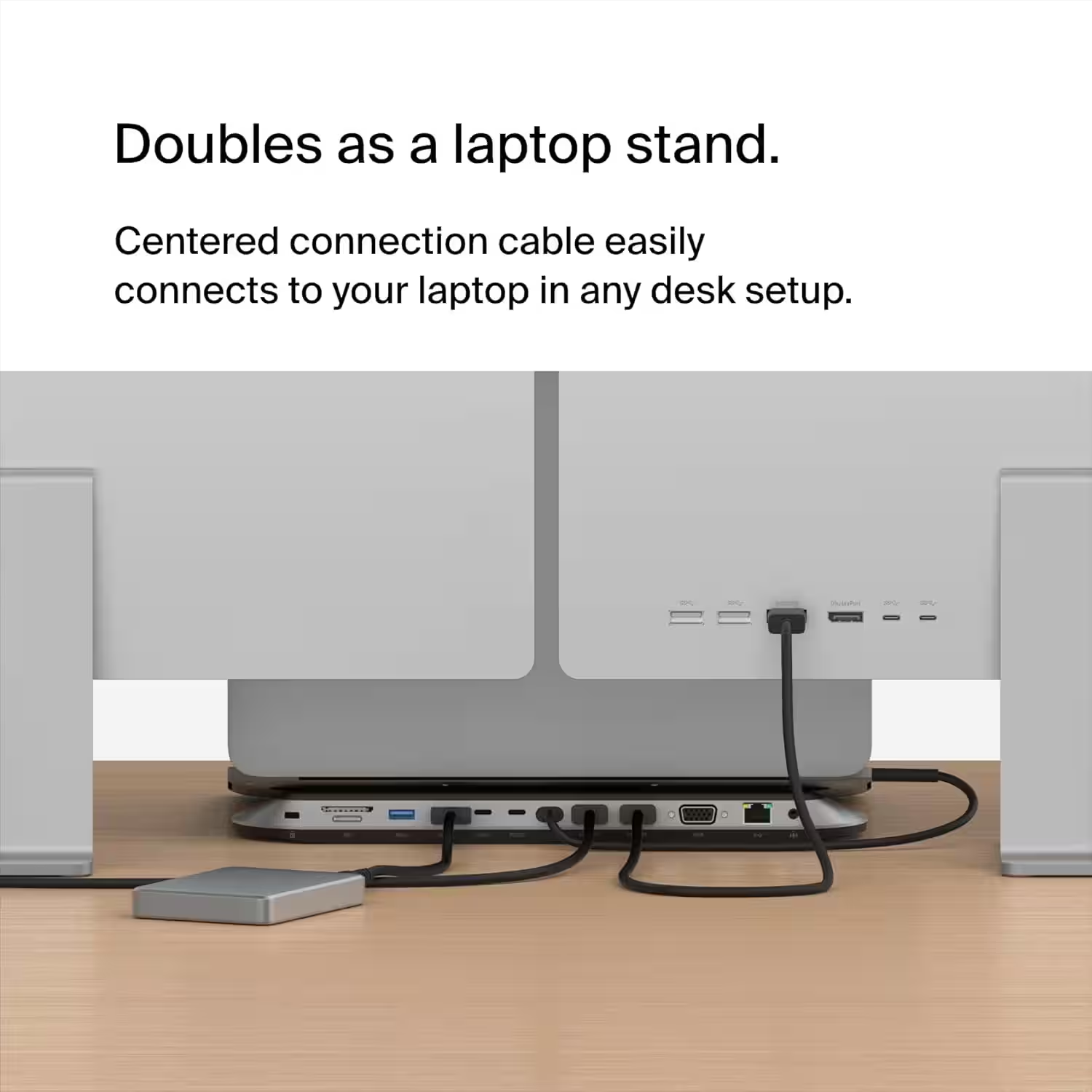
A USB-C hub with an HDMI or DisplayPort output lets you connect to virtually any external display. Look for hubs that explicitly list "4K @ 60Hz" output and Power Delivery passthrough so you can charge the Chromebook through the same hub. This is the most flexible option if you plan to connect to different monitors.
Direct HDMI or DisplayPort Connection
A simple USB-C to HDMI adapter is the cheapest and most reliable fallback. These adapters are passive in most cases, meaning they don't need drivers, and ChromeOS recognizes them immediately. This works best when you have one external display and don't need extra USB ports.
| Connection Type | Best For | Typical Cost | Notes |
|---|---|---|---|
| Direct USB-C to USB-C | Single-cable setup with USB-C monitors | $15–$30 (cable) | Cleanest solution when supported |
| USB-C hub with HDMI/DP | Multi-monitor or mixed display setups | $30–$60 (hub) | Adds extra USB ports and flexibility |
| USB-C to HDMI adapter | Quick connection to HDMI monitors | $10–$20 (adapter) | Cheapest and simplest option |
How to Adjust Display Settings Once You're Connected
Once the monitor is detected, ChromeOS gives you control over how the external display behaves. Getting the settings right makes a big difference in daily use.
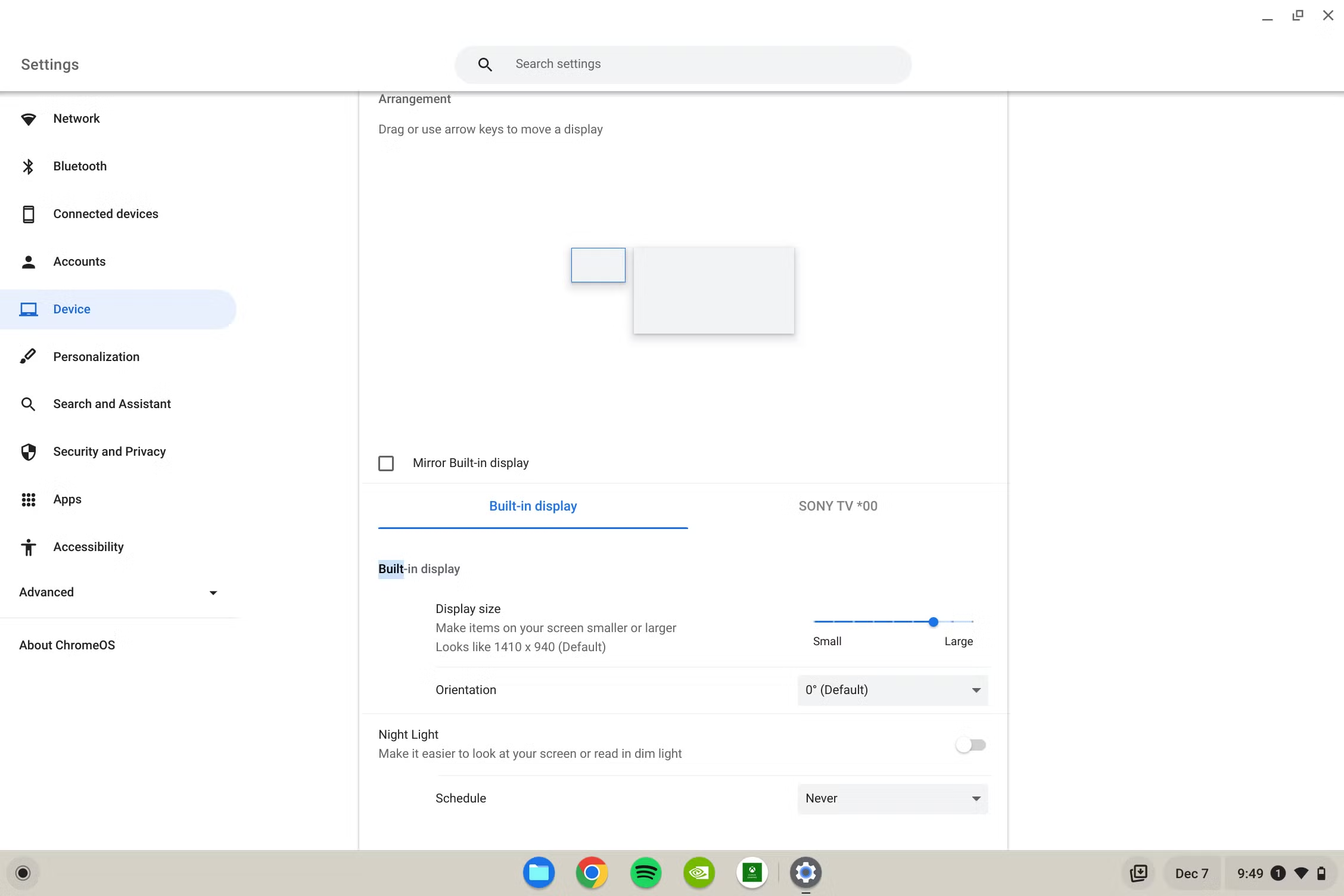
Mirror vs. extend your screen
Open Settings, then Device, then Displays. You'll see a layout showing both screens. Choose "Mirror" to duplicate the Chromebook display, or arrange the displays side by side for an extended desktop.
Most people prefer extended mode for the extra workspace.
Fixing resolution and refresh rate issues
In the same Displays menu, you can adjust the resolution and refresh rate for each screen. If the external monitor looks blurry, make sure it's set to its native resolution (usually 1920×1080 or 3840×2160). If the cursor feels sluggish, check that the refresh rate is set to 60Hz rather than 30Hz.
Arranging multiple displays in ChromeOS
Drag the display icons in the Displays settings to match the physical arrangement on your desk. This ensures your mouse moves naturally between screens. You can also set which display is your primary screen, where the shelf (taskbar) appears, and where new windows open by default.
Safe Setup Tips
USB-C is designed to be safe and smart about power negotiation. But using the wrong cable can cause real problems.
Risks of using non-certified cables or adapters
Non-compliant USB-C cables have been documented to damage devices. The USB-IF organization has published warnings about cables that lack proper chipsets or wiring. In worst-case scenarios, a bad cable can fry the USB-C port on your Chromebook or monitor.
Stick with certified cables from reputable manufacturers.
Follow manufacturer charging recommendations
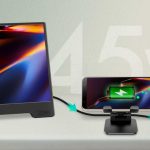
If your Chromebook shipped with a 45W charger, try to supply at least that much power through the monitor or hub. Some USB-C monitors deliver 65W or 90W, which is more than enough. Others, especially portable USB-C monitors, may only supply 30W.
That's fine for light use but may not keep up if you're running demanding apps while charging.
Best USB-C Monitors to Consider for Chromebook Users
Here are a few monitors that work well with Chromebooks based on compatibility reports and feature sets.
| Monitor | Screen Size | Resolution | USB-C PD Output | Price Range |
|---|---|---|---|---|
| Dell S2722QC | 27" | 4K | Up to 65W | $250–$350 |
| LG 27UK850-W | 27" | 4K | Up to 60W | $300–$400 |
| ASUS ProArt PA148CTV | 14" (portable) | 1080p | Up to 60W | $350–$450 |
| Samsung M5 (LS32BM500) | 32" | 1080p | Up to 65W | $200–$280 |
All of these support DisplayPort Alt Mode over USB-C and can charge your Chromebook through the same cable. The Dell and LG options are solid desk setups. The ASUS portable monitor is great for travel.
The Samsung M5 is a budget-friendly pick for casual use.
Frequently Asked Questions
Can I use any USB-C cable to connect my Chromebook to a monitor?
No. Many USB-C cables are charge-only and can't carry a video signal. You need a full-featured USB-C cable rated for DisplayPort Alt Mode or USB 3.1/3.2 data transfer.
Why won't my Chromebook charge through the USB-C monitor?
The monitor may not supply enough wattage. Check the monitor's Power Delivery output rating and compare it to your Chromebook's original charger wattage. If the monitor delivers less power than the Chromebook needs, charging will be slow or may not happen under heavy use.
Do I need to install drivers for an external monitor on Chromebook?
No. ChromeOS handles external displays natively through DisplayPort Alt Mode. There are no drivers to install.
If the monitor isn't detected, the issue is the cable, port, or settings.
Can I connect two external monitors to my Chromebook?
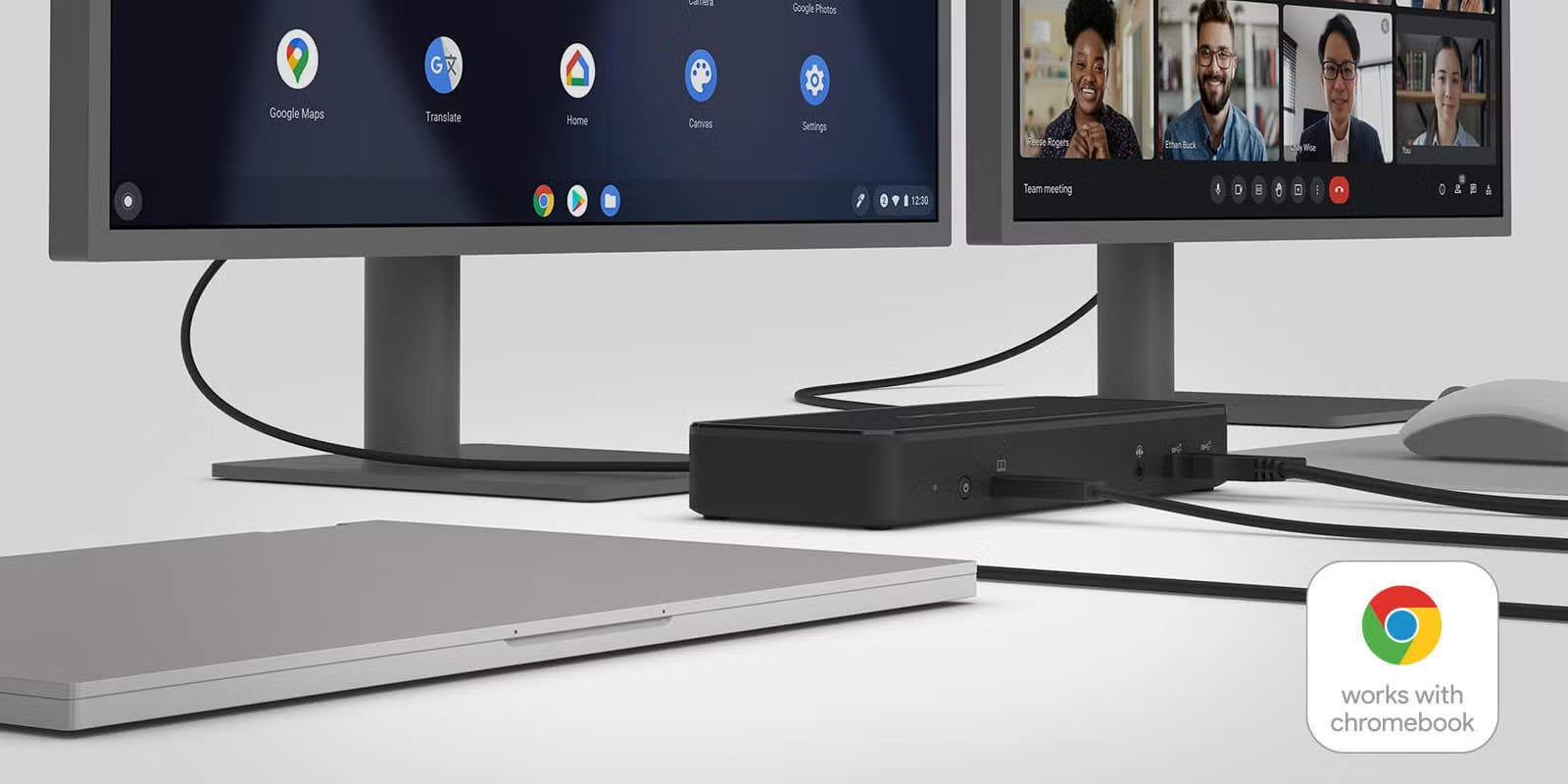
It depends on your Chromebook model. Some support dual external displays through two USB-C ports. Others require a USB-C hub with Multi-Stream Transport (MST) support.
Check your specific model's specs for multi-display capabilities.
What's the difference between USB-C and Thunderbolt for monitors?
Both can drive external displays. Thunderbolt 3 and 4 use the USB-C connector and support DisplayPort Alt Mode along with faster data speeds. For most Chromebook users, the practical difference is minimal since Chromebooks rarely include Thunderbolt ports.
A USB-C connection with DP Alt Mode handles video just fine.
My Recommendation Based on Your Situation
The right setup depends on what you're working with and what you need.
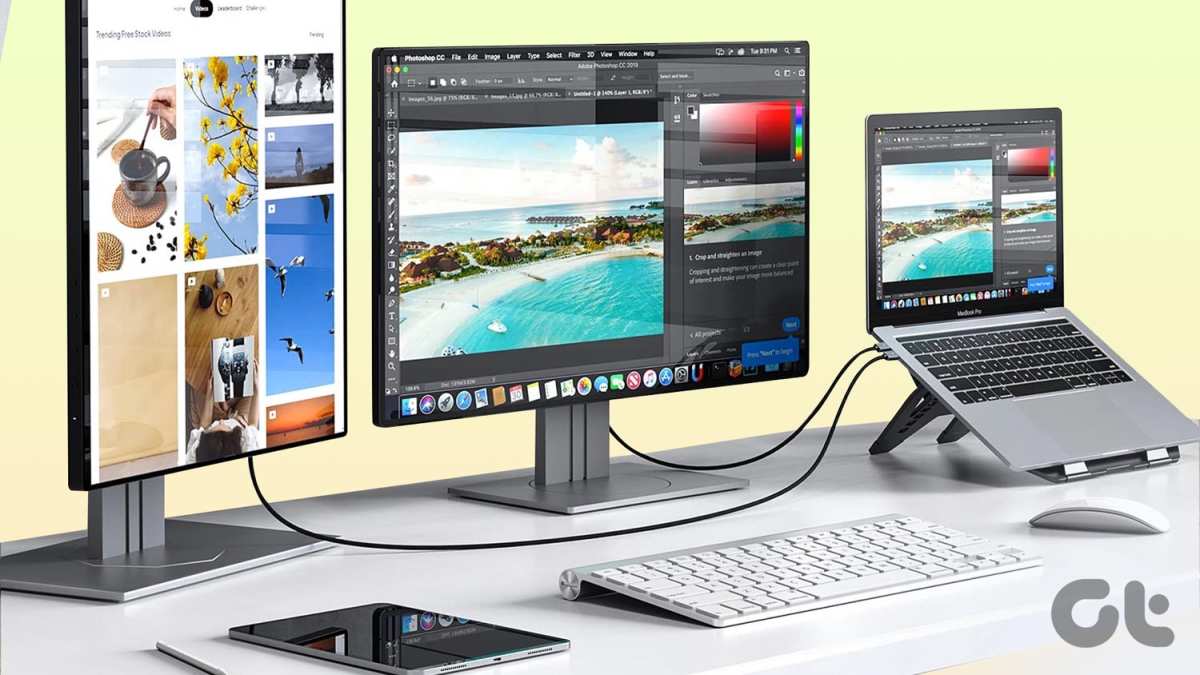
If your monitor has USB-C with Power Delivery: Use a single full-featured USB-C cable. This is the cleanest, simplest option. You get video, charging, and data through one connection.
Just make sure the cable supports DisplayPort Alt Mode.
If your monitor only has HDMI or DisplayPort: Grab a USB-C to HDMI adapter or a USB-C hub with HDMI output. This is cheaper than buying a new monitor and works reliably with ChromeOS. A hub gives you extra USB ports too.
If you travel often: A portable USB-C monitor like the ASUS ProArt PA148CTV or Lenovo ThinkVision M14t connects with a single cable and runs off your Chromebook's battery. No extra power brick needed.
If you want dual external displays: Check whether your Chromebook supports video output on both USB-C ports. If not, you'll need a USB-C hub with MST support or a DisplayLink dock. Note that DisplayLink requires a ChromeOS extension, which adds a small layer of complexity.
The bottom line is this. Start with the cable. That's where most people go wrong.
Get a proper full-featured USB-C cable, confirm your port supports DP Alt Mode, and the rest falls into place.
If your monitor isn't being detected even after swapping cables, try a few additional fixes. First, power-cycle the monitor while it's connected to the Chromebook. Second, restart the Chromebook with the monitor already plugged in.
Third, check whether a ChromeOS update is pending, since display compatibility improvements sometimes ship with system updates.
Cable quality control
Even a cable marketed as full-featured can be defective or non-compliant. If you have multiple USB-C cables rated for video, test each one. Also try disconnecting and reconnecting the cable from both ends firmly.
Loose connections cause intermittent detection issues.
Chromebook needs a restart after connection
Some Chromebooks don't hot-detect USB-C displays reliably. If you plug in the monitor while the Chromebook is already on and nothing happens, restart with the cable connected. ChromeOS typically detects the external display during the boot process.
Monitor firmware updates
A few USB-C monitors have firmware updates that fix compatibility issues. Check the manufacturer's support page for your specific monitor model. This is less common but worth checking if nothing else works.
Frequently Asked Questions
Can I daisy-chain multiple USB-C monitors?
Only if your Chromebook and monitors both support DisplayPort Multi-Stream Transport (MST). Most Chromebooks don't support MST natively. For dual external displays, a USB-C dock with multiple video outputs is usually the better option.
Does USB-C monitor work with all Chromebooks?
No. The Chromebook must support DisplayPort Alt Mode on its USB-C port. Budget models and older Chromebooks may only support charging and data.
Always check your specific model's specs before buying a USB-C monitor.
Why does my external display look blurry?
The resolution is probably set to something lower than the monitor's native resolution. Go to Settings, then Device, then Displays, and make sure the external monitor is set to its recommended (native) resolution. For a 4K monitor, that's 3840×2160.
Will a USB-C hub slow down my display?
A quality USB-C hub rated for 4K at 60Hz won't introduce noticeable lag. Cheap or uncertified hubs may limit you to 30Hz or cause flickering. Stick with hubs from reputable brands that explicitly list their video output specs.
Can I use a USB-C monitor and charge at the same time?
Yes, if the monitor supplies Power Delivery. The monitor sends power to your Chromebook through the same cable carrying the video signal. Check the monitor's PD wattage rating to make sure it matches or exceeds your Chromebook's charging requirements.

Similar Posts