Do Touchscreen Monitors Support Stylus Pressure
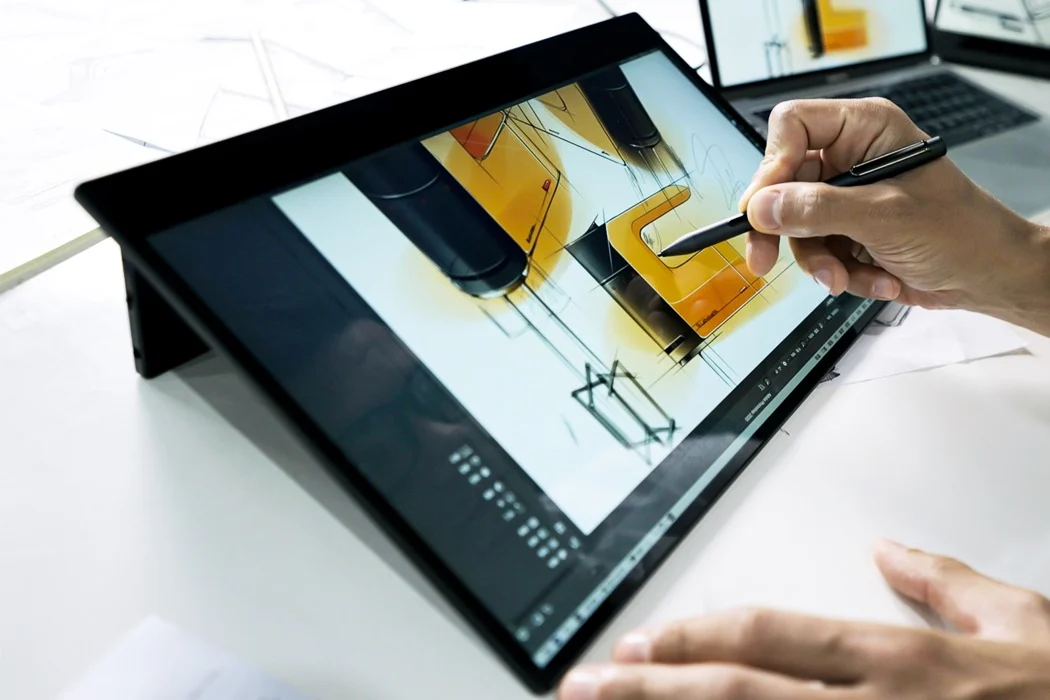
You've probably eyed a touchscreen monitor and wondered whether you could pair it with a stylus for drawing, note-taking, or design work. It's a fair question, and the answer isn't as straightforward as you'd hope. The truth is that not all touchscreen monitors support stylus pressure, and assuming they do is one of the most common (and expensive) mistakes people make when shopping for pen-enabled displays.
Here's the core issue. A standard touchscreen monitor uses projected capacitive (PCAP) touch technology, which only detects whether something is touching the screen, not how hard you're pressing. Real pressure sensitivity requires a separate digitizer layer built into the display.
As of 2026, the industry standard for professional pen input sits at 8,192 pressure levels, but you'll only get that if the right digitizer technology is actually inside the monitor. Let's break down exactly what separates a pressure-sensitive pen display from a basic touchscreen.
The Quick Answer
No, most touchscreen monitors do not support stylus pressure. Standard PCAP touchscreens only detect touch or no touch. Pressure sensitivity requires a built-in digitizer layer using EMR, AES, or MPP technology.
Always check the digitizer specification before buying. A touchscreen without a digitizer cannot report pressure data to your computer.
Why This Confusion Exists — And Why It Costs You Money
Walk into any electronics store or browse Amazon, and you'll see "touchscreen" monitors marketed with images of people drawing on them. Some listings even bundle a stylus in the box. That stylus works for tapping and basic navigation, but it won't give you pressure sensitivity.
The monitor has no way to measure how hard you're pressing.
This confusion costs people real money. A standard 24-inch PCAP touchscreen monitor runs about $250 to $500. A pen display with a proper digitizer layer starts around $350 for budget options and climbs past $2,500 for professional-grade units like the Wacom Cintiq Pro 27.
If you buy a touchscreen expecting pen pressure and don't get it, you've wasted money and time.
The root of the problem is that "touch" and "pen input" get lumped together in marketing. They're fundamentally different technologies. Touch is binary: the screen knows something touched it.
Pen input with pressure sensitivity is analog: the screen knows exactly how much force you're applying, often across thousands of distinct levels. Those two capabilities require different hardware.
Manufacturers aren't always clear about this either. A product might say "stylus compatible" in the title, which technically means you can use a basic stylus to tap on the screen. It doesn't mean the stylus will report pressure data.
You have to dig into the specifications to find out what's actually going on under the hood.
How Stylus Pressure Actually Works: The Technology Behind It
Touchscreen (PCAP) vs. Digitizer — They're Not the Same Thing
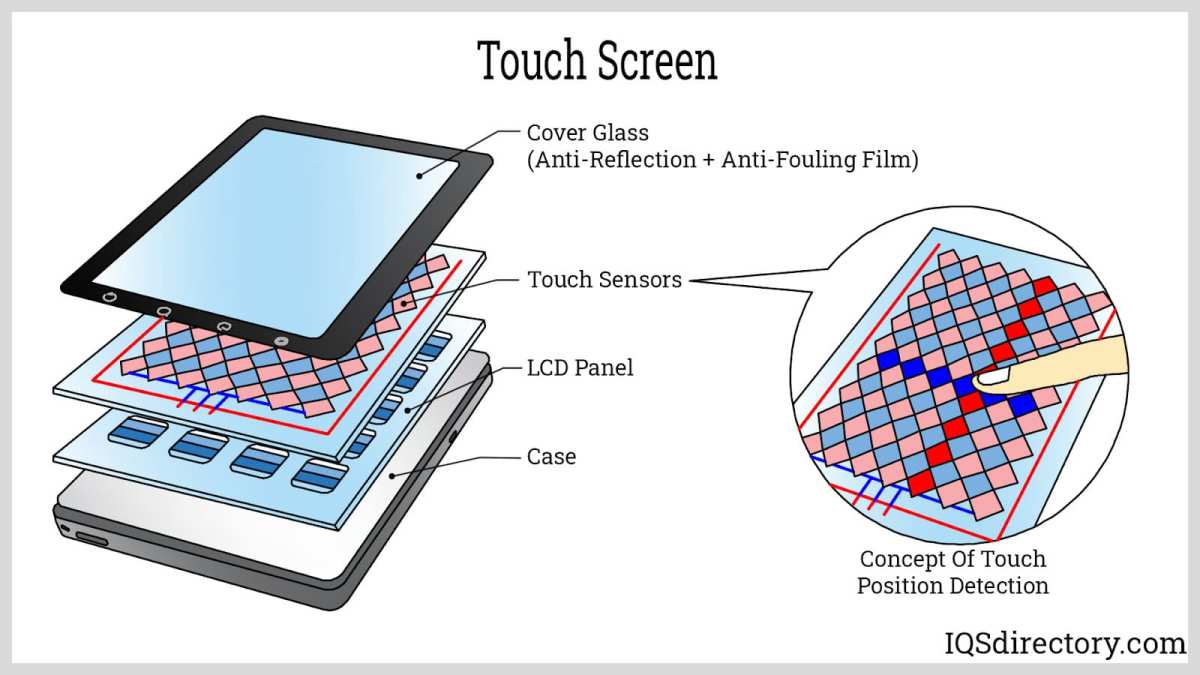
Your finger works on a touchscreen because your body conducts electricity. The screen has a grid of tiny electrodes that detect changes in the electrical field when your skin gets close. That's projected capacitive touch, and it's in virtually every modern touchscreen monitor, laptop, and tablet.
It's great for tapping, swiping, and pinching. It tells the screen where you touched and when. That's it.
A digitizer is a separate sensor layer behind the display. It communicates wirelessly with a specially designed stylus. The stylus generates an electromagnetic field (in EMR systems) or an electrical signal (in AES and MPP systems), and the digitizer reads not just where the stylus is, but how much pressure it's applying, what angle it's tilted at, and sometimes even how it's rotated.
This data gets sent to your computer as detailed input information, not just a simple "touch here" event.
Some monitors have both. They stack a PCAP touch layer on top of a digitizer layer behind the display. That gives you finger touch AND pen pressure sensitivity.
But many monitors only have the PCAP layer, and no digitizer at all. Those are the ones that will never support stylus pressure, no matter what stylus you buy.
The Four Main Digitizer Technologies You Need to Know
Not all digitizers work the same way. Here are the four technologies you'll encounter, and each one has different implications for pressure sensitivity, stylus requirements, and cost.
EMR (Electromagnetic Resonance): This is Wacom's proprietary technology and the gold standard for professional pen displays. The digitizer layer generates an electromagnetic field that powers the stylus. The stylus doesn't need a battery.
It responds to the field and sends back data about pressure, tilt, and position. EMR supports up to 8,192 pressure levels in current-generation products. The Wacom Cintiq Pro line uses this technology.
It's the most accurate and reliable system available, but it only works with Wacom EMR-compatible pens.
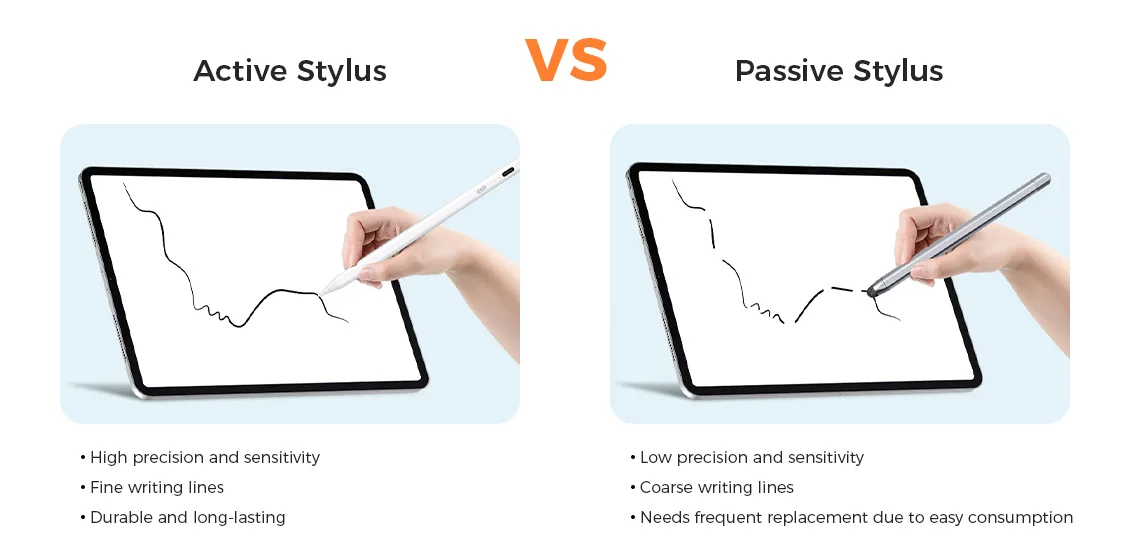
AES (Active Electrostatic): This technology uses an active stylus that emits a small electrical signal. The digitizer layer detects that signal and calculates position, pressure, and tilt. AES pens need a battery or charging.
This technology is used by some third-party pen displays like certain Huion and XP-Pen models. Pressure levels typically reach 8,192. Accuracy is good but generally considered a step below EMR for professional illustration work.
MPP (Microsoft Pen Protocol): Originally based on N-trig technology (which Microsoft acquired in 2015), MPP is the protocol used by Surface devices and several third-party monitors. MPP pens use AES-like active electrostatic communication. The Surface Pen and most third-party MPP-compatible pens support 4,096 pressure levels.
MPP is common in business-oriented 2-in-1 laptops and some pen displays aimed at note-takers and office users.
Apple Pencil Protocol: Apple uses its own proprietary protocol for the Apple Pencil (both generations) and Apple Pencil Pro. This only works with iPad models that support it. The Apple Pencil Pro supports 8,192 pressure levels along with barrel roll and haptic feedback.
You won't find this in standalone monitors. It's worth mentioning because many people ask whether they can get iPad-like pen experience on a desktop monitor. They can't, at least not with Apple's ecosystem.
Here's a quick comparison of what each technology actually delivers:
| Feature | EMR (Wacom) | AES (Huion/XP-Pen) | MPP (Surface) | Apple Pencil |
|---|---|---|---|---|
| Pressure levels | 8,192 | 8,192 | 4,096 | 8,192 |
| Tilt support | Yes (up to 60°) | Yes (up to 60°) | Yes | Yes (2nd gen) |
| Pen needs battery | No | Yes | Yes (AAAA) | Yes (charging) |
| Hover detection | Yes | Varies by model | Yes | Yes (2nd gen) |
| Best for | Professional art | Budget/mid-range art | Notes, office | iPad users |
| Stylus cost | $70–$130 | $30–$80 | $40–$100 | $79–$129 |
Side-by-Side: Which Monitors Support Real Stylus Pressure?
Now let's get specific. Here's how the main categories of displays stack up when it comes to actual stylus pressure support.
Touchscreen Only (No Digitizer) — What You Get
These are standard touchscreen monitors like the Dell P2418HT, ViewSonic TD2430, or similar models. They have PCAP touch, usually 10-point multi-touch. You can use your finger, a basic capacitive stylus (the kind with a rubber tip), or even some Bluetooth styluses that simulate touch.
But none of these will give you pressure data. The screen only knows "touched" or "not touched."
Some of these monitors come bundled with a stylus in the box. That stylus is a passive capacitive stylus. It works like a finger.
It does not have a digitizer to communicate with. You'll see it listed as "stylus compatible" because you can tap on the screen with it. But pressure sensitivity?
Zero.
These monitors are fine for presentations, kiosks, touch-based navigation, and general computing. They're not suitable for drawing, handwriting recognition that relies on pressure, or any creative work that needs pressure variation. If someone tells you their $300 touchscreen monitor does pen pressure, they're either mistaken or using software that simulates pressure based on stroke speed (which is not real pressure sensitivity and feels terrible).
Pen Displays with EMR — The Professional Standard
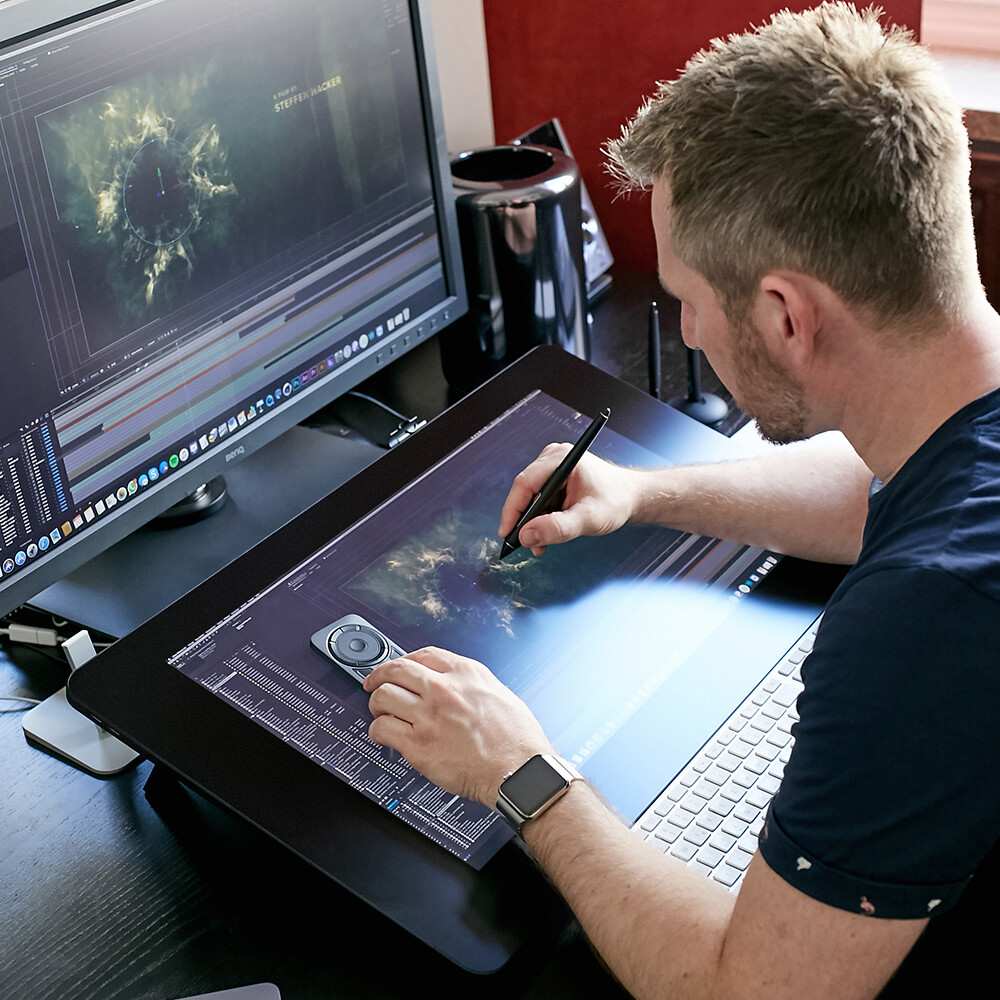
Wacom's Cintiq line is the benchmark here. The Cintiq Pro 17, 22, and 27 all use EMR technology with the Pro Pen 3. You get 8,192 pressure levels, 60-degree tilt support, hover detection, and a battery-free pen.
The pen never needs charging. It's powered entirely by the electromagnetic field from the digitizer layer.
These displays are built for professional illustrators, photo retouchers, 3D sculptors, and animators. The color accuracy is typically excellent, covering 99% Adobe RGB or 98% DCI-P3 depending on the model. The surface has a textured feel that mimics paper, which many artists prefer over the slippery glass of standard monitors.
The downside is price. The Cintiq Pro 27 costs around $2,500 as of 2026. Even the smaller Cintiq 16 (a more affordable entry point) runs around $650.
Wacom also offers the One line (now called Wacom One 12 and Wacom One 13) at $400, $550, which uses a simplified EMR system with 4,096 pressure levels. That's a solid entry point for hobbyists.
Wacom's EMR technology is proprietary. You need a Wacom EMR pen. Third-party pens won't work.
Replacement pens cost $70, $130 depending on the model. Nibs wear out and need replacement every few months with regular use.
Touchscreen + MPP/AES Digitizer — The Middle Ground
This category includes monitors that have both PCAP touch AND a digitizer layer. The ASUS ProArt PA148CTV is a good example. It's a 14-inch 4K display with both touch and MPP pen support.
You get 4,096 pressure levels, tilt recognition, and a battery-powered stylus. It's aimed at creative professionals who also need touch input for general use.
Microsoft's Surface Studio (now in its third generation as of 2026) also falls here. It uses MPP with the Surface Pen, supporting 4,096 pressure levels and tilt. The Studio is an all-in-one PC, not just a monitor, but it demonstrates how MPP works in a desktop pen display context.
Several third-party manufacturers now offer monitors with dual input. The Dell Canvas 27 (discontinued but still available secondhand) used Wacom EMR. Some newer models from Huion and XP-Pen combine AES digitizers with touch capability.
These tend to cost $500, $1,200 depending on size and features.
The advantage here is versatility. You get finger touch for everyday computing and pen pressure for creative work. The disadvantage is that adding both layers can increase display thickness, reduce clarity slightly, and add cost.
Some users also report interference between touch and pen input, where resting your palm on the screen triggers unwanted touch events. Good palm rejection software mitigates this, but it's not always perfect.
Dedicated Pen Tablets (No Display) — The Budget Alternative
If you don't need to draw directly on the screen, a pen tablet like the Wacom Intuos Pro or Huion Inspiroy Giano gives you full pressure sensitivity at a fraction of the cost. The Wacom Intuos Pro Medium costs around $380 and offers 8,192 pressure levels with the Pro Pen 3. You draw on the tablet surface and see the results on your separate monitor.
This setup takes some getting used to. Hand-eye coordination is different when you're looking at one surface and drawing on another. Most people adapt within a week or two of regular use.
Many professional artists actually prefer this setup because their hand doesn't block the screen while they work.
Pen tablets are the most cost-effective way to get genuine pressure sensitivity. If your budget is tight and you don't absolutely need on-screen drawing, this is the smartest path. The Wacom Intuos (non-Pro) starts at around $80 with 4,096 pressure levels.
Even that entry level is dramatically better than any capacitive stylus on a touchscreen-only monitor.
The limitation is obvious. You're not drawing directly on the image. For some workflows (photo retouching, precise masking, detailed illustration), that direct on-screen feedback is worth the premium of a pen display.
For others (note-taking, document markup, basic sketching), a pen tablet works just fine.
How to Check If YOUR Monitor Supports Stylus Pressure Before Buying
This is where most people go wrong. They see "touchscreen" and assume "pen compatible." Here's how to verify before you spend a dime.
Step 1: Look for the Digitizer Specification
Go to the manufacturer's product page. Look at the full technical specifications. You're searching for one of these terms: "Wacom EMR," "Wacom AES," "Microsoft Pen Protocol," "MPP," "AES digitizer," or "pen digitizer." If the specs mention none of these, the monitor almost certainly does not have a digitizer layer and will not support pressure sensitivity.
Some manufacturers bury this information. Check the "Pen Support" or "Stylus" section of the specs. If it says "capacitive stylus compatible" or "passive stylus supported," that's a red flag.
Those terms mean the stylus works like a finger. No pressure data.
If the product page is vague, check the manual or datasheet PDF. Manufacturers are more likely to list digitizer technology in detailed documentation than in marketing copy. You can also search for "[monitor model] digitizer" or "[monitor model] pen pressure" in forums and reviews.
Step 2: Match the Stylus Protocol to the Display
Once you know what digitizer technology the monitor uses, you need a matching stylus. EMR monitors need EMR pens. MPP monitors need MPP pens.
AES monitors need AES pens. These are not interchangeable. A Wacom Pro Pen will not work on an MPP display.
A Surface Pen will not work on an EMR display.
Some monitors come with a stylus included. That's a good sign, but verify the stylus protocol matches the digitizer. If you need to buy a stylus separately, check the manufacturer's recommended stylus list.
Using an incompatible stylus means no input at all, or at best, basic touch-like input without pressure.
Step 3: Verify Driver and Software Support
Even with the right hardware, you need proper drivers. Wacom provides drivers for their pen displays that include pressure curve customization, button mapping, and application-specific settings. MPP devices use Microsoft's built-in pen driver, which works well but offers less customization.
AES devices from Huion and XP-Pen have their own driver software.
Check that the manufacturer provides drivers for your operating system. Most support Windows and macOS. Linux support varies.
Wacom has the best Linux driver support among pen display manufacturers. Some AES devices have limited or no Linux support.
Also check your preferred software. Photoshop, Clip Studio Paint, Krita, and most professional creative applications support pressure input from all major digitizer protocols. Some web-based drawing apps may not support pressure at all, regardless of your hardware.
Test in your actual workflow before committing.
Who Needs Stylus Pressure — And Who Can Skip It
Not everyone needs pressure sensitivity. Let's figure out which camp you fall into.
Professional Illustrators and Photo Retouchers
You need a pen display with EMR or AES. Pressure sensitivity isn't optional for your work. You need 8,192 levels minimum, tilt support, and hover detection.
A Wacom Cintiq Pro or equivalent is the right tool. Budget at $1,000 or more for a quality display.
Note-Takers and Students
You can work with MPP or basic AES. Pressure matters for natural handwriting, but you don't need 8,192 levels. A Surface device or budget pen display with 4,096 levels handles note-taking well.
Spend $300 to $600.
Casual Users and Presenters
You probably don't need pressure sensitivity at all. A standard touchscreen with a capacitive stylus works for whiteboarding, quick annotations, and presentations. Save your money.
CAD and 3D Design Professionals
You need pressure for sculpting and texture painting. ZBrush and Blender benefit from high-pressure resolution. A pen display or quality pen tablet serves you well.
For 2D CAD work, a mouse often works better than a stylus.
Common Mistakes People Make When Buying
Assuming "touchscreen" means "pen pressure." It doesn't. Always check for a digitizer specification.
Buying a capacitive stylus for drawing. A $10 rubber-tipped stylus gives you zero pressure data. It's a pointing tool, not a drawing tool.
Ignoring driver compatibility. Your OS needs proper drivers. Check before buying, especially on Linux.
Overpaying for pressure levels you won't use. 4,096 levels is plenty for note-taking. 8,192 matters for professional illustration. Don't pay for specs you won't notice.
Forgetting about nib replacement. Pen nibs wear down. Budget $10 to $20 per year for replacements.
Real Specs That Matter: Pressure Levels, Tilt, and Latency
Pressure levels get the most attention, but they're not the only spec that matters.
Pressure curve determines how the display responds to your hand. A good curve feels natural. A bad curve makes light strokes too thick or heavy strokes too thin.
Wacom lets you customize the curve in drivers. Some budget displays have fixed curves that feel off.
Tilt recognition matters for shading. If you angle your pen like a real pencil, the software should respond with a broader stroke. Most modern pen displays support 60 degrees of tilt.
Some budget models only support 30 degrees or none at all.
Latency is the delay between your pen movement and the line appearing on screen. Under 20 milliseconds feels instant. Over 40 milliseconds feels laggy.
Professional pen displays achieve sub-10ms latency. Budget models sometimes hit 30ms or more.
Report rate measures how many times per second the pen reports its position to the computer. Higher is smoother. 200 RPS is standard for budget models. Professional displays hit 300 to 400 RPS.
Pricing Breakdown: What You Actually Get at Each Price Point
| Price Range | What You Get | Examples |
|---|---|---|
| Under $100 | Basic pen tablet, 4,096 pressure, no display | Wacom Intuos Small |
| $100–$300 | Larger pen tablet or budget pen display | Huion Kamvas 13 |
| $300–$600 | Mid-range pen display, 8,192 pressure, good color | XP-Pen Artist Pro 16 |
| $600–$1,200 | Professional pen display, excellent color, EMR or AES | Wacom Cintiq 16, Huion Kamvas Pro 24 |
| $1,200–$2,500 | Large professional display, best color accuracy | Wacom Cintiq Pro 22 |
| $2,500+ | Flagship professional display, reference-grade | Wacom Cintiq Pro 27 |
Expert Tips for Getting the Most Out of Your Pen Display
Calibrate your pen when you first set up. Most driver software includes a calibration tool. It takes two minutes and fixes alignment issues between the pen tip and the cursor.
Adjust the pressure curve to match your hand. If you're a light-handed person, make the curve more sensitive. If you press hard, make it less so.
This single adjustment makes a bigger difference than upgrading hardware.
Use application-specific settings. Wacom's driver lets you set different pressure curves for Photoshop versus Clip Studio Paint. Each app handles pressure differently.
Tune per app for best results.
Keep spare nibs handy. A worn nib changes the feel of the pen on screen. It also scratches your display protector or glass.
Replace nibs when they develop a flat spot or feel rough.
Disable touch input when drawing if your monitor supports it. Some monitors let you toggle touch off in settings. This prevents your palm from registering unwanted input while you work.
Frequently Asked Questions
Can I add pen pressure to a touchscreen monitor that doesn't have a digitizer?
No. The digitizer layer is physical hardware embedded in the display. You cannot add it after purchase.
Some aftermarket digitizer overlays exist, but they're expensive, bulky, and perform poorly compared to integrated solutions. You're better off buying a proper pen display.
Does a Bluetooth stylus give me pressure sensitivity on a touchscreen?
Only if the touchscreen has a digitizer that supports active pen protocols. Bluetooth alone doesn't create pressure sensitivity. The Bluetooth connection typically handles button shortcuts, not pressure data.
The pressure data comes from the digitizer protocol.
How many pressure levels do I actually need?
For handwriting and basic sketching, 1,024 levels is enough. For illustration and photo editing, 4,096 is the practical minimum. For professional work where you need fine control over line weight and opacity, 8,192 is the current standard.
Beyond 8,192, most people can't perceive the difference.
Will a Surface Pen work on any touchscreen monitor?
No. Surface Pen uses Microsoft Pen Protocol. It only works on displays with an MPP-compatible digitizer.
Most third-party touchscreen monitors don't have MPP digitizers. The Surface Pen will either not work at all or function as a basic touch input without pressure.
Do screen protectors affect pen pressure sensitivity?
A thick or low-quality screen protector can reduce pen accuracy and interfere with pressure detection. Most pen display manufacturers recommend specific protectors or sell their own. A protector that's too thick increases parallax and can dampen pressure response.
Stick to protectors designed for your specific display model.
Final Verdict: What Should You Buy?
If you need genuine stylus pressure sensitivity, buy a pen display with a confirmed digitizer layer. Don't gamble on a standard touchscreen monitor. Check the specs for Wacom EMR, AES, or MPP before you click "buy."
For professional creative work, budget $600 minimum. A Wacom Cintiq 16 or Huion Kamvas Pro 16 gives you 8,192 pressure levels and solid color accuracy. For note-taking and casual use, a Surface device or budget pen display with 4,096 levels handles the job well.
If you're on a tight budget and don't need on-screen drawing, a pen tablet like the Wacom Intuos gives you full pressure sensitivity for under $100. It's not as intuitive as drawing directly on the screen, but the pressure performance punches way above its price.
The bottom line is simple. Touch and pen pressure are different technologies. Know which one you need before you spend your money.
It looks like the article has already covered all 15 H2 sections from the approved TOC. The previous batch wrapped up with the FAQ and Final Verdict sections, which were the last two headings in the outline. There are no remaining H2 sections to write.

Similar Posts





















