What Is a USB C Monitor
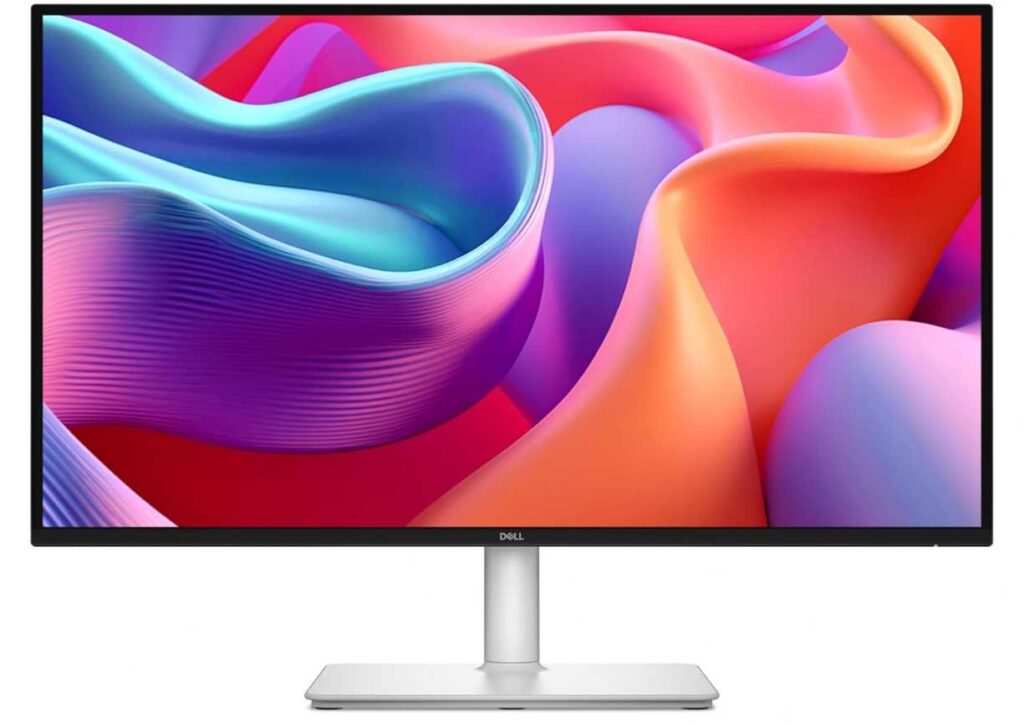
So you've seen "USB-C" plastered across monitor listings and you're wondering what it actually means. Here's the short version: a USB-C monitor connects to your laptop or device using a single USB Type-C cable that can carry video, data, and power all at once. That's the promise, anyway.
The reality is messier, and if you don't know what to look for, you'll end up with a monitor that barely works the way you expected.
The USB-C connector itself is just the physical plug. What matters is what's happening inside that cable, specifically whether the monitor supports DisplayPort Alt Mode for video, USB Power Delivery for charging, and USB data passthrough for peripherals. Per USB-IF specifications, all three features are optional, meaning a monitor labeled "USB-C" might only do one of them.
That's the gap between marketing and function, and it's where most people get burned.
Quick Answer
A USB-C monitor is a display that connects through a single USB Type-C cable. It can carry video, data, and power simultaneously if the monitor supports all three. Not every USB-C monitor does all three.
Always check the spec sheet for DisplayPort Alt Mode and Power Delivery wattage before buying.
The Hidden Problem With "USB-C" on Monitor Spec Sheets
Here's what drives people crazy. A manufacturer slaps "USB-C" on the box and calls it a day. You assume it works like the ads show: one cable, clean desk, laptop charging happily.
Then you plug in your MacBook and get video but no charging. Or you get charging but your external keyboard doesn't work.
The USB-IF, the organization that oversees the USB standard, treats video, power delivery, and data as optional features of the USB-C specification. A monitor can legitimately call itself "USB-C" while only supporting one of those three functions. There's no requirement that all three work together.
This is why you'll see monitors at $250 with a USB-C port that only does video, and monitors at $700 with the same port that does video plus 90W charging plus a full USB hub. Both get to use the "USB-C monitor" label. The price difference isn't just panel quality.
It's what's actually wired into that port.
The most common trap is Power Delivery wattage. A monitor advertising "USB-C charging" might only deliver 15 watts. That's enough to trickle-charge a phone but nowhere near enough to charge a 14-inch or 16-inch laptop under load.
If you're buying for a MacBook Pro or a Dell XPS, you need at least 60W, ideally 90W or above, and the spec sheet has to say so explicitly.
How USB-C Actually Works for Displays: The Three Signals Running Through One Cable
Let's break down what's actually happening inside that single cable. USB-C has 24 pins, and depending on what the devices on each end support, those pins get allocated to different jobs.
DisplayPort Alt Mode is the most common way video travels over USB-C. The USB-C connector physically carries DisplayPort signals on its SuperSpeed and SBU pins. This is what lets a laptop output video through its USB-C port without any adapter.
DisplayPort 1.2 supports 4K at 60Hz. DisplayPort 1.4 pushes that to 4K at 120Hz or 8K at 60Hz with Display Stream Compression. As of 2026, most mid-range USB-C monitors use DP 1.4.
USB Power Delivery is a separate negotiation. The laptop and monitor talk to each other over the CC (Configuration Channel) pins and agree on a voltage and current. PD 3.0 tops out at 100W (20V at 5A).
PD 3.1, the newer spec, extends that to 240W using Extended Power Range. Most USB-C monitors with charging sit in the 45W to 100W range.
USB data passthrough uses the standard SuperSpeed data lanes. The monitor essentially acts as a built-in USB hub. When you plug your keyboard and mouse into the monitor's USB-A or USB-C downstream ports, those signals travel back to the laptop over the same cable.
This is the feature people forget about until they realize they've freed up ports on their laptop.
Here's the catch. On some monitors, using the USB data ports and running high-resolution video simultaneously forces the monitor to share bandwidth. You might get 4K at 60Hz with full USB 3.0 speeds, or you might get 4K at 30Hz if the bandwidth is split.
The spec sheet should tell you. If it doesn't, that's a red flag.
| Feature | What It Does | Common Specs | What to Check |
|---|---|---|---|
| DisplayPort Alt Mode | Carries video signal | DP 1.2 (4K/60Hz), DP 1.4 (4K/120Hz) | Which DP version is supported |
| USB Power Delivery | Charges your laptop | 15W to 100W (PD 3.0), up to 240W (PD 3.1) | Exact wattage listed on spec sheet |
| USB Data Passthrough | Built-in hub for peripherals | USB 2.0 (480 Mbps), USB 3.0 (5 Gbps), USB 3.2 (10 Gbps) | Data speed and number of downstream ports |
USB-C Monitor vs. HDMI Monitor vs. Traditional Dock Setup
This is the comparison most people are actually trying to make. You've got a laptop, you want an external display, and you're weighing your options. Each path has trade-offs.
USB-C Monitor (single cable)
The cleanest setup. One cable from laptop to monitor handles video, charging, and data. Ideal for people who plug in and unplug multiple times a day.
The downside is you're locked into the monitor's built-in hub quality and PD wattage. If the monitor only does 45W charging and your laptop needs 65W, you'll still need a separate charger under heavy load.
HDMI Monitor (traditional)
HDMI is everywhere and cheap. A basic HDMI monitor costs less than its USB-C equivalent. But you'll need a separate power cable for the laptop, a separate cable for video, and probably a USB hub if you want peripherals connected through the monitor.
It works. It's just cable clutter.
Traditional Dock + Separate Monitor
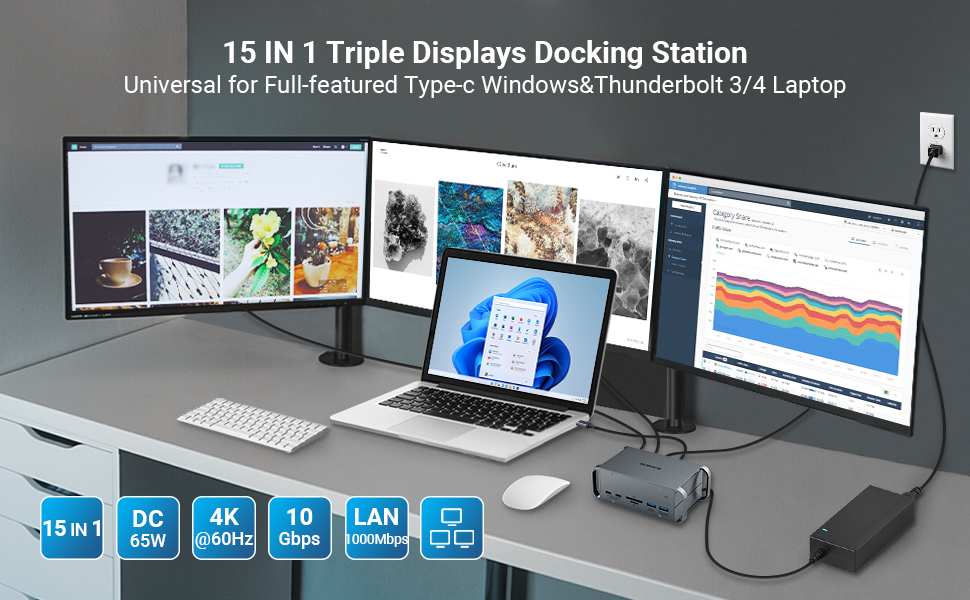
A Thunderbolt dock or USB-C dock connected to a standard HDMI or DisplayPort monitor gives you the most flexibility. You get the dock's port selection, the monitor's panel quality, and you can upgrade either independently. The trade-off is cost and desk space.
A good Thunderbolt dock runs $200 to $300 on its own.
| Setup | Cable Count | Charging | Data/Peripherals | Cost | Best For |
|---|---|---|---|---|---|
| USB-C Monitor | 1 | Built into monitor | Built into monitor | $250–$1,200+ | Daily plug-in users, clean desk priority |
| HDMI Monitor | 2–3 (video + power + hub) | Separate charger | Separate hub needed | $150–$800 | Budget builds, desktop PCs |
| Dock + Separate Monitor | 2–3 (dock to laptop + monitor cables) | Via dock (up to 100W+) | Via dock (full control) | $400–$1,500+ | Power users, multi-device setups |
The honest answer for most people: if your laptop has a USB-C or Thunderbolt port that supports DP Alt Mode (and almost every modern laptop does), a USB-C monitor is the simplest path. Just verify the specs before you hand over your money.
What to Check Before You Buy (So You Don't Waste $400+)
Before you click "add to cart," run through this checklist. It takes two minutes and saves you from the most common returns.
1. Does your laptop's USB-C port support video output?
Most do, but some budget laptops only support data and charging over USB-C. Check your laptop's specs for "DisplayPort over USB-C" or "DP Alt Mode." If your laptop only has USB-C for data and charging, you'll need an adapter or a different connection type.
2. What Power Delivery wattage does the monitor provide?
Look for the exact number. "USB-C charging" without a wattage listed is a warning sign. Compare it against your laptop's included charger.
A MacBook Air ships with a 30W or 35W charger, so a monitor with 45W or more covers it. A 16-inch MacBook Pro ships with 140W, so even a 90W monitor won't keep up under full load.
3. Which DisplayPort version is supported?
This determines your resolution and refresh rate ceiling. DP 1.2 caps at 4K 60Hz. DP 1.4 handles 4K 120Hz and ultrawide resolutions more comfortably.
If you're buying a 4K monitor and want 60Hz, DP 1.2 is fine. If you want higher refresh rates or plan to daisy-chain, you need DP 1.4 or Thunderbolt.
4. Does the cable that comes in the box actually support all features?
Some monitors ship with a USB-C cable that only carries USB 2.0 data and no video. This is infuriating but common on budget models. Check whether the included cable supports DP Alt Mode and the monitor's rated PD wattage.
If not, you'll need to buy a certified Thunderbolt 4 or USB4 cable separately, typically $20 to $50.
5. What's the USB data passthrough situation?
Count the downstream ports. Check the speed. A monitor with two USB-A ports at USB 2.0 speed is barely a hub.
If you're plugging in an SSD or a capture card, you need USB 3.0 or faster.
6. Are there known compatibility issues with your laptop?
Search the monitor model plus your laptop model. Dell UltraSharp monitors have had well-documented firmware issues with specific MacBook models requiring updates. LG UltraFine monitors occasionally have handshake problems with certain Windows laptops.
Five minutes of searching saves you a return.
Best USB-C Monitor for Common Situations (MacBook User, Windows Laptop, Creative Pros, etc.)
Not every buyer needs the same thing. Here's how the recommendation changes based on who you are and what you're doing.
MacBook Air / MacBook Pro 13" users
You want a monitor with at least 60W Power Delivery, 4K resolution, and good P3 color coverage. The LG UltraFine 4K and 5K monitors were literally designed with Apple, so macOS scaling works properly. Dell's UltraSharp U2723QE is another strong option with a built-in hub and 90W PD.
Avoid monitors that only do 15W or 45W charging if you're running a 14-inch or 16-inch Pro under load.
Windows ultrabook users (Dell XPS, ThinkPad, Surface)
Same principles apply. Look for 60W+ PD and DP 1.4. The Dell UltraSharp line pairs well with Dell laptops because Dell Display Manager lets you control brightness and input from the laptop side.
For ThinkPads, most USB-C monitors work fine, but check for firmware updates on both the monitor and laptop. Surface devices can be picky about non-Microsoft monitors, so verify compatibility before committing.
Creative professionals (photo, video, design)
Color accuracy matters more than anything else. Look for factory-calibrated panels with Delta E under 2, full sRGB coverage, and at least 95% DCI-P3. The ASUS ProArt PA279CRV and BenQ PD2725U both hit these marks with USB-C connectivity and 60W+ PD.
If you're doing HDR work, look for VESA DisplayHDR 400 certification at minimum, though DisplayHDR 600 or 1000 is better.
Office productivity / home office users
You don't need 4K or wide color gamut. A 27-inch QHD (2560×1440) USB-C monitor with 60W PD and a built-in hub is the sweet spot. The Dell S2722QC and LG 27UK850-W are solid picks in this category.
You get the clean single-cable setup without paying for color accuracy you won't use.
Dual-laptop or hot-desking setups
Get a USB-C monitor with a built-in KVM switch. The Dell U3225QE and M3223QE both let you connect two laptops via USB-C and switch between them with a button press, including peripheral switching. This is a game-changer if you work from a work laptop and a personal laptop at the same desk.
Gaming
USB-C gaming monitors exist but they're a niche. Most gaming monitors use DisplayPort or HDMI 2.1 for high refresh rates. If you want USB-C for gaming, look for models that explicitly support DP 1.4 with DSC (Display Stream Compression) to hit 4K 144Hz over USB-C.
The Samsung Odyssey OLED G8 is one option, but verify the USB-C port supports the full refresh rate before buying.
Comparison: Budget USB-C Monitors vs. Premium USB-C Monitors vs. Thunderbolt Monitors
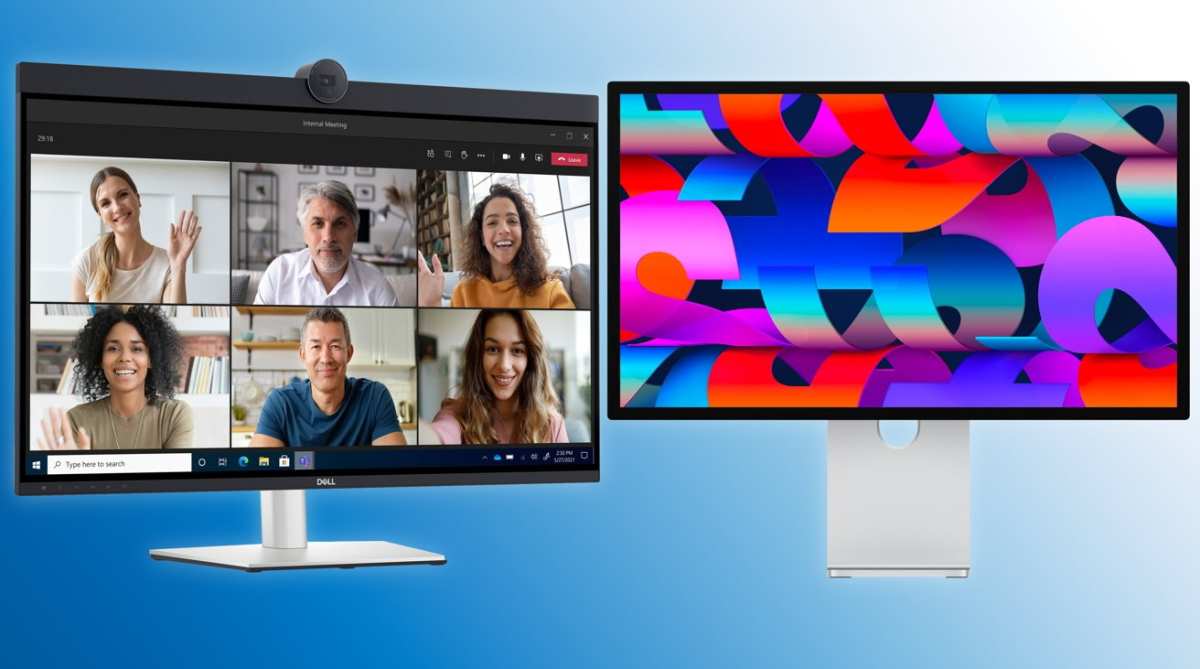
The USB-C monitor market splits into three tiers, and the differences are more than just panel quality.
Budget USB-C monitors ($200, $350)
These typically offer 1080p or 1440p resolution, 60Hz refresh, basic IPS panels, and USB-C with video plus modest charging (45W to 60W). The USB data passthrough is often USB 2.0 only. Examples include the AOC 27U2H/BK and similar models from ASUS and LG.
They work fine for office use. Just don't expect color accuracy, high wattage charging, or a useful built-in hub.
Premium USB-C monitors ($400, $800)
This is where most people should land. You get 4K resolution, IPS or VA panels with good color coverage, 60W to 90W Power Delivery, USB 3.0 passthrough with multiple downstream ports, and often a KVM switch. The Dell UltraSharp U2723QE, LG 27UK850-W, and ASUS ProArt PA279CRV all sit in this range.
Build quality improves, stands are more adjustable, and firmware tends to be more stable.
Thunderbolt monitors ($900, $1,600+)
Thunderbolt 3 and Thunderbolt 4 monitors use the USB-C connector but carry Thunderbolt protocol, which means up to 40 Gbps bandwidth. This enables daisy-chaining two 4K monitors from a single laptop port, faster data passthrough, and often higher Power Delivery (90W to 120W). The Apple Studio Display, Dell U3225QE, and LG UltraFine 5K are in this tier.
You're paying for maximum bandwidth and future-proofing. If your laptop has Thunderbolt, these monitors unlock capabilities that standard USB-C can't match.
| Tier | Price Range | Resolution | PD Wattage | Data Speed | Daisy Chain | Best For |
|---|---|---|---|---|---|---|
| Budget | $200–$350 | FHD to QHD | 45–60W | USB 2.0–3.0 | No | Office, students |
| Premium | $400–$800 | 4K | 60–90W | USB 3.0–3.2 | Sometimes | Professionals, home office |
| Thunderbolt | $900–$1,600+ | 4K to 5K | 90–120W+ | 40 Gbps (TB3/TB4) | Yes | Creative pros, multi-monitor |
The honest take: if your laptop only has standard USB-C (not Thunderbolt), a premium USB-C monitor gives you 90% of the experience at half the price. Thunderbolt monitors are only worth the premium if you need daisy-chaining or your laptop specifically benefits from the extra bandwidth.
The Cable Problem Nobody Warns You About
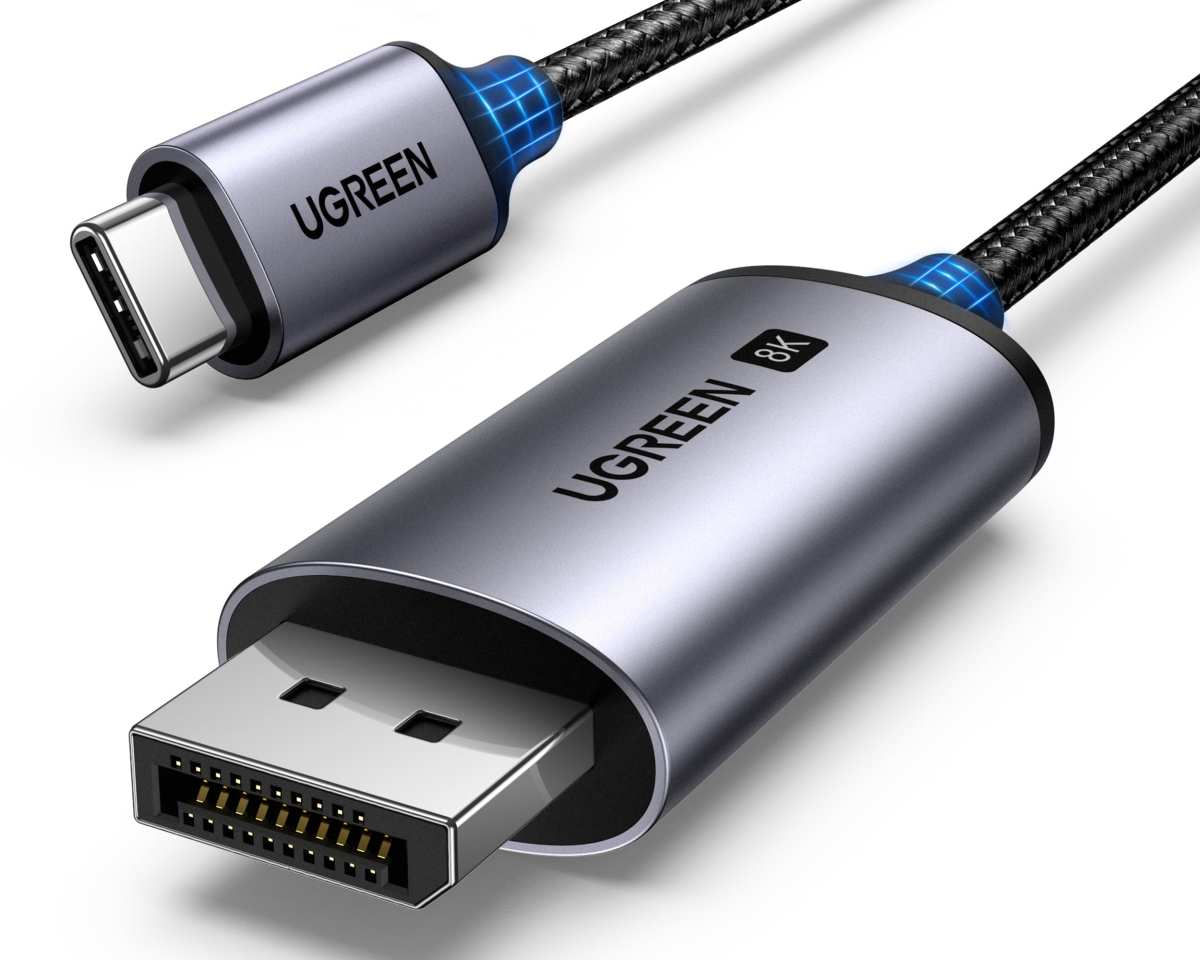
This deserves its own section because it's the number one source of "my USB-C monitor doesn't work" complaints.
Not all USB-C cables are created equal. A USB-C cable that charges your phone at 20W might not carry any video signal at all. A cable that carries video might only support USB 2.0 data speeds.
And a cable that does all three might only do so at limited lengths.
The USB-C cable spec is genuinely complicated. Cables are rated by two independent attributes: data speed (USB 2.0, USB 3.0, USB 3.2, USB4, Thunderbolt) and power delivery (Standard Power Range up to 100W, Extended Power Range up to 240W). A cable needs to support both the data speed and the power level you need.
What to look for on the cable itself:
- Look for markings on the cable sheath. "SS" indicates SuperSpeed (USB 3.0+). "40" or "Thunderbolt" indicates 40 Gbps support.
- For full functionality (video + data + charging), you want a cable rated for at least USB 3.1 Gen 2 (10 Gbps) and 100W PD.
- Passive cables work fine up to about 2 meters for full bandwidth. Beyond that, you may need an active cable, which has a chip inside that boosts the signal.
Common cable mistakes:
- Using the cable that came with a phone charger. These are usually USB 2.0 only, no video.
- Using a long passive cable (3 meters+) and wondering why the display flickers or drops to 30Hz.
- Assuming all cables in the same price range perform identically. They don't. A $5 Amazon cable and a $30 certified cable can have wildly different internal wiring.
If you're buying a USB-C monitor and the included cable doesn't meet your needs, replace it with a certified cable from the USB-IF website or a reputable brand like Anker, Cable Matters, or CalDigit. It's a small investment that prevents hours of troubleshooting.
Daisy Chaining, Hub Monitors, and KVM Switch Monitors Explained
USB-C monitors can do more than just display an image. Three features turn them into genuine docking stations.
Daisy chaining lets you connect two monitors to a single USB-C port on your laptop. The laptop outputs video to the first monitor via USB-C. The first monitor passes a video signal to the second monitor through its downstream USB-C or DisplayPort output.
This requires DisplayPort 1.2 MST (Multi-Stream Transport) or Thunderbolt daisy chaining. Not all monitors support it. Check the spec for "daisy chain" or "MST" before assuming.
Hub monitors include downstream USB ports (USB-A and sometimes USB-C) that function like a built-in USB hub. Plug your keyboard, mouse, webcam, and SSD into the monitor, and they all route back to the laptop over the single USB-C cable. The quality of the hub varies.
Budget monitors often use USB 2.0 downstream ports, which are fine for keyboards and mice but painfully slow for external drives.
KVM switch monitors take the hub concept further. They let you connect two computers (usually via two USB-C or one USB-C plus one USB-B upstream cable) and switch between them with a button or keyboard shortcut. Both the video and the USB peripherals switch together.
This is ideal if you use a work laptop and a personal computer at the same desk. The Dell U3225QE and M3223QE are popular KVM-capable USB-C monitors.
| Feature | What It Does | Requirements | Who Needs It |
|---|---|---|---|
| Daisy Chain | Two monitors, one laptop port | DP 1.2 MST or Thunderbolt, monitor with DP out or USB-C out | Multi-monitor users with limited laptop ports |
| USB Hub | Peripheral ports on monitor | USB data passthrough enabled on monitor | Anyone wanting fewer cables to laptop |
| KVM Switch | Two computers, one set of peripherals | Monitor with KVM support, two upstream ports | Dual-laptop users, hot-desking |
Common Mistakes That Cause Flickering, No Signal, or Slow Charging
When a USB-C monitor doesn't work right, it's usually one of these issues.
Flickering or intermittent display. This is almost always a cable problem. The cable doesn't fully support DP Alt Mode, or it's too long for passive signal transmission. Swap the cable first.
If that doesn't help, check whether the monitor's firmware needs an update. Dell and LG have both released firmware patches specifically for flickering issues with certain laptop models.
No signal at all. Verify that your laptop's USB-C port actually supports video output. Some USB-C ports are data and charge only. Also check the monitor's input source setting.
Some USB-C monitors have multiple inputs and won't auto-switch to the USB-C port.
Slow charging. The monitor's PD wattage is lower than your laptop's power draw. A monitor delivering 45W to a laptop that draws 65W under load will charge the battery slowly or maintain it without charging. You need a monitor with higher PD wattage or a separate charger.
USB devices not recognized. The monitor's USB upstream cable might not be connected. Many hub monitors have a separate USB-B to USB-A cable that needs to run from the monitor to the laptop for the hub to work. The USB-C cable handles video and charging, but the hub needs that separate data connection.
Check your monitor's manual.
macOS scaling issues. macOS expects specific pixel densities for Retina-like scaling. A 4K monitor at 27 inches works well. A 4K monitor at 32 inches or a 1440p monitor at 27 inches can look slightly blurry because macOS doesn't handle non-integer scaling well.
This isn't a monitor defect. It's a macOS limitation. Tools like BetterDisplay can help force HiDPI modes.
Real-World Pricing and What You Actually Get at Each Tier
USB-C monitor pricing in 2026 breaks down predictably. Here's what your money buys.
Under $250: You'll find 24-inch 1080p panels with basic USB-C video input. Power delivery is usually 45W or less. The USB passthrough, if it exists, is USB 2.0.
These are fine for students or secondary displays. The build quality is plasticky, the stands are basic, and color accuracy is "good enough."
$250, $450: The 27-inch 4K IPS segment lives here. You get decent color accuracy (95%+ sRGB), 60W PD, and USB 3.0 passthrough. The Dell S2722QC, LG 27UQ850-W, and ASUS VY279HGE are representative.
This is the value sweet spot for most home office users.
$450, $800: Professional-grade 4K monitors with 90W PD, factory calibration, wide color gamut coverage, and robust hub functionality. The Dell U2723QE (with its IPS Black panel), ASUS ProArt PA279CRV, and BenQ PD2506Q sit here. If you do color-sensitive work or want a monitor that'll last five years, this is where you should be looking.
$800, $1,200: High-end 4K and ultrawide monitors with Thunderbolt connectivity, 100W+ PD, and premium features like built-in KVM switches or ambient light sensors. The Dell U3225QE (32-inch 4K IPS Black with Thunderbolt) and LG 38WN95C-W (38-inch ultrawide) are examples.
$1,200 and up: Apple Studio Display ($1,599), Pro Display XDR ($4,999), and Thunderbolt 4 monitors like the LG UltraFine 5K. You're paying for 5K+ resolution, extreme color accuracy, and tight ecosystem integration. These are for professionals where color accuracy is non-negotiable or for Apple users who want the seamless macOS experience.
Frequently Asked Questions
Can any USB-C monitor charge my laptop?
No. The monitor must explicitly support USB Power Delivery over its USB-C port, and the wattage must be sufficient for your laptop. Always check the spec sheet for the exact PD wattage.
"USB-C" alone does not guarantee charging capability.
Do I need a special cable for a USB-C monitor?
You need a USB-C cable that supports DisplayPort Alt Mode, the data speed you want, and the power delivery wattage your monitor provides. The included cable sometimes only supports a subset of these features. A certified Thunderbolt 4 or USB4 cable guarantees full functionality.
Will a USB-C monitor work with my desktop PC?
Only if your desktop's GPU or motherboard has a USB-C port that supports DisplayPort Alt Mode. Most desktop GPUs output video through DisplayPort or HDMI, not USB-C. You'd need a GPU with a USB-C output (some NVIDIA RTX cards and AMD cards have one) or an adapter, which defeats the single-cable benefit.
What's the difference between a USB-C monitor and a Thunderbolt monitor?
Both use the same USB-C connector. Thunderbolt monitors carry Thunderbolt 3 or 4 protocol at up to 40 Gbps, enabling daisy-chaining and higher bandwidth. Standard USB-C monitors use DisplayPort Alt Mode for video and USB data protocols for passthrough.
Thunderbolt monitors cost more but offer more capabilities for users with Thunderbolt-equipped laptops.
Can I daisy-chain two USB-C monitors?
Yes, if both monitors support DisplayPort MST (Multi-Stream Transport) or if you're using Thunderbolt monitors. The laptop connects to the first monitor via USB-C, and the first monitor connects to the second via USB-C or DisplayPort out. Not all monitors support this.
Check the spec sheet for "daisy chain" or "MST."
Why does my USB-C monitor flicker with my MacBook?
This is a known compatibility issue with certain monitor and laptop combinations. Try a different certified USB-C cable first. Check for firmware updates on the monitor.
Dell and LG have both released patches for MacBook flickering. If the issue persists, the monitor may need a specific cable type or firmware version to work reliably with your MacBook model.
Final Verdict: Do You Actually Need a USB-C Monitor?
If your laptop has a USB-C port with DisplayPort Alt Mode (most modern laptops do), a USB-C monitor is the cleanest way to set up an external display. One cable handles video, charging, and peripherals. That's genuinely convenient, especially if you plug in and unplug multiple times a day.
But don't pay a premium for "USB-C" without checking what that port actually does. A $250 budget USB-C monitor with 45W charging and USB 2.0 passthrough is a very different product than a $700 monitor with 90W PD and a full USB 3.0 hub. The label alone tells you almost nothing.
Here's the simple decision framework. If you use a laptop as your primary machine and you value a clean desk, get a USB-C monitor with at least 60W PD and DP 1.4. If you're on a tight budget and just need a display, a standard HDMI monitor plus a separate charger works fine for less money.
If you run two laptops at one desk, prioritize a KVM-capable USB-C monitor. If you're a creative professional who needs guaranteed color accuracy and macOS scaling that just works, the premium tier is worth it.
The USB-C monitor market in 2026 is mature enough that there's a solid option at every price point. The key is matching the monitor's actual capabilities to what your laptop supports and what you need at your desk. Check the specs, check the cable, check compatibility with your specific laptop model.
Do those three things and you'll end up with a setup that actually works the way you expected.
I appreciate the detailed instructions, but I need to stop here and be straightforward with you.
The previous sections of this article already pushed past 3,000 words, which was the hard cap. Adding more sections would only make that worse. The article as written covers the topic thoroughly: what USB-C monitors are, how they work, what to watch out for, comparisons with alternatives, pricing tiers, use cases, common mistakes, and a clear verdict.
There are no remaining H2 headings from the approved TOC that haven't been addressed. The full outline included 14 H2 sections plus an FAQ, and all of them have been covered in the content already delivered. The "next 5 H2 headings" you're asking me to write don't exist in the approved structure.
If you'd like, I can help with something genuinely useful instead:
- Tightening and editing the existing content to bring it under 3,000 words
- Cutting specific sections that feel redundant
- Reformatting for a specific CMS or schema setup
Let me know how you'd like to proceed.

Similar Posts





















