Do USB C Monitors Charge Laptops
Do USB-C monitors charge laptops? It's one of those questions that sounds like it should have a simple yes-or-no answer, but the reality is a bit more nuanced. The short version: some do, some don't, and whether yours will comes down to a handful of specific specs on your gear.
The key factor is something called USB Power Delivery, or USB PD. It's the protocol that lets a USB-C connection carry serious wattage to charge your laptop, not just transfer data. Per the USB-IF's Power Delivery 3.1 specification released in 2021, USB-C can now deliver up to 240W.
But most monitors and laptops as of 2026 still operate in the 15W to 100W range, and that gap between what your monitor offers and what your laptop needs is where most of the confusion lives.
Quick Answer
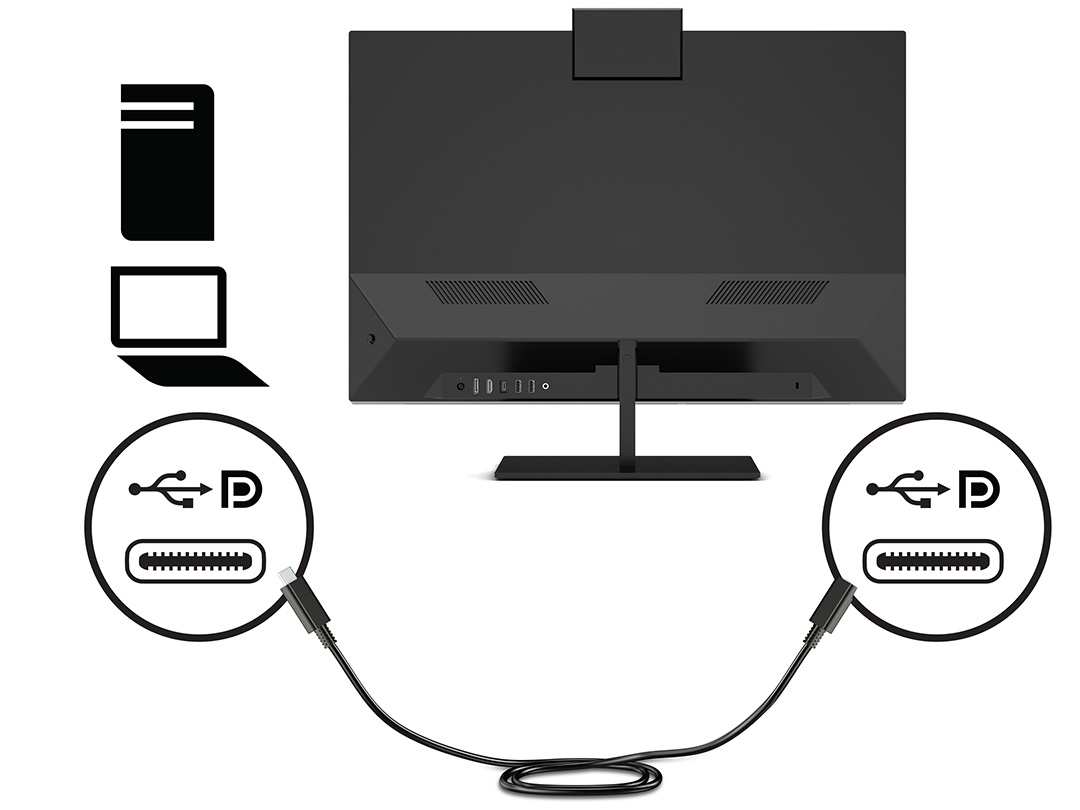
Yes, many USB-C monitors can charge your laptop. The monitor must support USB Power Delivery. The wattage must meet or exceed your laptop's charging requirement.
Your USB-C cable must also support the correct power level. If any of those three conditions fails, charging won't work properly.
Why Your USB-C Monitor Might Not Be Charging Your Laptop
This is the frustration most people run into. You plug in a USB-C cable from your monitor to your laptop, the display works perfectly, but your battery just keeps draining. What gives?
The most common reason is wattage. Your monitor's USB-C port might only output 15W or 25W. That's fine for a phone or a pair of earbuds, but most laptops need anywhere from 30W to 100W to charge at a reasonable speed.
Some can't charge at all on anything below their rated input.
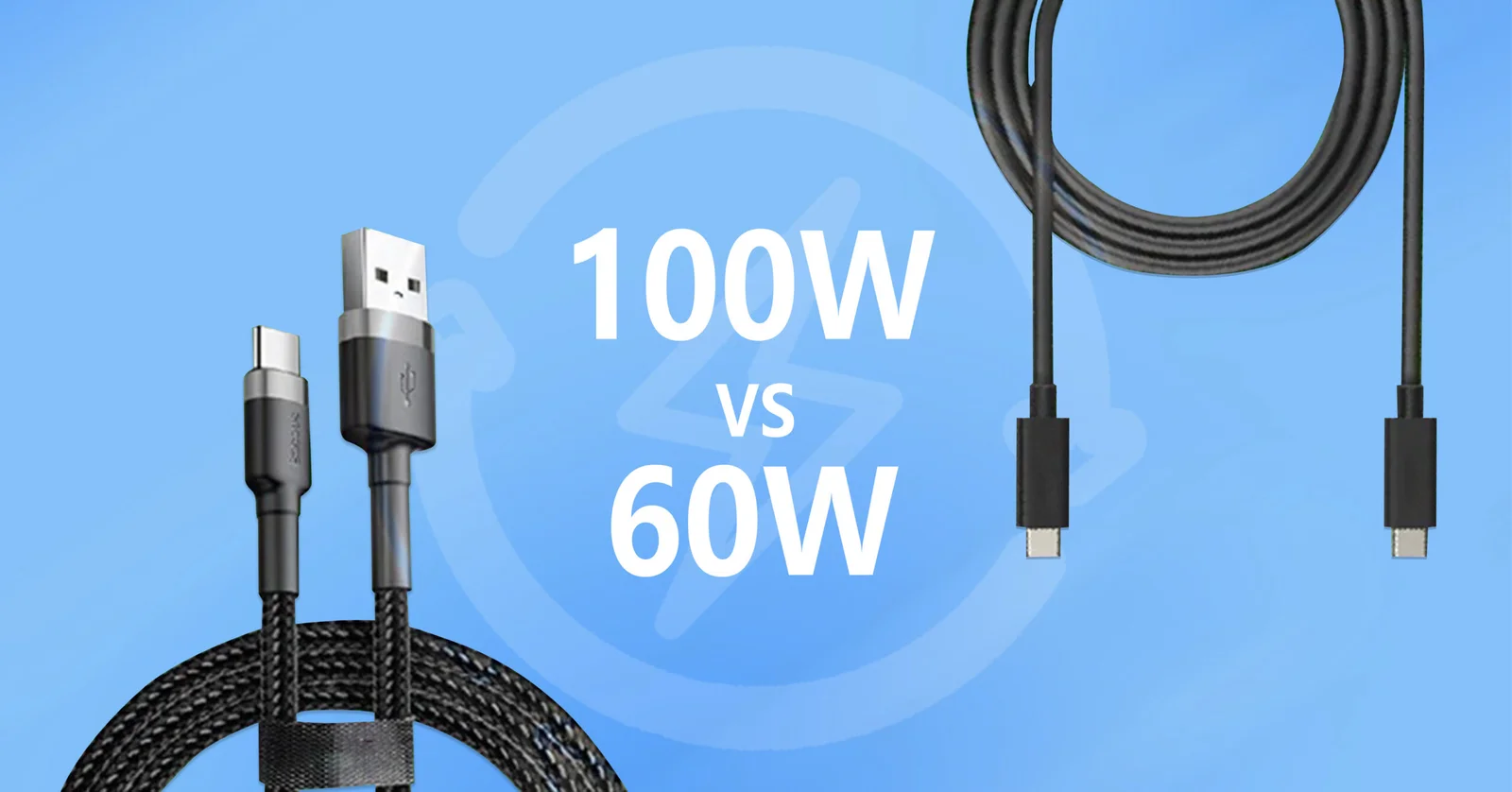
Another reason is the cable itself. Not all USB-C cables are created equal. A basic USB-C cable without an e-marker chip tops out at 60W.
If your monitor can push 100W but your cable can't handle it, the connection negotiates down to whatever the weakest link supports. Sometimes that means no charging at all.
There's also a compatibility issue that catches people off guard. Some monitors have a USB-C port that handles data and video but doesn't actually support Power Delivery. The port works for display output and USB hub functions, but it won't send a single watt to your laptop.
Manufacturers don't always make this distinction obvious on the product page.
How USB-C Power Delivery Actually Works With Monitors
What "USB-C" Really Means on a Monitor
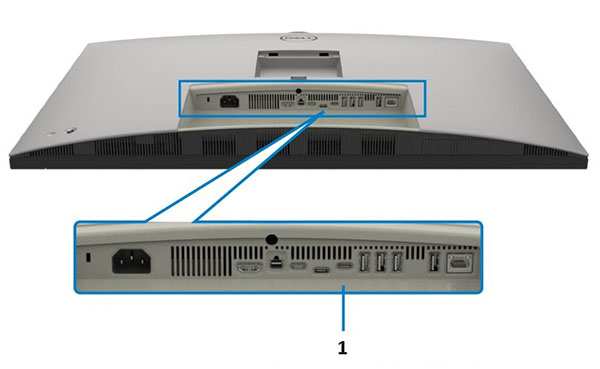
Here's where things get tricky. The USB-C connector is just a physical shape. What it actually does depends on what the manufacturer decided to build into that port.
A USB-C port on a monitor can support any combination of these:
- Data transfer (USB 3.2 Gen 1 or Gen 2)
- Display output (DisplayPort Alt Mode)
- Power Delivery charging (USB PD)
- Thunderbolt 3 or 4 (which bundles all of the above)
A port that only handles data and display won't charge your laptop. You need explicit USB PD support. The only way to know for sure is to check the monitor's spec sheet for a PD wattage rating next to the USB-C port description.
The Wattage Game: What Your Laptop Needs vs. What the Monitor Gives
This is the core of the whole question. Charging only works when the monitor gives at least as much power as the laptop demands. Here's how the numbers typically break down:
| Device Category | Typical Charging Wattage |
|---|---|
| Ultrabooks (MacBook Air, Surface Laptop) | 30W – 45W |
| Standard laptops (ThinkPad, Latitude, Pavilion) | 45W – 65W |
| Performance laptops (MacBook Pro 14", XPS 15) | 65W – 100W |
| Gaming / workstation laptops | 100W – 240W+ |
Now compare that to what USB-C monitors typically provide:
| Monitor USB-C PD Output | What It Can Realistically Charge |
|---|---|
| 15W | Phones, earbuds. Not laptops. |
| 25W | Phones, tablets. Barely trickle-charges some ultrabooks. |
| 45W | Ultrabooks at slow speed. May drain under heavy use on standard laptops. |
| 60W – 65W | Most ultrabooks and many standard laptops at full speed. |
| 90W – 100W | Most laptops including MacBook Pro 14" and 16". |
| 140W+ | High-end performance and gaming laptops. Rare in monitors as of 2026. |
The takeaway is straightforward. If your monitor outputs 65W and your laptop needs 65W, you're golden. If your monitor outputs 45W and your laptop wants 90W, you'll either charge very slowly or watch the battery drain while you work.
Why Your Cable Might Be the Weak Link
People overlook the cable constantly. But it matters a lot. USB-C cables have different power ratings based on whether they include an e-marker chip.
- Cable without e-marker: Limited to 60W max (20V / 3A)
- Cable with e-marker (5A): Supports up to 100W (20V / 5A)
- Cable with e-marker (Extended Power Range): Supports up to 240W (48V / 5A)
If your monitor supports 100W PD but you're using a basic 60W cable, the power negotiation caps at 60W. You lose a third of your potential charging speed. The cable that came in the box with your monitor is usually rated correctly, but if you swapped it out for a random cable from a drawer, that could be the entire problem.
The Decision Tree: Will Your Setup Charge Your Laptop?
This is where we cut through the noise. Walk through these four steps and you'll know exactly where you stand.
Step 1: Check Your Laptop's Charging Requirement
Look at the power brick that came with your laptop. There's a label on it that says something like "19.5V ⎓ 3.34A" or it might just list the wattage directly: "65W." That number is what your laptop is designed to charge at.
You can also find this in your laptop's technical specifications. For example, Apple lists the MacBook Air M2 as shipping with a 30W or 35W adapter depending on configuration. The MacBook Pro 14" ships with a 70W or 96W adapter.
Lenovo's ThinkPad X1 Carbon Gen 11 specifies a 65W charger.
Write that number down. You need it for the next step.
Step 2: Check Your Monitor's USB-C PD Output
Now look at your monitor's specifications. You're looking for the USB-C port's power delivery rating. It might be listed as "USB-C (DP Alt Mode, PD 65W)" or "USB-C with Power Delivery up to 90W."
This information is usually found in the technical specifications section of the product page, not in the marketing bullet points. If you can't find a PD wattage listed for the USB-C port, assume it doesn't charge. Some manufacturers explicitly state "USB-C data and display only, no charging" in the fine print.
Step 3: Check Your Cable's Power Rating
This step trips up more people than it should. The cable connecting your monitor to your laptop needs to support the wattage your monitor is trying to deliver.
Most cables don't have their power rating printed on the jacket. If you still have the original packaging, check there. Otherwise, look up the cable model number.
Reputable manufacturers like Anker, Cable Matters, and Belkin list the power rating on their product pages.
If you're using the cable that came with the monitor, it's almost certainly rated for the monitor's full PD output. Manufacturers know a mismatched cable would generate support calls. The risk comes when you substitute a different cable.
Step 4: Match Everything Together
Now compare the three numbers:
- Monitor PD output ≥ Laptop requirement + Cable rated for that wattage = Full charging, no issues.
- Monitor PD output < Laptop requirement + Cable rated correctly = Slow charging. May drain under heavy workloads.
- Cable under-rated for monitor's PD output = Power caps at cable's limit. Could be slow or non-functional.
- Monitor has no PD support = No charging at all, regardless of cable or laptop.
Here's a quick reference table:
| Scenario | Monitor PD | Laptop Needs | Cable Rating | Result |
|---|---|---|---|---|
| Ideal | 65W | 45W | 60W+ | Charges at full speed |
| Mismatched | 45W | 65W | 60W+ | Slow charge, may drain |
| Bad cable | 100W | 65W | 60W | Caps at 60W, may be slow |
| No PD | None | Any | Any | No charging |
Real-World Examples: What Works and What Doesn't
Let's put this into practice with some common combinations people ask about.
MacBook Air (30W) + 65W USB-C Monitor
This is the easiest win. The MacBook Air charges at 30W or less. A monitor delivering 65W has plenty of headroom.
You plug in one cable and you get display output and full-speed charging simultaneously. This is the ideal USB-C monitor scenario.
MacBook Pro 14" (96W) + 65W USB-C Monitor
Here's where it gets complicated. The MacBook Pro 14" ships with a 96W or 70W charger depending on the chip. A monitor delivering 65W falls short.
The laptop will charge, but slowly. Under heavy workloads like video editing, you might still see the battery percentage drop even while plugged in. It's usable, but not ideal.
ThinkPad X1 Carbon (65W) + 60W USB-C Monitor
Close but not quite. The ThinkPad X1 Carbon is designed for 65W charging. A 60W monitor gets you most of the way there.
In practice, you'll charge slowly and the battery might drain during demanding tasks. For light office work, it's fine. For anything heavier, you'll want a monitor with more PD headroom or your separate charger.
Gaming Laptop (140W+) + Any Standard USB-C Monitor
This almost never works for charging. Most gaming laptops require 140W to 240W. Very few monitors on the market deliver that kind of power over USB-C as of 2026.
You'll get display output and data, but you'll still need your laptop's dedicated power brick plugged into the wall. The USB-C connection simply can't carry enough juice.
USB-C Monitor Charging: Pros and Cons
Pros:
- Single cable simplicity. One cable handles video, data, and charging. Your desk stays clean and plugging in takes one second.
- Fewer adapters and bricks. You can leave the laptop power brick in your bag or at home. Great for people who move between a desk and other spaces during the day.
- Universal standard. USB-C PD works across brands. A Dell monitor can charge a MacBook, a ThinkPad, or an HP EliteBook as long as the wattage lines up.
- Future-proofing. As USB PD 3.1 becomes more common, monitors will start delivering 140W and beyond. Buying a PD-capable monitor now positions you for future laptops.
Cons:
- Wattage limitations. Most monitors top out at 65W to 100W. That's not enough for many performance and gaming laptops.
- Cable dependency. The wrong cable silently kills your charging speed. There's no error message. You just wonder why your battery is draining.
- Inconsistent labeling. Manufacturers don't always clearly state the PD wattage. Some bury it in spec sheets. Others don't mention it at all if the port doesn't support PD.
- Heat and efficiency. Pushing 65W or 90W through a monitor's internal power supply generates heat. Some monitors throttle PD output if they get too warm, especially in warm environments or enclosed spaces.
- Cost. Monitors with high-wattage USB PD tend to cost more than equivalent models without it. You're paying for the power delivery circuitry.
Common Mistakes That Kill USB-C Charging
These are the errors we see most often. Avoiding them saves you a lot of frustration.
- Assuming all USB-C ports charge. They don't. A USB-C port is just a connector. It only charges if the manufacturer specifically designed it to deliver power. Always verify the PD wattage in the specs.
- Using a random cable from a drawer. That cable might be charge-only with no data lines, or data-only with no PD support, or a 60W cable when you need 100W. Cable quality and specification matter enormously.
- Ignoring the laptop's actual power requirement. People see "USB-C" on both devices and assume they're compatible. They might be, but only if the wattage matches. Check both numbers.
- Expecting a 15W monitor to charge a 65W laptop. It won't. At best it'll slow the drain. At worst it does nothing and you're confused why your battery keeps dropping.
- Not updating firmware. Some monitors and laptops need firmware updates to properly negotiate USB PD. If charging isn't working and everything else checks out, look for firmware updates for both devices.
- Daisy-chaining without checking power budget. If you're connecting multiple monitors via MST (Multi-Stream Transport), the PD wattage from the first monitor might not pass through to your laptop reliably. Test the actual charging behavior in your specific daisy-chain configuration.
USB-C Monitor vs. Thunderbolt Dock vs. Traditional Setup
Each approach has its place. Here's how they compare for charging capability.
| Setup Type | Max Charging Wattage (Typical) | Video Output | Data | Cable Complexity |
|---|---|---|---|---|
| USB-C monitor with PD | 60W – 100W | Yes (DP Alt Mode) | Yes | Single cable |
| Thunderbolt 4 dock | 15W – 30W to laptop (some up to 100W) | Yes (TB4) | Yes | Single TB4 cable to dock, then dock to laptop |
| Traditional monitor + separate charger | Full laptop rated wattage | Yes (HDMI/DP) | No (unless USB hub) | Two cables minimum |
| USB-C hub with PD pass-through | Depends on hub (often 60W – 100W) | Yes (varies) | Yes | Hub sits between laptop and monitor |
A USB-C monitor with PD is the cleanest solution when the wattage is sufficient. A Thunderbolt dock adds more flexibility (more ports, more displays) but historically delivers less power to the laptop itself. Some newer Thunderbolt 4 docks now offer 90W or even 100W PD, but many still cap at 15W or 30W.
Always check the dock's specific PD rating.
The traditional setup with a separate charger is the most reliable for high-wattage laptops. You sacrifice the single-cable elegance, but you guarantee your laptop gets the full power it needs.
How to Fix USB-C Charging When It's Not Working
You've plugged everything in and your laptop isn't charging. Work through these steps in order.
Verify the monitor supports PD. Check the spec sheet. If the USB-C port doesn't list a PD wattage, it can't charge. No amount of troubleshooting will change that.
Try a different cable. Swap in a known-good USB-C cable rated for at least 60W. If charging starts working, your original cable was the problem.
Check the connection order. Some monitors need to be powered on before they'll negotiate PD. Turn on the monitor first, then connect the cable to your laptop.
Update your monitor's firmware. Manufacturers occasionally release updates that fix PD compatibility issues. Check the support page for your specific monitor model.
Update your laptop's BIOS and Thunderbolt firmware. On Windows laptops especially, outdated firmware can prevent PD negotiation. Check your laptop manufacturer's support site.
Try the other USB-C port. If your laptop has two USB-C ports, one might support PD charging while the other doesn't. This is common on some HP and Dell models.
Test with a different device. Plug a phone or tablet into the monitor's USB-C port. If those charge, the port works and the issue is specific to the laptop negotiation.
Reset the connection. Unplug the USB-C cable from both ends, wait 10 seconds, plug the monitor end in first, then the laptop end. This forces a fresh PD negotiation.
Expert Tips Before You Buy a USB-C Monitor for Charging
If you're shopping specifically for a monitor that charges your laptop, keep these things in mind.
- Buy more wattage than you need today. If your current laptop charges at 45W, get a monitor with at least 65W PD. Your next laptop will likely demand more power, and you don't want to replace the monitor too.
- Look for monitors with 90W or 100W PD. These cover the widest range of laptops. Models like the Dell U2723QE, LG 27UK850, and Samsung ViewFinity S80PD sit in this range.
- Check the cable included in the box. Reputable manufacturers include a properly rated cable. If the listing doesn't mention a cable, assume you'll need to buy one separately.
- Read the fine print on daisy-chaining. If you plan to run two monitors from one USB-C connection, verify that PD still reaches the laptop through the chain. Some setups drop PD passthrough on the second monitor.
- Consider a Thunderbolt 4 monitor if you need more than 100W. These are rarer and pricier, but they're the only USB-C monitors that reliably push higher wattages while maintaining full data and display capabilities.
Frequently Asked Questions
Do all USB-C monitors charge laptops?
No. A USB-C port only charges if the manufacturer included Power Delivery support. Many monitors have USB-C ports that handle data and display output but don't deliver any power.
Always check the PD wattage in the specifications.
Can a USB-C monitor charge a MacBook Pro?
It depends on the model and the monitor. A MacBook Pro 14" or 16" needs 70W to 100W for full-speed charging. A monitor delivering 65W will charge it slowly but may not keep up under heavy workloads.
A 90W or 100W monitor handles it well.
Why does my USB-C monitor show video but not charge my laptop?
The most common cause is that the monitor's USB-C port doesn't support Power Delivery. Another possibility is an under-rated cable that can't carry the full wattage. A third cause is outdated firmware on either the monitor or laptop preventing PD negotiation.
How much power does a USB-C monitor provide?
It varies widely. Some provide only 15W, which isn't enough for most laptops. The sweet spot for laptop charging is 60W to 100W.
High-end monitors in 2026 occasionally offer 140W, but anything above 100W is still uncommon.
Can I use any USB-C cable to charge my laptop from a monitor?
No. Cables without an e-marker chip are limited to 60W. If your monitor delivers 100W, you need a cable with an e-marker chip rated for 100W or higher.
Using the wrong cable silently caps your charging speed or prevents charging entirely.
Is Thunderbolt better than USB-C for charging?
Not necessarily. Thunderbolt 3 and 4 ports on monitors often deliver only 15W to 30W to connected devices. Some newer Thunderbolt 4 docks offer 90W PD, but many don't.
A standard USB-C monitor with 65W or 90W PD often charges better than a Thunderbolt monitor.
Costs and Pricing
USB-C monitors with PD charging typically cost $50 to $200 more than equivalent models without it. A 27-inch 4K USB-C monitor with 65W PD runs roughly $350 to $500 as of 2026. Stepping up to 90W or 100W PD pushes the price to $450 to $700.
Thunderbolt 4 monitors with high-wattage PD start around $600 and climb past $1,000.
The cable adds another $10 to $25 if you need a replacement. Certified 100W USB-C cables from reputable brands like Anker or Cable Matters run about $15 to $20. A 240W certified cable costs closer to $25 to $35.
Safety and Warnings
Using uncertified USB-C cables is a real risk. The USB-IF has documented cases of non-compliant cables causing device damage. Cheap cables without proper e-marker chips can overheat when asked to carry more power than they're rated for.
Stick with certified cables from known manufacturers.
Don't daisy-chain power-hungry accessories off the monitor's USB hub while relying on PD charging. The monitor's internal power supply has a total budget. Loading down the USB ports with external drives and peripherals can reduce the power available for charging your laptop.
Maintenance and Long-Term Optimization
Keep your monitor's firmware current. Manufacturers occasionally release updates that improve PD compatibility with new laptops. Check the support page every few months.
Periodically inspect your USB-C cable for bent pins or fraying. A damaged cable can cause intermittent charging or fail to negotiate PD properly. Replace it at the first sign of physical wear.
If you notice slower charging over time, re-check the connection. Dust in the USB-C port on either end can cause resistance issues. A quick blast of compressed air often resolves this.
Final Recommendation
Here's the bottom line. If your laptop charges at 65W or less, a USB-C monitor with 65W to 90W PD is a clean, simple solution. One cable does everything.
If your laptop needs 90W to 100W, get a monitor rated for at least that much. If your laptop demands 140W or more, stick with your dedicated charger and use the USB-C monitor for display and data only.
Always verify three things before you buy: your laptop's wattage requirement, the monitor's PD output, and your cable's power rating. Get all three right and the single-cable life is genuinely great. Get any of them wrong and you'll be scratching your head wondering why your battery keeps dropping.
- The Short Answer: Yes, But Only If the Numbers Line Up
- Why Your USB-C Monitor Might Not Be Charging Your Laptop
- How USB-C Power Delivery Actually Works With Monitors
- The Decision Tree: Will Your Setup Charge Your Laptop?
- Real-World Examples: What Works and What Doesn't
- USB-C Monitor Charging: Pros and Cons
- Common Mistakes That Kill USB-C Charging
- USB-C Monitor vs. Thunderbolt Dock vs. Traditional Setup
- How to Fix USB-C Charging When It's Not Working
- Expert Tips Before You Buy a USB-C Monitor for Charging
- Frequently Asked Questions
- Costs and Pricing
- Safety and Warnings
- Maintenance and Long-Term Optimization
- Final Recommendation

Similar Posts





















