Are USB C Monitors Compatible with Windows Laptops
Are USB-C monitors compatible with Windows laptops? The short answer is yes, but only if your laptop's USB-C port supports video output. That's the catch.
Not every USB-C port can push a display signal, and assuming yours can leads to the most common frustration people run into with these setups.
The good news is that figuring out your specific situation takes about five minutes. USB-C DisplayPort Alt Mode is the standard that makes video-over-USB-C possible, and most laptops manufactured after 2018 include it on at least one port. But there are enough exceptions and gotchas that you'll want to verify before buying a monitor or cable.
Let's walk through exactly how to check.
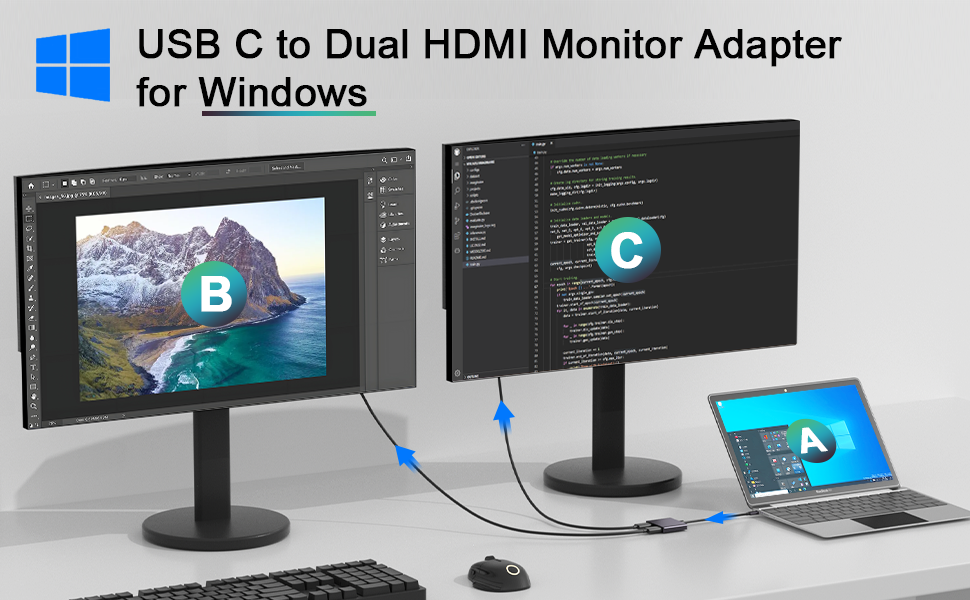
Quick Answer
USB-C monitors work with Windows laptops that support DisplayPort Alt Mode or Thunderbolt over USB-C. Check your laptop's port symbols or specs sheet. If your USB-C port has a "D" or lightning bolt icon, it likely supports video.
A data-only USB-C port cannot drive a monitor without an adapter.
Why This Isn't a Simple Yes or No
USB-C is a connector shape, not a single standard. That's the core of the confusion. One laptop's USB-C port might handle video, data, and 100-watt charging simultaneously.
Another laptop's USB-C port might only do data transfer at 5 Gbps. Same physical port, completely different capabilities.
Manufacturer specifications confirm that USB-C ports can support several different protocols. These include USB data transfer, USB Power Delivery for charging, DisplayPort Alt Mode for video, and Thunderbolt 3 or 4 for high-speed data and video. But a manufacturer only includes the features that match the laptop's price point and target use case.
The One Question That Changes Everything
Here's what determines whether your setup works: does your laptop's USB-C port support DisplayPort Alternate Mode? If yes, a single USB-C cable to a compatible monitor gives you video, data, and charging. If no, you'll need a workaround like a DisplayLink dock or a different connection type entirely.
Thunderbolt 3 and 4 ports are always video-capable. They use the USB-C connector but carry a stronger signal. Most Thunderbolt ports are marked with a small lightning bolt icon.
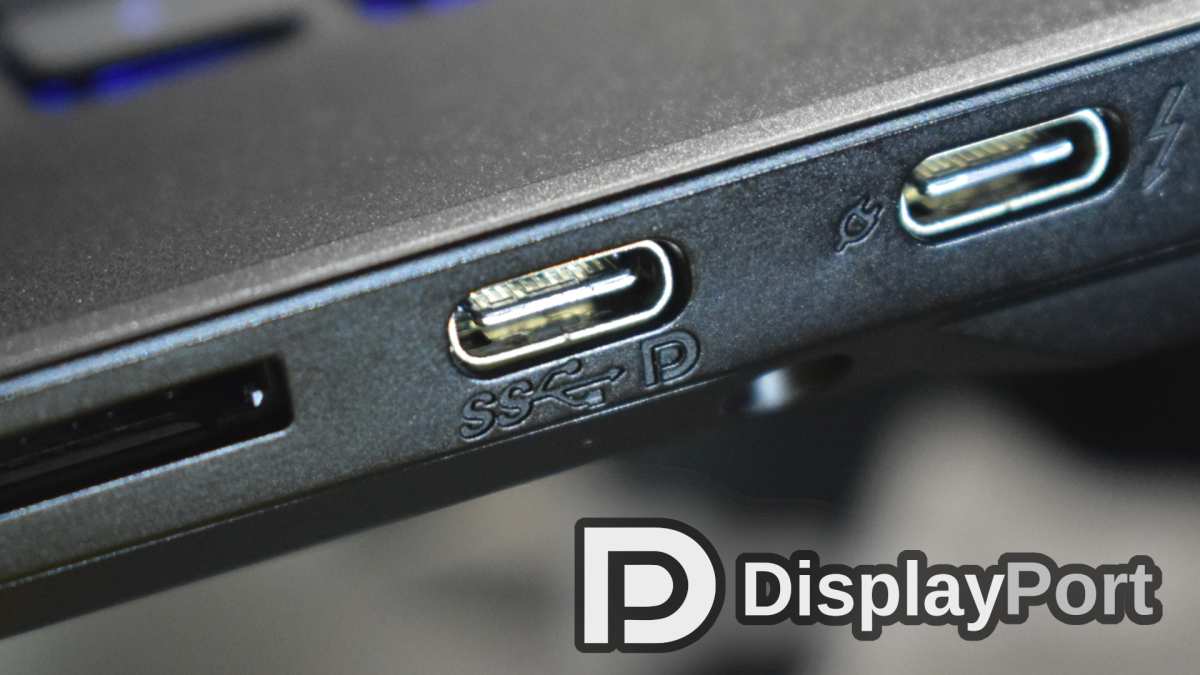
DisplayPort Alt Mode ports may show a "D" shaped icon or a DP symbol. If your port has no symbol at all, assume data only until you verify otherwise.
What Most People Get Wrong About USB-C
The biggest mistake is assuming all USB-C ports are the same. They're not. A USB-C port on a budget laptop often handles data and charging but not video.
Another common error is using the wrong cable. A USB 2.0 USB-C cable fits the port perfectly but cannot carry a video signal. You need at least a USB 3.1 Gen 1 cable with DisplayPort Alt Mode support, or a Thunderbolt-certified cable if your setup requires it.
Here's a quick breakdown of what different USB-C capabilities mean for monitor use:
| USB-C Feature | Video Output | Data Transfer | Charging | Cable Needed |
|---|---|---|---|---|
| USB 2.0 only | No | 480 Mbps | No | N/A for video |
| USB 3.1 Gen 1 (no DP Alt Mode) | No | 5 Gbps | Possible | Adapter required |
| USB 3.1 with DP Alt Mode | Yes | 5 Gbps | Possible | USB-C 3.1 Gen 1+ cable |
| Thunderbolt 3 | Yes (up to 4K/5K) | 40 Gbps | Up to 100W | Thunderbolt 3 cable |
| Thunderbolt 4 | Yes (up to 8K) | 40 Gbps | Up to 100W | Thunderbolt 4 cable |
| USB4 | Yes | Up to 40 Gbps | Up to 240W | USB4 cable |
How to Check If Your Windows Laptop Supports USB-C Video Output
This is where we get practical. Follow these four steps in order, and you'll know exactly what your laptop can do before you spend a dollar on a monitor or cable.
Step 1: Identify Your Laptop's USB-C Port Type
Look at the USB-C port on your laptop. Check for any small icons printed next to it on the chassis. A lightning bolt means Thunderbolt.
A "D" shape or "DP" means DisplayPort Alt Mode. A battery icon means Power Delivery charging. A trident "SS" symbol means SuperSpeed USB data only.
If you see no icon at all, that's a yellow flag. It likely means data only, but you need to verify. Check your laptop's model number on the manufacturer's support page.
Dell, Lenovo, HP, and ASUS all publish detailed port specification sheets. Look for phrases like "DisplayPort over USB-C" or "USB-C with video output" in the specs.
Step 2: Check Your Laptop's Specs for DisplayPort Alt Mode or Thunderbolt
Go to your laptop manufacturer's official product page. Find your exact model number. Look under "Ports," "Connectivity," or "Technical Specifications." You're looking for one of these phrases:
- "USB-C with DisplayPort Alt Mode"
- "USB-C with Power Delivery and DisplayPort"
- "Thunderbolt 3" or "Thunderbolt 4"
- "USB4 with DisplayPort tunneling"
If the specs only say "USB 3.2 Type-C" or "USB-C 3.1" without mentioning DisplayPort or Thunderbolt, assume no video output. When in doubt, search your laptop model plus "USB-C video output" and check the manufacturer's community forums. Real user reports often clarify what spec sheets leave vague.
Step 3: Verify Your Cable Supports Video Signal
This is the step most people skip, and it causes the most headaches. Not all USB-C cables are created equal. A cable that came with your phone charger is almost certainly USB 2.0.
It will charge your laptop and transfer files, but it will not carry a video signal.
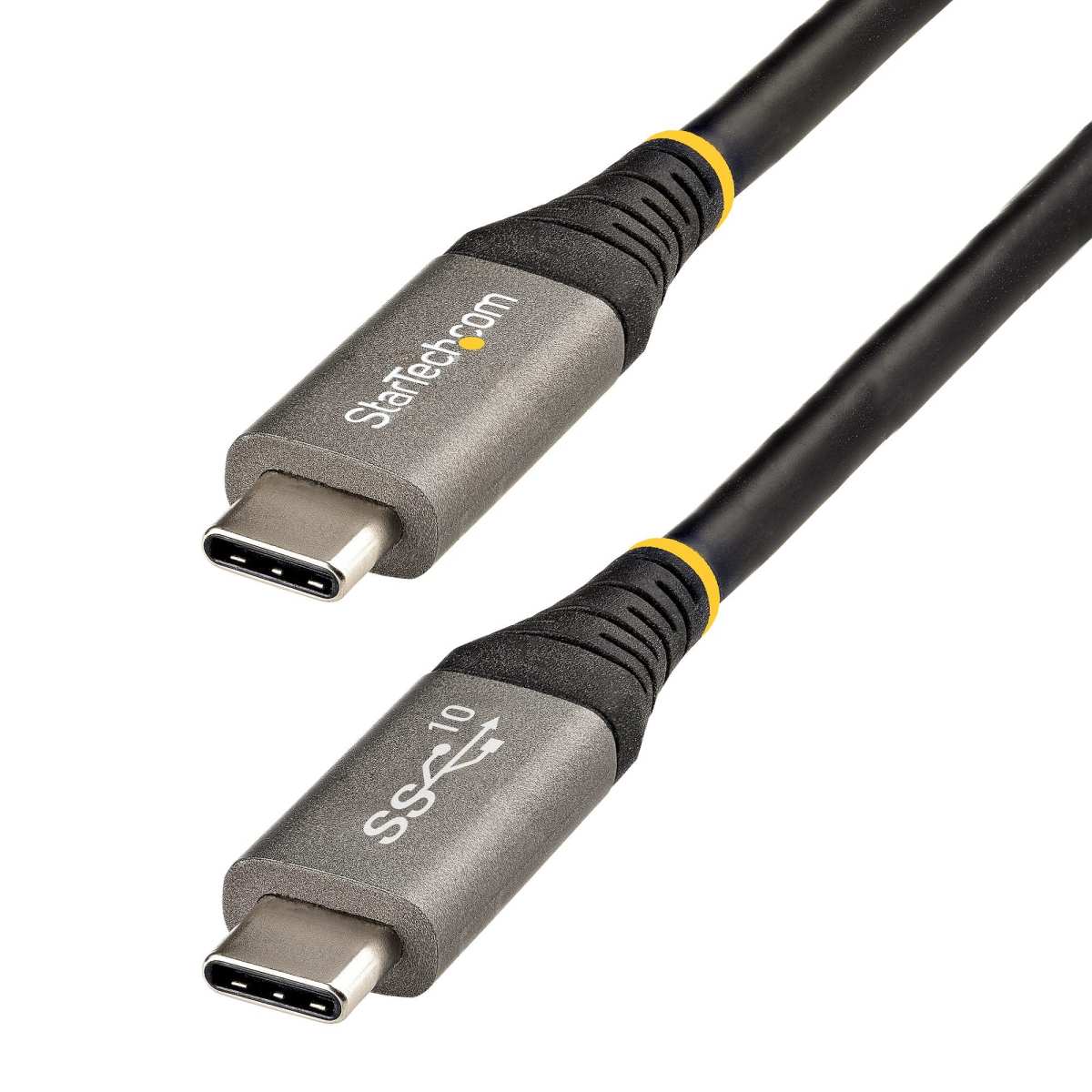
For DisplayPort Alt Mode, you need a USB 3.1 Gen 1 cable or better that explicitly supports DisplayPort Alt Mode. For Thunderbolt 3 or 4, you need a cable certified for Thunderbolt. These cables are thicker, often have a lightning bolt icon molded into the connector, and cost more than generic USB-C cables.
Look for these cable markings:
- "USB 3.1 Gen 1" or "USB 3.2 Gen 1" minimum for DP Alt Mode
- "Thunderbolt 3" or "Thunderbolt 4" printed on the cable
- USB-IF certification logo
- "Supports DisplayPort 1.4" in the product description
Avoid cables that only say "USB-C charging cable" or "USB 2.0 Type-C." These won't carry video. When buying online, check the product listing for explicit video support mentions. A good USB-C cable that supports video and charging typically costs between $15 and $35 as of 2026.
Step 4: Confirm the Monitor's USB-C Input Requirements
Not all USB-C monitors work the same way. Some require DisplayPort Alt Mode specifically. Others accept Thunderbolt input.
A few budget monitors have a USB-C port that's data-only for the built-in USB hub, with video requiring HDMI or DisplayPort.
Check the monitor's spec sheet for:
- "USB-C with DisplayPort Alt Mode input"
- "USB-C with 65W/90W Power Delivery" (this confirms charging passthrough)
- "Thunderbolt 3/4 input" (if it's a premium monitor)
Also note the maximum resolution and refresh rate over USB-C. Some monitors only support 4K at 30Hz over USB-C, with 60Hz reserved for DisplayPort or HDMI. If you want 4K at 60Hz, make sure the monitor's USB-C input explicitly supports it.
USB-C Video Output: The Three Technologies You Need to Know
Understanding which technology your laptop uses determines everything. Here's a plain-English breakdown of the three ways USB-C handles video.
DisplayPort Alt Mode
This is the most common method. DisplayPort Alt Mode lets a USB-C port carry a native DisplayPort signal through the USB-C connector. It bypasses the USB data protocol entirely and uses the cable's alternate pin configuration for video.
Your laptop's GPU outputs a DisplayPort signal. The USB-C controller routes it through the cable to the monitor. No compression, no software overhead, just a direct video pipeline.
This means low latency and full support for features like HDR and high refresh rates.
The limitation is bandwidth. DisplayPort Alt Mode over USB-C typically supports DisplayPort 1.4. That's enough for 4K at 60Hz with HDR, or 1440p at 144Hz.
It's not enough for 5K or dual 4K monitors on a single cable.
Thunderbolt 3 and 4
Thunderbolt uses the same USB-C connector but carries a PCIe-based signal instead of USB. Thunderbolt 3 supports up to 40 Gbps. Thunderbolt 4 maintains the same speed but adds stricter minimum requirements for video and data.
A Thunderbolt port always supports DisplayPort video. It also supports daisy-chaining, meaning you can connect one monitor to another in a chain. Thunderbolt 4 guarantees at least one 4K display output, with many laptops supporting two.
The catch is that Thunderbolt requires Intel or Apple silicon support. Some AMD-based laptops have USB-C with DP Alt Mode but no Thunderbolt. Always check your laptop's specs for the Thunderbolt logo.
DisplayLink (The Software-Based Workaround)
DisplayLink is a completely different approach. It's a technology that compresses video in software on your laptop, sends it as regular USB data, and decompresses it in an external dock or adapter. The monitor itself doesn't need a special USB-C input.
This is the fallback for laptops that have USB-C data-only ports. You buy a DisplayLink dock, install the driver software, and it works. The downsides are CPU overhead and slightly higher latency.
For office work and video playback, it's fine. For gaming or color-critical design work, it's not ideal.
DisplayLink docks typically cost between $80 and $250. They support up to 4K at 60Hz depending on the chipset. The latest DisplayLink DL-7400 series supports dual 4K at 60Hz.
Compatibility Scenarios: What Works and What Doesn't
Let's map out the four most common situations people encounter.
Scenario 1: Laptop Has Thunderbolt + Monitor Has USB-C DP Alt Mode
This works perfectly. A single Thunderbolt-to-USB-C cable carries video, data, and power. Thunderbolt is backward compatible with DisplayPort Alt Mode monitors.
You get full video bandwidth and the monitor charges your laptop through USB Power Delivery.
Use a Thunderbolt 4 cable for best results. The monitor will negotiate the DisplayPort signal automatically. No special configuration needed in Windows.
Scenario 2: Laptop Has DP Alt Mode + Monitor Has USB-C
This is the ideal USB-C monitor setup. One cable does it all. Video signal, data passthrough for the monitor's built-in USB hub, and charging power flow through a single connection.
Make sure your cable supports DisplayPort Alt Mode. A generic USB-C charging cable won't work. Look for cables rated at USB 3.1 Gen 1 or higher with explicit DP Alt Mode support.
Scenario 3: Laptop Has USB-C Data Only + Monitor Needs Video Over USB-C
This is where people get stuck. Your laptop's USB-C port can charge and transfer files, but it cannot output video. Plugging in a USB-C monitor gives you nothing.
Your options are:
- Use HDMI or DisplayPort instead if the monitor supports those inputs
- Buy a DisplayLink dock or adapter
- Use a different laptop that supports DP Alt Mode or Thunderbolt
There's no software fix for this. The hardware physically cannot output a video signal through that port.
Scenario 4: Using a DisplayLink Adapter or Dock
This works on almost any USB-C port, even USB 2.0. The DisplayLink chip handles all the video processing. You install the DisplayLink driver, connect the dock, and Windows sees a new display.
Performance is good for productivity work. Aggregate user reports indicate minor CPU usage increases of 5 to 15 percent during video playback. Gaming performance suffers noticeably.
Color accuracy is acceptable for office work but not for professional photo or video editing.
Common Problems and How to Fix Them
Even when everything should work, things sometimes don't. Here are the most frequent issues and their solutions.
"No Signal" After Connecting
First, try a different cable. This fixes the problem more often than you'd think. If that doesn't work, check that your laptop's USB-C port actually supports video.
Update your GPU drivers from Intel, AMD, or NVIDIA's website. Some monitors require you to manually select the USB-C input source from the on-screen display menu.
Monitor Works but Won't Charge the Laptop
The monitor's USB-C power delivery might be underpowered. Many USB-C monitors only provide 15 to 65 watts. A gaming laptop that needs 130 watts won't charge from that.
It might slow-charge when off, but it won't charge under load. Check the monitor's PD wattage rating against your laptop's power adapter.
4K Stuck at 30Hz Instead of 60Hz
This usually means your cable or port doesn't have enough bandwidth. A USB 2.0 cable limits you to 4K at 30Hz. Some monitors also limit USB-C input to 30Hz unless you specifically enable the higher refresh rate in the monitor's settings.
Check Windows Display Settings, then Advanced Display Settings, and select the highest available refresh rate.
Display Flickering or Dropping Out
This points to a cable quality issue or a loose connection. Try a shorter, higher-quality cable. Some users report that cables longer than 2 meters cause signal degradation at 4K 60Hz.
If the problem persists, update your monitor's firmware. Manufacturers like Dell and LG release firmware updates that fix USB-C compatibility issues.
USB-C vs HDMI vs DisplayPort: Which Connection Should You Use?
Sometimes USB-C isn't the best choice. Here's how the three main options compare for Windows laptop setups.
| Feature | USB-C (DP Alt Mode) | HDMI 2.1 | DisplayPort 1.4 |
|---|---|---|---|
| Max Resolution | 4K at 60Hz (typical) | 4K at 120Hz / 8K at 60Hz | 4K at 120Hz / 8K at 60Hz |
| Charging Laptop | Yes (up to 100W+) | No | No |
| Cable Simplicity | Single cable for everything | Video only | Video only |
| Data Passthrough | Yes (USB hub on monitor) | No | No |
| Daisy-Chaining | No (Thunderbolt only) | No | Yes (MST) |
| Adapter Needed | No | No | No |
USB-C wins for simplicity and desk cleanliness. One cable handles video, power, and data. It's the best choice for people who plug in and unplug frequently, like hybrid workers moving between home and office.
HDMI 2.1 wins for high-refresh-rate gaming. If your laptop and monitor both support HDMI 2.1, you get 4K at 120Hz without needing Thunderbolt. Most gaming laptops include an HDMI 2.1 port.
DisplayPort 1.4 wins for multi-monitor daisy-chaining. If you want two monitors on one cable from your laptop, DisplayPort MST (Multi-Stream Transport) is the way. USB-C doesn't support daisy-chaining unless you have Thunderbolt.
For most office and productivity setups, USB-C is the cleanest solution. For gaming or specialized multi-monitor configurations, HDMI or DisplayPort might serve you better.

Similar Posts





















