Are Touchscreen Monitors Durable
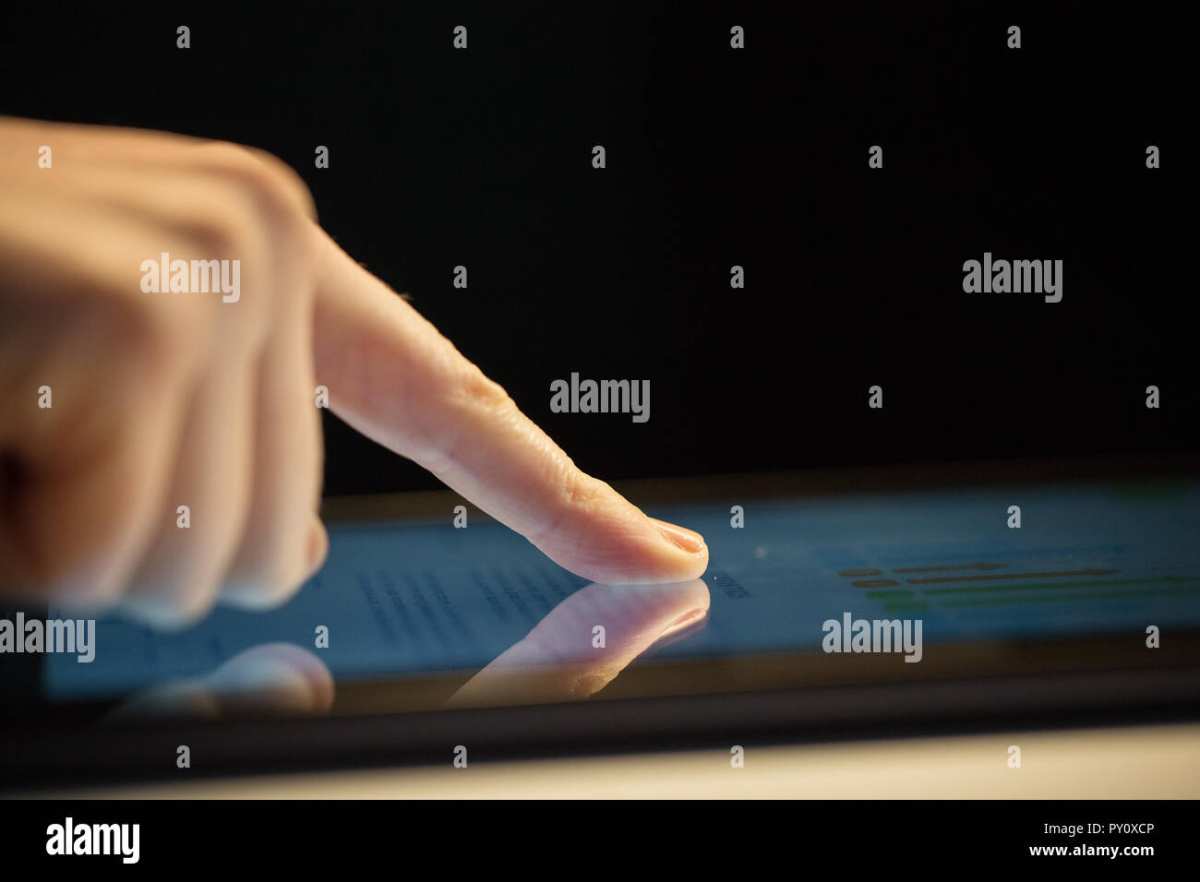
Are touchscreen monitors durable? That's the question you're probably asking before dropping extra cash on a display that invites constant physical contact. The short answer is yes, but with real caveats that depend on the touch technology inside, the build quality, and how you actually use it.
Manufacturer specifications indicate that most modern projected capacitive (PCAP) touchscreens are rated for 10 million to 100 million touch activations. Industrial-grade units push that even higher. But raw touch ratings don't tell the whole story.
Let's break down what actually holds up, what doesn't, and which type makes sense for your situation.
Quick Answer
Touchscreen monitors are durable when you match the right technology to your use case. PCAP screens handle millions of touches without issue. Industrial units survive harsh environments for years.
Consumer touch monitors last longest in light-duty settings like home offices.
Why Touchscreen Durability Varies So Much
Here's what most reviews skip. Not all touchscreens are built the same. The durability question has no single answer because the technology underneath varies wildly.
A $150 consumer touch monitor and a $1,200 industrial HMI panel both register your finger. That's where the similarity ends. The consumer unit likely uses a thin glass overlay with a basic oleophobic coating.
The industrial unit bonds optically clear glass to the display, seals against dust and moisture, and uses a touch controller rated for extreme temperatures.
The environment matters just as much as the hardware. A touchscreen in a climate-controlled office will outlast the same model in a restaurant kitchen. Heat, humidity, grease, and UV exposure all degrade touch components faster than normal wear and tear.
Build quality tiers explain most of the durability gap you'll encounter:
- Consumer grade: Designed for light, intermittent use. Think home office or occasional POS.
- Commercial grade: Built for daily operation in retail or hospitality. Better glass, better sealing.
- Industrial grade: Engineered for 24/7 operation in harsh conditions. IP65 ratings, wide temperature ranges, reinforced glass.
If you're comparing a consumer touch monitor to a non-touch display, expect a shorter functional lifespan. More layers, more components, more potential failure points. But that tradeoff might be worth it for the workflow benefits.
The Four Main Touch Technologies and How They Hold Up
The touch technology type is the single biggest durability factor. Each one has a different failure mode, different strengths, and different ideal use cases.
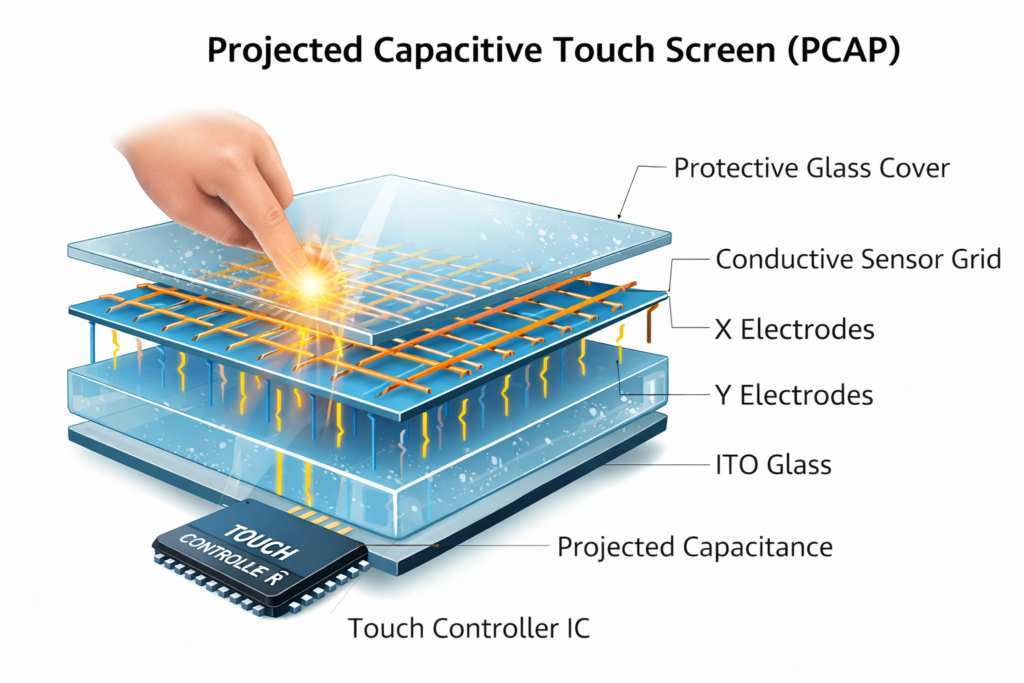
PCAP (Projected Capacitive) — The Most Common, Most Durable
PCAP is what you'll find in most consumer touch monitors and every modern smartphone. It works by sensing the electrical charge in your finger through a grid of transparent electrodes embedded in glass.
Durability strengths:
- No moving parts or flexible layers
- Glass surface resists scratching well
- Handles millions of touches without degradation
- Excellent optical clarity since it's integrated into the glass
Durability weaknesses:
- Glass can crack on impact
- Standard PCAP doesn't work with regular gloves (though glove-mode models exist)
- Susceptible to electromagnetic interference in industrial settings
- Touch controller chip can fail, rendering the whole unit non-touch
PCAP dominates the market for good reason. It's the most durable touch technology for everyday use. If you're buying a touch monitor for home office or light commercial use, PCAP is the safe bet.
Resistive Touch — Tougher Glass, But the Surface Wears Out
Resistive touchscreens use two flexible layers separated by a tiny gap. When you press, the layers make contact and the system calculates the touch point.
Durability strengths:
- Works with any object (gloves, styluses, fingernails)
- Lower cost to replace
- Less sensitive to electromagnetic interference
Durability weaknesses:
- The flexible top layer scratches and wears down over time
- Reduced clarity due to multiple layers
- Touch accuracy degrades as the surface wears
- Typically rated for only 1 million to 3 million touches
Resistive screens are a durability tradeoff. The glass underneath is tough, but the flexible overlay is a consumable part. In high-traffic environments, you'll replace the overlay or the entire unit within a couple of years.
Infrared (IR) Touch — Great for Big Displays, Vulnerable Edges
IR touch systems use a grid of infrared LEDs and sensors bezel-mounted around the screen. When your finger breaks the beam, the system registers the touch.
Durability strengths:
- No overlay on the display itself (full clarity)
- Works with any object
- Excellent for large-format displays (55 inches and up)
- Touch surface is the actual display glass, which is very hard
Durability weaknesses:
- Bezel-mounted sensors can get knocked out of alignment
- Dust and debris in the bezel gap causes false triggers
- Not suitable for sealed environments without modification
- Yellowing of the IR lens over time affects accuracy
IR touch is common in interactive whiteboards and large kiosks. The display itself is durable, but the bezel components need regular maintenance. If the bezel gets damaged, you lose touch functionality even though the display still works.
SAW (Surface Acoustic Wave) — Excellent Clarity, Sensitive to Contamination
SAW technology sends ultrasonic waves across the glass surface. A touch absorbs part of the wave, and the system calculates position.
Durability strengths:
- Pure glass surface with no coatings or layers
- Best optical clarity of any touch technology
- Very responsive and accurate
Durability weaknesses:
- Surface contamination (water, dirt, grease) causes false triggers
- Soft objects don't register reliably
- Glass surface is durable but the acoustic sensors are sensitive
- Declining market share means replacement parts get harder to find
SAW screens deliver the best visual experience. But they're finicky in dirty or wet environments. You'll find them in controlled settings like information kiosks and medical displays, not in factories or restaurants.
Side-by-Side Comparison: Touch Technologies Durability Breakdown
| Feature | PCAP | Resistive | IR | SAW |
|---|---|---|---|---|
| Touch lifespan | 10M–100M+ touches | 1M–3M touches | Unlimited (no surface wear) | 10M+ touches |
| Scratch resistance | High | Low (flexible layer) | High (glass only) | High (glass only) |
| Impact resistance | Moderate | Moderate | Moderate to high | Moderate |
| Clarity loss | Minimal | Noticeable | None | None |
| Works with gloves | No (unless glove-mode) | Yes | Yes | No |
| Moisture tolerance | Moderate | Low | Low to moderate | Low |
| Best environment | Office, retail, medical | Industrial, POS | Large displays, kiosks | Controlled indoor |
| Typical price range | $–$$$ | $ | $$–$$$ | $$–$$$ |
What Actually Breaks on a Touchscreen Monitor
Understanding the real failure modes helps you choose wisely and maintain your unit properly. Here's what kills touchscreen monitors in practice.
Scratches and Surface Damage
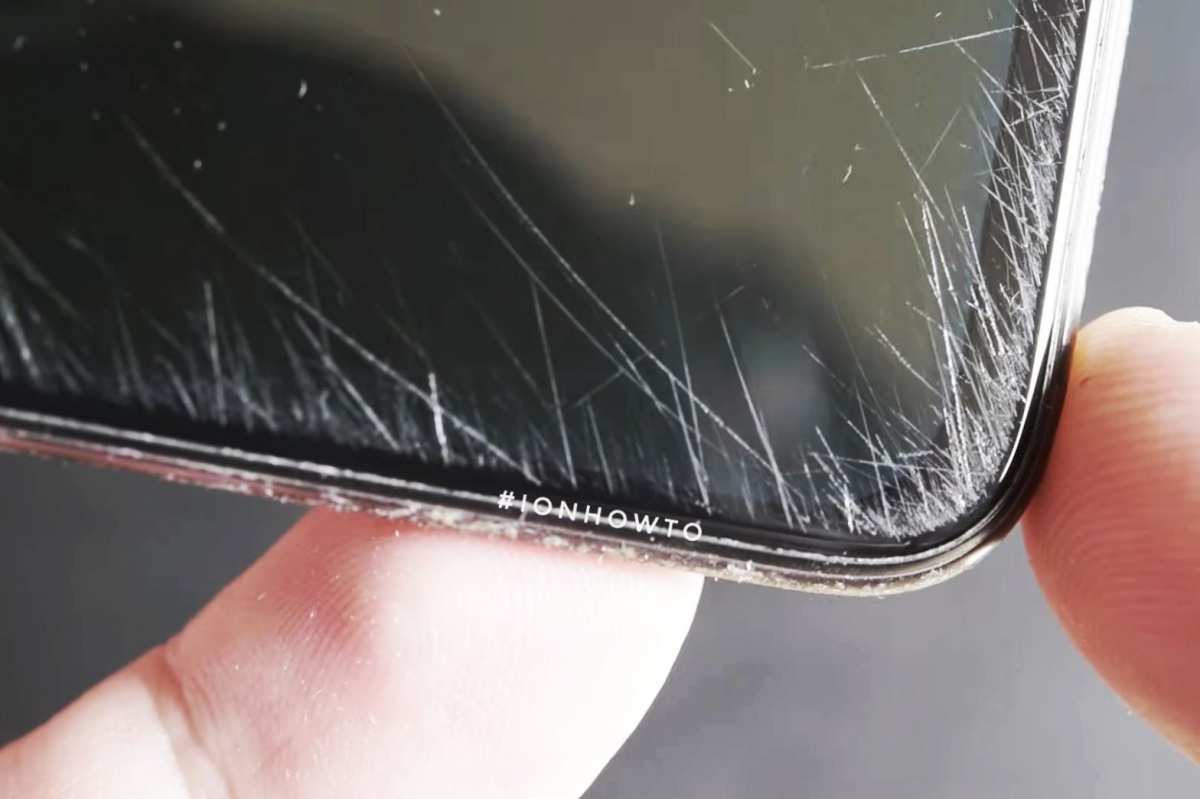
Fingers are harder than you think. Skin picks up grit, sand, and metal particles throughout the day. Over months, those micro-particles create fine scratches across the touch surface.
PCAP screens with chemically strengthened glass (think Gorilla Glass or equivalent) resist this well. Resistive screens show wear much faster. Anti-scratch coatings help but wear down themselves over time.
What helps: Use a quality screen protector on consumer units. Replace it when it shows wear. For industrial units, specify etched glass surfaces that hide micro-scratches better than polished glass.
Touch Controller Failure
The touch controller is the small PCB that translates raw touch data into something your operating system understands. It's often the first component to fail.
Controller failure means the display works perfectly but touch input stops entirely. Sometimes a firmware update or driver reinstall fixes it. Often it's a hardware issue requiring controller board replacement.
What helps: Buy from manufacturers that provide long-term driver support. Industrial units from companies like Elo and 3M/MicroTouch typically offer 5+ year product lifecycles. Consumer brands may discontinue support after 2 years.
Ghost Touches and Calibration Drift
Ghost touches happen when the screen registers input that isn't happening. Calibration drift means your touches register in the wrong spot.
Both issues stem from the touch controller, the connection between the touch layer and controller, or environmental interference. Electromagnetic interference from nearby equipment is a common cause in industrial settings.
What helps: Keep the monitor away from large motors, transformers, and high-power electrical equipment. Recalibrate periodically using the manufacturer's utility software. Update firmware when available.
Glass Impact Damage
This is the obvious one. Drop something on the screen and it cracks. PCAP touchscreens use glass that's typically 1mm to 4mm thick.
Thinner glass feels better to touch but breaks more easily.
When the glass cracks on a PCAP unit, touch functionality usually fails immediately. The crack disrupts the capacitive grid. On resistive units, a crack might leave partial functionality.
What helps: Mount the monitor securely. Use VESA arms that absorb vibration. In high-risk environments, specify tempered glass or add a protective overlay.
Overlay Delamination and Yellowing
This applies mainly to IR touch systems and aftermarket touch overlays. The optical adhesive between layers breaks down over time, creating visible bubbles or a yellowish tint.
Delamination also reduces touch accuracy because the IR beams scatter through the degraded adhesive layer. It's primarily a UV and heat issue.
What helps: Avoid direct sunlight exposure. Choose optically bonded units for longevity. IR overlays in climate-controlled indoor environments rarely have this problem.
Best For Each Use Case: Matching Technology to Environment
Choosing the wrong touch technology for your environment is the fastest way to kill a monitor. Here's what works where.
Retail and Restaurant POS
Best choice: PCAP with reinforced glass
Retail and restaurant environments need fast, responsive touch that handles constant use. PCAP delivers the best user experience. Staff wearing gloves?
Look for units with glove-mode support.
Restaurant kitchens add grease and moisture. Specify units with IP65-rated front panels. The sealed bezel prevents grease ingress that kills touch controllers over time.
Industrial and Manufacturing Floors
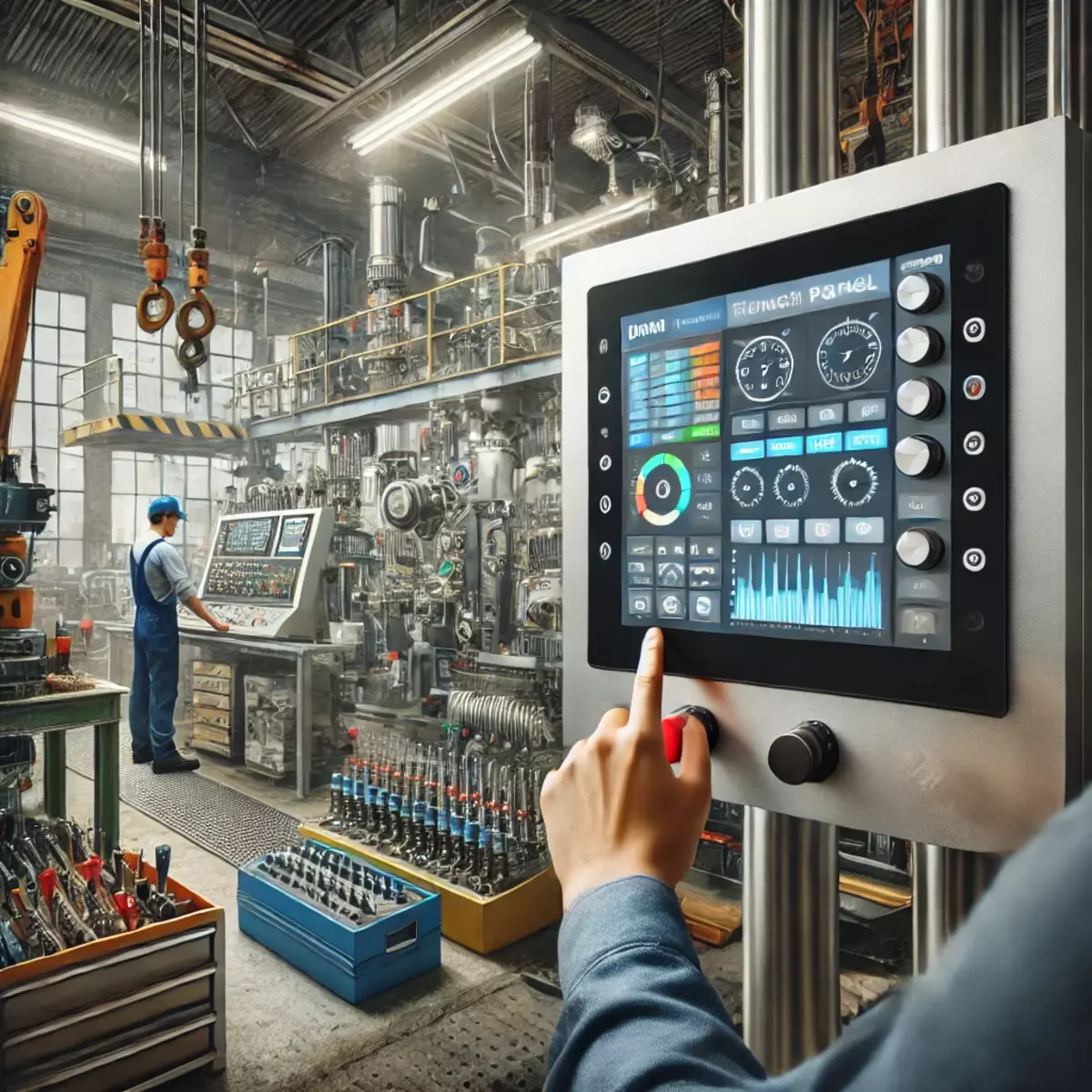
Best choice: Resistive or industrial PCAP with IP65+ rating
Factory floors are tough on equipment. Dust, vibration, oil, and temperature swings are standard. Industrial PCAP monitors with sealed aluminum enclosures handle this best.
Resistive screens still have a place here because they work with thick work gloves. But expect to replace the overlay surface every 12 to 24 months in heavy-use scenarios.
Medical and Healthcare Settings
Best choice: PCAP with anti-microbial coating and IP65 front panel
Healthcare requires frequent disinfection. Standard cleaning chemicals degrade touchscreen coatings over time. Medical-grade touch monitors use specialized coatings that withstand alcohol-based and bleach-based cleaners.
PCAP is preferred because it has no crevices where contaminants can accumulate. The smooth glass surface is easy to wipe down between patients.
Home Office and Creative Work
Standard consumer PCAP is perfect here. You're not dealing with harsh environments. A quality consumer touch monitor from Dell, HP, or ViewSonic will last years with basic care.
Creative professionals should look for units with active stylus support (Wacom EMR or AES protocols). These add a digitizer layer but don't significantly impact durability. The stylus tip is softer than glass, so normal use won't scratch the surface.
Outdoor and High-Traffic Kiosks
Best choice: High-brightness PCAP with optical bonding and vandal-resistant glass
Outdoor kiosks face UV exposure, rain, temperature extremes, and potential abuse. Standard consumer monitors fail quickly in these conditions.
Look for units rated IP65 or higher on all sides. Optical bonding (laminating the touch glass directly to the display) eliminates the air gap that causes condensation and delamination. Vandal-resistant glass should be 4mm thick minimum.
Education and Classrooms
Best choice: PCAP with tempered glass and robust bezel design
Schools need monitors that survive student use. Tempered glass handles accidental impacts better than standard glass. A solid bezel protects the edges where most impact damage occurs.
Interactive flat panels (like large-format displays) typically use IR touch. These hold up well in classroom settings since the bezel is recessed and the glass surface is just the display panel itself.
Consumer vs. Industrial Touch Monitors: Is the Price Premium Worth It?
Industrial touch monitors cost 3 to 5 times more than consumer equivalents. That's a significant price gap. Whether it's worth it depends entirely on your use case.
When consumer grade is fine:
- Home office use
- Light retail (occasional customer interaction)
- Digital signage in controlled environments
- Secondary displays
When you need industrial grade:
- 24/7 operation
- Outdoor or harsh environments
- Food processing or medical (washdown requirements)
- Factory floors with dust, oil, or vibration
- High-traffic public kiosks
The price premium buys you several things. Better sealing against dust and moisture. Wider operating temperature ranges (often -20°C to 70°C versus 0°C to 40°C for consumer).
Longer product lifecycles with guaranteed replacement part availability. Higher-grade glass and construction.
For a home office, spending $800 on an industrial 24-inch touch monitor makes no sense. A $250 consumer unit will serve you well for years. For a factory running three shifts daily, the industrial unit pays for itself by avoiding downtime and replacement costs.
Real-World Lifespan: What the Numbers Actually Say
Manufacturer specs give you touch activation ratings. Real-world lifespan depends on more than that number.
Typical lifespans by use case:
- Home office (4 hours/day): 5 to 8 years before touch issues appear
- Retail POS (12 hours/day): 3 to 5 years for consumer units, 5 to 8 years for commercial
- Industrial 24/7: 5 to 10 years for industrial-grade units
- Outdoor kiosk: 3 to 7 years depending on climate and build quality
These are aggregate estimates based on manufacturer MTBF data and verified buyer feedback. Individual results vary significantly based on environment, usage intensity, and maintenance.
The touch surface itself usually outlasts the display. LED backlights dim over time (typically 30,000 to 50,000 hours to half-brightness). The touch layer often still works fine when the display is dim enough that you consider replacing the unit.
Backlight failure doesn't mean touch failure. Many older touch monitors still register input perfectly even when the display is too dim to read. The touch system draws minimal power and degrades much slower than the backlight LEDs.
How to Extend the Life of Your Touchscreen Monitor
A few simple habits significantly extend touchscreen durability.
Clean it properly:
- Use a microfiber cloth slightly dampened with water or a 50/50 water-isopropyl solution
- Never spray liquid directly on the screen
- Avoid ammonia-based cleaners (they strip oleophobic coatings)
- Clean regularly to prevent buildup that causes false touches
Protect the surface:
- Apply a quality screen protector on consumer units
- Replace the protector when it shows visible wear
- This sacrifices a tiny bit of touch sensitivity for major scratch protection
Manage the environment:
- Keep the monitor out of direct sunlight when possible
- Avoid placing near heat sources or in high-humidity areas without proper-rated equipment
- Ensure adequate ventilation around the monitor to prevent overheating
Maintain the software:
- Update touch controller firmware when manufacturers release updates
- Recalibrate touch input periodically
- Keep drivers current, especially after major OS updates
Handle with care:
- Never press harder than necessary
- Use a light touch, which is all PCAP requires
- Don't use sharp objects on the surface (use a stylus designed for capacitive screens)
Common Mistakes That Kill Touchscreen Monitors Early
These are the mistakes we see most often in aggregate user reviews and support forums.
Using the wrong cleaner. Glass cleaner, bleach wipes, and ammonia-based products strip the oleophobic coating within weeks. Once that coating is gone, fingerprints become permanent and the surface feels rough.
Ignoring driver updates. Touch calibration and palm rejection improve with firmware updates. Running outdated firmware causes ghost touches and poor accuracy that users mistake for hardware failure.
Mounting in direct sunlight. UV degrades touch overlay adhesives and can yellow IR lens covers. Heat from direct sunlight also accelerates component aging in the touch controller.
Buying consumer grade for commercial use. A $200 consumer touch monitor in a restaurant POS system will fail within a year. The environment exceeds the design specifications. Commercial-grade units cost more upfront but last longer in these settings.
Not using a screen protector. On consumer units, the factory oleophobic coating wears off within 6 to 12 months of regular use. A screen protector replaces that sacrificial layer and costs $10 to $20.
Applying excessive pressure. PCAP screens need zero pressure. Pressing hard doesn't improve response. It just stresses the glass and can cause micro-fractures over time.
Frequently Asked Questions
How long do touchscreen monitors typically last?
Consumer touch monitors last 5 to 8 years in light-duty home office use. Commercial-grade units in retail or POS environments last 3 to 5 years. Industrial units running 24/7 can last 5 to 10 years with proper maintenance.
Do touchscreens scratch easily?
PCAP screens with chemically strengthened glass resist scratching well in normal use. Resistive screens scratch much more easily due to their flexible overlay layer. A screen protector adds significant scratch protection to any touchscreen.
Can a touchscreen still work if the glass is cracked?
Usually not on PCAP units. Cracks disrupt the capacitive grid and cause complete touch failure. Resistive screens may retain partial functionality depending on crack location.
IR touch systems may still work if the bezel sensors are undamaged.
Are touchscreen monitors good for gaming?
They work fine for casual gaming and touch-based games. Competitive gamers generally prefer non-touch monitors for lower input latency. Touch adds a slight latency overhead, though it's negligible for most players.
Do touchscreens use more power than regular monitors?
The touch layer adds minimal power consumption, typically 0.5 to 2 watts. The display backlight is by far the largest power draw. You won't notice a meaningful difference on your electricity bill.
Can I use a touchscreen monitor with gloves?
Standard PCAP doesn't work with regular gloves. However, many commercial and industrial PCAP units offer a glove-mode setting that increases sensitivity. Resistive screens work with any glove by design.
Consumer vs. Industrial Touch Monitors: Is the Price Premium Worth It?
Industrial touch monitors cost 3 to 5 times more than consumer equivalents. That's a significant price gap. Whether it's worth it depends entirely on your use case.
When consumer grade is fine:
- Home office use
- Light retail (occasional customer interaction)
- Digital signage in controlled environments
- Secondary displays
When you need industrial grade:
- 24/7 operation
- Outdoor or harsh environments
- Food processing or medical (washdown requirements)
- Factory floors with dust, oil, or vibration
- High-traffic public kiosks
The price premium buys you several things. Better sealing against dust and moisture. Wider operating temperature ranges (often -20°C to 70°C versus 0°C to 40°C for consumer).
Longer product lifecycles with guaranteed replacement part availability. Higher-grade glass and construction.
For a home office, spending $800 on an industrial 24-inch touch monitor makes no sense. A $250 consumer unit will serve you well for years. For a factory running three shifts daily, the industrial unit pays for itself by avoiding downtime and replacement costs.
Real-World Lifespan: What the Numbers Actually Say
Manufacturer specs give you touch activation ratings. Real-world lifespan depends on more than that number.
Typical lifespans by use case:
- Home office (4 hours/day): 5 to 8 years before touch issues appear
- Retail POS (12 hours/day): 3 to 5 years for consumer units, 5 to 8 years for commercial
- Industrial 24/7: 5 to 10 years for industrial-grade units
- Outdoor kiosk: 3 to 7 years depending on climate and build quality
These are aggregate estimates based on manufacturer MTBF data and verified buyer feedback. Individual results vary significantly based on environment, usage intensity, and maintenance.
The touch surface itself usually outlasts the display. LED backlights dim over time (typically 30,000 to 50,000 hours to half-brightness). The touch layer often still works fine when the display is dim enough that you consider replacing the unit.
Backlight failure doesn't mean touch failure. Many older touch monitors still register input perfectly even when the display is too dim to read. The touch system draws minimal power and degrades much slower than the backlight LEDs.
How to Extend the Life of Your Touchscreen Monitor
A few simple habits significantly extend touchscreen durability.
Clean it properly:
- Use a microfiber cloth slightly dampened with water or a 50/50 water-isopropyl solution
- Never spray liquid directly on the screen
- Avoid ammonia-based cleaners (they strip oleophobic coatings)
- Clean regularly to prevent buildup that causes false touches
Protect the surface:
- Apply a quality screen protector on consumer units
- Replace the protector when it shows visible wear
- This sacrifices a tiny bit of touch sensitivity for major scratch protection
Manage the environment:
- Keep the monitor out of direct sunlight when possible
- Avoid placing near heat sources or in high-humidity areas without proper-rated equipment
- Ensure adequate ventilation around the monitor to prevent overheating
Maintain the software:
- Update touch controller firmware when manufacturers release updates
- Recalibrate touch input periodically
- Keep drivers current, especially after major OS updates
Handle with care:
- Never press harder than necessary
- Use a light touch, which is all PCAP requires
- Don't use sharp objects on the surface (use a stylus designed for capacitive screens)
Common Mistakes That Kill Touchscreen Monitors Early
These are the mistakes we see most often in aggregate user reviews and support forums.
Using the wrong cleaner. Glass cleaner, bleach wipes, and ammonia-based products strip the oleophobic coating within weeks. Once that coating is gone, fingerprints become permanent and the surface feels rough.
Ignoring driver updates. Touch calibration and palm rejection improve with firmware updates. Running outdated firmware causes ghost touches and poor accuracy that users mistake for hardware failure.
Mounting in direct sunlight. UV degrades touch overlay adhesives and can yellow IR lens covers. Heat from direct sunlight also accelerates component aging in the touch controller.
Buying consumer grade for commercial use. A $200 consumer touch monitor in a restaurant POS system will fail within a year. The environment exceeds the design specifications. Commercial-grade units cost more upfront but last longer in these settings.
Not using a screen protector. On consumer units, the factory oleophobic coating wears off within 6 to 12 months of regular use. A screen protector replaces that sacrificial layer and costs $10 to $20.
Applying excessive pressure. PCAP screens need zero pressure. Pressing hard doesn't improve response. It just stresses the glass and can cause micro-fractures over time.
Frequently Asked Questions
How long do touchscreen monitors typically last?
Consumer touch monitors last 5 to 8 years in light-duty home office use. Commercial-grade units in retail or POS environments last 3 to 5 years. Industrial units running 24/7 can last 5 to 10 years with proper maintenance.
Do touchscreens scratch easily?
PCAP screens with chemically strengthened glass resist scratching well in normal use. Resistive screens scratch much more easily due to their flexible overlay layer. A screen protector adds significant scratch protection to any touchscreen.
Can a touchscreen still work if the glass is cracked?
Usually not on PCAP units. Cracks disrupt the capacitive grid and cause complete touch failure. Resistive screens may retain partial functionality depending on crack location.
IR touch systems may still work if the bezel sensors are undamaged.
Are touchscreen monitors good for gaming?
They work fine for casual gaming and touch-based games. Competitive gamers generally prefer non-touch monitors for lower input latency. Touch adds a slight latency overhead, though it's negligible for most players.
Do touchscreens use more power than regular monitors?
The touch layer adds minimal power consumption, typically 0.5 to 2 watts. The display backlight is by far the largest power draw. You won't notice a meaningful difference on your electricity bill.
Can I use a touchscreen monitor with gloves?
Standard PCAP doesn't work with regular gloves. However, many commercial and industrial PCAP units offer a glove-mode setting that increases sensitivity. Resistive screens work with any glove by design.
Final Verdict: Should You Buy a Touchscreen Monitor?
For most home office users: Yes, a consumer PCAP touch monitor is a solid buy. You'll get years of reliable service with basic care. The durability concerns are overblown for light-duty use.
For commercial or industrial environments: Invest in the appropriate grade. Consumer units fail fast in harsh settings. The upfront cost of commercial or industrial hardware pays for itself through reliability and longevity.
The bottom line: Touchscreen monitors are durable when you match the technology to the task. PCAP handles everyday use well. Resistive works where gloves are needed.
IR suits large displays. Buy for your actual environment, not the showroom.

Similar Posts





















