What Is the Refresh Rate of 4K Monitors
If you've just unboxed a 4K monitor and something feels off, you're not imagining it. The jump to 3840 × 2160 resolution is stunning, but the refresh rate is what determines whether your screen feels buttery smooth or frustratingly sluggish. What is the refresh rate of 4K monitors?
It's not one number. It's a range that depends entirely on your hardware, your cable, and what you're actually doing on screen.
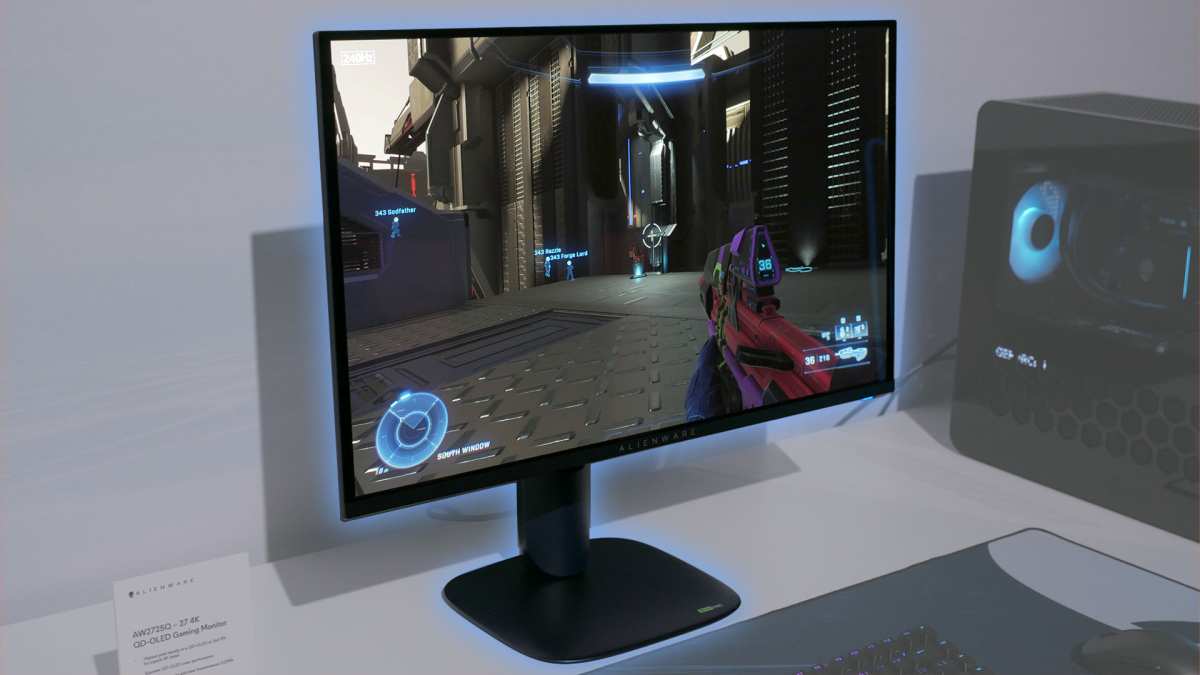
Most 4K monitors ship at 60Hz, but gaming and professional models now push 120Hz, 144Hz, even 240Hz. The catch is that hitting those higher numbers at full 4K resolution demands the right port, the right cable, and a GPU that can keep up. Let's walk through exactly how this works and what you need to get the refresh rate you paid for.
Quick Answer
4K monitors typically run at 60Hz. Gaming models reach 120Hz, 144Hz, or 240Hz. Your actual refresh rate depends on your cable, port, and graphics hardware.
HDMI 2.1 and DisplayPort 1.4 or newer are required for 4K above 60Hz. Always verify the refresh rate in your operating system settings.
Why Your 4K Monitor Might Be Stuck at 60Hz
Here's the scenario that trips people up constantly. You buy a 4K 144Hz monitor, plug it in, and it runs at 60Hz. Nothing's broken.
The bottleneck is almost always the connection between your GPU and the display.
Every cable and port combination has a maximum bandwidth. 4K resolution at high refresh rates pushes a massive amount of data. If your connection can't handle it, the monitor drops to the highest refresh rate that fits within that bandwidth. Usually, that fallback is 60Hz.
The most common culprits are:
- Using an older HDMI cable. HDMI 2.0 tops out at 4K 60Hz. You need HDMI 2.1 for 4K 120Hz and beyond.
- Plugging into the wrong port. Many monitors have both HDMI and DisplayPort. The HDMI port might be version 2.0 while the DisplayPort is 1.4. Same monitor, different limits.
- Using the motherboard output instead of the GPU. If your CPU has integrated graphics and you've plugged into the motherboard, you're almost certainly limited to lower refresh rates at 4K.
- Not changing the setting in your OS. Even with the right hardware, Windows or macOS sometimes defaults to 60Hz. You have to manually select the higher refresh rate in display settings.
This is a decision tree problem, not a specs-sheet problem. Your monitor's maximum refresh rate means nothing if any link in the chain can't support it.
How Refresh Rate Actually Works at 4K Resolution
Refresh rate is the number of times per second your monitor redraws the image. Measured in hertz (Hz), it's one of the two factors that determine how smooth motion looks on screen. The other is frame rate, which is how many frames per second your GPU produces.
At 4K resolution, each frame contains roughly 8.3 million pixels. That's four times the pixel count of 1080p. Pushing 144 of those full-resolution frames per second requires enormous bandwidth, which is why high-refresh 4K is a relatively recent development.
Here's how the common refresh rates break down in practical terms:
| Refresh Rate | Frame Time | Motion Clarity | Best For |
|---|---|---|---|
| 30Hz | 33.3ms | Poor | Legacy devices, some media playback |
| 60Hz | 16.6ms | Acceptable | General use, office work, casual media |
| 120Hz | 8.3ms | Good | Console gaming, smooth desktop use |
| 144Hz | 6.9ms | Very good | PC gaming, fast-paced content |
| 240Hz | 4.2ms | Excellent | Competitive gaming, esports |
The jump from 60Hz to 120Hz is the one most people notice immediately. Going from 120Hz to 240Hz is subtler. Your sensitivity to these differences depends on what you're doing and how much time you've spent at higher refresh rates.
What Your Cable and Port Have to Do With It
This is where the decision tree really matters. Your monitor might support 4K 144Hz, but the cable and port determine whether you actually get it.
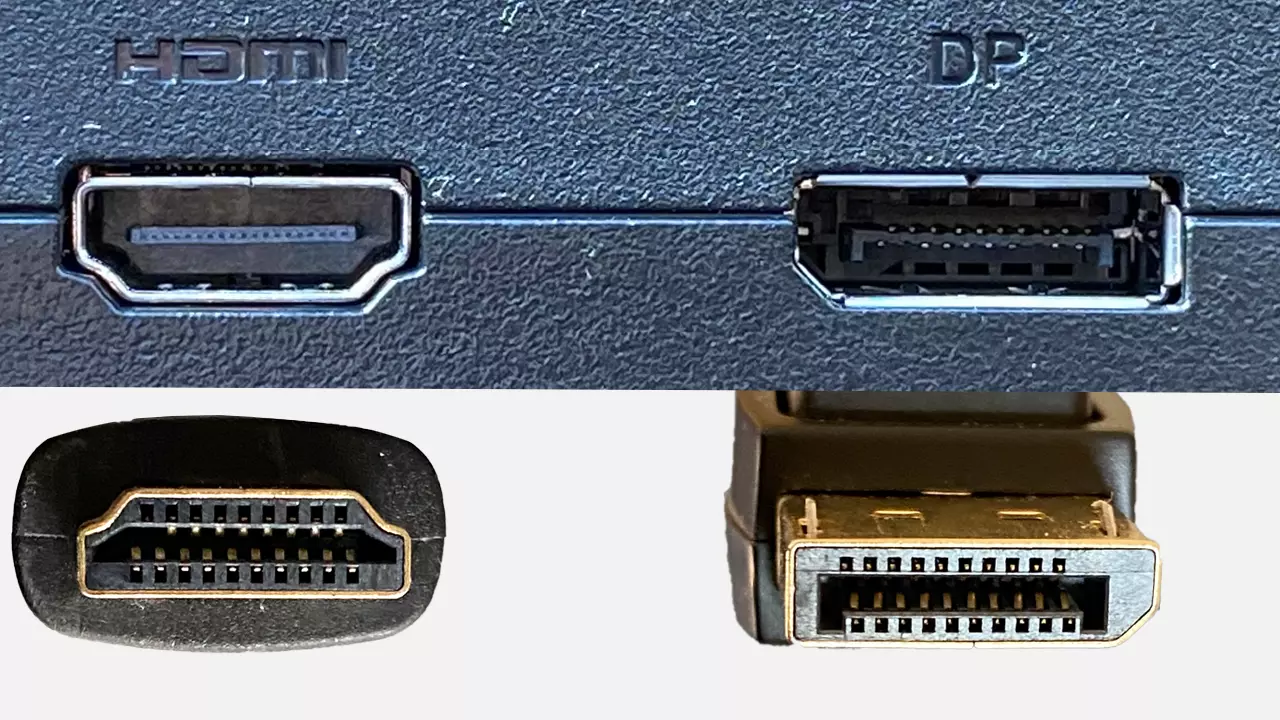
Here's the bandwidth each standard provides and what it means for 4K:
| Standard | Max Bandwidth | 4K Capability |
|---|---|---|
| HDMI 2.0 | 18 Gbps | 4K 60Hz |
| HDMI 2.1 | 48 Gbps | 4K 120Hz (full chroma), 4K 240Hz (with DSC) |
| DisplayPort 1.2 | 21.6 Gbps | 4K 60Hz |
| DisplayPort 1.4 | 32.4 Gbps | 4K 120Hz (with DSC), 4K 98Hz (without DSC) |
| DisplayPort 2.1 | 80 Gbps | 4K 240Hz+ (without compression) |
DSC, or Display Stream Compression, is a visually lossless compression standard that lets you push higher refresh rates through existing cables. Most modern GPUs and monitors support it. You usually don't need to enable it manually.
It just works in the background when needed.
The practical takeaway is straightforward. If you want 4K above 60Hz, use DisplayPort 1.4 or newer, or HDMI 2.1. Anything older caps you at 60Hz.
And make sure the cable itself is rated for the standard. A cheap HDMI cable labeled "high speed" might only meet HDMI 2.0 specs even if the port on each end is HDMI 2.1.
4K Refresh Rates by Use Case: What You Actually Need
Not everyone needs 240Hz at 4K. The right refresh rate depends entirely on what you're doing.
For office work and productivity, 60Hz is perfectly fine. Scrolling through documents, browsing the web, and working in spreadsheets don't benefit much from higher refresh rates. That said, once you've used a 120Hz desktop, going back to 60Hz feels noticeably choppy.
It's one of those things you don't miss until you've experienced the alternative.
For console gaming, 120Hz is the current ceiling. Both the PS5 and Xbox Series X support 4K 120Hz through HDMI 2.1. Very few games actually render at native 4K 120fps though.
Most use dynamic resolution scaling or performance modes that lower the resolution to hit higher frame rates. Still, having the capability matters for the titles that support it.
For PC gaming, this is where the decision gets interesting. If you have a high-end GPU like an RTX 4080 or RX 7900 XTX, you can push high frame rates at 4K in many titles. A 144Hz or 240Hz monitor lets you actually see those frames.
But if your GPU tops out at 60-80fps in your favorite games at 4K, a 240Hz monitor won't help you. You'd be better off with a 144Hz panel or even a high-quality 60Hz display.
For creative work, refresh rate is secondary to color accuracy and resolution. Video editors and colorists typically prioritize 10-bit color depth, wide gamut coverage, and factory calibration. Most professional 4K monitors in this category run at 60Hz, and that's by design.
The panel technology that delivers the best color performance often trades off speed.
The honest truth is that most people buying a 4K monitor in 2026 should target 120Hz as a minimum if gaming is even a occasional use case. The price difference between 60Hz and 120Hz 4K panels has shrunk dramatically, and the smoothness improvement is immediately noticeable in everyday use.
Console Gaming: 4K 120Hz and Its Limits
If you're gaming on a PS5 or Xbox Series X, 4K 120Hz is the ceiling. Both consoles support it through HDMI 2.1, but the reality is more complicated than the spec sheet suggests.
Very few games actually render at native 4K and 120 frames per second simultaneously. The GPU in both consoles is powerful, but not that powerful. What usually happens is dynamic resolution scaling.
The game drops the render resolution to somewhere between 1440p and 1800p, then upscales to 4K output. You get the smoothness of 120Hz without the full pixel count.
Some titles do hit native 4K 120fps, but they're typically less demanding games. Think indie titles, older games, or competitive shooters with simpler graphics. AAA blockbusters like Spider-Man 2 or Call of Duty usually offer a choice: fidelity mode at 4K 30fps or performance mode at dynamic resolution 60fps.
The 120Hz mode often requires dropping to 1080p or 1440p.
The practical advice here is simple. If you're primarily a console gamer, a 4K 120Hz monitor with HDMI 2.1 is the sweet spot. You don't need 144Hz or 240Hz because the console can't output beyond 120fps anyway.
Spending extra on a higher refresh rate monitor won't give you any benefit on current-gen consoles.
PC Gaming: Pushing 4K Past 144Hz
PC gaming is where high-refresh 4K gets serious. Unlike consoles, a powerful PC GPU can actually push high frame rates at native 4K in many titles. The question is whether your specific hardware can do it.
An RTX 4090 can hit 120fps or more at 4K in most games with settings maxed. Step down to an RTX 4070 or RX 7800 XT, and you're looking at 60-90fps in demanding titles at 4K. Mid-range cards like the RTX 4060 or RX 7600 often struggle to maintain 60fps at native 4K in newer games.
This is where the decision tree matters. If your GPU can't push more than 60fps at 4K in the games you play, a 144Hz monitor won't magically make your games smoother. You'd be better off either lowering your resolution to 1440p for higher frame rates, or investing in a GPU upgrade before buying a high-refresh 4K display.
For competitive gamers who play lighter titles like CS2, Valorant, or Rocket League, even mid-range GPUs can push 200fps-plus at 4K. In those cases, a 240Hz 4K monitor makes real sense. The reduced input lag and smoother motion provide a tangible advantage.
Adaptive sync technology is worth mentioning here. Both NVIDIA G-Sync and AMD FreeSync eliminate screen tearing without adding input lag. If your frame rate fluctuates, which it will at 4K, adaptive sync keeps things smooth.
Most 4K gaming monitors now support one or both standards.
Creative Work and Productivity: Does Refresh Rate Matter?
For photo editing, video production, and graphic design, refresh rate takes a back seat to color accuracy. Professional 4K monitors in this space typically run at 60Hz, and that's intentional.
The panel technologies that deliver the best color performance, like IPS Black and professional-grade OLED, have historically prioritized color depth and uniformity over speed. A 10-bit IPS panel covering 98% of DCI-P3 at 60Hz is far more useful to a colorist than a 8-bit 144Hz TN panel with mediocre gamut coverage.
That said, video editors working with high-frame-rate footage benefit from higher refresh rates during playback. Scrubbing through 60fps or 120fps timeline content on a 60Hz monitor means dropped frames and judder. A 120Hz display lets you see every frame in real time.
It's not essential, but it's a genuine workflow improvement.
For general productivity, the benefit of higher refresh rates is subtle but real. Scrolling through long documents, moving windows around, and even just moving the mouse cursor all feel smoother at 120Hz versus 60Hz. It's not a productivity multiplier in any measurable sense, but it does reduce eye strain during long sessions for some people.
The honest recommendation: if your primary use is creative work, prioritize color accuracy, panel uniformity, and resolution first. Refresh rate is a nice-to-have, not a requirement. A 60Hz professional monitor will serve you better than a 144Hz gaming panel with poor color performance.
The Bandwidth Problem Nobody Talks About
Here's something that catches people off guard. Running 4K at high refresh rates with full color quality requires more bandwidth than most cables and ports can provide without compression.
At 4K 120Hz with 4:4:4 chroma subsampling and 8-bit color, you need roughly 32 Gbps of bandwidth. That's beyond what DisplayPort 1.4 can handle without DSC. HDMI 2.1 can manage it at 48 Gbps, but only just.
Chroma subsampling is the hidden compromise. 4:4:4 means full color resolution for every pixel. 4:2:2 halves the horizontal color resolution. 4:2:0 halves both horizontal and vertical. At 4K 120Hz without DSC, many setups default to 4:2:0 to fit within bandwidth limits.
For gaming and video, 4:2:0 is usually fine. You won't notice the difference in moving content. But for text and static images, 4:2:0 causes visible fringing on colored text against contrasting backgrounds.
If you're using your 4K monitor for reading, coding, or design work, you want 4:4:4.
The solution is either DSC, which is visually lossless and supported by most modern hardware, or DisplayPort 2.1, which has enough raw bandwidth to handle 4K 240Hz at 4:4:4 without compression. DP 2.1 is still relatively new as of 2026, but it's appearing on newer GPUs and monitors.
How to Check and Enable Your Monitor's True Refresh Rate
You've got the right monitor, the right cable, and the right port. Now you need to make sure your system is actually using the refresh rate you expect.
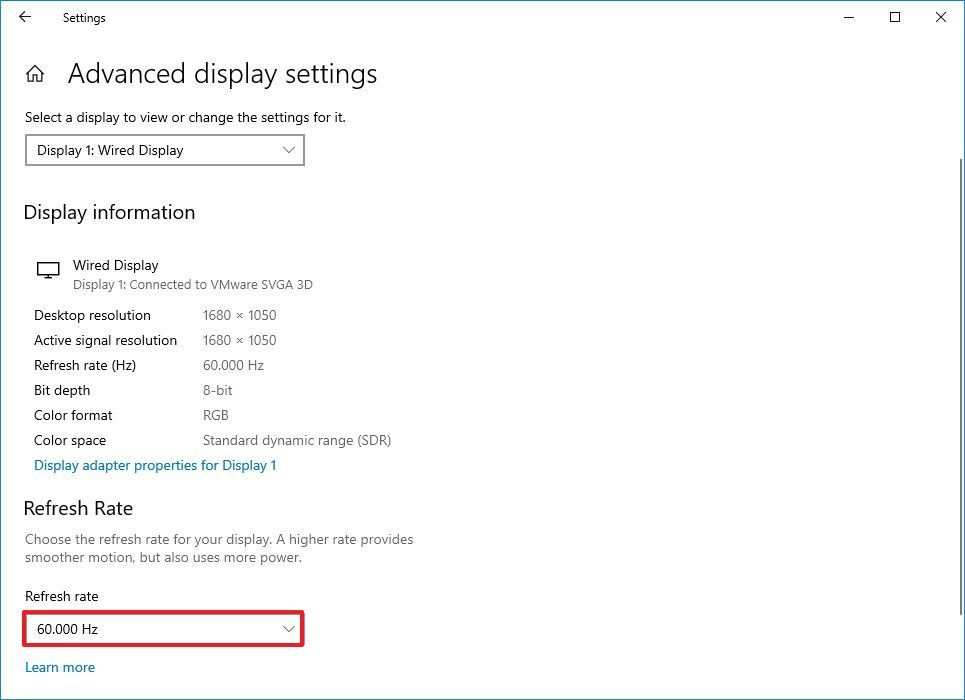
On Windows, right-click the desktop and select Display Settings. Scroll down and click Advanced Display. Look at the Refresh Rate dropdown.
If it shows 60Hz and your monitor supports higher, click the dropdown and select the highest available option.
On macOS, go to System Settings, then Displays. Hold the Option key and click the Resolution dropdown to see all available refresh rates. Select the highest one that matches your monitor's spec.
There's also a quick way to verify what you're actually getting. TestUFO.com runs a browser-based test that shows your real refresh rate. If your system says 144Hz but TestUFO shows 60fps, something in the chain is limiting you.
Common reasons the higher refresh rate doesn't show up:
- The cable doesn't support the required bandwidth. Swap it for a certified Ultra High Speed HDMI or DP 1.4 cable.
- The GPU driver is outdated. Update to the latest version from NVIDIA or AMD.
- The monitor's on-screen display has a setting that needs enabling. Some monitors require you to turn on "overclock" mode or select the highest refresh rate in their own menu.
- You're using an adapter. Active DisplayPort-to-HDMI adapters often cap at the lower of the two standards.
Once you've confirmed the correct refresh rate, enable adaptive sync in your GPU control panel. For NVIDIA, that's the NVIDIA Control Panel under Display > Set Up G-Sync. For AMD, it's Radeon Software under Display > AMD FreeSync.
This step eliminates screen tearing and makes variable frame rates feel smooth.
Common Mistakes That Lock You to a Lower Refresh Rate
The number one mistake is assuming the monitor's advertised refresh rate is automatic. It's not. Every link in the chain has to support it, and the weakest link wins.
Using the cable that came in the box seems safe, but it's not guaranteed. Some manufacturers include HDMI 2.0 cables even with monitors that support 144Hz at 4K. They work fine at 60Hz, so the monitor functions out of the box.
You just don't get the full spec unless you swap the cable.
Another common error is plugging into the wrong port on the monitor itself. Many displays have multiple inputs with different capabilities. Port 1 might be HDMI 2.1 while Port 2 is HDMI 2.0.
Check your manual. The port labels on the back don't always make this obvious.
For laptop users, the issue is often the output capability of the laptop itself. Many laptops with USB-C or Thunderbolt outputs can drive 4K, but only at 60Hz. The port might support DisplayPort Alt Mode, but the GPU or the laptop's firmware limits the output.
Check your laptop's spec sheet for the specific output capabilities of each port.
4K Monitor Refresh Rate Comparison: 60Hz vs 120Hz vs 144Hz vs 240Hz
Here's a straightforward breakdown of who each refresh rate serves best.
4K 60Hz is the baseline. It's fine for office work, media consumption, and casual gaming. Most professional creative monitors sit here.
If you're not gaming competitively and your GPU can't push beyond 60fps at 4K, this is all you need.
4K 120Hz is the current sweet spot for most people. It's the maximum for console gaming, it's smooth for desktop use, and it's achievable for PC gaming with a solid mid-to-high-end GPU. The price premium over 60Hz has dropped significantly.
4K 144Hz is the standard for PC gaming monitors. It gives you a noticeable edge over 120Hz in fast-paced games, and it's the refresh rate most gaming-focused 4K displays target. You need a strong GPU and either HDMI 2.1 or DisplayPort 1.4 with DSC.
4K 240Hz is for competitive gamers and early adopters. The hardware demands are extreme. You need a top-tier GPU and either HDMI 2.1 with DSC or DisplayPort 2.1.
The difference from 144Hz is real but subtle. Most people won't notice it outside of fast-paced competitive titles.
Expert Tips for Getting the Most Out of Your 4K Monitor
Always buy cables separately from a reputable brand. The cable included with your monitor is a cost-saving measure, not a performance accessory. Look for certified Ultra High Speed HDMI or VESA-certified DisplayPort cables.
Enable adaptive sync even if you're not gaming. It helps with video playback and reduces stuttering when frame rates fluctuate. The feature has minimal downside when properly configured.
If you're running 4K at a high refresh rate and notice text looking slightly soft, check your chroma subsampling. You might be at 4:2:0 instead of 4:4:4. Switching to a better cable or enabling DSC usually fixes this.
Update your GPU drivers regularly. Both NVIDIA and AMD have improved DSC compatibility and high-refresh 4K support through driver updates over the past few years. An outdated driver can silently limit your refresh rate.
Final Decision Guide: Which 4K Refresh Rate Is Right for You
If you're a console gamer, get a 4K 120Hz monitor with HDMI 2.1. That's the maximum your console can output, and it covers every current use case.
If you're a PC gamer with a high-end GPU, aim for 4K 144Hz. It's the best balance of smoothness and achievable performance. Only go for 240Hz if you play competitive titles and your GPU can actually push those frame rates.
If you're a creative professional, prioritize color accuracy and panel quality over refresh rate. A 60Hz professional monitor will serve you better than a fast gaming panel with mediocre color.
For everyone else, a 4K 120Hz display is the practical choice. It's smooth enough for daily use, capable enough for occasional gaming, and increasingly affordable as of 2026.
Frequently Asked Questions
Can I run 4K 120Hz over HDMI 2.0?
No. HDMI 2.0 maxes out at 4K 60Hz. You need HDMI 2.1 for 4K 120Hz at full chroma quality.
Some monitors can do 4K 120Hz over HDMI 2.0 with heavy chroma subsampling, but text quality suffers noticeably.
Does refresh rate affect input lag?
Yes. Higher refresh rates reduce input lag because the display updates more frequently. The difference between 60Hz and 144Hz is roughly 10 milliseconds of reduced latency.
Competitive gamers notice this. Casual users usually don't.
Is 4K 60Hz good enough for PS5?
It's playable, but you're leaving performance on the table. The PS5 supports 4K 120Hz in select titles, and many games offer 60fps performance modes. A 120Hz monitor lets you take advantage of both.
Do I need DisplayPort 2.1 for 4K gaming?
Not necessarily. DisplayPort 1.4 with DSC handles 4K 144Hz fine. DP 2.1 is only needed for 4K 240Hz without compression, or for future-proofing beyond current display capabilities.
Why does my 4K monitor feel sluggish at 144Hz?
Check that adaptive sync is enabled and that your GPU is actually outputting 144fps. If your frame rate is fluctuating wildly, adaptive sync smooths it out. Also verify you're not accidentally running at 60Hz in your OS display settings.

Similar Posts





















