Do USB C Monitors Need Docking Station
Do USB-C monitors need a docking station? Not always, and that's exactly where most people get tripped up. The real answer depends on what your laptop's USB-C port can actually do and what you need to connect alongside your display.
Some USB-C monitors handle video, power, and data through a single cable. Others need help. Let's walk through exactly how to figure out which camp you're in.
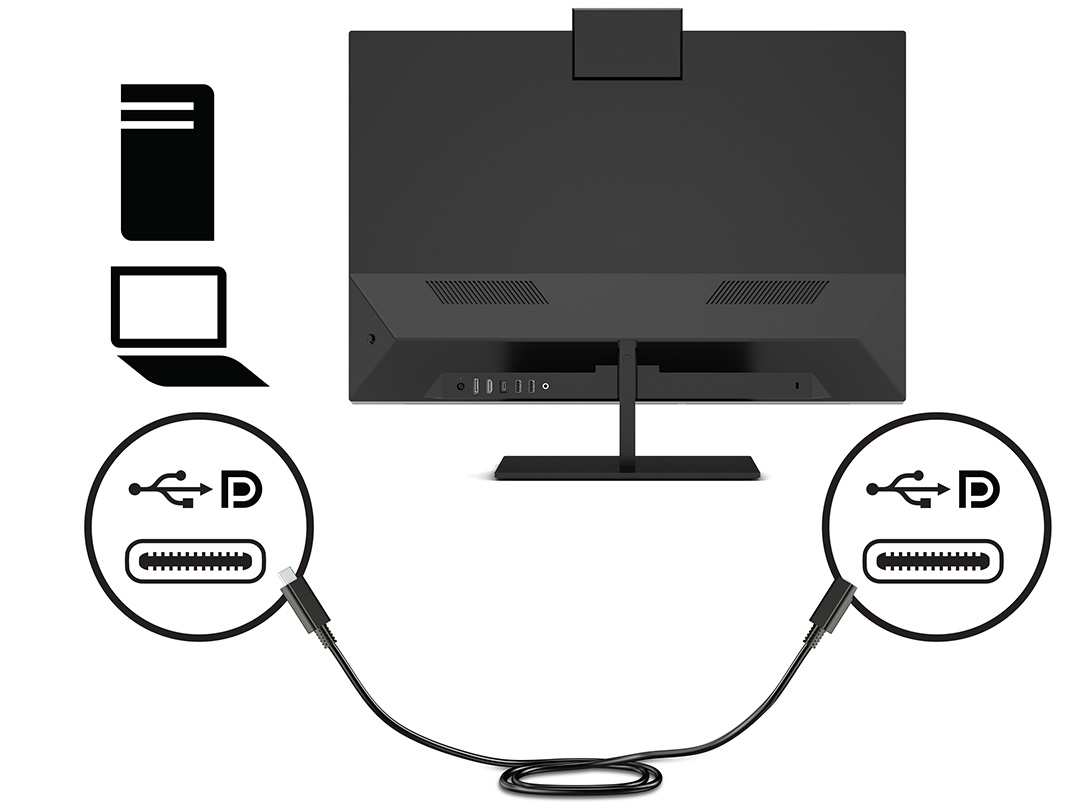
Quick Answer
No, USB-C monitors don't always need a docking station. If your laptop supports DisplayPort Alt Mode and your monitor provides enough power delivery, one cable handles everything. You need a dock when your setup requires extra ports, multiple displays, or your laptop's USB-C port lacks video output.
The decision comes down to your specific hardware and workflow.
What Your USB-C Port Actually Supports (And Why It Changes Everything)
Here's the thing most product listings won't tell you. Not all USB-C ports are created equal. Two laptops can both have USB-C ports and behave completely differently when you plug in a monitor.
The key question is whether your laptop's USB-C port supports DisplayPort Alt Mode (often abbreviated as DP Alt Mode). This is the standard that lets a USB-C port carry a video signal. Without it, you can't send display output through that port at all.
Many budget laptops and some business machines ship with USB-C ports that only handle data and charging. They'll charge your laptop just fine and transfer files at USB 3.2 speeds. But plug in a monitor and nothing happens.
No signal. No display. Just confusion.
Then there's the power delivery question. Even if your port supports video, it might not charge your laptop through the monitor. That depends on whether the laptop negotiates USB Power Delivery (USB PD) over the connection.
Some ports are output-only for power. They charge your device but won't accept a charge back through the same port.
You'll also see Thunderbolt 4 ports on higher-end laptops as of 2026. These always support DP Alt Mode and provide at least 15W of bus power, with many delivering 100W or more. If you've got a Thunderbolt 4 port, you're in the best possible position for a single-cable monitor setup.
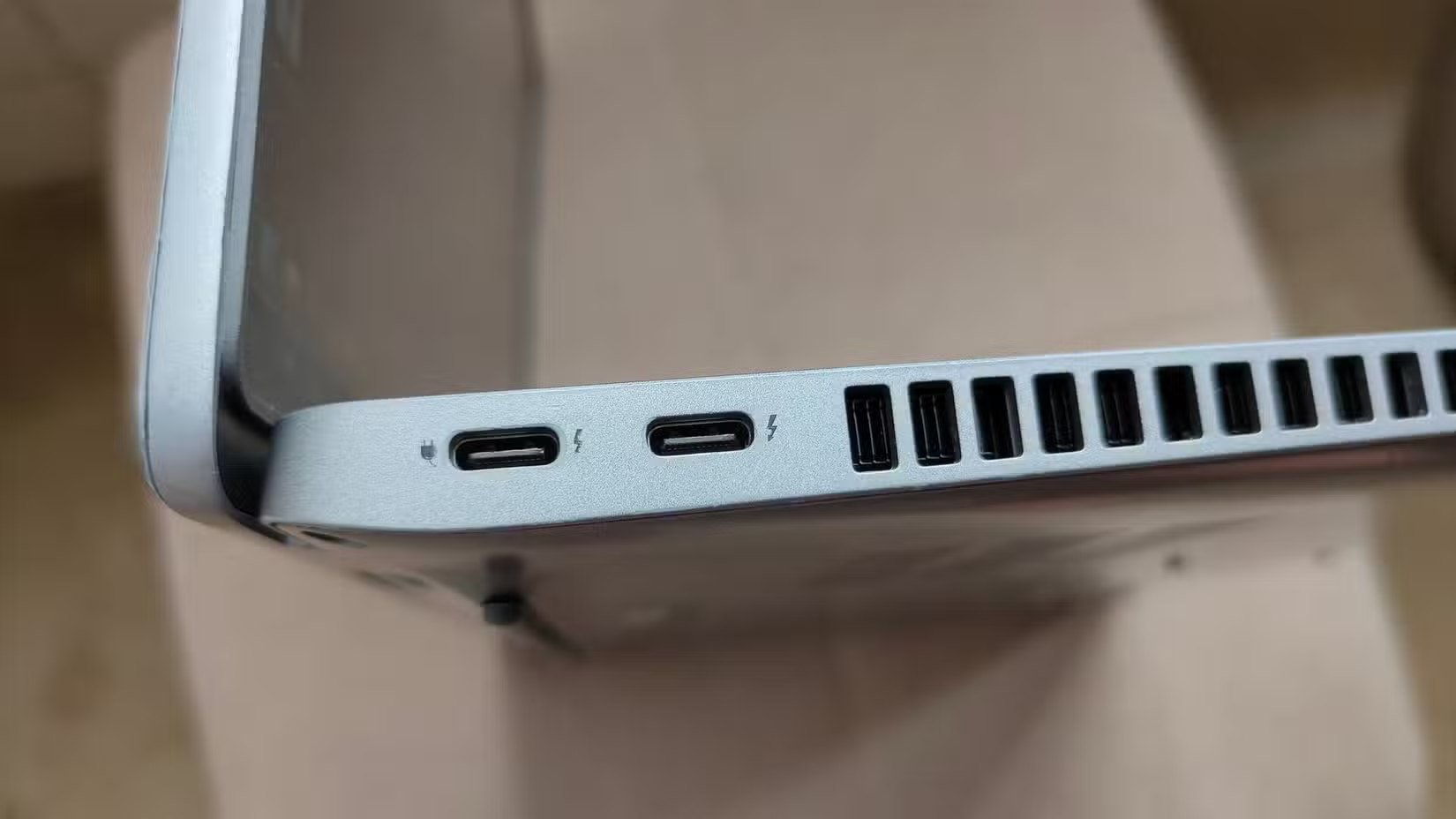
The symbols next to your port tell the story. Look for a lightning bolt (Thunderbolt), a "D" shape with a "P" inside (DisplayPort), or a battery icon (power delivery). If you see none of these, check your laptop's technical specifications sheet.
Manufacturer specs will explicitly list which modes each port supports.
USB-C Monitors With Built-In Hubs: When One Cable Is Enough
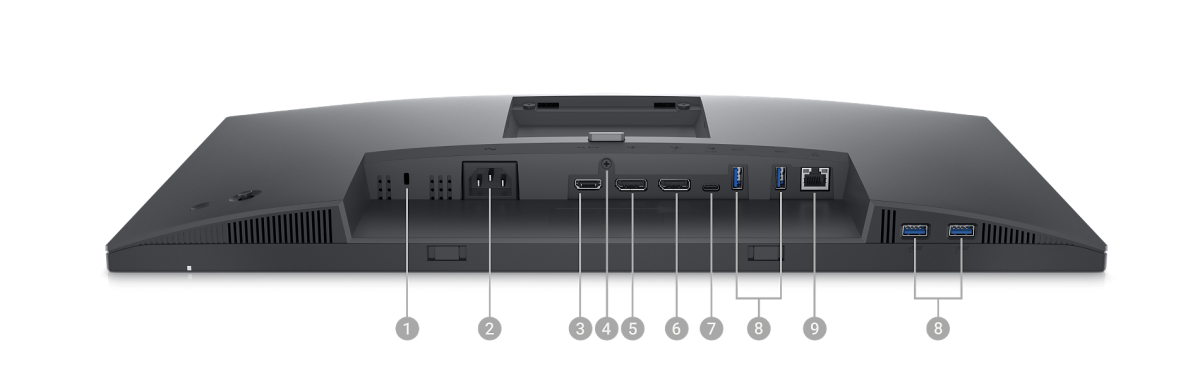
A lot of modern USB-C monitors do more than just display an image. They act as a built-in hub, giving you extra USB ports right on the monitor itself. This is where the single-cable dream becomes reality.
Monitors like the Dell U2723QE or LG 27UK850 come with USB-A and USB-C downstream ports built in. You plug your laptop into the monitor with one USB-C cable. That single connection carries the video signal, charges your laptop, and gives you access to the monitor's USB ports for your keyboard, mouse, external drive, whatever you need.
The catch? The monitor needs to support USB Power Delivery at a wattage your laptop will accept. Most USB-C monitors with hubs provide 60W to 90W over PD.
That's plenty for ultrabooks and most 13-inch laptops. But if you're running a 16-inch workstation that expects 130W, the monitor might only trickle-charge your machine. It'll work for light tasks, but your battery could still drain under heavy load.
Here's a quick way to think about it:
| Your Laptop | Monitor PD Output | Result |
|---|---|---|
| Ultrabook (45W adapter) | 60W to 90W | Single cable works perfectly |
| 14-inch business laptop (65W adapter) | 60W to 90W | Single cable works, charges slightly slower |
| 16-inch workstation (130W adapter) | 60W to 90W | Video and data work, but may not charge under load |
| Gaming laptop (240W adapter) | Any PD wattage | Video works, charging not sufficient |
The other thing to watch for is MST (Multi-Stream Transport). Some monitors support daisy-chaining, meaning you connect your laptop to Monitor 1, then Monitor 1 to Monitor 2, all through USB-C. This only works if both your laptop and your monitors support MST over USB-C.
It's a great way to run dual monitors without a dock, but it's not universal.
When You Absolutely Need a Docking Station
So when does a dock actually earn its place on your desk? More often than you'd think, honestly.
Your Laptop Port Is Data-Only or Power-Only
If your laptop's USB-C port doesn't support DP Alt Mode, a USB-C monitor won't work directly. Period. You'll need a docking station that has its own video processing, typically connecting through a Thunderbolt port or using a DisplayLink chip over standard USB.
DisplayLink docks are worth knowing about here. They use software drivers to push video through a standard USB data connection. It's not as clean as native DP Alt Mode, but it works on laptops that otherwise couldn't drive an external display.
The trade-off is slightly higher CPU usage and occasional latency. For office work it's fine. For video editing or gaming, not ideal.
You Need More Ports Than the Monitor Provides
Most USB-C monitors with hubs give you two to four extra USB ports. That's enough for a keyboard and mouse. But if you need Ethernet, an SD card reader, a webcam, a printer, and external storage all connected, you'll run out of ports fast.
A docking station typically offers six to twelve USB ports, dedicated Ethernet (often Gigabit), 3.5mm audio, and sometimes even an SD card slot. It's the difference between a minimalist setup and a fully equipped workstation.
You're Running Dual or Triple External Monitors
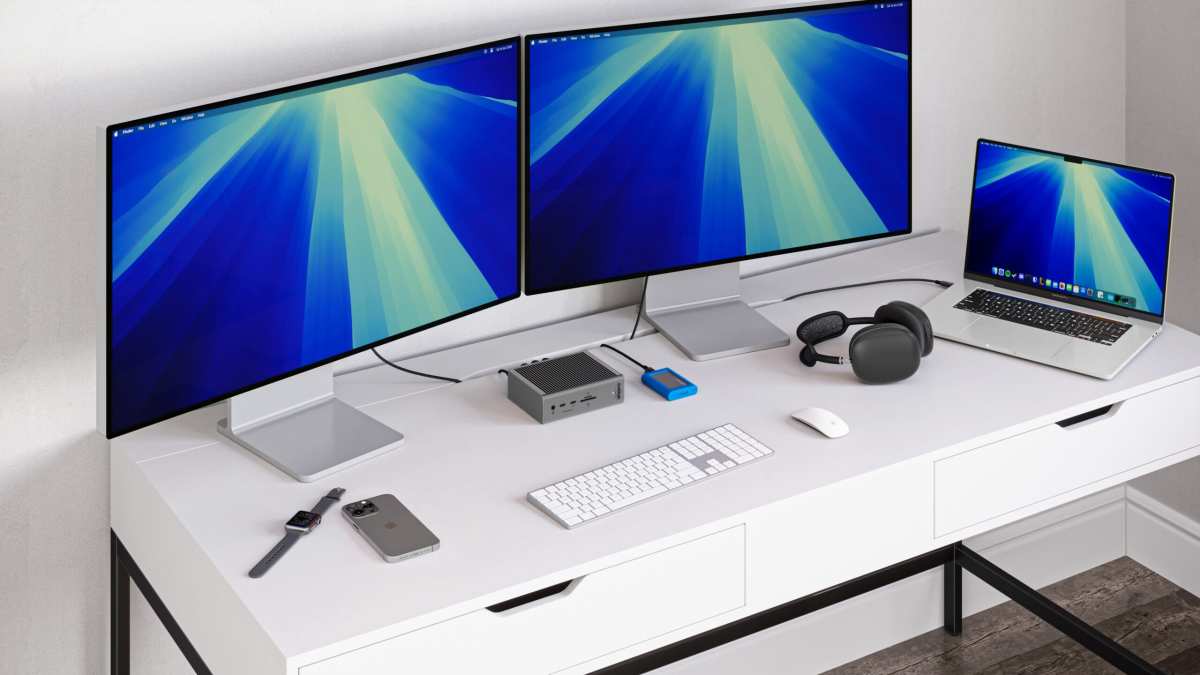
This is the big one. A single USB-C monitor connects directly and works great. But if you want two or three external displays, you almost certainly need a dock.
Most laptops can only drive one display over a single USB-C/Thunderbolt connection without additional hardware. Thunderbolt 4 docks solve this by splitting the bandwidth across multiple video outputs. A good Thunderbolt 4 dock can drive two 4K monitors at 60Hz from one cable to your laptop.
Some docks use DisplayLink technology to push even more displays. But again, that relies on software compression rather than native video output. For productivity work it's perfectly usable.
For color-critical work or gaming, stick with native Thunderbolt solutions.
You Need Ethernet, Audio, or SD Card Slots Reliably
Built-in monitor hubs rarely include Ethernet. If your office requires a wired network connection (common in corporate environments for security reasons), a dock with a Gigabit Ethernet port is the practical solution.
Same goes for audio. Some monitor hubs pass through audio over the display connection, but a dedicated 3.5mm jack on a dock is more reliable and often has a better DAC. Photographers and video editors who regularly pull SD cards will also appreciate a dock with a built-in card reader rather than fumbling with a separate USB reader.
Side-by-Side: Direct USB-C Connection vs. Monitor Hub vs. Full Dock
Let's put the three main options next to each other so you can see exactly what you're getting with each approach.
| Feature | Direct USB-C to Monitor | USB-C Monitor With Built-In Hub | USB-C or Thunderbolt Dock |
|---|---|---|---|
| Video output | Yes (if DP Alt Mode supported) | Yes | Yes (native or via DisplayLink) |
| Laptop charging | Only if monitor provides PD | Yes, typically 60W to 90W | Yes, up to 100W+ |
| Extra USB ports | None | 2 to 4 ports | 6 to 12 ports |
| Ethernet | No | Rarely | Usually (Gigabit) |
| Audio jack | No | Sometimes | Usually |
| SD card reader | No | Rarely | Sometimes |
| Multiple displays | One monitor only | One or two (with MST) | Two to four monitors |
| Cable clutter | Minimal (one cable) | Low (one cable) | Moderate (one to laptop, several to peripherals) |
| Best for | Simple single-monitor setup | Clean desk, light expansion | Full workstation, multi-monitor |
| Typical cost | $0 (cable only) | Built into monitor price | $150 to $350+ |
The right choice really comes down to how many things you need plugged in. If it's just a monitor, keyboard, and mouse, a USB-C monitor with a hub covers you. If you're running a full desk with multiple screens, wired networking, and a bunch of peripherals, a dock is the way to go.
The Decision Flow: Do You Need a Dock in 30 Seconds
Here's a quick way to figure out your situation. Walk through these questions in order.
Does your laptop's USB-C port support DisplayPort Alt Mode or Thunderbolt?
If no, you need a dock (or a DisplayLink adapter). If yes, keep going.
Does your monitor have a USB-C input with Power Delivery?
If no, you'll need either a dock or a separate power adapter for your laptop. If yes, keep going.
Does the monitor provide enough wattage to charge your laptop?
Check your laptop's charger wattage against the monitor's PD output. If the monitor provides less, your laptop might not charge under heavy load. For light use it's usually fine.
Do you need more than one external monitor?
If yes, you need a dock. A single USB-C connection typically drives one display without additional hardware.
Do you need Ethernet, audio, or an SD card reader?
If yes, a dock gives you these reliably. Monitor hubs rarely include them.
Do you need more than four extra USB ports?
If yes, a dock is the practical answer. Monitor hubs usually max out at four downstream ports.
If you answered "no" to all the questions from step two onward, you don't need a dock. Your USB-C monitor handles everything on its own. If you hit a "yes" anywhere, a docking station will make your life easier.
Common Mistakes That Waste Money or Break Your Setup
People get tripped up by the same handful of issues over and over. Here's what to watch for.
Buying a dock when the monitor already covers your needs. If you only need one monitor and a couple of USB peripherals, a USB-C monitor with a built-in hub does the job. Adding a dock means extra cost, extra cables, and extra desk space for no real benefit.
Buying a USB-C monitor with a hub when you actually need a dock. The reverse problem. If you need Ethernet, multiple displays, or a bunch of ports, a monitor hub won't cut it. You'll end up buying a dock anyway and the built-in hub goes to waste.
Assuming all USB-C cables support video. They don't. USB-C cables come in USB 2.0, USB 3.2, and Thunderbolt variants. Only cables rated for USB 3.2 Gen 2 or higher (or Thunderbolt) reliably carry DP Alt Mode video signals.
A cheap USB 2.0 charging cable will charge your laptop but won't send a video signal. Always check the cable specs.
Ignoring power delivery wattage mismatches. Plugging a 130W workstation into a monitor that provides 60W PD works for video and data. But your laptop might not charge while you're working. In some cases the battery slowly drains even though it's plugged in.
Know your laptop's power requirements before committing to a single-cable setup.
Forgetting about daisy-chain compatibility. If you want two monitors over one USB-C cable, both monitors need MST support and your laptop needs to support it over its USB-C port. Not all combinations work. Check the specs on both ends before planning a daisy-chain setup.
Overlooking dock chipset differences. Not all USB-C docks use the same underlying technology. Some use native Thunderbolt video passthrough. Others use DisplayLink software.
DisplayLink works on more hardware but adds CPU overhead and can have compatibility issues with certain operating systems. For macOS, native Thunderbolt docks are generally more reliable. For Windows, both approaches work well in most cases.
Frequently Asked Questions
Can I use a USB-C monitor without any dock at all?
Yes, if your laptop's USB-C port supports DisplayPort Alt Mode. You connect directly with a USB-C cable and the monitor receives the video signal. Whether it also charges your laptop depends on whether the monitor provides USB Power Delivery.
Does a USB-C monitor charge my laptop automatically?
Only if the monitor includes USB Power Delivery and your laptop accepts the wattage being offered. Monitors without PD output won't charge your laptop at all. Monitors with PD output below your laptop's rated wattage may charge slowly or only when the laptop is idle.
Is a USB-C hub the same as a docking station?
Not exactly. A USB-C hub is usually smaller, bus-powered, and offers basic port expansion without dedicated video processing. A docking station is typically larger, has its own power supply, and can drive multiple displays with more robust port selection.
The terms get used interchangeably in marketing, but the products are different.
Do I need a Thunderbolt dock for a 4K USB-C monitor?
No. A standard USB-C connection supports 4K at 60Hz over DP Alt Mode without Thunderbolt. You only need Thunderbolt if you're driving multiple high-resolution monitors or need the full 40Gbps bandwidth for data-intensive workflows.
What happens if I use a USB 2.0 USB-C cable for my monitor?
You'll get charging and data transfer, but no video signal. USB 2.0 cables don't have the wiring needed for DisplayPort Alt Mode. You need at least a USB 3.2 Gen 2 cable or a Thunderbolt-certified cable to carry video.
Can I daisy-chain two USB-C monitors without a dock?
Yes, if your laptop supports MST over USB-C and both monitors have MST-enabled USB-C outputs. You connect the laptop to the first monitor, then the first monitor to the second. Not all hardware combinations support this, so verify MST compatibility on both your laptop and monitors before trying.
Real-World Scenarios That Make the Decision Obvious
Let's move past theory. These are the situations where the right choice becomes clear fast.
Scenario 1: Clean Home Office, Single Monitor, Built-In Webcam
You've got a 27-inch USB-C monitor, a wireless keyboard, and a mouse. Your laptop sits on a stand beside the monitor. One USB-C cable connects everything.
The monitor charges your laptop, displays your screen, and gives you two extra USB ports for the occasional flash drive.
No dock needed here. A direct USB-C connection handles it all. This is the ideal single-cable setup that USB-C monitors promise, and it actually delivers.
Scenario 2: Hybrid Worker Hot-Desking Between Locations
You work from home three days a week and go into the office twice. At the office, you plug into a shared desk with a monitor already provided. At home, you've got your own setup.
A Thunderbolt dock at each location makes this painless. You walk in, plug in one cable, and your laptop connects to the monitor, keyboard, mouse, Ethernet, and charger instantly. The dock stays on the desk.
Your laptop just comes and goes.
In this case, the dock isn't about expanding ports. It's about convenience and consistency. You avoid fumbling with multiple cables every time you sit down.
Scenario 3: Developer With Three Monitors and a Wired Network
You're running a 4K center display with two side monitors in portrait mode. You need Ethernet for VPN access to your company's internal network. You've also got an external SSD, a mechanical keyboard, and a desk lamp with USB power.
No single USB-C monitor can handle this. You need a Thunderbolt 4 dock that can drive at least two of those displays while your laptop's built-in output handles the third. The dock also gives you Ethernet and enough USB ports for everything else.
This is a full workstation setup. A dock isn't optional here. It's the foundation.
Scenario 4: Content Creator Who Needs SD Card and Color-Calibrated Display
You shoot on SD cards and need a reader always connected. Your monitor is color-calibrated over USB-C and you also run a secondary reference display. You need reliable audio output for headphones and a wired network connection for large file uploads.
A dock with an SD card slot, dedicated audio output, and Gigabit Ethernet covers all of this. Your USB-C monitor handles the primary display directly. The dock handles everything else.
Two cables total to your laptop if it supports it, or one cable through the dock if you prefer a single connection.
The Cable and Compatibility Check Most People Skip
Here's where things fall apart for a lot of people. They buy the right monitor, the right laptop, the right dock, and it still doesn't work. The cable is usually the culprit.
USB-C cables are not interchangeable. A cable that charges your phone at 20W might be USB 2.0 only, meaning it physically cannot carry a video signal. You need a cable rated for USB 3.2 Gen 2 (10Gbps) or higher to reliably transmit DisplayPort Alt Mode video.
Thunderbolt 4 cables are the safest bet. They're certified to carry video, data, and power simultaneously. They cost more than generic USB-C cables, but they eliminate guesswork.
If you're running a 4K display or daisy-chaining monitors, don't cheap out on the cable.
The length matters too. Passive USB-C cables longer than two meters can struggle with video signal integrity, especially at 4K resolution. For runs beyond two meters, look for active cables that boost the signal.
These cost more but prevent flickering, dropouts, and resolution fallbacks.
One more thing to check: make sure your cable supports the full power delivery your setup needs. Some cables are limited to 60W even if both the source and sink support 100W. The cable's e-marker chip determines this.
Reputable manufacturers list PD wattage in their cable specs. Check it.
Common Mistakes That Waste Money or Your Setup
We've covered some of these already, but a few deserve emphasis because they come up constantly.
Buying a dock when a direct connection works fine. If your monitor has a built-in hub and you only need one display, a dock adds cost and complexity for no benefit. You're paying for ports you won't use and adding another potential point of failure to your chain.
Assuming a USB-C monitor will charge any laptop. A monitor providing 65W PD won't properly charge a laptop that ships with a 130W adapter. It might trickle-charge when the laptop is asleep, but under load the battery will drain. Check your laptop's rated charger wattage against the monitor's PD output before committing.
Using the cable that came in the monitor box for everything. Manufacturer-included cables are often basic. They might support video at 1080p but not 4K. They might handle data but not higher PD wattages.
Verify the cable's specs against your actual requirements, not just the minimum.
Ignoring firmware updates for your dock or monitor. Both docks and USB-C monitors receive firmware updates that fix compatibility issues, improve PD negotiation, and add features. If something isn't working as expected, check for firmware updates before assuming hardware failure. This is especially common with Thunderbolt docks on Windows laptops.
Forgetting that macOS handles multi-monitor differently than Windows. Apple Silicon Macs (M1, M2, M3, M4) have specific limitations on external display support over Thunderbolt. A dock that drives two monitors on Windows might only drive one on a base M1 or M2 Mac. Always verify your specific Mac's display capabilities before buying a dock for multi-monitor use.
Frequently Asked Questions
Can I connect a USB-C monitor to a laptop with only USB-A ports?
Not directly. You'd need a USB-A to USB-C adapter that supports video, which essentially means a DisplayLink adapter. These work but require software drivers and aren't as seamless as a native USB-C connection.
Does using a dock reduce display quality compared to direct USB-C?
A quality Thunderbolt dock passes through the video signal without compression or quality loss. DisplayLink docks use software compression, which can introduce slight latency and minor quality reduction. For productivity work the difference is negligible.
For color-critical work or gaming, prefer native Thunderbolt passthrough.
How many monitors can a single Thunderbolt 4 dock support?
Most Thunderbolt 4 docks support two 4K displays at 60Hz from a single connection. Some support three displays at lower resolutions. The exact number depends on the dock's design and your laptop's Thunderbolt controller.
Check the dock's specifications for confirmed display configurations.
Is it bad to leave my laptop connected to the monitor or dock all the time?
No. Modern laptops and charging circuits manage power delivery intelligently. Both USB-C monitors and docks negotiate the appropriate charge level.
Your battery won't overcharge. Some laptops even have battery health modes that limit charging to 80% when plugged in continuously.
Do I need different cables for a dock versus a direct monitor connection?
Possibly. A Thunderbolt 4 dock works best with a Thunderbolt 4 certified cable. A direct USB-C monitor connection can work with a USB 3.2 Gen 2 cable that supports DP Alt Mode.
Using a Thunderbolt 4 cable for both scenarios is the safest approach since it meets the highest specification for both use cases.

Similar Posts





















