Can 4K Monitors Be Used as TV
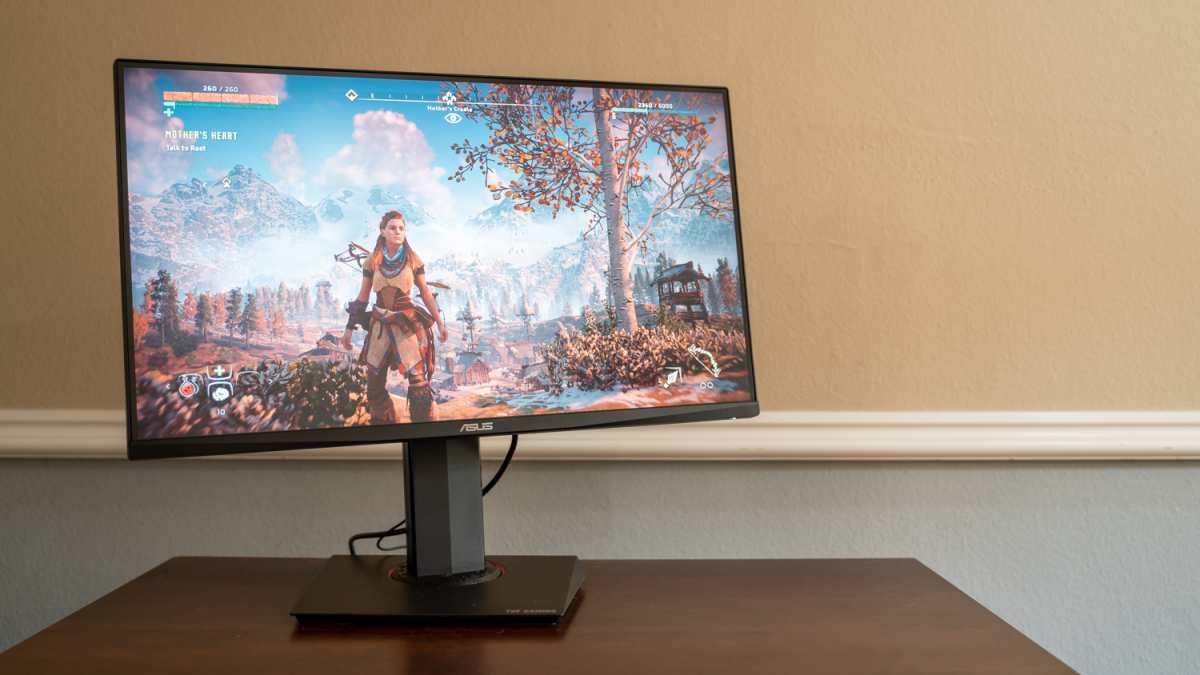
Can 4K monitors be used as TV? Yes, absolutely. You just need the right connections and a clear picture of what you're getting into.
A 4K monitor outputs the same 3840×2160 resolution as most 4K TVs. The HDMI ports on modern monitors accept signal from streaming devices, cable boxes, and game consoles without issue. But the experience isn't identical to a TV, and the differences matter depending on how you plan to use it.
Quick Answer
Yes, you can use a 4K monitor as a TV. Connect a streaming device or cable box via HDMI. You'll get 4K resolution on screen.
You may need external speakers. Some features like built-in tuners won't be available.
What Makes a Monitor Different From a TV (And Why It Matters)
A monitor and a TV look similar on the surface. Both have 4K panels. Both use HDMI.
But they're built for different jobs, and those differences show up fast in daily use.
TVs come with tuners, smart platforms, and speakers. Monitors prioritize pixel density, response time, and color accuracy. A 27-inch 4K monitor packs around 163 pixels per inch.
A 55-inch 4K TV sits closer to 80 PPI. That density difference makes text and fine detail look sharper on a monitor at close range.
Here's a breakdown of the key differences:
| Feature | Typical 4K Monitor | Typical 4K TV |
|---|---|---|
| Screen Size | 27"–43" | 43"–85"+ |
| Built-in Tuner | No | Yes (ATSC/DVB) |
| Smart OS | Rare (some smart monitors) | Yes (Tizen, webOS, Google TV) |
| Speakers | Often none or weak | Usually included, better quality |
| Peak Brightness | 300–600 nits (varies by model) | 600–2,000+ nits (varies by model) |
| Response Time | 1–5ms | 8–15ms |
| Refresh Rate | 60Hz–240Hz+ | 60Hz–120Hz |
| Input Lag | 4–15ms (gaming mode) | 10–20ms (varies by model) |
| HDR Support | HDR10, some Dolby Vision | HDR10, Dolby Vision, HLG |
| Price Range | $300–$1,200+ | $250–$3,000+ |
The tuner gap matters most for live TV. Monets don't accept antenna or cable coax directly. You'll need an external tuner or streaming workaround if you watch over-the-air broadcasts.
Smart features also differ. Most monitors run no operating system at all. You plug in a source and get a picture.
TVs give you Netflix, YouTube, and voice assistants built in. Some smart monitors like the Samsung M7 and M8 series include Tizen OS, but they're the exception, not the rule.
Can You Actually Watch Live TV on a Monitor?
Not directly from an antenna or cable coax. Monitors lack the tuner hardware needed to decode over-the-air or cable signals. But you've got workarounds.
Option 1: External TV tuner box. Devices like the HDHomeRun Flex 4K connect to your antenna and stream the signal over your network. You then watch through an app on a connected PC or streaming stick. It works well, but it adds cost and complexity.
Option 2: Cable or satellite set-top box. Plug your existing box into the monitor via HDMI. You get live TV, but you're still using the box's interface and remote, not the monitor itself.
Option 3: Streaming live services. YouTube TV, Hulu + Live TV, Sling TV, and similar services deliver live channels over the internet. Run them through a streaming stick or laptop connected to the monitor. No tuner needed.
Option 4: Smart monitor with tuner. A few niche monitors include built-in tuners, but they're rare and region-specific. Check the specs carefully before assuming.
The bottom line: you can watch live TV through a monitor, but you need an intermediary device. There's no coax input on the back.
What You'll Need to Making It Work
Setting up a 4K monitor for TV use doesn't require much. But you do need to think about audio, input switching, and control.

Essential connections:
- HDMI cable. Use a High Speed HDMI cable or Ultra High Speed HDMI cable for 4K content. Most monitors include at least one HDMI port. Check the HDMI version on your monitor's specs to confirm supported features.
- Source device. This could be a streaming stick (Roku, Fire TV, Chromecast), a game console, a cable box, or a laptop.
- Power for both devices. The monitor and your source each need power. Make sure you've got outlets or a power strip handy.
Audio solutions:
Most monitors either lack speakers entirely or have weak 2W, 5W built-in speakers. You'll probably want something better.
- External powered speakers. Desktop speaker sets or a soundbar connect via 3.5mm, Bluetooth, or HDMI ARC (if the monitor supports it).
- HDMI ARC/eARC. Some monitors pass audio back to a soundbar or receiver through HDMI ARC. Check your monitor's specs. Not all HDMI ports support ARC.
- Optical output. A few monitors include a Toslink optical audio out for connecting to older receivers or soundbars.
- Bluetooth. Many modern monitors support Bluetooth audio output. Pair headphones or a Bluetooth speaker directly.
Control and switching:
- Monitor OSD (On-Screen Display). You'll use the monitor's physical buttons or joystick to select the input source and adjust settings. Most monitors don't ship with a remote.
- Universal remote. If you want couch-friendly control, a universal remote paired with your streaming device or cable box handles volume and channel changes. Some smart remotes can control monitor power and input via HDMI-CEC, but support varies.
- HDMI-CEC. This feature lets one remote control multiple devices over HDMI. Monitor support for CEC is inconsistent. Test it during setup. Don't rely on it as your only control method.
Optional but helpful:
- USB-C connection. If you're connecting a laptop, a single USB-C cable can carry video, audio, and power. Clean setup, fewer cables.
- VESA mount. Monitors with VESA compatibility can be wall-mounted like a TV. Check the mount pattern (75×75 or 100×100mm are common) and weight rating.
- Streaming device with remote. A Roku Streaming Stick 4K or Amazon Fire TV Stick 4K Max gives you a full smart TV experience through the monitor's HDMI port. This is the simplest path for most people.
The Real Problems Nobody Tells You About
Using a 4K monitor as a TV works, but it's not seamless. Several practical issues catch people off guard.
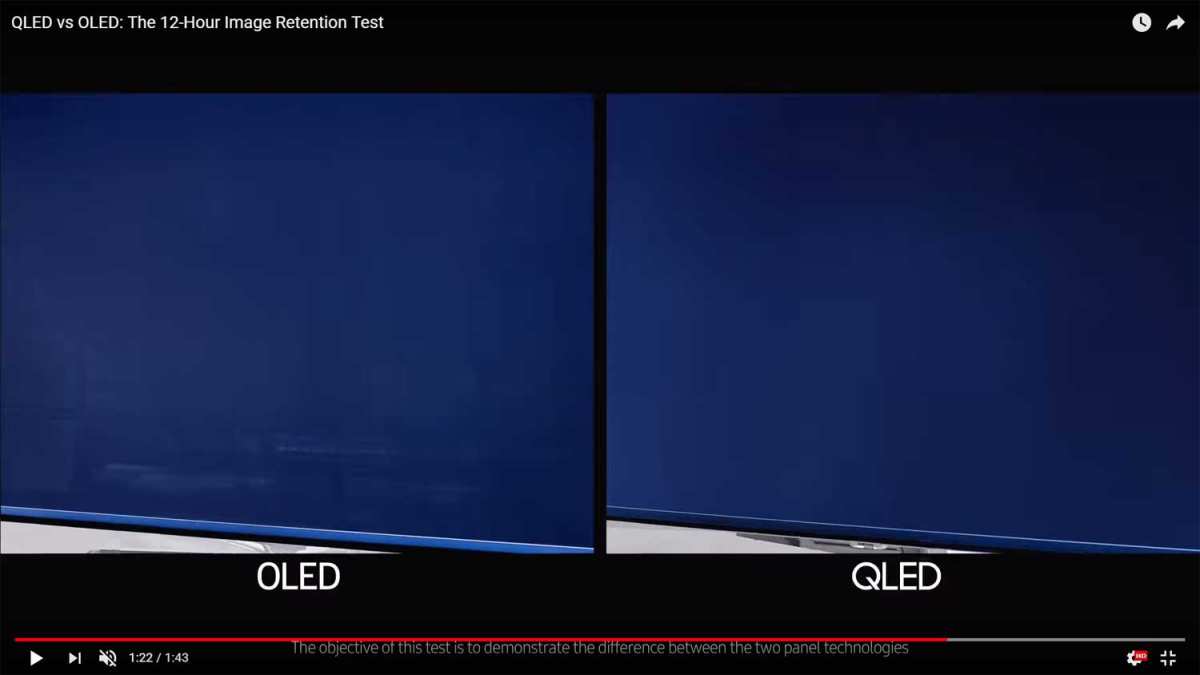
Image retention and burn-in. This is the biggest concern for anyone planning to leave static content on screen for hours. News channels with persistent tickers, sports score bug, or channel logos can leave permanent marks on OLED panels. VA and IPS panels are less susceptible, but temporary image retention can still happen.
If you're using an OLED monitor, vary your content and use pixel shift features. For LED-backlit IPS/VA monitors, the risk is much lower but not zero with extreme static use.
No HDR wow factor. Many monitors support HDR10 on paper, but they lack the peak brightness to make HDR pop. A good HDR TV hits 1,000 nits or more. Most monitors top out around 400, 600 nits.
The result is HDR content that looks closer to standard dynamic range. You'll see the HDR badge in your device settings, but the visual difference underwhelms compared to a decent TV.
Viewing distance and screen size. A 27-inch or 32-inch monitor works fine at desk distance. But if you're sitting 8 feet away on a couch, that screen feels tiny. Most people sit farther from a TV than they do from a monitor.
You'll need at least a 43-inch monitor for comfortable couch viewing, and those get expensive fast.
No remote, no smart interface. Most monitors ship without a remote control. You're reaching for buttons on the back or bottom bezel to change inputs and adjust volume. It's annoying from the couch.
Pairing a streaming device with its own remote solves most of this, but it's an extra thing to buy and manage.
Audio is an afterthought. Built-in monitor speakers sound thin and quiet. Budget for external audio from the start. Even a $30 desktop speaker set outperforms most built-in monitor speakers.
Input lag for video. Monitors optimized for gaming often have low input lag in gaming mode, but switching to a "video" or "movie" mode can introduce processing lag. Check your monitor's picture mode settings. Look for a "Game" or "PC" mode for the lowest latency when watching video from a console or streaming stick.
Scaling and overscan. Some sources output video with overscan, cutting off edges of the picture. Monitors sometimes handle this differently than TVs. You may need to adjust scaling settings on both the monitor and the source device to get a clean, full image.
No tuner, no coax. We covered this earlier, but it bears repeating. If you rely on an antenna for free over-the-air channels, you need an external tuner box. There's no screwing a coax cable directly into the back of a standard monitor.
When a 4K Monitor Actually Beats a TV
There are real scenarios where a monitor outperforms a TV. It comes down to pixel density, response time, and how close you sit.

Desktop viewing at close range. A 27-inch 4K monitor at arm's length delivers sharper text and finer detail than any TV at that size. The pixel density advantage is massive. For a bedroom setup where you sit 3 to 5 feet from the screen, a monitor makes more sense than a small TV.
Gaming on console or PC. If you're connecting a PlayStation 5, Xbox Series X, or gaming PC, monitors offer higher refresh rates and lower input lag. Many 4K gaming monitors run at 120Hz or 144Hz. Most TVs cap at 120Hz, and many budget models stick to 60Hz.
Response times on gaming monitors often hit 1ms. That's noticeably faster than most TV panels.
Content creation and media work. Monitors aimed at creators cover wide color gamuts like DCI-P3 and Adobe RGB. Color accuracy out of the box tends to be better than on consumer TVs. If you edit photos or video during the day and watch movies at night, a monitor pulls double duty.
No bloatware, no ads. Monitors don't push ads in their interface. They don't require account sign-ins. They don't collect viewing data.
For privacy-conscious users, that's a genuine advantage over smart TV platforms from Samsung, LG, or Roku.
Space and weight constraints. Monitors are lighter and easier to mount in tight spaces. A 32-inch monitor on a VESA arm takes up less room than a 43-inch TV on a stand. In dorm rooms, small apartments, or workshops, that footprint difference matters.
When You Should Just Buy a TV Instead
TVs win in scenarios where size, brightness, and convenience matter more than pixel density or response time.
Couch viewing at normal distance. If you sit 7 to 10 feet from the screen, you need at least a 50-inch display for a comfortable experience. Monitors at that size cost significantly more than equivalent TVs. A 55-inch 4K TV often runs $300 to $500.
A 55-inch monitor? You're looking at $800 to $1,500 or more, if you can even find one.
HDR content and movie watching. TVs with full-array local dimming and high peak brightness deliver HDR that actually looks different from SDR. Most monitors can't produce the luminance needed for impactful HDR. If you watch a lot of 4K Blu-rays or stream Dolby Vision content, a TV gives you the intended experience.
Shared viewing with family or roommates. TVs have wider viewing angles designed for groups. IPS monitors handle angles well, but VA panels shift color and contrast off-axis. A TV keeps everyone in the room happy, not just the person sitting dead center.
Live TV with antenna. If you rely on an over-the-air antenna, a TV's built-in tuner is simpler than adding an external network tuner. One device, one remote, one input. No extra boxes or apps needed.
Sound quality out of the box. Modern TVs often include decent stereo speakers or even built-in soundbar configurations. Most monitors sound terrible without external audio. If you don't want to buy speakers, a TV is the better plug-and-play choice.
How to Set Up a 4K Monitor for TV and Streaming Use
Getting everything connected takes about 15 minutes. Here's the step-by-step process.
Step 1: Choose your source device. Pick a streaming stick, game console, cable box, or laptop. Make sure it has an HDMI output. For most people, a Roku Streaming Stick 4K or Amazon Fire TV Stick 4K Max is the simplest option.
Step 2: Connect the HDMI cable. Plug one end into your source device. Plug the other end into the monitor's HDMI port. If your monitor has multiple HDMI ports, note which one you use.
Some ports may support different features, so check the manual for specifics.
Step 3: Power on and select the input. Turn on the monitor and the source device. Use the monitor's OSD to select the correct HDMI input. Most monitors auto-detect the active input, but manual selection works if auto-detect misses it.
Step 4: Adjust picture settings. Switch the monitor's picture mode from "Standard" or "sRGB" to a warmer, more cinema-friendly mode. Look for "Movie," "Warm," or "User" modes. Turn off any gaming-specific features like overdrive or dynamic contrast for video content.
Step 5: Set up audio. If you're using external speakers, connect them now. Check the monitor's audio output settings. Set the volume on the monitor to a fixed level and control volume from your speakers or remote for the best experience.
Step 6: Configure HDR if available. On your source device, enable HDR output in display settings. On the monitor, make sure HDR mode is turned on in the OSD. Test with an HDR video to confirm it's working.
If the image looks washed out, toggle HDR settings on both devices until it looks right.
Step 7: Mount or position the monitor. For desk use, the included stand works fine. For wall mounting, confirm VESA compatibility and use a rated wall mount. Position the screen at eye level for your seating distance.
Common Mistakes People Make When Using a Monitor as a TV
These are the issues that trip people up most often. Avoid them from the start.
Ignoring audio entirely. Assuming the monitor's built-in speakers will be fine. They won't. Budget for external speakers or a soundbar from day one.
Using the wrong picture mode. Leaving the monitor in "Game" or "FPS" mode for movie watching. These modes oversaturate colors and crush black levels. Switch to a warmer, more accurate mode for video content.
Sitting too close to a large monitor or too far from a small one. A 27-inch screen at couch distance feels tiny. A 43-inch screen at desk distance forces you to turn your head. Match screen size to viewing distance.
Forgetting about burn-in on OLED monitors. Leaving CNN or a sports channel with a static ticker on screen for hours every day. Use screen savers, enable pixel shift, and vary your content if you're on an OLED panel.
Not checking HDMI version on the monitor. Some older monitors have HDMI 1.4 ports that cap at 4K 30Hz. For smooth 4K 60Hz video, you need HDMI 2.0 or later. Check the specs before you buy or connect.
Expecting a smart TV experience. Buying a monitor and assuming Netflix will just be there. It won't. You need a separate device for streaming apps.
Smart monitors exist but they're a small slice of the market.
Overlooking input lag for video processing. Some monitors apply heavy processing to video signals, creating a soap opera effect or lag. Disable motion smoothing and set the monitor to a low-latency mode for the most natural picture.
What About Smart Monitors? Are They the Middle Ground?
Smart monitors try to bridge the gap. They include built-in Wi-Fi, streaming apps, and sometimes even remote controls. But they're not a perfect substitute for either a monitor or a TV.
Samsung's M7 and M8 smart monitors run Tizen OS, the same platform as Samsung TVs. You get Netflix, YouTube, and other apps without a plug-in device. They include a remote.
Models like the Samsung M80C (32-inch, 4K) offer a compelling hybrid experience.
The downsides? Smart monitors cost more than equivalent non-smart monitors. The smart features can feel slower than a dedicated streaming stick.
And when the monitor eventually ages out, the smart platform becomes outdated too. A separate streaming device is easier to replace or upgrade.
For most people, a standard 4K monitor plus a $30 to $50 streaming stick gives you more flexibility and a better long-term experience. But if you want fewer devices and a cleaner setup, a smart monitor is worth considering.
So Should You Do It? A Quick Decision Guide
Use a 4K monitor as TV if:
- You sit within 5 feet of the screen
- You game on PC or console
- You already own a monitor and want dual use
- You value privacy (no smart TV tracking)
- You're in a small space or dorm room
Buy a TV instead if:
- You sit 7+ feet from the screen
- You watch a lot of HDR movies
- You want built-in tuner and apps
- You share the screen with others
- You want the simplest plug-and-play setup
Frequently Asked Questions
Do 4K monitors have speakers?
Many don't. Some include basic 2W to 5W speakers that sound weak. Plan on external speakers or a soundbar for decent audio.
Can I connect an antenna directly to a monitor?
No. Monitors lack a TV tuner. You need an external tuner box like the HDHomeRun to receive over-the-air channels.
Will using a monitor as a TV cause burn-in?
On OLED monitors, yes, static content like news tickers can cause permanent burn-in over time. On IPS and VA panels, the risk is minimal but temporary retention is possible with extreme static use.
Do I need a special HDMI cable?
Use a High Speed HDMI cable for 4K 60Hz. For 4K 120Hz with HDR, you'll want an Ultra High Speed HDMI cable and a monitor with HDMI 2.1.
Can I use a monitor with a streaming stick?
Yes. Plug a Roku, Fire TV Stick, or Chromecast into the monitor's HDMI port. It's the easiest way to get smart TV features on a monitor.
Is a smart monitor worth it?
Smart monitors like the Samsung M80C work well but cost more. A standard monitor plus a $40 streaming stick gives you more flexibility and easier upgrades over time.

Similar Posts





















