Is USB C Monitor Good for Programming
Is a USB-C monitor good for programming? The short answer is yes, but with some important caveats that trip up a lot of developers. USB-C monitors can simplify your desk, reduce cable clutter, and even charge your laptop through a single connection.
That convenience is real, and for many programmers it's a genuine upgrade over traditional setups.
The catch is that not all USB-C ports are created equal, and not every USB-C monitor delivers the same experience. Your laptop's USB-C port needs to support DisplayPort Alt Mode for video output, and the monitor's Power Delivery wattage has to match your laptop's charging needs. As of 2026, most modern laptops handle this well, but there are still compatibility gaps worth understanding before you spend money.
Let's break down exactly how USB-C monitors work for programming and whether one makes sense for your setup.
Quick Answer
A USB-C monitor is good for programming if your laptop supports DisplayPort Alt Mode and the monitor provides enough Power Delivery. You get a single cable for video, data, and charging. The main trade-off is that USB-C can limit refresh rate and resolution compared to DisplayPort.
For most coders, the convenience outweighs the drawbacks.
Why This Comparison Matters for Programmers
Programmers spend hours staring at text on screen, which means display quality, ergonomics, and desk setup directly affect productivity and comfort. The connection type between your laptop and monitor isn't just a technical detail. It determines how many cables are on your desk, whether your laptop charges while you work, and what resolution and refresh rate you can actually use.
USB-C monitors sit at an interesting crossroads. They promise a single-cable life, but they also introduce variables that HDMI and DisplayPort don't. If you're a developer working from a MacBook Air, a Dell XPS, or a ThinkPad, the USB-C experience will differ based on your specific hardware.
Understanding those differences helps you avoid buying a monitor that doesn't perform the way you expect.
How USB-C Video Output Actually Works (And Why It's Confusing)
USB-C is a connector shape, not a single standard. That's the root of most confusion. A USB-C port on your laptop might support video output, or it might only handle data and charging.
The feature that enables video over USB-C is called DisplayPort Alt Mode, and it lets the USB-C port carry a DisplayPort signal directly to your monitor.
Here's where it gets layered. There are several protocols that use the USB-C connector:
- USB-C with DisplayPort Alt Mode: Carries DisplayPort video, USB data, and Power Delivery through one cable. This is what most USB-C monitors rely on.
- Thunderbolt 3 / Thunderbolt 4: Uses the USB-C connector but offers higher bandwidth (40 Gbps) and supports daisy-chaining multiple monitors. Thunderbolt 4 is common on higher-end laptops and Macs.
- USB4: The newer standard that incorporates Thunderbolt 3 protocol and also uses USB-C. Bandwidth varies by implementation.
- USB-C data-only: Some USB-C ports handle only data and charging with no video support at all. Many budget laptops fall into this category.
The practical takeaway is that you need to verify your laptop's USB-C port supports DisplayPort Alt Mode before buying a USB-C monitor. Manufacturer specs will list this explicitly. If your port is data-only, a USB-C monitor won't display an image no matter what cable you use.
Bandwidth matters too. USB-C with DisplayPort 1.4 Alt Mode can handle 4K at 60Hz, which is plenty for programming. But if you want 4K at 120Hz or higher refresh rates for smoother scrolling, you'll likely need DisplayPort 1.4 with DSC or a Thunderbolt connection.
Most programmers don't need 120Hz, but it's worth knowing the ceiling exists.
USB-C Monitor vs. HDMI vs. DisplayPort vs. Thunderbolt: Side-by-Side
Each connection type has strengths and weaknesses for programming work. Here's how they compare across the factors that matter most to developers.
| Feature | USB-C (DP Alt Mode) | HDMI 2.0 | DisplayPort 1.4 | Thunderbolt 4 |
|---|---|---|---|---|
| Max Resolution (60Hz) | 4K | 4K | 8K | 4K (dual) |
| Charging Laptop | Yes (up to 100W) | No | No | Yes (up to 100W) |
| Daisy-Chaining | Limited (MST) | No | Yes | Yes |
| USB Hub Built-In | Often | Rarely | Rarely | Often |
| Cable Simplicity | Single cable | Video + charger needed | Video + charger needed | Single cable |
| Refresh Rate at 4K | 60Hz (typically) | 60Hz | 120Hz+ (with DSC) | 60Hz |
| Best For | Clean desk, docking | Basic setups | High refresh, gaming | Mac users, pro workflows |
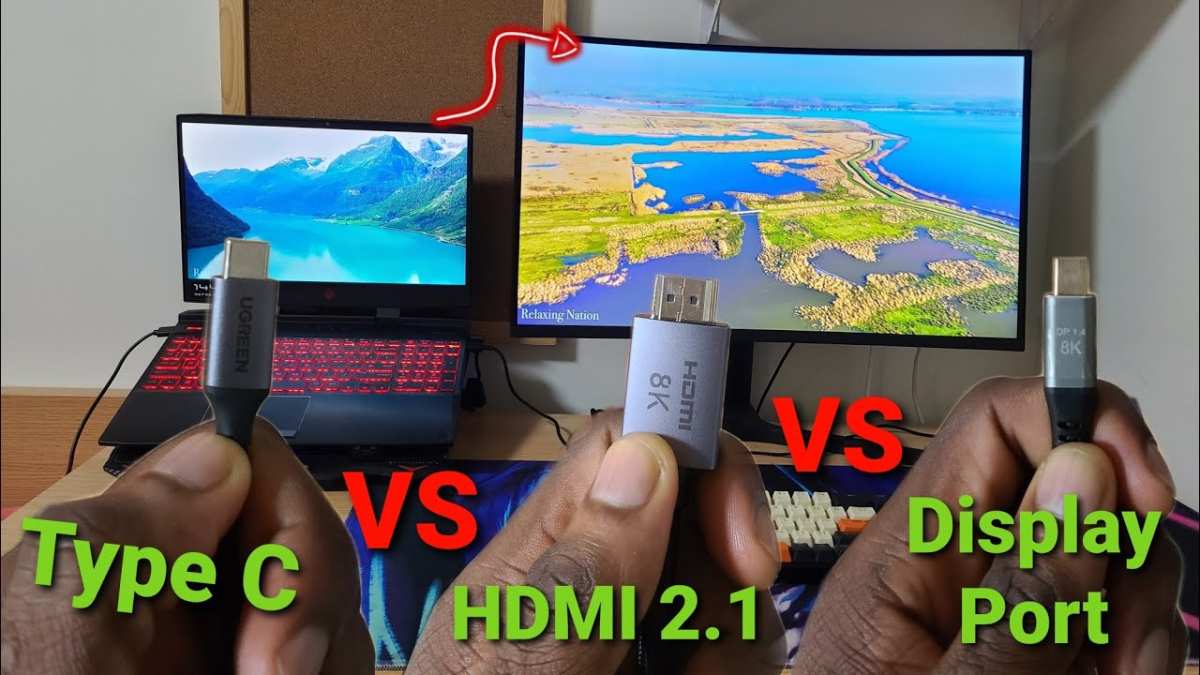
USB-C wins on convenience. You plug in one cable and your monitor becomes a docking station, charging your laptop and connecting peripherals through the monitor's built-in USB hub. HDMI and DisplayPort require separate cables for charging and data, which means more clutter.
DisplayPort wins on raw performance. If you want the highest refresh rates or plan to daisy-chain multiple monitors without a dock, DisplayPort 1.4 is the stronger choice. Thunderbolt 4 matches USB-C's convenience while adding higher bandwidth and more reliable daisy-chaining, but Thunderbolt monitors tend to cost significantly more.
For most programming work at 4K 60Hz, USB-C with DisplayPort Alt Mode hits the sweet spot between performance and simplicity.
What to Check Before You Buy a USB-C Monitor for Coding
Not every USB-C monitor will work with every laptop. Here's what to verify before you commit.
Laptop USB-C port capabilities: Check your laptop's specifications for DisplayPort Alt Mode or Thunderbolt support. A USB-C port that only handles data and charging won't output video. This is the single most common mistake buyers make.
Power Delivery wattage: USB-C monitors with Power Delivery typically offer between 60W and 100W. If your laptop needs more than the monitor provides, it will charge slowly or not at all under heavy load. A MacBook Pro 16-inch, for example, ships with a 140W charger, so even a 100W monitor won't fully meet its charging demands during intensive compilation or rendering tasks.
Resolution and refresh rate over USB-C: Some monitors support higher refresh rates over DisplayPort or HDMI than they do over USB-C. Check the monitor's spec sheet for USB-C-specific resolution and refresh rate limits. A monitor that does 144Hz over HDMI might cap at 60Hz over USB-C.
Cable quality: Not all USB-C cables support full DisplayPort Alt Mode bandwidth. Use the cable that comes with the monitor, or buy a certified USB-C cable rated for DisplayPort 1.4. Cheap charge-only cables won't carry a video signal.
macOS scaling behavior: If you're on a Mac, non-native resolutions can look blurry or cause performance issues. A 4K USB-C monitor at its native resolution gives you sharp text, but macOS scaling options can be finicky. Research how the specific monitor handles macOS HiDPI scaling before buying.
Linux compatibility: USB-C video output on Linux has improved significantly, but some monitors and laptop combinations still have issues. Check community forums for your specific laptop model and Linux distribution if that's your primary environment.
Best USB-C Monitors for Programming by Use Case
Different programming workflows demand different monitor features. Here's how to match a USB-C monitor to your specific situation.
MacBook developers: Look for monitors with at least 60W Power Delivery and strong macOS compatibility. The LG UltraFine 4K and Dell UltraSharp U2723QE are popular choices that handle macOS scaling well. Thunderbolt 3 or Thunderbolt 4 connectivity is a bonus if your budget allows, since it guarantees full compatibility with Apple Silicon Macs.
Windows ultrabook users: If you're on a Dell XPS, Lenovo ThinkPad, or similar thin-and-light, prioritize monitors with 90W or 100W Power Delivery. The Dell UltraSharp U2720Q and HP E27m G4 both deliver 90W over USB-C, which covers most ultrabooks without breaking a sweat.
Multi-monitor programmers: Daisy-chaining over USB-C requires DisplayPort MST support, which not all monitors include. The Dell UltraSharp U2723QE supports MST daisy-chaining, letting you run two 4K monitors from a single USB-C port on your laptop. Verify both your laptop and monitor support MST before relying on this setup.
Budget-conscious coders: You don't need to spend a fortune. Several USB-C monitors in the $250 to $400 range offer 4K resolution, IPS panels, and 65W Power Delivery. The ASUS ProArt PA278CV at 1440p is a solid pick if 4K isn't a priority and you want accurate color for frontend work.

Single-Cable Setup: How USB-C Simplifies Your Programming Desk
The biggest selling point of a USB-C monitor for programming is the single-cable workflow. Here's what that actually looks like in practice.
You plug one USB-C cable from your monitor into your laptop. That cable carries the display signal, charges your laptop, and connects any peripherals plugged into the monitor's USB hub. Your keyboard, mouse, external drive, and webcam all route through the monitor.
When you want to grab your laptop and move to a meeting or another room, you pull one cable and you're done.
This is a meaningful quality-of-life improvement if you hot-desk or move between workspaces. Traditional setups require you to disconnect the charger, unplug the display cable, and detach peripherals from a dock. With USB-C, it's one plug, one unplug.
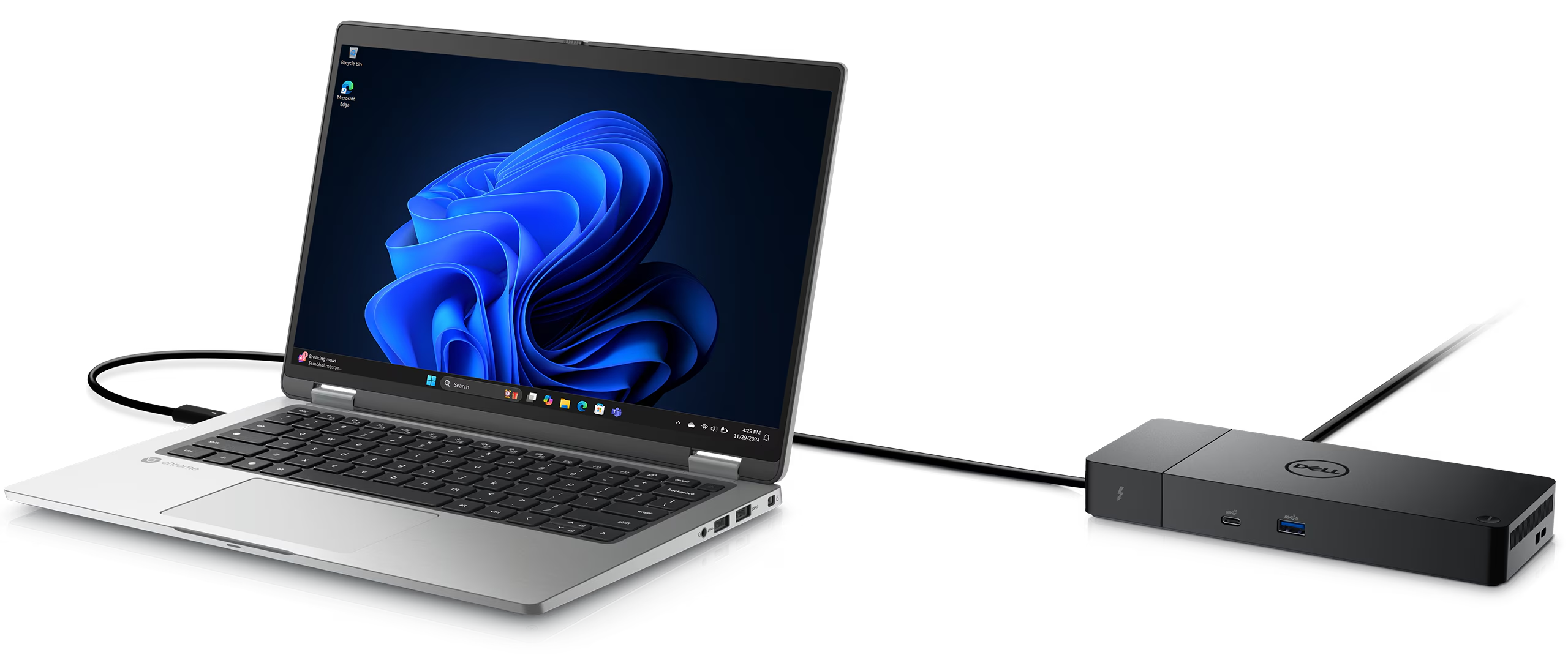
The built-in USB hub on most USB-C monitors typically includes two to four USB-A ports and sometimes an additional USB-C data port. This replaces a standalone docking station for many developers. If your workflow relies on a dock today, a USB-C monitor might eliminate that extra box and cable entirely.
One thing to keep in mind: the USB hub functionality depends on the USB-C connection to your laptop. If you connect a second device to the monitor's HDMI or DisplayPort input, the USB-A ports won't route to that device unless the USB-C upstream cable is connected to a host. This catches some people off guard when they try to use the monitor as a shared display between two computers.
The Real Limitations of USB-C Monitors for Developers
USB-C monitors aren't perfect, and some of the limitations matter more for programming than for general office work.
Refresh rate caps: Many USB-C monitors are limited to 60Hz over USB-C, even if they support higher refresh rates over DisplayPort or HDMI. For programming, 60Hz is perfectly fine. But if you also game or do motion-heavy UI work, you might notice the difference.
Check the monitor's USB-C-specific specs, not just the headline refresh rate.
Power Delivery shortfalls: Most USB-C monitors top out at 65W to 100W of Power Delivery. That's enough for most ultrabooks and MacBook Air models, but it falls short for power-hungry machines like the MacBook Pro 16-inch (140W) or high-end mobile workstations. Your laptop will still charge, but more slowly, and it might lose battery during heavy workloads like compiling large projects or running local LLMs.
Bandwidth sharing: USB-C carries video, data, and power over a single connection, but the total bandwidth is shared. If you're pushing a 4K display while transferring large files through the monitor's USB hub, you might hit bandwidth limits. In practice, this rarely affects programming workflows, but it's worth knowing if you regularly move large datasets through the monitor's ports.
Cable length restrictions: Passive USB-C cables that support full DisplayPort 1.4 bandwidth are typically limited to about 2 meters. If your desk setup requires a longer run, you'll need an active USB-C cable or a USB-C extender, which adds cost and potential points of failure.
No dedicated GPU passthrough: Unlike Thunderbolt docks that can connect to external GPUs, USB-C monitors with DisplayPort Alt Mode don't support eGPU setups. If you need GPU acceleration for machine learning or rendering, you'll need a separate Thunderbolt connection for that.
Common Mistakes Programmers Make With USB-C Monitors
These are the pitfalls that show up repeatedly in developer forums and reviews.
Assuming all USB-C ports support video: This is the number one mistake. Many laptops have USB-C ports that handle only data and charging. Always check your laptop's manual or spec sheet for DisplayPort Alt Mode or Thunderbolt support before buying a USB-C monitor.
Using the wrong cable: That random USB-C cable from your phone charger probably doesn't support DisplayPort Alt Mode. Use the cable included with the monitor, or buy a certified USB-C 3.2 Gen 2 cable rated for video. A charge-only cable will give you power but no display.
Ignoring Power Delivery wattage: A 60W monitor will charge a MacBook Pro 16-inch, but barely. Under heavy compile loads, the battery might still drain. Match the monitor's PD output to your laptop's power adapter rating for the best experience.
Forgetting about macOS scaling: A 27-inch 4K monitor at native resolution makes text tiny on macOS. You'll want to use macOS's scaled resolution options, which render at 4K and downscale. Some third-party monitors handle this less gracefully than Apple's own displays.
Research macOS compatibility specifically if that's your platform.
Overlooking the USB hub speed: Not all monitor USB hubs are created equal. Some only support USB 2.0 speeds on their downstream ports, which is painfully slow for external SSDs. If you plan to connect storage through the monitor, look for a hub with USB 3.0 or higher on the downstream ports.
USB-C Monitor Specs That Actually Matter for Programming
Marketing specs can be overwhelming. Here's what genuinely affects your day-to-day programming experience.
Panel type: IPS panels offer the best color accuracy and viewing angles for coding. VA panels have better contrast but can show color shift when you're not sitting dead center. OLED is gorgeous but expensive and carries burn-in risk for static IDE interfaces.
Resolution: 4K at 27 inches gives you roughly 163 PPI, which means incredibly sharp text. 1440p at 27 inches (about 109 PPI) is still very readable and easier on your laptop's GPU. For programming, either works well, but 4K gives you more screen real estate for side-by-side code and documentation.
Color accuracy: If you do any frontend or design work alongside coding, look for monitors covering at least 99% of the sRGB color space. For more color-critical work, DCI-P3 coverage above 95% is ideal.
Ergonomability: You'll be sitting in front of this thing for hours. A stand with height, tilt, swivel, and pivot adjustment makes a real difference. If the monitor's stand is limited, check for VESA mount compatibility so you can use a monitor arm.
Power Delivery: 65W covers most ultrabooks. 90W or 100W gives you more headroom for higher-powered laptops. Anything below 60W might not keep up with charging during active use.
Response time: This matters more for gaming than programming. A 5ms response time is perfectly fine for coding. Don't pay a premium for 1ms unless you're also gaming on the same monitor.
Expert Tips for Getting the Most Out of a USB-C Monitor Setup
A few practical moves can make the difference between a USB-C monitor that just works and one that genuinely improves your workflow.
Use the monitor as your primary dock: Plug your keyboard, mouse, webcam, and Ethernet (if the monitor has it) into the monitor's USB hub permanently. Then your laptop connection becomes truly one-cable. This is the setup that makes USB-C monitors shine.
Set up display scaling before you judge text quality: On Windows, set scaling to 150% for a 27-inch 4K display. On macOS, use the "Looks like 2560×1440" scaled option for a good balance of sharpness and usable screen space. Default scaling on either OS can make text look wrong.
Keep a spare certified USB-C cable at your desk: Cables fail, and not every USB-C cable supports video. Having a known-good replacement saves you from troubleshooting a "dead" monitor that's actually just a bad cable.
Update your monitor firmware: Some USB-C compatibility issues are resolved through firmware updates. Check the manufacturer's support page periodically, especially if you experience intermittent disconnects or charging problems.
Consider a monitor arm: Many USB-C monitors come with basic stands. A VESA-mounted arm gives you better ergonomic adjustment and frees up desk space for the cable routing that a single-cable setup deserves.
FAQs: USB-C Monitors for Programming
Can I daisy-chain two USB-C monitors from one laptop?
Yes, but both monitors need to support DisplayPort MST (Multi-Stream Transport), and your laptop's USB-C port needs to support it too. Not all USB-C monitors include MST support, so check the spec sheet. Dell's UltraSharp U-series and some LG models support daisy-charging.
Thunderbolt daisy-chaining is more reliable if your laptop supports it.
Will a USB-C monitor work with my laptop if it only has HDMI?
No. A USB-C monitor requires a USB-C connection from your laptop that supports DisplayPort Alt Mode or Thunderbolt. If your laptop only has HDMI, you'd need a different monitor or a USB-C dock that accepts HDMI input, which adds complexity and cost.
Is 60Hz over USB-C fine for programming?
Absolutely. Programming doesn't benefit from high refresh rates the way gaming does. Text rendering, scrolling through code, and switching between windows all feel smooth at 60Hz.
You'd only notice a difference if you're coming from a 120Hz or 144Hz display and are sensitive to motion smoothness.
Do USB-C monitors work well with Linux?
Most do, but compatibility varies by laptop model and distribution. Ubuntu and Fedora generally handle USB-C video output well on recent kernels. Arch and other rolling-release distros tend to have the latest driver support.
Check your specific laptop model on community forums if Linux is your daily driver.
How much Power Delivery do I need from a USB-C monitor?
Match it to your laptop's charger rating. Most ultrabooks ship with 45W to 65W chargers, so a 65W monitor covers them. MacBook Pro 14-inch models use 67W or 96W, so look for 90W or higher.
Gaming laptops and mobile workstations often need 100W or more, which exceeds what most USB-C monitors provide.
Can I use a USB-C monitor as a second screen alongside my existing HDMI monitor?
Yes. You can run one monitor over USB-C and another over HDMI or DisplayPort simultaneously, as long as your laptop supports multiple external displays. Check your laptop's GPU specifications for the maximum number of supported external displays.
Final Verdict: Should You Get a USB-C Monitor for Programming?
A USB-C monitor is a smart choice for programming if your laptop supports DisplayPort Alt Mode and you value a clean, single-cable desk setup. The convenience of charging, video, and USB peripherals through one cable is real and tangible every time you sit down or pack up.
The trade-offs are modest for most developers. You might give up a few features like ultra-high refresh rates or maximum charging speed on power-hungry laptops. For the majority of coding workflows, those compromises don't matter.
If you're on a MacBook Air, a Windows ultrabook, or any laptop with a well-supported USB-C port, a USB-C monitor will likely make your setup simpler and your desk cleaner. Just verify your port supports video output, match the Power Delivery to your laptop's needs, and use a proper cable. Do those three things, and you'll probably wonder why you didn't switch sooner.

Similar Posts





















