Is Touchscreen Monitor Good for Programming
You're wondering whether a touchscreen monitor is good for programming, and the honest answer is that it depends entirely on how you work. Some developers love the ability to swipe through files and pinch-zoom on diagrams. Others find touch more of a hindrance than a help when precision cursor work is the priority.
Research on developer input preferences and manufacturer specifications from lines like the Dell P2424HT and ASUS ProArt PA248CTV suggest touch works best as a secondary input method, not a full mouse replacement. Let's break down exactly when it makes sense for you, when it doesn't, and how to decide. Readers comparing various configurations should also examine whether touchscreen monitor good for gaming.
Quick Answer
A touchscreen monitor can be useful for programming. It works best for code review, annotation, and design-heavy workflows. It's not ideal as your primary input for heavy code editing.
Most developers benefit from touch as a supplement to mouse and keyboard, not a replacement. Your ideal setup depends on what type of development you do.
How Touch Input Actually Feels in a Real Coding Workflow
Using touch for programming is a different experience than using it for browsing or social media. Coding demands precision, repeated small movements, and frequent hovering, all areas where touch introduces friction. You can also reference our testing on whether touchscreen monitor good for productivity when configuring your display.
Most developers find that a mix of touch and mouse works well. Quick scrolling through log files feels faster with a swipe. Navigating a large codebase map with pinch-to-zoom can be more intuitive than Ctrl+scroll on a mouse.
But writing lines of code? That's where most people reach for the mouse again.
What People Actually Say About On-Screen Touch vs. Mouse Precision
The consensus across developer forums and product reviews is fairly consistent. Mouse wins for accuracy. Touch wins for speed navigation and gestures.
Here's what typically comes up:
- Scrolling and panning: Touch is faster for long file scans and reading PRs.
- Code selection: Mouse is significantly more precise, especially for multi-cursor work or column selection in editors like VS Code or Neovim.
- Hover interactions: IDE tooltips, IntelliSense, and context menus rely heavily on hover states. Touch doesn't have a true "hover," so these either require a long press or become inaccessible.
- Smudge frustration: Developers who code for hours report wiping the screen multiple times a day. It's a minor annoyance that adds up.
One practical pattern that emerges is using touch for the "reading" phase of work (reviews, planning, learning) and switching to mouse/keyboard for the "writing" phase.
The Key Factors That Shape Your Personal Answer
Not every programmer should approach touch the same way. Your specific tools, projects, and physical setup all play a role in whether touch will feel like an upgrade or a gimmick.
Touchscreen Monitor Traits That Change the Experience
Not all touch monitors are created equal, and the specs matter more when you're using them for productivity rather than casual media consumption.
| Feature | What to Look For | Why It Matters for Coding |
|---|---|---|
| Touch type | Projected capacitive (PCAP) | Most responsive, supports multi-touch gestures |
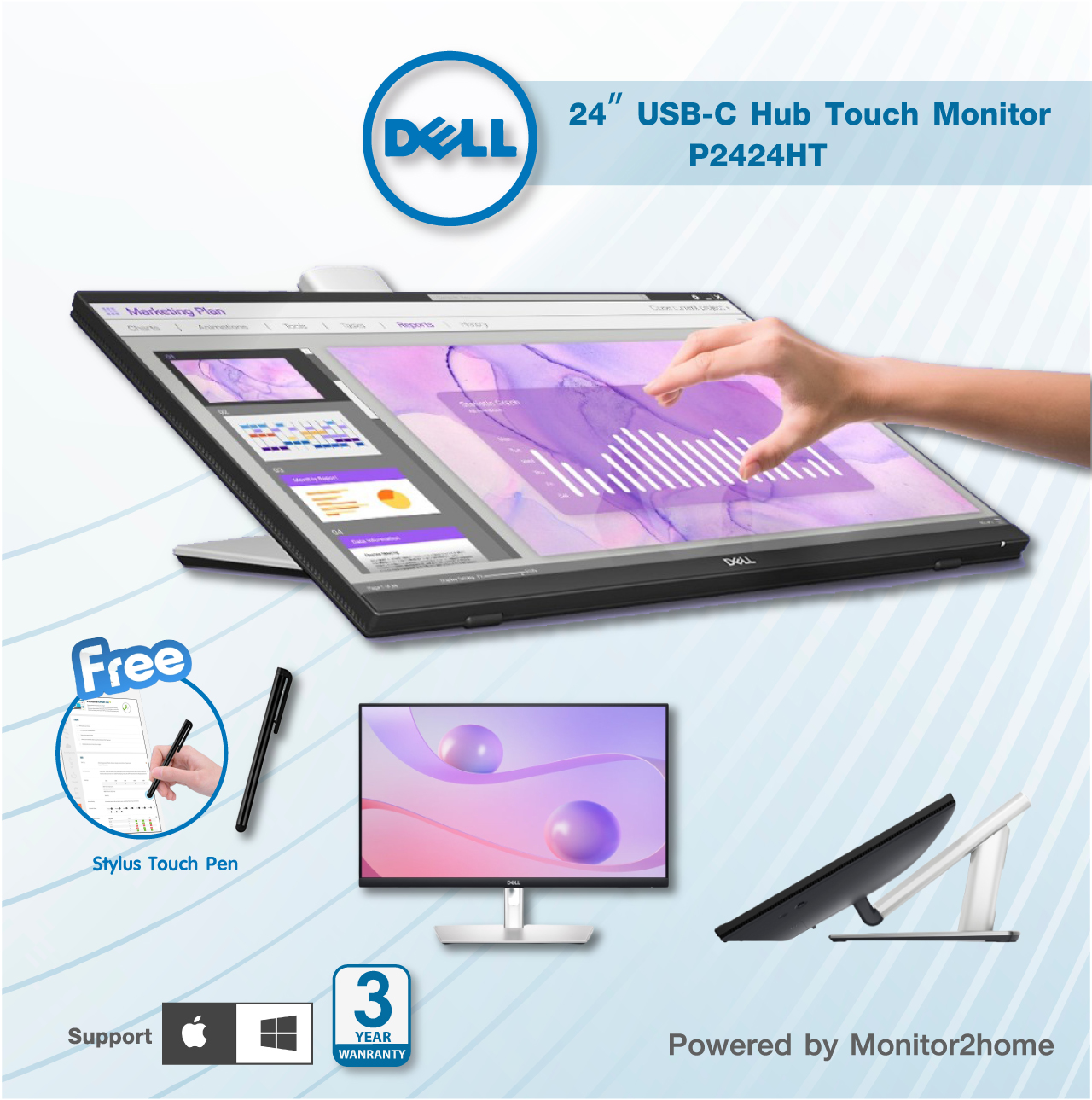
| Screen size | 23.8"–27" (sweet spot) | Large enough for split windows, comfortable arm reach |
| Tilt range | -5° to 35° or more | Touch works better at slight tilt, not vertical |
| Resolution | 1920×1080 minimum, 2560×1440 ideal | Text needs to be sharp; touch targets scale with resolution |
| Connectivity | USB-C (power + video + touch signal) | Single-cable setup keeps desk clean |
| Stylus support | AES or MPP protocol | Useful for annotations and diagrams |
| Panel coating | Anti-glare preferred | Reduces fingerprint visibility and eye strain |
Capacitive touch dominates the market for good reason. It responds to light contact, supports gestures, and works well with modern operating systems out of the box. Resistive touch, which you'll find on some older or industrial monitors, requires pressure and feels clunky for everyday use.
Screen size is a practical consideration that people overlook. A 32" touchscreen sounds appealing, but your arm will fatigue quickly reaching across it for extended periods. The 23.8" to 27" range hits a sweet spot where you can comfortably reach most of the screen without leaning forward.
How the Type of Programming You Do Changes Everything
Your daily coding tasks should drive this decision more than any spec sheet. A backend engineer writing API endpoints has very different needs than a frontend developer tweaking responsive layouts.
Frontend and UI developers get the most obvious benefit. Testing responsive designs directly on a touchscreen, previewing touch event handlers, and interacting with design tools like Figma or Sketch feels natural. If you spend significant time in browser DevTools simulating mobile interactions, a touch monitor lets you skip that step.
Backend and DevOps engineers benefit less. Your work revolves around terminals, YAML files, infrastructure diagrams, and log analysis. Quick scroll gestures for long log files might be the only touch feature you actually use.
Data scientists and ML engineers often work with visualizations and notebooks. Pinch-to-zoom on matplotlib plots or navigating large Jupyter notebooks can be genuinely useful here.
Educators and pair programmers gain a lot from touch. Pointing at code on screen, drawing quick diagrams during explanations, and annotating directly make teaching and collaboration smoother.
The IDE ecosystem also matters. VS Code has limited native touch optimization. JetBrains IDEs handle touch slightly better with gesture support in some versions.
Vim and terminal-based workflows are almost entirely mouse-and-keyboard affairs. Check what your tools support before investing.
Your Physical Setup and Real Ergonomics
This is the factor that most buying guides miss entirely, and it's the one that makes or breaks the experience for long coding sessions.
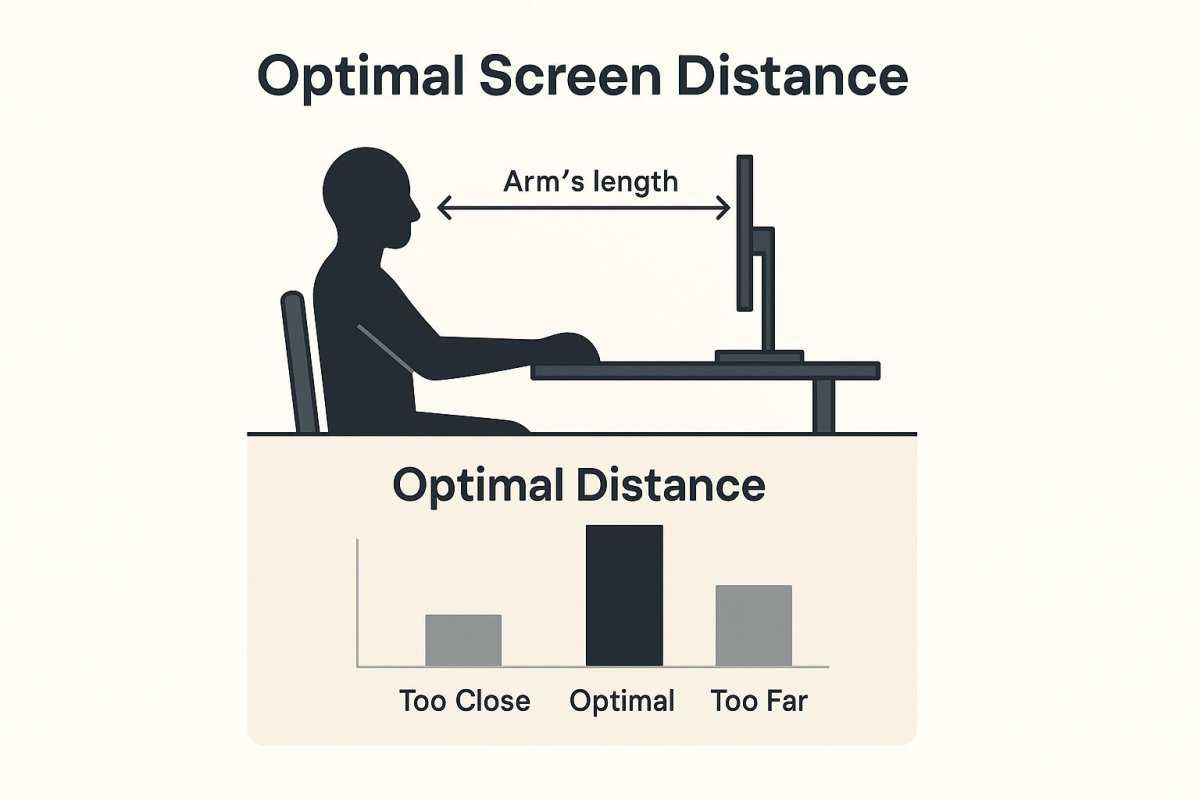
The human arm wasn't designed to touch vertical surfaces repeatedly. When you reach out to touch a vertically mounted monitor, you're holding your shoulder in an unsupported position. After a few minutes, fatigue sets in.
After an hour, it becomes uncomfortable.
Research cited in ISO 9241 on ergonomics of human-system interaction and OSHA workstation guidelines when applied to repetitive tasks suggest keeping arm use at or below desk height with elbow support. Touchscreen monitors work best when tilted forward significantly or mounted on adjustable arms that bring them closer to the user at a lower angle.
If you're considering touch, invest equally in your mounting solution. A fully adjustable monitor arm with tilt, swivel, and height control makes touch ergonomically viable. A fixed-stand monitor at eye height optimized for viewing will cause shoulder strain with regular touch use.
Practical tips for reducing strain:
- Tilt the monitor 15 to 25 degrees forward
- Keep sessions of active touch use short (under 5 minutes)
- Switch back to mouse for intensive writing phases
- Consider a matte screen coating to reduce the urge to press hard
Honest Pros and Cons
Let's lay this out clearly. Touch for programming has real benefits and real drawbacks, and both sides are more nuanced than most reviews suggest.
Scenarios Where Touch Actually Helps Some Developers
Touch shines in specific coding situations. It's not about replacing your mouse entirely. It's about having a faster option for certain tasks.
Code review and reading: Scrolling through pull requests, reading long files, and scanning logs feels more natural with swipe gestures. Your hand stays in a relaxed position rather than gripping a mouse repeatedly.
Design and prototyping: If you work with Figma, SwiftUI previews, or Android Studio's layout inspector, touch lets you interact with designs the way users will. No more faking touch interactions through browser simulation.
Annotation and markup: With stylus support on monitors like the Dell P2424HT or ASUS ProArt displays, you can mark up architecture diagrams, sketch quick UI flows, or handwrite notes on documentation.
Pair programming: Pointing at specific lines during collaborative sessions is more intuitive than describing "line 47, third variable from the left." Touch makes communication faster in group settings.
Accessibility: For developers with certain motor difficulties, touch can be easier to use than precise mouse movements. It offers an alternative input method that some find more comfortable for extended sessions.
Where Touch Makes Coding Harder or Slower
The drawbacks are real and they affect daily productivity more than marketing materials suggest.
Precision editing: Selecting specific text, placing cursors in tight code, and multi-cursor operations are significantly harder with a finger. You'll find yourself zooming in more often just to hit the right target.
Hover-dependent features: Modern IDEs rely heavily on hover states. IntelliSense tooltips, error squiggles on hover, and peek definitions all behave differently with touch. Some require long-press workarounds that slow you down.
Gorilla arm fatigue: Reaching forward to a vertical screen for minutes at a time causes shoulder and arm strain. This isn't a minor complaint. It's the single biggest ergonomic barrier to touch coding.
Smudges and glare: Your screen will get fingerprints constantly. Matte coatings help but don't eliminate the issue. You'll wipe the screen multiple times per day if you touch frequently.
Accidental inputs: Resting your hand near the screen while thinking, reaching for your coffee, or gesturing during conversation can trigger unwanted touches. Palm rejection helps but isn't perfect.
Verdict for Different Developer Profiles
| Developer Type | Touch Benefit Level | Recommendation |
|---|---|---|
| Frontend/UI developer | High | Worth considering, especially for design work |
| Backend engineer | Low to moderate | Nice to have, not essential |
| Data scientist | Moderate | Useful for visualization navigation |
| DevOps/SRE | Low | Minimal benefit for terminal-heavy work |
| Educator/pair programmer | High | Strong use case for teaching and collaboration |
| Accessibility needs | High | Potentially very beneficial |
What It Might Cost You
Touchscreen monitors carry a price premium, and the total cost of ownership includes more than just the display itself.
Price Comparison: Touch vs. Standard Monitors
A touchscreen monitor typically costs $80 to $150 more than a comparable non-touch model with the same panel specs. Here's how that breaks down for popular options:
| Monitor | Touch Version Price | Non-Touch Equivalent | Premium |
|---|---|---|---|
| Dell P2424HT (23.8" IPS) | ~$320 | Dell P2423D ~$230 | ~$90 |
| ASUS ProArt PA248CTV (24" IPS) | ~$450 | ASUS ProArt PA248QV ~$300 | ~$150 |
| ViewSonic TD2430 (24" IPS) | ~$300 | ViewSonic VA2447-MH ~$150 | ~$150 |
| LG 27QN880-B (27" IPS, ergo stand) | ~$400 | LG 27UL500-W ~$280 | ~$120 |
Prices shift frequently, so treat these as ballpark figures. The premium is real but has been shrinking as touch technology matures.
Hidden Costs (Dongles, Cables, Stylus)
The monitor price isn't the whole story. You may need additional accessories.
USB-C cable or adapter: If your laptop doesn't support USB-C with DisplayPort Alt Mode, you'll need a separate USB cable for the touch signal. Budget $15 to $30 for a quality cable.
Stylus pen: If the monitor supports active stylus input (AES or MPP protocol), a compatible pen costs $30 to $80. Some monitors include one, but many don't.
Adjustable mount: As discussed earlier, a proper arm or stand for comfortable touch use runs $40 to $150. The included stand on most touch monitors is optimized for viewing, not touching.
Screen cleaner: You'll want microfiber cloths and a gentle cleaning solution. Budget $10 to $15.
Total realistic setup cost beyond the monitor itself: $50 to $200 depending on what you already own.
Is a Touch Monitor Right for You? A Practical Guide
Here's a simple decision framework. If you answer "yes" to most of the following, a touch monitor is likely worth it:
- Do you spend significant time reviewing code rather than writing it?
- Does your work involve UI/UX design or frontend prototyping?
- Do you teach, mentor, or do regular pair programming?
- Do you already use a touchscreen laptop and like the experience?
- Do you have an adjustable monitor arm or plan to get one?
If you answered "yes" to three or more, touch will probably add value to your workflow. If you answered "yes" to one or fewer, you're better off saving the money and sticking with a high-quality non-touch display.
The middle ground (two "yes" answers) is where personal preference dominates. If you're curious and the budget allows, try one. Most retailers have reasonable return policies, and a week of real use will tell you more than any review.
Setting Up a Touchscreen Monitor for Coding
Getting a touch monitor working properly takes a few configuration steps. It's not always plug-and-play, especially on Linux or with multi-monitor setups.
Connection and Touch Signal Setup
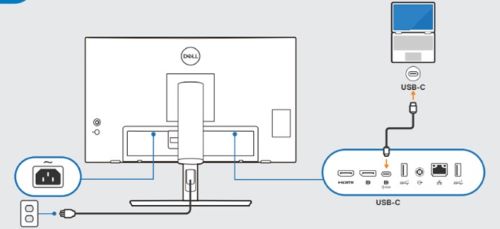
Most modern touch monitors use a single USB-C cable that carries video, data, and touch input simultaneously. This is the ideal setup. One cable, clean desk, everything works.
If your computer lacks USB-C with DisplayPort Alt Mode, you'll need a separate connection:
- Video: HDMI or DisplayPort cable from GPU to monitor
- Touch signal: USB-A to USB-B or USB-C cable from computer to monitor's USB upstream port
- Power: Monitor's own power cable (some USB-C setups handle this too)
On Windows 11 and macOS, touch input is typically recognized automatically. On Linux, you may need to install drivers or configure libinput. Check your distribution's documentation for your specific monitor model.
Configuration Tips for Programmers
Once connected, optimize the touch experience for coding:
- Adjust touch sensitivity: Most monitors let you configure how much pressure registers as a touch. Lower sensitivity reduces accidental inputs.
- Enable palm rejection: This feature ignores unintended contact when your hand rests near the screen. Make sure it's turned on in both monitor and OS settings.
- Set up gesture shortcuts: Windows 11 supports four-finger gestures for desktop switching and task view. Configure these in Settings > Bluetooth & devices > Touch.
- Calibrate the touchscreen: If touches register slightly off from where you see them, run the calibration tool in your OS. On Windows, search for "calibrate" in the Start menu.
- Configure IDE zoom: In VS Code, set
editor.mouseWheelZoom: truefor pinch-to-zoom support. In JetBrains IDEs, check Settings > General for touch/gesture options.
Multi-Monitor Arrangements
Many developers use a touch monitor alongside a traditional display. This is actually the most common and practical setup.
Place the touch monitor as your secondary display for reference material, documentation, code review, or design tools. Keep your primary non-touch monitor for active coding. This gives you the best of both worlds without forcing touch into tasks where it doesn't belong.
In Windows, you can configure which monitor has touch input in Settings > Display > Multiple displays. On macOS, the arrangement in System Settings > Displays determines how touch maps across screens.
Touch Monitors vs. The Alternatives Programmers Already Use
Before committing to a touch monitor, consider what you're comparing it against. Developers have plenty of input options, and touch isn't always the best fit.
Touch Monitor vs. iPad as Second Screen
An iPad running Sidecar (macOS) or spacedesk (Windows/Linux) gives you a portable touch display you likely already own. The downside is latency over wireless, and scaling issues on some setups. A dedicated touch monitor wins on reliability and single-cable simplicity.
Touch Monitor vs. Pen Tablet
For annotation and diagramming, a Wacom or similar pen tablet costs less and doesn't require touching your display. The tradeoff is indirect input (drawing on a pad while looking at the screen). It takes practice.
Direct screen touch feels more natural for beginners.
Common Regrets and Mistakes Developers Report
Aggregate user reviews consistently highlight a few touchpoints (pun unintended).
Skipping the mount: Using a touch monitor at vertical wall height guarantees arm fatigue. Budget for an adjustable arm.
Ignoring Linux compatibility: Touch signal over USB is standard in kernel drivers, but multi-touch gestures often need manual configuration. Research your specific monitor and distro before buying.
Wrong size at wrong resolution: On a large 4K screen without scaling, touch targets become tiny fingers struggle with. On a small 1080p screen with scaling, touch becomes cramped. Match size and resolution to your comfort.
Frequently Asked Questions
Can I use a touch monitor with any computer?
Most touch monitors work out of the box on Windows 11 and recent macOS. Linux support varies. Check kernel compatibility for your specific model before buying.
Do touch monitors work with all IDEs?
The touch input functions at the OS level, but IDE optimization varies. VS Code has limited native touch gestures. JetBrains IDEs handle some gestures.
Vim and terminal workflows are mouse-first.
Will touch work with a standing desk?
Yes, but position matters. Mount the monitor on an arm that angles the screen 15 to 25 degrees forward. Flat vertical positioning strains your shoulders within minutes.
Do touch screens reduce productivity?
Research and user reviews suggest mixed results. Code review and navigation speed up with gestures. Precision editing slows down.
The average impact depends on your workflow balance.
Can I add touch to a non-touch monitor?
Yes. Touch overlay kits from companies like Touch+ or Plus optical overlubs clip onto your existing screen. Quality varies; expect slightly reduced brightness and occasional calibration drift.
Is a touch monitor worth it for web development?
It can be. Visual testing of responsive designs directly on screen saves time. The benefit fades if you're primarily in backend JavaScript or API work.
When to Consider This Setup and When to Walk Away
Buy a touch monitor if you do frontend design work, code reviews, and teaching regularly. The investment pays off in those specific scenarios.
Skip it if you live in terminals, work primarily on backend systems, or lack an adjustable mounting solution. The ergonomic cost outweighs the convenience in those cases.
For everyone else, the honest answer is this: try one for a week if you can. The experience itself will tell you more than any guide.

Similar Posts





















