How to Extend Display with USB C Monitor
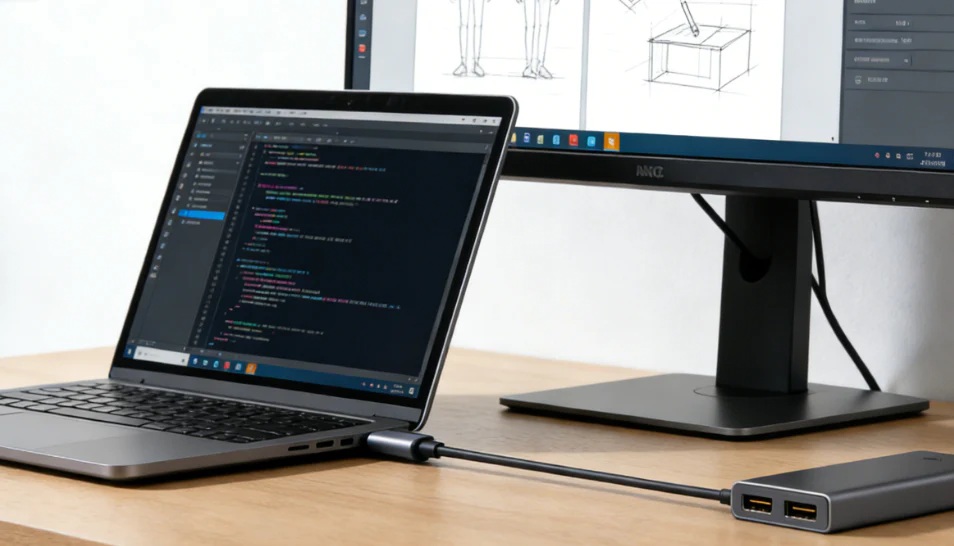
Figuring out how to extend display with USB-C monitor connections sounds like it should be simple. You plug in a cable, the second screen comes alive, and you get on with your day. But anyone who's actually tried it knows the reality: sometimes it works instantly, sometimes nothing happens, and the reason why isn't obvious at all.
The confusion comes down to one thing. Not every USB-C port is built the same way. Some ports push video, some don't, and the cable or adapter you pick has to match what your specific device actually supports. Readers comparing various configurations should also examine how to use usb c monitor as primary display.
Once you understand that, the whole process gets a lot less frustrating.
Quick Answer
To extend your display with a USB-C monitor, confirm your laptop's USB-C port supports video output via DisplayPort Alt Mode or Thunderbolt. Then connect using a full-featured USB-C cable or a compatible adapter. Configure the extended display in your operating system's display settings.
If your port lacks video support, a DisplayLink dock is your best workaround.
Why Your USB-C Monitor Setup Isn't Working (And How to Fix It)
The most common reason a USB-C monitor doesn't work is simple. Your laptop's USB-C port might not carry a video signal at all. Many USB-C ports are data and charging only.
They'll handle file transfers and power your device, but they won't push a single pixel to an external screen. To see how this holds up against alternate models, explore how to extend display with portable monitor.
Another frequent issue is the cable. A lot of USB-C cables sold as "charging cables" are USB 2.0 only. They have the connector shape but lack the wiring needed for video.
You plug everything in, the monitor powers on, and you get nothing. The fix is usually swapping to a cable rated for video.
Here's a quick troubleshooting checklist when your USB-C display isn't detected:
- Try a different USB-C cable that's confirmed to support video output
- Restart your laptop with the monitor already connected
- Press Win + P on Windows and cycle through display modes
- On Mac, go to System Settings > Displays and click "Detect Displays"
- Check for firmware or driver updates on your laptop
- Test with a different monitor to rule out a hardware fault
If you're using a DisplayLink adapter or dock, make sure you've installed the latest driver from DisplayLink's official site. Outdated drivers are one of the most common causes of black screens and flickering.
What USB-C Video Support Actually Means on Your Device
USB-C is a connector shape, not a capability standard. That's the single most important thing to understand. The little oval port on your laptop might support Thunderbolt 4, DisplayPort Alt Mode, basic data transfer, or some combination of all three.
You can't tell just by looking at it.
DisplayPort Alt Mode is the most common way USB-C carries video. It redirects the USB-C pins to carry a native DisplayPort signal. When your device supports this, you get a direct video connection with no adapters needed beyond the right cable.
Most modern laptops with USB-C video support use this method.
Thunderbolt 3 and 4 also carry DisplayPort video signals natively, but with much more bandwidth. Thunderbolt 4 runs at 40 Gbps and can drive multiple high-resolution displays from a single port. If your port has a little lightning bolt icon next to it, you're in good shape.
USB4 is the newest standard as of 2026. It also supports DisplayPort tunneling for video output. USB4 ports are backward compatible with Thunderbolt 3 devices in many cases, though implementation varies by manufacturer.
The key takeaway: check your laptop's official specs before buying any cable or adapter. Look specifically for "DisplayPort over USB-C," "DP Alt Mode," or "Thunderbolt" in the port description. If the spec sheet only mentions "USB-C" with data and charging, that port won't drive a display natively.
First Things First: Does Your USB-C Port Even Support Displays?
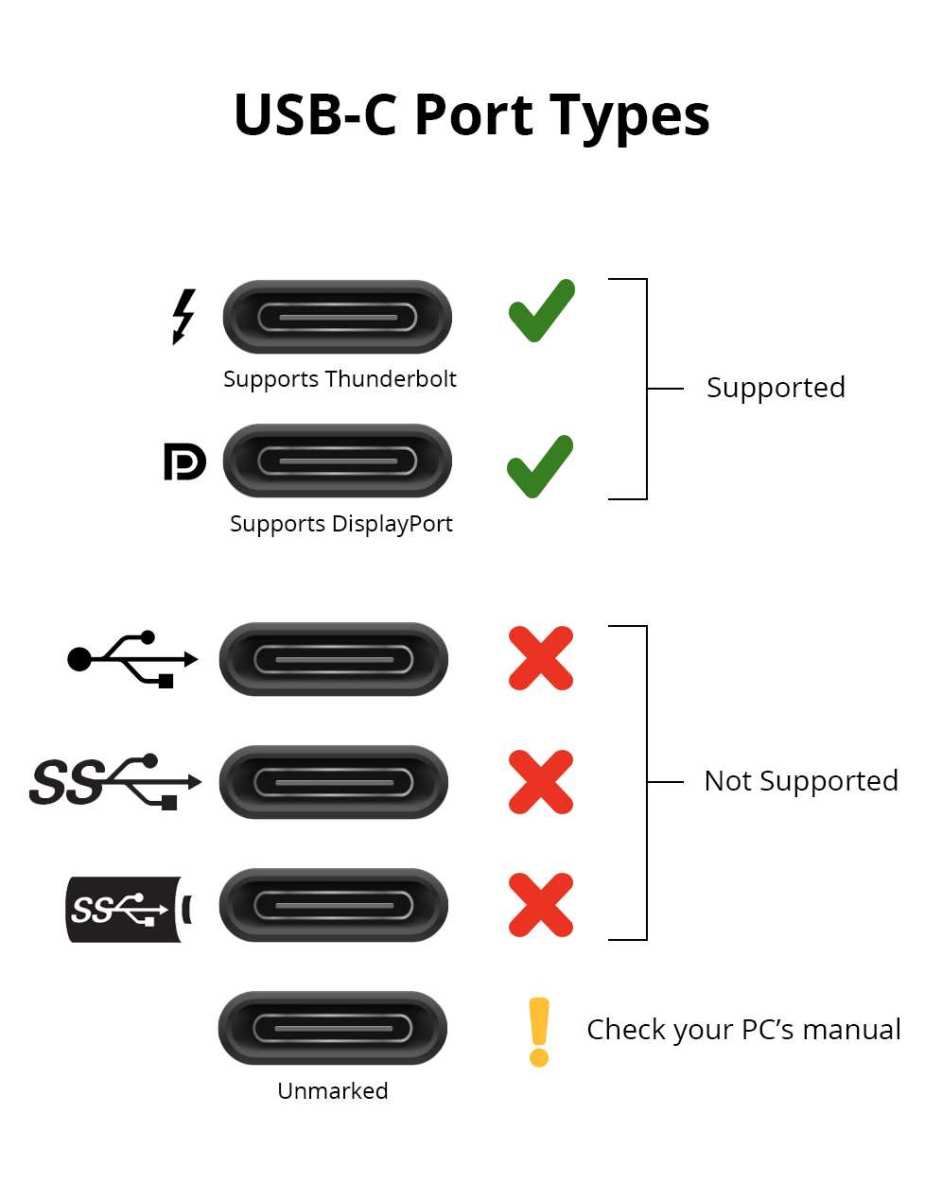
This is where most people go wrong. They assume every USB-C port can output video because the connector looks the same. That assumption wastes time and money.
Here's how to check. Look at the symbols printed next to or near your USB-C port. A DisplayPort icon (a "D" shape with a "P" inside), a lightning bolt (Thunderbolt), or a battery symbol with "PD" are all good signs.
If there's no symbol at all, check your laptop's technical specifications on the manufacturer's website.
You can also check your system information. On Windows, open Device Manager and look under "Display adapters" and "Universal Serial Bus controllers." On Mac, go to Apple Menu > About This Mac > System Report and check the "Thunderbolt" and "USB" sections. If you see references to DisplayPort or Thunderbolt, your port supports video.
Image source: Bing (Web (fair-use with source credit))
If your port doesn't support video, you still have options. A DisplayLink dock or adapter uses software to compress and send video data over a standard USB data connection. It's not as clean as native DisplayPort Alt Mode, but it works on almost any USB-C or even USB-A port.
You'll need to install DisplayLink drivers, and there can be a slight performance hit for video playback or gaming, but for general productivity it's a solid solution.
DisplayPort Alt Mode vs. Thunderbolt vs. USB4: What's the Difference and Why It Matters
These three standards all use the same USB-C connector, but they're not interchangeable. Knowing which one your device supports determines what cables, adapters, and monitors will work.
DisplayPort Alt Mode
This is the baseline for USB-C video. It repurposes the pins in the USB-C connector to carry a native DisplayPort signal. Most mid-range and many high-end laptops support it.
You can run 4K at 60Hz over a decent cable without any special hardware.
The limitation: DP Alt Mode uses the full bandwidth of the USB-C connection for video. That means you might lose USB data transfer on the same port unless your implementation supports splitting the bandwidth. Some laptops handle this fine, others don't.
Thunderbolt 3 and 4
Thunderbolt carries DisplayPort video plus USB data and power delivery simultaneously over a single cable. It runs at 40 Gbps on Thunderbolt 3 and 4, giving you plenty of headroom for high-resolution displays, fast data transfer, and laptop charging all at once.
Thunderbolt 4 adds stricter minimum requirements. Every Thunderbolt 4 port must support at least one 4K display, and most support two. If you're buying a dock or cable, Thunderbolt gives you the most flexibility.
USB4
USB4 is essentially the spiritual successor to Thunderbolt 3, now royalty-free and managed by the USB-IF. It supports DisplayPort tunneling for video output and runs at either 20 Gbps or 40 Gbps depending on the implementation. As of 2026, USB4 is becoming more common on mid-range laptops.
The catch with USB4 is that manufacturer implementation varies. Some devices get the full 40 Gbps bandwidth, others are limited to 20 Gbps. Check your specific device's specs rather than assuming.
What Happens When Your Port Doesn't Support Any of These
If your USB-C port is data-only, you can't get a native video signal from it. Your options are:
- DisplayLink adapter or dock: Works over standard USB data, requires drivers
- Wireless display: Miracast or AirPlay, depending on your ecosystem
- USB-A to HDMI adapter with DisplayLink: If you have an older laptop with no USB-C at all
DisplayLink is the most practical fallback. The DL-6950 chipset, found in many current docks, supports dual 4K at 60Hz. It's not ideal for gaming or color-critical video work, but for spreadsheets, email, coding, and general productivity, it works well.
Choosing the Right Cable for USB-C Display Connection
This is where a lot of money gets wasted. People grab the cheapest USB-C cable they can find, plug it in, and wonder why the monitor stays black.
Not All USB-C Cables Are Created Equal
USB-C cables come in several specifications, and the differences matter enormously for video:
| Cable Type | Data Speed | Video Support | Typical Use |
|---|---|---|---|
| USB 2.0 USB-C | 480 Mbps | None | Charging, basic data |
| USB 3.1 Gen 1 | 5 Gbps | Possible with DP Alt Mode | Data + video |
| USB 3.1 Gen 2 | 10 Gbps | Yes, DP Alt Mode | Data + video |
| USB 3.2 Gen 2×2 | 20 Gbps | Yes | High-res video |
| Thunderbolt 3/4 | 40 Gbps | Yes, native | Best for multi-monitor |
| USB4 | 20-40 Gbps | Yes | Latest standard |
The critical detail: a USB 2.0 USB-C cable physically fits the same port but carries zero video signal. It'll charge your laptop and transfer files, but your monitor will stay dark. Always check the cable's rated specification, not just the connector shape.
Full-Featured vs. Charge-Only Cables
A "full-featured" USB-C cable includes all the wires needed for data, video, and power. A charge-only cable strips out the data and video lines to keep costs down. Manufacturers aren't always clear about which type you're buying.
Here's what to look for:
- The cable packaging or listing should mention "DisplayPort Alt Mode," "video support," or "4K@60Hz"
- Thunderbolt cables are always full-featured and marked with a lightning bolt icon
- Cables certified by the USB-IF are more likely to meet their stated specifications
- If the cable is very cheap (under $8) and doesn't specify video support, assume it's data and charging only
For a single 4K monitor at 60Hz, a USB 3.1 Gen 2 cable with DP Alt Mode support is sufficient. For higher refresh rates, multiple monitors, or daisy chaining, step up to Thunderbolt or USB4.
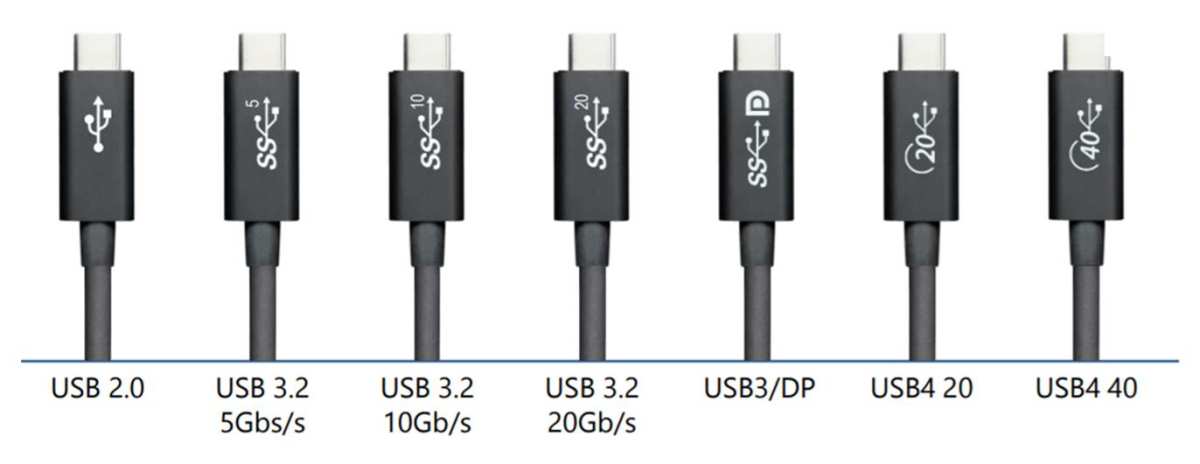
Image source: Bing (Web (fair-use with source credit))
USB-C to USB-C Direct Connection vs. Using an Adapter
You've got two main paths for connecting a USB-C monitor. Each has its place depending on what gear you already have and what your devices support.
When a Simple USB-C to USB-C Cable Works
If both your laptop and your monitor have USB-C ports that support video, this is the cleanest option. One cable handles video, and if the monitor supports power delivery, it charges your laptop too. No adapters, no dongles, no clutter.
This works best when:
- Your laptop's USB-C port supports DP Alt Mode or Thunderbolt
- Your monitor has a USB-C input with power delivery
- You want the simplest possible desk setup
A good USB-C to USB-C cable rated for video and 100W power delivery costs between $15 and $30. It's worth spending a little more for a reliable cable here. Cheap cables can cause flickering, intermittent connections, or failure to charge.
When You Need a USB-C to HDMI or DisplayPort Adapter
If your monitor only has HDMI or DisplayPort inputs (which is still common, especially on older or budget monitors), you'll need an adapter or a cable with USB-C on one end and HDMI or DisplayPort on the other.
USB-C to HDMI adapters are the most common. They work well for 4K at 60Hz and are widely available. Make sure the adapter explicitly states it supports 4K@60Hz if that's what you need.
Some cheaper ones cap out at 4K@30Hz, which feels sluggish for desktop use.
USB-C to DisplayPort cables are a solid alternative, especially for monitors with high refresh rates. DisplayPort generally handles 4K@120Hz and adaptive sync better than HDMI on USB-C connections.
A few things to keep in mind:
- Adapters are directional. A USB-C to HDMI adapter won't work in reverse
- Some adapters require DP Alt Mode support on the host device
- For HDMI 2.1 features like 4K@120Hz with HDR, make sure the adapter specifically supports HDMI 2.1
DisplayLink: The Software-Based Alternative for Tricky Situations
When your USB-C port doesn't support native video, DisplayLink adapters and docks step in. They use a chip in the adapter to compress video data and send it over standard USB data. Your computer sees the adapter as a USB device, and the DisplayLink driver renders the display output.
The tradeoff is CPU usage. DisplayLink uses your processor to compress the video signal, which can impact performance on lower-end machines. For office work, browsing, and video playback, it's fine.
For gaming or professional video editing, it's not ideal.
You'll need to install the DisplayLink driver from Synaptics' website. On Mac, you may need to grant screen recording permissions in your system settings. On Windows, the driver is usually straightforward to install.
USB-C Docks and Hubs for Multi-Monitor Extension
If you want to connect more than one external monitor, or you want a single-cable docking solution that handles video, power, and peripherals, a USB-C dock is the way to go.
What a USB-C Dock Gives You Beyond Video
A good USB-C dock turns your laptop into a full desktop setup with one connection. You plug in the dock, and suddenly you've got:
- One or two external monitors
- Laptop charging (65W to 140W depending on the dock)
- USB-A peripherals (keyboard, mouse, external drives)
- Ethernet network connection
- Audio output
This is the setup most people want for a home office or hot-desking arrangement. One cable in the morning, and you're fully set up.
How Many Monitors Can You Actually Run Over One USB-C Port?
This depends entirely on your port's capabilities and the dock you choose:
| Port Type | Native Monitor Support | With DisplayLink Dock |
|---|---|---|
| DP Alt Mode (HBR2) | 1x 4K@60Hz | Up to 2x 4K@60Hz |
| DP Alt Mode (HBR3) | 1x 4K@120Hz or 1x 5K | Up to 2x 4K@60Hz |
| Thunderbolt 4 | Up to 2x 4K@60Hz | Up to 4x 4K@60Hz |
| USB4 (40 Gbps) | Up to 2x 4K@60Hz | Up to 4x 4K@60Hz |
| Data-only USB-C | 0 (native) | Up to 2x 4K@60Hz |
There's an important exception for Mac users. Base model M1 and M2 MacBook Airs and 13-inch Pros only support one external monitor natively, even though they have Thunderbolt ports. The M2 MacBook Air was updated in 2023 to support two external displays, but only with the lid closed.
M3 and M3 Pro chips handle multiple displays more gracefully. Always check Apple's official specs for your specific chip.
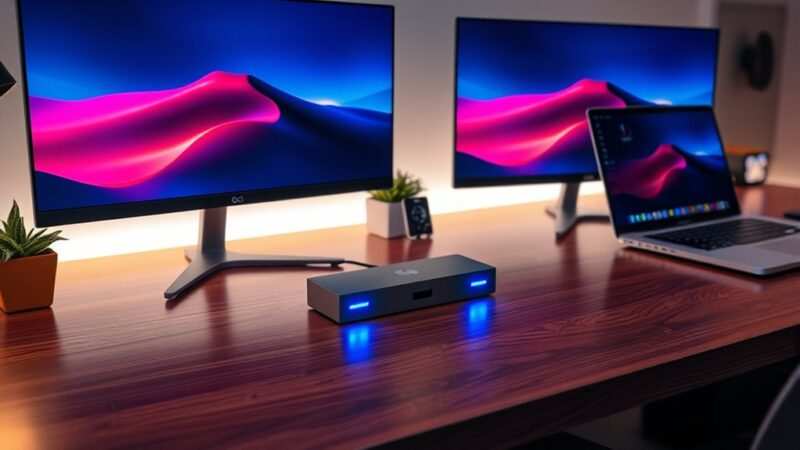
Image source: Bing (Web (fair-use with source credit))
When shopping for a dock, pay attention to:
- Power delivery wattage: 65W is enough for most ultrabooks, 100W for power-hungry laptops
- Display outputs: HDMI, DisplayPort, or both, and what resolution each supports
- DisplayLink vs. native: Native is better for performance, DisplayLink for compatibility
- Cable connection: Some docks use a detachable USB-C cable, others are fixed
A quality USB-C dock with dual 4K support and 100W power delivery runs between $150 and $300 as of 2026. DisplayLink docks tend to be on the higher end of that range.
Step-by-Step: How to Extend Your Display With a USB-C Monitor
Here's the full process from start to finish. Follow these steps in order and you'll avoid most of the common headaches.
Step 1: Confirm Your Port Supports Video Output
Check your laptop's spec sheet or look for icons near the USB-C port. You're looking for a DisplayPort symbol, a lightning bolt, or explicit mention of "video output" in the manual. If you can't find it, search your exact laptop model number plus "USB-C display support" on the manufacturer's website.
Step 2: Pick the Right Cable or Adapter
Match your cable to your port and monitor. If both devices have USB-C, a full-featured USB-C to USB-C cable is simplest. If your monitor has HDMI or DisplayPort only, get a USB-C to HDMI or USB-C to DisplayPort cable rated for your target resolution and refresh rate.
Step 3: Connect Everything and Power On
Plug the cable into your laptop first, then into the monitor. Make sure the monitor is set to the correct input source. Some USB-C monitors auto-detect, others require you to manually select the USB-C input from the on-screen menu.
Step 4: Configure Display Settings on Windows
Right-click on the desktop and select Display Settings. You should see two rectangles labeled 1 and 2. If the second monitor doesn't appear, click Detect.
Scroll down to the Multiple Displays dropdown and select Extend These Displays. You can drag the monitor rectangles to match the physical arrangement of your screens.
Step 5: Configure Display Settings on macOS
Open System Settings, then click Displays. If the monitor isn't detected, hold the Option key and click the Detect Displays button at the bottom. Under your external monitor's settings, make sure Mirror Display is turned off.
Arrange the displays by dragging their positions in the settings window to match your desk layout.
Step 6: Adjust Resolution, Refresh Rate, and Arrangement
On Windows, click on the external monitor in Display Settings, then scroll to Display Resolution and Refresh Rate. Set these to the monitor's native values. On Mac, hold Option while clicking Scaled to see all available resolutions.
For high-refresh gaming monitors, make sure you're actually running at the advertised refresh rate and not stuck at 60Hz.
What to Do When Your USB-C Monitor Isn't Detected
This is the most frustrating moment. You've plugged everything in and the screen stays black. Here's a systematic approach to figure out what's wrong.
Start with the cable. Try a different USB-C cable that you know supports video. Borrow one from a friend or use one from a device that's working.
A surprising number of "broken monitors" are just bad cables.
Next, try a different port if your laptop has more than one USB-C port. Not all ports on the same machine necessarily support video. On some laptops, only one of two USB-C ports carries DisplayPort Alt Mode.
Restart your laptop with the monitor connected and powered on. Some systems only detect external displays during the boot process. A hot-plug connection sometimes doesn't trigger detection properly.
Update your graphics drivers. On Windows, check Device Manager for your GPU and visit the manufacturer's site (Intel, AMD, or NVIDIA) for the latest driver. On Mac, make sure you're running the latest macOS version, since Apple frequently patches display compatibility issues.
If you're using a dock or adapter, try connecting the monitor directly to your laptop first. This isolates whether the problem is the monitor, the cable, or the dock itself.
One more thing that catches people off guard. Some monitors have multiple inputs and don't auto-switch. Use the monitor's physical buttons to open the input selection menu and manually choose the USB-C input.
How to Daisy Chain Multiple USB-C or DisplayPort Monitors
Daisy chaining lets you connect two monitors from a single USB-C port without a dock. The video signal passes through the first monitor and out to the second one.
What MST (Multi-Stream Transport) Requires From You
Daisy chaining uses DisplayPort Multi-Stream Transport, or MST. Both your laptop and your monitors need to support it. Your USB-C port must carry a DisplayPort signal (via DP Alt Mode or Thunderbolt), and both monitors must have DisplayPort outputs (not just inputs).
Here's the connection path: laptop USB-C out to Monitor 1 USB-C in, then Monitor 1 DisplayPort out to Monitor 2 DisplayPort in. The first monitor acts as a hub for the video signal.
MST works over USB-C to DisplayPort cables too. You can run USB-C from the laptop to the first monitor, then DisplayPort from the first monitor to the second. The key is that the signal stays in the DisplayPort protocol the whole way through.
When Daisy Chaining Won't Work
If your monitors only have HDMI and USB-C inputs with no DisplayPort output, you can't daisy chain them. Most budget and mid-range USB-C monitors lack MST support entirely. Check the monitor's specs for "MST" or "daisy chain" before planning this setup.
Mac users should know that Apple doesn't support MST for external displays. macOS only supports daisy chaining through Thunderbolt, not DisplayPort MST. If you're on a Mac and want multiple monitors from one port, a Thunderbolt dock is your best option.
Common Mistakes People Make With USB-C Displays
These are the errors we see over and over. Avoiding them saves time and money.
Buying a USB 2.0 USB-C cable is the number one mistake. It fits the port perfectly but carries no video signal. Always check that the cable explicitly supports video output or DisplayPort Alt Mode.
Assuming every USB-C port can output video is number two. Many laptops have multiple USB-C ports with different capabilities. One might support Thunderbolt and video, the other is data only.
Check your specific port, not just your laptop model in general.
Forgetting about Mac display limits catches a lot of people. Base M1 and M2 chips only support one external monitor natively. If you need two screens on one of those machines, you need a DisplayLink dock, not just a cable.
Using a cheap adapter that overheat is another common issue. Adapters that get very hot to the touch often have poor build quality and can fail intermittently. Spend a little more on a reputable brand.
Not updating DisplayLink drivers after an OS update causes problems regularly. Both macOS and Windows updates can break DisplayLink compatibility until you install the latest driver version.
Can Your Monitor Charge Your Laptop Through USB-C?
Many USB-C monitors can charge your laptop through the same cable that carries the video signal. This is one of the best features of a USB-C monitor setup. One cable on your desk, and it handles display and power.
How Power Delivery Works Over USB-C
USB Power Delivery is a negotiation protocol. The monitor and the laptop agree on a voltage and wattage that both can handle. The monitor doesn't "push" power into the laptop.
The laptop "pulls" what it needs, up to what the monitor can provide.
Most USB-C monitors with power delivery offer between 60W and 90W. That's enough for most ultrabooks and thin-and-light laptops. High-performance laptops with discrete GPUs often need 100W to 140W, which most monitors can't supply.
How Many Watts You Actually Need
Here's a general guideline:
- 45W to 65W: Enough for most ultrabooks (MacBook Air, Dell XPS 13, ThinkPad X1 Carbon)
- 65W to 90W: Handles most 14-inch and 15-inch productivity laptops
- 100W to 140W: Needed for mobile workstations and gaming laptops
If your monitor provides less power than your laptop needs, the laptop will still work. It just won't charge as fast, or it might slowly drain the battery under heavy load. It won't damage anything.
Check your laptop's included charger for the wattage rating. That tells you what your laptop is designed to receive. If your monitor matches or exceeds that number, you're good.
USB-C Monitor Setup: Quick Reference by Use Case
Single External Monitor for a Home Office
This is the sweet spot for USB-C. One cable from your laptop to the monitor handles video and often power too. Look for a monitor with USB-C input and at least 65W power delivery.
That keeps your desk clean and your laptop charged.
Dual Monitors With a USB-C Dock
Get a Thunderbolt or USB4 dock with dual display outputs. Make sure the dock matches your laptop's video capability. DisplayLink docks work on data-only ports but add some CPU overhead.
Portable Setup With a USB-C Portable Monitor
Portable USB-C monitors are great for travel. Most run on USB-C power from your laptop. They usually top out at 15.6 inches and 1080p.
Perfect as a second screen in a coffee shop or coworking space.
Connecting to a Conference Room or Presentation Display
Carry a USB-C to HDMI adapter. It's small, cheap, and works with almost any projector or display. Keep one in your laptop bag so you're always ready for presentations.
USB-C vs. HDMI vs. DisplayPort: Which Should You Use?
| Feature | USB-C (DP Alt Mode) | HDMI 2.1 | DisplayPort 1.4 |
|---|---|---|---|
| Max Resolution | 8K@60Hz | 8K@60Hz | 8K@60Hz |
| 4K Refresh Rate | Up to 120Hz | Up to 120Hz | Up to 120Hz |
| Power Delivery | Yes (up to 240W) | No | No |
| Cable for Video + Power | One cable | Separate power cable | Separate power cable |
| Adapter Needed | Sometimes | Often | Often |
| Daisy Chain | With MST | No | Yes |
Use USB-C when you want one cable for everything. Use HDMI when connecting to TVs or consumer displays. Use DisplayPort for PC monitors, especially high-refresh gaming or color-critical work.
Can You Damage Your Device With the Wrong USB-C Cable or Adapter?
Yes, but it's rare with reputable products. The real risk comes from cheap, non-compliant cables. Some lack proper resistor chips that negotiate power delivery.
This can cause overcurrent or incorrect voltage negotiation.
The Benson Leung cable testing project a few years back found alarming numbers of USB-C cables that didn't meet spec. Some could fry your device. Stick with cables that are USB-IF certified or from known brands.
A $15 certified cable is safer than a $3 mystery cable from an unknown seller.
Look for the USB-IF trident logo on the packaging. If a cable claims Thunderbolt 4 but costs $5, something is wrong.
My Honest Recommendation: The Simplest Path for Most People
If You Just Want One External Monitor Working
Buy a USB-C to USB-C cable rated for video and power delivery. Connect directly from laptop to monitor. This is the cleanest, most reliable setup.
It works on most 2020 and newer ultrabooks without any adapters or drivers.
If You Need Two or More External Monitors
Get a Thunderbolt 4 dock if your laptop supports Thunderbolt. Get a DisplayLink dock if your port is data-only. Both will drive dual 4K displays and charge your laptop through one cable.
If You're a Frequent Traveler or Work From Multiple Locations
A portable USB-C monitor and a compact USB-C to HDMI adapter cover most situations. The portable monitor gives you a second screen anywhere. The adapter handles conference room projectors and shared displays.
Frequently Asked Questions
Do all USB-C cables support video output?
No. USB 2.0 USB-C cables only carry data and power. They cannot transmit video.
You need a cable rated for USB 3.1 or higher, or explicitly labeled with DisplayPort Alt Mode support. When in doubt, check the cable's printed specifications or packaging.
Can I use a USB-C monitor with my desktop PC?
Yes, if your desktop has a USB-C port with video output. Many modern graphics cards and some motherboards include USB-C with DP Alt Mode. If your desktop lacks USB-C video, a DisplayLink USB adapter works as a workaround.
Why is my USB-C monitor flickering or disconnecting?
This usually points to a cable quality issue or a loose connection. Try a different certified USB-C cable. If the problem persists, update your graphics drivers and check for firmware updates on the monitor.
Overheating adapters can cause intermittent flickering too.
Does USB-C video work with Chromebooks?
Most modern Chromebooks support DisplayPort Alt Mode over USB-C. Google's official support documentation confirms this for most models released after 2018. The setup process is similar to Windows: connect the cable and configure the display in Settings.
Can I connect a USB-C monitor to a USB-A port?
Not directly. USB-A ports don't have the pin configuration for USB-C video. A DisplayLink USB-A to HDMI or DisplayPort adapter is your only option.
It requires installing DisplayLink drivers but works for productivity tasks.
How long can a USB-C cable be for video?
Passive USB-C cables work reliably up to about 2 meters for 4K@60Hz video. Beyond that, you need an active cable with signal conditioning. For Thunderbolt 4 at 40 Gbps, cable length is more limited.
Check the cable manufacturer's rated length for your target resolution.

Similar Posts





















