Can Touchscreen Monitors Be Vertical
So you've got a touchscreen monitor and you're wondering if you can just turn it on its side. Maybe you want to read documents without scrolling forever, or you're setting up a kiosk that needs a tall layout. The short answer is yes, but whether it actually works well depends on a few specific things you need to check first.
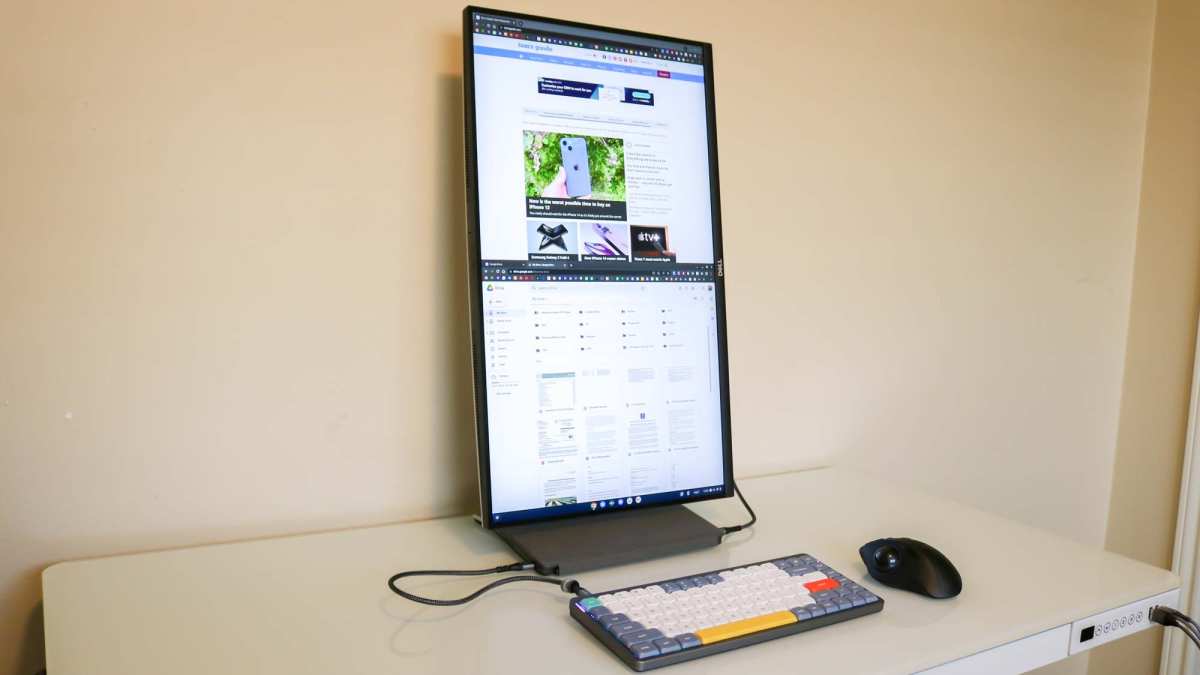
Can touchscreen monitors be vertical? Absolutely. Most modern touch displays support portrait orientation, but the experience varies based on your stand, your touch technology, and how your operating system handles the switch. For more background on real-world performance, read our breakdown of whether microled monitors be vertical.
Let's walk through exactly what you need to know before you rotate that screen.
Quick Answer
Yes, touchscreen monitors can be used vertically. Most modern displays support portrait mode through a combination of hardware and software. Your stand or mount must physically allow 90-degree rotation.
Touch input must remap correctly after you rotate the display. If both conditions are met, portrait touch works reliably for most everyday tasks. To see how this holds up against alternate models, explore why are touchscreen monitors useful.
The Three Things That Actually Determine If Portrait Touch Will Work for You
Before you go rotating your monitor, you need to check three things. Skip any one of these and you'll end up frustrated with a screen that looks right but doesn't behave properly.
Your Stand or Mount Has to Support It Physically
This is the part most people overlook. You can have the most advanced touchscreen on the planet, but if your stand doesn't pivot, you're stuck in landscape mode. Check your monitor's specs for "pivot" support.
This refers to the ability to rotate the display 90 degrees clockwise or counterclockwise.
Most budget touchscreen monitors come with a fixed stand that only tilts forward and back. Mid-range and premium models, like Dell's P-series or Elo's commercial displays, typically include a full-adjustable stand with pivot, swivel, and height adjustment. If your monitor doesn't have pivot support built in, you can use a VESA-compatible monitor arm that does.
Just make sure the arm is rated for your monitor's weight.
Your Touch Input Has to Remap Correctly After Rotation
Here's where things get tricky. When you physically rotate a touchscreen, the touch controller needs to remap its coordinate system. In landscape mode, the X-axis runs left to right across the wide edge.
In portrait mode, that same axis now runs top to bottom along the short edge.
Most modern projected capacitive (PCAP) touchscreens handle this automatically through the operating system. But some older or cheaper displays, especially those using infrared touch technology, may not remap correctly. You end up tapping one spot and the system registers a touch somewhere else entirely.
This is the number one complaint in user forums about portrait touch setups.
Your OS and Apps Need to Play Along
Windows, macOS, and Linux all support display rotation natively. Windows lets you rotate through Display Settings or by pressing Ctrl+Alt+Arrow key. macOS requires you to go into System Settings and adjust the rotation dropdown on supported displays. Linux users can use xrandr or the display settings in their desktop environment.
The bigger issue is app compatibility. Some applications don't handle portrait mode well. Full-screen video players, certain games, and older software may display incorrectly or force themselves back to landscape.
For productivity tasks like reading documents, coding, or browsing the web, portrait mode works fine across all major operating systems.
How Touchscreen Technology Affects Portrait Mode Performance
Not all touchscreens are created equal. The type of touch technology in your monitor has a direct impact on how well portrait mode works. Let's break down the four main types you'll encounter.
Projected Capacitive (PCAP) — The Most Common Today
PCAP is what you'll find in most consumer touchscreen monitors released after 2018. It's the same technology used in smartphones and tablets. PCAP touchscreens use a grid of tiny electrodes embedded in the glass that detect the electrical charge from your finger.
The good news is that PCAP handles portrait mode extremely well. The touch controller doesn't care about physical orientation. It simply detects where your finger is on the grid and reports those coordinates to the operating system.
The OS then maps those coordinates to the rotated display. This means touch accuracy remains consistent regardless of how you orient the screen.
Most PCAP monitors from brands like Dell, ASUS, and ViewSonic support portrait mode without any issues. Just make sure you're using the manufacturer's touch driver rather than the generic HID driver, as the custom driver often handles rotation more reliably.
Infrared (IR) Touch — Watch for Edge Issues
Infrared touchscreens use a grid of IR LEDs and photodetectors bezel around the screen's edge. When your finger breaks an invisible beam, the system calculates the touch point based on which beams were interrupted.
IR touch works fine in portrait mode in most cases. However, some older or lower-quality IR implementations have issues at the screen edges after rotation. The bezel-mounted sensors don't move when you rotate the display, which can cause slight accuracy problems near the top of a portrait-oriented screen.
If you're using an IR touch monitor and notice touch drift in portrait mode, this is likely the cause.
Resistive Touch — Older but Still Around
Resistive touchscreens use two flexible layers that press together when you touch the screen. They're common in industrial settings, older kiosks, and some budget monitors. Resistive touch works in any orientation since it relies on pressure detection rather than electrical charge or light beams.
The downside is that resistive touch requires more force to register and doesn't support multi-touch. If you're using a resistive touchscreen in portrait mode, you'll need to calibrate it after rotation through your OS's touch calibration tool. Otherwise, the pressure points won't align with what's displayed on screen.
Surface Acoustic Wave (SAW) — Less Common, Similar to IR
SAW touchscreens use ultrasonic waves across the surface of the glass. Like IR, they can work in portrait mode but may need recalibration. SAW technology is less common in modern consumer monitors, so you're unlikely to encounter this unless you're working with specialized industrial displays.
Step-by-Step: How to Set Up a Touchscreen Monitor in Portrait Mode
Ready to make the switch? Follow these steps to get your touchscreen working properly in vertical orientation.
Step 1: Check Your Stand or Mount for Pivot Support
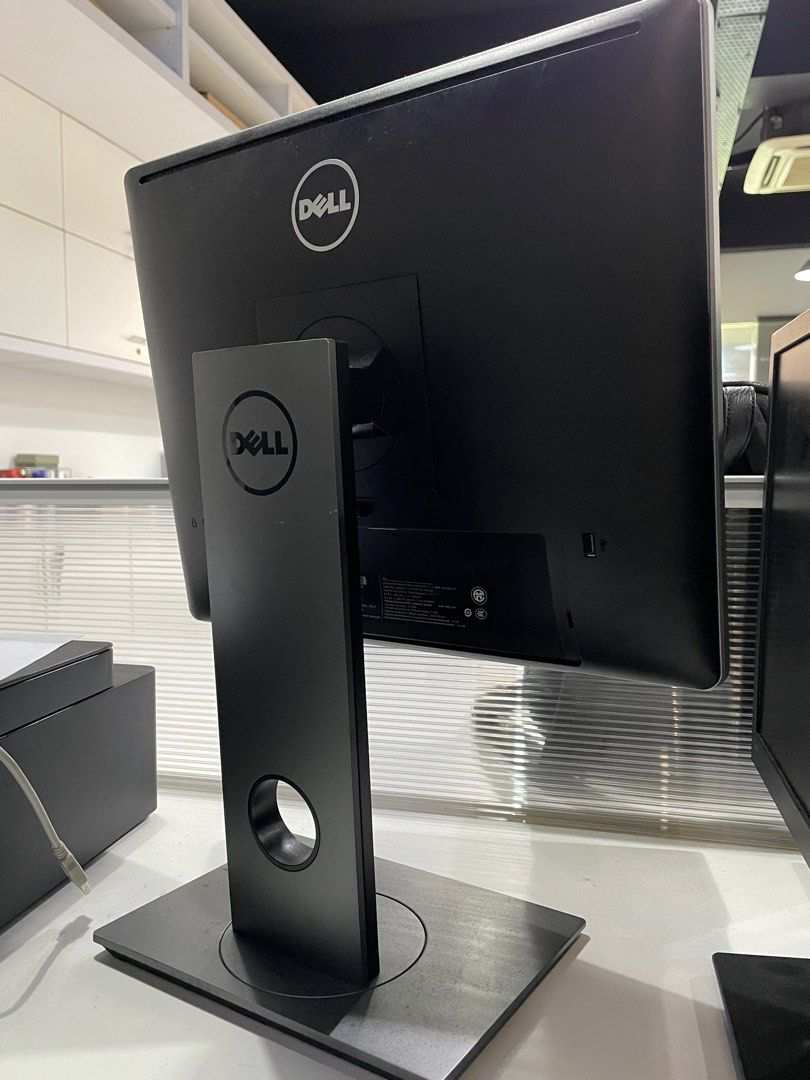
Look at your monitor's stand specifications. Check the product page or user manual for "pivot" in the adjustment specs. If your stand supports pivot, you'll typically rotate the display by grabbing both sides and turning it 90 degrees.
Some monitors have a release button or latch you need to press first.
If your stand doesn't support pivot, you have two options. You can buy a VESA monitor arm that supports rotation. Arms from brands like Ergotron, AmazonBasics, and HUANUO offer pivot functionality for monitors in the 13 to 32 inch range.
Make sure to check the weight capacity and VESA pattern compatibility before purchasing.
Step 2: Physically Rotate the Display
Power on your monitor before rotating it so you can see what you're doing. Grip the display firmly on both sides and rotate it 90 degrees clockwise. Most monitors with pivot stands will click into place at the 90-degree mark.
Some displays allow rotation in either direction, while others only rotate clockwise.
If you're using a monitor arm, loosen the tension adjustment before rotating. Then tighten it once the display is in portrait orientation. Make sure the display feels stable and doesn't drift or sag.
Step 3: Rotate the Screen in Your Operating System
Now you need to tell your computer to rotate the display output. Here's how on each major platform:
Windows 10/11:
- Right-click the desktop and select "Display settings"
- Click the display you want to rotate
- Under "Display orientation," select "Portrait"
- Or use the keyboard shortcut: Ctrl+Alt+Up Arrow (normal), Ctrl+Alt+Left Arrow (90° counterclockwise), Ctrl+Alt+Right Arrow (90° clockwise)
macOS:
- Open System Settings
- Go to Displays
- Click the rotation dropdown menu (only appears on supported external displays)
- Select 90° or 270°
Linux (GNOME):
- Open Settings
- Go to Displays
- Click the orientation dropdown
- Select "Portrait" or "Portrait (flipped)"
Step 4: Calibrate or Verify Touch Input Mapping
After rotating the display, test your touch input. Open any application and tap several spots on the screen. Check that the touch registers exactly where you tapped.
If it does, you're all set. If not, you need to calibrate.
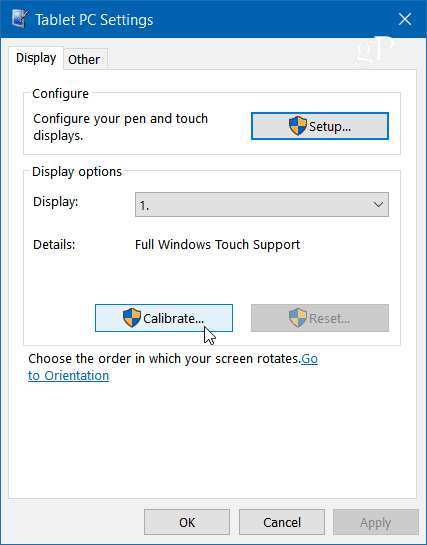
Windows calibration:
- Open Control Panel
- Go to Hardware and Sound > Tablet PC Settings
- Click "Calibrate"
- Follow the on-screen prompts to tap the crosshairs
- Choose "Portrait" orientation when prompted
Linux calibration:
- Use the
xinput_calibratortool - Follow the on-screen instructions
- Save the calibration data to your X config
Most modern PCAP touchscreens won't need calibration. But if you're using IR or resistive technology, this step is essential.
Step 5: Test Touch Accuracy Across the Full Screen
Don't just test the center of the screen. Touch each corner and the edges. Pay special attention to the top of the portrait display, which was previously the right edge in landscape mode.
This is where most touch mapping issues show up.
Open a web browser and try tapping small links. Open a text editor and try selecting text by touch. If everything feels natural and responsive, your portrait touch setup is working correctly.
If you notice consistent offset in one area, recalibrate using the steps above.
When Portrait Touch Works Great — And When It Doesn't
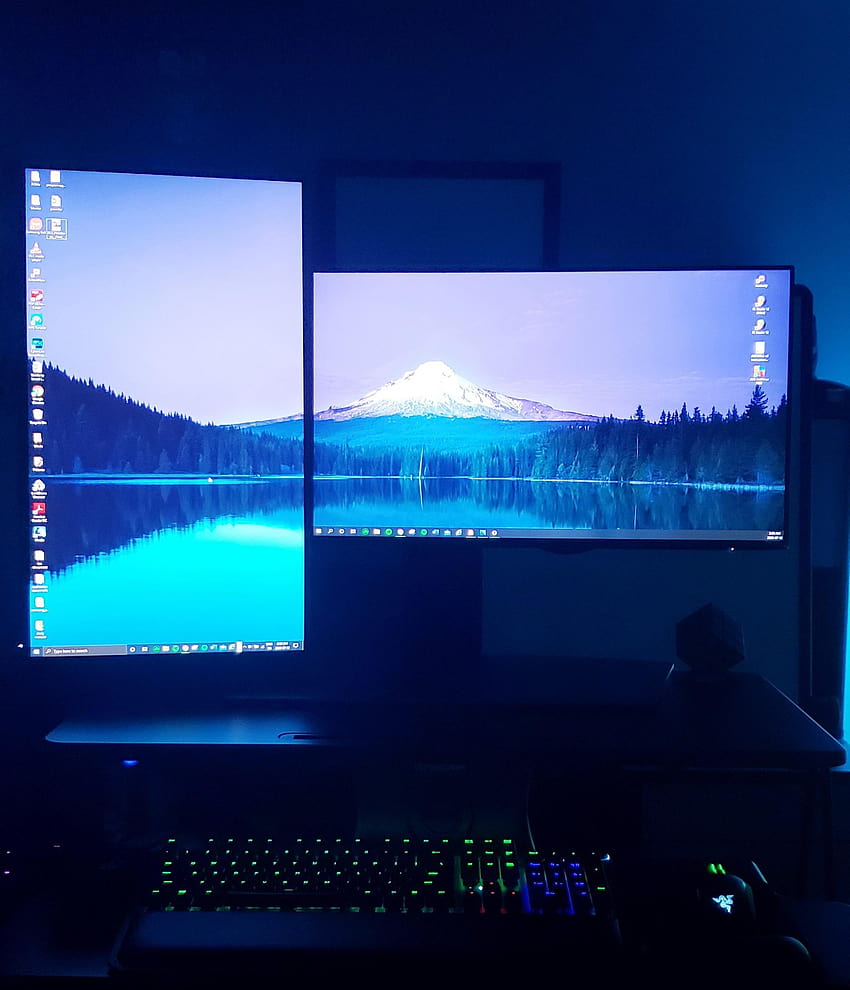
Portrait touch isn't a one-size-fits-all solution. Some workflows benefit enormously from vertical orientation. Others will leave you frustrated and reaching for the rotation settings to switch back.
Use Cases Where Portrait Touch Shines
Coding and software development. Developers who work with long files find portrait mode invaluable. A 27-inch display in portrait shows roughly 40 to 60 more lines of code than the same screen in landscape. Touch lets you scroll through code naturally without grabbing a mouse.
Document review and reading. PDFs, contracts, and e-books look natural in portrait. You see a full page without scrolling. Touch navigation feels intuitive for flipping pages and zooming into sections.
Social media content creation. If you're reviewing Instagram Stories, TikTok videos, or any vertical content, a portrait display shows it at full size without black bars. This is a genuine workflow improvement for social media managers and content creators.
Digital signage and kiosks. Retail stores and restaurants frequently use portrait displays for menu boards, wayfinding, and promotional content. Touch-enabled portrait kiosks let customers browse products vertically, mimicking the smartphone experience they're already used to.
Point-of-sale systems. Many POS interfaces are designed vertically. Running them on a portrait touchscreen matches the software's intended layout and reduces unnecessary scrolling for cashiers.
Scenarios Where You'll Hit Frustrations
Video editing and playback. Video content is designed for landscape. Playing a 16:9 video on a portrait display gives you a tiny player surrounded by massive black bars. Video editing timelines also rely on horizontal space.
Gaming. Most games assume landscape orientation. Portrait mode either won't work or will display the game in a narrow vertical strip. Touch gaming in portrait is a non-starter for anything beyond simple mobile-style games.
Reaching the top of the screen. This is the ergonomic reality nobody talks about. A 27-inch monitor in portrait mode puts the top of the screen around 55 to 60 inches from the floor at standard desk height. That's above eye level for most seated users.
You'll find yourself stretching or standing to touch the upper portion. For touch-heavy workflows, consider using a 21.5 or 24-inch display instead.
Apps that don't support portrait. Some desktop applications simply don't render correctly in portrait mode. Older software, certain utilities, and some full-screen applications may display incorrectly or refuse to rotate.
Common Mistakes People Make When Rotating a Touchscreen
The most common mistake is assuming rotation is purely a software operation. You need to physically rotate the display AND rotate the OS output. Skip either step and you'll have a sideways image with non-functional touch.
Another frequent issue is forgetting to check the USB connection. Some monitors route touch input through USB, and the touch driver needs to recognize the new orientation. If touch stops working after rotation, unplug and replug the USB cable.
This forces the driver to reinitialize.
People also overlook cable management. Rotate a monitor and your HDMI, DisplayPort, and USB cables suddenly pull at odd angles. Use a monitor arm with cable routing or add adhesive cable clips to keep things tidy.
Finally, don't ignore the monitor's on-screen display (OSD) menus. Some displays have a rotation setting in the OSD that needs to be enabled separately from the OS rotation. Check your monitor's manual for any display-specific rotation options.
What About Using a Monitor Arm Instead of the Included Stand?
A monitor arm often makes more sense than the included stand for portrait touch setups. Most basic stands only offer tilt and swivel. A full-adjustable arm gives you pivot, height adjustment, and easier repositioning throughout the day.
When shopping for an arm, check three things. First, confirm it supports your monitor's VESA pattern, typically 75x75mm or 100x100mm. Second, verify the weight capacity exceeds your monitor's weight by at least 20 percent for stability.
Third, make sure the arm specifically lists pivot or portrait support in its specs.
Gas-spring arms from Ergotron and HUANUO handle portrait rotation well. Budget arms under $50 sometimes struggle with heavier touchscreen monitors, which tend to be heavier than non-touch displays due to the touch layer and controller board. A wobbly arm makes touch accuracy worse because the screen moves every time you tap it.
Touchscreen Monitor Portrait Mode vs. Alternatives
If you're not sure portrait touch is right for you, consider these alternatives.
Portrait Touch Monitor vs. Non-Touch Monitor + Software Rotation
A non-touch monitor rotated to portrait gives you the vertical screen real estate without any touch complexity. If you don't actually need touch input, this is simpler and cheaper. Touch monitors cost roughly $80 to $200 more than equivalent non-touch models.
Save the money if you're primarily reading or viewing content.
Portrait Touch Monitor vs. Tablet on a Stand
An iPad or Android tablet on a stand gives you a dedicated portrait touch device. This works well if your portrait needs are separate from your main workstation. The downside is you're managing a separate device with its own battery, OS, and app ecosystem.
A portrait touch monitor connected to your PC keeps everything in one system.
Dedicated Portrait Display vs. Rotating a Standard Touchscreen
Some monitors are designed specifically for portrait use, like Elo's commercial signage displays. These often have narrower bezels and better thermal management for 24/7 operation. For most home and office users, rotating a standard touchscreen works fine.
Dedicated portrait displays make more sense for kiosks and digital signage installations.
Costs and What You'll Actually Spend
Touchscreen monitors with good pivot stands typically run $300 to $600 for 24-inch models. Premium options from Elo or HP hit $800 to $1,200 for larger sizes or commercial-grade builds. Adding a quality monitor arm costs another $40 to $150 depending on weight capacity and build quality.
If your current touch monitor lacks pivot support, a VESA arm is usually cheaper than buying a whole new monitor. Budget around $50 to $80 for a reliable single-arm unit that handles 24 to 27-inch displays. This avoids the frustration of trying to rig a fixed stand into portrait mode.
Expert Tips for Getting Portrait Touch Right the First Time
Always install the manufacturer's touch driver before rotating. Generic Windows HID drivers work, but custom drivers from Dell, Elo, or ASUS handle rotation more reliably. Check the support page for your specific monitor model.
Set your monitor height so the center of the portrait display sits at eye level. This means the top third of the screen will be above your natural gaze, which is fine for occasional touch. If you're touching the top frequently, lower the display or tilt it slightly forward.
Keep a shortcut for rotating the display handy. Windows lets you create a custom shortcut through graphics driver software from Intel, NVIDIA, or AMD. This makes it easy to switch between portrait and landscape when your workflow changes throughout the day.
Frequently Asked Questions
Does rotating a touchscreen void the warranty?
No, not if the manufacturer includes pivot support in the specs. Using the display in portrait mode as intended doesn't void coverage. However, using a third-party mount or exceeding the stand's rated adjustments could void the warranty on the stand itself.
Will portrait mode reduce touch accuracy?
On modern PCAP displays, accuracy stays consistent after rotation. Older IR or resistive touchscreens may show slight drift at the edges. A quick calibration usually fixes any offset issues.
Can I use a touchscreen monitor in portrait mode with a Mac?
Yes, but only on supported external displays. Apple's built-in MacBook touchscreen doesn't exist yet. For external monitors, rotation works through System Settings on displays that support it.
Not all third-party touch monitors offer macOS rotation support, so check compatibility before buying.
What size touchscreen works best for portrait mode?
21.5 to 24 inches is the sweet spot. Anything larger puts the top of the screen uncomfortably high for seated touch use. 27-inch portrait displays work well for kiosks and standing applications where users can reach the full screen.
Do I need a special cable for portrait mode?
No. The same HDMI, DisplayPort, or USB-C cables work in any orientation. The rotation is handled by the monitor and operating system, not the cable connection.
Final Verdict: Should You Run Your Touchscreen Monitor Vertically?
Portrait touch makes sense if your workflow benefits from vertical screen space and you touch the screen regularly. Developers, document reviewers, and content creators get the most value. If you mainly watch video or play games, stick with landscape.
Check your stand's pivot support first. If it's there, try portrait mode for a week before buying any accessories. If your stand doesn't pivot, a $50 to $80 VESA arm is a worthwhile investment.
The setup takes about 15 minutes and the productivity gains for the right use case are real.

Similar Posts





















