Why Are Touchscreen Monitors Useful

Why are touchscreen monitors useful? If you've been eyeing one for your desk setup, you're probably wondering whether the premium price tag actually translates into real productivity gains or if it's just a gimmick that looks cool in a showroom. The honest answer depends entirely on what you do all day and how you interact with your screen.
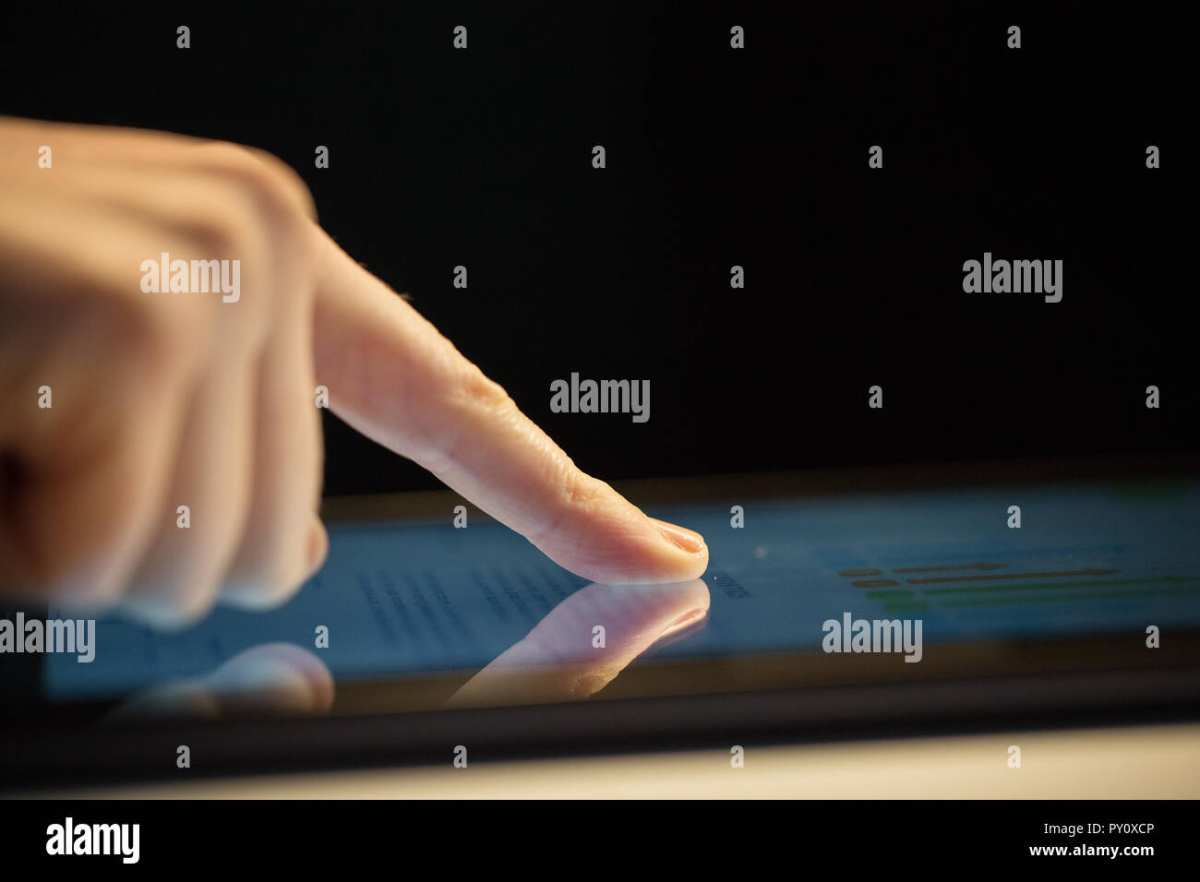
Touchscreen monitors combine a standard display with a touch-sensitive overlay, letting you tap, swipe, pinch, and draw directly on the screen. Most modern models use projected capacitive (PCAP) technology, the same system in your smartphone, supporting 10-point multi-touch and often active stylus input with 8192 levels of pressure sensitivity. As of 2026, the market has matured significantly, but the technology still carries tradeoffs that aren't obvious from a spec sheet.
Let's break down exactly how these displays work, where they genuinely help, and where your money is better spent elsewhere.
Image source: Bing (Web (fair-use with source credit))
Quick Answer
Touchscreen monitors let you interact directly with your screen using fingers or a stylus. They speed up annotation, drawing, and markup tasks significantly. They cost 30-80% more than equivalent non-touch displays.
They suit creative professionals, educators, and kiosk operators best. Most office workers and gamers don't benefit enough to justify the price.
How Touchscreen Monitors Work: The Tech Behind the Glass
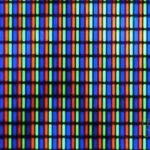
Touchscreen monitors aren't magic. They're a standard LCD or OLED panel with a touch-sensing layer bonded on top of the display surface. The two dominant technologies you'll encounter are projected capacitive (PCAP) and resistive touch, and they work in completely different ways.
PCAP is what you'll find in virtually every consumer and professional touch monitor today. A grid of transparent electrodes sits behind a glass overlay. When your finger (a conductor) approaches the glass, it distorts the screen's electrostatic field at that point.
The controller chip calculates the exact coordinates and sends that data to your computer through a USB connection. This is the same technology in every modern smartphone and tablet, which is why the response feels familiar and immediate.
Resistive touch, on the other hand, uses two flexible layers separated by a tiny air gap. Pressing the screen pushes the top layer into contact with the bottom layer, and the controller measures the voltage change to determine position. Resistive screens work with any object (glove, stylus, fingernail) but don't support multi-touch and feel less responsive.
You'll mostly see these in industrial, medical, and point-of-sale equipment now.
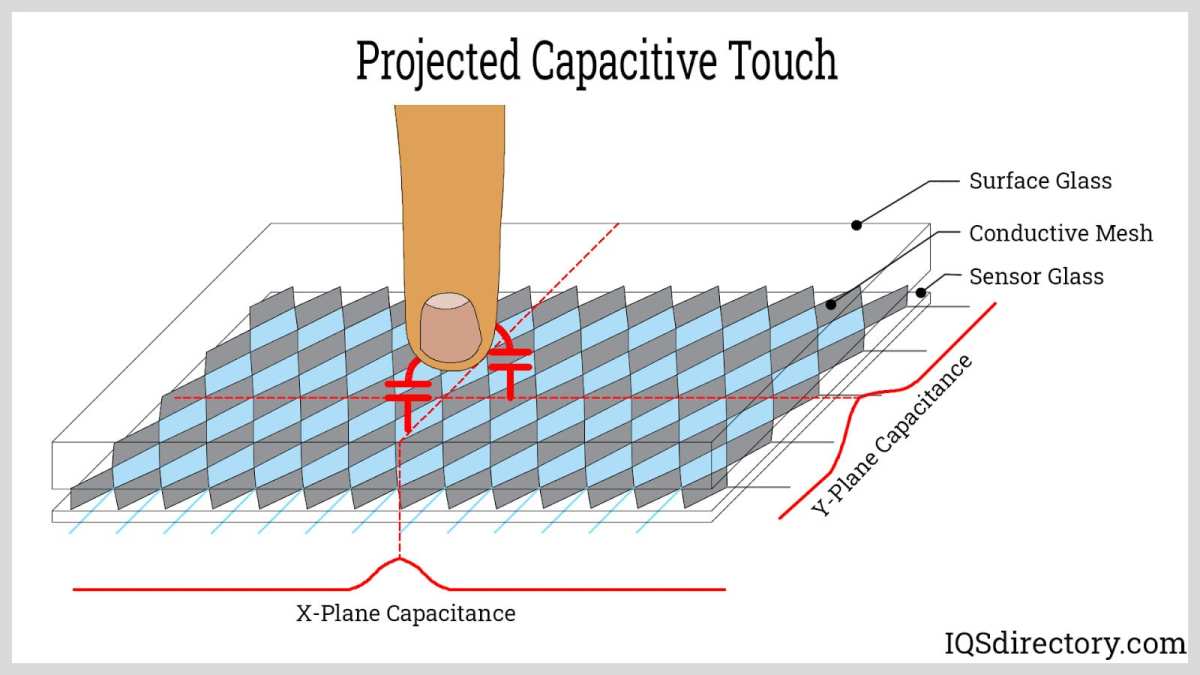
Image source: Bing (Web (fair-use with source credit))
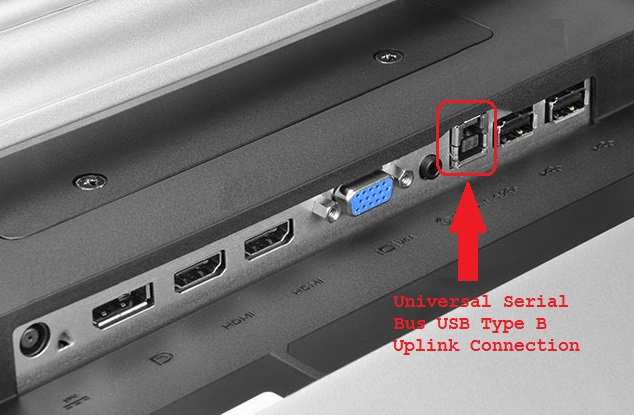
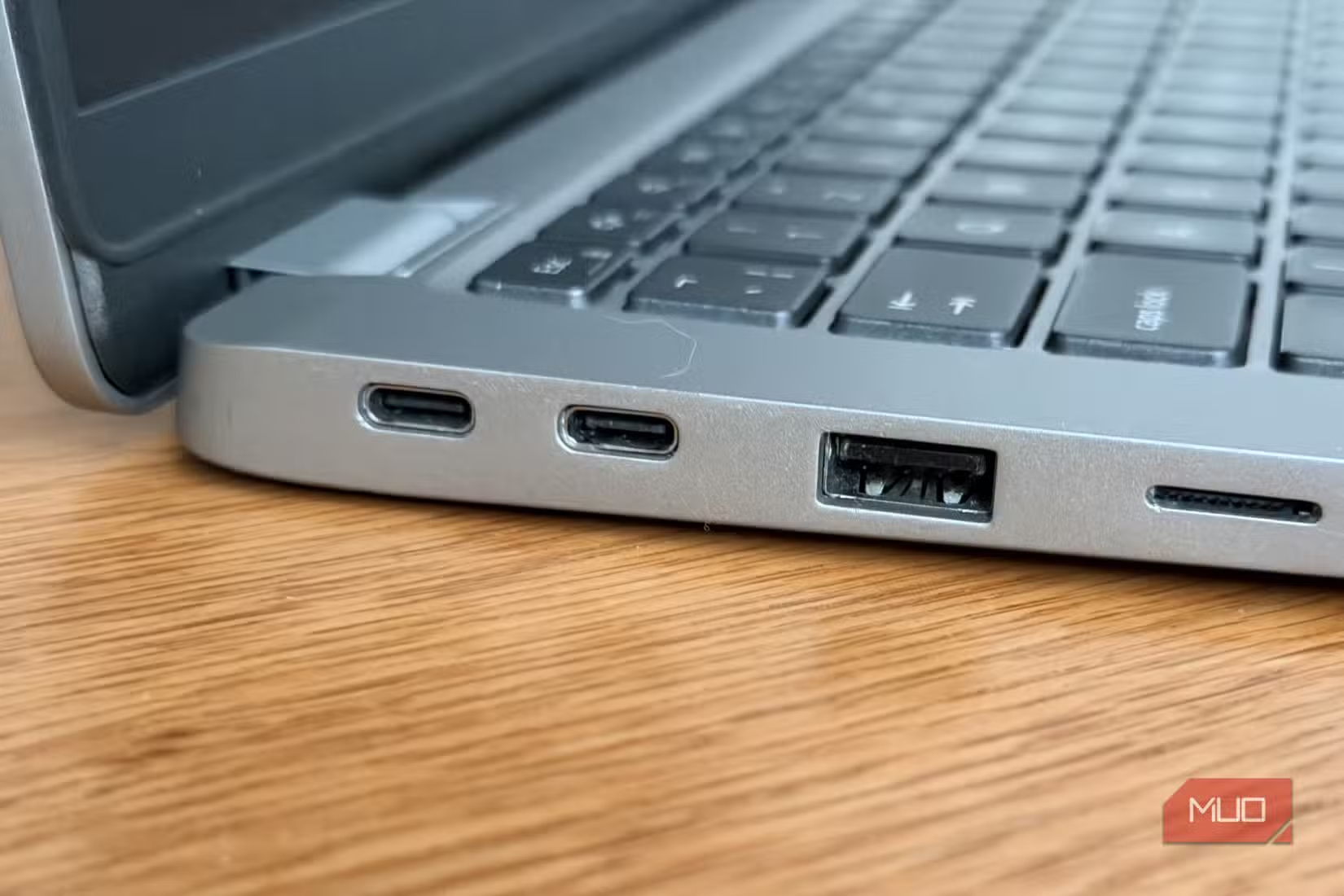
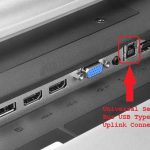
Here's something most buyers don't realize until they unbox the monitor. The touch data travels through a separate USB cable from the video signal. Many touch monitors require both an HDMI or DisplayPort cable for the picture and a USB-A or USB-C upstream cable for the touch functionality.
Some newer models consolidate everything through a single USB-C connection carrying video, touch data, and power simultaneously, but you need to verify your laptop or GPU supports USB-C DisplayPort Alt Mode for that to work.
The glass overlay itself adds measurable thickness and weight. A 24-inch touch monitor typically weighs 2-4 pounds more than its non-touch equivalent. That glass layer also reduces brightness by roughly 10-15% and can introduce slight parallax, meaning the cursor or pen tip appears a millimeter or two below the actual contact point.
Higher-end models minimize this with optically bonded glass, where the touch layer is laminated directly to the LCD panel with no air gap.
The Real Benefits That Make a Difference
The benefits of a touchscreen monitor aren't universal. They're highly specific to certain workflows, and understanding exactly where the value lives will help you decide if one belongs on your desk.
Direct manipulation speeds up visual tasks. When you're editing photos, masking layers, or retouching portraits, drawing directly on the image with a stylus feels dramatically more natural than using a separate pen tablet where you look at the screen while your hand moves on a pad elsewhere. The hand-eye coordination gap disappears. Digital artists consistently report faster workflow once they adapt to on-screen drawing, especially for tasks like dodging, burning, and freehand masking.
Annotation and markup become effortless. If your work involves reviewing documents, marking up architectural drawings, or grading student papers, a touchscreen monitor lets you write or draw directly on the content. No need to print, mark up by hand, and scan. You open the PDF, grab the pen, and go.
For educators presenting slides, the ability to circle key points or draw diagrams live during a lecture keeps students engaged in ways that clicking a mouse simply doesn't.
Multi-touch gestures add a new interaction layer. Pinch-to-zoom on a full-size monitor, two-finger rotate on a 3D model, three-finger swipe to switch desktops. These gestures feel natural because you've been using them on phones and tablets for over a decade. On a large display, they're genuinely useful for navigating complex timelines in video editing software or zooming into detailed CAD drawings without reaching for keyboard shortcuts.
Kiosk and public-facing applications are the obvious win. Retail check-in screens, restaurant ordering terminals, museum exhibits, hotel lobby directories. Any situation where you need a non-technical user to interact with a computer quickly and intuitively, touch wins every time. The learning curve is essentially zero because everyone already knows how to tap and swipe.
Accessibility improvements matter more than people realize. Users with certain motor impairments find touch input easier to control than a mouse. People with limited fine motor control can tap a large on-screen target more reliably than they can click a small button with a cursor. For some users, a touchscreen monitor isn't a luxury, it's the difference between being able to use a computer independently and not.
The Drawbacks Nobody Talks About Honestly
Touchscreen monitors have real limitations that spec sheets won't tell you. Going in with clear expectations saves you from buyer's remorse.
Gorilla arm is a genuine problem. Holding your arm up to touch a vertical screen for extended periods causes shoulder and forearm fatigue. It's called gorilla arm, and it was documented in human-computer interaction research decades ago. For short interactions (tapping a button, zooming briefly), it's fine.
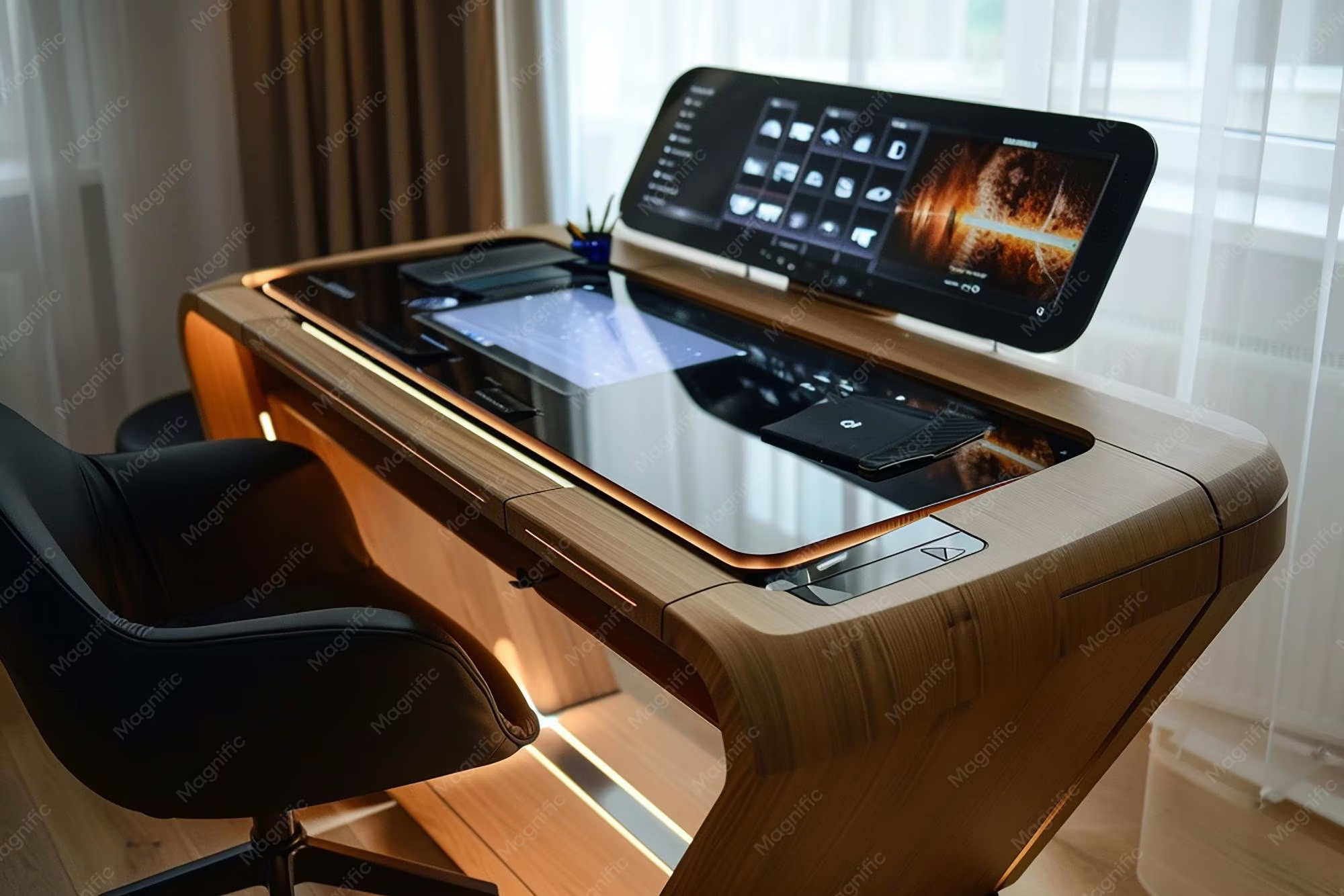
For a full workday of drawing or annotation, it's exhausting unless you tilt the monitor to a near-flat angle or use a drafting-table setup.
The price premium is substantial. A 24-inch 4K touch monitor with pen support typically runs $500-$900. A comparable non-touch 4K monitor with the same color accuracy and panel quality costs $250-$400. You're paying a 40-100% premium for the touch layer and pen technology.
That's real money, and for many workflows, it doesn't pay for itself in time saved.
Size options are frustratingly limited. The vast majority of touchscreen monitors top out at 27 inches. If you want a 32-inch or larger touch display, your options shrink dramatically and prices jump into the $1,500-$3,000 range. Compare that to the non-touch market where 32-inch 4K monitors are abundant and affordable.
The touch overlay manufacturing process simply doesn't scale to larger sizes as cost-effectively.
Panel quality often takes a back seat. Because the touch monitor market is smaller, manufacturers refresh their touch lines less frequently. You'll find touch monitors using panel technology that's one or two generations behind the best non-touch options. If you need the absolute best color accuracy, contrast ratio, or refresh rate, the non-touch market gives you far more choices.
Fingerprints and smudges are a constant battle. Every touch leaves oil on the screen. If you're doing color-critical work, those smudges aren't just annoying, they affect how you perceive the image. You'll be cleaning the screen multiple times a day.
Some models include oleophobic coatings that help, but they wear off over time.
Touch can interfere with precision work. When you rest your palm on the screen while drawing (which is natural), the monitor needs reliable palm rejection to ignore that contact and only register the pen. Cheaper models struggle with this, registering phantom touches or dropping pen input when your hand is on the surface. It's maddening when it happens and it's a common complaint in user reviews of budget touch monitors.
Touchscreen Monitor vs. Pen Tablet vs. iPad: Which Setup Wins
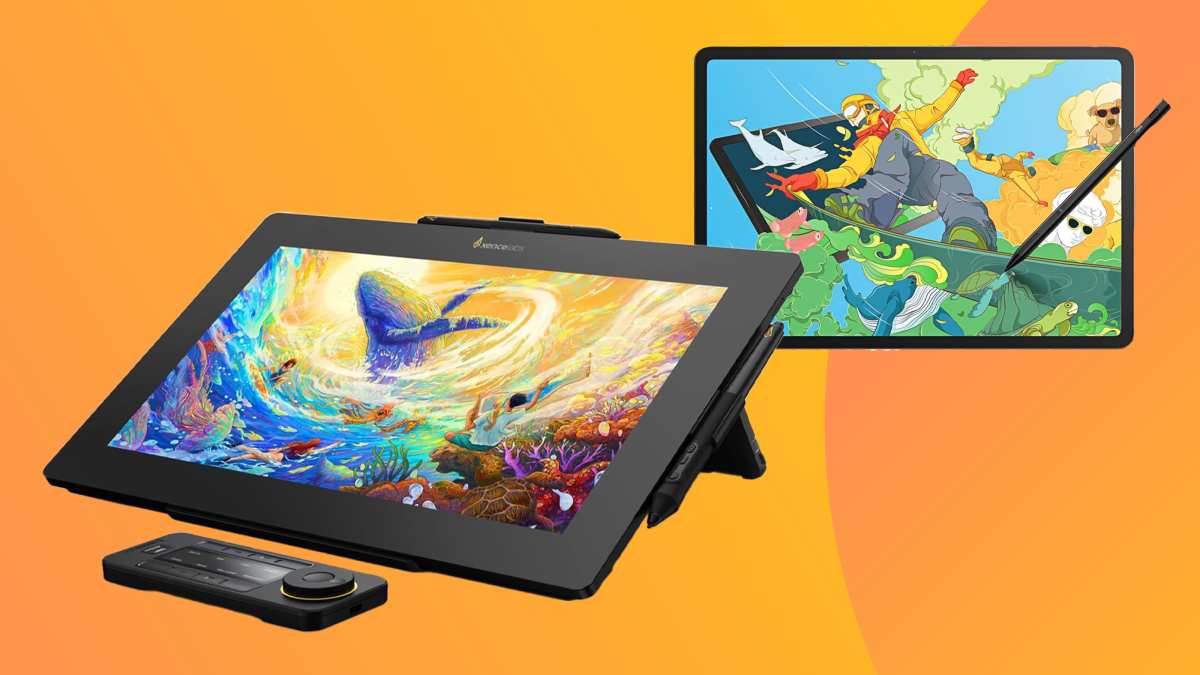
Image source: Bing (Web (fair-use with source credit))
This is where the real decision lives. A touchscreen monitor isn't the only way to get pen input on your computer, and the alternatives each have compelling strengths.
Image source: Bing (Web (fair-use with source credit))
| Factor | Touchscreen Monitor | Pen Tablet (No Screen) | iPad as Secondary Display |
|---|---|---|---|
| Price range | $300-$1,200 | $50-$400 | $329-$1,099+ |
| Screen size | 15-27 inches | N/A (desk surface) | 11-13 inches |
| Hand-eye coordination | Direct (draw where you look) | Indirect (look at screen, draw on pad) | Direct (draw where you look) |
| Desk space needed | Monitor footprint only | Monitor + tablet footprint | Minimal |
| Portability | Low | High | High |
| Color accuracy | Good to excellent | N/A | Good (varies by model) |
| Multi-touch gestures | Full support | None | Full support |
| Best for | Full-time creative work | Budget-conscious artists | Mobile/versatile workflows |
Touchscreen monitors win when you want a permanent, full-size drawing surface at your desk and you're doing professional creative work daily. The direct pen-on-screen experience at 23-27 inches is hard to beat for extended sessions. You get a large, color-accurate display that doubles as your regular monitor when you're not drawing.
Pen tablets win on price and portability. A Wacom Intuos or Huion Inspiroy costs $50-$200 and gives you excellent pen input with pressure sensitivity and tilt support. The hand-eye coordination takes a few days to learn, but most artists adapt quickly.
The downside is you're looking at your monitor while your hand moves on a separate surface, which some people never fully adjust to. Pen tablets also take up desk space alongside your monitor.
iPad setups win for versatility. Using an iPad Pro with Apple Pencil as a secondary display (via Sidecar, Duet Display, or Astropad) gives you a portable drawing surface that also functions as a standalone tablet. The Apple Pencil experience is arguably the best in the industry.
The tradeoff is screen size (11-13 inches feels small for long sessions) and the slight latency introduced by the wireless or wired connection to your computer.
The honest truth is that no single option is universally best. Your choice depends on budget, desk space, how many hours a day you'll use it, and whether you need portability. Many professionals actually use a combination, a touchscreen monitor at their desk and an iPad for client meetings or working from a coffee shop.
Who Actually Benefits From a Touchscreen Monitor
Not everyone needs one, and that's perfectly fine. The people who get the most value from a touchscreen monitor tend to fall into a few specific categories.
Digital artists and illustrators are the most obvious fit. If you spend hours drawing, painting, or inking digitally, the direct pen-on-screen experience is transformative. You get pressure sensitivity, tilt recognition, and the ability to see exactly where your stroke lands without the mental translation required by a pen tablet.
Concept artists, comic book illustrators, and matte painters consistently rank on-screen drawing as their preferred workflow once they make the switch.
Photographers and retouchers benefit in ways that might surprise you. Dodging and burning with a pen directly on the image gives you far more control than a mouse. Masking hair, selecting fine edges, and applying localized adjustments all feel more precise when you're drawing the mask directly on the photo.
High-end retouchers working on beauty and product photography often report that a touchscreen monitor cuts their editing time on complex masking tasks by 20-30%.
Educators and presenters get a tool that changes how they communicate. Circling a key term on a slide, drawing a quick diagram to explain a concept, annotating a student's work in real time. These small interactions keep audiences engaged and make explanations clearer.
Teachers who use touch monitors in their classrooms report that students are more likely to participate when they know they can come up and interact with the screen directly.
Architects, engineers, and CAD professionals use touch monitors for markup and review rather than primary design work. Redlining drawings, adding notes to schematics, and navigating 3D models with pinch and rotate gestures speeds up the review process significantly. It's not about replacing the mouse for precise CAD input.
It's about making the annotation and collaboration phases faster.
Medical professionals in radiology and pathology use touch-enabled displays to annotate scans and slides. Pointing directly at a region of interest during a consultation, drawing boundaries around anomalies, and marking up images for patient records are all more intuitive with touch than with a mouse.
Who Should Skip It Entirely
Just as important as knowing who benefits is knowing who doesn't. A touchscreen monitor is a poor investment for several common use cases.
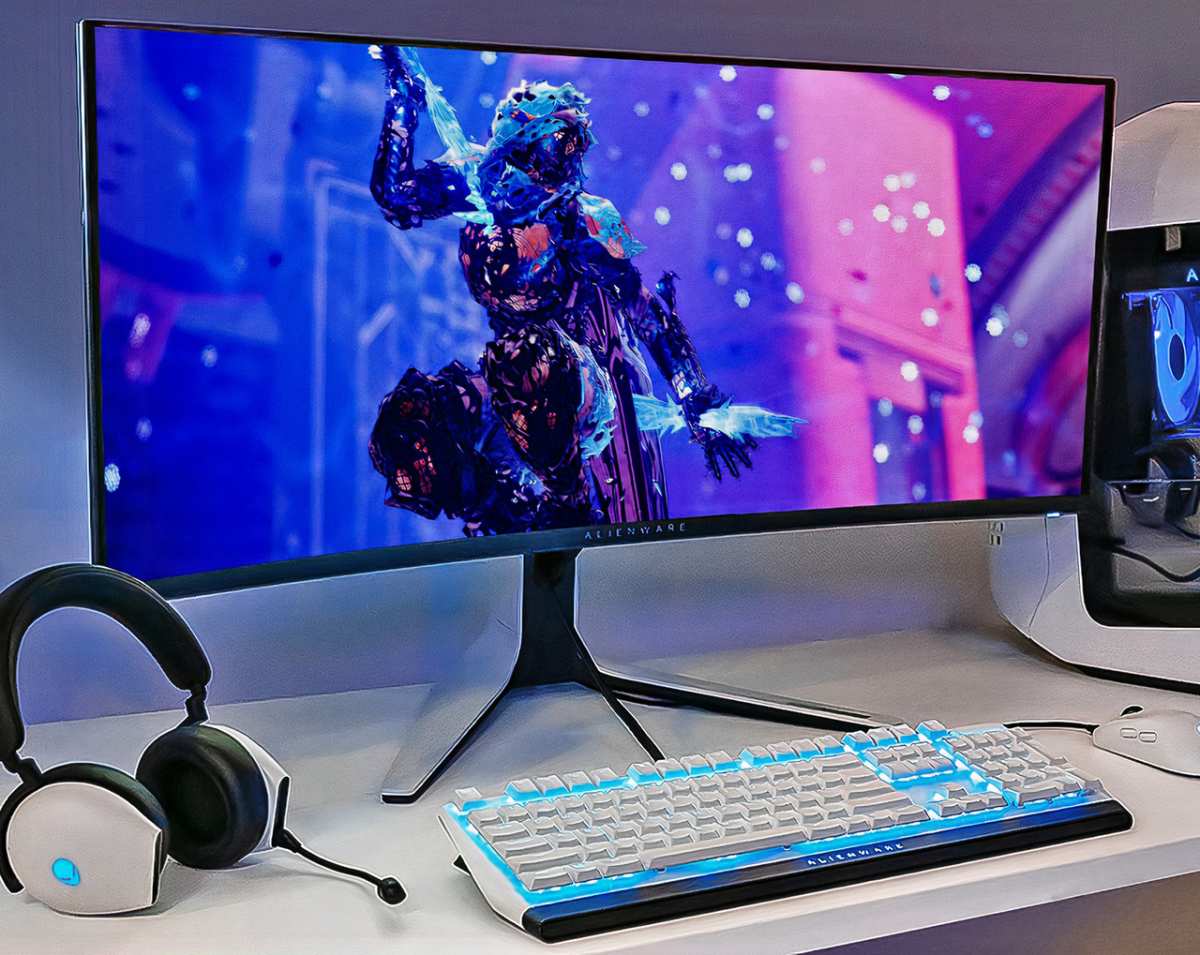
Gamers should almost universally skip touch monitors. The gaming monitor market offers incredible options at every price point, and touch capability adds cost without adding value for gaming. No popular PC game is designed around touch input. You'll pay more for a touch layer that sits unused while getting fewer panel options, lower refresh rates, and slower response times than a dedicated gaming monitor at the same price.
Standard office workers who spend their day in email, spreadsheets, and word processors won't see meaningful productivity gains. Clicking buttons and typing documents is faster with a mouse and keyboard than with touch. The arm fatigue issue makes touch actively worse for these tasks over a full workday.
If your primary computer use is productivity software, put that money toward a better non-touch monitor with higher resolution or better ergonomics.
Color-critical professionals who need the absolute best panel technology may find the touch monitor market limiting. If you're a professional colorist working in a calibrated studio environment, the slight brightness reduction and potential color shift from the touch glass layer can be a dealbreaker. The best non-touch reference monitors offer better uniformity, higher brightness, and more precise calibration options.
Anyone on a tight budget should consider whether the premium is justified. If you're choosing between a good touch monitor and a great non-touch monitor at the same price, the non-touch option will almost always give you better image quality, more features, and longer useful life. The touch capability is only valuable if you'll actually use it daily.
What to Look for When Buying a Touchscreen Monitor
If you've decided a touchscreen monitor makes sense for your workflow, these are the specs and features that actually matter.
Touch technology type should be your first filter. Look for projected capacitive (PCAP) with at least 10-point multi-touch. Avoid resistive touch monitors unless you have a specific need for gloved operation or extreme durability.
PCAP gives you the responsive, multi-touch experience you expect from modern devices.
Pen support specifications matter enormously if you're buying for creative work. Look for active stylus support with 8192 levels of pressure sensitivity and tilt recognition. Check whether the pen is included or sold separately, as pens typically cost $30-$100 on their own.
Wacom's Electro Magnetic Resonance (EMR) and Microsoft'sMPP (Microsoft Pen Protocol) are the two dominant pen technologies, and both work well.
Panel quality determines whether the monitor is useful for professional work. Look for IPS panels with at least 99% sRGB coverage for general creative work, or 95%+ DCI-P3 for video and cinema work. Check the manufacturer's stated Delta E value, with Delta E < 2 being the target for color-accurate work.
Resolution should be at least 1440p for 24-inch models and 4K for 27-inch models to avoid visible pixelation.
Connectivity can make or break your setup. USB-C with DisplayPort Alt Mode and Power Delivery is ideal for single-cable connection to a laptop. If you're connecting to a desktop GPU, you'll likely use HDMI or DisplayPort for video plus a USB-A cable for touch data.
Verify that your computer has the necessary ports before purchasing.
Ergonomics are critical for comfort during long sessions. Look for a stand that tilts to at least 20-30 degrees, or ideally one that can lay nearly flat like a drafting table. VESA mount compatibility gives you the option to use an adjustable arm or stand, which many artists prefer for positioning the monitor at the exact angle they need.
Build quality and glass type affect both durability and drawing feel. Some monitors use etched or textured glass that provides a paper-like friction when drawing with the pen. Others use smooth glass that feels slick.
This is largely personal preference, but textured glass tends to be preferred by artists who want more control and a traditional drawing feel.
Setting Up Your Touchscreen Monitor for the Best Experience
Getting a touchscreen monitor out of the box and onto your desk is straightforward, but a few setup steps make a big difference in how well it performs.
Connect both cables. If your monitor requires separate video and touch connections, plug in the HDMI or DisplayPort cable first, then the USB upstream cable for touch data. Without that USB connection, the monitor will display perfectly but touch won't work at all. This catches people off guard more often than you'd expect.
Install the manufacturer's drivers. Windows and macOS have basic touch support built in, but the manufacturer's drivers unlock full functionality. Pen pressure curves, customizable buttons, palm rejection settings, and multi-touch gesture configuration all require the proper driver software. Download the latest version from the manufacturer's support site rather than relying on the included CD or initial Windows driver.
Calibrate the pen and touch input. Most touch monitors ship with reasonable default calibration, but for precision work you'll want to run the calibration utility. This maps the pen tip position to the cursor position accurately across the entire screen. Recalibrate if you notice the cursor drifting away from the pen tip, especially near the edges of the display.
Configure palm rejection settings. This is the setting that separates a frustrating experience from a smooth one. Open the pen settings and adjust the palm rejection sensitivity. Test by resting your hand naturally on the screen while drawing with the pen.
If you see phantom dots or the pen stops registering, increase the rejection sensitivity. If legitimate touches are being ignored, dial it back.
Adjust the tilt angle. If your monitor stand allows it, tilt the screen back 15-30 degrees for drawing and annotation work. This reduces arm fatigue dramatically compared to touching a vertical screen. Some users go further and use a VESA-mounted drafting table arm that lets them lay the monitor nearly flat, which is the most comfortable position for extended drawing sessions.
Set up your software shortcuts. Most pen drivers let you map the pen buttons and express keys to common functions. Set one button to right-click, another to eraser, and any additional buttons to your most-used tools in your creative software. These small customizations save hundreds of mouse clicks over a workday.
Common Mistakes People Make With Touch Monitors
Even after buying the right monitor, a few common missteps can ruin the experience.
Ignoring the USB upstream cable is the number one setup mistake. The monitor works as a display without it, so people assume everything is fine. Then they wonder why touch doesn't work.
Always connect both cables.
Using the monitor vertically for long drawing sessions leads to the gorilla arm problem we discussed earlier. If you're going to draw for more than a few minutes at a time, tilt the monitor back or invest in a VESA arm that lets you adjust the angle. Your shoulder will thank you.
Skipping driver updates means missing out on bug fixes and performance improvements. Touch monitor manufacturers regularly release driver updates that improve palm rejection, reduce pen latency, and fix compatibility issues with OS updates. Check for updates every few months.
Buying based on touch alone without considering panel quality is a trap. A touch monitor with poor color accuracy, low brightness, or a slow response time will frustrate you even if the touch works perfectly. Evaluate the display quality with the same rigor you'd apply to any monitor purchase, then add touch as a bonus feature.
Expecting iPad-level pen performance from a budget touch monitor leads to disappointment. The pen experience varies enormously between models. A $300 touch monitor with a basic stylus will feel noticeably less responsive than a $900 model with a premium pen system.
Read reviews that specifically address pen latency, pressure curve accuracy, and palm rejection quality before buying.
Not cleaning the screen regularly affects both visibility and touch accuracy. Oils from your fingers build up on the surface and can interfere with touch sensitivity over time. Use a microfiber cloth and screen-safe cleaner weekly, or more often if you're touching the screen constantly.
Real Workflows Where Touch Monitors Shine
The best way to understand whether a touch monitor is right for you is to see how it fits into actual daily workflows.
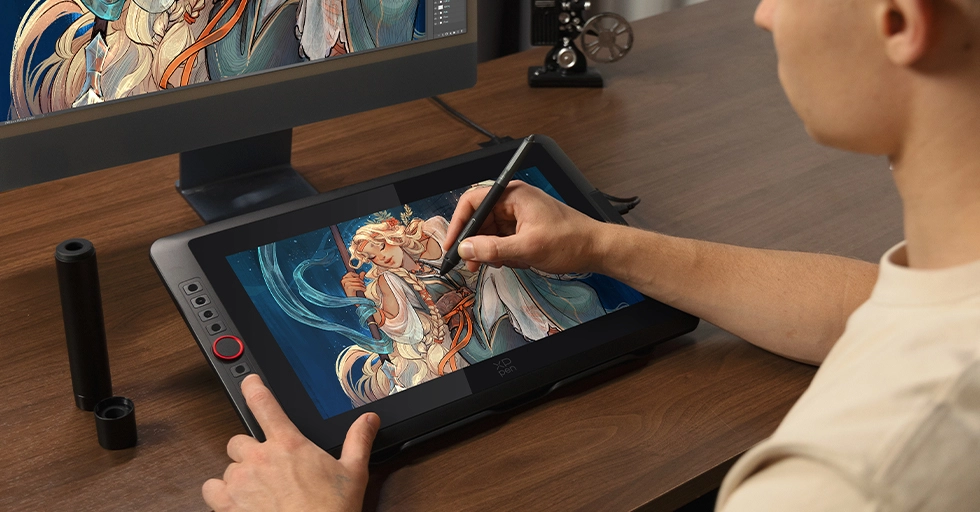
Image source: Bing (Web (fair-use with source credit))
Photo retouching workflow. A portrait photographer imports RAW files into Lightroom or Capture One, does basic exposure and color adjustments, then moves to Photoshop for detailed retouching. With a touch monitor and pen, they draw masks directly on the skin, dodge and burn with natural hand movements, and paint in frequency separation layers without ever reaching for a mouse. The pen pressure controls brush opacity intuitively.
What used to require careful mouse movements and keyboard shortcuts becomes as natural as holding a brush.
Architecture review process. An architect opens a set of construction drawings in Bluebeam Revu or AutoCAD. They navigate plans with pinch and zoom, rotate 3D views with finger gestures, and mark up details with the pen. Redlining becomes faster because they can circle a detail and write a note directly on the drawing.
During team reviews, passing the monitor around and letting colleagues point at elements directly speeds up discussion significantly.
Classroom teaching scenario. A high school biology teacher pulls up a diagram of cell structure on the touch monitor. They label organelles live during the lesson, circle the mitochondria when discussing energy production, and draw arrows to show processes. Students come up to the screen to answer questions by writing directly on the display.
The interactive element keeps attention in a way that clicking through static slides never achieved.
Medical imaging consultation. A radiologist reviews a CT scan with a patient in the room. They use the touch monitor to point directly at the area of concern, zoom into specific regions with pinch gestures, and annotate the image to explain findings. The patient understands the explanation better because they're seeing the doctor interact with the image directly rather than watching a cursor move on a screen.
Are Touchscreen Monitors Worth the Money?
The value equation comes down to one question. Will you use the touch functionality daily in a way that saves time, improves quality, or enables something you couldn't do otherwise?
If you're a professional digital artist, the answer is almost certainly yes. The time saved on masking, drawing, and retouching over months of daily use justifies the price premium. A $700 touch monitor that saves 30 minutes a day pays for itself in productivity within a year.
If you're an educator or presenter who annotates regularly, the value is real but harder to quantify. The engagement improvement and time saved on creating annotated materials are genuine benefits. A mid-range touch monitor in the $400-$600 range is a reasonable investment for this use case.
If you're a casual user who thinks touch might be nice to have, the honest answer is probably not. The price premium buys you a capability you'll use occasionally at best. That money goes further toward a larger, higher-quality non-touch display that improves your entire computing experience.
Final Verdict: Should You Buy One?
Buy a touchscreen monitor if you're a digital artist, photographer who retouches heavily, educator who presents regularly, or professional who annotates documents daily. The direct pen input and touch interaction will meaningfully improve your workflow.
Skip it if you're a gamer, standard office worker, or casual user. The price premium buys you a feature you won't use enough to justify the cost. Invest in a better non-touch monitor instead.
If you're on the fence, consider whether a pen tablet might give you 80% of the benefit at 30% of the cost. For many people starting out with digital art or annotation, a $100 pen tablet is the smarter first investment. You can always add a touch monitor later once you know exactly how you'll use it.
Frequently Asked Questions
Can I use any stylus with a touchscreen monitor?
No. Basic capacitive touchscreens work with any stylus that mimics finger contact, but pressure-sensitive drawing requires an active stylus designed for your specific monitor's pen technology. Check whether the monitor uses Wacom EMR, Microsoft MPP, or another protocol, and buy the matching pen.
Do touchscreen monitors work with Mac computers?
Yes, most touchscreen monitors work with macOS for basic touch input. Pen pressure and advanced features may require manufacturer drivers that have limited macOS support. Check driver availability for your specific Mac model and macOS version before purchasing.
Will a touchscreen monitor work with my existing graphics card?
Yes, as long as your GPU has the right output ports. The video connection works like any standard monitor. The touch functionality connects separately via USB, which any modern computer supports.
How long do touchscreen monitors typically last?
Touchscreen monitors have a similar lifespan to standard monitors, typically 5-10 years with normal use. The touch layer itself rarely fails. Backlight degradation over time is the most common aging issue, same as any LCD display.
Can I use a touchscreen monitor as my regular daily display?
Absolutely. A touchscreen monitor functions as a completely normal display when you're not using touch. You can browse the web, watch videos, and work in spreadsheets just like any other monitor.
The touch capability is always there when you need it and invisible when you don't.

Similar Posts