Can Gaming Monitor Improve Reaction Time
Can a gaming monitor improve reaction time? It's one of the most common questions in competitive gaming, and the answer is more nuanced than any spec sheet will tell you. The short version: yes, a faster monitor can reduce display latency and give you a measurable edge, but it's only one piece of a much bigger system that determines how quickly you react.
Human visual reaction time averages around 200 to 250 milliseconds for simple stimuli. A standard 60Hz monitor adds roughly 16.7ms of frame time on top of that, while a 240Hz display drops it to about 4.2ms. That difference is real, but whether you actually notice or benefit from it depends on your hardware, the games you play, and how much of your total reaction chain you've already optimized. This directly compares with our findings on whether you need 1ms response time monitor for gaming.
Let's break down what actually matters, what doesn't, and where your money is best spent.
")
Quick Answer
Yes, a gaming monitor can improve your reaction time. It reduces display latency and frame delay. The improvement is measurable in milliseconds.
The benefit depends on your current setup. Upgrading from 60Hz to 144Hz offers the most noticeable gain. To see how this holds up against alternate models, explore whether monitor response time matter for gaming.
The Quick Truth: Yes, But Not How You Think
Here's where most people get this wrong. They assume that buying a 360Hz monitor will automatically make them react faster. It won't.
What a faster monitor does is remove one bottleneck from the chain between your eyes, your brain, and your fingers.
Think of it like this. You could have the fastest gaming monitor money can buy, but if your PC can only push 80 frames per second, you're not seeing the benefit. If your mouse has a shaky wireless connection with inconsistent latency, that jitter will eat up any advantage your display gives you.
And if you're running your 240Hz monitor at 60Hz because Windows reset the setting after a driver update, well, you're not exactly competing at peak performance.
The monitor is one link in a chain. When that chain is properly set up, a better monitor absolutely gives you cleaner, faster visual information. But it's not magic, and it's not a substitute for practice.
As of 2026, the monitors capable of pushing the lowest display latency are 360Hz+ IPS panels and OLED displays with near-instantaneous pixel response times.
How Reaction Time Actually Works (And Where Your Monitor Fits In)
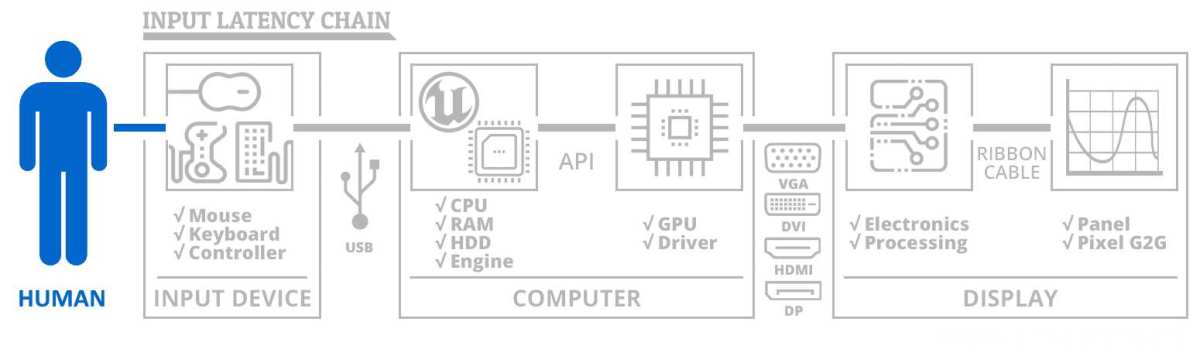
To understand whether a monitor upgrade will help, you need to understand where display technology sits in the grand scheme of things. Reaction time in gaming isn't a single number. It's a sum of every step between seeing something on screen and pulling the trigger.
The Full System Latency Chain
Every time an enemy peeks a corner and you click to fire, a sequence happens. It starts your monitor ends one:
- Peripheral input, Your mouse sends the click signal (1 to 8ms depending on polling rate)
- CPU processing, The game engine registers the input and calculates the result (highly variable, CPU dependent)
- GPU rendering, The graphics card draws the frame (depends on GPU power and settings)
- Display output, The monitor shows that frame (refresh rate and response time determine this)
That last step is where your gaming monitor comes in. A standard 60Hz display refreshes every 16.7 milliseconds. If your GPU finishes a frame just after a refresh cycle starts, that frame sits waiting for up to 16.7ms before it appears on screen.
A 144Hz monitor cuts that window to 6.9ms. At 240Hz, it's 4.2ms. The numbers add up.
But here's the reality check. If your total system latency is already around 40ms, shaving 10ms off display latency is a 25% improvement. That's significant.
If your total latency is already under 20ms (high-end competitive setup), gaining 2 to 3ms from a monitor upgrade is hard to perceive.
What Your Monitor Actually Controls
Your monitor handles two distinct things that affect how "fast" it feels.
Refresh rate is how many times per second the display updates with new information. Higher refresh rates mean fresher frames and less time between what happens in the game and what you see. This is the big one.
Going from 60Hz to 144Hz is the single most impactful display upgrade for reaction time that money can buy.
Response time (grey-to-grey) is how quickly a pixel can change from one shade to another. Slow response times create ghosting, which makes fast-moving objects look blurry. That blur makes it harder to track targets and react accurately.
A monitor with a true 1ms GtG response time will give you cleaner motion than one that takes 5ms, even at the same refresh rate.
")
Input lag chain breakdown from Blur Busters shows how each component adds to total latency.
There's also input lag, which is the delay between your monitor receiving a signal and actually displaying it. This is separate from refresh rate and response time. Good gaming monitors keep input lag under 5ms.
TVs, even in game mode, often sit at 15 to 30ms or more. That's a massive difference when every millisecond counts.
What the Research Says About Displays and Reaction
This isn't just marketing hype from monitor companies. There's a solid body of research on how display technology interacts with human visual perception and reaction time.
Human Visual Perception Thresholds
The human eye doesn't see in frames per second. It's a continuous processing system, which makes the "can humans even see above 60fps" argument a bit misleading. Research on visual temporal resolution shows that humans can detect differences in refresh rates well beyond 60Hz.
NVIDIA's research into esports displays found that professional players could consistently distinguish between 60Hz, 144Hz, and 240Hz in controlled testing, even when they couldn't articulate exactly what felt different.
A 2017 study from the University of British Columbia measuring display lag highlighted how even small increases in display latency are perceived reliably by trained subjects. Mangan and colleagues found that subjects were sensitive to display lag differences of 16ms, roughly equivalent to one frame's worth on a 60Hz display.
The practical insight here is that the biggest perceptual jump happens between 60Hz and 144Hz. Diminishing returns kick in hard after 240Hz for most people. But for highly trained competitive players, the difference between 240Hz and 360Hz still shows up in performance metrics, even if it's subtle.
What Competitive Players Actually Gain
So what does this look like in a real match? Let's say you're playing Valorant at a high level. An enemy strafes across your crosshair.
At 60Hz, you see a new position of that enemy every 16.7ms. At 144Hz, every 6.9ms. That means you're getting more up-to-date information about where they are, more often.
Your brain has better data to work with for predicting movement and timing your shot.
The benefit isn't that your brain reacts faster. It's that your brain receives more accurate, more recent visual information to react to. There's a difference.
You're not speed up your nervous system. You're feeding it better input.
Smoothness matters too. High refresh rates reduce perceived stutter and make tracking moving targets feel more natural. This doesn't directly improve raw reaction time numbers, but it improves accuracy and consistency, which in competitive terms is arguably more valuable.
")
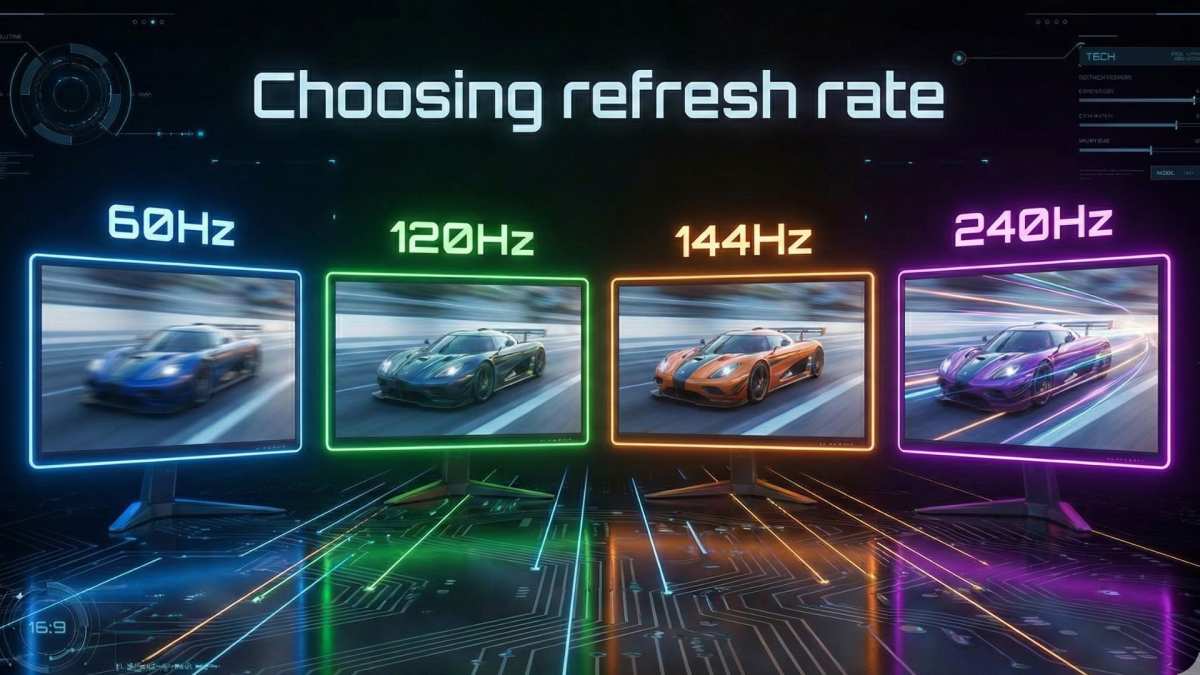
GamepadTester's comparison illustrates how frame times decrease as refresh rate increases.
Gaming Monitor Features That Actually Affect Reaction

Not all specs are created equal. Some matter a lot for reaction time. Some are mostly marketing fluff.
Let's separate signal from noise.
Refresh Rate Tiers Explained
This is the core spec that determines how much time passes between frames on your screen. Lower frame time means fresher visual information.
| Refresh Rate | Frame Time | Who It's For | Real-World Feel |
|---|---|---|---|
| 60Hz | 16.7ms | Casual and single-player gaming | Baseline experience |
| 144Hz | 6.9ms | Competitive entry-level | Major improvement in smoothness |
| 240Hz | 4.2ms | Serious competitive players | Refined, diminishing returns begin |
| 360Hz | 2.8ms | Professional esports | Marginal gains for most people |
| 500Hz+ | 2.0ms | Top-tier esports professionals | Extremely niche benefit |
The jump from 60Hz to 144Hz is dramatic. Almost everyone notices it immediately. The jump from 144Hz to 240Hz is noticeable to experienced players.
Beyond 240Hz, the gains are real but increasingly small, and you need a system pushing enough frames to even take advantage.
Pro tip. Make sure your PC can actually produce enough frames to match your monitor's refresh rate. A 360Hz monitor on a system that only hits 150 FPS is showing you 150 frames per second regardless. You'd see the same result on a 240Hz display.
Panel Types and Speed
The panel technology in your monitor affects response time and motion clarity directly.
TN (Twisted Nematic) panels have the fastest pixel response times, often hitting true 1ms GtG. The downside is poor color accuracy and narrow viewing angles. Competitive players have favored TN for years purely for speed, even though it looks worse.
IPS (In-Plane Switching) panels offer better colors and wider viewing angles. Modern fast-IPS panels have caught up significantly, with many achieving 1ms GtG in their best overdrive modes. For most people in 2026, a good fast-IPS is the sweet spot between speed and image quality.
OLED is the current king of response time. OLED pixels can switch in well under 1ms, often around 0.1ms. This eliminates ghosting almost entirely.
OLED gaming monitors from brands like ASUS, LG, and Samsung's Odyssey OLED line offer both high refresh rates (240Hz and above) and near-instant response times. The trade-off: OLED can suffer from burn-in with static UI elements over time, though newer panel generations are far more resilient.
VA (Vertical Alignment) panels typically have slower response times, especially in dark-to-light transitions. They're great for contrast and single-player immersion, but not ideal for competitive FPS play where motion clarity matters most.
Adaptive Sync and Low-Latency Tech
G-Sync and FreeSync (variable refresh rate technologies) eliminate screen tearing by syncing your monitor's refresh rate to your GPU's output. Does this add latency? In our research, the answer is that early VRR implementations did add a small amount of latency, but modern implementations have minimized this heavily.
G-Sync and FreeSync Premium Pro displays in 2026 add negligible latency, often under 1ms. They're absolutely worth using in competitive play.
NVIDIA Reflex is different. It's a technology designed specifically to reduce render queue latency by synculating the GPU and game engine more tightly. When supported, Reflex can reduce total system latency by a significant margin, sometimes 10 to 20ms.
If you have an NVIDIA GPU and your game supports Reflex, turn it on. It's essentially free latency reduction.
AMD Anti-Lag (and Anti-Lag+) serves a similar purpose for AMD GPUs. It works by slightly slowing the CPU's pace relative to the GPU to prevent the CPU from queuing too many frames at once, which increases input lag. It is a useful tool if you're on an AMD system.
One important note. Reflex and VRR can sometimes conflict. In certain combinations, enabling both can negate some of the latency benefit.
Check your specific game's recommended settings if you're squeezing for every millisecond.
")
Blur Busters' pursuit camera testing reveals motion clarity differences between refresh rate and response time.
What Matters More Than Your Monitor
It's tempting to throw money at a display and call it done. But the monitor is often not the weakest link in your setup. If you haven't sorted these other components first, a new screen won't help much.
The Hardware You're Probably Ignoring
Mouse sensor latency and polling rate directly affect how fast your clicks register. Most gaming mice in 2026 offer 1000Hz polling (1ms report interval). Some newer models push 4000Hz or even 8000Hz, cutting that to 0.25ms or 0.125ms.
A wireless mouse from a reputable brand with a modern sensor will perform as well as wired in terms of latency. Budget office mice often sit at 125Hz polling, which adds up to 8ms of delay before your PC even knows you clicked. That's almost a full frame at 120Hz.
GPU frame generation speed is arguably more important than your monitor's refresh rate. If your graphics card takes 20ms to render each frame, it doesn't matter if your monitor could display a new frame every 4ms. The GPU is bottlenecking the chain.
Lowering in-game settings to push higher frame rates is one of the most effective latency reductions available to most players.
CPU single-thread performance matters because the game engine and input processing run on the CPU. A slow CPU creates a backlog of unprocessed frames, increasing the render queue. This is exactly what NVIDIA Reflex targets.
RAM latency plays a smaller but real role. Faster RAM with tight timings can improve frame pacing and reduce micro-stutters, leading to more consistent frame delivery and a smoother feel.
The Human Factor
Here's what no monitor can fix. Your actual reaction time depends on factors that have nothing to do with hardware. Sleep deprivation can add 20 to 50ms to your reaction time.
Caffeine narrows the gap slightly. Age naturally slows visual processing speed over time. And none of these are solved by buying a new display.
Dedicated reaction training using tools like Aim Lab, Kovaak's, or Human Benchmark can genuinely improve your reaction speed over weeks of practice. The improvement from training is often larger than the improvement from any hardware upgrade. A well-rested player with a 144Hz monitor will outperform a sleep-deprived player on a 360Hz display almost every time.
Common Mistakes People Make
We've seen these errors over and over. Most of them are avoidable with a bit of knowledge.
Buying the Wrong Monitor for the Wrong Reason
Chasing 360Hz on a system that can't push 300+ FPS wastes money you could spend on a better GPU. Match your monitor to what your hardware can actually deliver.
Ignoring response time while obsessing over refresh rate leads to a screen that updates fast but looks blurry when things move. A 240Hz monitor with 5ms response time will feel worse in motion than a 144Hz monitor with 1ms GtG.
Buying a 4K 144Hz monitor for competitive FPS is usually the wrong call. Most competitive players prefer 1080p 240Hz+ or 1440p 240Hz because their systems can push far more frames at lower resolutions. You'll see diminishing visual returns at 4K while your frame rate drops through the floor.
Assuming specs equal real-world performance is how people get burned by budget gaming monitors that claim "1ms response time" only in an overdrive mode that creates horrible inverse ghosting (coronas) behind moving objects. Aggregate reviews and independent testing from outlets like RTINGS.com will tell you what a monitor actually does in motion.
Setup Errors That Kill Your Advantage
Running a 144Hz monitor at 60Hz is the single most common mistake. Windows doesn't always default to a monitor's maximum refresh rate. You need to set it manually.
Right-click desktop, Display Settings, Advanced Display Settings, then choose the highest refresh rate. Then verify it's actually applied.
Not enabling the correct refresh rate in GPU drivers is the second most common. NVIDIA Control Panel and AMD Software both have their own refresh rate settings that can override Windows. Check both.
Using the wrong cable can silently cap your refresh rate. An old HDMI 1.4 cable maxes out at 1080p 60Hz. You need HDMI 2.0+ or DisplayPort 1.2+ for high refresh rates.
DisplayPort is generally the safer choice for PC gaming monitors.
Leaving overdrive on "extreme" creates more problems than it solves. Maximum overdrive often pushes pixels too hard, causing them to overshoot their target color and create bright halos behind dark objects. This "inverse ghosting" is worse than the blur it's trying to fix.
Medium or normal overdrive is almost always the sweet spot.
How to Actually Test and Verify Your Setup
Don't just trust the specs on the box. Verify what your setup actually delivers. A few tools and methods can confirm whether your gaming monitor is performing as it should.
Tools and Methods
CapFrameX is a free frame time analysis tool that captures detailed performance data from any game. It shows you frame times, frame rates, and consistency. Look for smooth frame time graphs.
Spikes indicate stutter that will make your display feel less responsive even at high average FPS.
FrameView (from NVIDIA) offers similar frame time capture with additional GPU metrics. It works with any GPU, not just NVIDIA cards.
NVIDIA Reflex Latency Analyzer is built into select monitors (mostly from ASUS, Acer, and Alienware) connected through compatible mice. It measures total click-to-photon latency automatically. This is the gold standard for measuring your entire system's responsiveness in real time.
Pursuit camera photography is the standard method for evaluating motion clarity. A camera follows a moving object on screen and captures the blur and ghosting. Blur Busters publishes guides on how to do this with a DSLR or mirrorless camera.
It reveals differences between monitors that specs alone can't tell you.
Online reaction time tests like Human Benchmark or Aiming.pro give you baseline reaction speed numbers. Track your scores over time to see if practice or hardware changes actually move the needle.
What to Look For
Consistent frame times matter more than average FPS. A monitor refreshing at 144Hz with erratic frame delivery will feel worse than one at 120Hz with rock-solid consistency. Look at the 1% low frame rate numbers, not just the average.
Click-to-photon measurements should be your optimization target. If you're measuring total system latency, sub-30ms is very competitive. Sub-20ms is exceptional and requires high-end hardware throughout the chain.
Check for ghosting by moving your crosshair quickly across contrasting backgrounds in a game. If you see bright trails or smearing behind the crosshair, your response time settings need attention.
Real Scenarios: Who Benefits From What
Not everyone needs the same thing. Here's a practical breakdown based on where you're starting from and what you're playing.
Scenario 1: Upgrading from 60Hz to 144Hz
This is the biggest bang-for-buck upgrade in gaming. You'll notice the difference within seconds of moving around a game world. Everything feels smoother, more responsive, and more connected to your inputs.
- Expected improvement: Significant. Display latency drops by roughly 10ms.
- Best for: Anyone still using a standard office monitor or TV for gaming.
- Budget: $150 to $250 gets a solid 1080p or 1440p 144Hz to 165Hz IPS display.
Scenario 2: 144Hz to 240Hz
The gains are real but smaller. Competitive players in fast-paced titles (CS2, Valorant, Apex, Overwatch) will notice smoother tracking and slightly reduced input feel.
- Expected improvement: Noticeable for experienced players. Roughly 2.7ms reduced frame time.
- Best for: Ranked competitive players already consistently hitting 200+ FPS.
- Budget: $250 to $400 for a quality 1080p or 1440p 240Hz IPS or OLED display.
Scenario 3: 240Hz to 360Hz and Beyond
At this level, you're chasing single-digit milliseconds. The improvements are measurable with instruments but hard to perceive without extensive experience.
- Expected improvement: Marginal for most. Under 1.4ms frame time reduction.
- Best for: Top-tier competitive and professional players already performing at high levels.
- Budget: $400 to $1,000+. Premium pricing for 360Hz IPS or high-end OLED displays.
")
Blur Busters' pursuit camera method reveals motion clarity differences that specs alone cannot predict.
Frequently Asked Questions
Does a gaming monitor actually make you react faster in games?
Yes, but indirectly. A faster monitor reduces display latency, meaning you see game state updates sooner. That gives your brain fresher information to react to.
You're not speeding up your nervous system. You're shortens the delay between what happens and what you see.
Is 240Hz worth it over 144Hz for competitive gaming?
For serious competitive players pushing 200+ FPS, yes. The improvement is smaller than the 60Hz to 144Hz jump, but it's still noticeable in motion smoothness and input feel. If you're casual or your hardware can't sustain high frame rates, the money is better spent elsewhere.
Will a 360Hz monitor make me a better player?
Not by itself. A 360Hz display will show you the lowest possible display latency currently available. But most people cannot perceive the difference between 240Hz and 360Hz reliably.
Practice, consistent frame rates, and proper setup matter far more at this tier.
Do I need G-Sync or FreeSync for competitive gaming?
Modern adaptive sync technologies add negligible latency. Keep it enabled. It eliminates screen tearing without meaningful performance cost, making the game feel smoother and keeping your visual input consistent.
What is more important for reaction time, refresh rate or response time?
Both matter, but refresh rate has the larger direct impact on display latency. Response time affects motion clarity and ghosting. Prioritize high refresh rate first, then look for a monitor with fast GtG response times.
A 240Hz monitor with a quality 1ms panel gives you the best of both.
Can reaction time be improved with training, or is it purely genetic?
Reaction time has a genetic baseline, but training produces measurable improvement. Aim trainers, consistent practice, and maintaining good sleep and focus habits can shave 10 to 30ms off your average reaction time over weeks. That's a larger gain than most hardware upgrades provide.
The Honest Verdict: Should You Upgrade?
When a Gaming Monitor Will Help Your Reaction Time
You're on 60Hz and play competitive games. Your PC can actually push high frame rates. You've optimized everything else first.
In these cases, a monitor upgrade delivers real, noticeable improvement.
When It Won't Help (And What to Do Instead
Your system can't maintain high FPS. You haven't trained your actual reaction skills. You're playing slower-paced or single-player games.
You're expecting a miracle from hardware alone. Spend on a better GPU, a quality mouse, or just practice more.
The Priority List for Faster Reactions
- Optimize your current setup (refresh rate, drivers, settings)
- Upgrade from 60Hz to 144Hz (biggest bang for buck)
- Train your reaction time with aim trainers
- Upgrade mouse and peripherals
- Consider 240Hz+ only if you're already competitive
- 360Hz+ only if you're chasing every millisecond at the highest level

Similar Posts





















