What Is the Difference Between G Sync and Freesync
You're staring at two monitors with identical specs. One says G-Sync, the other says FreeSync. The price gap is $150.
You need to know what you're actually getting for that money.
So what is the difference between G-Sync and FreeSync? Both eliminate screen tearing by syncing your monitor's refresh rate to your GPU's output. G-Sync uses a proprietary Nvidia hardware chip. This directly compares with our findings on the difference between 4k and full hd monitor.
FreeSync uses an open VESA standard. The real-world gap has narrowed significantly since Nvidia enabled Adaptive-Sync support in 2019, but meaningful differences remain in quality control, variable overdrive, and low-framerate handling.
Quick Answer
G-Sync is Nvidia's hardware-based adaptive sync with strict quality control. FreeSync is AMD's open standard using VESA Adaptive-Sync. Both eliminate screen tearing and reduce input lag.
G-Sync modules cost more but offer consistent performance. FreeSync monitors work with both AMD and modern Nvidia GPUs. For most gamers in 2026, a good FreeSync or G-Sync Compatible monitor is the smarter buy. For related troubleshooting and calibration steps, check our walkthrough on the difference between hdr monitor and non hdr.
Why This Comparison Actually Matters When You're Buying a Monitor
Adaptive sync isn't optional anymore. It's a baseline expectation for any gaming display. The problem is that "G-Sync" and "FreeSync" labels appear on hundreds of monitors across every price tier, and the naming conventions don't make it easy to compare them directly.
Nvidia alone uses three distinct G-Sync labels. AMD has three FreeSync tiers. Some monitors carry both badges.
Others work fine with both GPU brands despite only displaying one logo. The confusion costs people real money, either by overspending on features they won't notice or by buying a monitor that doesn't perform as expected with their specific graphics card.
This matters because adaptive sync is one of those features you can't add later. It's baked into the monitor hardware. If you buy wrong, you're either leaving performance on the table or paying for capabilities you'll never use.
The good news is that the decision is simpler than the marketing makes it seem, once you understand what's actually behind each label.
How Adaptive Sync Actually Works (The Core Technology)
Your graphics card doesn't send frames at a steady pace. In one scene you might get 140 fps. In the next, explosions on screen drop you to 55 fps.
Meanwhile, your monitor refreshes at a fixed rate, say 144 times per second. When those two numbers don't match, you get screen tearing, that horizontal split where the top half of the image doesn't line up with the bottom.
Old-school V-Sync forced the GPU to wait for the monitor. This eliminated tearing but added input lag and caused stuttering when the frame rate dipped below the refresh rate. Gamers hated it.
Adaptive sync flipped the equation. Instead of making the GPU wait, it lets the monitor adapt.
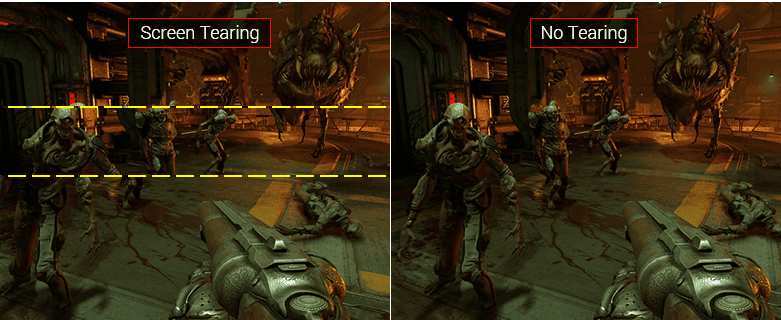
The monitor refreshes exactly when a new frame arrives. 80 fps means 80 refreshes per second. 144 fps means 144 refreshes. The result is smooth, tear-free gameplay with minimal input lag. Both G-Sync and FreeSync accomplish this.
The difference is in how they implement it and what happens at the edges of their performance range.
The underlying mechanism relies on Variable Refresh Rate (VRR) technology. VESA Adaptive-Sync, the open standard baked into DisplayPort specifications, handles this at the protocol level. HDMI 2.1 added its own VRR implementation, which is what modern consoles use.
G-Sync takes a different path with dedicated hardware.
G-Sync and FreeSync: Full Breakdown by Tier
This is where it gets complicated. Both technologies have splintered into multiple tiers, and the naming doesn't always make the distinctions obvious.
G-Sync Hardware Module (The Premium Option)
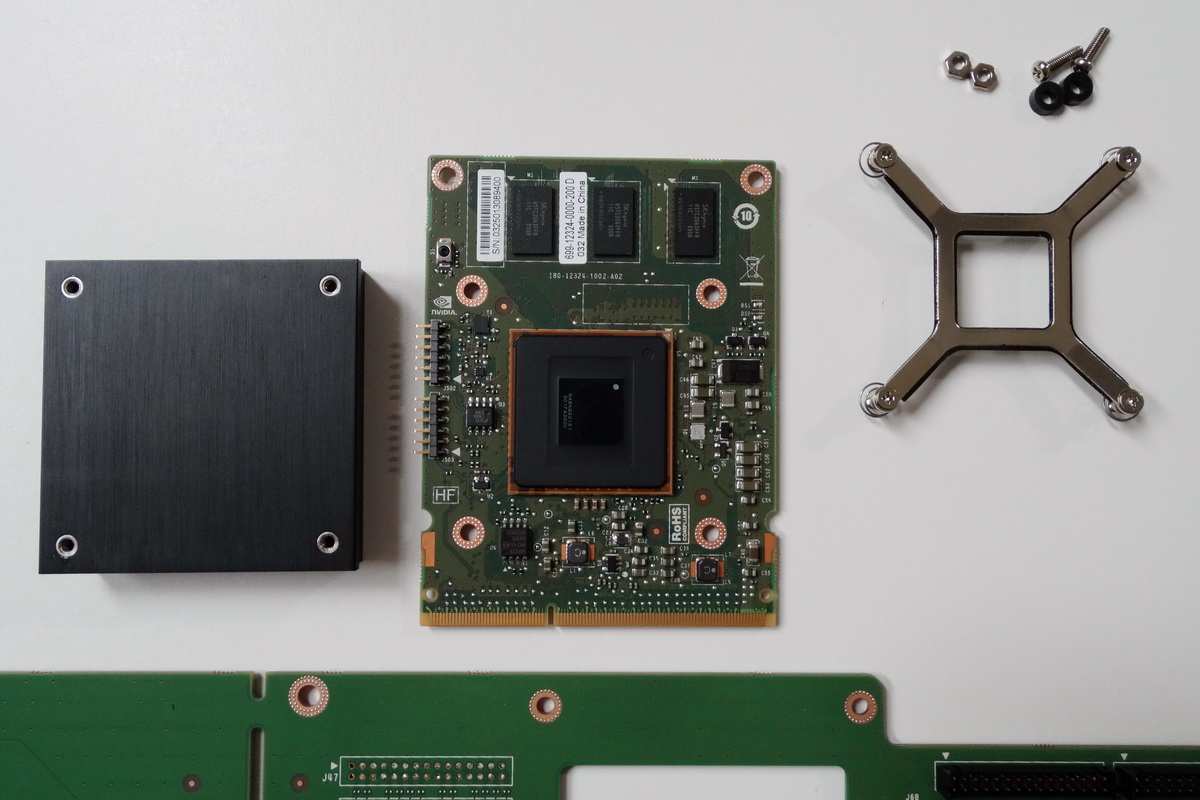
The original G-Sync approach uses a proprietary Nvidia chip called the G-Sync module. Monitor manufacturers must purchase this module and integrate it into their displays. The module handles all adaptive sync processing, including variable overdrive and frame compensation.
Nvidia validates every G-Sync module monitor before it reaches market. This means consistent performance across the entire product line. You know exactly what you're paying for.
The tradeoff is cost. The module adds roughly $100 to $200 to a monitor's bill of materials, which gets passed on to you.
G-Sync Ultimate represents the top tier. These monitors include the full module, meet Nvidia's strictest HDR requirements, and typically feature high-end panels with wide color gamuts. They're expensive, often $600 and up, but they deliver the most polished adaptive sync experience available.
Standard G-Sync (sometimes called G-Sync hardware) sits below Ultimate. Same module, same quality control, but without the HDR mandate. These monitors still command a premium over equivalent FreeSync displays.
G-Sync Compatible (The Middle Ground)
In January 2019, Nvidia made a significant shift. They enabled support for VESA Adaptive-Sync on their GPUs. This meant Nvidia graphics cards could work with FreeSync monitors.
Monitors that pass Nvidia's validation testing receive the "G-Sync Compatible" badge.
These monitors lack the G-Sync module. They rely on the monitor's internal scaler and the AMD/Nvidia driver implementation. Nvidia tests for basic functionality, flickering, and blanking issues.
Monitors that pass get certified. Those that don't can still work, but you'll need to enable them manually in the Nvidia Control Panel.
The practical result is that a $250 FreeSync monitor can now deliver adaptive sync with an RTX 4070. This wasn't possible before 2019. It's a genuine improvement for consumers and has made the G-Sync vs.
FreeSync decision much less binary than it used to be.
FreeSync, FreeSync Premium, and FreeSync Premium Pro
AMD's FreeSync uses the VESA Adaptive-Sync standard. No proprietary hardware required. No licensing fees.
This is why FreeSync monitors are generally cheaper and far more numerous than G-Sync displays.
The base FreeSync tier requires minimal validation. A monitor needs to support Adaptive-Sync over DisplayPort and meet basic refresh rate range requirements. The quality floor is low, which means some FreeSync monitors perform excellently while others have issues with flickering or narrow operating ranges.
FreeSync Premium raises the bar. Monitors must support at least 120 Hz at Full HD resolution. Low Framerate Compensation (LFC) is required.
LFC kicks in when the frame rate drops below the monitor's minimum refresh range. It doubles or triples frames to keep the display within its adaptive sync window. This matters because most adaptive sync monitors bottom out around 48 Hz.
Without LFC, you lose adaptive sync below 48 fps.
FreeSync Premium Pro adds HDR support on top of Premium requirements. These monitors must meet specific color gamut and luminance standards for HDR content. In practice, the HDR implementation varies widely between models.
A monitor can carry the Premium Pro badge without delivering a meaningful HDR experience.
| Tier | Hardware Required | LFC Required | HDR Required | Price Range |
|---|---|---|---|---|
| G-Sync Ultimate | Nvidia module | Yes | Yes (strict) | $600-$2000+ |
| G-Sync (hardware) | Nvidia module | Yes | No | $350-$800 |
| G-Sync Compatible | None (driver-based) | Varies | No | $150-$500 |
| FreeSync Premium Pro | None | Yes | Yes (basic) | $250-$600 |
| FreeSync Premium | None | Yes | No | $150-$350 |
| FreeSync (base) | None | No | No | $100-$250 |
Side-by-Side Comparison: Features, Specs, and Real-World Performance
Let's put the key differences in one place so you can see exactly how they stack up.
| Feature | G-Sync Module | G-Sync Compatible | FreeSync Premium | FreeSync (Base) |
|---|---|---|---|---|
| Hardware chip | Yes (Nvidia) | No | No | No |
| Quality validation | Strict (per unit) | Sample testing | Self-certified | Minimal |
| Variable overdrive | Yes (dynamic) | Varies by monitor | Varies by monitor | Rarely |
| LFC support | Yes | Varies | Yes | No |
| Works with Nvidia GPUs | Yes | Yes (certified) | Often (unofficial) | Sometimes |
| Works with AMD GPUs | No | Yes | Yes | Yes |
| Typical price range | $350-$2000+ | $150-$500 | $150-$350 | $100-$250 |
| Input lag impact | Minimal | Minimal to moderate | Minimal to moderate | Varies |
| Flickering risk | Very low | Low to moderate | Low to moderate | Moderate |
The variable overdrive row deserves special attention. When a monitor changes refresh rates dynamically, the optimal overdrive setting changes too. A setting that works well at 144 Hz might cause inverse ghosting at 60 Hz.
G-Sync modules handle this automatically. They adjust overdrive in real time based on the current refresh rate.
Most FreeSync and G-Sync Compatible monitors use a single overdrive setting. Some high-end implementations offer manual overdrive modes, but they don't adapt dynamically. This is one of the genuine technical advantages of the G-Sync module, and it's something you'll notice in side-by-side comparisons at varying frame rates.
In terms of input lag, all adaptive sync technologies perform similarly when active. The differences show up at the edges. When frame rates exceed the monitor's maximum refresh rate, behavior diverges.
G-Sync modules include frame compensation to maintain smooth delivery. Some FreeSync monitors fall back to V-Sync behavior, which adds latency. Others simply drop adaptive sync entirely, which can cause tearing.
The flickering issue with base FreeSync monitors is real but often overstated. It typically occurs at very low frame rates, below 48 fps, or during rapid frame rate fluctuations. FreeSync Premium's LFC requirement largely solves this.
G-Sync Compatible certification also screens for flickering issues. If you're buying a mid-range or better monitor in 2026, flickering is unlikely to be a problem regardless of which brand you choose.
Which One Is Right For Your Setup
There's no universal answer here. The right choice depends entirely on what graphics card you have, what you play, and how much you're willing to spend. Let's break it down by situation.
Nvidia GPU Owners
You have three options. A G-Sync hardware monitor gives you the most consistent experience with the best variable overdrive. A G-Sync Compatible FreeSync monitor gives you certified compatibility without the price premium.
A standard FreeSync monitor that isn't certified can still work, but you'll need to test it yourself.
If you already own an RTX 30-series or RTX 40-series card, G-Sync Compatible is the sweet spot for most people. You get adaptive sync that works, validated by Nvidia, on a monitor that costs $150 to $250 less than the G-Sync hardware equivalent. The experience is close enough that only competitive players chasing every millisecond will notice the difference.
If you're building a high-end system with an RTX 4080 or 4090 and you want the absolute best, G-Sync hardware still edges ahead. The variable overdrive and consistent frame delivery across the entire refresh range give it a slight but real advantage.
AMD GPU Owners
Your choice is simpler. Go with FreeSync. It's native to your GPU, it's validated by AMD, and it gives you the widest selection of monitors at every price point.
There's no reason to buy a G-Sync hardware monitor with an AMD card. The G-Sync module won't engage, and you'll pay a premium for features you can't use.
FreeSync Premium hits the sweet spot for most AMD users. You get LFC support, which matters when your frame rate drops below 48 fps in demanding titles. Base FreeSync works fine if you're on a tight budget, but check the monitor's minimum refresh range.
Some bottom out at 60 Hz, which means you lose adaptive sync the moment your frame rate dips below 60.
Competitive/Esports Gamers
Competitive players should prioritize three things: low input lag, frame rate consistency, and high refresh rates. At 240 Hz and above, adaptive sync matters less because your frame rate rarely drops below the monitor's refresh range. You're more likely to be CPU-limited than GPU-limited.
That said, frame time spikes happen even at high averages. Adaptive sync smooths those out. G-Sync hardware monitors tend to have the best frame time consistency at the extremes.
If you play CS2, Valorant, or Overwatch competitively and you want every advantage, a 360 Hz G-Sync monitor is still the gold standard.
For everyone else, a high-refresh FreeSync Premium monitor in the 240 Hz to 360 Hz range performs excellently. The practical difference between G-Sync and FreeSync at these refresh rates is minimal.
Budget-Conscious Buyers
FreeSync dominates the budget segment. You can find basic FreeSync monitors for under $150 in the 24-inch to 27-inch range. These work well with AMD GPUs and often work with Nvidia cards too.
Check the specific monitor's compatibility on user forums before buying.
G-Sync Compatible monitors have dropped into the $200 range recently. Models like the Gigabyte G27Q and the Acer Nitro XV272U carry the badge and deliver solid adaptive sync performance with both GPU brands. These represent the best value in adaptive sync gaming right now.
Console Gamers (PS5, Xbox Series X)
Both PS5 and Xbox Series X support HDMI 2.1 VRR. This is a separate implementation from DisplayPort Adaptive-Sync. Most modern FreeSync monitors with HDMI 2.1 ports will work with console VRR.
G-Sync hardware monitors vary in their HDMI 2.1 VRR support. Check the specific monitor's specifications.
If you're buying primarily for console use, a FreeSync Premium Pro monitor with HDMI 2.1 is the safest bet. You get VRR compatibility with both consoles, plus adaptive sync capability for PC use if you ever add one.
The G-Sync Tax: What You're Actually Paying For
The G-Sync module adds cost at every level. A 27-inch 1440p 165 Hz FreeSync monitor typically costs between $250 and $350. An equivalent G-Sync hardware monitor runs from $400 to $550.
That $150 to $200 difference buys you three things.
First, guaranteed quality control. Every G-Sync hardware monitor passes Nvidia's validation. Every single one.
FreeSync monitors vary because the certification process is less strict. Second, variable overdrive. The module dynamically adjusts pixel response across the entire refresh range.
This produces cleaner motion at varying frame rates. Third, consistent low-framerate behavior. G-Sync modules handle frame doubling and frame compensation more smoothly than most FreeSync implementations.
Whether those three things are worth $150 to $200 depends on you. For casual gaming at consistent frame rates above 60 fps, probably not. For competitive gaming, professional use, or if you just want the peace of mind of a guaranteed experience, absolutely yes.
FreeSync dominates the budget segment. You can find basic FreeSync monitors for under $150 in the 24-inch to 27-inch range. These work well with AMD GPUs and often work with Nvidia cards too.
Check the specific monitor's compatibility on user forums before buying.
The hidden cost of G-Sync hardware monitors is limited upgrade flexibility. If you switch to an AMD GPU later, you lose adaptive sync entirely. A FreeSync monitor continues to work with AMD cards, and Nvidia cards can use it through Adaptive-Sync support.
FreeSync gives you more flexibility if you might change GPU brands in the future.
Common Mistakes People Make When Choosing Between G-Sync and FreeSync
The biggest mistake is assuming the logo guarantees compatibility. A FreeSync monitor doesn't automatically work with an Nvidia GPU. It might, but it's not guaranteed unless it carries the G-Sync Compatible badge.
Check Nvidia's official list of certified monitors before buying.
Another common error is ignoring the refresh range. A FreeSync monitor rated at 48 Hz to 144 Hz stops providing adaptive sync below 48 fps. If your games frequently drop to 40 fps, you're back to tearing or V-Sync stuttering.
Look for FreeSync Premium with LFC, or check that the G-Sync Compatible monitor has a wide enough range for your use case.
Some buyers assume G-Sync hardware is always better. At base FreeSync tier, that's often true. But a high-end FreeSync Premium Pro monitor can outperform a budget G-Sync hardware display in overall image quality.
The adaptive sync technology is one factor among many, including panel type, color accuracy, and response time.
Console shoppers sometimes buy G-Sync monitors without checking HDMI 2.1 VRR support. A monitor can have full G-Sync hardware and still not support PS5 or Xbox Series X variable refresh. Always verify HDMI 2.1 VRR compatibility separately from DisplayPort adaptive sync specs.
Finally, people overlook overdrive settings. Many FreeSync monitors ship with overdrive set too high, causing inverse ghosting artifacts. Spending five minutes in the monitor's on-screen display to find the right overdrive setting makes a bigger difference than choosing between G-Sync and FreeSync in the first place.
How to Enable and Verify Your Adaptive Sync Is Actually Working
Buying an adaptive sync monitor is only half the battle. You need to actually turn it on, and it's not always enabled by default.
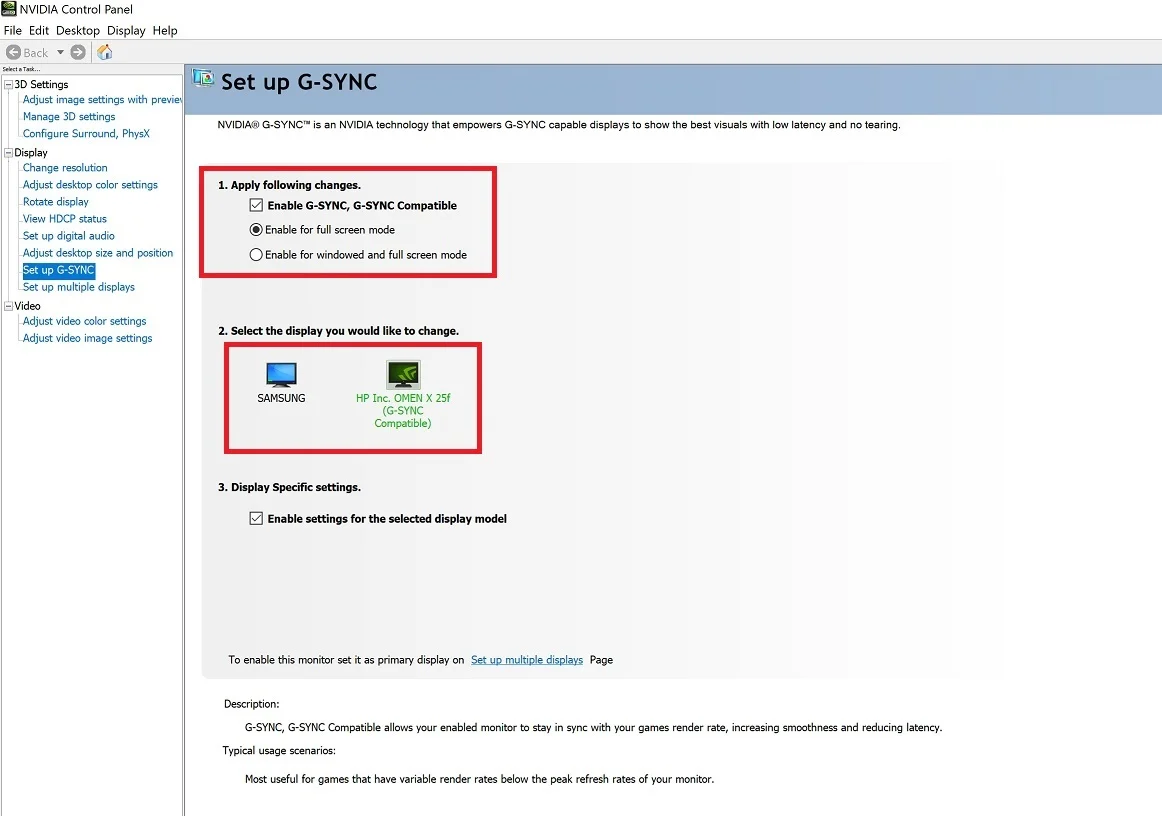
For Nvidia GPUs, open the Nvidia Control Panel. Navigate to Display, then Set up G-Sync. Check the box to enable G-Sync.
Under the Manage 3D Settings tab, set the Monitor Technology option to G-Sync. You should also set V-Sync to "On" in this same menu. This sounds counterintuitive, but Nvidia's implementation uses V-Sync as a fallback when frame rates exceed the monitor's maximum refresh rate.
Turning it off means tearing at the top of your refresh range.
For AMD GPUs, enable FreeSync in your monitor's on-screen display menu first. Then open AMD Radeon Software. Go to Display and toggle AMD FreeSync on.
Radeon Software should confirm that FreeSync is active.
To verify adaptive sync is working, use Nvidia's pendulum demo or the Blur Busters UFO test. Both are free and show clearly whether your monitor is syncing to your GPU's output. The pendulum demo should show a smooth, tear-free swing.
The UFO test should show clean horizontal lines without tearing artifacts.
If your FreeSync monitor isn't being recognized by an Nvidia GPU, you can try enabling G-Sync Compatible manually. In the Nvidia Control Panel, go to Manage 3D Settings. Set "Monitor Technology" to "G-Sync Compatible." This forces the GPU to attempt Adaptive-Sync over DisplayPort even on monitors without official certification.
It might work beautifully. It might cause flickering or blanking. Test it yourself with your specific hardware combination.
Frequently Asked Questions
Can I use a FreeSync monitor with an Nvidia GPU?
Yes. Since 2019, Nvidia supports VESA Adaptive-Sync on GeForce GPUs. Look for "G-Sync Compatible" monitors that passed Nvidia's validation.
Uncertified FreeSync monitors may also work. Enable them manually through the Nvidia Control Panel.
Does G-Sync work with AMD graphics cards?
No. G-Sync hardware modules only sync with Nvidia GPUs. You pay a premium for features you can't use with AMD cards.
Is G-Sync Compatible the same as G-Sync?
No. G-Sync Compatible is a software-based solution on FreeSync monitors. Full G-Sync requires Nvidia's proprietary hardware module with strict quality control.
Do I need adaptive sync at 240Hz?
High refresh rates reduce perceived tearing. Adaptive sync still eliminates frame time spikes and micro-stutter that V-Sync can't address at 240Hz.
Does FreeSync work with PS5 and Xbox Series X?
Yes, on monitors with HDMI 2.1 ports that support VRR. Note that console VRR is separate from FreeSync over DisplayPort. Check your monitor's specifications.
Is G-Sync worth the extra cost?
It depends on your priorities. G-Sync offers better variable overdrive and consistent quality control. For most users, G-Sync Compatible FreeSync provides 90% of the experience at 60% of the price.
Final Verdict: The Decision Guide
If you have an Nvidia GPU and want the absolute best, get G-Sync hardware. You'll pay more, but you'll get the most consistent adaptive sync experience available.
If you have an Nvidia GPU and want the best value, get a G-Sync Compatible certified FreeSync monitor. You get validated performance without the premium.
If you have an AMD GPU, get FreeSync Premium. It's native, it's affordable, and LFC ensures smooth performance at low frame rates.
If you game on both PC and console, prioritize a FreeSync Premium Pro monitor with HDMI 2.1 VRR support. You get cross-platform compatibility without compromise.
For competitive players at 240Hz and above, G-Sync hardware still leads in frame time consistency. But a high-end FreeSync Premium monitor won't hold you back.
The gap between these technologies has narrowed considerably. In 2026, you get a great adaptive sync experience regardless of which path you choose. Buy the monitor with the panel quality, refresh rate, and resolution that fits your budget.
The adaptive sync badge matters less than it used to.

Similar Posts





















