What Is the Difference Between HDR Monitor and Non HDR?
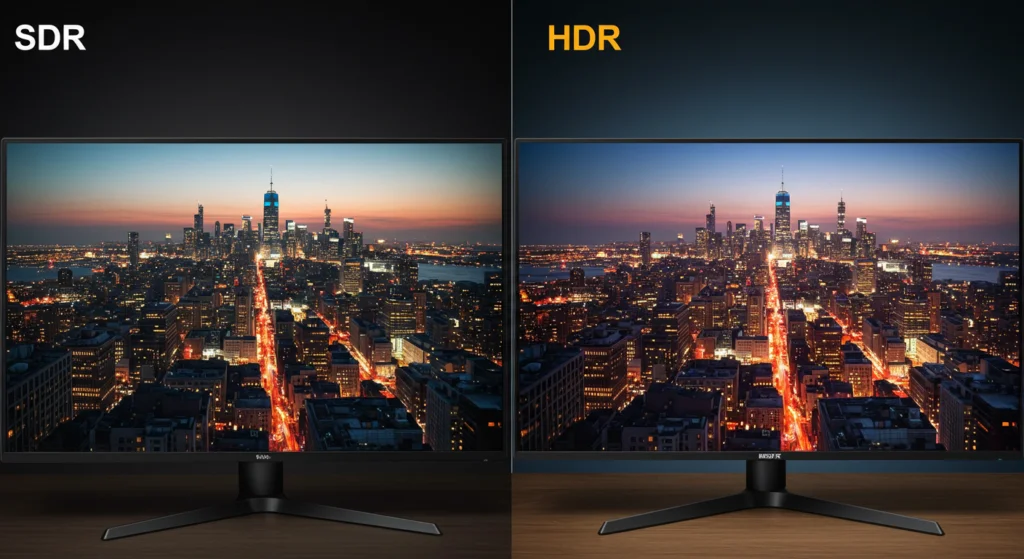
So you're looking at two monitors side by side, one labeled HDR and one not, and you're trying to figure out if the difference is actually real or just marketing fluff. Fair question. The honest answer is that it's both: there are genuine, visible differences between HDR and non-HDR monitors, but there's also a ton of misleading labeling that makes the whole thing confusing.
The core technical difference comes down to dynamic range, which is the gap between the darkest blacks and the brightest whites a display can produce simultaneously. SDR (Standard Dynamic Range) is limited to roughly 250 to 350 nits of peak brightness and the Rec. 709 color space. HDR pushes that ceiling dramatically, targeting 600 nits or higher and wider color gamuts like DCI-P3, with real standards like VESA DisplayHDR defining what each tier actually guarantees.
Quick Answer
An HDR monitor displays a wider range of brightness and color than a non-HDR (SDR) monitor. The key differences are peak brightness, contrast ratio, color gamut, and how the display handles metadata. SDR tops out around 350 nits.
True HDR starts at roughly 600 nits with local dimming. Not every monitor labeled HDR delivers a meaningful HDR experience.
The Real Difference Between HDR and Non-HDR Monitors (In Plain English)
Let's strip away the jargon. A non-HDR monitor, which is SDR (Standard Dynamic Range), is what we've used for years. It displays a fixed range of brightness and color that works perfectly fine for most tasks.
Your office monitor, your laptop screen, and most budget displays fall into this category. They typically hit 250 to 400 nits of brightness and cover the sRGB color space, which covers the basics.
An HDR monitor, on the other hand, can produce much brighter highlights while keeping deep darks in the same scene. That's the "high dynamic range" part. Think about a sunset scene in a game: on an SDR monitor, the sky and the shadowed ground look okay but flat.
On a good HDR monitor, the sun actually looks blindingly bright while the shadows still hold detail. It's closer to what your eyes perceive in real life.
But here's what trips people up. The label "HDR compatible" or "HDR ready" slapped on a monitor doesn't automatically mean it looks better than a good SDR display. We'll get into why that matters below.
What Makes an HDR Monitor Actually HDR: The Technical Bits That Matter
Three core technical factors separate a real HDR experience from a spec sheet with the word "HDR" on it. They work together, and ignoring any one of them breaks the whole thing.
Peak brightness is how bright the display can get, measured in nits (candelas per square meter). SDR content masters around 100 nits, and typical SDR monitors display at 250 to 400 nits. True HDR content is authored for 1,000 nits or even 4,000 nits, though most consumer displays can't hit those numbers yet.
A monitor that only reaches 400 nits and claims HDR support is technically accepting an HDR signal, but it can't actually show you what HDR looks like.
Local dimming is arguably more important than raw brightness. This is the ability of the display to control brightness in different zones independently. A monitor with full-array local dimming (FALD) dims the backlight behind dark areas while keeping bright areas lit.
Edge-lit monitors with a handful of zones still produce a halo effect around bright objects on dark backgrounds. Without meaningful local dimming, you don't get real contrast improvement, and HDR falls flat.
Color gamut and bit depth round out the picture. HDR content uses wider color spaces, primarily DCI-P3, which covers roughly 45% more colors than the sRGB space used by SDR. HDR also targets 10-bit color depth, which means over a billion shades compared to the 16.7 million in 8-bit.
This reduces color banding in gradients like skies and skin tones.
When all three of these come together properly, HDR looks noticeably better. When they don't, you're essentially watching an HDR signal crammed into an SDR-quality display, and it often looks worse than just running in SDR mode.
Peak Brightness and Why 400 Nits Isn't Really HDR
This is where the marketing gets sneaky. You'll see monitors advertised as "HDR10 compatible" or "HDR ready" that top out at 350 or 400 nits. HDR10 is the baseline open HDR standard that uses static metadata.
If a monitor accepts that signal, manufacturers can slap the HDR10 badge on the box. But a 400-nit display without local dimming is giving you almost no perceptible benefit over a good SDR panel.
Per VESA's DisplayHDR certification standard, the entry-level tier is DisplayHDR 400. It requires 400 nits peak brightness, 8-bit color, and global dimming (meaning no local dimming zones at all). Multiple professional reviews have noted that DisplayHDR 400 monitors often perform worse in HDR mode than in SDR mode because the display can't actually render the expanded dynamic range the content was authored for.
The honest threshold where HDR starts meaning something in practice is around 600 nits combined with at least basic local dimming. DisplayHDR 600 requires a global dimming implementation that's at least marginally better, but the real jump comes at DisplayHDR 1000, which mandates local dimming with a peak brightness of 1,000 nits. That's where you start seeing actual highlight pop, real shadow separation, and a visible difference that's hard to unsee once you've noticed it.
If shopping on a budget, keep this rule in mind: a high-quality 400-nit SDR monitor with good color accuracy will serve most people better than a cheap 400-nit HDR monitor with no local dimming.
Local Dimming: The Feature That Separates Real HDR from Marketing HDR
If there's one spec that matters more than the others for HDR quality, it's this. Local dimming determines whether bright and dark areas of the image can coexist properly on screen at the same time.
How Local Dimming Works
Your monitor's backlight isn't a single light. It's an array of LEDs behind the panel. In a globally dimmed display, all those LEDs get brighter or dimmer together.
When a scene needs both bright highlights and deep blacks globally dimming can't do both simultaneously, so you get either a washed-out dark area or a dimmed highlight.
Local dimming splits those LEDs into independently controlled zones. More zones mean finer control. A monitor with 16 zones can dim roughly 16 rectangular sections of the screen.
A high-end display with 768 or more zones can produce pinpoint brightness control. OLED monitors bypass this entirely by controlling brightness per pixel, which is why OLED is considered the gold standard for HDR.
Why It Matters for Real-World Use
Think about a horror game with a flashlight cutting through a pitch-black room. On a globally dimmed HDR monitor, the flashlight illuminates a large rectangle of the screen, turning the surrounding darkness into gray mush. On a well-implemented FALD display, the flashlight beam looks genuinely bright while the corners remain truly black.
On OLED, the effect is pixel-perfect.
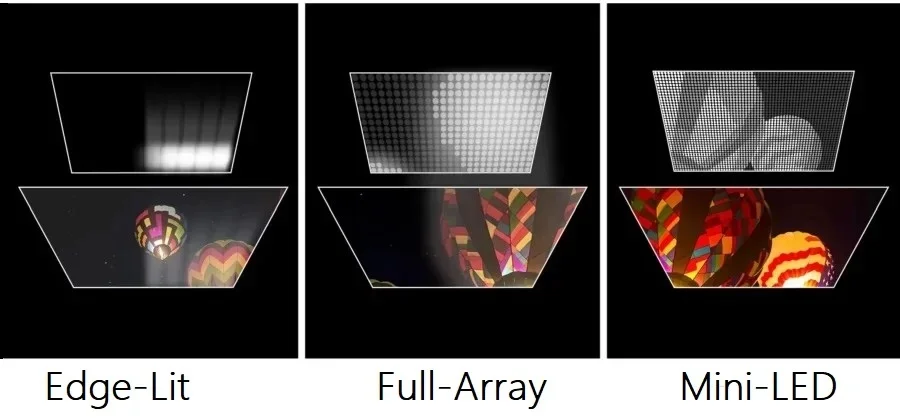
This is the single biggest reason professional reviews caution against entry-level HDR monitors. A DisplayHDR 400 monitor accepts HDR content. It just can't display it with any real dynamic range because there's no local dimming hardware to separate brightness zones.
The signal arrives, the monitor tone-maps it down to its limited range, and the result often looks flatter than the SDR version.
Edge-lit HDR monitors with 4 to 16 zones represent a middle ground. You get some improvement over SDR, but any high-contrast edge on screen produces visible blooming, which is that glowing halo around bright objects. Full-array local dimming with 100 or more zones is where HDR stops being a spec sheet claim and starts being a visible upgrade.
Color Gamut and Bit Depth: What You See Beyond Just Brightness
Brightness gets all the attention, but color is where HDR quietly makes a huge difference. SDR content is authored in the sRGB/Rec. 709 color space, which covers a limited slice of what human eyes can perceive. HDR content targets DCI-P3, the color space used in digital cinema, which extends significantly into reds and greens.
Some HDR content even targets Rec. 2020, a still wider space that current displays can only partially reproduce.
The practical impact is visible. Skin tones look more natural. Sunsets show smooth gradations from orange to purple instead of banding into distinct stripes.
Neon signs in cyberpunk games glow with a richness that SDR simply can't match. If you've ever noticed that a game's lighting looked flat even though the brightness seemed fine, limited color gamut was likely the culprit.
Bit depth matters here too. Most SDR content is 8-bit, giving you 256 levels per color channel. HDR targets 10-bit, delivering 1,024 levels per channel.
That fourfold increase in gradation steps is what eliminates the visible banding in smooth gradients. A true 10-bit panel with proper hardware calibration is essential for professional color work in HDR. Many monitors use 8-bit panels with FRC (frame rate control) to simulate 10-bit, which helps but isn't the same as native 10-bit depth.
HDR vs. SDR Monitors: Side-by-Side Comparison
Here's a straightforward breakdown of how these two categories compare across the specs and features that actually affect your experience.
| Feature | SDR Monitor | Entry-Level HDR (DisplayHDR 400) | Mid-Range HDR (DisplayHDR 600-1000) | High-End HDR / OLED |
|---|---|---|---|---|
| Peak Brightness | 250-400 nits | 400 nits | 600-1,000 nits | 1,000-1,500+ nits |
| Local Dimming | None | None (global dimming) | Edge-lit or basic FALD | Full FALD or per-pixel (OLED) |
| Color Gamut | sRGB (100%) | sRGB (100%), limited DCI-P3 | 90-98% DCI-P3 | 98-99%+ DCI-P3 |
| Bit Depth | 8-bit | 8-bit or 8-bit + FRC | 8-bit + FRC or 10-bit | Native 10-bit |
| Contrast Ratio | 1,000:1 (IPS) to 3,000:1 (VA) | Similar to SDR | Improved with local dimming | 1,000,000:1+ (OLED) |
| HDR Signal Support | No | Yes (tone-mapped) | Yes (partial range) | Yes (full range) |
| Price Range | $100-$500 | $200-$450 | $450-$1,200 | $900-$3,000+ |
| Real HDR Experience | N/A | Minimal | Noticeable improvement | Significant upgrade |
The takeaway from this table is clear. The gap between SDR and DisplayHDR 400 is mostly theoretical. The gap between SDR and DisplayHDR 1000 or OLED is immediately visible to anyone.
The VESA DisplayHDR Tiers Explained (400, 600, 1000, 1400)
VESA created the DisplayHDR certification program to bring some order to the chaos. Before it existed, any monitor could claim HDR support with zero accountability. The standard defines specific thresholds for brightness, color, black level, and response time at each tier.

Here's what each tier actually requires:
DisplayHDR 400: 400 nits peak, 350 nits sustained, 8-bit color, global dimming, 95% sRGB coverage. This is the baseline. It certifies the monitor can accept an HDR signal, not that it delivers a meaningful HDR experience.
DisplayHDR 600: 600 nits peak, 350 nits sustained, 8-bit + FRC, global dimming with slightly better implementation, 99% sRGB and 90% DCI-P3. A noticeable step up, but still limited by the lack of true local dimming.
DisplayHDR 1000: 1,000 nits peak, 600 nits sustained, 10-bit color, local dimming required, 99% DCI-P3, black level below 0.05 nits. This is where HDR starts delivering on the promise. Highlight pop becomes real, shadow detail improves dramatically, and the overall image has genuine depth.
DisplayHDR 1400: 1,400 nits peak, 900 nits sustained, 10-bit, tighter local dimming requirements, black level below 0.02 nits. This tier targets professional content creators and enthusiasts who need reference-grade HDR performance.
There's also DisplayHDR True Black, a separate track for OLED and other self-emissive technologies. DisplayHDR True Black 400, 500, and 600 certify OLED monitors with per-pixel dimming and near-infinite contrast, even at lower peak brightness levels. A True Black 400 OLED often looks more impressive in HDR than a DisplayHDR 1000 edge-lit LCD because of the perfect black levels.
The certification is useful as a baseline, but it's not the whole story. Panel quality, tone mapping firmware, and driver implementation all affect the final image. A well-tuned DisplayHDR 600 monitor can outperform a poorly implemented DisplayHDR 1000 unit.
When an HDR Monitor Is Actually Worth It
HDR isn't for everyone. It depends entirely on what you do with your monitor and whether the content you consume is actually authored in HDR.
HDR for Gaming
This is where HDR shines brightest, pun intended. Modern console games on PS5 and Xbox Series X are increasingly authored in HDR. PC games with HDR support, including titles like Cyberpunk 2077, Forza Horizon 5, and Alan Wake 2, show dramatic improvements in lighting, atmosphere, and shadow detail.
The combination of brighter highlights and deeper darks makes game worlds feel more tangible and immersive.
However, not every game implements HDR well. Some titles have broken HDR modes that crush blacks or blow out highlights. Others require manual calibration within the game to look right.
If you primarily play competitive shooters where you'd rather maximize frame rates over visual fidelity, HDR adds little value.
HDR for Photo and Video Editing
If you edit photos or video professionally, an HDR-capable monitor is increasingly necessary. Content is being created and consumed in HDR on platforms like YouTube, Netflix, and Apple devices. Color grading in HDR requires a display that can actually show you what the final output looks like.
Working on HDR content using an SDR monitor means you're guessing at how it'll appear on the target devices.
For print-focused photography or sRGB-only web work, an HDR monitor offers less advantage. The extra color gamut and brightness range won't translate to the final output.
HDR for Watching Movies and Streaming
Netflix, Disney+, Apple TV+, and Blu-ray discs all offer HDR content, primarily in HDR10 and Dolby Vision formats. Watching a Dolby Vision film on a capable HDR monitor is a genuinely different experience from SDR. The expanded color and contrast make cinematic content look closer to what the director intended in a professional grading suite.
The catch is that streaming HDR requires hardware that supports it. You need an HDMI 2.0a or DisplayPort 1.4 connection, a GPU that supports HDR output, and a display that handles the specific format. Dolby Vision support on monitors is still relatively rare compared to TVs, so verify compatibility before buying specifically for that format.
HDR for General Use and Office Work
For spreadsheets, email, web browsing, and document editing, HDR offers almost no benefit. SDR is perfectly adequate. In fact, running HDR mode for desktop use often introduces problems, which brings us to the next section.
When You're Better Off With a Good Non-HDR Monitor
Not every user should chase HDR. There are legitimate scenarios where a high-quality SDR monitor is the smarter choice.
If your workflow is entirely SDR content, a well-calibrated sRGB or DCI-P3 SDR display will serve you better than a mediocre HDR panel. Color accuracy, ergonomics, and resolution matter more for office and productivity work than dynamic range.
Budget is another factor. A $300 SDR monitor with an IPS panel, 4K resolution, and good factory calibration will outperform a $300 HDR monitor that cuts corners on panel quality to afford the HDR electronics. The money spent on HDR hardware at the low end often comes at the expense of fundamentals like color accuracy and viewing angles.
Competitive gamers should also think carefully. Some monitors introduce additional input lag when processing HDR signals. If every millisecond counts, verify that the specific monitor you're considering doesn't add latency in HDR mode before committing.
The Windows HDR Problem Nobody Warns You About
Here's where things get frustrating. Even if you buy a genuinely good HDR monitor, Windows can undermine the entire experience. Enabling HDR in Windows display settings switches the entire desktop to HDR mode, which means SDR content like your desktop, browsers, and Office apps gets tone-mapped through the HDR pipeline.
The result is often washed-out colors, incorrect gamma, and an overall image that looks worse than SDR.

Windows 11 has improved this with an SDR content brightness slider in the HDR settings, which helps manage how SDR content appears in HDR mode. But it's still not seamless. Many users report that they toggle HDR on and off depending on what they're doing, which defeats the purpose of having it always available.
macOS handles this better. The system dynamically switches between SDR and HDR based on the content being displayed. macOS also supports Dolby Vision natively, which is still limited on the Windows side. If HDR implementation quality in the operating system matters to you, this is a real consideration.
Game-specific HDR is usually fine because the game manages the HDR output directly. The desktop HDR problem is what catches most people off guard.
Common HDR Monitor Mistakes and Misconceptions
The biggest mistake is assuming "HDR compatible" equals "good HDR." As we've covered, DisplayHDR 400 monitors accept HDR signals but can't display them with any meaningful dynamic range. The badge on the box is technically accurate and practically misleading.
Another common error is leaving HDR mode enabled on the desktop for general use. If you're not actively consuming HDR content, turn it off. Running SDR content in HDR mode on Windows typically produces worse image quality than native SDR.
People also overlook the cable and port requirements. HDR at 4K 60Hz with 10-bit color requires HDMI 2.0a or DisplayPort 1.4. Using an older cable or port can force the display to drop to 8-bit color or reduce the refresh rate.
Always verify your cable and GPU port support the full bandwidth needed for your target resolution, refresh rate, and color depth.
Finally, don't ignore the monitor's own HDR settings. Many monitors have multiple HDR modes in their on-screen display menu, and the default is often the worst option. Spending five minutes adjusting the HDR mode, peak brightness, and local dimming settings in the OSD can dramatically improve the result.
How to Evaluate an HDR Monitor Before You Buy
Start with the VESA DisplayHDR tier. If a monitor doesn't have a DisplayHDR certification, treat its HDR claims with skepticism. DisplayHDR 600 is the minimum worth considering for a visible improvement over SDR.
DisplayHDR 1000 or True Black certification indicates a genuinely capable HDR display.
Check for local dimming. Read the specifications or professional reviews to confirm whether the monitor has local dimming zones and how many. A monitor that lists "HDR support" without mentioning local dimming almost certainly uses global dimming, which means minimal real HDR benefit.
Look at the color gamut coverage. A monitor covering 90% or more of DCI-P3 will show noticeably richer colors in HDR content. If the specs only mention sRGB coverage, the HDR color advantage will be limited.
Read reviews that specifically test HDR performance, not just SDR. Many monitors review well in SDR but reveal poor tone mapping, slow transitions between bright and dark scenes, or aggressive auto-dimming in HDR mode. Professional reviews from display-focused outlets are your best source here.
HDR Monitor Pricing: What You Get at Each Budget Level
HDR monitors span a wide price range, and the money you spend directly correlates with how real the HDR experience is.
$200-$350: Entry-level HDR, typically DisplayHDR 400. These accept HDR signals but deliver minimal real benefit. You're often better spending this on a high-quality SDR monitor with better color accuracy and resolution.
$350-$600: Mid-range options, some DisplayHDR 600 certified. You'll find monitors with basic edge-lit local dimming and wider color gamuts. The HDR experience is noticeable but imperfect, with visible blooming and limited highlight intensity.
600-$1,200: This is the sweet spot for most users. DisplayHDR 1000 monitors with full-array local dimming start appearing here. HDR looks genuinely good, with real highlight pop and meaningful contrast improvement. OLED options like the LG 27GR95QE or ASUS ROG Swift PG27AQDM enter this range during sales.
$1,200-$3,000+: Professional and enthusiast territory. High-end FALD displays, reference-grade OLED monitors, and ultrawide HDR panels live here. These deliver the full HDR experience with minimal compromise.
The practical advice: budget at least $500 to $600 if you want HDR that's actually worth having. Below that, invest in SDR quality instead.
Frequently Asked Questions
Can I watch HDR content on an SDR monitor?
No. SDR monitors cannot display HDR content properly. The HDR signal gets tone-mapped down to SDR range, and the result looks identical to or slightly worse than native SDR content.
You need an HDR-capable display to see the actual HDR difference.
Does HDR work with all games?
No. HDR support varies by game. Some titles have excellent HDR implementation, others have broken modes, and many older games don't support it at all.
Check individual game settings and community feedback before expecting HDR to work universally.
Is DisplayHDR 400 good enough for HDR gaming?
Honestly, no. DisplayHDR 400 accepts HDR signals but lacks the brightness and local dimming to display them meaningfully. Most professional reviews recommend DisplayHDR 600 as the minimum for a visible HDR gaming improvement, with DisplayHDR 1000 being the sweet spot.
Do I need a special cable for HDR?
You need at least HDMI 2.0a or DisplayPort 1.4 for HDR at 4K 60Hz with 10-bit color. HDMI 2.1 or DisplayPort 2.0 is needed for higher refresh rates or higher resolutions. Using an older cable will limit your HDR capabilities.
Is OLED better than LCD for HDR?
Yes, in most cases. OLED controls brightness per pixel, delivering perfect blacks and essentially infinite contrast. This makes OLED superior for HDR content even at lower peak brightness levels compared to LCD monitors with edge-lit or basic local dimming.
The tradeoff is higher cost and potential burn-in risk with static UI elements.

Similar Posts





















