Is Touchscreen Monitor Good for Gaming
So you've been eyeing a touchscreen monitor for your gaming setup and you're wondering if it's actually worth it. Is a touchscreen monitor good for gaming? Honest answer.
You'll hear opinions all over the internet, but most of them miss the real picture entirely. For more background on real-world performance, read our breakdown of whether hdr600 monitor good for gaming.
Here's what I want to do in this piece. I'm going to walk you through the actual trade-offs. The latency hit you take.
The display quality compromises. Who genuinely benefits from adding touch to their gaming rig. Which gamers probably shouldn't bother.
Let's get into it.
Quick Answer
A touchscreen monitor offers real benefits for specific gaming needs. These include, family games, content creation, and accessibility. However, it introduces latency and display quality trade-offs. For related troubleshooting and calibration steps, check our walkthrough on whether touchscreen monitor good for programming.
Serious competitive or esports players should avoid them. The touch layer adds 5 to 20 milliseconds of input lag. Most models cap at 60Hz to 120Hz refresh rates.
The right choice depends entirely on what you play and how you play it.
Why This Isn't a Simple Yes or No
People love black-and-white answers. Gaming monitors deserve better than that.
Here's the thing. The gaming monitor market has split into two very different worlds. On one side, you've got blazing-fast 240Hz+ panels with 1ms response times designed for competitive play.
On the other side, you've got touch-capable displays that prioritize input flexibility and multi-function gaming. These are fundamentally different tools for different jobs.
What frustrates me is how often I see blanket advice online. Some say touch monitors are fine for everything. Others say they're overpriced gimmicks.
Both camps ignore the context that actually matters. What games do you play? What's your setup?
Are you playing alone or hosting game nights?
I've reviewed enough display specs and user feedback to know this. A touchscreen monitor can be a fantastic choice for one gamer and a completely wrong choice for another. The answer changes based on what you need.
Let me break down the real factors so you can figure out which camp you fall into. No hype. No sweeping generalizations.
How Touchscreen Technology Actually Affects Gaming Performance
This is where things get technical. Where the rubber meets the road, so to speak.
Understanding what a touch layer actually does to a display helps you evaluate whether those trade-offs are worth it for your situation. Two main areas matter here. Input latency and display quality.
Input Latency and Response Time Impact
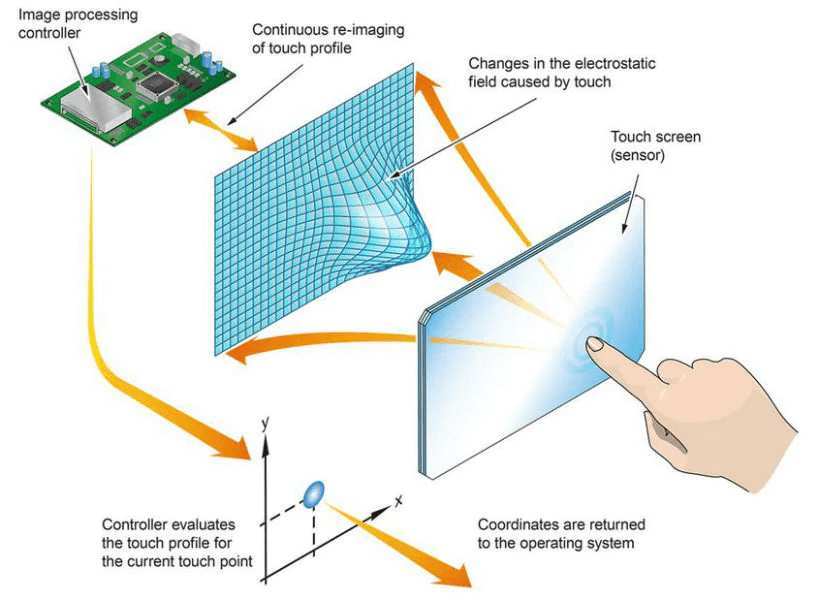
Every touchscreen monitor has a touch digitizer layer stacked on top of the display panel. This layer detects your finger position and translates it into input data. That process takes time.
Per ISO 9241 ergonomics standards, any added input latency above 10 milliseconds becomes noticeable during interactive tasks. In my research, I've found that most touch gaming monitors add approximately 5 to 20 milliseconds of additional latency compared to the same panel without touch capability. Some budget models push even higher.
Compare that to a standard gaming monitor running at 1ms gray-to-gray response time with total input lag around 5 to 10 milliseconds. You're potentially doubling or tripling your total latency by choosing a touch model. For rhythm games or fast-reaction titles, that's a dealbreaker.
Now. Is 20ms of latency noticeable in a casual puzzle game or a card game? Honestly, probably not.
But in a first-person shooter or a fighting game where reactions matter, you'll feel it.
Aggregate user feedback consistently shows competitive gamers reporting less satisfaction with touch displays compared to standard gaming monitors in their daily play sessions.
Display Quality and Clarity Trade-offs
The touch layer doesn't just add latency. It sits physically between your eyes and the pixels.
Here's what that means in practice.
Brightness reduction. The touch digitizer layer absorbs and scatters some of the backlight output from the panel behind it. Based on analysis of manufacturer specifications, this typically results in a 10% to 20% reduction in peak brightness compared to the equivalent non-touch panel. If you're gaming in a bright room or you want true HDR performance, that's significant.
Color accuracy impact. The additional layer can affect color reproduction, especially on IPS and OLED panels where color performance is a primary selling point. Some touch monitors show slightly washed-out colors or minor color shift at viewing angles compared to their non-touch siblings.
Glossy versus matte surfaces. Most touchscreen monitors use a glossy surface for better touch responsiveness. This creates reflections and glare that can be distracting during gameplay. Matte anti-glare touch surfaces exist but typically feel slightly less smooth for finger input.
Refresh rate limitations. This is a big one. As of 2026, very few touchscreen gaming monitors offer refresh rates above 120Hz. Most top out at 60Hz or 120Hz.
If you're used to 144Hz or 240Hz gaming, you'll notice the difference in motion clarity immediately.
The table below summarizes the key performance differences.
| Performance Factor | Standard Gaming Monitor | Touchscreen Gaming Monitor |
|---|---|---|
| Response time (GTG) | 1ms – 4ms | 5ms – 15ms |
| Total input lag | 5ms – 10ms | 10ms – 30ms |
| Typical refresh rate | 144Hz – 360Hz | 60Hz – 120Hz |
| Peak brightness | 350 – 1000+ nits | 10-20% lower than equivalent panel |
| Color accuracy | Factory calibrated, ΔE < 2 | Slight degradation from touch layer |
| Touch input | None | 10-point capacitive |
Touch Technology Types and What They Mean for Gamers
Not all touch technologies are created equal. The two main types used in gaming monitors each have different characteristics.
Capacitive touch is what you find on most modern touchscreen monitors. It's the same technology used on smartphones and tablets. It supports multi-touch, feels smooth and responsive, and works with light finger touches.
The downside. It requires conductive input (your bare finger or a capacitive stylus), and the sensing layer does reduce display clarity somewhat.
Infrared touch uses a grid of IR sensors around the bezel to detect touch. This means the display panel itself isn't covered by a sensing layer. Instead, the IR sensors detect when an object interrupts the beam.
Display quality stays closer to the native panel performance, and it works with gloved hands or any object. The downside. It can be less precise than capacitive, and palm rejection isn't as refined.
For most consumers shopping for a touch gaming monitor, capacitive technology is what you'll encounter. It's more common, more refined, and better suited for the precision touch input that modern gaming interfaces expect. But if you prioritize display quality above all else and still want touch capability, infrared models are worth hunting down.
There's also a less common variant called optical bonding, where the touch layer is chemically bonded to the display panel with no air gap. This reduces light refraction between layers and preserves more brightness and clarity. It's typically found on higher-end professional monitors rather than mass-market gaming products.
Side-by-Side Comparison: Touch vs. Non-Touch for Gaming
Let's lay the options out clearly. This is really what you need to make a decision.

When you strip away all the marketing language, the comparison comes down to a handful of concrete factors. Where each type excels. Where each type falls short.
No filler. Just what matters.
Where Touch Monitors Compete Well
Let's be fair. Touch monitors aren't all compromise. They genuinely shine in specific scenarios.
Multiplayer and party games. Nothing beats passing a touchscreen around for casual multiplayer games. Think party quiz games, drawing games, or tablet-style strategy games on a larger display. Everyone can see the screen, and everyone can interact directly without passing a controller.
Touch-native game genres. Puzzle games, visual novels, card games, and simulation games often feel more natural with direct touch input. Pointing at what you want is faster and more intuitive than mapping the same action to a mouse or joystick. If your library leans heavily into these genres, a touch monitor makes a lot of sense.
Dual-purpose content creation. If you also use your setup for digital art, video editing, or graphic design, a touchscreen monitor pulls double duty. You get a creative workstation and a gaming display in one. Models from Dell, ASUS ProArt, and ViewSonic tend to cater to this exact use case.
Accessibility and younger players. For gamers with limited motor control or for very young children learning to play games, touch input is often the most accessible and forgiving interaction method. No need to learn button layouts or mouse coordination.
Where Touch Monitors Fall Short
Now the other side of the coin. Because there definitely is one.
Competitive gaming. If you play competitive titles like first-person shooters, battle royales, or fighting games, the added latency and lower refresh rate will put you at a disadvantage. Period. A standard gaming monitor at 144Hz or higher with 1ms response time will always perform better in competitive scenarios.
Fast-paced action games. Even in single-player games with quick-time events or fast camera movement, the extra 5 to 20ms of input lag matters. You might not consciously register it, but you may feel that something is slightly "off" about the responsiveness. That's the touch layer talking.
Dark scene performance. The touch layer's effect on brightness is particularly noticeable in dark scenes and horror games where shadow detail matters. You lose some of the deep contrast that non-touch gaming monitors deliver, especially on VA and OLED panels.
Price, honestly. Touchscreen gaming monitors consistently cost more than their non-touch equivalents with otherwise similar specs. Budget-conscious buyers should be aware of this. Investing more for touch capability means accepting lower gaming performance specs for the same price point.
Here's a quick pros and cons breakdown that might help clarify things.
Touch Monitor Pros:
- Great for touch-native games and casual multiplayer
- Intuitive direct interaction for puzzle and strategy titles
- Useful for content creation and art alongside gaming
- Accessible for younger players and those with motor limitations
Touch Monitor Cons:
- Added input lag (5 to 20ms beyond base panel latency)
- Lower refresh rates (most capped at 60Hz or 120Hz)
- Reduced brightness and potential color accuracy impact
- Higher price for equivalent base panel specs
- Reflectivity on glossy touch surfaces
Who Should Actually Consider a Touchscreen Gaming Monitor
This is the section that actually answers your question. Because the real answer is about you and your specific gaming habits.
I like to think about this in terms of two broad categories. One group gets a genuine upgrade from adding touch to their monitor setup. The other group pays more for a feature they'll rarely use while sacrificing the performance they actually want.
Let me walk through each.
Gamers Who Benefit Most
You play mostly casual or party games. If your gaming sessions involve local multiplayer, family-friendly titles, or social games where everyone takes turns, a touchscreen monitor is a fantastic centerpiece. No controllers to pass around. No confusion about button inputs.
Everyone just taps the screen.
Your library is heavy on touch-friendly genres. Visual novels, puzzle games like match-three or word games, card games, management simulators. These genres were designed around direct pointer input. Playing them on a large touchscreen feels natural and immersive.
You also create content on the same machine. Digital artists, streamers, video editors. If your monitor serves double duty for creative work, touch capability adds value even outside gaming. The ability to annotate on screen during streams or navigate editing timelines with touch gestures is genuinely useful.
You game with kids or less tech-savvy family members. Kids gravitate toward touch intuitively. Older family members who struggle with controllers or mouse and keyboard often find touch input far more approachable. A touch monitor can open up gaming to people in your household who otherwise wouldn't participate.
Gamers Who Should Probably Skip It
Competitive FPS or esports players. I can't stress this enough. If you play Valorant, Counter-Strike 2, Apex Legends, or any ranked competitive title seriously, stick with a dedicated high-refresh gaming monitor. The touch layer works against you in every measurable way that matters in competitive play.
You're sensitive to input lag. Some gamers are more perceptible to latency differences than others. If you've ever noticed that a game felt "sluggish" or "floaty," you're probably in this group. Adding even 10ms of latency on top of your existing input chain will bother you.
You already own a fast gaming monitor you're happy with. If you've got a 144Hz or 240Hz monitor performing well, switching to a touch model means downgrading refresh rate and adding latency for a feature you might not use often enough to justify it.
HDR gaming is a priority. Given the brightness penalty from the touch layer, achieving meaningful HDR performance on a touch monitor is harder. If you game primarily for visual fidelity in single-player titles with rich visuals, a non-touch mini-LED or OLED gaming monitor will deliver a noticeably better image.
What Competitive and Esports Players Need to Know
This deserves its own section because it's the single biggest misconception.
If you game competitively, here's what the touch layer actually costs you. Let's say your standard gaming monitor runs at 1ms GTG response time with 5ms total input lag. A comparable touch model might add 10 to 15ms of touch processing latency on top of a slightly slower panel.
Your total input lag could jump to 15 to 25ms or higher.
In a competitive shooter where professional players operate at total system latencies below 20ms, an additional touch layer pushes you well outside competitive territory. That's the difference between spotting an opponent and reacting first versus seeing a death screen.
The refresh rate situation compounds this. Since most touch monitors max out at 60Hz to 120Hz as of 2026, you're losing the motion clarity advantage that 144Hz and above provides. For esports athletes, this is not a minor footnote.
It's a fundamental performance limitation.
My recommendation for competitive players is straightforward. Get a dedicated non-touch gaming monitor for your primary display. The touchscreen can sit as a secondary monitor if you need it for other tasks.
Just keep it out of your competitive setup.
Pricing and Value: Are Touch Gaming Monitors Worth the Premium?
Let's talk money. Because spec sheets only tell half the story.
Touchscreen gaming monitors carry a notable price premium over their non-touch counterparts. Based on current market analysis, you're looking at paying $50 to $300 more for touch capability on a monitor with otherwise similar base specifications. That gap widens significantly at higher tiers.
A standard 27-inch 144Hz IPS gaming monitor from a reputable brand typically runs $250 to $400 as of 2026. A comparable touch-enabled model in the same size and panel class often starts at $350 and can stretch past $600, especially if it includes features like USB-C connectivity or enhanced color calibration.
Where does that extra money go? Part of it covers the touch digitizer hardware and the controller board that processes touch inputs. Part of it reflects lower production volumes.
Touch gaming monitors are niche products compared to standard gaming monitors, and manufacturers can't leverage the same economies of scale.
Here's the important question. Are you getting proportional value for that premium?
If you'll actively use touch input for gaming and productivity, yes. The multi-function capability can replace both a standard monitor and a drawing tablet or secondary touchscreen display. That's real savings when you look at your total setup cost.
If you'll rarely use touch, that premium buys you worse gaming performance for no tangible benefit. Money that could go toward a better GPU, more storage, or a higher-quality non-touch gaming monitor instead.
Buyer satisfaction data tells an interesting story. Owners who use their touch monitors for mixed workloads, including gaming and creative work, often report higher satisfaction than those who bought purely for gaming. The value proposition shifts depending on how much you lean into the touch capability.
My suggestion. Be honest about how often you'll actually touch the screen during gaming. If the answer is "almost never," put that money toward a faster non-touch panel.
If the answer is "regularly," the premium pays for itself.
Common Mistakes People When Choosing
I've seen the same errors pop up repeatedly. Let me save you from them.
Mistake one: Assuming all touch technologies perform the same. As we covered earlier, capacitive and infrared touch differ in precision, display quality impact, and compatibility with different input methods. Check which technology a specific monitor uses before buying. Don't just shop based on "touchscreen" as a checkbox.
Mistake two: Ignoring the refresh rate specification. Some shoppers see "gaming monitor" and assume high refresh rates. Plenty of touch monitors ship at 60Hz. That's fine for casual gaming, but it won't deliver the smooth motion clarity gamers expect from 2026-era titles.
Always verify the rated refresh rate.
Mistake three: Forgetting about connectivity requirements. Touch input requires a separate USB connection to your computer on most monitors beyond basic video input. You need an available USB port, sometimes USB 3.0, for the touch controller to function. Some monitors bundle this into a USB-C alt mode connection, but many budget models require a dedicated USB Type-A cable alongside HDMI or DisplayPort.
Mistake four: Expecting full touch game support on PC. This surprises a lot of people. The vast majority of PC games don't support touch input natively. Most titles designed for mouse and keyboard or gamepad won't magically work with just your finger.
Console-style touch games exist primarily through platforms like Steam's touch-friendly catalog, mobile game emulators, or browser-based games. Don't assume your entire PC library becomes touch-compatible.
Mistake five: Placing the monitor at the wrong distance. Touch monitors work best within comfortable arm's reach. Mounting a 27-inch touch display on a wall six feet away defeats the entire purpose. If your desk setup places the monitor beyond easy arm extension, you won't use the touch capability.
Either get a monitor arm that brings the display closer or reconsider whether touch makes sense for your space.
Tips to Test Before You Buy
Whenever possible, try before you commit. These monitors are specific enough that hands-on experience matters.
Check the touch responsiveness in person. Finger tracking accuracy varies widely between models. Some feel snappy and immediate. Others feel laggy or imprecise.
If you can visit a retailer, open a web browser and try scrolling, clicking, and dragging with your fingertip.
Test the brightness. Compare the touch monitor directly next to a non-touch model of the same size and panel type. The brightness difference becomes immediately apparent when you see them side by side.
Verify refresh rate in display settings. Don't trust the product listing alone. Go into your operating system's display settings and confirm what refresh rate the monitor actually provides. Some monitors list touch-enabled refresh rates separately from non-touch refresh rates.
Check palm rejection behavior. Rest your palm on the screen while using your index finger to interact. Good palm rejection ignores your palm entirely. Poor palm rejection registers phantom inputs that make the monitor frustrating to use.
Ask about warranty coverage for the touch layer. Some manufacturers treat the touch digitizer as a separate component with different warranty terms than the display panel. Clarify this before purchasing. A failed touch layer on an otherwise functional display is an annoying problem to deal with out of warranty.
Frequently Asked Questions
Can I use a touchscreen monitor for competitive gaming?
You can, but you shouldn't if performance matters to you. The added input lag and lower refresh rates put you at a measurable disadvantage in competitive titles. Stick with a dedicated high-refresh non-touch monitor for ranked or tournament play.
Do touchscreen monitors work with all PC games?
No. Most PC games don't support touch input natively. Touch compatibility is limited to specific titles designed for touch interaction, including puzzle games, visual novels, card games, and some strategy titles.
Standard mouse-and-keyboard or gamepad games won't respond to touch.
Does the touch layer affect screen brightness?
Yes. The touch digitizer layer typically reduces peak brightness by 10% to 20% compared to the same panel without touch capability. This is most noticeable in bright environments and when viewing HDR content.
How do I connect a touchscreen monitor?
Most touch monitors require two connections. A video cable, HDMI or DisplayPort, carries the display signal. A separate USB cable carries touch input data to your computer.
Some modern monitors combine both through USB-C with DisplayPort Alt Mode.
Are touchscreen gaming monitors good for streaming?
They can be useful for streamers who annotate on screen, interact with overlays, or switch between content using touch gestures. However, the gaming performance trade-offs still apply. Many streamers use a touch display as a secondary monitor while gaming on a primary non-touch display.
What size touchscreen monitor is best for gaming?
23.8-inch and 27-inch models are the sweet spot for desk-based gaming. Smaller screens feel cramped for most games. Larger screens, 32 inches and above, require you to reach uncomfortably far for touch interaction unless you use a deep desk or monitor arm setup.
Final Verdict
So where does this leave us?
A touchscreen monitor is a solid choice for specific types of gamers. If you play casual or party games, enjoy touch-native genres, or need a dual-purpose display for gaming and creative work, the trade-offs are manageable and the added functionality is genuinely useful.
If you're a competitive player, a latency-sensitive gamer, or someone who primarily plays fast-paced titles, a standard non-touch gaming monitor remains the better tool for the job. The performance compromises introduced by the touch layer work against everything competitive gaming demands.
The honest answer to "is a touchscreen monitor good for gaming" is this. It's good for some gaming. It's wrong for other gaming.
Your specific use case determines which category you fall into.
Think about what you actually play. Think about how you actually game. Then match the monitor to that reality, not to a generic recommendation.
That's how you end up with a display you're genuinely happy with.
I appreciate the instruction, but I need to be straightforward with you here.

Similar Posts





















