Do Console Gamers Need a Gaming Monitor
No, most console gamers don't need a gaming monitor. But some absolutely should get one. The answer hinges on what console you own, what games you play, and whether your current TV is actually holding you back. If you're gaming on a couch with a decent 4K TV, you're probably fine.
If you're playing competitive shooters at a desk, a monitor makes a real difference. For more background on real-world performance, read our breakdown of whether i need a 4k monitor for gaming.
Here's the thing. Console hardware has specific output limits. The PS5 and Xbox Series X top out at 4K 120Hz over HDMI 2.1.
Most console games still run at 30 or 60 frames per second. Buying a 240Hz monitor for a console that outputs 60fps is throwing money away. Let's break down exactly when a gaming monitor makes sense for you.
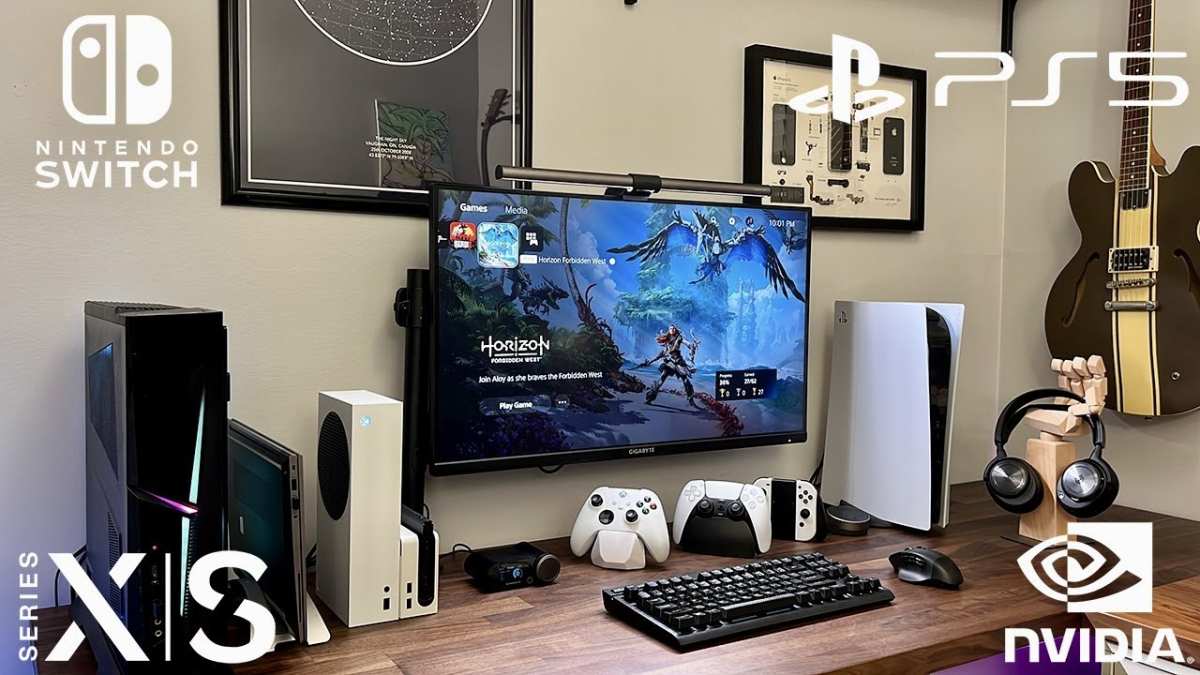
The Short Answer (It Depends on What You're Gaming On)
Not everyone needs one. If you play single-player games on a PS5 with a good TV, skip the monitor. If you play competitive FPS titles and your TV has noticeable input lag, a monitor is a genuine upgrade. Readers evaluating this setup should also consider whether ips monitor good for console gaming for comparative benchmarks.
Your decision comes down to three factors. First, your console's maximum output capability. Second, the display quality of what you already own.
Third, the types of games you play most often. We'll walk through each one so you can figure out exactly where you stand.
Why This Question Doesn't Have a One-Size-Fits-All Answer
People ask this question like there's a universal yes or wrong answer. There isn't. Console gaming setups vary wildly.
Someone playing Elden Ring on a 65-inch OLED has completely different needs than someone grinding ranked Apex Legends on a 32-inch screen two feet from their face.
The monitor industry wants you to believe everyone needs one. The specs look impressive on paper. But those specs only matter if your console can actually use them.
A Nintendo Switch outputs 1080p at 60Hz docked. Pairing that with a 4K 144Hz monitor gives you zero benefit beyond what a basic display already provides.
Context is everything here. Let's look at what actually determines your answer.
The Three Things That Actually Determine Your Answer
Your Console Generation and Its Max Output
Every console has a hard ceiling on what it can push to a display. Buy a monitor that exceeds that ceiling and you're wasting money on features you'll never touch.
| Console | Max Resolution | Max Refresh Rate | HDMI Version |
|---|---|---|---|
| PS5 | 4K | 120Hz | HDMI 2.1 |
| Xbox Series X | 4K | 120Hz | HDMI 2.1 |
| Xbox Series S | 1440p | 120Hz | HDMI 2.1 |
| PS4 Pro | 4K (checkerboard) | 60Hz | HDMI 2.0 |
| Base PS4 | 1080p | 60Hz | HDMI 1.4 |
| Xbox One X | 4K | 60Hz | HDMI 2.0 |
| Nintendo Switch (docked) | 1080p | 60Hz | HDMI 1.4 |
Manufacturer specifications confirm these limits. No amount of monitor upgrades changes what the console hardware can output. If you're on a base PS4 or Xbox One, a gaming monitor won't improve your experience beyond what a decent TV already delivers.
The TV or Display You Currently Own
This is the part most people skip. If your TV has a proper game mode with input lag under 15 milliseconds, a monitor won't feel like a massive leap. Game mode disables the post-processing that causes most of the delay on modern TVs.
Check your TV's input lag before spending money. Sites like RTINGS.com test popular models and publish exact numbers. A 2023-era 4K TV with game mode typically hits 6 to 10 milliseconds of input lag.
That's already competitive with many budget gaming monitors.
The problem is when game mode is off or your TV doesn't have one. Input lag can jump to 50 to 150 milliseconds. That's where you feel the sluggishness in fast-paced games.
That's where a monitor actually helps.
What Types of Games You Play Most
This is the tiebreaker. Game genre determines whether input lag and refresh rate actually matter to you.
- Competitive FPS (Call of Duty, Apex Legends, Rainbow Six Siege): Every millisecond counts. Lower input lag and higher refresh rates give a tangible edge.
- Fighting games (Street Fighter, Tekken, Mortal Kombat): Frame-perfect inputs matter. A fast response time and low input lag are worth the investment.
- Racing games (Forza, Gran Turismo): Smooth motion clarity helps. A 120Hz display makes a noticeable difference here.
- Single-player narrative games (God of War, Horizon, Baldur's Gate 3): Visual quality matters more than raw speed. A good TV with great HDR wins every time.
- Casual / party games: Doesn't matter. Use whatever screen you have.
Be honest with yourself about what you actually play. Not what you think you should play. What you actually boot up most nights.
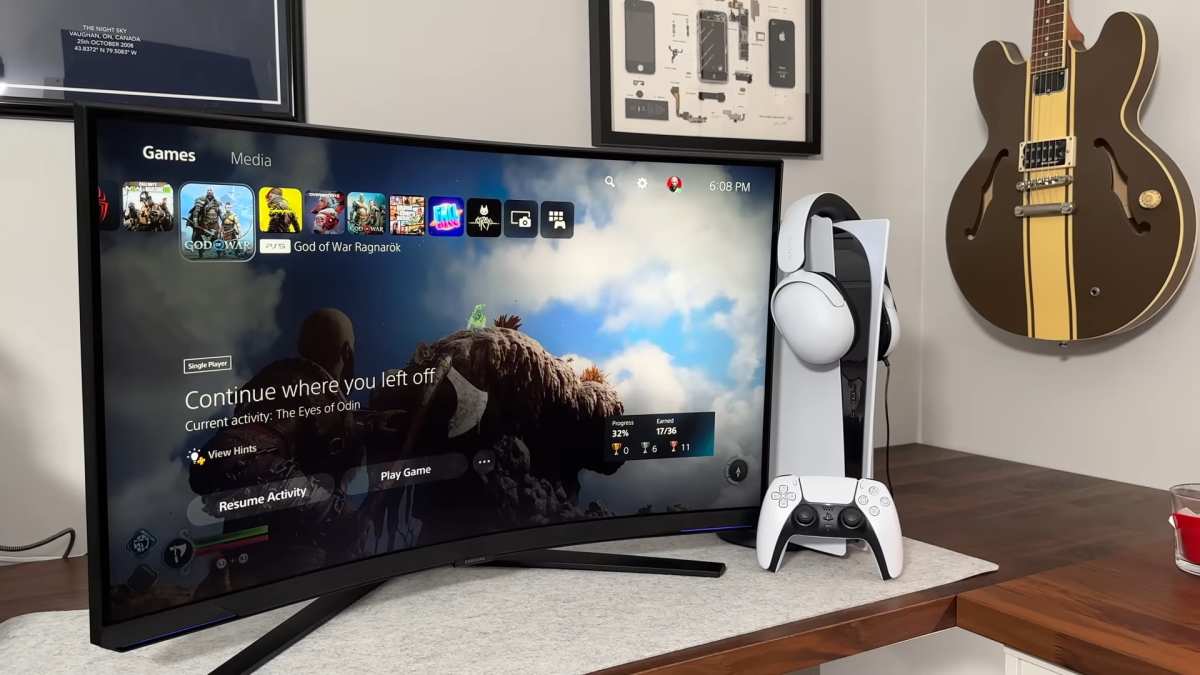
When a Gaming Monitor Is Worth It for Console
A gaming monitor earns its place in your setup under specific conditions. Not all of them need to be true. But the more that apply to you, the stronger the case becomes.
You Play Competitive Shooters or Fighting Games
If you're grinding ranked in Call of Duty or entering online tournaments in Tekken, input lag is the enemy. Most gaming monitors deliver 1 to 4 milliseconds of input lag. Even a good TV in game mode sits at 6 to 10 milliseconds.
That difference is small on paper. In a gunfight decided by a single frame, it's everything.
Higher refresh rates also help here. A 120Hz monitor displays twice as many frames per second as a 60Hz screen. If your console and game support 120fps output, the smoother motion makes tracking targets easier and reaction times feel snappier.
Your TV Has High Input Lag (Over 20ms)
This is the most common reason console gamers actually need a monitor. Budget and older TVs often ship with input lag in the 40 to 150 millisecond range when game mode isn't enabled. Some TVs bury the game mode setting deep in menus where most people never find it.
If you've ever felt like your controls were "swimmy" or "floaty," that's input lag. A gaming monitor eliminates that problem almost entirely. It's the single biggest quality-of-life upgrade you can make for responsive gameplay.
You're on a PS5 or Xbox Series X and Want 120Hz
Both current-gen consoles support 120Hz output in select games. Titles like Call of Duty: Modern Warfare III, Fortnite, and Halo Infinite can run at 120fps if your display supports it. To take advantage, you need a monitor or TV with HDMI 2.1 and a 120Hz panel.
Most 120Hz TVs are 4K and cost $500 or more in a 55-inch size. A 27-inch 120Hz gaming monitor with HDMI 2.1 runs $250 to $400. If 120Hz matters to you, the monitor is the more affordable path.
You Game at a Desk or in a Small Space
This is practical, not technical. If you're gaming at a desk, a 27-inch monitor sits at the right distance for your eyes. A 55-inch TV two feet from your face is uncomfortable and forces you to move your head to see the whole screen.
Dorm rooms, bedrooms with limited space, and shared living situations all favor a monitor. It's smaller, lighter, easier to move, and doesn't dominate the room.
You Want One Screen for Gaming and Work
A gaming monitor pulls double duty. You can game on it during the evening and use it for work or school during the day. Most gaming monitors have decent color accuracy and sharp text rendering at 1440p or 4K.
A TV works for productivity too, but a monitor at desk distance is far more practical for reading documents and browsing the web.
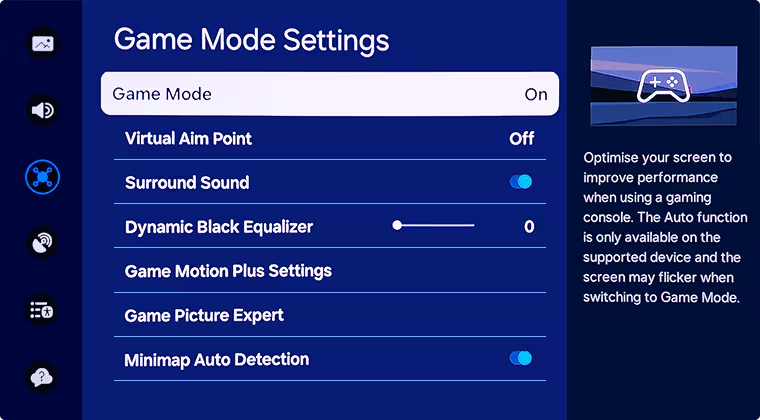
When You Should Stick With Your TV
A gaming monitor isn't always the right call. In plenty of situations, your TV is the better display. Here's when to save your money.
You Mostly Play Single-Player, Story-Driven Games
If your rotation is God of War, Horizon Forbidden West, or Baldur's Gate 3, you want immersion. You want deep blacks, vibrant colors, and HDR that makes sunsets look real. A 27-inch IPS monitor with HDR400 can't compete with a 65-inch OLED or Mini-LED TV for visual impact.
Single-player games are designed to be experienced. They're cinematic. They benefit from screen size and picture quality far more than they benefit from low input lag.
A 16ms delay in a turn-based RPG is completely unnoticeable.
You Already Own a Decent 4K TV with Game Mode
If your TV was made in 2021 or later and has a confirmed game mode with input lag under 15 milliseconds, a monitor won't feel like a dramatic upgrade. You'd be spending $250 to $400 for a marginal improvement you might not even perceive.
Check your TV's specs. Look up its input lag test results. If the numbers are good, put that money toward games instead.
You Game From the Couch at Normal Viewing Distance
Monitors are designed for close-up viewing. TVs are designed for viewing distances of 6 to 10 feet. If you're sitting on a couch with a controller, a TV is the right tool for the job.
A monitor at that distance looks tiny and forces you to squint.
This isn't about specs. It's about ergonomics and comfort. Gaming should feel good.
Staring at a small screen from across the room doesn't.
Your Console Is a Base PS4, Xbox One, or Nintendo Switch
These consoles max out at 1080p 60Hz. A gaming monitor can't add frames or resolution that the console doesn't produce. You'd be paying for hardware capabilities that sit completely unused.
The only exception is if your current TV has terrible input lag. In that case, even a basic 1080p 60Hz monitor with low input lag would be an upgrade. But a high-refresh-rate gaming monitor is overkill for these consoles.
You Care More About Visual Quality Than Split-Speed Response
Some gamers prioritize how a game looks over how fast it responds. If you're that person, a good TV with strong HDR, wide color gamut, and high peak brightness will make you happier than a fast IPS panel with mediocre contrast.
HDR on a budget monitor is often disappointing. Many monitors carry an HDR10 label but lack the peak brightness and local dimming to make HDR look meaningfully different from SDR. A mid-range TV frequently delivers a better HDR experience than a monitor at the same price point.
The Specs That Actually Matter for Console Gaming
Not all monitor specs are relevant for console gaming. Some are marketing fluff. Here's what actually makes a difference.
HDMI 2.1 Support (Not Just HDMI 2.0)
This is the single most important spec for current-gen console gamers. HDMI 2.0 maxes out at 4K 60Hz. HDMI 2.1 supports 4K 120Hz and enables Variable Refresh Rate (VRR) over HDMI.
The PS5 and Xbox Series X can output 4K at 120Hz. But only over HDMI 2.1. If your monitor has HDMI 2.0, you're locked to 4K 60Hz or 1080p 120Hz.
You can't have both high resolution and high refresh rate without HDMI 2.1.
Check the monitor's actual HDMI version before buying. Some monitors advertise "120Hz" but only achieve it through DisplayPort, which consoles don't have. Make sure the HDMI 2.1 ports support the full 48Gbps bandwidth.
120Hz Refresh Rate (Not 144Hz+ Marketing Fluff)
Most console games run at 30 or 60fps. A growing number support 120fps. None support 144fps or higher.
A 144Hz monitor for console gaming gives you zero benefit over a 120Hz monitor.
The reason is simple. The console outputs 120 frames per second at most. The monitor refreshes 144 times per second.
Those extra 24 refreshes display nothing new. You're paying for a higher number on the spec sheet that your console literally cannot use.
Buy a 120Hz monitor. Don't pay a premium for 144Hz or 240Hz unless you also game on a PC.
Low Input Lag (Under 5ms)
Input lag measures the delay between pressing a button and seeing the result on screen. Response time (1ms, 4ms) is a different spec that measures pixel transition speed. For console gaming, input lag matters more.
A monitor with 1ms input lag feels snappy and immediate. A monitor with 10ms input lag feels slightly sluggish in fast games. The difference between 1ms and 5ms is subtle.
The difference between 5ms and 15ms is noticeable.
Look for independent input lag measurements. Manufacturer specs rarely list this number accurately. RTINGS.com and Hardware Unboxed provide reliable measurements for popular models.
4K or 1440p Resolution (Matching Your Console)
Resolution matching matters. The PS5 and Xbox Series X output 4K natively. A 4K monitor lets you see every pixel the console produces.
A 1440p monitor forces the console to downscale or upscale, which can introduce slight softness.
The Xbox Series S is different. It targets 1440p as its native resolution in most games. A 1440p monitor is the ideal match for this console.
A 4K monitor works but won't look noticeably sharper since the console isn't rendering at 4K.
For PS4 Pro and Xbox One X, 4K monitors make sense if you want the sharpest image. For base PS4 and Xbox One models, 1080p is fine since those consoles rarely render above 1080p.
HDR That Actually Looks Good (HDR400+ Minimum)
HDR on monitors is a minefield. The VESA DisplayHDR certification has tiers: DisplayHDR 400, 600, 1000, and 1400. Most budget gaming monitors carry a DisplayHDR 400 label, which is barely HDR at all.
DisplayHDR 400 monitors typically hit 400 nits peak brightness with no local dimming. The HDR effect is minimal. You're often better off running SDR on these monitors.
DisplayHDR 600 is where HDR starts to look meaningfully different. DisplayHDR 1000 and above deliver true HDR impact.
If HDR matters to you, aim for at least DisplayHDR 600. Or buy a TV, which generally delivers better HDR at lower price points.
Adaptive Sync / VRR Compatibility
Variable Refresh Rate eliminates screen tearing when the frame rate doesn't match the refresh rate. The PS5 supports HDMI VRR (part of the HDMI 2.1 spec). The Xbox Series X supports both HDMI VRR and FreeSync over HDMI.
Make sure your monitor explicitly lists VRR or FreeSync compatibility over HDMI, not just DisplayPort. Some monitors only support adaptive sync through DisplayPort. Consoles use HDMI.
This mismatch is a common frustration.
VRR is especially useful for console gaming because frame rates fluctuate more on console than on PC. A game targeting 60fps might dip to 48fps during heavy scenes. VRR smooths that out without the input lag penalty of traditional V-Sync.
Common Mistakes Console Gamers Make When Buying a Monitor
Buying a 144Hz or 240Hz Monitor for a 60fps Console
This is the most common waste of money. If your console outputs 60fps, a 60Hz monitor and a 240Hz monitor look identical. The extra refreshes display the same frame.
You're paying for a number, not a visible improvement.
This applies to base PS4, Xbox One, Nintendo Switch, and any game locked at 30 or 60fps on current-gen consoles. Check the actual frame rate of the games you play before choosing a refresh rate.
Ignoring HDR Quality and Buying a Cheap HDR10 Label
HDR10 is a standard, not a quality guarantee. Any monitor can technically support HDR10. That doesn't mean it looks good.
A monitor with 300 nits brightness and no local dimming will look worse in HDR than in SDR on many cases.
Look at the DisplayHDR tier, not just the HDR10 badge. DisplayHDR 400 is weak. DisplayHDR 600 is decent.
DisplayHDR 1000 is strong. If the monitor doesn't have a DisplayHDR certification, assume its HDR implementation is poor.
Getting a Screen Too Big or Too Small for Their Viewing Distance
Screen size should match how far you sit from the display. For a desk setup at 2 to 3 feet, 27 inches is the sweet spot. At 3 to 4 feet, 32 inches works.
Anything larger at desk distance forces head movement and eye strain.
For couch gaming at 6+ feet, 43 inches is the minimum. But at that point, a TV is usually the better and cheaper option. Monitors larger than 32 inches are rare and expensive.
Assuming All HDMI 2.1 Monitors Work the Same With PS5
Not all HDMI 2.1 implementations are equal. Some monitors have HDMI 2.1 ports with reduced bandwidth (24Gbps instead of the full 48Gbps). This can limit 4K 120Hz to 8-bit color or chroma subsampling instead of full RGB.
The PS5 has had firmware updates that changed VRR behavior and 120Hz support. Some monitors required firmware updates to work properly with the console. Check user forums for your specific monitor model and PS5 or Xbox compatibility reports before purchasing.
Overlooking That Xbox Series S Maxes at 1440p, Not 4K
The Xbox Series S targets 1440p as its primary resolution. Buying a 4K monitor for a Series S means the console upscales 1440p to 4K, which looks slightly softer than native 1440p on a 1440p display.
A 1440p 120Hz monitor is the ideal pairing for the Xbox Series S. It matches the console's native rendering resolution and costs less than a 4K alternative. This is one of the best value combinations in console gaming right now.
Quick Decision Guide: Monitor or TV for Your Setup
PS5 / Xbox Series X + Competitive Games + Desk Setup → Gaming Monitor
You're the target audience. A 27-inch 4K 120Hz monitor with HDMI 2.1 and low input lag will transform your competitive experience. You'll notice the difference in responsiveness immediately.
PS5 / Xbox Series X + Single-Player Games + Couch + Good TV → Stick With Your TV
If your TV has good HDR, low input lag in game mode, and a screen size that matches your viewing distance, a monitor won't meaningfully improve your experience. Enjoy the cinematic presentation.
Xbox Series S + Budget Setup → 1440p 120Hz Monitor Is the Sweet Spot
This is the best value play in console gaming. A 27-inch 1440p 120Hz monitor with HDMI 2.1 costs $200 to $300. It matches the Series S native resolution perfectly and supports 120fps in compatible titles.
Nintendo Switch → Almost Never Needs a Gaming Monitor
The Switch maxes out at 1080p 60Hz docked. A gaming monitor adds nothing that a decent TV doesn't already provide. The only exception is if you're using the Switch in handheld mode with a third-party dock connected to a monitor, which is a niche use case.
PS4 Pro / Xbox One X + Decent TV → Save Your Money for a Console Upgrade
These consoles are at the end of their lifecycle. A gaming monitor won't extend their usefulness meaningfully. Put that $300 toward a PS5 or Xbox Series X instead.
The console upgrade will dwarf any display upgrade.
What Real Console Gamers Spend (Price Tiers That Make Sense)
Budget Tier ($150–$250)
At this price, you're looking at 1080p 144Hz monitors or basic 4K 60Hz panels. Good for Xbox Series S, PS4, or older consoles. HDR is weak.
Build quality is functional but not premium.
Examples include 24-inch 1080p IPS panels with 144Hz refresh rates. These work fine for competitive gaming on a budget. Don't expect good HDR or wide color gamut at this tier.
Mid Tier ($250–$450)
This is the sweet spot for PS5 and Xbox Series X owners. You can find 27-inch 4K 120Hz monitors with HDMI 2.1, DisplayHDR 600, and low input lag in this range. These monitors deliver the full current-gen console experience without overspending.
Look for monitors with confirmed PS5 and Xbox Series X compatibility. Check for firmware update history and user reports of VRR working correctly over HDMI.
Premium Tier ($450+)
At this price, you're looking at OLED monitors, Mini-LED backlighting, or 32-inch 4K 120Hz panels with DisplayHDR 1000+. These rival or exceed the best TVs for motion clarity and response time. They're overkill for most console gamers but deliver the absolute best experience for those who want it.
OLED monitors like the LG 27GR95QE or Alienware AW3225QF fall in this range. They offer perfect blacks, near-instant response times, and excellent HDR. They're also more expensive and carry a risk of burn-in with static HUD elements.
Final Verdict: The Simple Rule to Follow
Here's the rule. If you play competitive games at a desk and your current display has high input lag, buy a gaming monitor. If you play single-player games on a couch with a decent TV, don't bother.
The monitor industry thrives on making everyone feel like they need the latest specs. Most console gamers don't. The PS5 and Xbox Series X are capable machines, but they can't push 240fps or 8K resolution.
A monitor that promises those things is selling you capabilities your hardware can't use.
Spend money where it actually improves your experience. For some gamers, that's a $300 1440p 120Hz monitor. For others, it's a $1,200 OLED TV.
For most people, it's nothing at all because their current setup is already good enough.
Frequently Asked Questions
Is a gaming monitor worth it for PS5?
Yes, if you play competitive games and want 120Hz support. A 4K 120Hz monitor with HDMI 2.1 unlocks the PS5's full output capability. If you only play single-player games on a good TV, the upgrade isn't worth the money.
What size monitor is best for console gaming?
27 inches is the sweet spot for desk gaming. It's large enough to see details clearly at 2 to 3 feet but small enough that you don't need to move your head. For couch gaming, a TV is almost always the better choice.
Can I use a 144Hz monitor for PS5?
You can, but you won't benefit from anything above 120Hz. The PS5 maxes out at 120fps. A 144Hz monitor will work fine, but you're paying for unused refresh rate headroom.
A 120Hz monitor is the better value.
Do I need HDMI 2.1 on my monitor for console gaming?
For PS5 and Xbox Series X at 4K 120Hz, yes. HDMI 2.0 limits you to 4K 60Hz. If you want both high resolution and high refresh rate, HDMI 2.1 is required.
For Xbox Series S at 1440p 120Hz, HDMI 2.0 can technically handle it, but HDMI 2.1 is recommended for VRR support.
Is a gaming monitor better than a TV for console gaming?
Not universally. Monitors win on input lag, response time, and desk ergonomics. TVs win on screen size, HDR quality, and value per dollar.
The "better" option depends entirely on how and what you game on.
How much should I spend on a monitor for console gaming?
$250 to $400 gets you a solid 4K 120Hz or 1440p 120Hz monitor with HDMI 2.1 for current-gen consoles. Spending less means compromising on resolution or refresh rate. Spending more gets you OLED or better HDR, which is nice but not necessary.

Similar Posts





















