How to Fix USB C Monitor Flickering
Why Your USB-C Monitor Flickers (And How to Actually Fix It)
Figuring out how to fix USB-C monitor flickering starts with identifying which link in the chain is actually failing. It's almost never the monitor itself. The culprit is usually a cable that doesn't support video, a port that lacks the right capability, or a software setting that's misconfigured.
We'll walk through each possibility in order so you can isolate the problem and fix it for good. This directly compares with our findings on how to fix usb c monitor not detected.
The USB-C connector can carry power, video, and data simultaneously through a feature called DisplayPort Alt Mode. But not every cable, port, or device supports all three. That mismatch is what causes most flickering issues.
Let's start with the most common cause and work our way through the rest.
Quick Answer
USB-C monitor flickering is usually caused by a bad cable, wrong port, or incorrect display settings. Start by swapping to a certified full-featured USB-C cable that supports DisplayPort Alt Mode. Then check that your laptop port actually carries video output.
Finally, verify your refresh rate and resolution match what your monitor supports. If flickering persists, update your GPU drivers and monitor firmware. For related troubleshooting and calibration steps, check our walkthrough on how to fix usb c monitor no signal issue.
First Question: Is It the Cable?
The cable is the number one cause of USB-C display flickering. It's also the easiest thing to fix.
How to tell if your USB-C cable is the problem
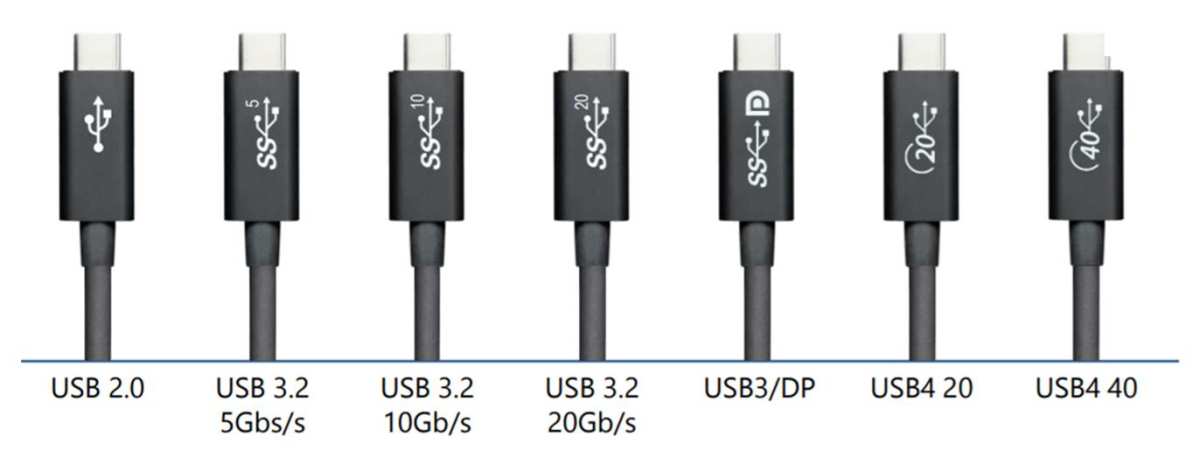
If your screen flickers, goes black for a second, or pulses intermittently, the cable is the first thing to suspect. Here's why. A USB-C cable that only supports USB 2.0 data and charging physically cannot carry a video signal.
It has the wrong number of internal wires. Plugging one of these into your monitor won't work at all, or it'll produce an unstable, flickering image before dropping out.
Even cables that do support video can cause problems if they're:
- Too long (beyond 2 meters for high-bandwidth 4K signals)
- Poorly shielded (picking up electromagnetic interference)
- Worn out (bent pins, frayed housing, loose connection)
- Not certified by USB-IF (lacking proper E-Marker chip for power negotiation)
A quick test: wiggle the cable gently at both ends while the monitor is on. If the screen flickers or cuts out when you move the cable, you've found your problem. Replace it immediately.
Charging-only vs. full-featured USB-C cables
This is where most people get tripped up. USB-C cables look identical from the outside, but the internal wiring varies dramatically. Here's a breakdown:
| Cable Type | Carries Video | Max Data | Power Delivery | Common Use |
|---|---|---|---|---|
| USB 2.0 USB-C | No | 480 Mbps | Up to 60W | Charging phones, basic peripherals |
| USB 3.1 Gen 1 USB-C | Depends on manufacturer | 5 Gbps | Up to 100W | External drives, some displays |
| USB 3.2 Gen 2 USB-C | Usually yes (DP Alt Mode) | 10 Gbps | Up to 100W | Monitors, docks |
| Thunderbolt 3/4 | Yes (guaranteed) | 40 Gbps | Up to 100W (TB3) / 240W (TB4) | Professional displays, eGPUs |
The key takeaway: if your cable came in the box with a phone charger or a pair of earbuds, it almost certainly does not support video. You need a cable explicitly rated for DisplayPort Alt Mode or Thunderbolt.
Cable length and signal degradation
Signal quality drops as cable length increases. For 4K at 60Hz, most certified cables work reliably up to about 2 meters (roughly 6.5 feet). Beyond that, you'll need an active cable with built-in signal conditioning, or you'll start seeing flickering, sparkles, or intermittent blackouts.
If you're running a 3-meter or longer cable and experiencing flickering, try a shorter cable first. It's the cheapest test you can run.
Second Question: Is It a Port or GPU Issue?
If you've swapped the cable and the flickering continues, the next thing to check is whether your laptop's USB-C port actually supports video output.
Not all USB-C ports support video
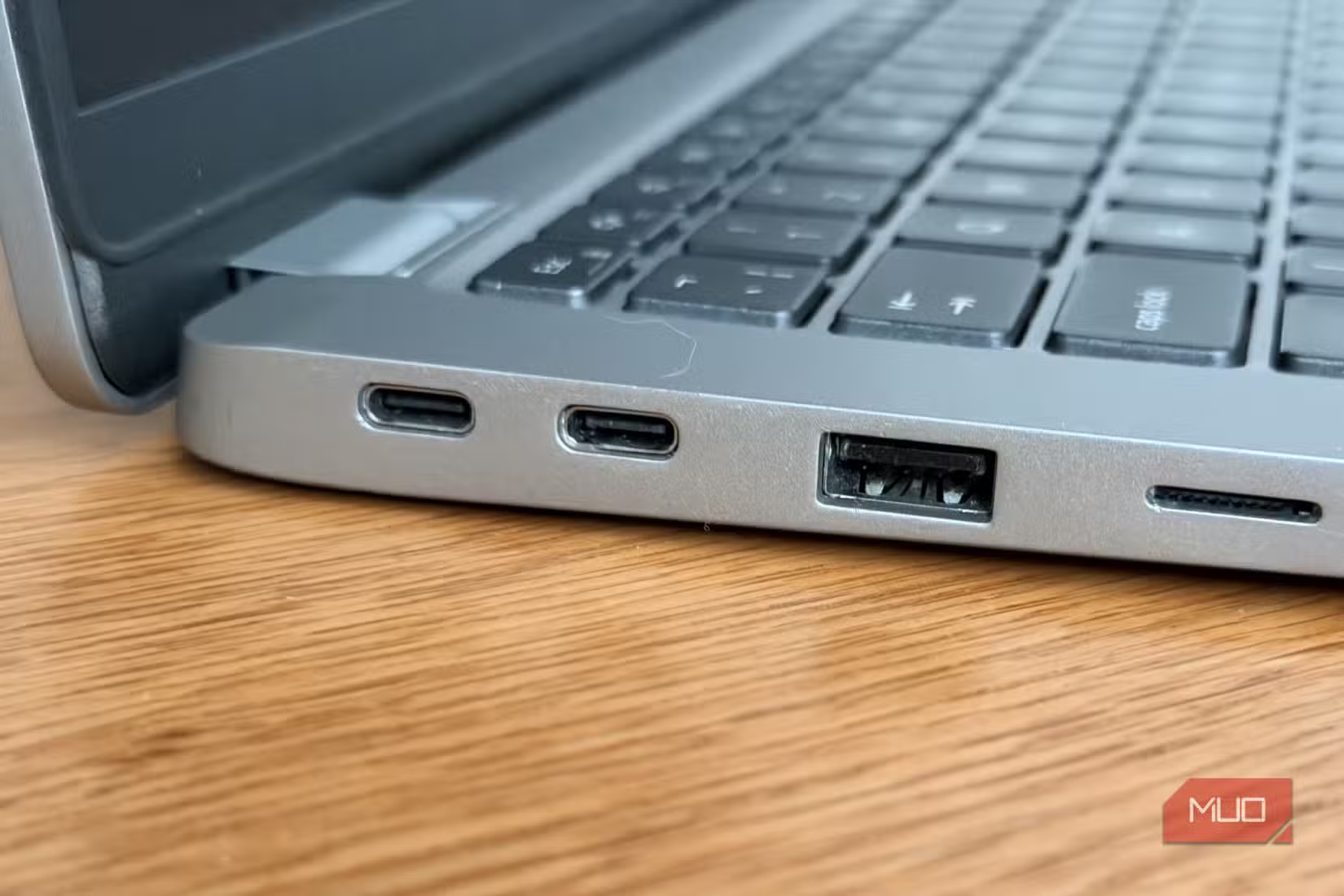
This catches a lot of people off guard. Many laptops have multiple USB-C ports, but only one or two of them support DisplayPort Alt Mode. The others are data and charging only.
Manufacturer specifications will list which ports support video output. Check your laptop's tech specs page or user manual for the DP Alt Mode icon (a "D" with a "P" inside) next to the port description.
On some laptops, the Thunderbolt icon (a lightning bolt) next to the port confirms video support. If your port has no such marking at all, it likely cannot drive an external display.
How to check if your port supports DisplayPort Alt Mode
The fastest way to check is to look up your laptop or motherboard model on the manufacturer's website. Search for "tech specs" or "port specifications" and look for "DisplayPort over USB-C" or "DP Alt Mode" in the list.
On Windows, you can also open Device Manager, expand "Display adapters," and check what GPU is listed. Then cross-reference that GPU's capabilities on the manufacturer's site. Intel, AMD, and NVIDIA all publish detailed specs for their integrated and discrete GPUs, including display output options.
Integrated vs. discrete graphics — why it matters for USB-C displays
Many laptops route the USB-C video output through the integrated GPU (Intel Iris Xe or AMD Radeon Graphics) rather than the discrete GPU (NVIDIA or AMD Radeon dedicated chip). This is normal and usually not a problem. However, if you're running demanding applications and the integrated GPU is struggling, you might see flickering or display artifacts that look like a connection issue but are actually a performance issue.
To check this, open your GPU control panel (Intel Graphics Command Center, NVIDIA Control Panel, or AMD Radeon Software) and see which GPU is driving the external display. If it's the integrated GPU and you're seeing flickering under load, try connecting via a different port or using a direct DisplayPort connection instead.
Third Question: Is It a Settings or Software Problem?
If the cable is good and the port supports video, the flickering is almost certainly a software or settings issue. These are the easiest fixes, but there are several things to check.
Refresh rate mismatches
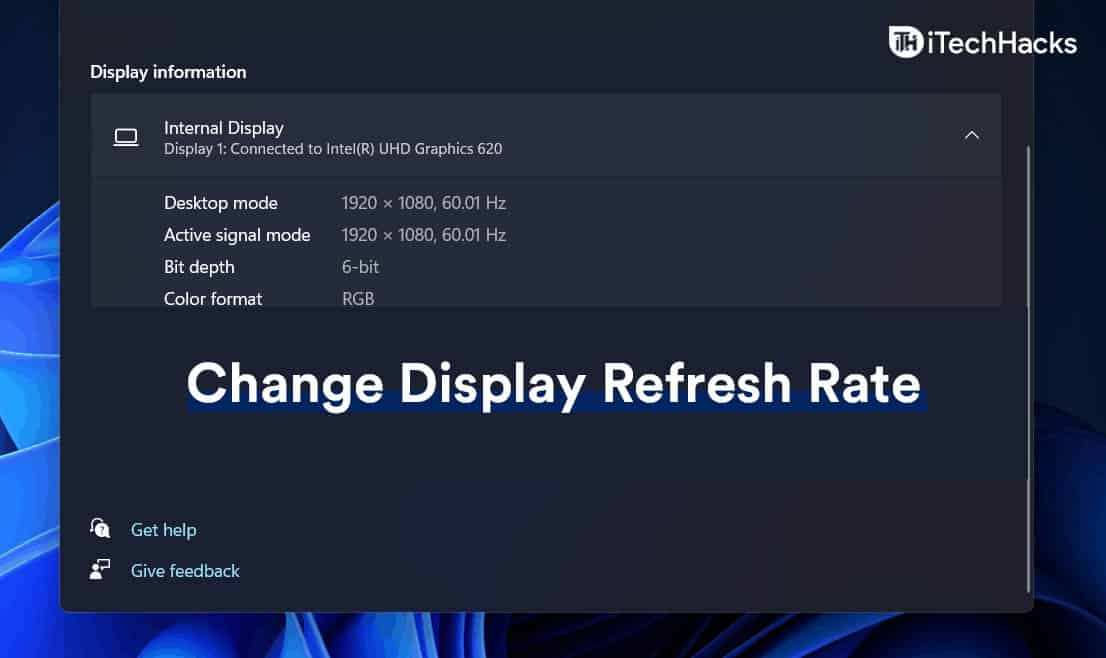
This is one of the most common software causes. Your monitor might support 75Hz or 144Hz, but if Windows has it set to a refresh rate the cable or port can't sustain at your chosen resolution, you'll get flickering.
To check and fix this on Windows:
- Right-click the desktop and select Display settings
- Click Advanced display settings
- Select your USB-C monitor from the dropdown
- Check the Refresh rate dropdown and try lowering it (for example, from 75Hz to 60Hz)
On macOS, go to System Settings > Displays, hold the Option key, and click Scaled to see available refresh rates.
If lowering the refresh rate stops the flickering, your cable or port can't handle the higher rate at that resolution. You'll need a better cable or a lower resolution to run the higher refresh rate.
Resolution and HDR conflicts
Running a 4K display over USB-C requires significant bandwidth. If you're also running HDR, the bandwidth demand increases further. Some cables and ports can handle 4K at 60Hz with SDR but flicker when HDR is enabled because the data rate exceeds what the connection can sustain.
Try disabling HDR temporarily:
- Go to Settings > System > Display
- Select your USB-C monitor
- Toggle HDR off
If the flickering stops, your cable or port is bandwidth-limited. You can either keep HDR off, drop to 1440p, or upgrade to a Thunderbolt 4 cable that has more headroom.
Adaptive sync causing instability
FreeSync and G-Sync can sometimes cause flickering over USB-C, especially if the monitor's adaptive sync range is narrow or the connection is slightly unstable. This often shows up as brief brightness flickering rather than full screen blackouts.
To test this:
- Open your GPU control panel
- Disable FreeSync or G-Sync for the USB-C display
- Observe whether the flickering stops
If it does, you can try re-enabling it with a narrower refresh range, or leave it off and stick with a fixed refresh rate.
Outdated GPU drivers
GPU driver bugs are a well-known cause of display flickering. This is especially common after a major OS update that changes how the OS talks to the GPU.
Update your drivers from the source:
- NVIDIA: Download from nvidia.com/drivers or use GeForce Experience
- AMD: Download from amd.com/en/support or use AMD Adrenalin Software
- Intel: Download from intel.com/content/www/us/en/download-center or use the Intel Driver & Support Assistant
After updating, restart your laptop. Don't just sleep or hibernate. A full restart ensures the new driver loads cleanly.
Flickering after a Windows or macOS update
OS updates occasionally reset display settings or introduce driver incompatibilities. If your USB-C monitor was working fine and started flickering right after an update, try these steps:
- Roll back the GPU driver to the previous version
- Check for a newer driver release that addresses the update
- Run Windows Update again to see if a patch has been issued
- On macOS, check for point updates (like macOS 15.x.1) that fix display bugs
Fourth Question: Is It the Dock, Hub, or Monitor Itself?
If you've ruled out the cable, port, and software settings, the issue might be sitting between your laptop and the monitor.
USB-C docks and hubs as a signal bottleneck
USB-C docks and hubs are incredibly convenient, but they add another point of failure. The dock has to negotiate power delivery, route the video signal, and handle data traffic all through a single upstream cable. If the dock's chipset is overheating, underpowered, or running outdated firmware, the video signal can become unstable.
Try connecting your monitor directly to your laptop with a USB-C cable, bypassing the dock entirely. If the flickering stops, the dock is the problem. Check the manufacturer's website for a firmware update for the dock.
If no update is available and the dock is still under warranty, consider a replacement.
Monitor firmware bugs
Monitor manufacturers occasionally release firmware updates that fix display stability issues, including flickering over USB-C. This is easy to overlook because most people never think to update their monitor.
Check the support page for your specific monitor model on the manufacturer's website. Look for firmware updates and instructions on how to apply them. The process usually involves downloading a file to a USB drive and plugging it into the monitor's USB port, or using a utility connected via USB.
Daisy-chain and multi-monitor conflicts
If you're running multiple monitors through a single USB-C port using DisplayPort Multi-Stream Transport (MST), bandwidth limitations can cause flickering on one or both displays. Two 4K monitors daisy-chained over a single USB-C connection can exceed the available bandwidth, especially at higher refresh rates.
The fix is to connect each monitor to its own port, or reduce the resolution and refresh rate on one of the displays to free up bandwidth.
Power delivery negotiation problems
When your laptop, dock, and monitor are all negotiating power delivery simultaneously, conflicts can arise. Some monitors offer USB-C power pass-through (charging your laptop through the monitor). If the monitor's power output is lower than your laptop's requirement, the laptop may draw power inconsistently, which can cause display instability.
Check your monitor's USB-C power output rating. If it's 60W and your laptop requires 100W, the power negotiation may be causing the issue. In that case, use your laptop's dedicated charger instead of relying on the monitor for power delivery.
When to Try a Different Connection Type
Sometimes the USB-C connection itself is the limitation, and the most practical fix is to use a different cable type entirely.
USB-C vs. direct DisplayPort cable
If your monitor has a DisplayPort input, a direct DisplayPort cable is almost always more reliable than USB-C for video. DisplayPort was purpose-built for driving displays. It doesn't have to share bandwidth with data and power delivery the way USB-C does.
This is especially true for high-refresh-rate gaming monitors running at 144Hz or 240Hz. USB-C can handle these refresh rates, but only with the right cable and port combination. A standard DisplayPort 1.4 cable eliminates that variable entirely.
USB-C vs. HDMI
HDMI is another solid alternative if your monitor supports it. HDMI 2.0 handles 4K at 60Hz without any fuss. HDMI 2.1 pushes that to 4K at 120Hz.
For most productivity and media use, HDMI is rock solid and less prone to the negotiation issues that can affect USB-C displays.
The tradeoff is that HDMI won't charge your laptop the way USB-C does. You'll need a separate power cable. But if stability is your priority, that's a worthwhile trade.
When bypassing USB-C is the right call
Consider switching to DisplayPort or HDMI if you've tried multiple certified USB-C cables and the flickering persists. Also make the switch if your USB-C port doesn't reliably support DP Alt Mode, or if you're running a high-refresh-rate display and can't afford intermittent dropouts.
USB-C is convenient. A single cable for video, power, and data is hard to beat. But convenience doesn't matter if your screen keeps flickering.
A separate DisplayPort cable plus a laptop charger is a perfectly valid setup that many professionals prefer for exactly this reason.
The Complete Fix Checklist (In Order)
Here's the full troubleshooting sequence in order. Work through each step until the flickering stops.
- Swap the USB-C cable for a certified full-featured cable that supports DisplayPort Alt Mode
- Try a different USB-C port on your laptop, preferably one with Thunderbolt support
- Lower the refresh rate in your display settings (try 60Hz if you're currently at 75Hz or higher)
- Lower the resolution temporarily to see if bandwidth is the issue
- Disable HDR in your display settings
- Disable adaptive sync (FreeSync or G-Sync) in your GPU control panel
- Update your GPU drivers from the manufacturer's website
- Check for a monitor firmware update on the manufacturer's support page
- Bypass any dock or hub and connect the monitor directly to the laptop
- Try a different connection type (DisplayPort or HDMI) if available
- Test with a different monitor to isolate whether the problem is the monitor or the laptop
- Update your laptop BIOS/firmware from the manufacturer's support page
You don't need to do all twelve steps. Most people find the fix within the first four. But if you're dealing with a stubborn issue, working through the full list will identify the cause.
Common Mistakes That Waste Your Time
A few things people try that usually don't help. Save yourself the frustration.
- Buying an expensive "gaming" USB-C cable when the issue is a port limitation. No cable can add DP Alt Mode support to a port that doesn't have it.
- Reinstalling the operating system before checking the cable. A clean install won't fix a hardware signal problem.
- Adjusting brightness and contrast on the monitor. Flickering is a signal issue, not a panel calibration issue.
- Using a USB-C to HDMI adapter as a test without realizing the adapter itself may not support the resolution or refresh rate you're running.
- Assuming the monitor is defective when the real problem is the cable or port. Monitor hardware failures are actually less common than connection issues.
When It's Time to Replace Something
If you've worked through the checklist and the flickering only happens with one specific piece of hardware, that hardware needs replacing.
Replace the cable if wiggling it causes the screen to flicker, or if it's a cheap uncertified cable that came with a phone or accessory.
Replace the dock if the flickering stops when you connect the monitor directly to the laptop, and the dock's firmware is already up to date.
Contact the monitor manufacturer if the flickering happens with multiple cables, multiple computers, and multiple connection types. That points to a hardware fault in the monitor itself, likely the USB-C input board or the main controller.
Consider your laptop's USB-C controller if every external display flickers regardless of cable or monitor. This is rare, but it indicates a hardware issue with the laptop's USB-C controller or GPU. At that point, a warranty claim or a switch to a dedicated DisplayPort or HDMI connection is the practical solution.
Frequently Asked Questions
Can a cheap USB-C cable cause monitor flickering?
Yes. Cheap cables that lack proper shielding or don't support DisplayPort Alt Mode are the most common cause of USB-C monitor flickering. A cable that only supports USB 2.0 data and charging cannot carry a video signal at all.
Does USB-C monitor flickering damage the monitor or laptop?
No. Flickering itself is a signal quality issue and won't harm either device. However, a cable that's overheating or sparking due to a poor connection should be disconnected immediately, as that can cause damage.
Why does my USB-C monitor flicker only when charging?
This usually indicates a power delivery conflict. The cable or port is struggling to negotiate both power delivery and video output simultaneously. Try using a separate charger for your laptop and a video-only USB-C cable to the monitor.
Will a USB-C to DisplayPort adapter fix flickering?
It can, if the root cause is a USB-C cable or port issue. A direct DisplayPort connection bypasses the USB-C negotiation entirely. Make sure the adapter or cable supports the resolution and refresh rate you need.
How do I know if my USB-C cable supports video?
Look for "DisplayPort Alt Mode," "Thunderbolt 3/4," or "USB 3.1/3.2" in the cable's product description. If the listing only mentions charging speed and USB 2.0 data, it does not support video. Certified cables often have the USB-IF logo on the packaging.

Similar Posts





















