Can Touchscreen Monitors Replace Keyboard and Mouse
So you've been eyeing that sleek touchscreen monitor setup in a YouTube video or coworker's desk and thought: could I just ditch my keyboard and mouse? Maybe.
A touchscreen monitor can absolutely replace a keyboard and mouse for some people in some situations. For others, it's a recipe for frustration, shoulder pain, and slower work. The honest answer depends on what you do all day, how long you do it, and what you're willing to give up. Readers comparing various configurations should also examine whether touchscreen monitors replace laptops.
Let's break it down so you can make the call for your own workflow instead of relying on marketing hype.
Before we dig into the details, a quick note on what "touchscreen monitor" actually means here: we're talking about an external desktop display with built-in capacitive or optical touch capability, not a laptop with a touchscreen. These connect via USB-C, HDMI plus USB, or DisplayPort, and they register 10-point multi-touch or pen input depending on the model. Per USB-IF standards, modern touch displays handle input reporting at rates that make finger tracking feel responsive for everyday tasks, but that's only one piece of the puzzle.
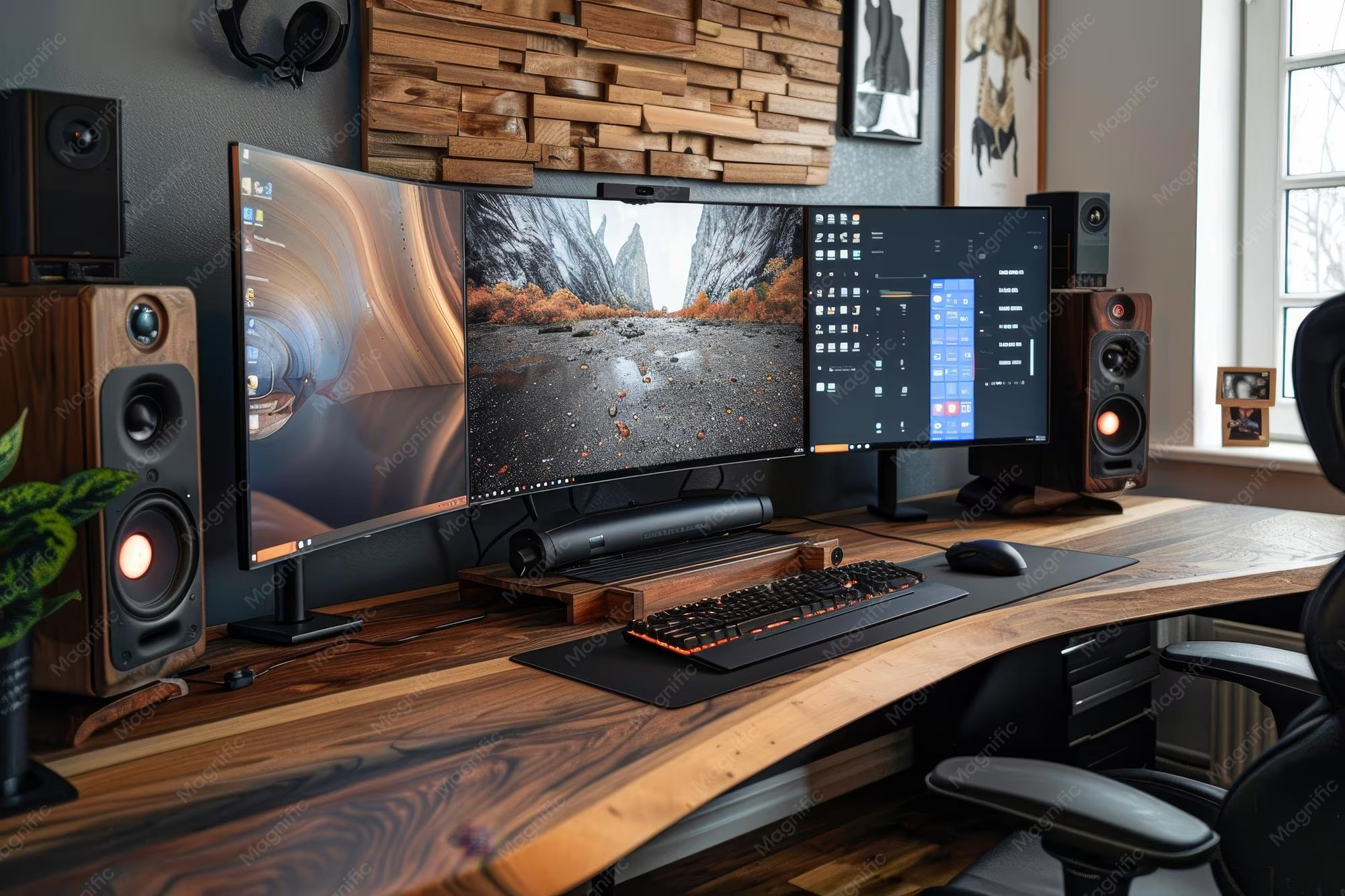
Quick Answer: It Depends on What You Actually Do All Day
A touchscreen monitor can replace a keyboard and mouse for casual browsing and media. It cannot fully replace them for precision work or long typing sessions. Creative pros and office workers usually need a hybrid setup. Readers evaluating this setup should also consider whether touchscreen monitors replace dual setup for comparative benchmarks.
People who use touch-optimized apps benefit the most. Everyone else should keep their keyboard handy.
Why Even Ask This Question
The idea of your workspace down to one screen that does everything sounds appealing. And honestly, for certain people it makes perfect sense. The question keeps coming up because touchscreen monitors have gotten significantly better and cheaper over the past few years.
As of 2026, you can grab a solid 24-inch 1080p touchscreen display for around $250 to $350, which puts it in range for everyday buyers.
There's also a genuine trend toward touch-first computing in professional settings. Designers use pen-enabled displays. Retail and medical staff tap through interfaces all day.
Educators write notes on projected screens. The line between "touch device" and "computer" keeps blurring, and people naturally wonder whether the old keyboard-and-mouse combo is still necessary.
But here's the catch: touchscreen monitors aren't tablets. They sit on your desk at arm's length, usually 20 to 24 inches from your face. That distance and angle change everything about how touch input feels over a full workday.
The question isn't whether the technology works. It's whether it works for eight hours straight without making you miserable.
The Real Problem Behind Gorilla Arm, Precision, and Workflow Gaps
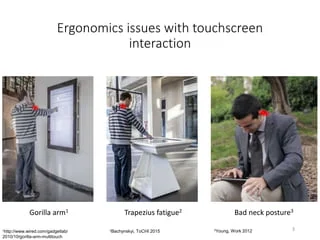
The biggest single issue with using a touchscreen as your primary input is something ergonomics researchers call "gorilla arm." Hold your arm out in front of you for 30 seconds. Now imagine doing that hundreds of times a day, reaching forward to tap, swipe, and drag on a vertical-ish screen. Within an hour or two your shoulder starts burning.
Within a full day you'll feel it in your neck and upper back too.
This isn't a minor discomfort issue. Research published through ACM's digital library on touch surface ergonomics consistently shows that sustained arm extension against gravity leads to measurable fatigue and reduced accuracy over time. The studies used biomechanical simulation to track muscle load.
The results were clear: touch input from a standing or seated forward-reach posture degrades performance significantly after just 15 to 20 minutes of continuous use.
Then there's the precision problem. A mouse gives you sub-millixel accuracy. Even a decent trackpad lets you hover and click with fine control.
Your fingertip, pressed against a glass surface, creates a contact area that's roughly 6 to 10 millimeters across. That makes tasks like selecting a single word in a text document, clicking a tiny checkbox, or manipulating anchor points in vector software genuinely harder.
And workflow gaps matter too. Keyboard shortcuts are incredibly efficient once you've built muscle memory. Ctrl+Shift+T to reopen a closed tab.
Alt+Tab to switch windows. Vim commands for code editing. Touch input doesn't have a great equivalent for most of these.
Some touchscreen monitors support gesture customization, but it's not the same as having 104 keys under your fingers.
The bottom line? Gorilla Arm, loss of precision, and the absence of keyboard-driven shortcuts are the three reasons touch-only setups fail for most desktop workers. If your daily routine involves a lot of typing or fine cursor control, you'll hit these walls fast.
How Touchscreen Monitors Actually Work (Beyond Just "Tap to Click")
Most modern external touchscreen monitors use projected capacitive touch (PCAP) technology. Your finger changes the electrical field across a grid of sensors embedded in the glass. The controller chip calculates the position and sends that data to your computer over USB.
It's the same basic principle your phone uses, just scaled up.
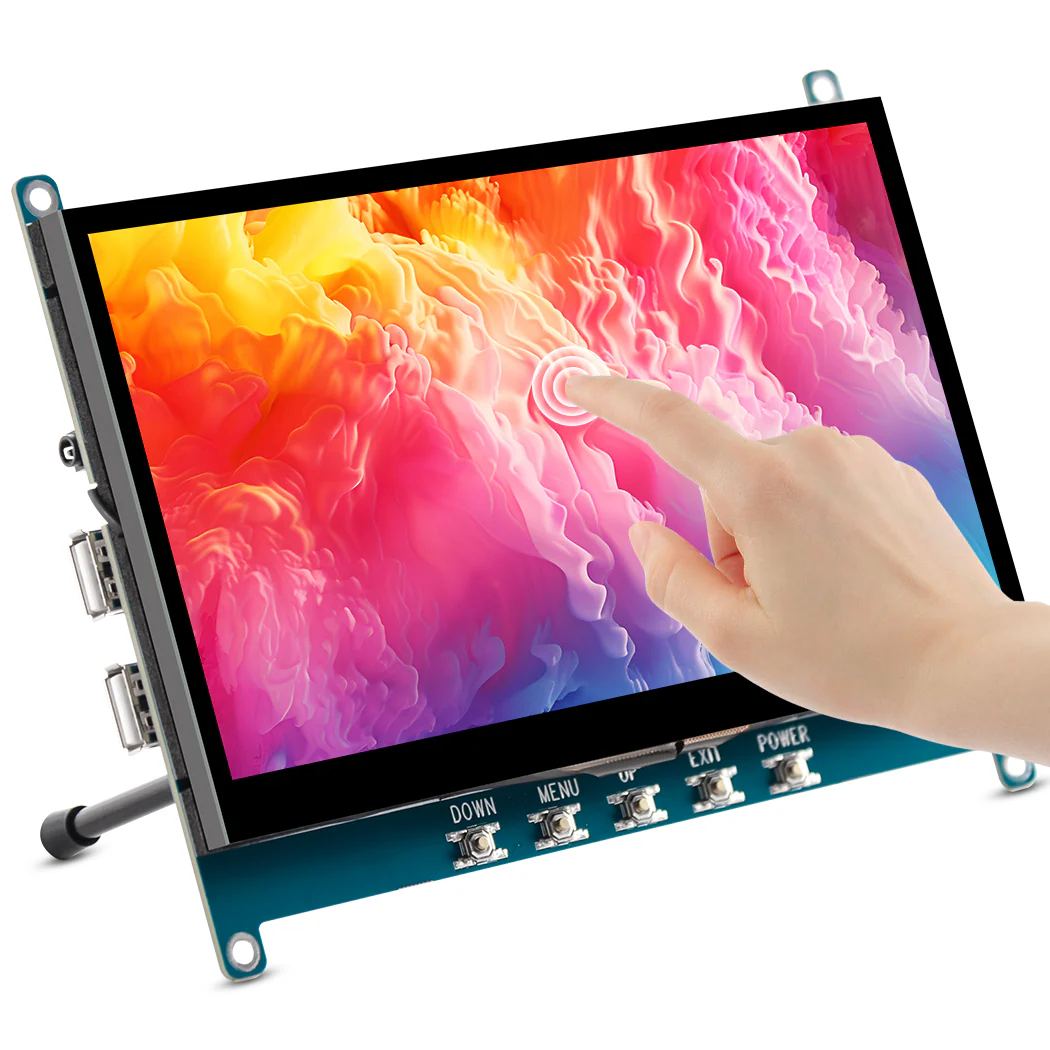
Connection-wise, most touchscreen monitors need two cables: one for the video signal (HDMI or DisplayPort) and one for the touch data (USB-A or USB-C). Some newer models consolidate everything over a single USB-C cable that carries both video and touch input, plus charges your device. That's the cleaner setup if your computer supports USB-C Alt Mode or Thunderbolt.
Here's what you can expect from a touchscreen monitor's feature set at different price points:
| Price Range | Screen Size | Touch Points | Panel Type | Stylus Support |
|---|---|---|---|---|
| $200–$300 | 21"–24" | 10-point | IPS | Rare |
| $300–$450 | 24"–27" | 10-point | IPS/VA | Some models |
| $450–$700 | 27"–32" | 10 to 20-point | IPS/OLED | Active pen included |
The touch layer does introduce a few trade-off. It adds a small amount of parallax, meaning the point you touch and the pixel underneath may appear slightly offset, especially near the edges. Cheaper models can also reduce peak brightness by 5 to 10 percent because the touch sensor layer sits between your eyes and the backlight.
And glossy glass, which most touchscreens use, reflects room lights more than a matte non-touch display.
Latency matters as well. Manufacturer specs for mid-range touchscreen monitors typically cite touch response times between 8 and 15 milliseconds. That's fine for taps and swipes.
For fast dragging or stylus-based drawing, you'll want the lower end of that range.
On the software side, Windows 11 has improved its touch input handling noticeably compared to older versions. Virtual keyboards, gesture navigation, and touch-optimized UI elements are more responsive. macOS doesn't natively support external touchscreen monitors for touch input, which is a significant limitation if you're in the Apple ecosystem.
What Changes When You Drop the Mouse: Benefits That Actually Matter
Touch input feels immediate. You see something, you tap it. There's no mental translation between moving a mouse on your desk and watching a cursor move on screen.
That direct manipulation makes certain tasks genuinely faster and more intuitive.
Here are the benefits you'll actually notice in daily use:
- Natural navigation for browsing and scrolling. Swiping to scroll through a long article or pinch-to-zoom on a map feels fluid and effortless with your fingers.
- Quick sketching and annotation. Jot notes on a PDF directly on screen. Circle areas in a photo. Mark up a document without opening a separate app.
- Reduced clutter. One screen plus maybe a stylus replaces a mouse, keyboard, and potentially a separate graphics tablet. If desk space matters to you, this is real.
- On-the-fly zooming. If you work with detailed spreadsheets, maps, or design layouts, touch-zoom is often faster than keyboard shortcuts or scroll-wheel zoom.
- Gesture navigation. Many touchscreen monitors support two-finger and three-finger gestures for task switching, desktop viewing, or window snapping in Windows, providing quick alternatives to traditional shortcuts.
- Presentation control. When you're projecting a screen for a meeting, tapping through slides yourself feels more natural than clicking a remote or asking someone else to hit the spacebar.
Accessibility is another strong point. For users who struggle with the fine motor control that a mouse demands, pointing and tapping directly at a target can be much easier. The screen becomes the interface, which removes a layer of abstraction.
The catch is that all these benefits shine brightest when you're doing light-to-medium work. Browsing, reviewing documents, quick annotations, social media management, photo browsing, casual design tasks. The moment you shift into heavy typing or pixel-precise manipulation, those benefits disappear fast.
Where Touch Falls Short: The Drawbacks Nobody Ads
Marketing photos show people happily tapping away at a clean, bright screen. They don't show you what hour five looks like. Let's talk about the real limitation because if you go in blind, you'll regret the purchase within a week.
Typing is the first dealbreaker. A touchscreen keyboard works in a pinch. It does not work for 2,000 words.
You can't touch-type on a flat glass surface because there's no tactile feedback. Your fingers can't find home row without looking. Speed drops to maybe 20 to 30 words per minute for most people, compared to 60 to 100 on a physical keyboard.
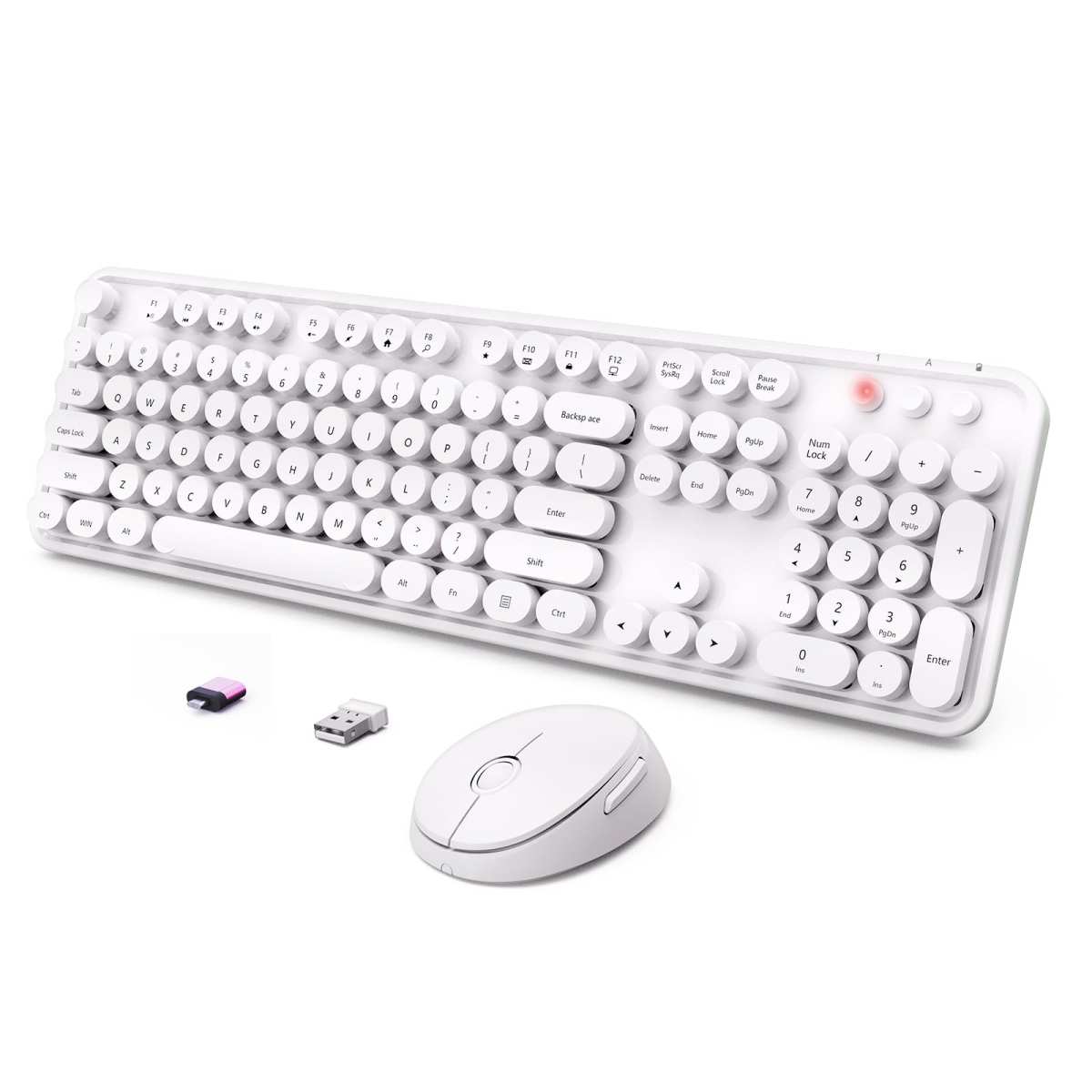
External Bluetooth keyboards exist, but if you need one anyway, you haven't really replaced anything.
Precision work is the second dealbreaker. Photo retouching, CAD modeling, code editing with complex IDE layouts, video timeline scrubbing, spreadsheet formula editing: all of these tasks benefit enormously from a cursor you can position with sub-pixel accuracy. Touch simply can't match that.
You can get close with a stylus on a pen-enabled monitor, but you're adding cost and complexity.
Smudges are the third annoyance nobody warns you about enough. Every tap leaves a fingerprint. After a few hours of use, your screen looks like a toddler's iPad.
If that kind of thing bothers you, it'll drive you crazy. You'll be cleaning the microfiber cloth more than actually working.
Here are the core drawbacks summarized:
- Fatigue: Extended arm extension is physically tiring and ergonomically suboptimal per multiple HCI studies
- Precision: Finger touch is inherently less accurate than a mouse cursor for fine tasks
- Typing speed: Virtual keyboards are dramatically slower than physical ones for sustained typing
- Smudges: A touch-only screen gets dirty visibly and frequently
- Software compatibility: Many desktop applications aren't designed for touch, so buttons become missable and menus feel cramped
- OS limitations: Windows handles external touch better than macOS, where native touch support for third-party monitors is essentially absent
- Cost premium: You're typically paying 30 to 60 percent more for the touch version of an otherwise identical monitor
Some of these problems can be mitigated. An adjustable stand that tilts the screen closer to flat reduces arm reach. A stylus improves finger precision.
A hybrid setup, where you use touch for navigation and a keyboard for typing, splits the difference. But if your goal is to fully eliminate the keyboard and mouse, you need to be honest with yourself about which of these limitations will actually affect your daily routine.
Most people who try touch-only on a desktop end up adding a keyboard back within the first month. It's not that the touchscreen is bad. It's that input tools evolved the way they did for a reason.
The best tool for the job hasn't changed. It's just gotten some new competition for specific tasks.
Decision Guide: Should YOU Replace Your Keyboard and Mouse?
This is where we stop talking in absolutes and get specific about you. The right answer depends entirely on your daily workload, your physical tolerance, and which apps you actually spend time in. Let's walk through five common scenarios and land on a clear recommendation for each one.
Scenario 1: You're a Creative Professional (Designer, Editor, Illustrator)
A touchscreen monitor can be a powerful addition, but it won't replace your keyboard and mouse. Creative work demands precision that finger touch can't deliver consistently. When you're nudging anchor points in Illustrator, masking fine edges in Photoshop, or trimming frame-accurate edits on a video timeline, a mouse or stylus tablet wins every time.
That said, a pen-enabled touchscreen monitor, something like a display with Wacom EMR or AES 2.0 stylus support, offers a different value proposition. You get direct on-screen drawing with pressure sensitivity levels reaching 8,192 levels on some models. That's comparable to a dedicated graphics tablet, without needing a separate device.
If your work is primarily illustration or photo retouching, a pen-enabled touchscreen can streamline your workflow significantly.
The recommendation here: keep the keyboard for shortcuts and text input. Add the touchscreen or pen display as a complementary tool. Don't try to go touch-only.
Scenario 2: You're in Office Productivity Work
If your day revolves around email, web browsing, document review, and spreadsheet work, a touchscreen can handle a surprising amount of it. Scrolling through long pages feels more natural with a swipe. Zooming into spreadsheet cells with pinch gestures is intuitive.
Quick annotations on shared documents are easier with a finger than with a mouse and highlight tool.
But you still need a keyboard. Full stop. The moment you're writing a lengthy email, compiling a report, or entering data into cells, touch input falls apart.
Typing speeds on virtual keyboards max out around 30 words per minute for most adults. A decent physical keyboard gets most people to 60 to 80 words per minute with accuracy.
Recommendation: a hybrid setup works best here. Use the touchscreen for navigation and browsing. Keep a keyboard paired for any task that involves real text entry.
A wireless keyboard you can slide off the desk when you don't need it gives you the flexibility of both worlds.
Scenario 3: You're a Developer or Data-Heavy Worker
Touch is a downgrade for developers and data professionals. IDEs like VS Code and JetBrains products are built around keyboard shortcuts, precise cursor placement, and rapid text manipulation. Vim, Emacs, snippets, multi-cursor editing: these workflows collapse without a physical keyboard and mouse.
Spreadsheet jockeys face similar issues. Selecting a range of cells, editing formulas, and navigating large grids with touch is possible but noticeably slower and more error-prone.
Recommendation: stick with keyboard and mouse. If you want a touchscreen for casual browsing or monitoring dashboards, fine. But nothing replaces mechanical keys and a responsive cursor for this kind of work.
Scenario 4: You Need Accessibility or Simplified Input
Touch input shines here. For users with limited fine motor control, eliminating the mouse removes a significant barrier. Pointing at what you want is cognitively simpler than translating hand movement on a desk to cursor movement on a screen.
The directness of touch can be genuinely life-changing for some people.
Recommendation: a touchscreen-only setup is absolutely worth trying if motor control or cognitive simplicity is a priority. Pair it with voice typing (Windows Speech Recognition, for example) for text entry, and you've got a functional system that minimizes physical strain.
Scenario 5: You Present, Collaborate, or Use Touch-Optimized Apps
If your workflow is presentation-heavy, a touchscreen can feel more natural than clicking through slides with a remote. Standing at the front of a room and tapping to advance, drawing quick annotations on a shared diagram, zooming into a product mockup during a review meeting. These scenarios feel right with touch.
Similarly, if you use touch-optimized apps like Procreate on iPadOS equivalents, certain Figma prototyping views, or POS software designed for tap interfaces, the experience is positive.
Recommendation: for these specific scenarios, touch input works well and can genuinely replace a mouse for those particular tasks. You'll still want a keyboard for email and messaging, but your trackpad or mouse can take a backseat during presentations and collaborative sessions.
The Honest Answer for Most People: Hybrid Setup Wins
If you've read through all five scenarios and still aren't sure which camp you fall into, here's the truth. Most knowledge workers benefit from a hybrid approach. Touch for browsing and light interaction.
Keyboard and mouse for productivity and precision.
That's not a cop-out answer. It's what the research and aggregate user experiences actually show. A touch that works for 70 percent of your daily tasks isn't good enough to rely on exclusively, because the remaining 30 percent is probably the work that matters most.
Real-World Feedback on Touch vs. Mouse Productivity
We don't have to guess about how this plays out. Human-computer interaction research and user experience studies have looked at touch versus mouse performance across multiple task types.
Studies consistently show that mouse input is faster than finger touch for target selection and pointing tasks. The gap is smallest for large targets and simple navigation. It grows significantly for small targets, dragging tasks, and multi-step operations.
One study from the HCI literature found that for basic pointing tasks with large targets, touch was only 9 percent slower than mouse. But for tasks requiring precision and dragging, mouse was roughly 20 to 30 percent faster with fewer errors. The takeaway matters: if your work involves only tapping big buttons, touch keeps up.
If it involves anything precise, mouse wins by a meaningful margin.
User satisfaction data tells another interesting story. When asked about preference after using both input types, most participants said they preferred mouse for work tasks but touch for browsing and media consumption. Nobody was surprised by this split.
It lines up with the physical and cognitive demands of each task type.
In professional contexts, the data is even clearer. Medical imaging professionals who review scans on pen-enabled displays value the ability to annotate directly. But they still rely on keyboard shortcuts for window management, measurement tools, and report generation.
Retail POS operators tap through interfaces all day because the software is designed for exactly that. Context determines everything.
Common Mistakes People Make When Switching to Touch-Only
When people make the jump, they tend to repeat the same errors. Here are the ones we see most often:
- Ignoring the ergonomic setup. A touchscreen monitor needs to be angled closer to flat, not bolted upright at 90 degrees. A stand with 0 to 60 degrees of tilt adjustment reduces arm extension significantly. Without it, fatigue sets in fast.
- Buying a screen that's too large for touch. Once you go past 27 inches, your arms can't comfortably reach all corners. A 32-inch touchscreen sounds amazing. It becomes exhausting after a week. Stick to 24 to 27 inches for external desktop touch displays.
- Expecting tablet experience on a desktop OS. Tablets run touch-first operating systems. Desktop apps often aren't designed with touch targets large enough for fingers. Buttons spaced for a cursor become tap-or-miss with a fingertip. Expect some frustration.
- Forgetting about pal rejection. Cheaper touchscreen monitors have weaker palm rejection. When you rest your hand on the screen while using a stylus, the monitor may register phantom touches. Check reviews specifically for palm rejection performance before buying.
- Assuming all touchscreen tech is equal. Capacitive touch (the kind your phone uses) requires skin contact. Gloved hands don't work. Optical and infrared touch technologies accept any object as input. Know which type your monitor uses before committing.
- Not testing before buying. If possible, visit a store or demo setup that has a touchscreen monitor. Thirty seconds of scrolling and tapping will tell you more than hours of watching YouTube reviews.
Pricing and Specs: What You'll Actually Pay
Touchscreen monitors cost more than their non-touch counterparts. Here's what the current market looks like as of 2026:
| Category | Price Range | Typical Specs | Best For |
|---|---|---|---|
| Budget | $200–$300 | 21.5"–24" IPS, 10-point capacitive, 1080p | Casual browsing, basic annotation |
| Mid-range | $300–$450 | 24"–27" IPS/VA, 10-point, 1080p to 1440p, USB-C | Office productivity, light creative work |
| Premium | $450–$800 | 27"–32" IPS/OLED, 20-point, 4K, pen support | Professional creative work, medical imaging |
| Professional pen display | $800–$2,500+ | 16"–32", AES 2.0 or EMR stylus, 4K, color-calibrated | Illustration, CAD, professional photo editing |
If you're considering a hybrid setup, budget around $250 for a solid touchscreen monitor and $50 to $100 for a compact wireless keyboard. That combined cost still undercuts most dedicated pen tablets.
Key specs to prioritize: touch latency under 10 milliseconds, IPS panel for better viewing angles, and USB-C connectivity for a single-cable setup. Avoid monitors that only include HDMI for video. You'll need the USB cable for touch data, and managing two cables per monitor gets messy fast.
Frequently Asked Questions
Can I use a stylus instead of my finger?
Yes. Many touchscreen monitors support active stylus input. A stylus improves precision significantly over finger touch.
Look for monitors with AES 2.0 or EMR pen technology. Pressure sensitivity on these models ranges from 4,096 to 8,192 levels.
Do touchscreen monitors work with Macs?
Limited support. macOS doesn't natively handle touch input on external monitors. Some third-party drivers exist but functionality is inconsistent. If you're in the Apple ecosystem, a touchscreen monitor is a poor investment.
How long does it take to get used to touch-only input?
Most people adapt to basic touch navigation within a few days. Meaningful proficiency for daily workflows typically takes two to three weeks. Typing speed on virtual keyboards improves slowly and rarely matches physical keyboard performance.
Do touchscreen monitors work with any computer?
Generally yes. If your computer has USB-A or USB-C and runs Windows 10 or later, touch input should work via plug-and-play. Linux support varies by distribution. macOS has significant limitations as mentioned above.
Does touch affect screen brightness or image quality?
Slightly. The touch sensor layer can reduce peak brightness by 5 to 10 percent on some models. Glossy touchscreens reflect more ambient light than matte panels.
Most users adjust to the difference within a few days.
Final Verdict: The Decision Tree Recap
Here's the bottom line. A touchscreen monitor alone cannot fully replace keyboard and mouse for most desktop workers. It can replace them for casual browsing, media consumption, and touch-optimized applications.
If your work involves heavy typing, precision cursor work, or software that assumes a keyboard and mouse exist, you need those peripherals on your desk.
The smartest play for most people is a hybrid setup. Get a solid touchscreen monitor for the tasks where direct touch feels natural. Keep a compact wireless keyboard and mouse for everything else.
That combination covers 100 percent of daily scenarios without forcing you to compromise on the work that demands speed and accuracy.
People who benefit most from going touch-primary: accessibility users, presentation-heavy professionals, and anyone whose software was built for touch. Everyone else should treat a touchscreen as an enhancement, not a replacement.

Similar Posts





















