Can Touchscreen Monitors Replace Dual Setup
So you've been staring at your dual monitor setup wondering if there's a cleaner way to work. Maybe your desk feels cluttered, or you've seen those big touchscreen displays and thought: can touchscreen monitors replace dual setup configurations entirely?
The honest answer is: it depends on what you do all day, how you interact with your screen, and whether you actually need raw display real estate more than you need hands-on control. Let's walk through this properly so you land on the right call for your specific situation.
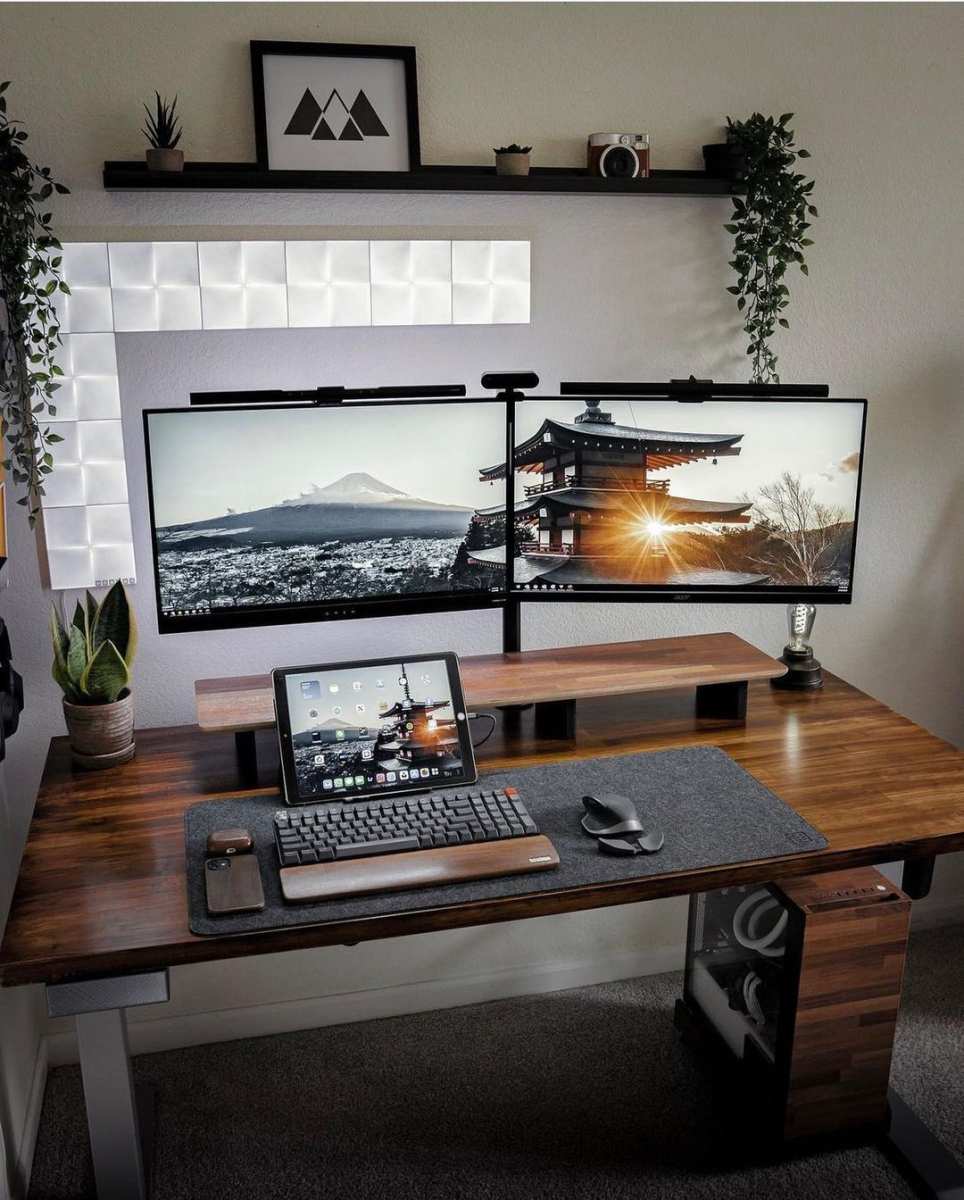
Quick Answer
A touchscreen monitor can replace a dual setup for some users. It depends entirely on your workflow. Creative professionals often benefit from pen input and direct manipulation.
Developers and heavy multitaskers usually need more screen space than a single display provides. Evaluate your daily tasks before switching.
Why This Question Doesn't Have a Simple Yes or No
Here's what most reviews get wrong. They treat "touchscreen monitor" and "dual monitor setup" as two products competing for the same job. They're not.
They solve different problems that sometimes overlap.
A dual monitor setup gives you extended desktop space. Two independent screens. Independent refresh rates, orientations, and positions.
You can run your code editor on one display and your browser on the other. Each screen can be angled exactly where you need it.
A touchscreen monitor gives you direct interaction with what's on screen. You pinch to zoom on a CAD drawing. You sketch directly on a PDF markup.
You tap through a presentation without fumbling for a mouse.
The overlap happens when you need both screen space AND touch input. That's where the real decision lives.
First, Let's Talk About What You Actually Do All Day
Before we compare specs or prices, we need to get honest about your workflow. Because the answer changes dramatically based on your answer to one question: do you primarily consume screen space, or do you primarily interact with what's on screen?
You're a screen space consumer if you:
- Code across multiple files and need them visible simultaneously
- Write long-form content while referencing research on a second display
- Monitor dashboards, email, and chat apps alongside your main work
- Edit video with timelines, preview windows, and asset panels spread across displays
- Trade stocks, cryptocurrencies, or financial instruments requiring multiple data feeds
You're a screen interaction user if you:
- Draw, paint, or retouch photos directly on screen
- Annotate documents, PDFs, or architectural plans by hand
- Present to clients and want to mark up slides in real time
- Navigate complex diagrams, maps, or 3D models with gestures
- Teach or train using interactive whiteboard-style software
Most people are a blend. But whichever side leans heavier determines whether a touchscreen can genuinely replace your dual monitors or just frustrate you.
What Touchscreen Monitors Actually Bring to the Table
Modern touchscreen monitors have come a long way from the clunky overlays of a decade ago. As of 2026, the market offers genuinely capable options across several categories.
Key technologies you'll encounter:
- Projected capacitive (PCAP): The same tech in your smartphone. Supports 10-point multi-touch. Found in most premium touchscreen monitors.
- Infrared (IR): Uses light beams across the screen surface. Common in larger format interactive displays. Works with gloves and styluses.
- Pen-enabled displays: Combine touch with active digitizer layers. Support 4096 to 8192 pressure levels. Wacom's EMR and AES technologies dominate here.
What you actually get in daily use:
- Direct zoom, pan, and rotate gestures in supported applications
- Handwritten annotation on documents, images, and presentations
- Natural drawing and sketching with pressure-sensitive pens
- Reduced mouse dependency for navigation tasks
- More intuitive interaction with maps, diagrams, and 3D models
The real limitations nobody advertises:
- Touch fatigue (sometimes called "gorilla arm") sets in after 20-30 minutes of continuous touch use on vertical displays
- Most desktop software still isn't designed for touch-first interaction
- Accidental palm touches can disrupt workflow until you get palm rejection dialed in
- Color accuracy on touchscreen panels often lags behind equivalent non-touch professional displays
- You're limited to one continuous display area, no physical separation between work zones
What Dual Monitor Setups Do Better (Honestly)
Dual monitors aren't glamorous. But they solve a problem that no single touchscreen can match: giving you physically separate, independently configurable workspaces.
Where dual setups win:
- Independent positioning: Each monitor on its own arm, angled and height-adjusted separately. Critical for ergonomics.
- Extended desktop real estate: Run full-screen applications on each display without window management tricks.
- Task isolation: Keep communication apps, monitoring dashboards, or reference materials on a secondary screen while your primary stays focused.
- Better color-critical work: Professional non-touch displays from Eizo, ASUS ProArt, and BenQ offer wider color gamuts, hardware calibration, and lower delta-E values than most touchscreen alternatives.
- Cost efficiency: Two solid 27-inch 4K monitors often cost less than a single 32-inch 4K touchscreen with pen support.
The ergonomic advantage matters more than people realize. With dual monitors on articulating arms, you position each screen at the correct height and distance for your body. A single large touchscreen monitor, especially one you touch frequently, often sits lower and closer to accommodate arm reach. This creates neck and shoulder strain over months of daily use.
The productivity data supports screen space for knowledge workers. Research consistently shows that users performing tasks requiring multiple information sources benefit from additional display area. The key phrase is "multiple information sources." If your work requires seeing many things at once, a single screen, touch or not, forces you into constant window switching.
The Decision Framework: 5 Questions That Determine Your Answer
Let's cut through the noise. Answer these five questions honestly and you'll know which direction to go.
Question 1: What percentage of your day involves direct manipulation of on-screen content?
If you spend more than 40% of your work time drawing, annotating, zooming into detailed visuals, or marking up documents, a touchscreen monitor serves you well. Below 20%, touch is a nice bonus but not a replacement for screen space.
Question 2: Do you regularly need more than two full application windows visible simultaneously?
Developers with IDE, terminal, browser, and documentation open. Video editors with timeline, preview, and asset panels. Traders watching multiple feeds.
If yes, a single touchscreen won't replace that. You need the physical separation.
Question 3: Is your desk depth less than 30 inches?
Shallow desks create a real problem with large touchscreen monitors. You need enough distance to use touch without hunching forward. If your desk is shallow, a dual setup with monitors on arms lets you position them closer while maintaining ergonomic distance.
Question 4: Do you present to clients or colleagues regularly?
Touchscreen monitors shine in presentation scenarios. Marking up designs live, sketching ideas on a shared screen, navigating documents interactively. If client-facing interaction is frequent, a touchscreen adds genuine value that dual monitors alone don't provide.
Question 5: What's your budget for this transition?
Quality touchscreen monitors with pen support run $800-$2,500 for 27-32 inch models. A solid dual monitor setup with two good 27-inch displays runs $600-$1,200. Factor in the cost of a monitor arm or stand for either option.
Scenario 1: You're a Creative Professional Who Draws, Paints, or Annotates
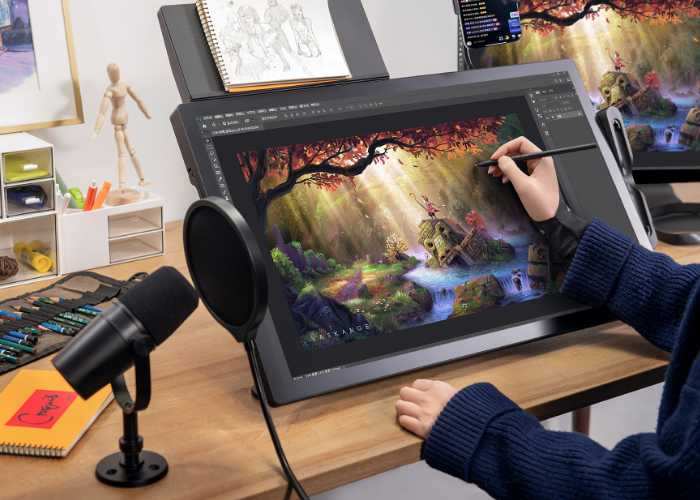
This is where touchscreen monitors earn their keep. If you're a digital artist, photo retoucher, or illustrator, direct pen input on screen changes your workflow fundamentally.
What works in your favor:
- Pressure-sensitive pen input with 8192 levels gives you natural brush control
- Direct hand-eye coordination speeds up detailed work
- Tilt support in modern pens handles shading techniques
- Software like Clip Studio Paint, Photoshop, and Affinity Designer are optimized for pen displays
What you'll miss from dual monitors:
- Reference images on a secondary screen while you work
- Tool palettes and layer panels on a separate display
- The ability to view your full composition at 100% while zoomed in on details
The real recommendation for creatives: A pen display as your primary screen plus a smaller secondary non-touch monitor for reference and panels. This hybrid approach gives you the best of both worlds. The Wacom Cintiq Pro 27, Huion Kamvas Pro 24, and XP-Pen Artist Pro 16 are popular choices in 2026.
Scenario 2: You're a Developer, Writer, or Office Worker Who Needs Screen Space
If your work revolves around text, code, spreadsheets, and documents, a single touchscreen monitor likely frustrates you more than it helps.

Why dual monitors serve you better:
- Code on one screen, documentation or browser on the other
- Email and Slack on a secondary display without interrupting your flow
- Spreadsheets benefit enormously from extended horizontal space
- Touch input adds little value to typing-heavy workflows
When a touchscreen might still make sense:
- You review and annotate code collaboratively
- You navigate complex diagrams or architecture documentation
- You present technical content to non-technical stakeholders
- Your work involves frequent PDF markup or document review
The honest verdict: For pure development and writing work, keep your dual setup. If you want touch capability, add a smaller portable touchscreen monitor as a secondary display for annotation tasks. Something like a 15.6-inch USB-C portable touchscreen gives you touch when needed without sacrificing your primary screen real estate.
Scenario 3: You Present, Collaborate, or Work With Clients Face-to-Face
Touchscreen monitors genuinely shine in collaborative and presentation scenarios. This is one use case where they often outperform dual setups.
Why touch wins here:
- Marking up designs live in front of clients creates engagement
- Sketching ideas on screen during brainstorming sessions feels natural
- Interactive whiteboard software works better on a large touch surface
- Clients respond better to hands-on interaction than passive slide clicks
What to consider:
- A 32-inch or larger touchscreen works best for collaboration
- ViewSonic, Dell, and ASUS all offer large-format touchscreen displays
- Ensure the monitor has good viewing angles if multiple people gather around
- Built-in speakers reduce cable clutter for presentation audio
The setup that works: A large touchscreen as your primary display for daily work and presentations, paired with a smaller secondary monitor for your own reference materials during prep. This gives you the collaborative benefits without sacrificing personal productivity.
Scenario 4: You're Tight on Desk Space and Want a Cleaner Setup
Physical space constraints are a legitimate reason to consider a single touchscreen monitor. Two monitors, two stands, multiple cables. It adds up.
What a single touchscreen solves:
- One monitor, one stand, fewer cables
- Cleaner visual appearance on your desk
- Easier to relocate if you move offices or work from different locations
- USB-C single-cable connection handles video, data, and power
What you need to watch for:
- Ensure your desk can support the weight (touchscreen monitors with stands run 15-25 pounds)
- Check that the monitor's native stand offers height and tilt adjustment, or budget for a VESA arm
- Verify your computer's graphics output supports the monitor's resolution and refresh rate over a single cable
The practical approach: If desk space is your primary concern, also consider a super ultrawide monitor (32:9 aspect ratio, 49-inch) as a non-touch alternative. It gives you the equivalent of two 27-inch monitors in a single panel without the touch premium. Models like the Dell U4924DW or Samsung Odyssey OLED G9 provide massive screen real estate with one cable connection.
Scenario 5: You Want One Monitor That Does Everything
This is the dream. One display that handles all your work, play, and creative tasks. Let's be realistic about what's possible.
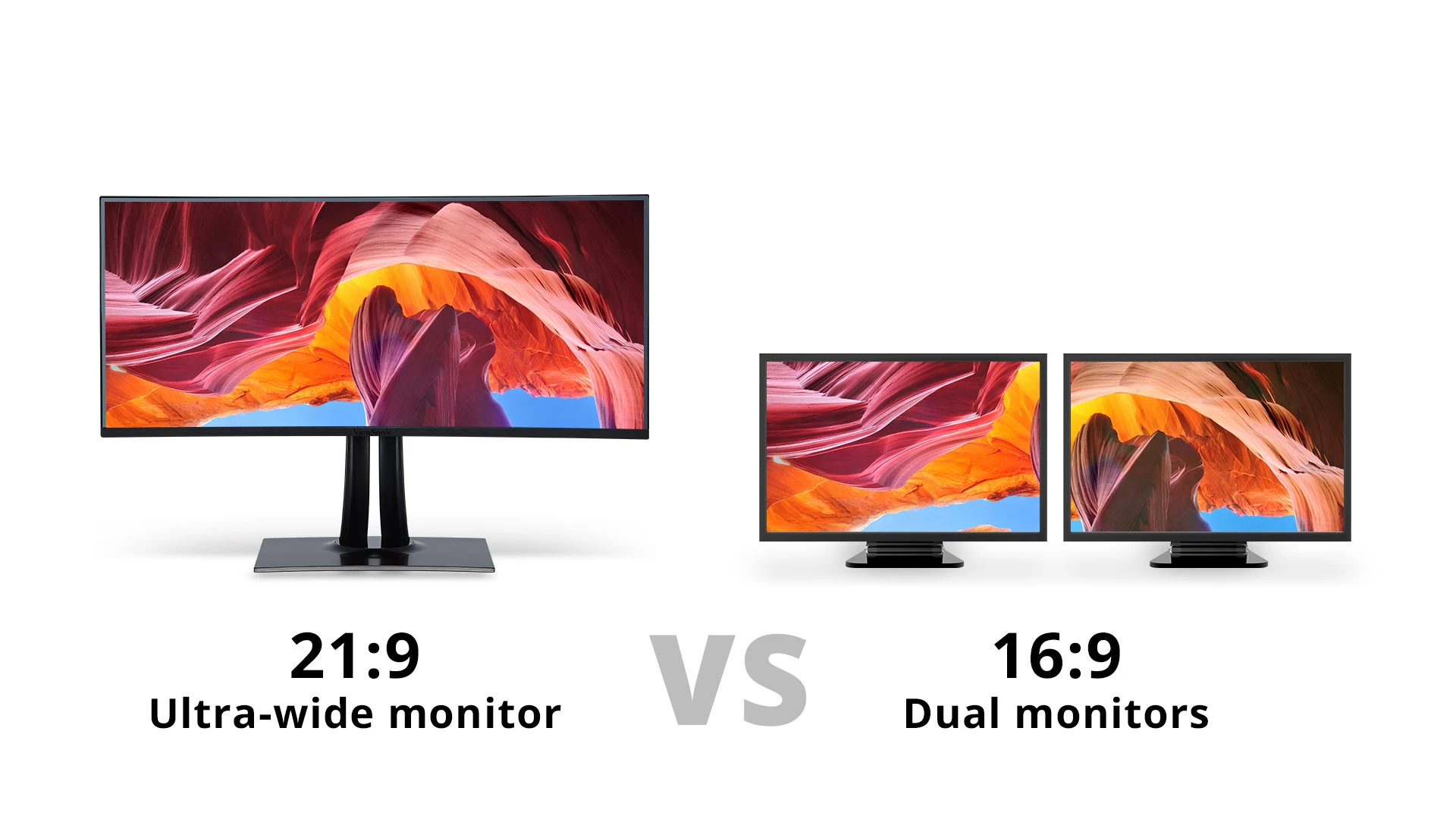
A single touchscreen can handle everything if:
- Your work doesn't require constant multi-window visibility
- You value direct interaction over screen real estate
- You use touch-optimized software regularly
- You have a secondary device (laptop, tablet) for overflow screen needs
A single touchscreen falls short if:
- You need to monitor multiple data streams simultaneously
- Your workflow depends on drag-and-drop between screens
- You work with applications that don't support touch well
- Color accuracy is non-negotiable for your output
The hybrid sweet spot for 2026: A large touchscreen monitor (27-32 inch, 4K) as your primary display, paired with a laptop on a stand as your secondary screen. The laptop gives you portable screen space when needed, and the touchscreen handles your interactive work. This setup costs less than two premium monitors plus a separate pen display, and it adapts to whatever task you throw at it.
The Hybrid Approach: Touchscreen Plus One Secondary Display
Let's talk about the setup that most people actually end up happiest with. It's not all-or-nothing.
The configuration:
- Primary: 27-32 inch 4K touchscreen monitor with pen support
- Secondary: 24-27 inch standard monitor in portrait or landscape mode
- Connection: USB-C for touchscreen, HDMI or DisplayPort for secondary
Why this works:
- Touchscreen handles your interactive, creative, and presentation work
- Secondary display gives you persistent reference space
- You get the ergonomic adjustability of a dual-arm setup
- Total cost stays reasonable ($900-$1,800 depending on choices)
Who this is perfect for:
- Creative professionals who also manage projects and communications
- Educators who present and prepare materials
- Anyone who annotates documents but also needs email visible
- Developers who occasionally diagram architecture or review designs
The desk setup matters: Mount both monitors on articulating arms. Position the touchscreen at a height comfortable for both touch and viewing. Angle the secondary monitor to reduce neck rotation.
This isn't just comfort. It prevents the repetitive strain injuries that come from hours of awkward positioning.
Common Mistakes People Make When Switching
After reviewing user feedback and professional assessments, these are the mistakes that come up again and again.
Mistake 1: Assuming touch replaces screen management. You still need to manage windows on a single display. Without virtual desktops or window snapping tools, you'll spend more time arranging screens than before.
Mistake 2: Buying a touchscreen without checking software compatibility. If your primary applications don't support touch or pen input well, you're paying a premium for a feature you'll rarely use. Check your software's touch support before buying.
Mistake 3: Ignoring the stand and ergonomics. A touchscreen monitor on its fixed stand often sits too low and too close. Budget for a VESA monitor arm that lets you position it properly for both touch use and viewing distance.
Mistake 4: Expecting tablet-like responsiveness. Desktop touchscreen monitors have slightly higher latency than your phone or tablet. The experience is good, but it's not identical to consumer touch devices. Pen input feels more natural than finger touch for precision work.
Mistake 5: Forgetting about driver and OS support. Windows has solid touch and pen support. macOS supports touch input from external monitors but doesn't have a touch interface, so some gestures feel unnatural. Linux support varies significantly by distribution and desktop environment. Verify your OS handles touch the way you expect.
Mistake 6: Choosing size over quality. A cheap 32-inch touchscreen with poor color accuracy and laggy response will frustrate you daily. A smaller 27-inch display with excellent color, low latency, and good pen support serves you better long-term.
What You'll Actually Spend: Real Pricing Breakdown
Let's put real numbers on the table so you can budget properly.
| Setup Type | Monitor Cost | Stand/Arm Cost | Total Range |
|---|---|---|---|
| Dual 27" non-touch 4K monitors | $500-$900 | $60-$150 | $560-$1,050 |
| Single 27" 4K touchscreen with pen | $800-$1,800 | $50-$150 | $850-$1,950 |
| Single 32" 4K touchscreen with pen | $1,200-$2,500 | $80-$200 | $1,280-$2,700 |
| Hybrid: 27" touchscreen + 24" secondary | $900-$1,500 | $100-$250 | $1,000-$1,750 |
| Portable 15.6" USB-C touchscreen (secondary only) | $250-$500 | $0-$50 (optional) | $250-$550 |
What the prices tell us: A quality touchscreen monitor costs roughly the same as a dual non-touch setup at the mid-range. At the high end, touchscreen displays command a significant premium. The hybrid approach splits the difference and gives you the most flexibility.
Hidden costs to factor in:
- Replacement pen tips (wear out with heavy use, $5-$15 per pack)
- Quality monitor arms ($50-$200 each)
- USB-C dock or hub if your computer lacks sufficient ports ($80-$250)
- Screen cleaning supplies for touch surfaces ($10-$20)
How to Test Before You Commit
You don't have to buy blind. Here's how to evaluate touchscreen monitors before committing your wallet.
Option 1: Visit a physical store. Best Buy, Micro Center, and some office supply stores have touchscreen monitors on display. Spend 15 minutes using the touch and pen input. Pay attention to responsiveness, palm rejection, and how your arm feels after extended use.
Option 2: Buy from retailers with good return policies. Amazon, B&H Photo, and direct from manufacturers like Wacom and Dell typically offer 30-day return windows. Use that period to integrate the monitor into your actual workflow, not just test it with demo software.
Option 3: Rent equipment. Some AV rental companies and online services rent monitors for weekly or monthly terms. This costs more per day but gives you a real-world trial without full commitment.
What to test during your trial:
- Your actual daily applications with touch input
- Pen pressure and accuracy in your creative software
- Palm rejection during normal typing and mousing
- Color accuracy for your output requirements
- Physical comfort after a full workday
- Cable management and desk space impact
The 2-week rule: Give any new setup at least two weeks before judging it. The first few days feel awkward as you adapt. By day 10-14, you'll know whether the new configuration genuinely improves your workflow or just feels different.
Frequently Asked Questions
Can I use a touchscreen monitor with any computer?
Most modern touchscreen monitors work with Windows, macOS, and many Linux distributions over USB-C or HDMI plus USB. However, verify your operating system supports touch input properly. Windows has the broadest touch support. macOS accepts touch input but isn't designed around it.
Do touchscreen monitors work with all software?
No. Touch and pen support varies by application. Creative software like Adobe Creative Suite, Clip Studio Paint, and Affinity apps have excellent touch and pen integration.
Many productivity apps treat touch as basic mouse emulation. Check your specific applications before buying.
How long do touchscreen monitors last?
Quality touchscreen monitors typically last 5-7 years of daily professional use. The touch layer itself rarely fails. Backlight dimming and battery degradation in portable models are more common failure points.
Most manufacturers offer 1-3 year warranties.
Is a pen display the same as a touchscreen monitor?
Not exactly. Pen displays like the Wacom Cintiq are designed primarily for pen input and often lack multi-touch finger touch. Touchscreen monitors with pen support offer both finger touch and pen input.
Choose based on whether you need both input methods or primarily pen work.
Will a touchscreen monitor reduce my productivity?
It depends on your workflow. For tasks requiring frequent window management and multi-screen reference, a single touchscreen may slow you down. For interactive tasks like annotation and creative work, it often speeds things up.
The hybrid approach minimizes this risk.
What size touchscreen monitor should I buy?
27 inches is the sweet spot for most desk setups. It provides enough screen real estate for productive work while remaining comfortable for touch interaction. 32 inches works well if you have a deep desk and primarily use pen input. Avoid going larger than 32 inches for touch use on a standard desk.
The Final Decision Guide: Your Personal Answer
Here's the framework condensed into a direct recommendation based on your situation.
Keep your dual monitors if:
- You're a developer, writer, or office worker who needs multiple windows visible
- Your work is primarily text-based and keyboard-driven
- You rely on drag-and-drop between screens regularly
- Color accuracy is critical and you use professional-grade non-touch displays
Switch to a single touchscreen if:
- You're a creative professional who draws, paints, or annotates daily
- You present to clients and need interactive markup capability
- Desk space is severely limited and you need a cleaner setup
- You have a secondary device (laptop, tablet) for overflow screen needs
Go hybrid if:
- You do both creative work and screen-heavy productivity tasks
- You want touch capability without sacrificing reference screen space
- Your budget allows for one quality touchscreen plus one standard monitor
- You value flexibility and want to adapt your setup to different tasks
The honest truth is that most people who ask this question end up happiest with the hybrid approach. It costs a bit more upfront but prevents the frustration of giving up screen space you actually need, or paying for touch features you rarely use.

Similar Posts





















