Can OLED Monitors Replace Dual Monitors
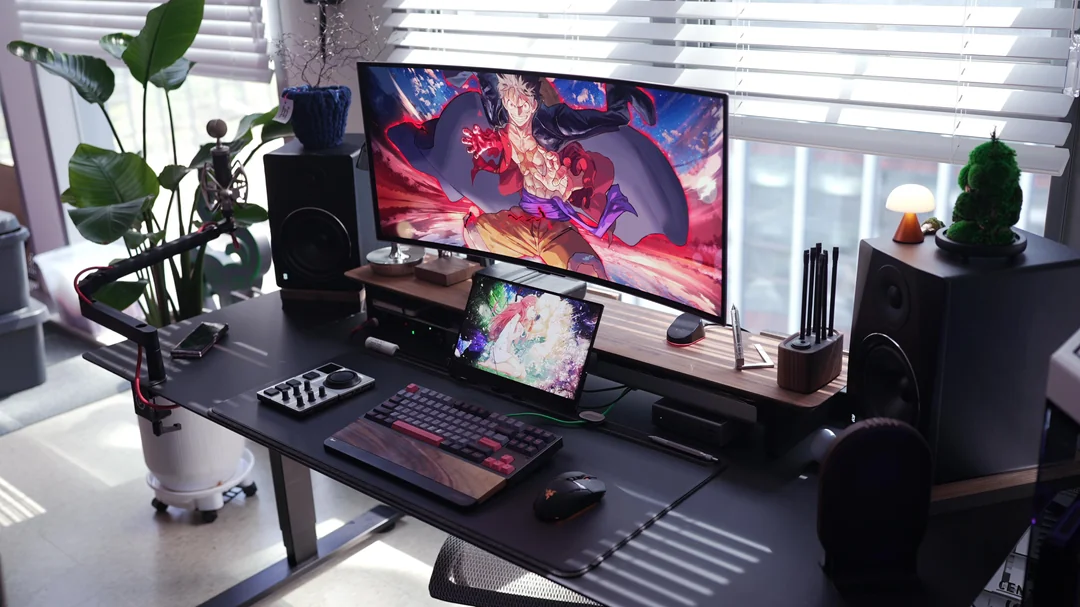
Image source: Bing (Web (fair-use with source credit))
You've probably stared at your dual monitor setup and wondered if one big, gorgeous OLED panel could do the same job with less clutter. It's a fair question, and the answer isn't as straightforward as you might hope. OLED technology has come a long way, and the latest ultrawide panels offer stunning image quality that makes traditional IPS setups look dull by comparison.
But replacing two monitors with one involves real trade-offs in workflow, screen real estate, and long-term reliability. As of 2026, OLED monitors like the LG 32GS95UE and Samsung Odyssey OLED G9 deliver exceptional contrast and color, yet they still face challenges with text clarity and burn-in that dual monitor setups simply don't have. Let's break down exactly where a single OLED shines and where dual monitors still hold the edge.
Quick Answer
Yes, an OLED monitor can replace dual monitors for many users, but it depends entirely on your workflow. A single 49-inch super ultrawide OLED offers roughly the same pixel count as two 27-inch 4K screens. You'll gain seamless bezels, superior contrast, and a cleaner desk.
However, you'll lose the physical separation between tasks and take on some burn-in risk from static UI elements. For creative professionals and immersive gamers, the switch often works well. For traders, developers, or anyone who needs rigid window separation, dual monitors remain the safer bet.
Why This Comparison Actually Matters
Choosing between a single OLED and dual monitors isn't just about specs on a sheet. It's about how you actually work, eight or more hours a day. The wrong choice leads to neck strain, frustrated window management, or a monitor that degrades faster than it should.
Dual monitor setups have been the productivity standard for over a decade. They offer flexibility, redundancy, and a clear mental separation between tasks. OLED monitors promise to simplify all of that into one panel with perfect blacks and vibrant color.
Understanding where each approach wins helps you avoid spending $1,500 or more on a setup that doesn't fit your actual needs.
The Quick Answer: Can One OLED Really Replace Two Monitors?
For most people, yes, a single large OLED can replace dual monitors. The key is matching the panel size and resolution to what you currently use. A 49-inch super ultrawide OLED at 5120×1440 delivers the same horizontal space as two 27-inch 2560×1440 monitors placed side by side.
That said, "can" and "should" are different things. If your workflow depends on full-screen applications on each display, the single-panel approach requires software window management. If you're sensitive to text fringing or need absolute color consistency across two separate screens, dual monitors still make more sense.
How OLED and Dual Monitor Setups Actually Work
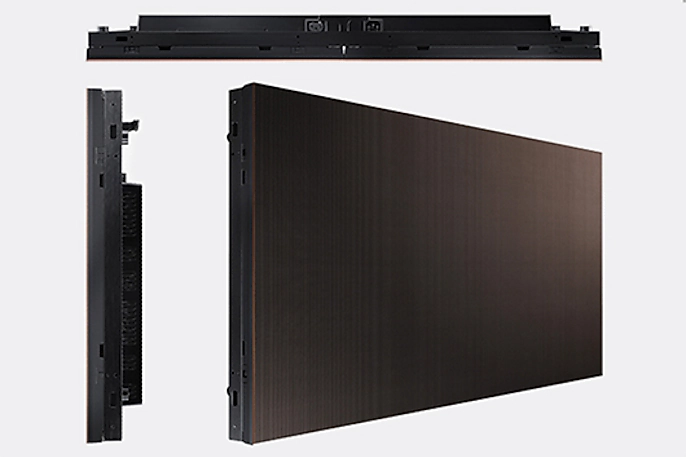
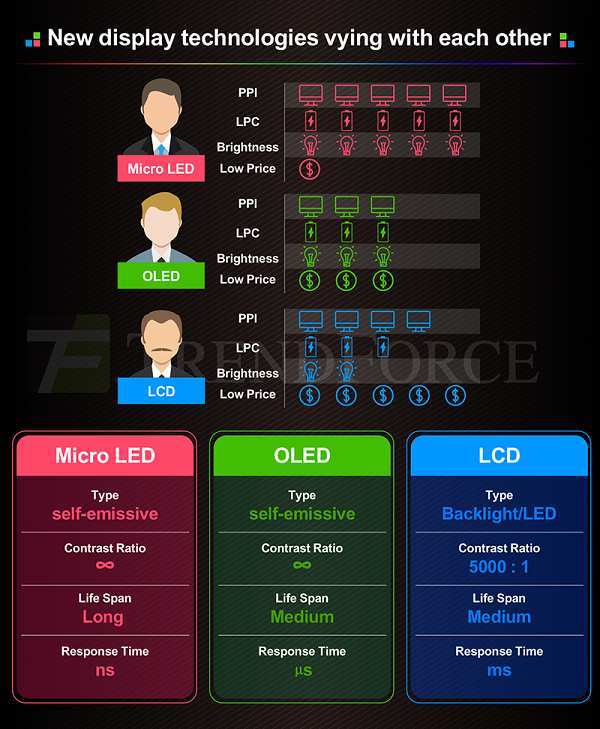
A single OLED monitor uses one continuous panel with no bezel gap in the middle. Everything runs through one display connection, one power cable, and one set of onboard controls. The entire screen shares the same color profile, brightness, and contrast ratio.
Dual monitors use two independent panels, each with its own connection, power supply, and settings. You get a physical gap between screens, which some people find disruptive and others use as a natural boundary for separating tasks. Each monitor can run at a different resolution or refresh rate, which matters for mixed workloads.
The fundamental difference comes down to flexibility versus simplicity. Dual monitors let you angle each screen independently and mix panel types. A single OLED gives you a unified, seamless workspace but locks you into one panel's characteristics across the entire display area.
Side-by-Side: Single OLED vs. Dual Monitors
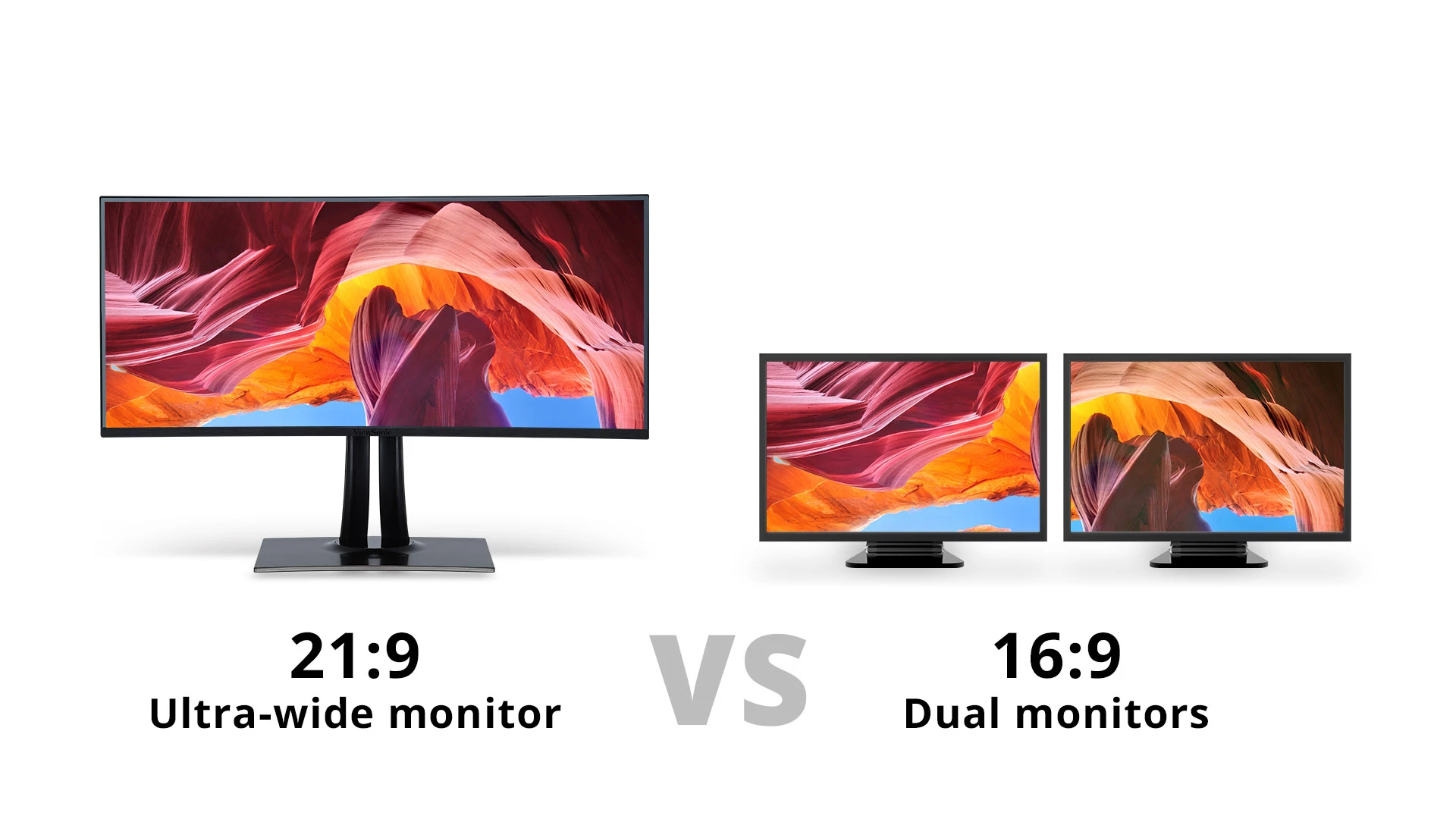
Image source: Bing (Web (fair-use with source credit))
Screen Real Estate and Resolution
Total pixel count is the easiest way to compare. Here's how common setups stack up:
| Setup | Total Resolution | Total Pixels |
|---|---|---|
| Dual 27" 4K | 7680×2160 | 16.6 million |
| Dual 27" 1440p | 5120×1440 | 7.4 million |
| Single 49" OLED (5120×1440) | 5120×1440 | 7.4 million |
| Single 34" OLED (3440×1440) | 3440×1440 | 4.9 million |
| Single 45" OLED (3840×1600) | 3840×1600 | 6.1 million |
A 49-inch super ultrawide OLED matches dual 27-inch 1440p monitors pixel for pixel. You're not losing any workspace. A 34-inch ultrawide, on the other hand, gives you noticeably less total area than a dual setup.
Workflow and Window Management
This is where the real difference shows up. With dual monitors, you can full-screen an application on each display and switch between them instantly. Your brain treats each screen as a separate zone.
A single ultrawide requires software to split the display into zones. Tools like Microsoft PowerToys FancyZones, DisplayFusion, or macOS Magnet let you snap windows into predefined sections. Once you're used to it, the workflow feels natural.
The adjustment period is real though, especially if you've used dual monitors for years.
Text Clarity and Daily Comfort
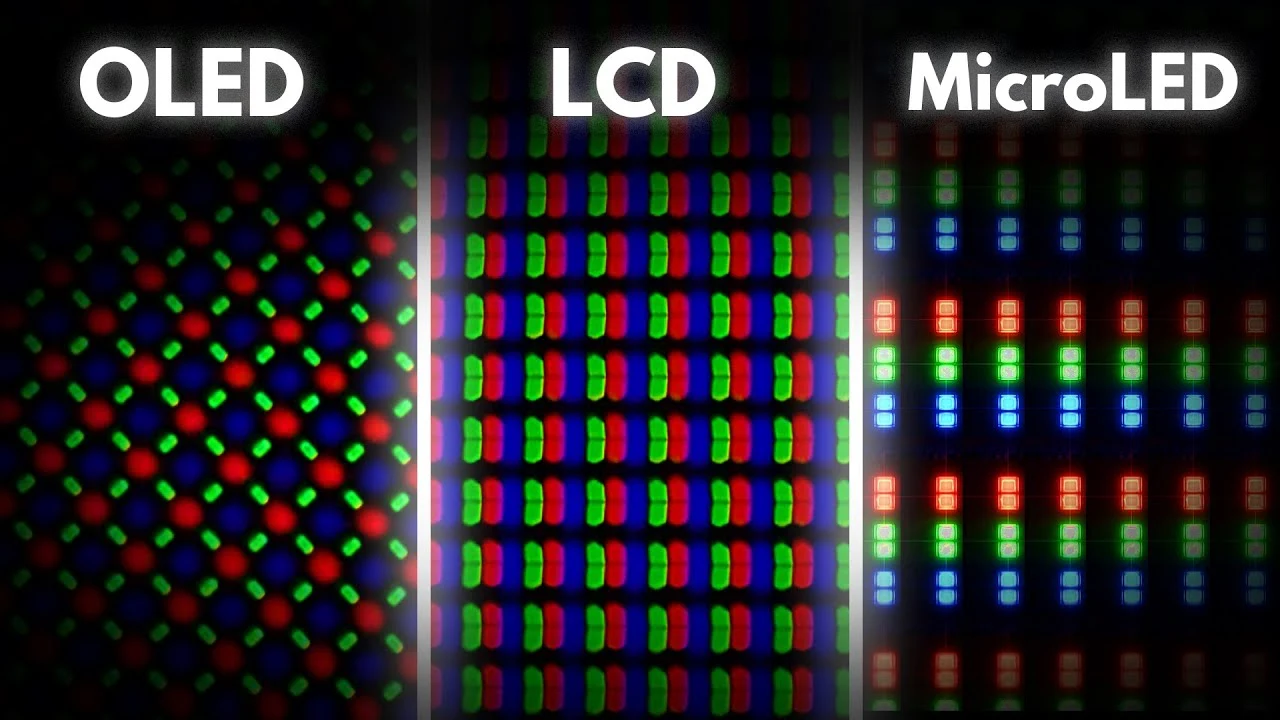
Most OLED monitors use a WRGB or similar subpixel layout that differs from the standard RGB stripe found on IPS panels. At normal viewing distances on a 32-inch or larger 4K OLED, text looks sharp and readable. On smaller or lower-resolution OLED panels, you may notice slight color fringing on small text, particularly in dark mode applications.
Dual IPS monitors don't have this issue. The RGB subpixel layout delivers crisp text at any size, which matters if you spend hours reading code, documents, or emails.
Burn-In Risk and Longevity
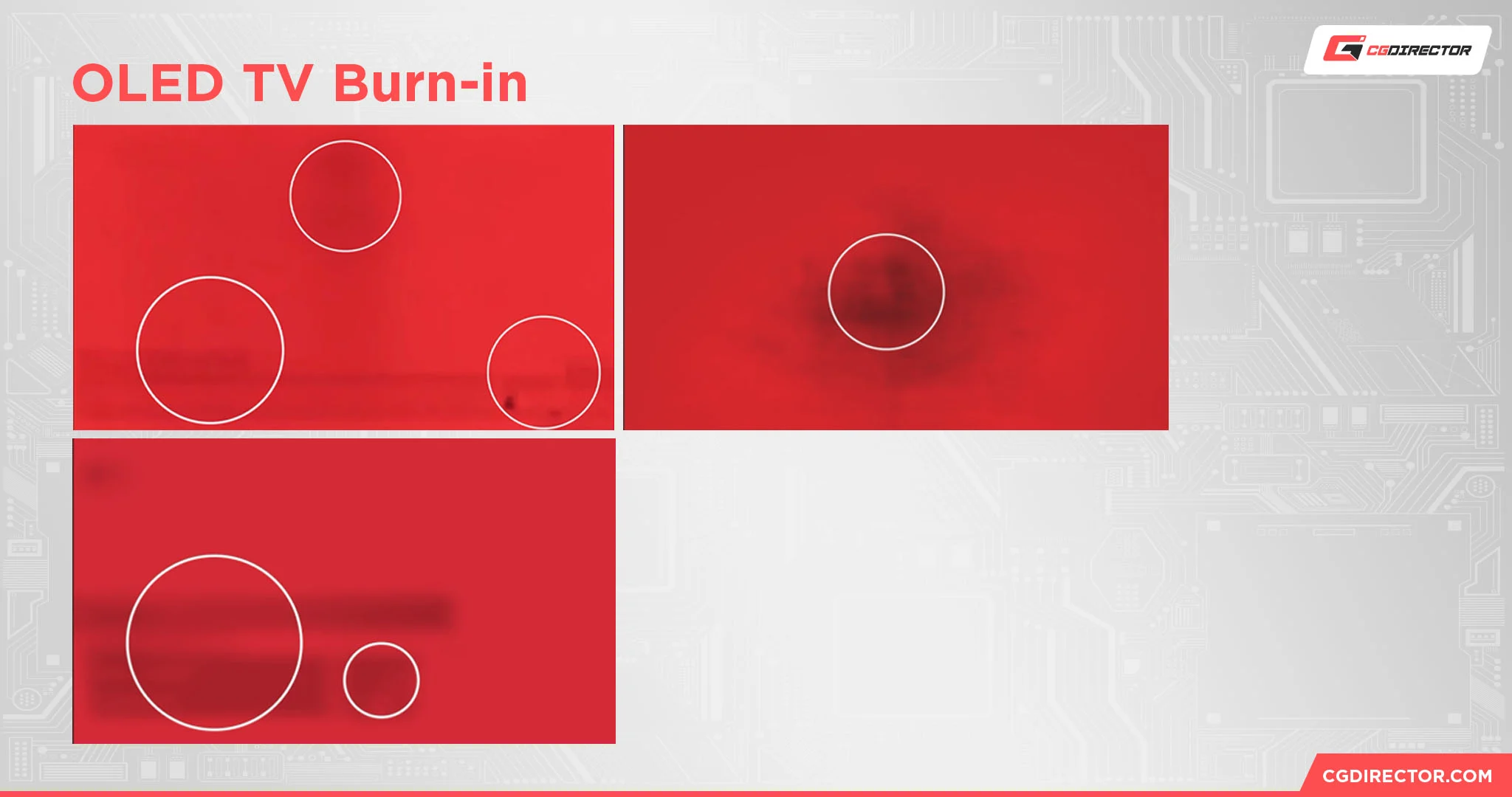
Image source: Bing (Web (fair-use with source credit))
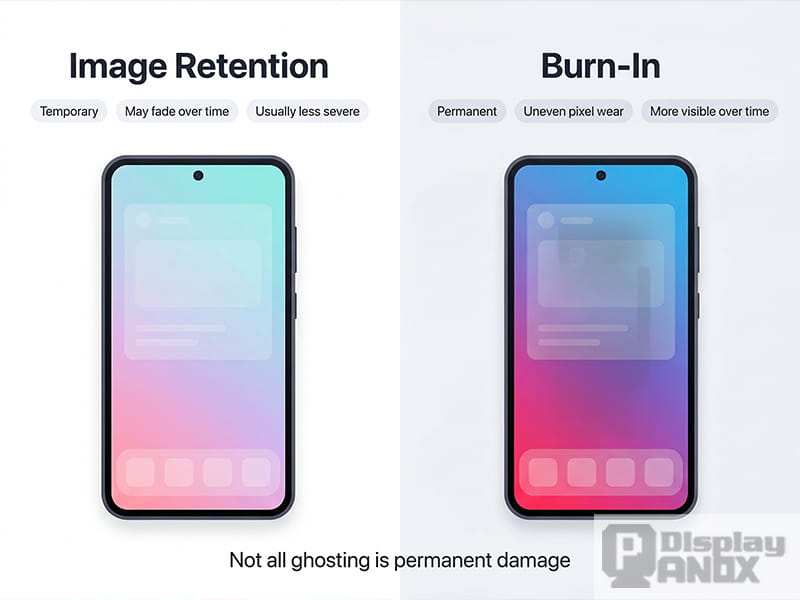
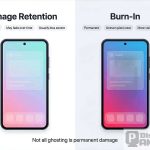
Burn-in is the elephant in the room. Static elements like taskbars, browser tabs, and application docks can leave permanent image retention over time. Modern OLED monitors include mitigation features like pixel shift, logo dimming, and panel refresh cycles.
LG's burn-in warranty on the 32GS95UE covers defects for three years, which offers some peace of mind.
Dual monitors spread static elements across two panels, and IPS technology is essentially immune to burn-in. If you keep a taskbar visible eight hours a day, seven days a week, this matters more than most reviews let on.
Best Use Cases for a Single OLED Monitor
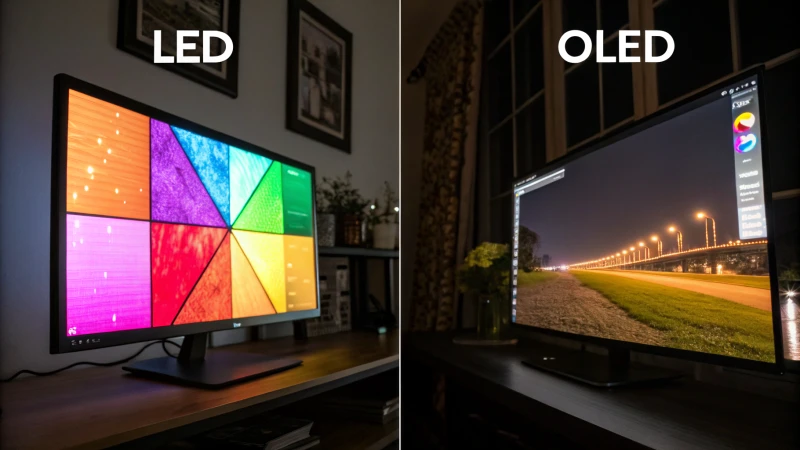
A single OLED monitor works best when your workflow benefits from a seamless, immersive display. Video editors gain a wide timeline with perfect blacks for color grading. Gamers get an expansive field of view with HDR that IPS panels can't match.
Writers and researchers who work in full-screen or distraction-free modes love the clean, uninterrupted canvas.
Photographers and designers who need accurate color across the entire workspace benefit from the uniform panel characteristics. With dual monitors, you often deal with slight color or brightness differences between panels. One OLED eliminates that problem entirely.
Content creators who stream or record also benefit. A single ultrawide lets you see your game, chat, and streaming software all at once without a bezel cutting through the middle of your layout.
Best Use Cases for Sticking With Dual Monitors
Dual monitors remain the better choice when you need rigid separation between full-screen applications. Software developers who run an IDE on one screen and a browser or terminal on the other often prefer the physical boundary. Financial traders who monitor multiple data feeds simultaneously benefit from the ability to angle each screen independently.
Anyone who relies on redundancy should consider dual monitors. If one panel fails, you still have the other. A single OLED going down means no display at all until it's repaired or replaced.
Users who keep static UI elements visible for extended periods, like those with permanent taskbars, notification docks, or always-on spreadsheet headers, face less long-term risk with IPS-based dual monitors.
The Hybrid Approach: One OLED Plus a Secondary Display
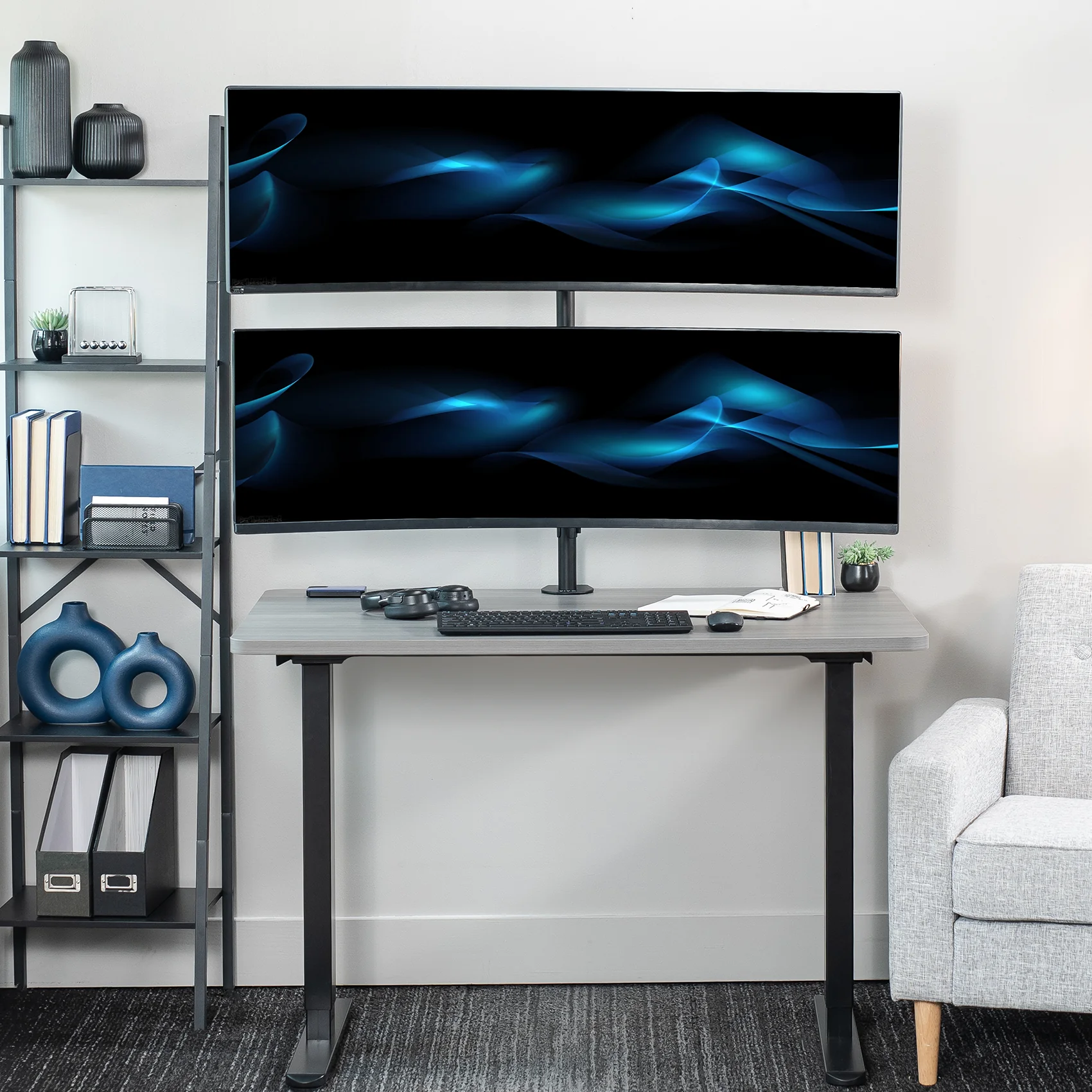
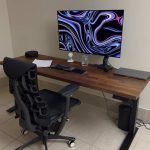
Image source: Bing (Web (fair-use with source credit))
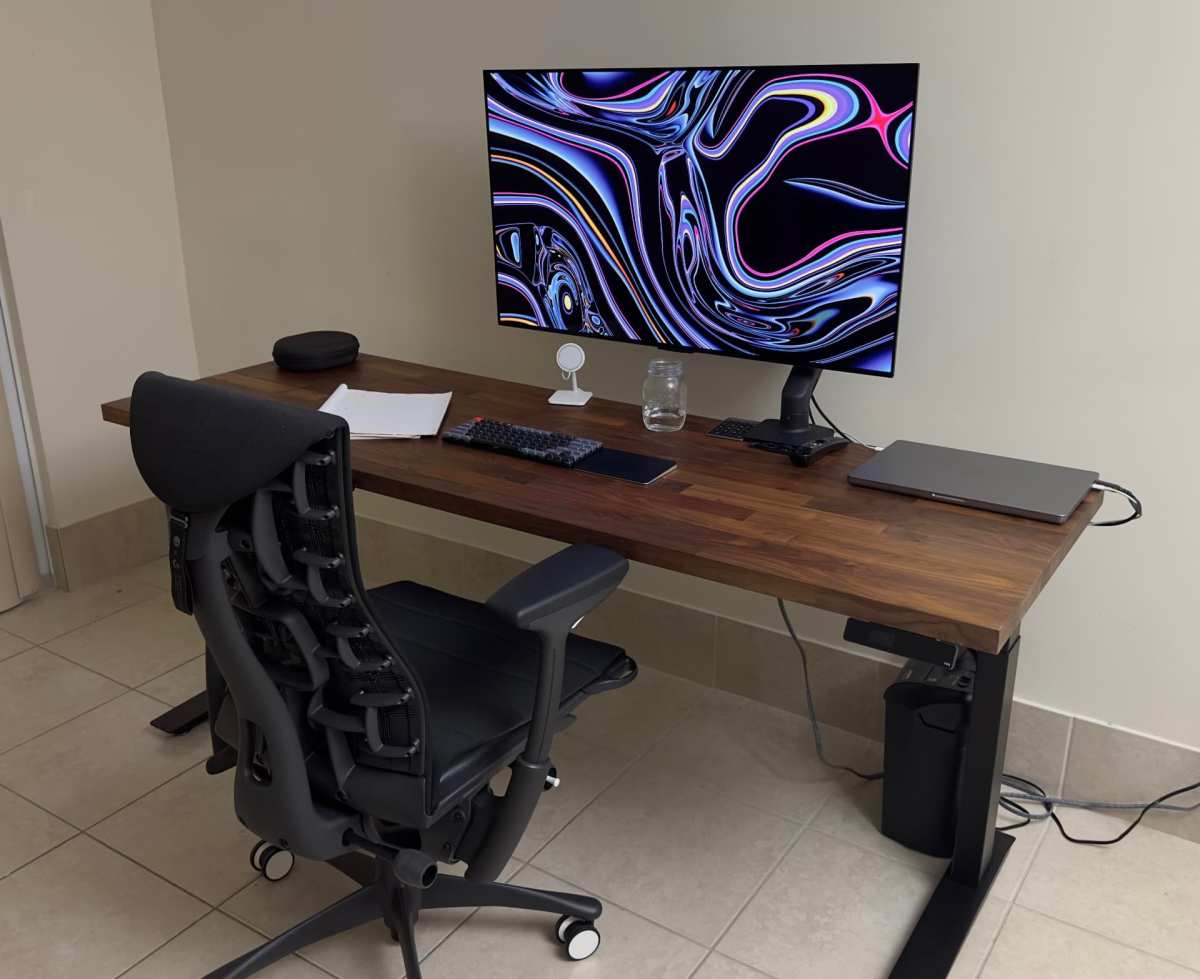
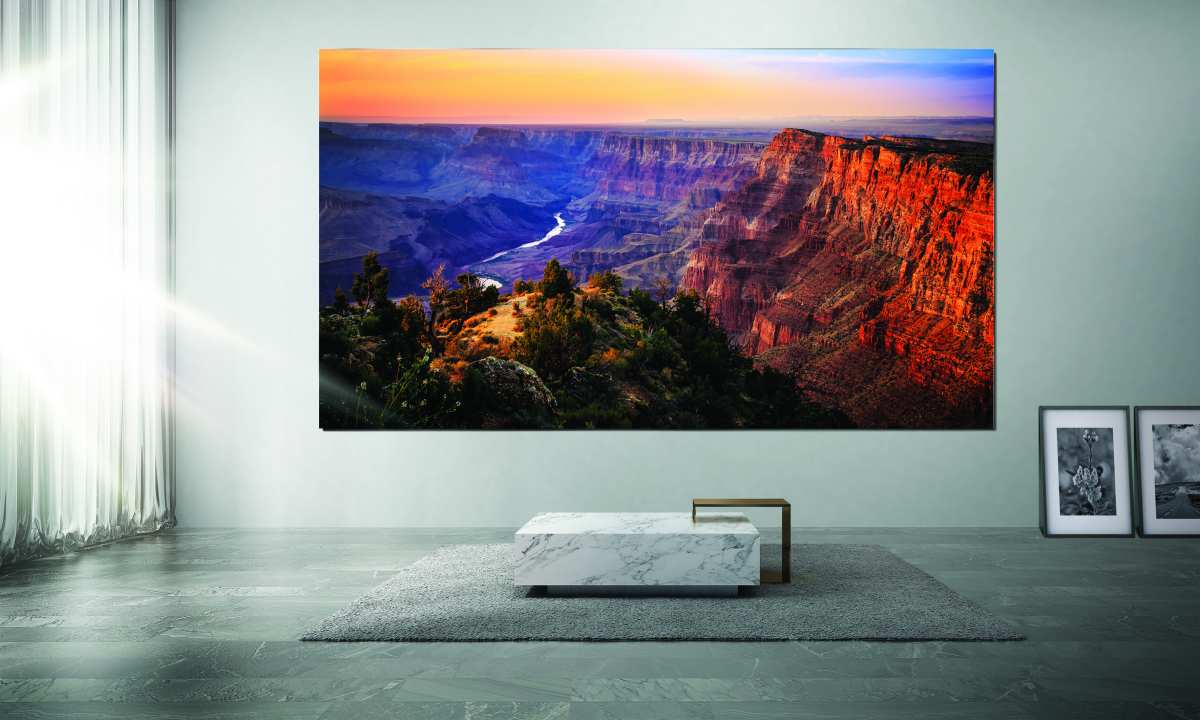
You don't have to choose one or the other. A hybrid setup pairs a primary ultrawide OLED with a secondary monitor mounted above or to the side. The OLED handles your main workspace, media, and creative work.
The secondary screen displays email, chat, system monitors, or reference material.
This approach gives you the best of both worlds. You get the immersive quality of OLED for your primary tasks while offloading static content to a cheaper IPS panel. It also reduces burn-in risk since your taskbar and persistent notifications live on the secondary display.
The downside is cost. You're buying two monitors instead of one, and you need enough desk space to accommodate both. For many professionals though, the productivity gain justifies the investment.
Common Mistakes People Make When Switching
The biggest mistake is buying an ultrawide that's too small. A 34-inch ultrawide at 3440×1440 gives you less total space than dual 27-inch 1440p monitors. You're trading screen area for aesthetics, which leads to frustration.
Another common error is ignoring window management software. Trying to manually resize and position windows on a 49-inch panel without tools like FancyZones or DisplayFusion feels chaotic. Set up your zones before you need them.
People also underestimate the burn-in risk. If you're coming from a dual IPS setup where you never thought about image retention, you need to develop new habits. Auto-hide your taskbar, use dark mode selectively, and run the panel refresh cycle when prompted.
Finally, some buyers skip the ergonomics conversation. A 49-inch super ultrawide is wide. If your desk is shallow, you'll be turning your head constantly.
Make sure you have at least 24 to 30 inches of viewing distance for comfortable use.
What It Actually Costs: Pricing and Value Breakdown
OLED monitors carry a significant premium over IPS alternatives. As of 2026, here's what you can expect to pay:
| Monitor Type | Typical Price Range |
|---|---|
| 32" 4K OLED | $900 – $1,300 |
| 34" Ultrawide OLED | $800 – $1,200 |
| 45" Ultrawide OLED | $1,200 – $1,800 |
| 49" Super Ultrawide OLED | $1,300 – $2,500 |
| Dual 27" 1440p IPS | $400 – $700 total |
| Dual 27" 4K IPS | $600 – $1,200 total |
A single 49-inch OLED costs roughly the same as two high-quality 27-inch 4K IPS monitors. You're not saving money by going the OLED route. You're paying for the form factor, the image quality, and the simplicity of a single panel.
The value calculation changes when you factor in what you gain. Perfect blacks, infinite contrast, and a bezel-free workspace are tangible benefits that IPS can't match. Whether those benefits are worth the premium depends on how much you value image quality versus raw productivity.
Expert Tips for Making the Transition Smooth
If you're moving from dual monitors to a single OLED, give yourself a two-week adjustment period. Your muscle memory for window placement will fight you at first. Set up your window zones on day one and resist the urge to revert.
Calibrate your OLED before judging the colors. Out-of-the-box settings are often too saturated for productivity work. Use the sRGB or DCI-P3 preset depending on your workflow, and adjust brightness to match your room lighting.
Enable every burn-in mitigation feature your monitor offers. Pixel shift, logo dimming, and auto screen saver activation all help extend panel life. These features exist for a reason.
Consider your operating system's scaling behavior. Windows and macOS handle ultrawide scaling differently, and some applications don't respond well to non-standard scaling percentages. Test your critical apps before committing to the switch.
Real Scenarios: Who Should Switch and Who Shouldn't
A video editor working in DaVinci Resolve or Premiere Pro will love a single OLED. The wide timeline, accurate color, and HDR preview capabilities make the workflow feel natural. The same goes for photographers editing in Lightroom or Capture One.
A software developer who runs multiple virtual machines and needs to see several terminal windows simultaneously might struggle. The lack of physical screen separation makes context switching harder, not easier.
Day traders and financial analysts should stick with dual or even triple monitors. The ability to dedicate one screen to charts, another to order books, and a third to news feeds is difficult to replicate on a single panel, even with window management tools.
Gamers who also work at the same desk get the most versatility from a single OLED. You get immersive gaming after hours and a productive workspace during the day, all without swapping setups.
Frequently Asked Questions
Is a 49-inch OLED the same as two 27-inch monitors?
In terms of total pixel count, yes. A 49-inch super ultrawide at 5120×1440 delivers the same resolution as two 27-inch 2560×1440 monitors side by side. The difference is the physical bezel gap and how you manage windows across the space.
Will an OLED monitor burn in if I use it for office work?
Modern OLED monitors include burn-in mitigation features that significantly reduce the risk. However, keeping static elements like taskbars visible for eight or more hours daily will accelerate image retention compared to IPS panels. Using auto-hide features and running periodic panel refresh cycles helps.
Can I use an ultrawide OLED for gaming and productivity?
Absolutely. Ultrawide OLED monitors are among the most versatile displays available. You get immersive gaming with high refresh rates and HDR, plus a wide workspace for productivity tasks.
Many models include picture-by-picture mode if you want to connect two sources simultaneously.
Do I need special software to manage windows on an ultrawide?
You don't need it, but it helps significantly. Tools like Microsoft PowerToys FancyZones, DisplayFusion, or macOS Magnet make window management on a large panel feel organized. Without them, you'll spend a lot of time manually resizing windows.
How long do OLED monitors last before burn-in becomes noticeable?
Manufacturer specifications and aggregate user reports suggest modern OLED panels retain acceptable image quality for three to five years under normal mixed-use conditions. Heavy static content use may show noticeable retention sooner. Warranty coverage varies by manufacturer, so check the specific terms before buying.
Final Verdict: Which Setup Wins for You
The answer comes down to what you do at your desk every day. If your work involves creative applications, media consumption, or immersive gaming, a single OLED monitor delivers an experience that dual IPS panels simply can't match. The image quality, seamless workspace, and clean aesthetic make it a genuine upgrade.
If your workflow depends on rigid window separation, full-screen applications on each display, or maximum redundancy, dual monitors remain the smarter choice. They're cheaper, more flexible, and free from burn-in concerns.
For those who want the best of both worlds, the hybrid approach of a primary OLED with a secondary IPS panel covers nearly every scenario. It costs more, but it eliminates the compromises that come with choosing one setup over the other.
Take an honest look at how you use your desk. That answer will tell you which direction to go.
Common Mistakes People Make When Switching
We covered this briefly earlier, but it's worth expanding because these mistakes trip up almost everyone who makes the transition. The first is buying based on specs alone without considering how the panel size affects your daily comfort. A 34-inch ultrawide sounds impressive on paper, yet it gives you less vertical space than a single 27-inch 1440p monitor.
You end up scrolling more, not less.
Another mistake is ignoring your operating system's scaling behavior. Windows 11 handles ultrawide scaling inconsistently across legacy and modern applications. Some apps look crisp while others appear blurry. macOS generally handles scaling better, but not every third-party app respects the system settings.
Test your critical applications before committing to the switch.
People also forget about cable management until after the monitor arrives. A single ultrawide replaces two displays but still needs power and a high-bandwidth connection. If you're using a laptop with USB-C, make sure your cable supports DisplayPort Alt Mode at the required bandwidth.
A cheap cable can limit your resolution or refresh rate without obvious warning signs.
Finally, some buyers skip the return window test. Use the monitor for at least a week during your actual workflow before deciding. Specs and reviews can't tell you how a 49-inch panel feels after a full workday at your specific desk depth.
What It Actually Costs: Pricing and Value Breakdown
The pricing landscape for OLED monitors has shifted noticeably. Entry-level 32-inch 4K OLED panels now start around $900, which would have been unthinkable three years ago. The sweet spot for most buyers sits between $1,000 and $1,500, where you get a 34-inch or 45-inch ultrawide with solid burn-in protection and factory calibration.
Super ultrawide 49-inch models remain premium products. Prices range from $1,300 for older models to $2,500 for the latest panels with higher refresh rates and improved subpixel layouts. These prices roughly match what you'd spend on two high-quality 27-inch 4K IPS monitors, so the value proposition depends on what you prioritize.
Factor in the hidden costs too. A good VESA mount for a large ultrawide runs $50 to $150. A quality USB-C cable rated for 4K at high refresh rates adds another $20 to $40.
If you need a monitor arm that supports the weight and size of a 49-inch panel, budget $200 or more for a reliable option.
Expert Tips for Making the Transition Smooth
Set up your window management zones before you unplug your old monitors. Spend 30 minutes configuring FancyZones or your tool of choice with layouts that match your actual workflow. Most people need three to four zones: a center zone for the primary task and side zones for reference material or communication apps.
Calibrate your brightness to your room. OLED panels can get extremely bright, and running at maximum brightness in a normal office accelerates burn-in. A brightness setting of 120 to 180 nits is comfortable for indoor work and significantly extends panel life.
Develop the habit of hiding your taskbar when not in use. Both Windows and macOS offer auto-hide options. This single change eliminates the most common source of burn-in for office users.
Run the monitor's built-in pixel refresh cycle when prompted. Most OLED panels run a short maintenance cycle after every four hours of use and a longer cycle after extended sessions. Don't interrupt these cycles.
They're essential for maintaining uniform brightness across the panel.
Real Scenarios: Who Should Switch and Who Shouldn't
A freelance graphic designer working in Illustrator and Photoshop will likely thrive with a single OLED. The color accuracy, wide gamut, and uniform panel characteristics make editing feel more precise. The lack of a bezel gap also helps when working on wide layouts or spreads.
A software engineer running Docker containers, multiple terminals, and a browser with dozens of tabs might find the single-panel approach frustrating. The physical separation of dual monitors provides a mental model that window zones can't fully replicate. That said, some developers adapt well after the initial adjustment period.
Customer support agents who need to see a ticket system, knowledge base, and chat window simultaneously are better served with dual monitors. The rigid separation helps them switch contexts quickly without rearranging windows.
Hybrid workers who split time between focused creative work and video calls benefit from the hybrid approach. The OLED handles creative tasks beautifully, while a secondary portrait-oriented monitor displays Slack, email, or meeting notes without consuming valuable OLED screen space.
Frequently Asked Questions
Is text sharp enough on OLED for coding and writing?
On a 32-inch or larger 4K OLED, text is sharp enough for extended coding and writing sessions. Some users notice slight color fringing on small text due to the WRGB subpixel layout, but this becomes less noticeable over time. If text clarity is your top priority, a high-PPI IPS panel still has a slight edge.
Can I connect two computers to one ultrawide OLED?
Many ultrawide OLED monitors support picture-by-picture mode, which splits the screen to show input from two sources simultaneously. Check the specific model's specifications, as implementation varies. Some monitors handle this better than others, and not all support full resolution on both inputs at once.
How does an OLED ultrawide handle HDR for productivity?
HDR on an OLED ultrawide is excellent for media consumption and creative work. For general productivity though, most users keep HDR disabled. Windows HDR implementation can make SDR content look washed out, and most productivity applications aren't designed for HDR workflows.
What desk depth do I need for a 49-inch super ultrawide?
A minimum of 24 inches of desk depth is recommended for a 49-inch super ultrawide. Thirty inches or more is ideal, especially if you sit close to the screen. Without enough depth, you'll find yourself turning your head frequently to see the edges, which leads to neck strain over time.
Do OLED monitors work well in bright rooms?
OLED panels have excellent contrast but can struggle with reflections in bright rooms. Most models use a glossy or semi-glossy coating that looks great in dim environments but picks up overhead lighting. If your workspace has large windows or bright ambient lighting, consider a matte IPS alternative or invest in light control for the room.
Final Verdict: Which Setup Wins for You
If you work in creative fields like video editing, photography, or design, a single OLED monitor is a genuine upgrade. The color accuracy, infinite contrast, and seamless workspace justify the premium. You'll wonder why you didn't switch sooner.
Developers, traders, and anyone who relies on rigid full-screen separation should stick with dual monitors. The physical boundary between screens provides a workflow advantage that software window management can't fully replicate.
For everyone else, the hybrid approach offers the most flexibility. Pair an ultrawide OLED with a secondary IPS panel and you get the best of both worlds without meaningful compromise. It costs more, but it eliminates the regret that often comes with choosing one extreme over the other.
The honest truth is that neither setup is universally better. Your workflow, desk space, and budget are the deciding factors. Match the tool to the task, and either approach will serve you well.

Similar Posts