Can Mini LED Monitors Replace Dual Monitors
Staring at two mismatched screens and wondering if one fancy monitor could do the same job is a fair question. Whether you can replace your dual monitor setup with a single mini-LED screen depends entirely on how you use your displays day to day. Let's break down what actually works, what doesn't, and where the trade-offs hide.
Mini-LED technology delivers serious upgrades in contrast and HDR brightness, often hitting 1,000-plus peak nits across hundreds or thousands of local dimming zones. But better image quality doesn't automatically solve the workflow problems that dual monitors were designed to fix. What follows here is an honest comparison so you can decide which setup suits your actual needs. If you are exploring similar hardware setups, see our detailed guide on whether mini led monitors replace oled for editing.
The Real Answer Depends on How You Work
If your work relies on keeping multiple windows visible at the same time, a single monitor usually handles it well. Developers, writers, and office workers often find one high-resolution screen with window-snapping tools just as productive as two separate displays. For video editors, traders, or anyone who genuinely needs physically separated workspaces, dual monitors remain tough to beat.
Here's what tips the scales. Modern 4K monitors at 32 inches or ultrawides at 34 to 49 inches provide enough pixel real estate to comfortably tile three or four windows side by side. The catch is muscle memory.
If you've spent years tossing a chat window to a second screen and a browser to the first, breaking that habit takes real effort. So the honest answer is yes for many people, but not for everyone, and knowing which camp you fall into saves you an expensive mistake. For related troubleshooting and calibration steps, check our walkthrough on whether oled monitors replace dual monitors.
What Mini LED Actually Gets You (And What It Doesn't)
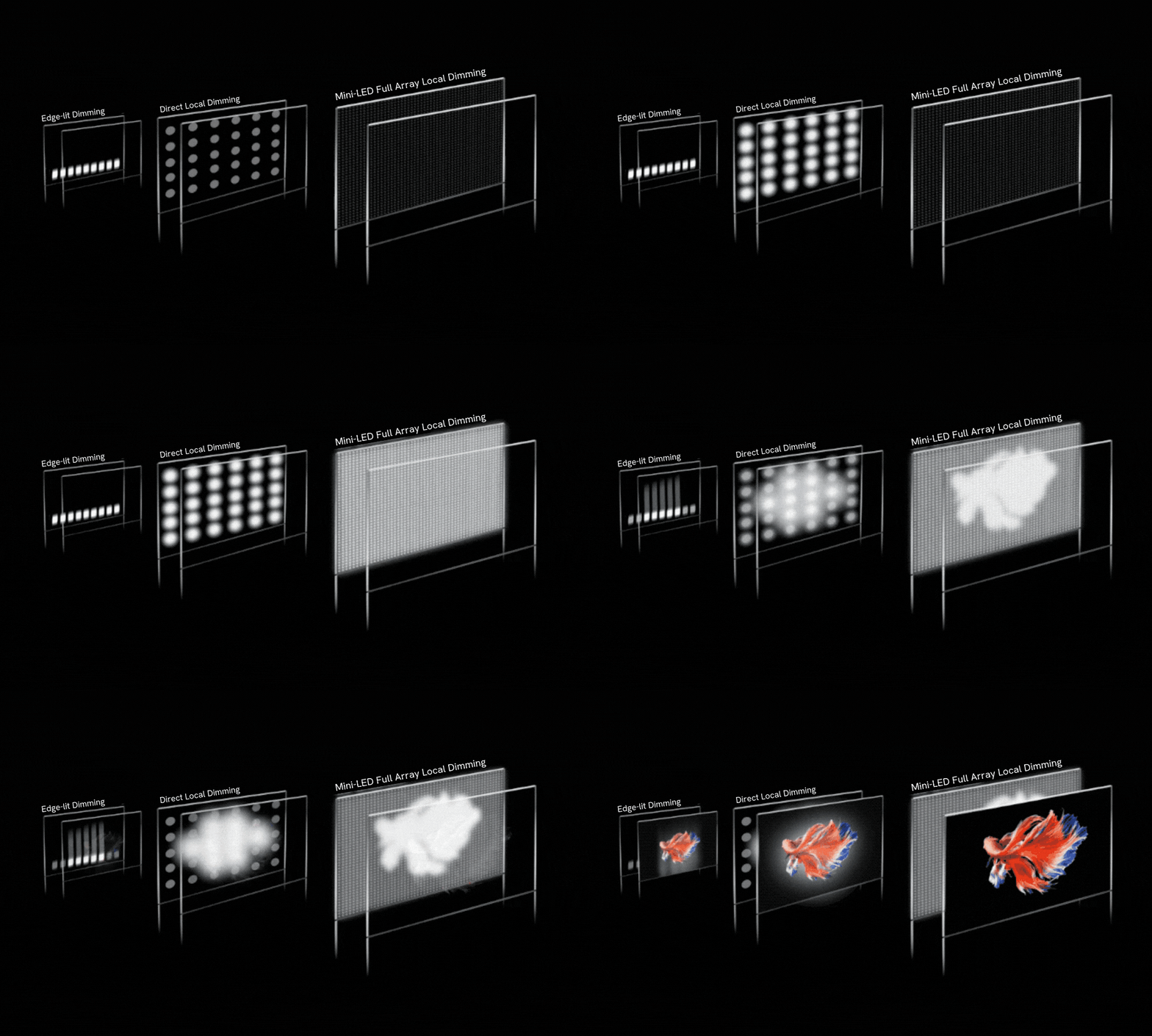
Mini-LED is a backlight technology, not a panel type, and understanding that difference matters. Traditional edge-lit LED monitors light the whole screen from one side. Mini-LED uses thousands of tiny LED zones that dim and brighten independently, giving you deeper blacks and brighter highlights in the same image.
This is what makes HDR content pop and what gives mini-LED monitors their edge over standard LED displays.
Per VESA DisplayHDR certification standards, a quality mini-LED monitor delivers true HDR performance that standard LED panels simply cannot match. Peak brightness often sits between 1,000 and 2,000 nits, and contrast ratios feel closer to OLED than to a typical IPS display. Color accuracy tends to be excellent, with many models covering 95 percent or more of the DCI-P3 color space.
What mini-LED doesn't change is your screen count. You still have one physical display. Window management becomes your responsibility, not your hardware's.
Some users find this liberating. Others find it crippling. If your workflow depends on glancing between two fully visible applications with no overlap, a single screen of any technology type creates friction.
Blooming around bright objects on dark backgrounds remains a minor drawback on certain models, especially those with fewer dimming zones. And the best mini-LED monitors carry a price premium over equivalent standard LED options.
Dual Monitors vs. Single Mini LED: Honest Breakdown
Let's lay both options on the table and compare them across the factors that actually matter.
| Factor | Dual Monitor Setup | Single Mini LED Monitor |
|---|---|---|
| Total screen real estate | 48-54 combined inches typical | 27-49 inches single panel |
| Physical screen separation | Bezel gap creates natural boundary | No separation, all one canvas |
| HDR and contrast | Varies by panel, often mediocre | Consistently excellent |
| Color consistency | Can differ between two units | Uniform across entire screen |
| Desk space required | Significant, two stands or arms | Single mount, less depth |
| Cable management | More complex, double the cables | Simpler setup |
| Typical cost (quality tier) | $400-$1,000 for two good monitors | $500-$1,500 for one excellent unit |
| Upgrade flexibility | Replace one at a time | All-in-one replacement |
| GPU requirements | Two outputs needed | Single high-bandwidth output |

Dual monitors win on raw flexibility. Having a dedicated screen for email, Slack, or reference material while your primary screen holds your main work reduces context-switching friction in a way software solutions can't fully replicate. For traders watching six data dashboards or developers with documentation on one side and code on the other, physical separation is genuinely useful.
Single mini-LED monitors win on image quality, simplicity, and immersion. If your work or play benefits from HDR, deep contrast, and a seamless display with no bezel gap breaking your view, a mini-LED panel delivers an experience two mid-range monitors can't touch. Content creators working with HDR video, photographers editing in wide color gamuts, or gamers wanting a cinematic ultrawide experience will immediately notice the upgrade.
Side-by-Side Comparison
A few scenarios make the trade-offs crystal clear.
A software developer with documentation on one screen and an IDE on the other might find a single 32-inch 4K mini-LED monitor works better. Windows 11 Snap Layouts and tools like Microsoft PowerToys FancyZones let you tile windows precisely. The higher pixel density means text stays sharp even when split into zones.
And a single color-accurate panel eliminates the frustration of two screens showing slightly different color tones.
A financial trader running six Bloomberg terminals and chart windows will likely miss dual monitors fast. No amount of window snapping replaces having two dedicated displays where each application occupies its own space without compromise. The physical boundary matters when you're monitoring time-sensitive data and can't afford to misclick the wrong window.
A video editing workflow sits somewhere in the middle. Timeline on one side, preview on the other, asset browser floating. Mini-LED's HDR preview capability benefits color-critical editing, but losing the dedicated preview screen stings.
Many editors solve this by keeping one standard secondary monitor alongside a mini-LED primary setup.
The costs add up differently too. Two quality 27-inch 1440p IPS monitors run around $400 to $600 total. A single 32-inch 4K mini-LED with solid HDR starts around $600 and climbs past $1,200 for professional-grade models.
Factor in a good monitor arm for the single-screen setup and both options land in a similar price bracket, just with very different strengths.
When a Single Mini LED Makes More Sense
Several situations point clearly toward going single-screen with a quality mini-LED panel.
You work in color-critical fields. Photography, video editing, graphic design, and digital art all benefit directly from the contrast and HDR accuracy that mini-LED delivers. Having consistent color and brightness across one large display beats managing calibration across two cheaper monitors.
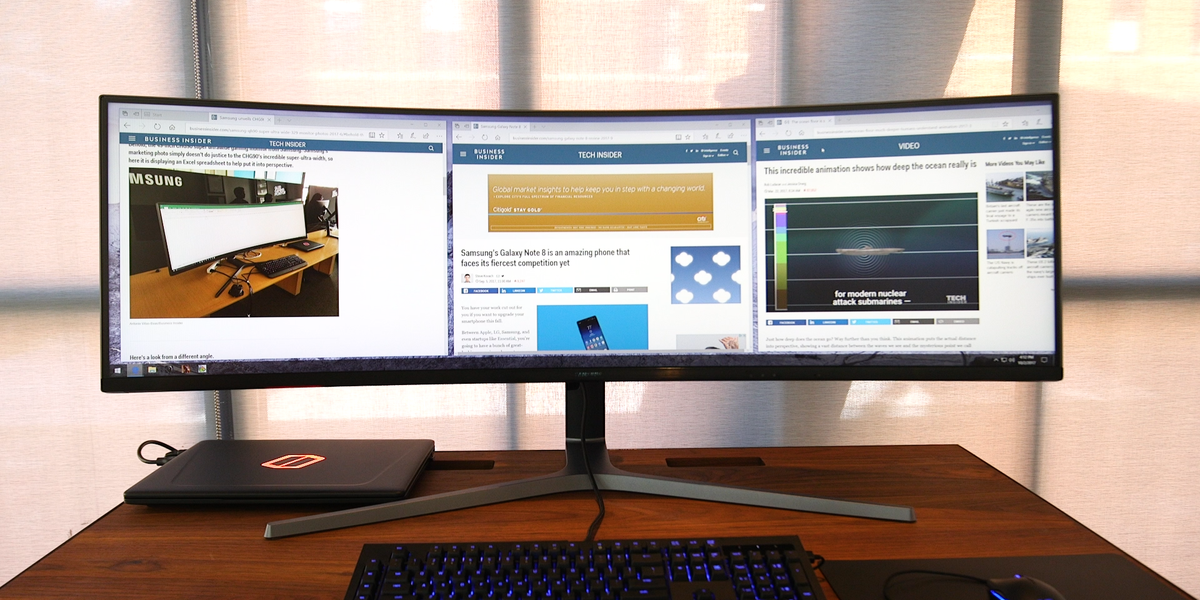
Your desk is small. A 32 or 34-inch ultrawide takes up roughly the same footprint as one standard monitor but gives you the workspace of two. If desk depth is under 28 inches or width is tight, one monitor solves a real spatial problem.
You value immersion. Gaming, movie watching, and creative work feel more absorbing on a single seamless panel with no bezel sitting right in the middle of your field of view. Mini-LED's HDR performance makes this difference obvious the first time you see it.
You travel or move frequently. Monitor setups across multiple locations are far simpler with one display. Bring a single 32-inch mini-LED to your office and back, rather than juggling two screens every time you switch work locations.

Similar Posts





















