How to Connect 4K Monitor to Xbox Series X
Figuring out how to connect 4K monitor to Xbox Series X hardware is simpler than it sounds, but there are a few gotchas that trip people up. The console supports 4K output at up to 120Hz, HDR10, and variable refresh rate. Whether you actually get all of that depends entirely on what your monitor can handle.
The Xbox Series X ships with an HDMI 2.1 cable capable of 48 Gbps bandwidth. That's enough for 4K at 120Hz with full chroma. But your monitor's HDMI port version, settings, and capabilities determine what you'll actually see on screen. Readers comparing various configurations should also examine how to connect touchscreen monitor to laptop.
Let's walk through exactly what to check and how to get everything working.
Quick Answer
Connect the Xbox Series X to your 4K monitor using the included HDMI 2.1 cable. Go to Settings > General > TV & display options. Select 4K UHD as your resolution.
Enable "Allow 4K" and set your refresh rate to 60Hz or 120Hz depending on your monitor. Turn on HDR and VRR if your monitor supports them.
Does Your Monitor Actually Support What the Xbox Series X Can Output?
This is where most people hit a wall. You've got a 4K monitor and an Xbox Series X. You assume they'll play nice together. For related troubleshooting and calibration steps, check our walkthrough on how to connect usb c monitor to laptop.
Sometimes they do. Sometimes you're stuck at 30Hz or no HDR with no idea why.
The answer almost always comes down to one thing: your monitor's HDMI version.
The HDMI Version Problem Most People Miss
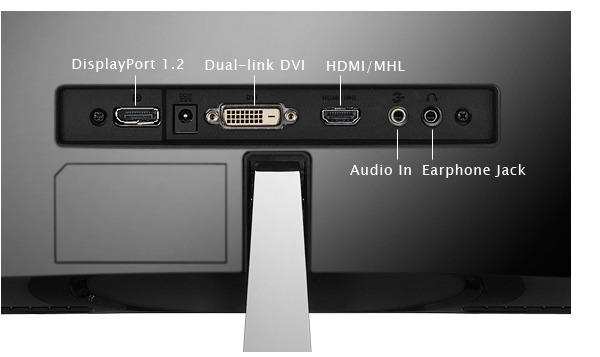
The Xbox Series X only has an HDMI output. No DisplayPort, no USB-C video. You're locked into HDMI, and the version on your monitor determines everything.
Here's the quick breakdown:
| HDMI Version | Max Bandwidth | 4K/60Hz | 4K/120Hz | HDR |
|---|---|---|---|---|
| HDMI 1.4 | 10.2 Gbps | Yes (30Hz) | No | Limited |
| HDMI 2.0 | 18 Gbps | Yes | No | Yes |
| HDMI 2.1 | 48 Gbps | Yes | Yes | Yes |
If your monitor only has HDMI 2.0, you're capped at 4K/60Hz with HDR. That's still a great picture. But you won't get 120fps in games, and you may see chroma subsampling at higher color depths.
Many budget and mid-range 4K monitors released before 2021 only have HDMI 2.0 ports. Check your manual or the manufacturer's spec page. Don't rely on the product listing on retail sites.
Those specs get mixed up constantly.
4K/60Hz vs. 4K/120Hz: What Your Monitor Can Handle
If your monitor has HDMI 2.1, you're in good shape. You can run 4K at 120Hz with HDR and full 4:4:4 chroma. That's the full Xbox Series X experience.
If it only has HDMI 2.0, here's what you can realistically do:
- 4K at 60Hz with HDR and 4:4:4 chroma, This is the sweet spot for HDMI 2.0. Works great for most games.
- 4K at 120Hz, Not possible over HDMI 2.0. The bandwidth isn't there.
- 1440p at 120Hz, This is your alternative. The Xbox supports 1440p output, and HDMI 2.0 handles 1440p/120Hz without breaking a sweat.
Some monitors advertise "120Hz" but only achieve it over DisplayPort. The HDMI ports might be limited to 60Hz. This is extremely common on PC gaming monitors.
Always check which specific port supports which refresh rate.
Checking Your Monitor's Real Specs (Not Just the Marketing)
Here's what to look for when verifying your monitor's capabilities:
- HDMI version per port, Some monitors mix HDMI 2.0 and 2.1 ports. Port 1 might be 2.1 while Port 2 is 2.0.
- Maximum refresh rate over HDMI, A monitor might do 144Hz over DisplayPort but only 60Hz over HDMI.
- VRR support over HDMI, FreeSync might only work on DisplayPort. HDMI VRR is a separate feature.
- HDR support, Many monitors claim HDR but only accept an HDR signal without properly displaying it. Look for HDR10 or DisplayHDR 400+ certification.
Pull up the manufacturer's official spec sheet. Search for your exact model number followed by "HDMI specifications" or "supported resolutions." User manuals usually have a table listing what each port supports.
Step-by-Step: Connecting Your 4K Monitor to Xbox Series X
Let's get you set up. This process takes about five minutes if everything goes smoothly. It can take longer if you need to troubleshoot settings.
Physical Connection: Cable and Port Setup
Start with the basics. Use the HDMI cable that came in the Xbox Series X box. It's a certified Ultra High Speed HDMI cable rated for 48 Gbps.
If you need a longer cable, make sure any replacement is certified for HDMI 2.1. Look for the "Ultra High Speed" label on the packaging. Cheap Amazon cables that claim 48 Gbps but aren't certified are a common source of problems.
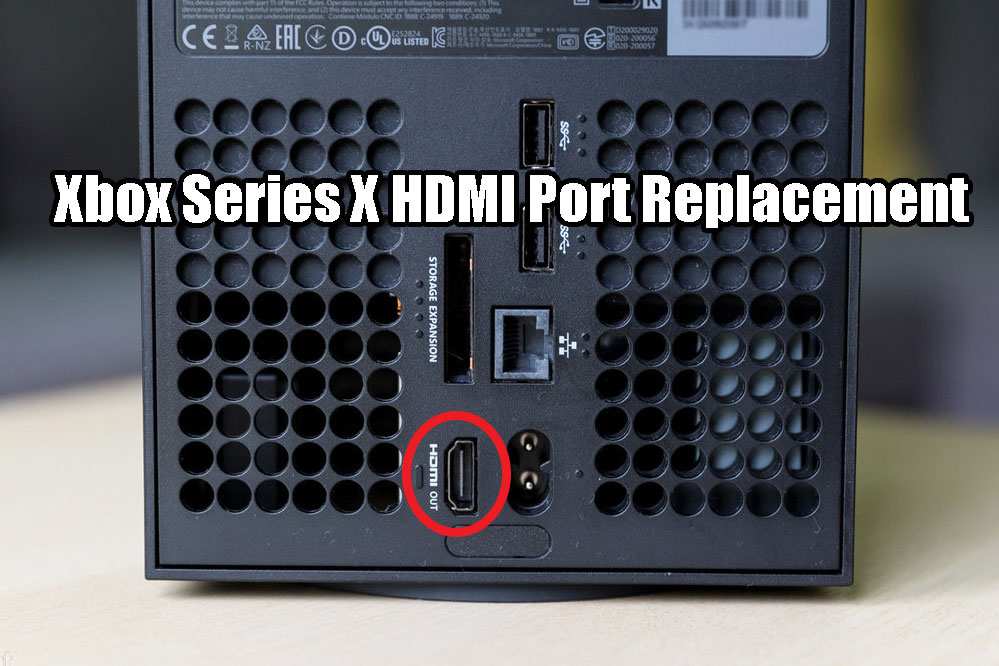
Plug one end into the HDMI OUT port on the back of the Xbox Series X. Plug the other end into the HDMI IN port on your monitor. If your monitor has multiple HDMI ports, check the manual to see which one supports the highest bandwidth.
It's usually labeled or noted in the spec table.
Power on both devices. The Xbox should detect the monitor automatically. If you see a picture, great.
If you get a black screen, don't panic. We'll fix that later.
Xbox Display Settings: Getting 4K to Actually Work
Once you've got a picture, it's time to configure the Xbox to output at your monitor's native resolution.
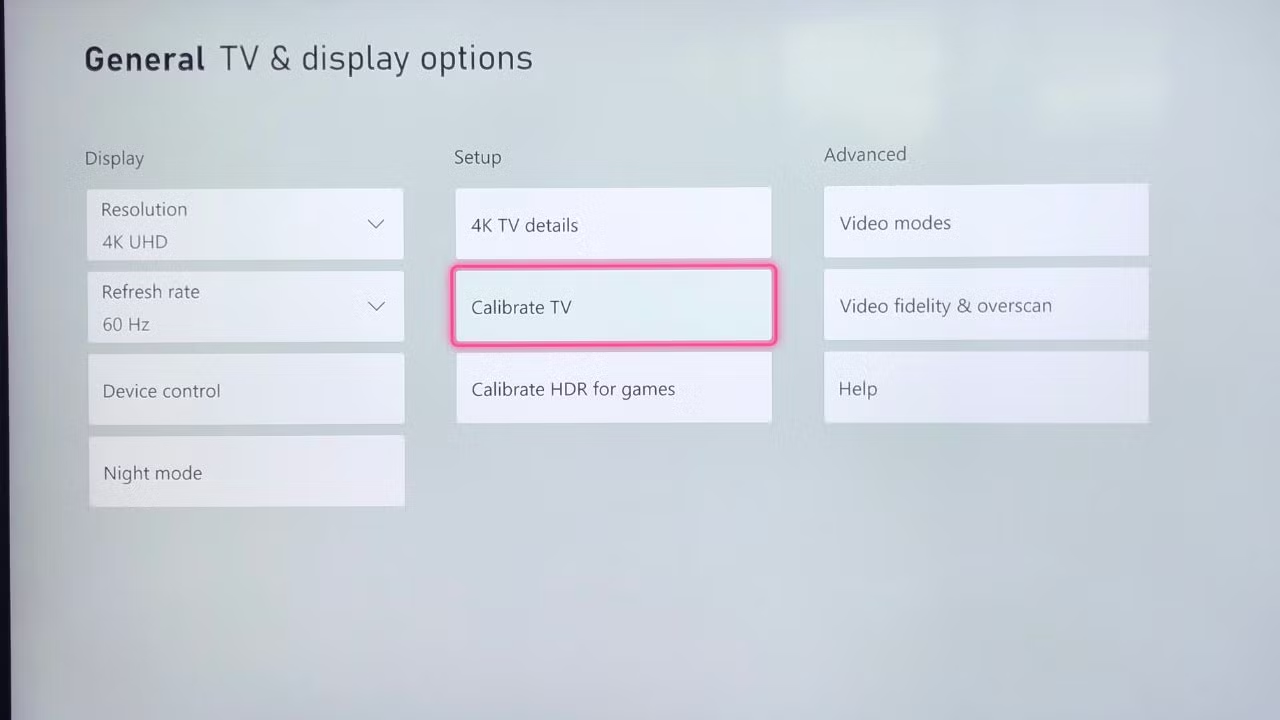
Navigate to Settings > General > TV & display options. This is where everything lives.
You'll see four tiles: Resolution, Refresh rate, Color depth, and Color space. Let's go through each one.
Resolution, The Xbox should auto-detect 4K UHD if your monitor supports it. If it shows 1080p or 1440p instead, click on it and manually select "4K UHD." If 4K UHD doesn't appear as an option, your monitor isn't communicating its 4K capability to the Xbox. This usually means an HDMI version mismatch or a cable issue.
Refresh rate, Choose between 60Hz and 120Hz. If your monitor only supports HDMI 2.0, 120Hz won't appear here. Select 60Hz and consider switching your resolution to 1440p if you want higher frame rates in games.
Color depth, Set this to 30-bit (10-bit) if your monitor supports HDR and 10-bit color. If you're on HDMI 2.0 at 4K/60Hz with HDR, you may need to drop to 24-bit (8-bit) to stay within bandwidth limits. The Xbox will warn you if the current setting exceeds your connection's capacity.
Color space, Leave this on "Standard" for most monitors. "PC RGB" is for monitors calibrated for PC use and can cause crushed blacks on displays expecting TV-level color.
Enabling HDR, 120Hz, and VRR
Still in the TV & display options menu, look for the "Setup" section on the right side. You'll see toggles for several advanced features.
Allow 4K, Make sure this is checked. If it's grayed out, your monitor isn't reporting 4K capability over the current connection.
Allow HDR10, Enable this if your monitor accepts HDR signals. The Xbox will run a quick compatibility check.
Allow Dolby Vision, The Xbox Series X supports Dolby Vision for streaming apps and some games. Most monitors don't support it. Leave this off unless you know your display handles it.
Allow auto-low latency mode (ALLM), This tells your monitor to switch to Game Mode automatically. Enable it if your monitor supports ALLM.
Allow variable refresh rate (VRR), This enables HDMI VRR, which syncs your monitor's refresh rate to the Xbox's frame rate. It eliminates screen tearing. Enable it if your monitor supports HDMI VRR or FreeSync over HDMI.
After enabling these, the Xbox may flicker or go black briefly. That's normal. It's renegotiating the signal with your monitor.
Monitor OSD Settings You Need to Adjust
Your monitor's on-screen display settings matter just as much as the Xbox settings. Grab your monitor's remote or buttons and check these:
- Game Mode, Turn this on. It disables post-processing that adds input lag. This is the single most important setting for gaming.
- HDMI version/Mode, Some monitors have a setting to choose between HDMI 1.4, 2.0, or 2.1 mode. Make sure it's set to the highest available.
- FreeSync/VRR, Enable this in the monitor's menu if it's not on by default.
- HDR mode, Some monitors have a separate HDR toggle. Enable it if available.
- Response time/Overdrive, Set to "Fast" or "Normal." Avoid "Extreme" as it can cause inverse ghosting.
Every monitor brand organizes these settings differently. LG puts gaming settings under a dedicated Gaming menu. ASUS has a GamePlus hotkey.
Samsung buries some settings in the System submenu. Check your manual if you can't find them.
Why 120Hz Isn't Showing Up (And How to Fix It)
You've got a 120Hz monitor. You've got an Xbox Series X. But the refresh rate option only shows 60Hz.
This is one of the most common frustrations, and there are a few specific reasons it happens.
HDMI 2.0 Monitors: The Hard Limitation
If your monitor's HDMI ports are version 2.0, 120Hz at 4K is physically impossible. HDMI 2.0 has 18 Gbps of bandwidth. 4K at 120Hz with HDR requires roughly 32 Gbps. The numbers don't work.
Your options are:
- Run 4K at 60Hz with HDR (still looks excellent)
- Drop to 1440p at 120Hz (better for fast-paced games)
- Upgrade to a monitor with HDMI 2.1
There's no workaround here. It's a hardware limitation, not a software setting.
Chroma Subsampling and Bandwidth Trade-offs
Even with HDMI 2.1, you might hit bandwidth limits if you're trying to run 4K/120Hz with 10-bit HDR and full 4:4:4 chroma. That combination pushes right up against the 48 Gbps ceiling.
Chroma subsampling reduces color resolution to save bandwidth. Here's what the different levels look like:
| Chroma Subsampling | Color Quality | Bandwidth Required (4K/120Hz/10-bit HDR) |
|---|---|---|
| 4:4:4 | Full | ~32 Gbps |
| 4:2:2 | Good | ~24 Gbps |
| 4:2:0 | Acceptable | ~18 Gbps |
Most people won't notice the difference between 4:4:4 and 4:2:2 in games. Text and fine UI elements are where it becomes visible. If your setup is forcing 4:2:0 and you see color fringing on text, that's why.
The Xbox doesn't let you manually choose chroma subsampling. It negotiates automatically based on what the monitor reports it can handle. If you suspect chroma subsampling is happening, check your monitor's info panel.
Many displays show the current signal format in the OSD.
Forcing the Right Settings in Xbox Display Menu
If 120Hz should be available but isn't showing up, try this sequence:
- Go to Settings > General > TV & display options
- Set resolution to 1080p temporarily
- Check if 120Hz appears as a refresh rate option
- If it does, select 120Hz
- Then change resolution back to 4K UHD or 1440p
This forces the Xbox to re-negotiate the HDMI handshake with the new parameters. It doesn't always work, but it's worth trying.
Also try power cycling both devices with the HDMI cable connected. Turn off the Xbox. Turn off the monitor.
Unplug both for 30 seconds. Plug them back in. Turn on the monitor first, then the Xbox.
This forces a fresh EDID handshake where the Xbox reads the monitor's supported modes.
If none of this works, your monitor may require a firmware update to properly report 120Hz support over HDMI. Check the manufacturer's support page for your specific model. This is more common than you'd think, especially on monitors released around the Xbox Series X launch window.
4K/60Hz vs. 1440p/120Hz: Which Should You Choose?
If your monitor can't do 4K at 120Hz, you've got a decision to make. Resolution or refresh rate. There's no universally right answer.
It depends on what you play and what matters more to you.
When 4K/60Hz Makes Sense
4K at 60Hz is the better choice if:
- You play slower, cinematic games (Red Dead Redemption 2, Forza Horizon 5, Cyberpunk 2077)
- You want the sharpest possible image for story-driven experiences
- You use the monitor for media consumption and productivity too
- You sit close to a 27-32 inch monitor where pixel density is noticeable
At 27 inches, 4K gives you roughly 163 pixels per inch. That's noticeably sharper than 1440p at the same size. Text looks cleaner.
Game textures look more detailed. If visual fidelity is your priority, 4K/60Hz wins.
When 1440p/120Hz Is the Smarter Pick
1440p at 120Hz is better if:
- You play competitive shooters (Call of Duty, Halo Infinite, Apex Legends)
- You play racing games where smooth motion matters
- You want the lowest possible input lag
- You're on a 32-inch monitor where 1440p still looks decent
Higher refresh rates make everything feel smoother, not just fast-paced games. Menu navigation, camera movement, and aiming all benefit from 120Hz. Once you've gotten used to it, 60Hz feels sluggish by comparison.
The Xbox Series X can output 1440p natively. Many games support 1440p/120Hz as their performance mode. You're not losing much visual quality compared to 4K, especially during fast gameplay where you're not staring at individual pixels.
Quick Comparison Table
| Factor | 4K/60Hz | 1440p/120Hz |
|---|---|---|
| Resolution | 3840×2160 | 2560×1440 |
| Pixel density (27") | ~163 PPI | ~109 PPI |
| Refresh rate | 60Hz | 120Hz |
| Motion smoothness | Good | Excellent |
| Text/image sharpness | Excellent | Good |
| Best for | Cinematic games, media | Competitive games, fast action |
| HDR support | Full | Full |
| Bandwidth needed | ~18 Gbps | ~12 Gbps |
If your monitor supports both modes, you can switch between them in the Xbox settings depending on what you're playing. It takes about 30 seconds. Some people keep it at 1440p/120Hz for gaming and switch to 4K/60Hz for movie streaming.
Common Problems and How to Fix Them
Even after following all the right steps, things sometimes go wrong. Here are the most frequent issues people run into and how to solve them.
Black Screen After Changing Resolution
This happens when you select a resolution or refresh rate your monitor can't handle. The screen goes black and you can't see the menu to undo it.
Don't panic. The Xbox Series X has a built-in safety net. Turn the console off completely by holding the power button for 10 seconds.
Then turn it back on while holding both the power button and the eject button simultaneously. This boots the Xbox into a low-resolution 640×480 mode that any HDMI display can show. From there, go back to display settings and pick a compatible resolution.
HDR Looks Washed Out
If HDR makes everything look gray and washed out instead of vibrant, there are two likely culprits.
First, your monitor might accept an HDR signal but can't actually display it properly. This is common on monitors with HDR10 support but low peak brightness panels. HDR content needs at least 400 nits of brightness to look right.
Many monitors claiming HDR only hit 250 to 300 nits. Turn off HDR in the Xbox settings if your monitor falls into this category.
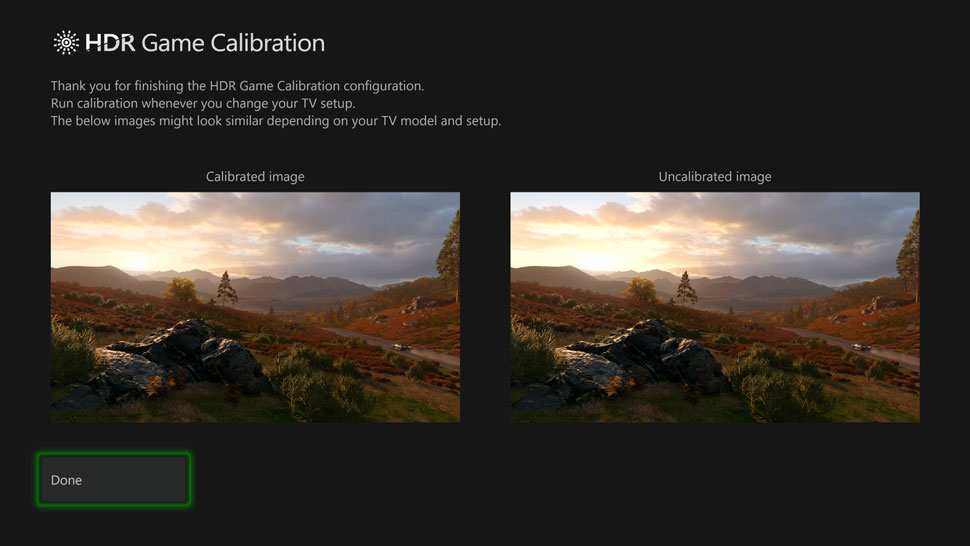
Second, the Xbox HDR calibration needs to be run. Go to Settings > General > TV & display options > Calibrate HDR for games. Follow the on-screen steps.
They adjust the tone mapping so HDR content looks correct on your specific display. Aggregate user feedback strongly suggests the HDR calibration tool significantly improves picture quality for mid-range monitors.
VRR Not Working Despite Monitor Support
Variable refresh rate requires support on both ends and the right settings. If you've enabled it on the Xbox but still see screen tearing, check these:
- VRR might only work within a specific refresh range (typically 48-120Hz). If a game runs below 48fps, VRR disengages.
- Some monitors have VRR enabled per input. Make sure it's turned on for the HDMI port you're using.
- FreeSync over HDMI is not the same as HDMI VRR. The Xbox uses HDMI VRR specifically. Check if your monitor lists "HDMI VRR" separately from "FreeSync" in its specs.
Xbox Not Detecting 4K Capability
If the Xbox only shows 1080p or 1440p options despite having a 4K monitor, the console isn't reading the monitor's EDID data correctly. Try these steps in order:
- Power cycle both devices with the cable connected
- Try a different HDMI port on the monitor
- Try a different certified Ultra High Speed HDMI cable
- Check for a monitor firmware update
- Check for an Xbox system update
EDID handshake failures are common between devices from different manufacturers. Firmware updates frequently resolve these compatibility issues. Some monitor manufacturers specifically list Xbox Series X compatibility in their update notes.
Best 4K Monitors for Xbox Series X: What to Look For
Shopping specifically for an Xbox Series X monitor? Here are the specs that actually matter.
Must-Have Specs
HDMI 2.1, Non-negotiable if you want 4K/120Hz. Without it, you're capped at 4K/60Hz.
VRR support over HDMI, Look for explicit mention of HDMI VRR or FreeSync over HDMI. DisplayPort-only VRR won't help with the Xbox.
Low input lag in Game Mode, Anything under 10ms is excellent. Most modern gaming monitors achieve this.
HDR10 acceptance, Almost universal now. But look for DisplayHDR 400 certification or higher for a meaningfully better HDR experience.
Monitors That Actually Work Well
User reports indicate the LG 27GP950 and LG 32GQ950 are among the most reliable Xbox Series X monitors with full HDMI 2.1 support. The ASUS VG28UQL1A uses HDMI 2.1 and offers reliable 4K/120Hz performance with compact dimensions that work great for desk setups. Gigabyte's M28U and M32U have a strong reputation in the console gaming community for solid Build quality and a useful KVM switch built in.
The Samsung Odyssey Neo G7 and G8 stand out if you prefer a VA panel type for their contrast ratio advantage, though performance can vary across production batches.
Most monitors that have sold well since about 2021 have solid HDMI 2.1 implementations, but it's still a good idea to double-check the specs. User reports suggest some models even received firmware updates to improve compatibility with the Xbox over time. When considering your choice, also factor in panel speed, panel type (IPS vs VA vs TN), and whether the built-in speakers are actually usable or an afterthought.
Whether you prefer a flat or curved display is another personal preference to consider.
Pro Tips for Getting the Best Picture Quality
These are the settings most people skip that make a noticeable difference.
Color Space: Standard vs. PC RGB
This setting confuses a lot of people. Here's the simple version.
Standard (Recommended), Uses TV-level color range (16-235). Correct for most monitors and all TVs.
PC RGB, Uses full color range (0-255). This can cause crushed blacks on monitors expecting TV-level signals.
If you set PC RGB on a monitor expecting Standard, blacks look too dark and you lose shadow detail. If you set Standard on a monitor expecting PC RGB, the image looks washed out. Leave it on Standard unless you've specifically calibrated your monitor for PC RGB.
HDR Calibration on Xbox
Run the built-in calibration every time you get a new monitor. Go to Settings > General > TV & display options > Calibrate HDR for games.
The three-step process sets your panel's black point, peak brightness, and color saturation correctly. It takes about three minutes. The difference before and after calibration is usually significant, especially on monitors with average HDR performance.
You can also download the free Xbox Calibration Tool from the Microsoft Store for additional fine-tuning options.
Game Mode and Input Lag Optimization
Every gaming monitor has a Game Mode. Turn it on. This bypasses image processing that adds 10-30ms of delay.
If your monitor offers overdrive settings, set it to "Normal" or "Fast." "Extreme" often causes inverse ghosting where bright halos appear around moving objects.
Check that ALLM (Auto Low Latency Mode) is enabled on the Xbox. This should automatically switch your monitor to Game Mode when a game is running. Some monitors ignore this signal, so manually enabling Game Mode in the monitor's OSD is more reliable.
For the lowest possible input lag, disable any dynamic contrast, edge enhancement, or noise reduction features in the monitor's settings. These add processing time and can degrade image quality.
Frequently Asked Questions
Can I use any HDMI cable for Xbox Series X and a 4K monitor?
No. You need at least an Ultra High Speed HDMI cable for 4K/120Hz. The cable included with the Xbox Series X works.
Older cables may limit you to lower resolutions or refresh rates.
Why won't my Xbox output 4K even though my monitor supports it?
This usually means the HDMI cable, port, or handshake isn't working properly. Try a certified Ultra High Speed cable. Power cycle both devices.
Check for firmware updates on your monitor.
Does the Xbox Series X support DisplayPort?
No. The Xbox Series X only has an HDMI 2.1 output. Monitors with DisplayPort only won't work without an active converter, and most converters add latency or limit resolution.
Can I use a 1440p monitor with Xbox Series X?
Yes. The Xbox Series X supports 1440p output natively. This is a good option for 120Hz gaming on monitors without HDMI 2.1.
Is HDMI 2.0 enough for Xbox Series X?
For 4K/60Hz gaming with HDR, HDMI 2.0 is sufficient. You won't get 4K/120Hz. For that, you need HDMI 2.1.
How do I fix screen tearing on Xbox Series X?
Enable VRR in the Xbox display settings. Make sure your monitor supports HDMI VRR or FreeSync over HDMI. Game Mode on your monitor should also be enabled.
Final Setup Checklist
Here's everything to verify once you're connected:
- HDMI 2.1 cable connected (for full bandwidth)
- Resolution set to 4K UHD in Xbox settings
- Refresh rate set to 60Hz or 120Hz based on monitor capability
- HDR10 enabled and calibrated
- VRR enabled if supported
- Color depth at 30-bit (10-bit) if bandwidth allows
- Color space set to Standard
- Game Mode enabled on monitor
- ALLM enabled on Xbox
- Monitor firmware up to date
- Xbox system software up to date
If you've checked all of these and everything matches your monitor's capabilities, you're getting the best possible picture your setup can deliver. Enjoy it.

Similar Posts





















