How to Check GPU Compatibility with 4K Monitor
Figuring out how to check gpu compatibility with 4k monitor setups is simpler than it sounds, but there are a few critical details that trip people up. The short answer is that your GPU, your monitor, and your cable all need to agree on the same standard, and any weak link will limit what you actually get on screen.
The real confusion comes from the fact that "4K" alone doesn't tell you the whole story. A GPU might handle 4K at 60Hz over HDMI 2.0 but can't push 4K at 120Hz without DisplayPort 1.4 or HDMI 2.1. Understanding the difference saves you from buying hardware that won't perform the way you expect. For more background on real-world performance, read our breakdown of how to check usb c monitor compatibility.
Quick Answer
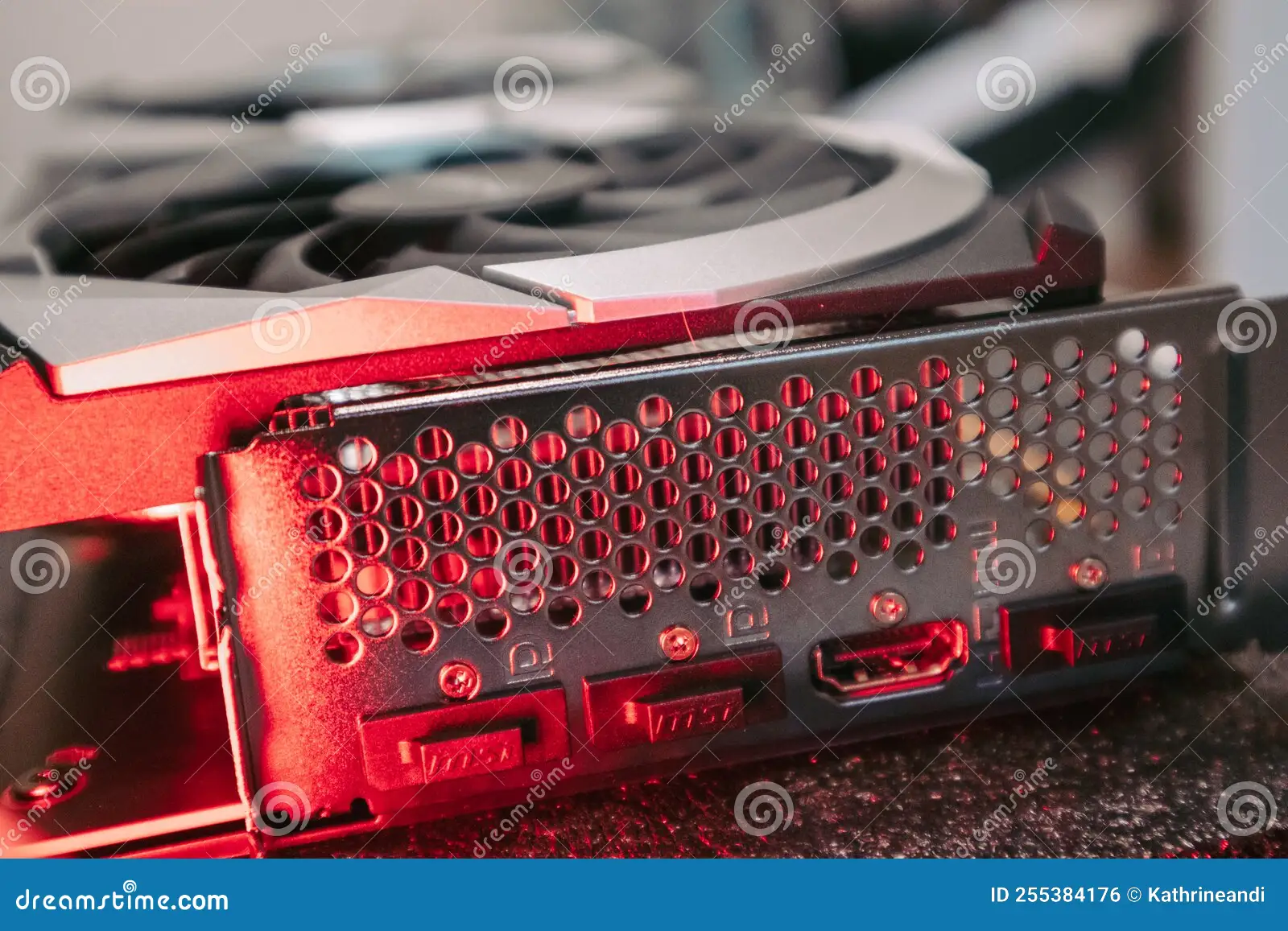
Check your GPU's spec sheet for maximum resolution and output port versions. Then check your monitor's spec sheet to confirm which ports support 4K at your desired refresh rate. Finally, use a cable rated for that bandwidth.
HDMI 2.0 supports 4K at 60Hz. DisplayPort 1.4 supports 4K at 120Hz with Display Stream Compression. All three components must meet the minimum standard.
The Three Things That Actually Determine Compatibility
There are only three components in this equation, but every one of them matters. Your GPU has to output a signal your monitor can accept. Your monitor has to support that signal through the right port and at the right bandwidth. Readers evaluating this setup should also consider how to check compatibility of portable monitor for comparative benchmarks.
And the cable connecting them has to carry the full signal without bottlenecking.
Think of it like plumbing. You can have a massive water main and a huge faucet, but if the pipe between them is too narrow, you're stuck with a trickle. GPU compatibility with 4K monitors works the same way.
Here's where most people get confused. They see "4K supported" in a product listing and assume everything will just work. But 4K at 30Hz for desktop use is a completely different animal than 4K at 144Hz for gaming.
The bandwidth requirements are wildly different, and each interface version handles that bandwidth differently.
The three components you need to verify are your GPU's output capabilities, your monitor's input specifications, and the cable connecting them.
Step 1: Find Out What Your GPU Can Actually Output
This is where most compatibility checks should start. Your GPU dictates the maximum signal you can push out, and every GPU generation handles this differently.
Here's what to do. Look up your exact GPU model on the manufacturer's website. NVIDIA, AMD, and Intel all list detailed output specifications for every product they sell.
You're looking for the maximum resolution, the supported output interfaces, and the version of those interfaces.
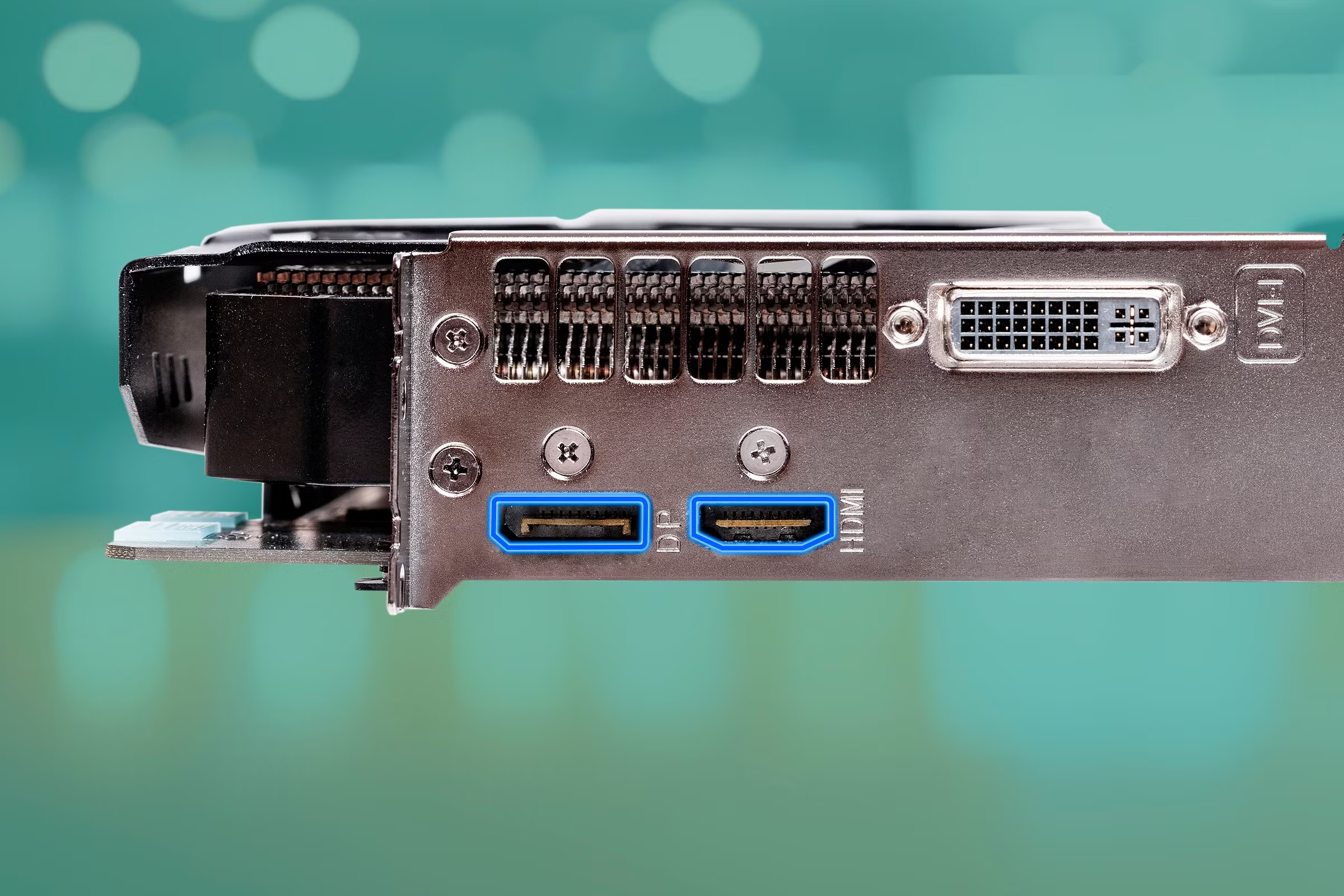
For example, an NVIDIA GeForce RTX 3060 lists support for up to 7680×4320 resolution across three DisplayPort 1.4a outputs and one HDMI 2.1 port. That means it can theoretically handle 4K at high refresh rates, but only through the right port.
Integrated graphics have different limitations. Intel's UHD Graphics 770, found on 12th through 14th gen Core processors, supports 4K60 over DisplayPort 1.4 but is limited to HDMI 2.0 output. That's a hard ceiling regardless of what monitor you plug in.
Here's a reference table for common GPU tiers as of 2026:
| GPU | Max 4K Refresh | Key Ports |
|---|---|---|
| Intel UHD / Iris Xe (integrated) | 4K60 | DP 1.4, HDMI 2.0 |
| NVIDIA RTX 4060 / 4070 | 4K120+ | DP 1.4a, HDMI 2.1 |
| NVIDIA RTX 4080 / 4090 | 4K240 | DP 1.4a, HDMI 2.1 |
| AMD RX 7600 / 7700 XT | 4K120+ | DP 1.4, HDMI 2.1 |
| AMD RX 7900 XTX | 4K240 | DP 1.4, HDMI 2.1 |
Notice the pattern. Almost every discrete GPU from the current and previous generation supports HDMI 2.1. But budget and older GPUs often cap out at HDMI 2.0, which limits 4K to 60Hz.
One more thing worth knowing. Some GPUs route different ports through different output controllers. On certain NVIDIA cards, only one or two of the DisplayPort outputs may support the full bandwidth.
AMD cards occasionally split output controllers across ports as well. Always check the specific port count and capabilities on your exact card's spec sheet, not just the chipset's theoretical maximum.
Step 2: Check What Your Monitor's Ports Really Support
Here's where things get annoying. Monitor manufacturers love listing impressive specs on the box but bury the details in footnotes. A monitor might advertise 4K at 144Hz, but only one specific port actually delivers that.
You need to find your monitor's exact model number and pull up its full technical specifications. The manufacturer's product page or manual will list every input and what each one supports. Don't rely on the marketing description alone.
A common example. Many mid-range 4K 144Hz monitors have HDMI 2.1 for full refresh rate support, but their DisplayPort 1.4 implementation requires Display Stream Compression to hit 144Hz. If you're using an older DisplayPort cable, you might be limited to 98Hz or 120Hz at 4K.
Some monitors have multiple HDMI ports with different capabilities. One might be HDMI 2.1 at full 48Gbps, while the other is HDMI 2.0 at 18Gbps. They look identical from the outside, but the actual performance difference is massive.
For laptop users connecting through USB-C, the situation gets more complicated. Not every USB-C port supports DisplayPort Alt Mode, and even when it does, the bandwidth depends on whether it's running at DP 1.2, DP 1.4, or something else entirely. Check your laptop's technical specifications, not just the port label.
Here's what to look for when reviewing your monitor's specs:
- Maximum resolution per input (some ports may cap at 1440p or 4K30)
- Refresh rate at 4K for each specific port
- Display Stream Compression support.
- HDCP version required for protected content
- Whether HDR is supported over that specific input
If you can't find clear information about per-port capabilities, that's a red flag. Reputable manufacturers document this clearly. Budget monitors sometimes don't, and you may need to contact support or check detailed reviews from verified purchasers.
Step 3: Match Your Cable to the Bandwidth You Need
Cables are the most overlooked part of this equation. People grab whatever cable is lying in a drawer and then wonder why their monitor won't run at full refresh rate. The cable matters just as much as the ports on either end.
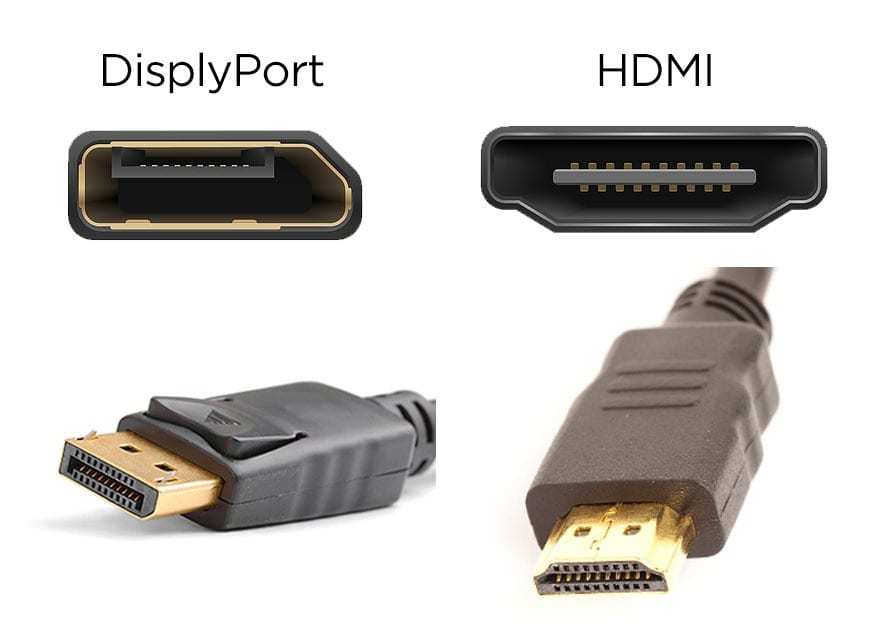
HDMI cables are rated by speed tier, not version. A Standard HDMI cable tops out at 4.95 Gbps and won't handle 4K at all. A Premium High Speed cable supports up to 18 Gbps, which covers 4K60.
An Ultra High Speed HDMI cable is required for 48 Gbps and supports 4K120 and beyond.
DisplayPort cables work similarly. A DP cable rated for RBR (Reduced Bit Rate) only supports 6.48 Gbps. HBR3 (High Bit Rate 3) cables support 25.92 Gbps, which is what you need for 4K120 with DSC on DP 1.4.
This table shows what you actually need for common 4K configurations:
| Target Output | Required Interface | Required Cable Rating |
|---|---|---|
| 4K 60Hz 8-bit SDR | HDMI 2.0 or DP 1.2 | Premium High Speed HDMI or HBR DisplayPort |
| 4K 60Hz 10-bit HDR | HDMI 2.0 or DP 1.4 | Premium High Speed HDMI or HBR3 DisplayPort |
| 4K 120Hz | HDMI 2.1 or DP 1.4 with DSC | Ultra High Speed HDMI or HBR3 DisplayPort |
| 4K 144Hz | HDMI 2.1 or DP 1.4 with DSC | Ultra High Speed HDMI or HBR3 DisplayPort |
| 4K 240Hz | HDMI 2.1 with DSC or DP 2.1 | Ultra High Speed HDMI or UHBR DisplayPort |
One critical note. Cable length matters more than most people realize. Signal degradation increases with length, especially for high-bandwidth signals.
For 4K120 and above, keep cables under 2 meters if possible. Longer runs may require active cables or signal boosters.
Adapters and docks add another layer of complexity. A USB-C to HDMI adapter might only support HDMI 2.0 internally, even if your laptop's USB-C port is capable of more. Always check the adapter's specific output capabilities, not just the connector type.
What Refresh Rate Can You Actually Get at 4K?
This is where theory meets reality. You've checked your GPU, confirmed your monitor's ports, and picked the right cable. Now you want to know what refresh rate you'll actually see.
The answer depends on how all three components intersect. Your GPU might support 4K120. Your monitor might advertise 4K144.
But if your cable is only rated for HDMI 2.0, you're locked at 4K60 regardless.
To check what your current setup is actually outputting, go into your operating system's display settings. On Windows, right-click the desktop, select Display Settings, click Advanced Display, and look at the refresh rate dropdown. On macOS, hold Option while clicking the Displays menu in System Settings to see the full list of available modes.
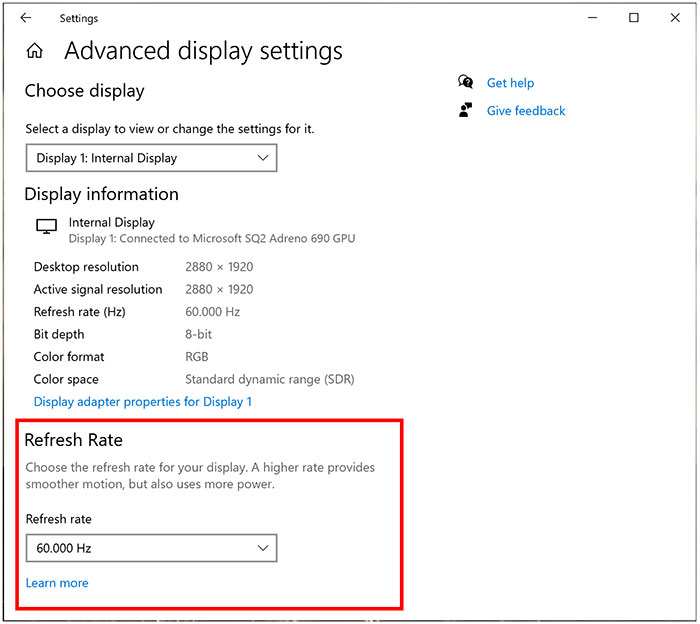
If the refresh rate you want isn't listed, something in the chain is limiting you. Here are the most common culprits and how to fix them:
Refresh rate stuck at 30Hz
Your GPU is likely outputting at HDMI 1.4 or DP 1.2 speeds. Check that you're using a cable rated for at least HDMI 2.0 or DP 1.2 HBR.
Only see 60Hz when monitor supports 120Hz+
You're probably connected via HDMI 2.0 or using an under-rated DisplayPort cable. Switch to a certified Ultra High Speed HDMI cable or a VESA-certified DisplayPort cable.
Want 120Hz or higher but only get 98Hz or 100Hz
Display Stream Compression may not be enabled on your monitor or supported by your GPU driver. Check your monitor's on-screen display settings for a DSC option, and make sure you're on the latest GPU drivers.
Laptop connected via USB-C getting reduced refresh rates
Some laptops route USB-C display output through the integrated GPU rather than the discrete GPU. This is a hardware design choice, not a bug. Check your laptop's documentation to see whether the USB-C port connects directly to the discrete GPU.
If you're using an adapter or dock, try connecting directly with a single cable from GPU to monitor to rule out the adapter as the bottleneck. This simple test solves a surprising number of "why is my refresh rate low" complaints.
Common Mistakes That Kill 4K Performance
These are the errors that come up over and over again, even among people who think they've done their research.
Assuming all HDMI ports are the same
A single monitor can have HDMI 2.0 and HDMI 2.1 ports side by side. Check which specific port you're plugged into.
Using old cables from a previous build
That six-foot HDMI cable from your 1080p setup is almost certainly not rated for 4K120. Cables don't age out in terms of physical function, but the standards have moved on significantly.
Ignoring EDID and driver settings
Sometimes the correct resolution and refresh rate is available but not selected. Your GPU driver panel (NVIDIA Control Panel, AMD Adrenalin, or Intel Graphics Command Center) often exposes modes that the basic Windows display settings hide.
Forgetting about chroma subsampling
When bandwidth is tight, your GPU may default to 4:2:0 chroma subsampling, which reduces color resolution and makes text look fuzzy. If colors seem off at higher refresh rates, check your output color format settings in the GPU control panel.
Not updating drivers
GPU driver updates occasionally add support for new display standards or fix compatibility bugs. If a resolution or refresh rate mode isn't showing up, a driver update is worth trying before assuming hardware incompatibility.
Overlooking monitor firmware updates
Some monitors received firmware updates that added DSC support or fixed handshake issues with specific GPUs. Check the manufacturer's support page for firmware updates, especially if you bought a monitor early in its production cycle.
Real-World Scenarios: Does Your Setup Work?
Let's walk through some common combinations people encounter. These cover the situations that generate the most confusion.
Scenario 1: RTX 3070 with a 4K 144Hz monitor using HDMI
The RTX 3070 has HDMI 2.1, so 4K120 works fine. But you won't hit the full 144Hz over HDMI 2.1 without Display Stream Compression. Use the DisplayPort cable that came with your monitor for the best experience.
Scenario 2: Intel integrated graphics with a 4K 60Hz monitor
This works perfectly over either HDMI 2.0 or DisplayPort 1.2. Just make sure your motherboard's output ports match what you're using. Some motherboards only have HDMI 1.4, which limits you to 4K30.
Scenario 3: Older GTX 1080 with a 4K 120Hz monitor
The GTX 1080 has DisplayPort 1.4 and HDMI 2.0. You can get 4K60 over HDMI. For 4K120, you need DisplayPort with DSC, but the GTX 1080 doesn't support DSC.
Your maximum at 4K is 60Hz through any port.
Scenario 4: Laptop with USB-C connecting to a 4K monitor
Check whether your USB-C port supports DisplayPort Alt Mode. If it does, you can typically get 4K60 through a USB-C to DisplayPort cable or a USB-C to HDMI adapter rated for 4K60. Some thinner laptops throttle this to 4K30 due to thermal or power constraints.
Quick Compatibility Checker by GPU Generation
Here's a faster way to estimate compatibility based on what generation of hardware you're working with.
| GPU Generation | Typical Max at 4K | Notes |
|---|---|---|
| NVIDIA GTX 10 series (Pascal) | 4K60 | No DSC support, limited to DP 1.4 at 4K98 without compression |
| NVIDIA RTX 20 series (Turing) | 4K120 with DSC | DP 1.4 with DSC, HDMI 2.0 limited to 4K60 |
| NVIDIA RTX 30 series (Ampere) | 4K120+ | DP 1.4a with DSC, HDMI 2.1 for 4K120 |
| NVIDIA RTX 40 series (Ada Lovelace) | 4K240 | Full HDMI 2.1 with DSC, DP 1.4a |
| AMD RX 5000 series (RDNA 1) | 4K60 | HDMI 2.0, DP 1.4 without DSC on most models |
| AMD RX 6000 series (RDNA 2) | 4K120+ | HDMI 2.1, DP 1.4 with DSC |
| AMD RX 7000 series (RDNA 3) | 4K240 | Full HDMI 2.1, DP 1.4 with DSC |
| Intel Arc (A-series) | 4K120+ | DP 1.4 with DSC, HDMI 2.1 |
| Intel integrated (12th gen+) | 4K60 | HDMI often limited to 2.0, DP 1.4 through Thunderbolt |
This table gives you a starting point, but always verify against your specific card's output ports. Board manufacturers sometimes use different output configurations even on the same GPU chip.
HDMI vs. DisplayPort vs. USB-C: Which Should You Use?
For most desktop setups, DisplayPort is the safer choice for high refresh rate 4K. It's been the standard for PC monitors for years, and DSC support is more consistently implemented.
HDMI 2.1 is excellent when it's available at full spec. It matches DisplayPort 1.4 in bandwidth and supports the same DSC features. The main advantage is that HDMI 2.1 is more common on living room devices and TVs.
USB-C with DisplayPort Alt Mode is convenient for laptops, but it introduces more potential failure points. Adapters, docks, and cable quality all affect whether you get full bandwidth.
Here's a simple decision guide:
- Desktop PC to 4K monitor, gaming at 120Hz+: Use DisplayPort 1.4 with a VESA-certified cable
- Desktop PC to 4K TV, console-style setup: Use Ultra High Speed HDMI 2.1
- Laptop to 4K monitor: Use USB-C to DisplayPort if available, otherwise USB-C to HDMI 2.1
- Budget setup, 4K60 is fine: Either HDMI 2.0 or DisplayPort 1.2 works
FAQs
Can I use a 4K monitor with an older GPU?
Yes, as long as the GPU has a port that supports at least 4K30 or 4K60. Older GPUs like the GTX 900 series can drive 4K displays for desktop use and media playback. You just won't get high refresh rates for gaming.
Does my GPU need HDMI 2.1 for 4K?
Not necessarily. DisplayPort 1.4 with DSC can handle 4K at 120Hz or even 144Hz. HDMI 2.1 is only required if you specifically want to use HDMI for high refresh rate 4K.
Why is my 4K monitor only showing 30Hz?
You're likely connected via HDMI 1.4 or using an under-rated cable. Check your cable rating and try a different port on both your GPU and monitor.
Will a USB-C hub work for 4K output?
It depends on the hub. Many USB-C hubs only support HDMI 2.0 output, limiting you to 4K60. Some Thunderbolt 4 docks support full DisplayPort 1.4 bandwidth.
Check the dock's specific video output specifications.
Do I need a special cable for 4K HDR?
You need at least a Premium High Speed HDMI cable or an HBR3-rated DisplayPort cable for 4K60 with 10-bit HDR. For higher refresh rates with HDR, use Ultra High Speed HDMI or DisplayPort with DSC.
Expert Tips / Pro Advice
If you're buying a new GPU and monitor together, match the interface standard before anything else. A GPU with HDMI 2.1 and a monitor with HDMI 2.1 eliminates cable guesswork. Straightforward compatibility, no surprises.
Keep your GPU drivers updated. NVIDIA and AMD occasionally add display mode fixes in driver updates. A refresh rate option that was missing in an older driver sometimes appears after updating.
Always download your monitor's specification sheet from the manufacturer's support page. Marketing materials omit important per-port limitations. The official spec PDF shows exactly what each port supports.
VESA maintains a public list of certified DisplayPort cables and monitors. Their certification database helps verify whether a cable or monitor has been independently tested to meet advertised bandwidth standards.
Safety, Legal, and Compliance
Ultra High Speed HDMI cables should carry an official certification QR label from HDMI Licensing Administrator. Many cables on the market claim HDMI 2.1 speeds without actual certification. Those cables may fail intermittently at full bandwidth.
HDCP 2.3 compliance matters for streaming protected 4K content from services like Netflix and Disney+. If your GPU, cable, or monitor doesn't support the required HDCP version, the stream will downgrade to 1080p or refuse to play entirely.
For business and commercial use, verify that your setup meets the content protection requirements of any software or media you're displaying. Some enterprise environments require end-to-end HDCP compliance for legal and licensing reasons.
Maintenance and Long-Term Optimization
Periodically check for firmware updates on your monitor. Manufacturers occasionally unlock additional features or fix compatibility issues post-purchase. Monitor firmware updates have added DSC support and expanded GPU compatibility on several popular models in recent years.
If you experience intermittent black screens or handshake failures, try a different cable before assuming hardware failure. Cable degradation and connector oxidation cause more problems than most people realize, especially in humid environments.
When upgrading to a higher-resolution or higher-refresh-rate monitor, remember that your old cable might not be rated for the new bandwidth requirements. Budget for a new certified cable alongside your monitor purchase.

Similar Posts





















