Are USB C Monitors Compatible with Android Phones
If you've ever plugged a USB-C cable from your Android phone into a monitor and stared at a blank screen, you're not alone. The honest answer to "are USB-C monitors compatible with Android phones" is that it depends entirely on what your specific phone's USB-C port can actually do. Some phones will light up a monitor instantly, while others will charge and transfer files but never push a single pixel to an external display.
The key factor is something called DisplayPort Alt Mode, a feature that lets a USB-C port carry a video signal alongside data and power. Per the USB-IF specification, DisplayPort Alt Mode 1.4 supports up to 4K resolution at 60Hz over a single USB-C connection. But here's the catch: the USB-C port on your phone has to actually support it, and plenty of Android phones don't.
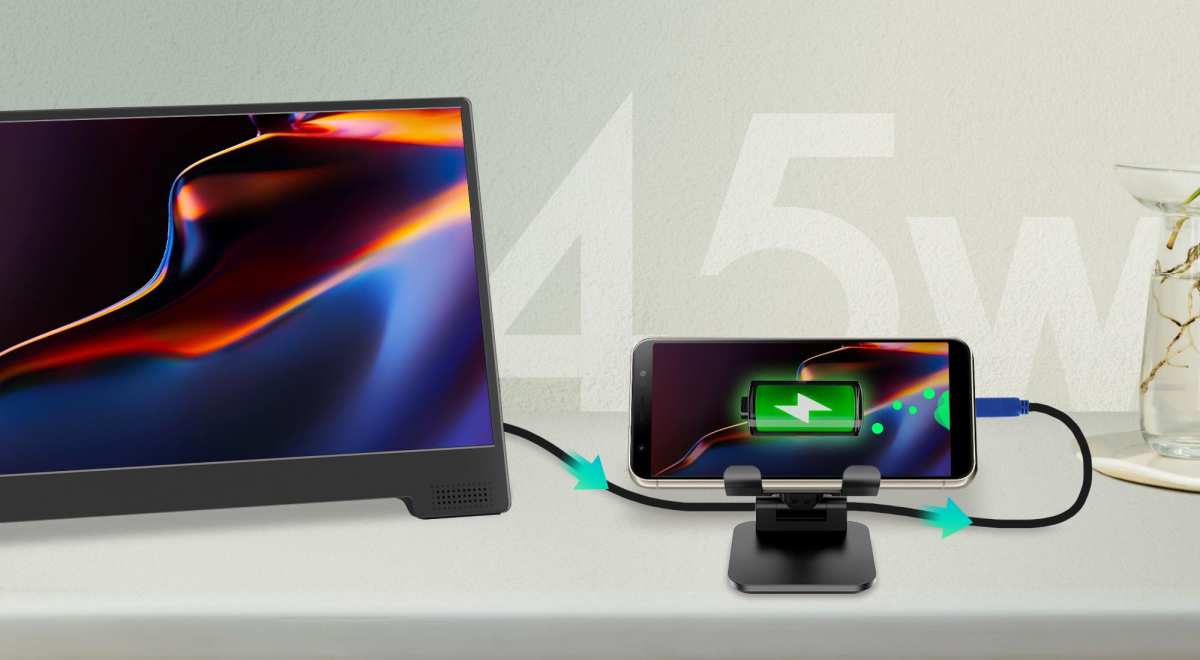
Quick Answer
USB-C monitors are compatible with some Android phones, but not all. Your phone's USB-C port must support DisplayPort Alt Mode to send video. Samsung Galaxy S-series and Note-series phones typically work.
Google Pixel phones have limited or no native video output. Always verify your specific phone model before buying a monitor.
Why Some Android Phones Work and Others Don't
The USB-C connector is just a shape. What matters is which protocols the phone manufacturer wired into that port. A USB-C port can support data transfer, charging, video output, or any combination of those three.
There's no universal rule across Android devices, which is where most of the confusion comes in.
Manufacturers make different choices based on cost, target audience, and product positioning. A flagship phone aimed at productivity users is far more likely to include video output than a budget phone where every component cost gets scrutinized.
The DisplayPort Alt Mode Requirement
DisplayPort Alt Mode is the standard that lets a USB-C port carry a native DisplayPort video signal. When your phone supports it, the USB-C port reconfigures some of its pins to transmit video data directly. No adapters, no dongles, just a single cable from phone to monitor.
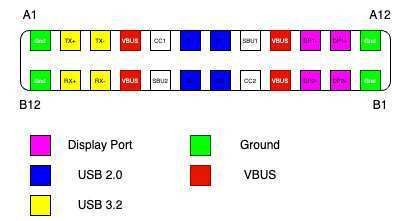
Here's what determines whether your phone can drive a USB-C monitor:
- DisplayPort Alt Mode support in the phone's SoC and firmware. The chipset has to physically support it, and the manufacturer has to enable it in software.
- A full-featured USB-C cable. Not all USB-C cables carry video. Charging-only cables or USB 2.0 cables lack the necessary pins.
- A monitor that accepts DisplayPort over USB-C. Most USB-C monitors do, but some only accept HDMI or DisplayPort through their other inputs.
If any one of those three pieces is missing, you get nothing on screen.
What Samsung DeX Changes
Samsung took DisplayPort Alt Mode and built an entire desktop experience on top of it. Samsung DeX (short for Desktop Experience) launches a windowed, taskbar-driven interface when you connect a compatible Galaxy phone to an external monitor. It's not just screen mirroring.
You get resizable app windows, a start menu, right-click support with a mouse, and a layout that actually feels like a computer.
:max_bytes(150000):strip_icc()/SamsungDexNote9-5bc4eeb0c9e77c0051d29869.jpg)
DeX works over a direct USB-C to USB-C connection to a monitor, through a USB-C hub with HDMI, or even wirelessly on some Samsung TVs. Supported devices generally include the Galaxy S series from the S8 onward, the Note series from the Note 8, the Z Fold and Z Flip lines, and select Galaxy Tab S models. As of 2026, Samsung continues to support DeX across its flagship lineup.
The practical upshot is that if you own a recent Samsung flagship, a USB-C monitor is almost guaranteed to work, and you'll get a desktop-grade experience rather than a mirrored phone screen.
Motorola Ready For and Other Manufacturer Solutions
Motorola offers a similar feature called Ready For, available on select Edge and Razr models. Like DeX, it provides a desktop-style interface when connected to an external display. The experience is slightly less polished than Samsung's, but it serves the same purpose: turning your phone into a productivity machine.
Other manufacturers have taken different approaches:
- Huawei offered Easy Projection on some flagship models, providing a desktop mode over USB-C.
- LG had Screen+ on select devices before exiting the smartphone market.
- Stock Android has a basic desktop mode in developer options on some versions, but it's inconsistent and not enabled by default on most phones.
The pattern is clear: if your manufacturer invested in a desktop mode, your phone almost certainly supports DisplayPort Alt Mode. If they didn't, you'll need to check the specs carefully.
Phones That Don't Support Video Output (And Why)
This is where people get burned. Plenty of Android phones have a USB-C port that handles data and charging perfectly but has no video output capability at all. Google Pixel phones are the most notable example.
As of 2026, most Pixel models do not support native video output over USB-C, despite using the same physical connector as phones that do.
Other phones that may lack video output include:
- Budget and mid-range devices where the manufacturer cut costs on the USB controller.
- Phones with USB 2.0-only USB-C ports (no SuperSpeed data lanes means no Alt Mode).
- Some regional variants of phones where features differ by market.
The frustrating part is that there's no visual way to tell. The port looks identical. The cable fits perfectly.
You just get a blank screen and a slowly draining battery.
How to Check If Your Phone Can Drive a USB-C Monitor
Before you spend money on a monitor or cable, verify what your phone can actually do. This takes about five minutes and saves a lot of frustration.
Checking Your Phone's USB-C Port Capability
Start with the manufacturer's official spec sheet. Look for terms like "DisplayPort over USB-C," "video output," or "DeX support." If the spec sheet is silent on video output, that's usually a bad sign.
You can also check the USB-C port's data speed in your phone's settings or through a system info app. Here's a rough guide:
| USB-C Port Type | Video Output Support? |
|---|---|
| USB 2.0 only | No |
| USB 3.1 Gen 1 with DP Alt Mode | Yes |
| USB 3.2 with DP Alt Mode | Yes |
| Thunderbolt 3/4 | Yes (rare on Android) |
If your phone only lists USB 2.0, it almost certainly cannot output video. USB 3.x doesn't guarantee video output either, but it's a prerequisite.
The Cable Problem Most People Miss
Even if your phone supports DisplayPort Alt Mode, the wrong cable will kill the connection. USB-C cables come in several varieties, and most of the cheap ones bundled with chargers or power banks are charging-only or USB 2.0 data cables. They physically lack the SuperSpeed lanes needed for video.
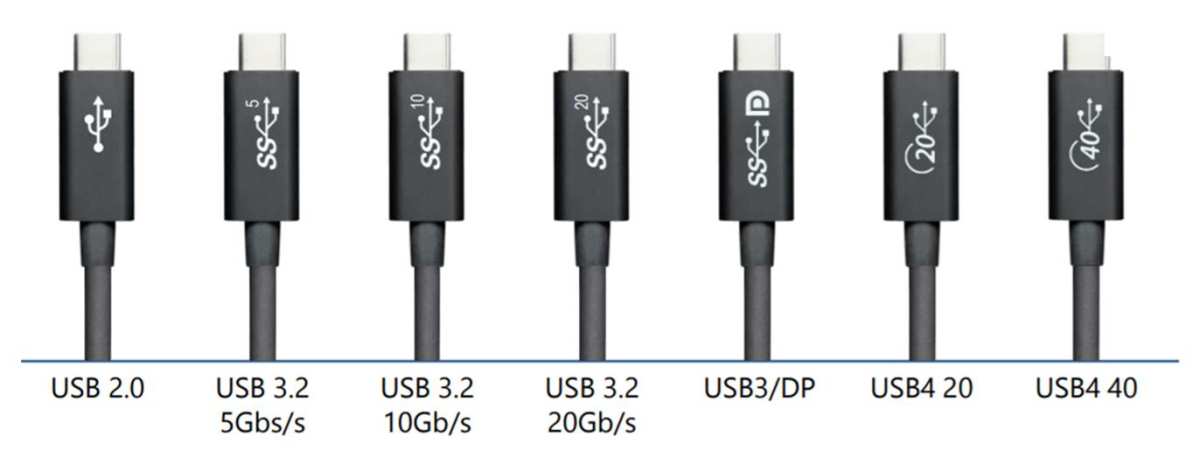
Look for a cable that's explicitly rated for "USB 3.1 Gen 2" or "DisplayPort Alt Mode" or "full-featured USB-C." Cables certified by USB-IF are your safest bet. A cable that came with a portable monitor is usually a good choice, since those are designed to carry video.
Monitor Power Delivery: Will It Charge Your Phone or Drain It?
Here's something most guides skip. When you connect your phone to a USB-C monitor, power flows in one direction or the other depending on the Power Delivery negotiation. Some monitors send power back to your phone, keeping it charged during use.
Others don't, and your phone battery slowly drains while driving the display.
Check the monitor's USB-C power delivery output. Common values are:
- No PD output: Your phone drains while connected.
- 15W PD output: Slow charging, may keep up with light use.
- 27W to 45W PD output: Adequate for most phones during active use.
- 65W or higher PD output: Fast charging even while driving the display.
If the monitor doesn't list a PD output wattage on its USB-C port, assume it won't charge your phone. You may need a separate charging solution, like a USB-C hub that splits power and video.
Step-by-Step: Connecting Your Android Phone to a USB-C Monitor
Once you've confirmed your phone supports video output and you have the right cable, the actual setup is straightforward. Here's the full process from unboxing to a working display.
What You Need Before You Start
Gather these items before you sit down:
- A phone that supports DisplayPort Alt Mode (verified via specs).
- A full-featured USB-C 3.1 or better cable rated for video.
- A USB-C monitor that accepts DisplayPort over its USB-C input.
- Optionally, a USB-C hub if your monitor lacks power delivery back to the phone.
Don't assume the cable in the monitor box is always the right one. Some manufacturers include a basic USB 2.0 cable for data only. Check the cable markings or packaging for "SS" (SuperSpeed) or "USB 3.1" indicators.
The Connection Process
Follow these steps in order:
- Power on the monitor first. Let it fully boot and sit on its input selection screen.
- Connect the USB-C cable to the monitor's USB-C input port. Some monitors have multiple USB-C ports, but only one usually carries video. Check the label or manual.
- Connect the other end to your phone.
- Wait 5 to 10 seconds. The phone and monitor need a moment to negotiate the connection.
- If nothing appears, check the monitor's input source. Some monitors don't auto-switch to the USB-C input.
On Samsung phones, DeX should launch automatically once the connection is detected. On other phones, you may see a prompt asking whether you want to mirror your screen or use desktop mode.
Enabling DeX, Desktop Mode, or Screen Mirroring
If the display stays blank or just mirrors by default, check your phone's settings:
- Samsung DeX: Go to Settings > Connected devices > Samsung DeX. Toggle it on if it didn't auto-launch. You can also pull down the notification shade and tap the DeX notification.
- Motorola Ready For: Swipe down and look for the Ready For notification, or go to Settings > Connected devices > Ready For.
- Stock Android screen mirroring: Some phones show a "USB for" notification when connected. Tap it and select "File transfer" or "MTP." On certain devices, video output only activates when the correct USB mode is selected.
If your phone has a hidden desktop mode in developer options, enabling it may unlock a basic windowed interface. This varies heavily by manufacturer and Android version.
Troubleshooting When Nothing Shows Up
When you get a blank screen, work through this checklist:
- Try a different cable. This fixes more problems than anything else.
- Try a different USB-C port on the monitor. Not all ports support video input.
- Restart the phone with the monitor already connected. Some phones only detect the display during boot.
- Check for a firmware update on the monitor. Some monitors need updates to properly handshake with phones.
- Test the monitor with a laptop. This confirms the monitor's USB-C input actually works.
- Test the phone with a different display. This confirms the phone outputs video at all.
If none of those steps work, your phone likely doesn't support DisplayPort Alt Mode, regardless of what the marketing materials implied.
USB-C Monitor vs. Wireless Casting vs. HDMI Adapter
A direct USB-C connection isn't the only way to get your phone's screen onto a bigger display. Here's how the main options stack up.
Direct USB-C Connection
This is the cleanest setup when it works. One cable carries video, data, and potentially power in both directions. Latency is essentially zero, which matters for anything interactive.
The downside is that it only works with phones that support DisplayPort Alt Mode.
Wireless Display (Chromecast / Miracast)
Wireless casting works with almost any Android phone since it doesn't depend on the USB-C port's video capabilities. You'll need a Chromecast dongle, a smart TV with built-in Cast support, or a Miracast adapter. The trade-off is latency.
There's usually a noticeable delay between your phone's screen and what appears on the display, making it fine for video but frustrating for typing or gaming.
USB-C to HDMI Adapter
If your phone supports DisplayPort Alt Mode but your monitor only has HDMI, a USB-C to HDMI adapter bridges the gap. These adapters contain a small chip that converts the DisplayPort signal to HDMI. They're inexpensive and widely available.
The downside is you lose the single-cable simplicity, and most adapters don't pass power back to your phone.
Side-by-Side Comparison
| Method | Latency | Power to Phone | Phone Compatibility | Cable Count |
|---|---|---|---|---|
| Direct USB-C to monitor | Near zero | Sometimes | DP Alt Mode only | One |
| Wireless casting | Noticeable delay | No | Most Android phones | None (needs dongle) |
| USB-C to HDMI adapter | Near zero | Rarely | DP Alt Mode only | Two or three |
Common Mistakes That Cause "No Signal"
The "No Signal" message on your monitor usually comes down to one of these preventable errors.
Using a Charging-Only USB-C Cable
This is the single most common mistake. That cable from your power bank or the one bundled with your charger probably only has power pins wired. It'll charge your phone when connected to the monitor, but no video signal will pass through.
Always use a cable rated for data and video.
Assuming All USB-C Ports Support Video
The USB-C shape tells you nothing about capability. A phone can have a USB-C port that handles 45W charging and USB 3.2 data but has zero video output. Never assume.
Always check the spec sheet for explicit mention of DisplayPort Alt Mode or video output.
Wrong Monitor Input Selection
Many USB-C monitors have multiple inputs and don't always auto-detect the active one. If you're plugged into the USB-C port but the monitor is set to HDMI 1, you'll see "No Signal." Manually cycle through the input sources using the monitor's on-screen menu.
Power Delivery Mismatch
Some monitors with USB-C video input don't deliver any power back to the source device. Your phone connects, the display works, but the battery starts draining. If you're planning a long session, check the monitor's PD output rating.
Below 15W, you'll likely lose battery even during light use.
Forgetting to Enable the Right Phone Setting
On some phones, video output doesn't activate automatically. Samsung phones sometimes require you to swipe down and tap the DeX notification. Other phones need a specific USB mode selected.
If the screen stays blank, pull down your notification shade and look for any USB-related prompts.
Best USB-C Monitors for Android Phones
Not all USB-C monitors are equally friendly to phones. Here's what to prioritize when shopping.
What to Look For
Focus on these specs:
- USB-C input with DisplayPort Alt Mode support. This is non-negotiable.
- Power delivery output of at least 15W. Higher is better if you want to maintain charge during use.
- 1080p or 1440p resolution. 4K is overkill for phone-driven content and demands more from the connection.
- 60Hz refresh rate. Most phones output at 60Hz anyway, so higher refresh rates won't help.
Portable vs. Desktop Monitors
Portable USB-C monitors are the natural pairing for phones. They're lightweight, often powered entirely by the USB-C connection, and designed for single-cable setups. Common sizes are 15.6 inches and 17.3 inches.
They slip into a bag alongside your phone and give you a second screen anywhere.
Desktop USB-C monitors work too, but they're overkill if you're only driving them from a phone. They make more sense if you also connect a laptop and want one display for both devices.
Power Delivery Wattage Matters
Here's a practical breakdown of what different PD output levels mean for your phone:
| Monitor PD Output | Effect on Phone Battery |
|---|---|
| 0W (no PD) | Battery drains during use |
| 7.5W to 10W | Slow drain during heavy use, slow charge during light use |
| 15W to 18W | Maintains charge during most use cases |
| 27W or higher | Actively charges during use |
If the monitor's specs don't list a PD output on its USB-C port, assume it's zero.
:max_bytes(150000):strip_icc()/SamsungDexNote9-5bc4eeb0c9e77c0051d29869.jpg)

Similar Posts





















