How to Run Dual USB C Monitors
Figuring out how to run dual USB-C monitors sounds like it should be simple. Plug in two cables, done, right? Not quite.
Whether it works at all depends almost entirely on what your specific laptop's USB-C port can actually do. Some ports carry video. Some don't. Readers comparing various configurations should also examine whether usb c monitors run at 144hz.
And the difference between them changes your entire setup.
The good news is that once you know what your hardware supports, the path forward is straightforward. Let's walk through it step by step so you can get both screens running without buying the wrong gear.
Quick Answer
You can run dual USB-C monitors in three ways. Daisy chaining works if your monitors support DisplayPort MST. A Thunderbolt or USB-C dock with dual video output handles it cleanly.
DisplayLink docks work as a fallback when your laptop lacks native dual-video support. The right method depends on your laptop's USB-C port capabilities. Readers evaluating this setup should also consider how to run dual monitors with docking station for comparative benchmarks.
Why Your Dual USB-C Monitor Setup Might Not Work (And How to Fix It)
Here's the most common frustration. You plug in one USB-C monitor and it works great. You plug in the second one and nothing happens.
The reason usually comes down to bandwidth or protocol limitations.
A single USB-C port has a fixed amount of bandwidth available for video. DisplayPort 1.4 over USB-C Alt Mode supports up to 32.4 Gbps. That's enough for one 4K 120Hz display or two 4K 60Hz displays, but only if your laptop's port and cable can actually deliver that bandwidth.
The fix depends on what's bottlenecking you. Maybe your laptop only supports one video output over USB-C. Maybe your cable is charging-only and doesn't carry a video signal.
Maybe your monitors don't support daisy chaining and you need a dock instead.
We'll cover all of these scenarios below. The key is identifying which piece of the chain is holding you back.
The One Question That Determines Everything: What Can Your USB-C Port Actually Do?
Before you buy any cables, docks, or adapters, you need to answer one question. Does your laptop's USB-C port support video output, and if so, what kind?
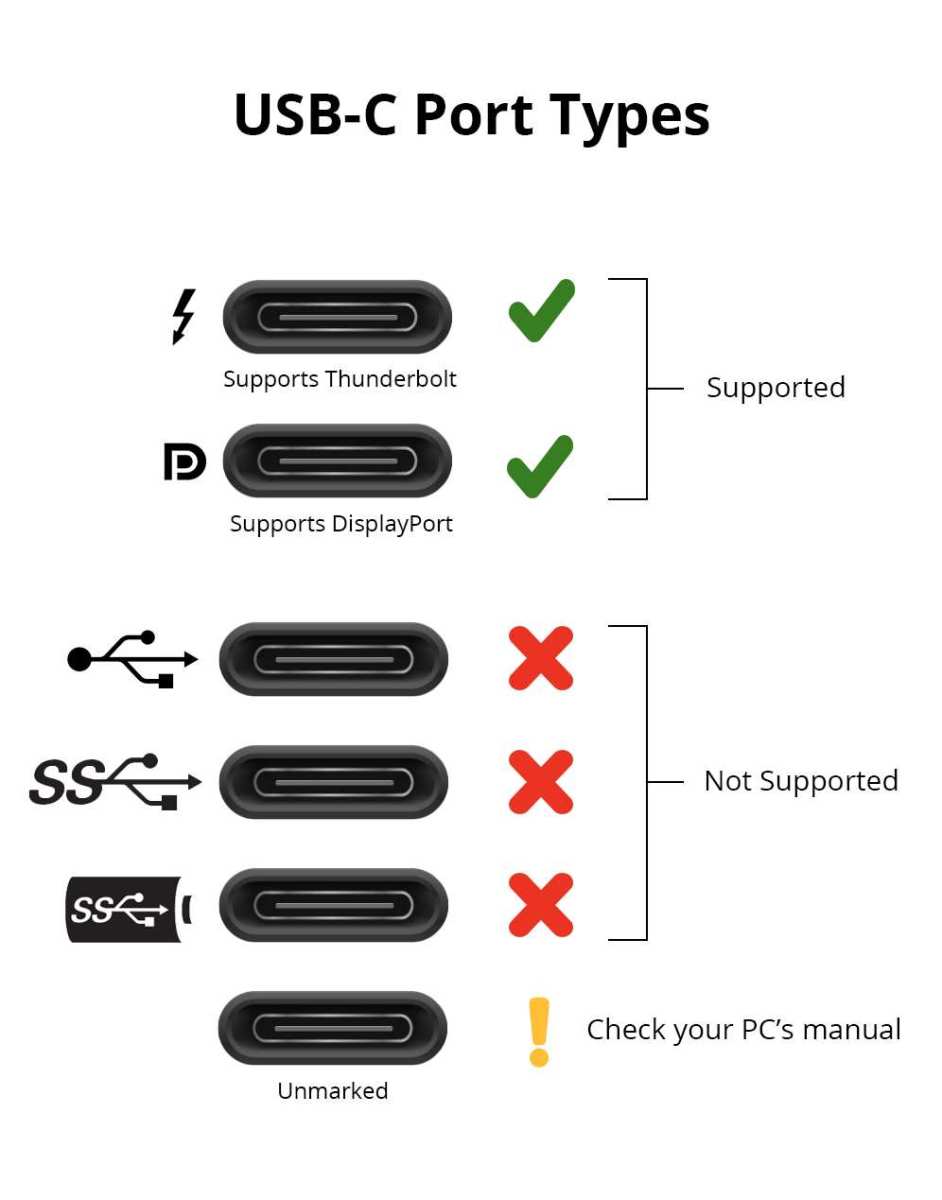
Not all USB-C ports are created equal. There are three main types you'll encounter on laptops as of 2026.
Data-only USB-C. These ports handle USB data and charging but carry no video signal at all. You'll see a USB symbol or a battery icon next to the port. If this is what you've got, you cannot connect a monitor directly to this port.
Your only option is a DisplayLink dock, which uses software to push video over a standard data connection.
USB-C with DisplayPort Alt Mode. This is the most common video-capable USB-C port. It carries a native DisplayPort signal over the USB-C connector. Look for a "DP" symbol or a DisplayPort icon next to the port.
These ports can drive one or sometimes two monitors, depending on the laptop's implementation.
Thunderbolt 4 or USB4. These ports support DisplayPort tunneling and have enough bandwidth for multiple displays. Look for a lightning bolt icon. Thunderbolt 4 ports on laptops almost always support at least two external displays, either through daisy chaining or a dock.
How to Check What Your Port Supports
Don't guess. Check your laptop's official spec sheet from the manufacturer. Look for phrases like "DisplayPort over USB-C," "Thunderbolt 4," or "supports dual external displays." The port symbols on the physical laptop help, but the spec sheet tells you exactly how many displays and at what resolution.
If you're on a Mac, Apple's support pages list exactly which external displays each model supports. As of 2026, most Apple Silicon Macs support at least two external displays, but the base M-series chips may limit you to one natively. Intel-based Macs with Thunderbolt 3 typically support two.
Three Ways to Run Dual USB-C Monitors (And Which One Fits Your Situation)
Now that you know what your port can do, let's look at your three main options. Each one works, but they're suited to different hardware configurations.
Option 1: Daisy Chaining with DisplayPort MST
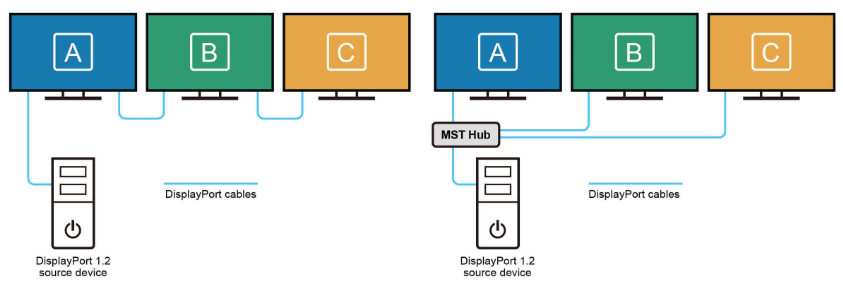
Daisy chaining means connecting your laptop to Monitor 1 via USB-C, then connecting Monitor 1 to Monitor 2 using a DisplayPort cable. Both monitors display independently, and your OS sees two separate screens.
This works through a technology called Multi-Stream Transport, or MST. It's part of the DisplayPort standard and lets a single DisplayPort output drive multiple monitors in a chain.
Here's what you need for this to work.
- Your laptop's USB-C port must support DisplayPort Alt Mode (at least DP 1.2, ideally DP 1.4).
- Monitor 1 must have a DisplayPort output (not just an input). Many pro-grade monitors include this. Consumer monitors often don't.
- Monitor 2 needs a standard DisplayPort input.
- You need a DisplayPort cable connecting the two monitors.
- MST must be enabled in Monitor 1's on-screen display (OSD) settings. It's sometimes off by default.
Daisy chaining works best if.
- You have a Windows laptop with DisplayPort Alt Mode.
- Both monitors support MST and have DisplayPort outputs.
- You want a clean, minimal cable setup without a dock.
It won't work if.
- You're on macOS. Apple does not support MST daisy chaining natively. This is a well-documented limitation. Mac users need a dock or separate connections instead.
- Your monitors lack DisplayPort outputs.
- Your laptop only supports DP 1.1, which doesn't have enough bandwidth for two displays.
Option 2: A Thunderbolt or USB-C Dock with Dual Video Output
A dock sits between your laptop and your monitors. You run one USB-C cable from the laptop to the dock, then connect each monitor to the dock separately. The dock handles splitting the video signal.
This is the most reliable and flexible method, and it's what most people end up using for a permanent desk setup.
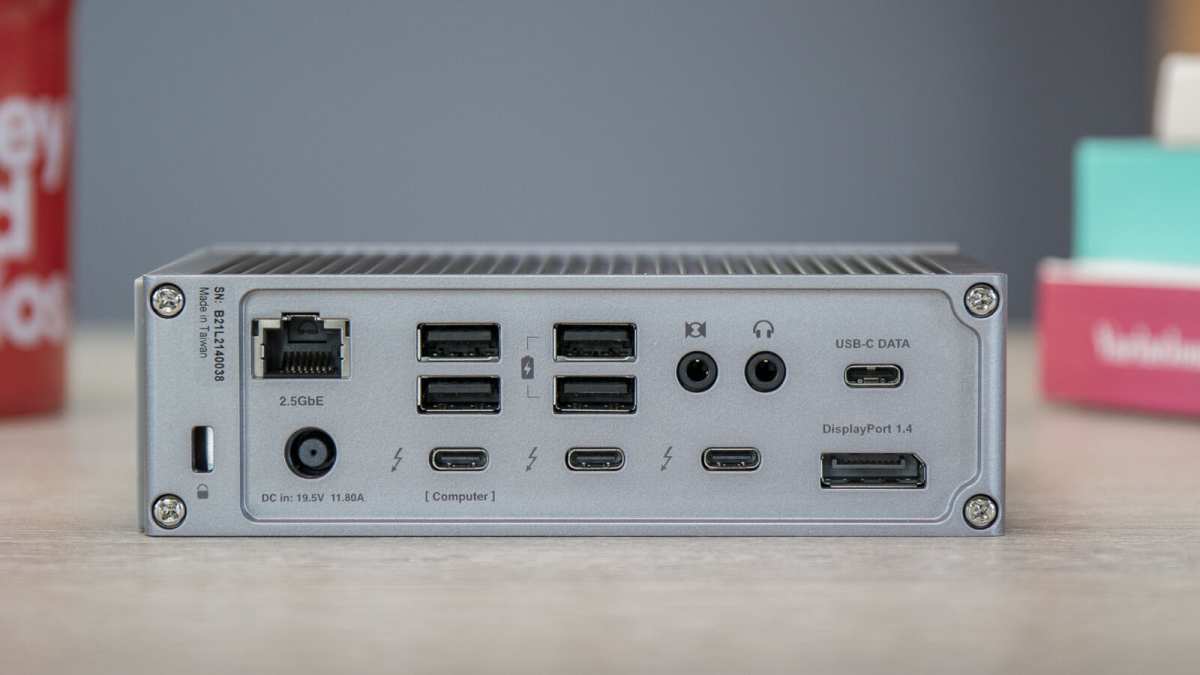
Thunderbolt docks (like the CalDigit TS4 or OWC Thunderbolt Dock) offer the best performance. They provide 40 Gbps of bandwidth, support dual 4K 60Hz displays, and usually include power delivery to charge your laptop through the same cable.
USB-C Alt Mode docks are cheaper but more limited. They use the single DisplayPort signal from your laptop and split it internally. Make sure the dock explicitly states it supports dual displays at the resolution you need.
Some budget USB-C hubs only mirror your screen rather than extending it.
A dock works best if.
- You want a one-cable connection to your laptop.
- You need power delivery, USB ports, and Ethernet alongside video.
- You're on a Mac or any laptop where daisy chaining isn't practical.
- You want the most plug-and-play experience.
Watch out for.
- Dock firmware. Some docks need firmware updates to work properly with certain laptops. Check the manufacturer's support page before buying.
- Bandwidth splitting. A Thunderbolt dock driving dual 4K monitors, USB devices, and charging simultaneously is working hard. Make sure the dock's total bandwidth matches your needs.
- Price. Quality Thunderbolt docks run $200 to $350 as of 2026. USB-C Alt Mode docks start around $50 to $100 but offer less bandwidth and fewer features.
Option 3: DisplayLink — When Your Laptop Can't Do It Natively
DisplayLink is a technology from Synaptics that compresses video in software and sends it over a standard USB data connection. It doesn't require DisplayPort Alt Mode or Thunderbolt. Any USB port works.
This is your fallback option. If your laptop's USB-C port is data-only, or if you've already used your one allowed external display and need a second, DisplayLink makes it possible.
How it works. You buy a DisplayLink dock or adapter (models using the DL-6100 or DL-6950 chipsets are common). Install the DisplayLink driver on your laptop. Connect your monitors to the dock.
The driver handles the video output in software.
DisplayLink works best if.
- Your laptop can't natively drive two external displays.
- You're on a budget Windows laptop with limited port capabilities.
- You need a third or fourth display beyond what your GPU supports.
The downsides are real.
- DisplayLink uses CPU resources. You'll notice higher processor usage, especially at higher resolutions. It's fine for office work and browsing. It's not ideal for gaming or color-critical video editing.
- You must install and maintain the DisplayLink driver. Driver updates occasionally break compatibility or require reinstallation.
- There's a slight latency compared to native DisplayPort. Most people won't notice it for productivity tasks. Gamers and video editors will.
- macOS support exists but has been inconsistent over the years. Check DisplayLink's compatibility list for your specific macOS version before relying on it.
Step-by-Step: How to Set Up Dual USB-C Monitors Based on Your Hardware
Let's put this all together into a practical workflow. Follow these steps in order.
Step 1: Check Your Laptop's USB-C Port Capabilities
Pull up your laptop's spec sheet. Look for the USB-C port description. You're looking for one of these.
- "Thunderbolt 4" or "Thunderbolt 3." You can use a dock or daisy chain.
- "DisplayPort over USB-C" or "DP Alt Mode." You can use daisy chaining or a dock.
- "USB 3.2" with no mention of video. You need DisplayLink.
Also check how many external displays your laptop supports. This is usually listed in the spec sheet under "external display support" or "maximum displays."
Step 2: Pick Your Connection Method
Based on what you found in Step 1, choose your approach.
- Thunderbolt/USB4 laptop with MST-capable monitors. Daisy chain or dock. Either works. Daisy chain is simpler. A dock gives you more ports.
- DisplayPort Alt Mode laptop with MST-capable monitors. Daisy chain or USB-C Alt Mode dock.
- DisplayPort Alt Mode laptop without MST monitors. You need a dock with dual video outputs.
- Data-only USB-C laptop. DisplayLink dock is your only option.
- Mac user. Skip daisy chaining. Use a Thunderbolt dock or connect each monitor separately if your Mac has multiple Thunderbolt ports.
Step 3: Connect and Configure Your Displays
For daisy chaining, connect your laptop to Monitor 1 via USB-C. Then connect Monitor 1's DisplayPort output to Monitor 2's DisplayPort input. Enable MST in Monitor 1's OSD menu.
Your OS should detect both screens.
For a dock setup, connect your laptop to the dock via USB-C or Thunderbolt cable. Connect each monitor to the dock's video outputs. Power on the dock if it has its own power supply.
For DisplayLink, install the DisplayLink driver first. Then connect the dock and monitors. The driver should detect the displays automatically.
Step 4: Troubleshoot the Usual Culprits
If one or both monitors aren't showing up, work through this checklist.
- Cable check. Is your USB-C cable full-featured and not charging-only? A charging-only cable won't carry video. Look for cables labeled "full-featured" or "supports DisplayPort Alt Mode."
- MST not enabled. If daisy chaining, open Monitor 1's on-screen menu and look for MST or Multi-Stream Transport. Turn it on.
- Driver issues. For DisplayLink setups, make sure you have the latest driver from DisplayLink's official site. Restart after installing.
- Dock firmware. Check the dock manufacturer's website for firmware updates. Outdated firmware causes a surprising number of "my second monitor won't work" issues.
- macOS limitation. If you're on a Mac and daisy chaining isn't working, that's expected. Apple doesn't support MST. Use a dock or separate connections instead.
- Bandwidth overload. If you're running dual 4K 120Hz and it's not working, try dropping to 60Hz. You may be exceeding what your connection can handle.
The macOS Problem: Why Daisy Chaining Doesn't Work on Macs
This deserves its own section because it trips up a lot of people. If you bought two nice USB-C monitors with DisplayPort outputs expecting to daisy chain them to your MacBook, you're probably frustrated right now.
Apple simply does not implement MST support in macOS. This isn't a bug. It's a design decision that's been consistent for years.
Your monitors will work individually. They just won't chain together on a Mac.
Your options on macOS are straightforward.
- Use a Thunderbolt dock with dual video outputs. This is the cleanest solution.
- Connect each monitor to a separate Thunderbolt port on your Mac, if you have more than one.
- Use a DisplayLink dock as a last resort, keeping in mind the driver and performance caveats.
If you're on an Apple Silicon Mac with a base M-chip, check your specific model's display limits. Some base M1 and M2 chips officially support only one external display natively, though DisplayLink can work around this.
Common Mistakes That Waste Time and Money
Let's save you from the pitfalls that catch most people.
Buying a charging-only USB-C cable. Not all USB-C cables are equal. Many cheap cables only carry power and USB 2.0 data. They won't transmit video.
Always buy cables rated for "full-featured" USB-C or explicitly labeled as supporting DisplayPort Alt Mode.
Assuming all USB-C hubs support dual monitors. Many affordable USB-C hubs have two HDMI ports but can only mirror a single display, not extend to two. Read the product description carefully. If it says "dual monitor support" or "extended desktop across two displays," you're good.
If it only mentions "HDMI output" without specifying dual display, assume it mirrors only.
Ignoring power delivery needs. If you're using a dock, make sure it provides enough watts to charge your laptop. 60W is fine for most ultrabooks. Power-hungry laptops may need 100W or more. An underpowered dock will charge your laptop slowly or not at all under heavy load.
Forgetting about refresh rate limits. A dock that supports dual 4K 60Hz may only support dual 1080p if you want higher refresh rates. Check the dock's specs for the specific resolution and refresh rate combinations it supports.
Not updating firmware. Dock and monitor manufacturers regularly release firmware updates that fix compatibility issues. If your setup worked before and stopped working after an OS update, check for firmware updates on both the dock and monitors.
Quick Comparison: Which Setup Method Is Right for You?
Here's a side-by-side look at your three main options.
| Feature | Daisy Chain (MST) | Thunderbolt/USB-C Dock | DisplayLink Dock |
|---|---|---|---|
| Best for | Minimal cable setups, Windows | Permanent desk setups, all laptops | Laptops with data-only USB-C |
| Max resolution | Depends on DP version (up to dual 4K 60Hz with DP 1.4) | Dual 4K 60Hz or higher (Thunderbolt 4) | Dual 4K 60Hz (DL-6100 chipset) |
| Mac support | No | Yes | Yes (with driver) |
| CPU overhead | None | None | Moderate |
| Cost | $0 extra (if monitors support it) | $150–$350 | $80–$200 |
| Cable simplicity | Best (fewest cables) | Good (one cable to laptop) | Good (one cable to laptop) |
| Gaming/video editing | Yes | Yes | Not recommended |
Real-World Scenarios: What Works and What Doesn't
Let's walk through a few common situations.
Scenario 1: You have a Windows laptop with Thunderbolt 4 and two Dell U2723QE monitors. These monitors have DisplayPort MST built in. Connect your laptop to Monitor 1 via USB-C. Connect Monitor 1 to Monitor 2 via DisplayPort.
Enable MST in the Dell OSD. Done. Clean, simple, no dock needed.
Scenario 2: You have a MacBook Pro and two USB-C monitors. Daisy chaining won't work. Grab a Thunderbolt dock like the CalDigit TS4. Connect the dock to your MacBook with one Thunderbolt cable.
Connect each monitor to the dock. One cable to rule them all.
Scenario 3: You have a budget Windows laptop with a single USB-C port that's data-only. Your only option is DisplayLink. Buy a DisplayLink dock (look for DL-6100 or newer chipsets). Install the driver.
Connect your monitors. Accept that there's some CPU overhead and minor latency.
Scenario 4: You have a USB-C laptop and only one monitor has a USB-C input. Use a USB-C cable for that monitor. For the second monitor, use a USB-C to HDMI or USB-C to DisplayPort adapter connected to your laptop's second USB-C port (if available) or through a dock.
Costs, Cables, and Gear You Actually Need
Here's a realistic breakdown of what you'll spend depending on your chosen method.
Daisy chain (MST). If your monitors already support it, you need one quality USB-C to USB-C cable ($10, $20) and one DisplayPort cable ($8, $15). Total extra cost: under $40.
Thunderbolt dock. Expect to pay $200 to $350 for a quality dock from brands like CalDigit, OWC, or Anker. You'll also need two video cables (DisplayPort or HDMI) for your monitors, and possibly a Thunderbolt cable if one isn't included. Total: $250, $400.
DisplayLink dock. Docks range from $80 to $200. You'll need video cables for your monitors and the DisplayLink driver (free). Total: $100, $250.
Cable quality matters. Don't cheap out on USB-C cables. A certified full-featured USB-C cable that supports DisplayPort Alt Mode costs $10 to $20. A no-name cable for $3 will likely be charging-only and won't carry video.
Check for USB-IF certification or buy from reputable cable brands.
Frequently Asked Questions
Can I run dual USB-C monitors from one port?
Yes, if your laptop supports it. You can daisy chain monitors with DisplayPort MST, use a dock that splits the signal, or use a DisplayLink dock. The method depends on your laptop's port capabilities and your monitors' features.
Why won't my second USB-C monitor connect?
The most common reasons are that your laptop only supports one external display over USB-C, your cable is charging-only, MST isn't enabled on the first monitor, or you're on a Mac where MST daisy chaining isn't supported.
Do all USB-C cables support video output?
No. Many USB-C cables are charging-only or data-only. You need a "full-featured" USB-C cable that explicitly supports DisplayPort Alt Mode to carry a video signal.
Does daisy chaining work on Mac?
No. macOS does not support DisplayPort MST daisy chaining. Mac users need to connect each monitor separately or use a Thunderbolt dock with dual video outputs.
Is DisplayLink good enough for everyday use?
For office work, browsing, and general productivity, DisplayLink works fine. It uses some CPU resources and has slight latency, so it's not ideal for gaming or professional video editing. It's a solid fallback when native dual-display support isn't available.
What's the difference between Thunderbolt and USB-C for monitors?
Thunderbolt 4 provides 40 Gbps of bandwidth and almost always supports dual displays. Standard USB-C with DisplayPort Alt Mode carries a DisplayPort signal but may be limited to a single display depending on the laptop's implementation. Thunderbolt is the more reliable choice for dual-monitor setups.
What If Your Laptop Only Has One USB-C Video Port?
This is more common than you'd think. Many laptops have multiple USB-C ports but only one supports video output. The others handle data and charging only.
If you're in this situation, you have a few paths forward. You can use the single video-capable port with a dock that splits to two monitors. You can add a USB-A to HDMI adapter if your laptop has a USB-A port available.
Or you can go the DisplayLink route entirely.
The key is knowing which of your USB-C ports actually carries a video signal. On some laptops, only the port closest to the hinge or the one with the DP icon supports video. Check your manual.
Plugging into the wrong port is why so many people think their setup doesn't work.
What Resolution and Refresh Rates Can You Expect?
Your maximum resolution and refresh rate depend on the weakest link in your chain. That could be your laptop's port, your cable, your dock, or your monitors.
DisplayPort 1.4 over USB-C supports up to 4K at 120Hz or dual 4K at 60Hz. DisplayPort 1.2 tops out at 4K 60Hz for a single display or dual 1440p 60Hz. Thunderbolt 4 docks typically support dual 4K 60Hz, with some newer models handling dual 4K 120Hz depending on the monitor and cable.
DisplayLink docks using the DL-6100 chipset support dual 4K 60Hz. Older DisplayLink chipsets max out at lower resolutions. Always check the specific chipset in the dock's specs.
If you drop below the maximum spec, you might notice it in unexpected ways. A dock that supports dual 4K 60Hz might only do dual 4K 30Hz if you're also running USB 3.0 devices through the same dock. Bandwidth is shared.
How Does USB-C Monitor Setup Work for Gaming?
Gaming over USB-C monitors is possible but comes with caveats. A native DisplayPort Alt Mode connection or Thunderbolt dock works fine. You'll get the full refresh rate and response time your monitor supports.
DisplayLink is not suitable for gaming. The software compression adds latency that you'll feel immediately. Competitive gamers should avoid it entirely.
Also keep in mind that running dual monitors while gaming on one screen uses additional GPU resources. Your game might lose a few frames, especially at higher resolutions. This is true regardless of connection type.
When Should You Upgrade Your Dock or Cables?
If your setup works but you're stuck at lower resolutions or refresh rates than your monitors support, your cables or dock are likely the bottleneck. An older USB-C cable certified only for USB 3.1 Gen 1 won't carry enough bandwidth for dual high-resolution displays.
If you're experiencing intermittent display dropouts, the cable is often the culprit. Try a shorter, higher-quality cable. Cables over 2 meters sometimes struggle with full DisplayPort bandwidth unless they're active cables.
Dock firmware updates can also resolve issues. If your second monitor randomly disconnects or your laptop doesn't wake from sleep properly with the dock connected, check for a firmware update. Dock manufacturers like CalDigit and OWC release updates regularly that fix these exact problems.
If you're considering a future-proof setup, look for a Thunderbolt 4 dock with at least 100W power delivery and dual DisplayPort or HDMI 2.1 outputs. This will handle virtually any current setup and most near-future monitor upgrades.

Similar Posts





















