Can USB C Monitors Run at 144Hz
Can USB-C monitors run at 144Hz? Yes, they absolutely can, but whether your specific setup will actually hit that refresh rate depends on a chain of hardware requirements that most people don't realize until they've already bought the wrong cable or discovered their laptop port can't deliver the signal.
The frustrating part is that "USB-C" on the box tells you almost nothing about video capability. A USB-C port might support 144Hz at 1440p with the right monitor, or it might be limited to 60Hz because the port lacks DisplayPort Alt Mode entirely. Let's walk through exactly what determines whether your setup can pull this off. This directly compares with our findings on how to run dual usb c monitors.
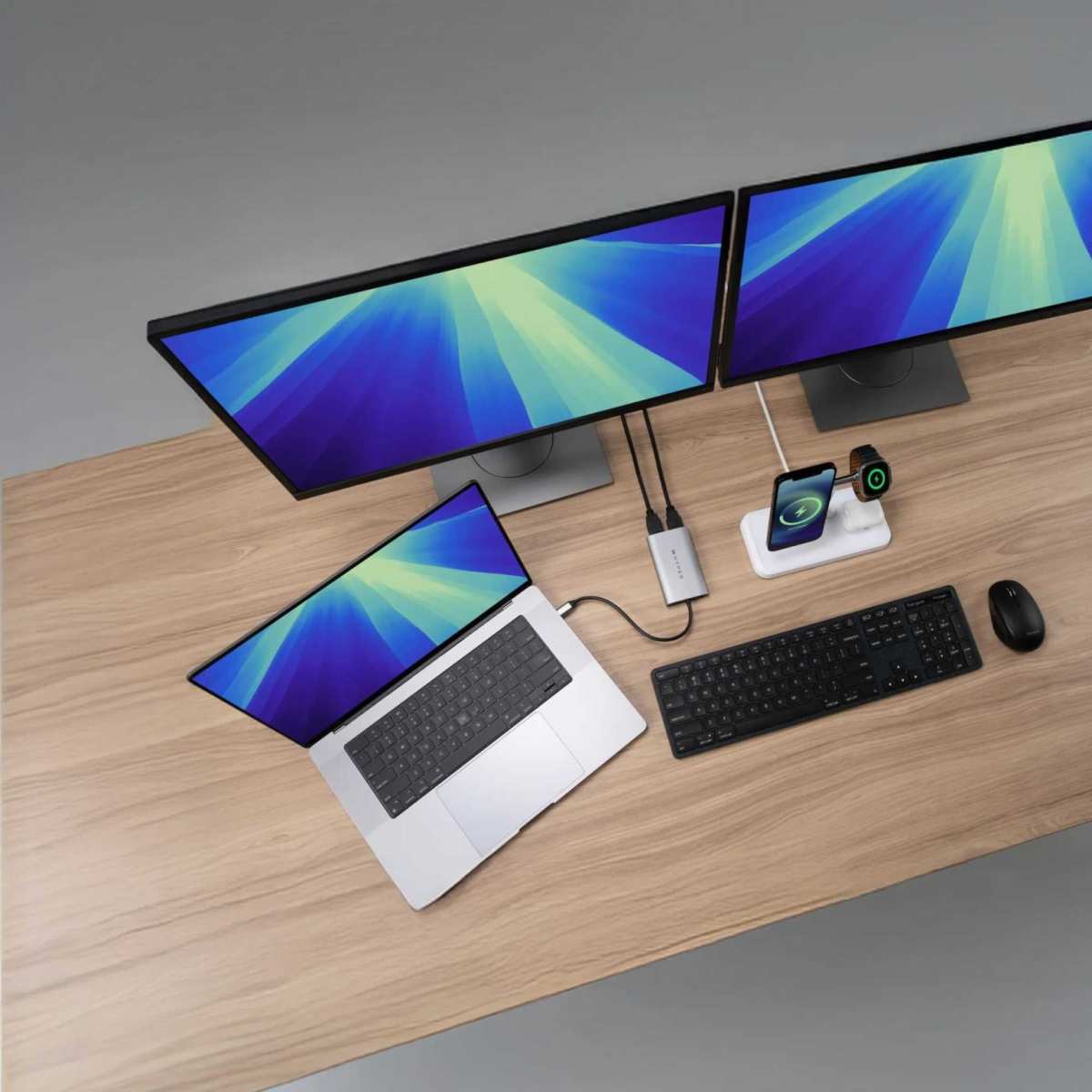
Image source: Bing (Web (fair-use with source credit))
Quick Answer
Yes, USB-C monitors can run at 144Hz. The port must support DisplayPort Alt Mode. Your cable must carry a video signal.
Bandwidth limits depend on the DP version. All three conditions must be met simultaneously.
Why This Isn't a Simple Yes or No
Here's the core problem. USB-C is a connector shape, not a specification. The USB-C port on a $400 budget laptop and the one on a $2,000 gaming laptop might look identical, but they can have wildly different capabilities. For related troubleshooting and calibration steps, check our walkthrough on whether hdr monitors run at 144hz.
Manufacturer specifications indicate that USB-C ports can support anything from basic charging and USB 2.0 data all the way up to Thunderbolt 4 with full DisplayPort 1.4 output. The connector doesn't tell you which capabilities are active. You have to check what your specific hardware actually supports.
Per VESA standards, DisplayPort Alt Mode over USB-C allows the port to carry a native DisplayPort signal. That's what makes high refresh rates possible. But not every device manufacturer enables this feature, and not every cable can handle the bandwidth.
The good news is that once you know what to check, it takes about two minutes to figure out exactly where your setup stands. That's what we'll walk through next.
The Three Things That Actually Determine 144Hz Over USB-C
Three independent conditions must all be true for 144Hz to work over USB-C. Miss any one of them and you're stuck at 60Hz, or you get no signal at all.
- Your USB-C port must support DisplayPort Alt Mode. This is the foundation. Without it, the port cannot carry a video signal regardless of what cable you use.
- Your cable must be rated for video transmission. Many USB-C cables are charging-only or data-only. They physically cannot carry a DisplayPort signal.
- Your total bandwidth must be sufficient for your target resolution and refresh rate. Higher resolutions demand more bandwidth. A connection that handles 1080p at 144Hz might not have enough headroom for 1440p at 144Hz.
Let's break each one down so you can check your own setup.
Does Your USB-C Port Support DisplayPort Alt Mode?
This is where most people get tripped up. Plenty of laptops have USB-C ports that handle charging and data but have no video output capability whatsoever. Manufacturers don't always make this obvious.
How to check your port:
- Look for a lightning bolt icon (Thunderbolt) or a "D" shaped icon (DisplayPort symbol) next to the port.
- Check your laptop or device spec sheet for "DisplayPort over USB-C" or "DP Alt Mode."
- Look up your exact model number on the manufacturer's website. The spec sheet will list video output capabilities per port.
Common scenarios:
- Thunderbolt 3 or 4 ports always support DisplayPort Alt Mode. These are the most reliable option.
- USB 3.2 ports with DP Alt Mode support video, but you need to verify this in your specific device's documentation.
- USB-C ports on budget or business laptops frequently lack DP Alt Mode entirely. They handle charging and data only.
- Desktop GPUs with USB-C output (like certain NVIDIA RTX cards) typically support DP Alt Mode, but older models may not.
If your port doesn't support DP Alt Mode, no cable or monitor will fix that. You'd need to use a different connection type, like native DisplayPort or HDMI.
What Bandwidth Does Your Connection Actually Have?
Assuming your port supports video, the next question is whether it has enough bandwidth. Different versions of DisplayPort over USB-C offer different maximum data rates.
| Standard | Max Bandwidth | 1080p@144Hz | 1440p@144Hz | 4K@144Hz |
|---|---|---|---|---|
| DisplayPort 1.2 | 17.28 Gbps | Yes | Yes (with DSC) | No |
| DisplayPort 1.4 | 25.92 Gbps | Yes | Yes | Yes (with DSC) |
| Thunderbolt 3 | 40 Gbps | Yes | Yes | Yes |
| Thunderbolt 4 | 40 Gbps | Yes | Yes | Yes |
DSC stands for DisplayStream Compression. It's a visually lossless compression technique that allows higher resolutions and refresh rates within a given bandwidth limit. Both the monitor and the source device must support DSC for it to activate.
Manufacturer specifications for most 144Hz USB-C monitors indicate DP 1.2 as the minimum for 1080p and DP 1.4 for 1440p or above. If you're targeting 4K at 144Hz, you'll need DP 1.4 with DSC or a Thunderbolt connection.
Is Your Cable Doing the Job or Holding You Back?
This is the most common point of failure. The cable that came in your laptop's box is almost certainly a charging cable. It cannot carry a video signal.
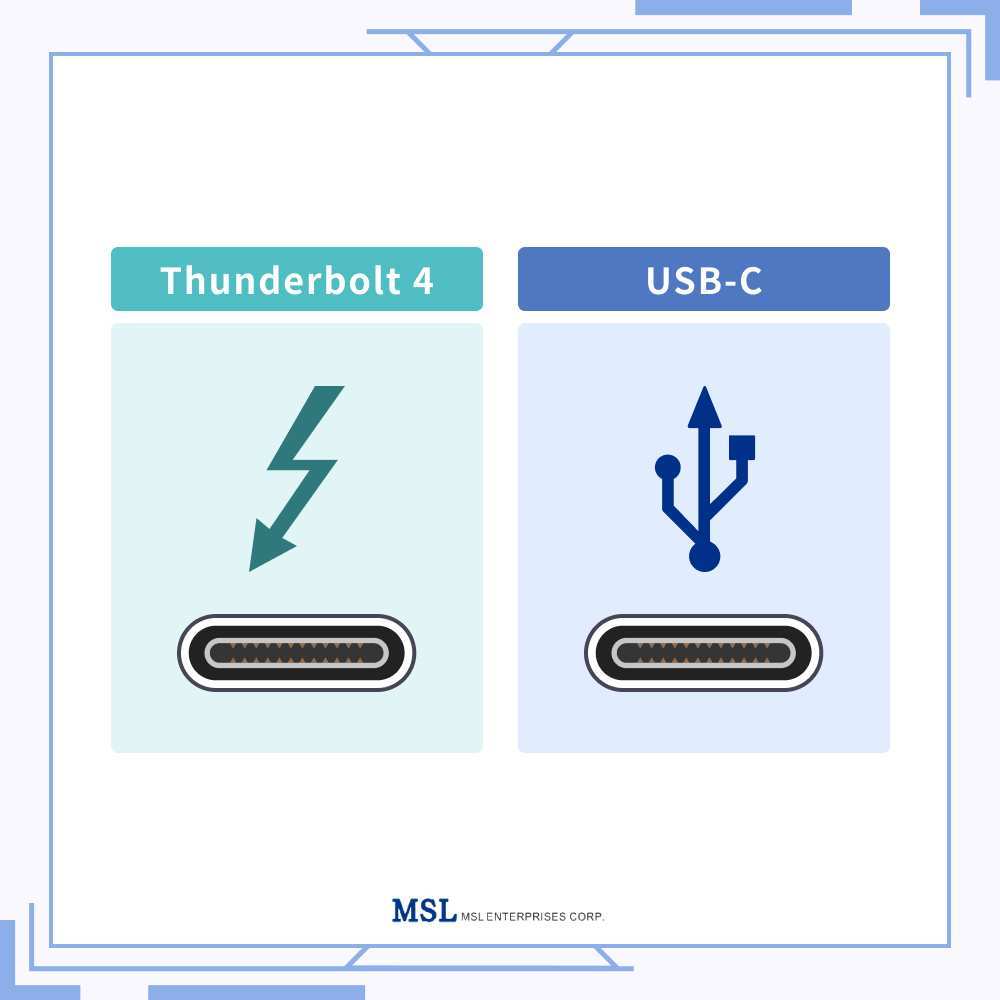
Image source: Bing (Web (fair-use with source credit))
What you need:
- A Thunderbolt 4 cable if your port supports Thunderbolt. These are universally capable of carrying DP video signals.
- A USB-C cable rated for DisplayPort Alt Mode if you're using a USB 3.2 port with DP Alt Mode support. Look for "DP Alt Mode" or "video" in the product description.
- A cable that matches the DP version your monitor requires. For DP 1.4, make sure the cable is rated for HBR3 (High Bit Rate 3).
What to avoid:
- USB-C cables that only list charging or USB 2.0/3.0 data transfer. These lack the wiring for video.
- Ultra-cheap cables from unknown brands. They often don't meet the spec they claim.
- Cables longer than 2 meters without active signal boosting. Longer passive cables can degrade the signal enough to drop you below the required bandwidth.
A proper Thunderbolt 4 cable will run you $20 to $40. A quality USB-C DP Alt Mode cable typically costs $10 to $20. It's a small investment that saves a lot of frustration.
Bandwidth Requirements: What You Need at Each Resolution
Understanding how much data each resolution and refresh rate combination requires helps you figure out exactly what your setup needs.
Uncompressed bandwidth requirements:
- 1920×1080 at 144Hz: approximately 5.5 Gbps
- 2560×1440 at 1440Hz: approximately 9.2 Gbps
- 3840×2160 at 144Hz: approximately 18.6 Gbps
DisplayPort 1.2 provides 17.28 Gbps of usable bandwidth. That's enough for 1080p at 144Hz with room to spare, and it can handle 1440p at 144Hz with DisplayStream Compression. It cannot handle 4K at 144Hz without compression, and even with DSC it's pushing the limit.
DisplayPort 1.4 provides 25.92 Gbps. That comfortably covers 1440p at 144Hz uncompressed and 4K at 144Hz with DSC. If your monitor is 1440p or 4K, DP 1.4 is what you want.
Thunderbolt 3 and 4 provide 40 Gbps total bandwidth, though not all of that is available for video. In practice, a Thunderbolt connection can handle any common 144Hz configuration without breaking a sweat.
The practical takeaway: if you're running 1080p, DP 1.2 is sufficient. For 1440p, aim for DP 1.4. For 4K at 144Hz, you need DP 1.4 with DSC support on both ends, or a Thunderbolt connection.
Decision Tree: Will Your Setup Run 144Hz?
Use this flowchart to determine whether your specific hardware combination can achieve 144Hz over USB-C. Work through each step in order.
Check Your Port Type First
Does your device have a Thunderbolt 3 or 4 port?
If yes, you're in the best position. Thunderbolt ports natively support DisplayPort Alt Mode with DP 1.4 bandwidth. Connect with a Thunderbolt 4 cable and you should get 144Hz at 1080p or 1440p.
For 4K at 144Hz, confirm your monitor supports DSC.
If no, move to the next step.
Does your device's USB-C port explicitly list "DisplayPort Alt Mode" or "DP over USB-C" in its specifications?
If yes, you can get 144Hz, but the maximum resolution depends on which DP version your port supports. Check whether it's DP 1.2 or DP 1.4, then refer to the bandwidth table above.
If no, or if you can't find clear documentation, your port likely does not support video output. You'll need to use a native DisplayPort or HDMI connection instead.
Verify Your Cable
Are you using a Thunderbolt 3/4 cable or a USB-C cable explicitly rated for DisplayPort Alt Mode?
If yes, your cable should support the video signal. Proceed to check your monitor.
If no, or if you're using the charging cable that came with your laptop, this is likely your problem. Swap in a proper video-capable cable before troubleshooting anything else.
Confirm Your Monitor's USB-C Input Capabilities
Does the monitor's USB-C input specifically list 144Hz support at your target resolution?
Some monitors have a USB-C port that only supports 60Hz, even if the same monitor achieves 144Hz over DisplayPort or HDMI. Check the monitor's spec sheet for the USB-C input's maximum refresh rate, not just the monitor's overall maximum.
If the USB-C input supports 144Hz, you should be good to go with the right port and cable.
If it doesn't, you'll need to connect via standard DisplayPort or HDMI to get 144Hz from that monitor.
Check Your GPU's USB-C Output
If you're on a desktop, does your graphics card support DP Alt Mode over its USB-C output?
Most modern GPUs with a USB-C port do support DP Alt Mode. However, some older cards or certain models may not. Check your GPU manufacturer's specifications.
If you're on a laptop, this step is handled by the port check above. The GPU and port capabilities are determined together by the laptop manufacturer.
Common Scenarios That Work (and Why)
Gaming Laptop with Thunderbolt 4 to 1080p 144Hz Monitor
This is the most straightforward winning combination. A Thunderbolt 4 port provides 40 Gbps of bandwidth. A 1080p 144Hz signal requires roughly 5.5 Gbps uncompressed.
You have more than enough headroom. Use a Thunderbolt 4 cable, connect directly, and set the refresh rate to 144Hz in your display settings.
Ultrabook with USB-C DP Alt Mode to 1440p 144Hz Monitor
Many modern ultrabooks support DP 1.4 over USB-C. At 1440p and 144Hz, you need approximately 9.2 Gbps uncompressed. DP 1.4 provides 25.92 Gbps, so this works without compression.
Use a USB-C cable rated for DP Alt Mode at HBR3 speeds. Confirm in your display settings that the refresh rate shows 144Hz.
Desktop GPU with USB-C Output to High Refresh Monitor
Some NVIDIA RTX cards and AMD Radeon cards include a USB-C port with DP Alt Mode support. If your card lists this feature, connect directly with a DP Alt Mode rated cable. This often provides a cleaner signal than going through a dock or adapter.
Common Scenarios That Won't Work (and Why)
Budget Laptop with Data-Only USB-C Port
Many budget and mid-range laptops include USB-C ports that handle charging and USB data but lack DP Alt Mode entirely. No cable or monitor combination can add video output capability to a port that doesn't support it. You'll need to use HDMI or a native DisplayPort connection instead.
USB 2.0 or Charging-Only USB-C Cable
A cable that only supports USB 2.0 data or power delivery physically cannot carry a DisplayPort video signal. The internal wiring simply isn't there. This is the single most common reason people can't get 144Hz working over USB-C.
Swap the cable first.
USB-C Hub or Dock That Caps at 60Hz
Many USB-C docks and hubs prioritize data and charging over video bandwidth. Some cap the video output at 60Hz even when the source device and monitor both support higher refresh rates. Check the dock's specifications for its maximum refresh rate over USB-C passthrough.
For 144Hz, you often need to connect the monitor directly to your device rather than through a dock.
macOS Limitations with High Refresh External Monitors
Apple's macOS has historically had limited support for high refresh rate external monitors over USB-C. While newer Apple Silicon machines have improved in this area, many users report being unable to achieve 144Hz on external displays even with compatible hardware. If you're on a Mac, verify specific compatibility with your exact model and monitor before committing to a USB-C connection for high refresh gaming.
How to Verify You're Actually Getting 144Hz
You've connected everything. Now confirm the signal is actually running at 144Hz and not defaulting to 60Hz.
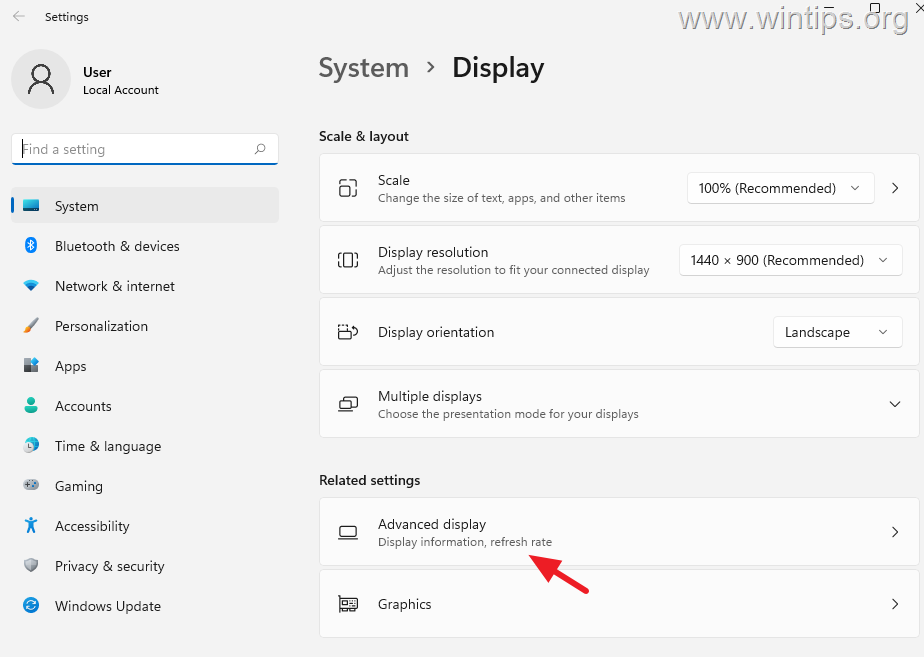
Image source: Bing (Web (fair-use with source credit))
Windows Display Settings
Right-click on your desktop and select Display settings. Scroll down and click Advanced display settings. Look at the Refresh rate dropdown.
If 144Hz is available, select it. If only 60Hz appears, something in your chain is limiting the signal.
You can also check in the NVIDIA Control Panel or AMD Radeon Software, which sometimes expose refresh rate options that Windows doesn't show by default.
macOS Display Settings
Go to System Settings > Displays. Hold the Option key and click the Scaled button to see available refresh rates. Select 144Hz if it appears.
Note that macOS may not expose all available refresh rates on all monitor and cable combinations.
Third-Party Verification Tools
The UFO Test (testufo.com) is a free browser-based tool that confirms your current refresh rate. Open it in your browser and the site will display the detected refresh rate at the top. This is the quickest way to verify what your monitor is actually receiving.
Windows also has a built-in refresh rate check. Go to Settings > System > Display > Advanced display and look at the Refresh rate field. It should read 144 Hz when properly configured.
Best USB-C Monitors for 144Hz in 2024
Not all USB-C monitors are created equal. Some have excellent USB-C implementations that fully support high refresh rates, while others treat the USB-C port as a secondary feature with limited capability.
Budget 1080p 144Hz Options
For 1080p at 144Hz, you don't need the highest bandwidth connection. DP 1.2 is sufficient, which means even modest USB-C implementations can handle it. Look for monitors that explicitly list 144Hz support on the USB-C input in their spec sheet.
Many budget 144Hz panels from brands like AOC, ViewSonic, and Acer include functional USB-C video inputs at this resolution.
Mid-Range 1440p 1440Hz Options
At 1440p, you need DP 1.4 over USB-C for a reliable 144Hz signal without relying on compression. Monitors like the Dell S2722QC and LG 27UK850 include USB-C ports with DP 1.4 support. Always verify the USB-C input's maximum refresh rate in the manufacturer's specifications, as some monitors only achieve their highest refresh rate over native DisplayPort.
Premium 4K 144Hz Options
4K at 144Hz demands the most bandwidth. You need DP 1.4 with DSC or a Thunderbolt connection. Monitors like the LG 27GP950 and ASUS ROG Swift PG27UQ support high refresh rates over USB-C, but confirm DSC compatibility with your source device.
Some 4K 144Hz monitors require DSC to be enabled in the monitor's on-screen display settings before the refresh rate becomes available.
Best Cables for 144Hz Over USB-C
The cable is the weakest link in most setups. Here's what to look for.
Thunderbolt 4 Cables
If your port supports Thunderbolt, this is the safest choice. Thunderbolt 4 cables are certified to carry DP 1.4 video signals. They're backward compatible with Thunderbolt 3 and USB-C DP Alt Mode.
Expect to pay $20 to $40 for a quality cable. Brands like CalDigit, Cable Matters, and Anker make reliable options.
USB-C Cables with DP Alt Mode Support
For USB 3.2 ports with DP Alt Mode, you need a cable explicitly rated for video. Look for "DP Alt Mode" or "HBR3" in the product listing. Cable Matters, Uni, and Anker all make USB-C cables specifically designed for video output.
These typically cost $10 to $20.
What to Avoid
Avoid cables that only list USB 2.0 or USB 3.0 data speeds without mentioning video support. Avoid cables from brands that don't clearly specify their capabilities. And avoid cables longer than 2 meters unless they're active cables designed for extended runs.
Troubleshooting: Why You're Stuck at 60Hz
You've connected everything and you're still seeing 60Hz. Here's where to look.
Port Doesn't Support DP Alt Mode
If your USB-C port lacks DP Alt Mode, no amount of cable swapping or settings changes will help. Check your device's specifications. If video output isn't listed for the USB-C port, you'll need to use HDMI or DisplayPort instead.
Cable Doesn't Support Video Signal
This is the most common culprit. Try a different cable that's explicitly rated for Thunderbolt or DP Alt Mode. The cable that charges your laptop is almost certainly not a video cable.
Monitor Input Set to Wrong Mode
Some monitors have multiple USB-C inputs or require you to manually select the USB-C input source. Check the monitor's on-screen display menu and ensure the correct input is selected. Some monitors also have a setting that must be enabled to allow high refresh rates over USB-C.
GPU Driver or Settings Issue
Update your graphics drivers to the latest version. Outdated drivers can fail to expose available refresh rates. In Windows, check both the Windows display settings and your GPU manufacturer's control panel for refresh rate options.
Dock or Hub Limiting Bandwidth
If you're connecting through a dock or USB-C hub, it may not pass through a high refresh rate signal. Many docks cap video output at 60Hz. Try connecting the monitor directly to your device to rule out the dock as the bottleneck.
Expert Tips for Getting the Most from USB-C 144Hz
Always Check the Port First
Before buying any monitor or cable, confirm your source device's USB-C port supports DP Alt Mode. This single check saves more headaches than any other step. Look up your exact model's specifications on the manufacturer's website.
Buy the Right Cable Once
Don't gamble on cheap cables. Buy a certified Thunderbolt 4 cable or a clearly labeled DP Alt Mode cable from a reputable brand. A $30 cable that works is cheaper than three $10 cables that don't.
Bypass Docks When You Can
For the most reliable 144Hz signal, connect your monitor directly to your device. Docks and hubs add a potential point of failure and often limit bandwidth. Use docks for productivity work where 60Hz is fine, and connect directly when you need high refresh for gaming.
Update Firmware and Drivers
Monitor firmware updates occasionally fix USB-C compatibility issues. Check the manufacturer's support page for your specific monitor model. Keep your GPU drivers current as well.
Test Before You Commit
Before mounting your monitor or routing cables permanently, test the full setup at your target resolution and refresh rate. Verify with the UFO Test or your operating system's display settings. It's easier to troubleshoot when everything is still accessible.
USB-C vs. DisplayPort vs. HDMI for 144Hz: Which Should You Use?
Sometimes USB-C isn't the best choice, even when it technically works.
| Connection Type | Max Bandwidth | 1080p@144Hz | 1440p@144Hz | 4K@144Hz | Notes |
|---|---|---|---|---|---|
| DisplayPort 1.4 | 25.92 Gbps | Yes | Yes | Yes (DSC) | Most reliable for high refresh |
| HDMI 2.1 | 48 Gbps | Yes | Yes | Yes | Common on consoles and TVs |
| USB-C (DP 1.4 Alt Mode) | 25.92 Gbps | Yes | Yes | Yes (DSC) | Convenient single-cable solution |
| USB-C (DP 1.2 Alt Mode) | 17.28 Gbps | Yes | Yes (DSC) | No | Limited bandwidth |
| Thunderbolt 3/4 | 40 Gbps | Yes | Yes | Yes | Best USB-C option |
| HDMI 2.0 | 18 Gbps | Yes | Yes (limited) | No | Insufficient for 4K@144Hz |
When to use native DisplayPort: if your device and monitor both have DisplayPort connections available, this is the most reliable path to 144Hz. It's a dedicated video interface with no compromises.
When to use HDMI 2.1: if you're connecting to a TV or console, or if your monitor only has HDMI 2.1 and DisplayPort isn't convenient. HDMI 2.1 has enough bandwidth for 4K at 144Hz.
When USB-C is the right choice: when you want a single cable that handles video, power, and data. When you're using a laptop and want a clean, minimalist setup. When your device doesn't have a full-size DisplayPort or you prefer the convenience of USB-C.
Frequently Asked Questions
Can any USB-C port output 144Hz?
No. The USB-C port must specifically support DisplayPort Alt Mode. Many USB-C ports on budget devices only handle charging and data.
Check your device's specifications to confirm DP Alt Mode support before assuming 144Hz is possible.
Do I need Thunderbolt for 144Hz over USB-C?
No, but it helps. A USB 3.2 port with DP Alt Mode and DP 1.4 support can handle 144Hz at 1080p and 1440p. Thunderbolt provides the most headroom and the most reliable experience, but it's not strictly required.
Will a USB-C to DisplayPort cable work for 144Hz?
Yes, if your USB-C port supports DP Alt Mode. A USB-C to DisplayPort cable routes the DisplayPort signal from your device's USB-C port to a monitor's DisplayPort input. This is a good option when your monitor doesn't have a USB-C input.
Can I daisy-chain two 144Hz monitors over USB-C?
Technically possible with DisplayPort MST (Multi-Stream Transport) and sufficient bandwidth, but it's demanding. You'd need DP 1.4 with DSC and a high-bandwidth connection like Thunderbolt. For most users, connecting each monitor separately is more reliable.
Does USB-C 2.0 support 144Hz?
No. USB 2.2 lacks the bandwidth and the DP Alt Mode capability needed for high refresh rate video output. You need at least USB 3.2 with DP Alt Mode, and practically speaking, DP 1.2 or higher for 144Hz.
Why does my USB-C monitor only show 60Hz?
The most common causes are a port that doesn't support DP Alt Mode, a cable that can't carry a video signal, or a dock that caps the refresh rate. Work through the decision tree above to identify which link in your chain is the bottleneck.
Final Verdict: Should You Use USB-C for 144Hz?
When USB-C 144Hz Is the Right Choice
USB-C is ideal when you want a single-cable setup that handles video, power, and data simultaneously. It's perfect for laptop users who want to connect to a high-refresh monitor without a dock or adapter clutter. If your device has Thunderbolt or DP 1.4 over USB-C, and you have the right cable, it works reliably at 144Hz for gaming and general use.
When You Should Use DisplayPort or HDMI Instead
If your USB-C port doesn't support DP Alt Mode, or if you're troubleshooting a stubborn 60Hz cap that you can't resolve, fall back to a native DisplayPort or HDMI connection. These dedicated video interfaces eliminate the ambiguity that comes with USB-C's variable capabilities. For desktop setups where convenience isn't a priority, DisplayPort 1.4 remains the gold standard for high refresh rate gaming.
The bottom line is that USB-C absolutely can run 144Hz, but only when every link in the chain supports it. Check your port, check your cable, and verify in your display settings. Get all three right and you'll have a clean, single-cable setup running at the refresh rate you want.

Similar Posts





















