Can HDR Monitors Run at 144Hz
Can HDR monitors run at 144Hz? Yes, absolutely, but whether your specific setup pulls it off depends on a chain of hardware and settings that most people don't think about until they're staring at a washed-out 60Hz screen with HDR turned on.
The short version is that HDR and high refresh rate can coexist, but only if every link in the chain, your GPU, your cable, your port, and your monitor, supports enough bandwidth to push all that data simultaneously. Let's break down exactly what determines whether you get both, or get forced to choose.
Image source: Bing (Web (fair-use with source credit))
Quick Answer
Yes, HDR monitors can run at 144Hz. The monitor must support HDR and 144Hz simultaneously, not just individually. Your GPU and cable need enough bandwidth for the full signal.
DisplayPort 1.4 with DSC or HDMI 2.1 handles it most reliably. Some monitors drop to 60Hz when HDR activates due to port limitations.
Why This Isn't a Simple Yes or No
Here's what trips most people up. A monitor might advertise "HDR" and "144Hz" right on the box, but those specs aren't always available at the same time. Manufacturer specifications sometimes list those as separate capabilities, meaning the panel hits 144Hz in SDR mode, but the moment HDR kicks in, the refresh rate drops.
This happens because HDR requires more data per frame. You're pushing 10-bit color depth instead of 8-bit, plus wider color gamut and luminance information. That extra data eats into your available bandwidth, and if your connection can't handle it, something has to give.
Usually what gives is the refresh rate.
Per VESA's DisplayHDR standards documentation, a monitor certified at DisplayHDR 600 or above is more likely to support HDR at higher refresh rates, since those panels are designed with the processing power to handle the full signal. Budget HDR400 panels are hit or miss.
The Three Things That Actually Determine If It Works
Your Cable and Port Connection
This is the single most common bottleneck. Not all cables and ports are created equal, and the difference between a cheap HDMI 2.0 cable and a certified Ultra High Speed HDMI 2.1 cable is the difference between HDR at 60Hz and HDR at 144Hz.
DisplayPort 1.4 supports up to 32.4 Gbps of bandwidth. That's enough for 1440p HDR at 144Hz with 10-bit color, but it requires Display Stream Compression (DSC) to hit 4K HDR at 144Hz. HDMI 2.1 pushes 48 Gbps, which handles 4K HDR at 144Hz without needing compression.
HDMI 2.0, which is still found on plenty of monitors and GPUs in 2026, maxes out at 18 Gbps. That's fine for 4K at 60Hz with HDR, but it physically cannot push 4K HDR at 144Hz. No amount of settings tweaking changes that.
Your GPU's Output Capability
Your graphics card needs to support the right output standard. As a baseline:
- NVIDIA GTX 10-series and newer support DisplayPort 1.4 with DSC
- AMD RX 400-series and newer support DisplayPort 1.4 with DSC
- Intel Arc GPUs support DisplayPort 2.0 and HDMI 2.1 natively
- PS5 and Xbox Series X support HDMI 2.1 output
If your GPU only has HDMI 2.0 outputs, you're capped at 4K HDR 60Hz regardless of what your monitor can do. Check your GPU's specs sheet for the exact port versions before troubleshooting anything else.
What Your Monitor Actually Supports Under HDR
This is where it gets frustrating. Some monitors process HDR and high refresh through the same scaler chip without issue. Others have firmware limitations that force a trade-off.
Aggregate user reviews on monitors like the LG 27GP950 and Samsung Odyssey G8 report full HDR 144Hz support over DisplayPort, while some budget models from lesser-known brands silently drop to 60Hz when HDR is enabled.
Always check the monitor's spec sheet for a line that says something like "144Hz with HDR enabled" or look for user reports confirming it works. If the spec sheet only lists HDR and 144Hz as separate features without clarifying simultaneous operation, assume there's a limitation until proven otherwise.
The Bandwidth Problem Nobody Talks About
Let's get into the actual numbers, because this is where the real answer lives. Every resolution, refresh rate, color depth, and HDR combination requires a specific amount of data per second. If your pipe isn't big enough, the signal doesn't get through properly.
Here's what common setups demand:
| Resolution | Refresh Rate | Color Depth | HDR | Approximate Bandwidth Needed |
|---|---|---|---|---|
| 1080p | 144Hz | 8-bit | No | ~7.2 Gbps |
| 1080p | 144Hz | 10-bit | Yes | ~9.0 Gbps |
| 1440p | 144Hz | 8-bit | No | ~12.7 Gbps |
| 1440p | 144Hz | 10-bit | Yes | ~15.9 Gbps |
| 4K | 60Hz | 10-bit | Yes | ~14.9 Gbps |
| 4K | 120Hz | 10-bit | Yes | ~29.9 Gbps |
| 4K | 144Hz | 10-bit | Yes | ~35.9 Gbps |
Now compare those numbers to what your connection supports. HDMI 2.0 at 18 Gbps can handle 4K HDR at 60Hz but chokes on anything higher. DisplayPort 1.4 at 32.4 Gbps handles 1440p HDR 144Hz comfortably but needs DSC for 4K HDR at 144Hz.
HDMI 2.1 at 48 Gbps clears 4K HDR 144Hz with room to spare.
DSC is a visually lossless compression standard that most people never notice is running. It's supported on DisplayPort 1.4 and newer, and it's what makes higher resolutions and refresh rates possible over existing cables. If your GPU and monitor both support DSC, you've got a lot more headroom.
DisplayPort vs HDMI at HDR + 144Hz
Image source: Wikimedia Commons / Bretwa (CC BY-SA)
For most PC gaming setups targeting HDR at 144Hz, DisplayPort 1.4 is the more reliable choice. It's been the standard on GPUs and monitors for years, DSC support is mature, and certified DP cables are widely available. HDMI 2.1 is essential for console gaming at 4K HDR 144Hz, since PS5 and Xbox Series X don't have DisplayPort outputs.
If you're on a PC and your monitor only has HDMI 2.1 but no DisplayPort, that works fine for 4K HDR 144Hz. Just make sure you're using a certified Ultra High Speed HDMI cable, not some old cable you had lying around. Cable certification matters more than most people realize.
When Display Stream Compression Becomes Necessary
DSC kicks in automatically when needed, so you don't usually have to enable anything manually. But you should know when it's in play. At 4K HDR 144Hz with 10-bit color, you need roughly 36 Gbps.
DisplayPort 1.4 tops out at 32.4 Gbps without DSC, so DSC bridges that gap.
Not all GPUs handle DSC perfectly. NVIDIA's RTX 20-series and newer have solid DSC implementation. AMD's RX 5000-series and newer do as well.
Older GPUs may not support DSC at all, which means you're limited to whatever fits within uncompressed DisplayPort 1.4 bandwidth.
Common Scenarios: Will Your Setup Pull It Off?
Scenario 1: 1440p HDR at 144Hz
This is the sweet spot for most gamers in 2026. At 1440p with 144Hz and 10-bit HDR, you need roughly 16 Gbps of bandwidth. DisplayPort 1.4 handles that without even needing DSC.
Almost any modern GPU with a DP 1.4 output and a decent cable will run this configuration without issues.
If your monitor supports 1440p 144Hz HDR and you're still dropping to 60Hz when HDR activates, the problem is almost always a cable or port limitation. Swap to a certified DisplayPort 1.4 cable and make sure you're plugged into the DP port on your GPU, not the motherboard's video output.
Scenario 2: 4K HDR at 144Hz
Here's where things get tight. 4K HDR at 144Hz with 10-bit color needs about 36 Gbps. That exceeds DisplayPort 1.4's uncompressed limit, so you need either DSC over DP 1.4 or a full HDMI 2.1 connection.
On PC, a GPU with DisplayPort 1.4 and DSC support (RTX 20-series or RX 5000-series and newer) handles this fine. On console, you need a PS5 or Xbox Series X connected via the included HDMI 2.1 cable to a monitor with a full-bandwidth HDMI 2.1 port. Some monitors advertise HDMI 2.1 but only implement 24 Gbps or 32 Gbps instead of the full 48 Gbps.
Check the fine print.
Scenario 3: Console Gaming (PS5 / Xbox Series X)
Both PS5 and Xbox Series X support HDR at 120Hz over HDMI 2.1. They don't output native 144Hz, but 120Hz is close enough that most people won't notice the difference. You need a monitor with a true 48 Gbps HDMI 2.1 port and the console's HDR setting enabled.
Some monitors, like the ASUS ROG Strix XG27ACS, only have HDMI 2.0 ports. Those cap you at 4K HDR 60Hz from a console. For 120Hz HDR gaming on console, HDMI 2.1 at full bandwidth is non-negotiable.
What Goes Wrong: Real Problems People Hit
HDR Kicks In But Refresh Rate Drops to 60Hz
This is the number one complaint in user forums. You enable HDR in Windows, and suddenly your 144Hz monitor locks to 60Hz. The cause is almost always bandwidth.
Your GPU is detecting that the full HDR signal won't fit through the available connection, so it drops the refresh rate to compensate.
The fix is checking your cable specification and port version. A DisplayPort 1.2 cable in a DP 1.4 port will limit you to lower bandwidth. Same with an HDMI 2.0 cable in an HDMI 2.1 port.
The chain is only as fast as its slowest link.
Colors Look Washed Out When HDR Is Active
This isn't a refresh rate issue, but it often gets reported alongside it. When HDR is enabled on a monitor with limited peak brightness, like a DisplayHDR 400 panel, the tone mapping can make SDR content look flat and washed out. The monitor doesn't have the luminance range to make HDR pop, so everything looks worse.
This is a panel limitation, not a bandwidth issue. The only real fix is either disabling HDR on that monitor or upgrading to a panel with higher peak brightness. DisplayHDR 600 or above makes a noticeable difference in HDR image quality.
Adaptive Sync Stops Working With HDR Enabled
Some monitors don't support FreeSync or G-Sync simultaneously with HDR. The scaler chip can't handle variable refresh rate and HDR processing at the same time. This is more common in older monitors and budget models.
Manufacturer specs sometimes list "AdaptiveSync" and "HDR" without clarifying they're mutually exclusive. If you need both, look for monitors that explicitly advertise "FreeSync Premium with HDR" or "G-Sync Compatible with HDR" in their specifications. Those have been validated to handle both simultaneously.
How to Check and Fix Your Setup Step by Step
Step 1: Verify Your GPU Supports the Right Standard
Look up your exact GPU model on the manufacturer's website. Check the output specifications for DisplayPort version and HDMI version. NVIDIA's product database and AMD's tech specs pages list this clearly.
If your GPU has DisplayPort 1.4 or HDMI 2.1, you have enough bandwidth. If it's limited to DisplayPort 1.2 or HDMI 2.0, you'll need to upgrade the GPU before HDR at 144Hz is possible.
Step 2: Check Your Cable
Look for certification markings on the cable itself. DisplayPort cables should say "DP 1.4" or "HBR3" on the connector or packaging. HDMI cables need the "Ultra High Speed" certification logo for full 48 Gbps bandwidth.
Generic cables that came in the box with monitors or accessories are often lower spec. Replacing a bundled cable with a certified one fixes more problems than people expect.
Step 3: Enable HDR in Windows Without Losing Refresh Rate
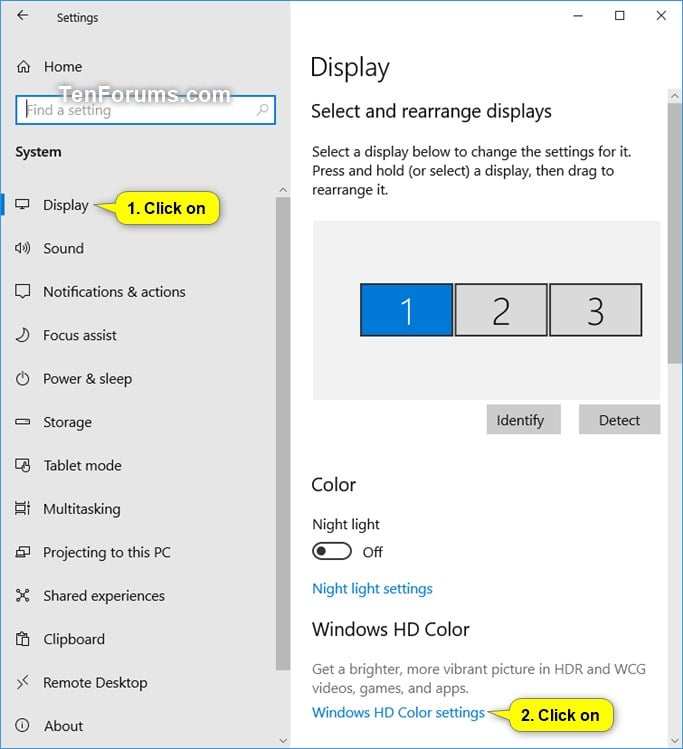
Image source: Bing (Web (fair-use with source credit))
Go to Settings > System > Display. Toggle "Use HDR" on. Then click "Display adapter properties" and make sure the refresh rate is still set to 144Hz in the Monitor tab.
Sometimes Windows resets it to 60Hz when HDR activates.
If the refresh rate option is grayed out or missing, your driver may need an update. Install the latest GPU driver from NVIDIA, AMD, or Intel and restart. Then check again.
Step 4: Confirm You're Actually Getting HDR + 144Hz
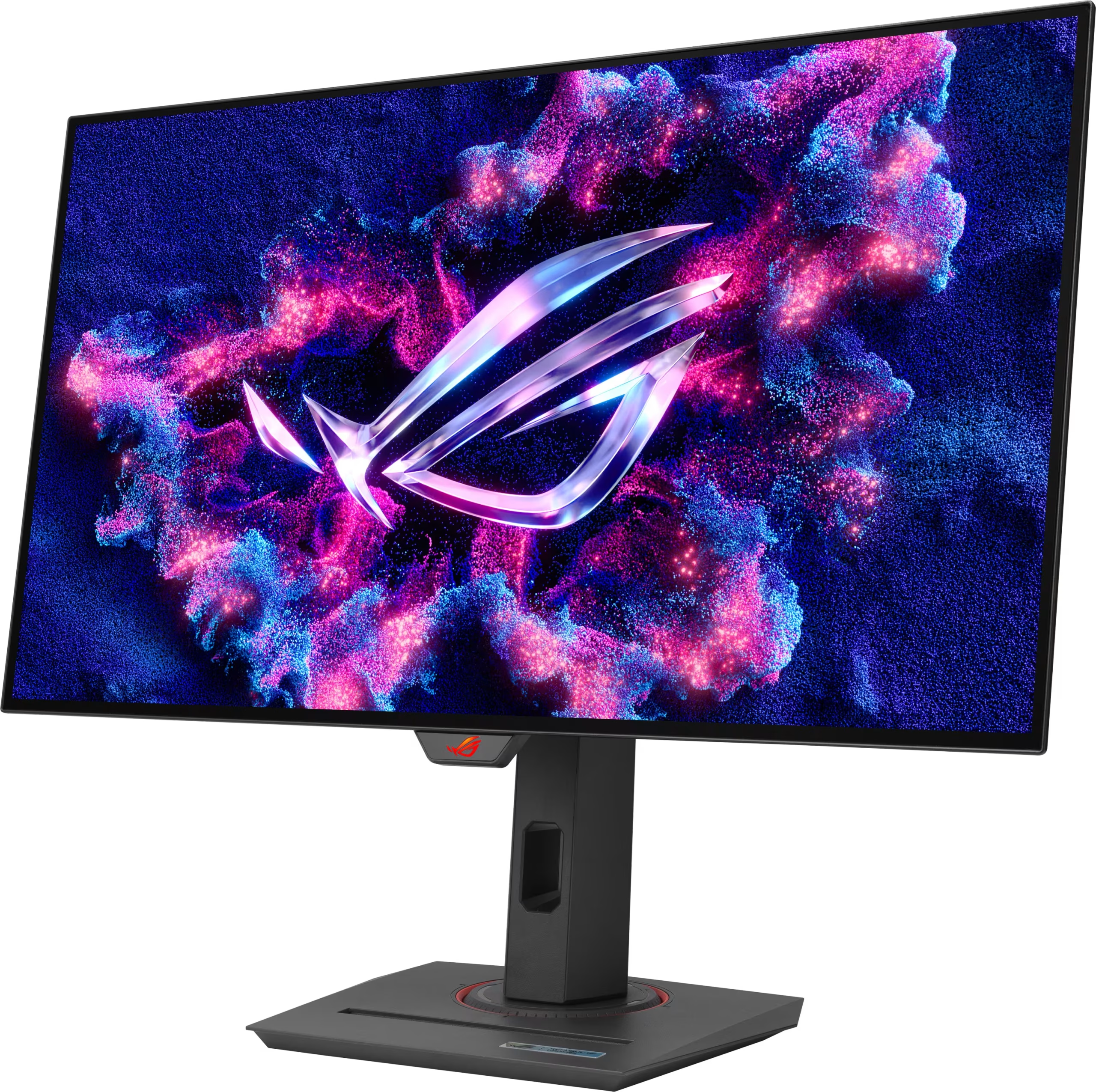
Image source: Bing (Web (fair-use with source credit))
Don't trust the settings menu alone. Use the monitor's on-screen display to check the incoming signal. Most monitors show the current resolution and refresh rate in the OSD info panel.
You should see something like "3840×2160 @ 144Hz" with "HDR" indicated.
You can also use NVIDIA's control panel or AMD's Radeon Software to confirm the active signal format. Look for "10 bpc" color depth and "HDR enabled" in the display information. If both show up alongside 144Hz, you're good.
Quick Reference: Bandwidth Requirements by Resolution
| Setup | Bandwidth Needed | DP 1.4 (32.4 Gbps) | HDMI 2.0 (18 Gbps) | HDMI 2.1 (48 Gbps) |
|---|---|---|---|---|
| 1080p 144Hz HDR 10-bit | ~9 Gbps | Yes | Yes | Yes |
| 1440p 144Hz HDR 10-bit | ~16 Gbps | Yes | No | Yes |
| 4K 60Hz HDR 10-bit | ~15 Gbps | Yes | Yes | Yes |
| 4K 120Hz HDR 10-bit | ~30 Gbps | Yes (DSC) | No | Yes |
| 4K 144Hz HDR 10-bit | ~36 Gbps | Yes (DSC) | No | Yes |
This table tells the whole story. If your target setup fits within your connection's bandwidth, it works. If it doesn't, you need a better connection or you need to lower something, usually resolution or refresh rate.
Is It Worth Prioritizing HDR or High Refresh Rate?
For competitive gaming, refresh rate wins. A 240Hz SDR display gives you a tangible advantage in reaction time and motion clarity. HDR adds visual richness, but it won't help you win matches.
For single-player games, cinematic experiences, and content creation, HDR makes a bigger visual impact. The difference between SDR and HDR in a well-lit scene with bright highlights and deep shadows is immediately noticeable. A 144Hz HDR display hits the sweet spot for most people who want both.
If you're buying a new monitor and can only prioritize one, go for the higher refresh rate with decent HDR support. A 144Hz DisplayHDR 600 monitor gives you a better overall experience than a 60Hz DisplayHDR 1000 panel for most use cases.

Similar Posts





















