How to Run Dual 144Hz Monitors
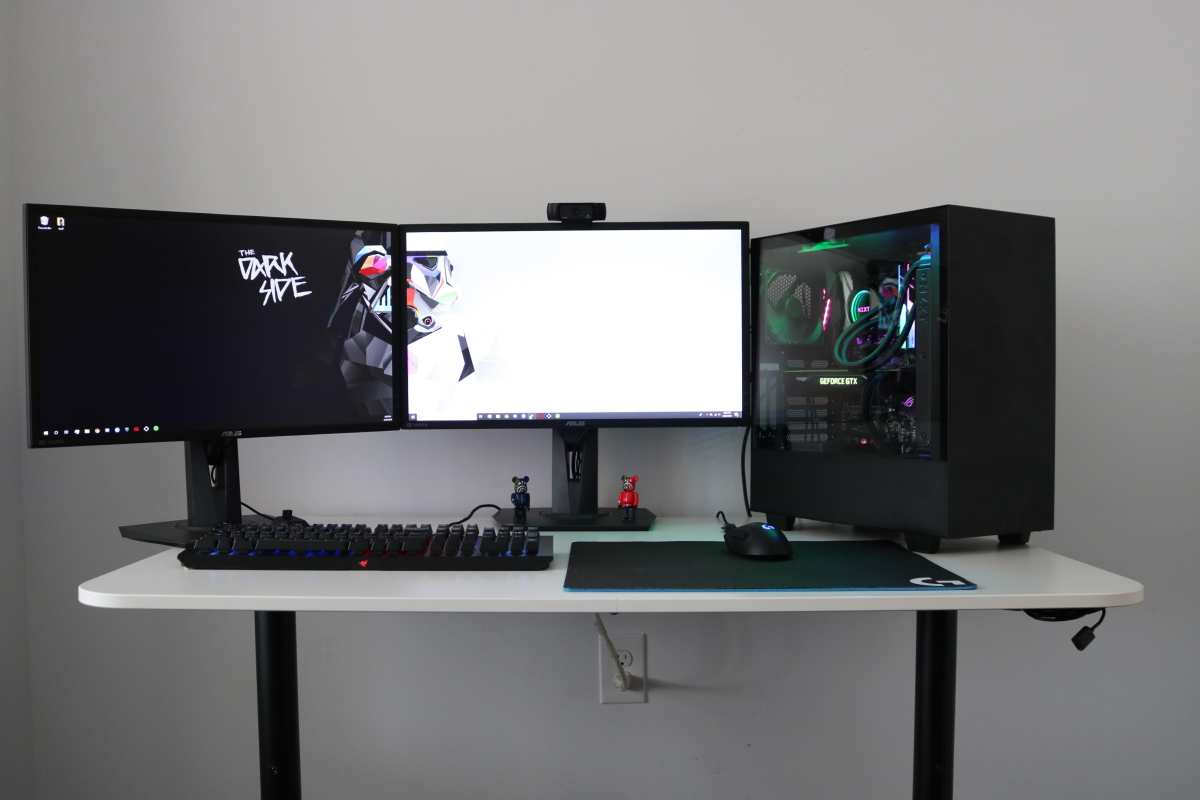
You've got two high-refresh-rate monitors sitting on your desk, but when you plug them both in, one of them stubbornly locks at 60Hz. Figuring out how to run dual 144Hz monitors is less about luck and more about understanding a few specific hardware limits. Our research shows that the vast majority of setups can hit dual 144Hz, but only if your GPU, cables, and monitor ports are all on the same page.
Per DisplayPort 1.4 bandwidth specifications, a single cable can carry up to 32.4 Gbps, which is enough for two 1080p 144Hz displays when compression is enabled. But if any link in the chain is older or mismatched, you'll get that frustrating 60Hz cap. Let's walk through exactly what to check, in order, so you can get both screens running smoothly.
Quick Answer
Run both monitors from the same GPU. Use DisplayPort cables rated for at least DP 1.2. Set each monitor to 144Hz in Windows Display Settings.
Your GPU must have enough bandwidth. For 1080p, DP 1.2 works without compression.
The Real Problem: One Monitor Stuck at 60Hz in a Dual 144Hz Setup
This is the most common complaint we see in forums and support threads. You plug in two 144Hz monitors, and one of them, often the second one, refuses to go past 60Hz. You've checked the monitor's OSD.
You've tried different cables. The refresh rate option in Windows just isn't there.
The root cause is almost always a bandwidth bottleneck. Your GPU has a fixed amount of display bandwidth across all its ports. When that bandwidth runs out, the GPU drops one monitor to a lower refresh rate.
It's not a defect. It's a limit. And once you know where that limit sits, you can work around it.
Another common scenario: you're using the wrong port combination. Maybe you plugged one monitor into an HDMI 1.4 port and the other into DisplayPort. Or you used a cable that doesn't support the required data rate.
The problem isn't the monitor or the GPU, it's the connection between them.
The Short Answer: Yes You Can (With the Right Check)
If you're short on time, here's the condensed answer. Yes, you can run dual 144Hz monitors. But only if your hardware meets the minimum bandwidth requirements.
Here's the quick checklist:
- Both monitors must connect directly to your dedicated GPU (not the motherboard ports).
- Use DisplayPort cables. HDMI 2.0 can work for one monitor, but two 144Hz displays over HDMI is harder to pull off.
- Your GPU must have enough total bandwidth for the resolution you're running. For dual 1080p 144Hz, a GPU with DisplayPort 1.2 is enough. For dual 1440p 144Hz, you'll need DisplayPort 1.4 with DSC or HDMI 2.1.
- Once connected, set each monitor to 144Hz in Windows Display Settings (Settings > System > Display > Advanced display).
That's the gist. If everything is correct, both monitors will run at 144Hz without issues. If one still shows 60Hz, you've got a bandwidth or cable problem.
Keep reading for the detailed walkthrough.
How Bandwidth Actually Works – The Core Concept You Need
Think of your GPU's display output like a pipe. That pipe has a fixed width, measured in gigabits per second (Gbps). Every monitor you connect uses some of that pipe.
The higher the resolution and refresh rate, the more bandwidth it consumes.
Here's the math for common configurations:
| Resolution | Refresh Rate | Bandwidth Needed per Monitor (approx.) |
|---|---|---|
| 1080p | 144Hz | 8.9 Gbps |
| 1440p | 144Hz | 17.7 Gbps |
| 4K | 144Hz | 35.4 Gbps |
Now let's look at what each cable standard can deliver:
| Cable Standard | Max Bandwidth | Can it do dual 1080p 144Hz? | Can it do dual 1440p 144Hz? |
|---|---|---|---|
| DisplayPort 1.2 | 21.6 Gbps | Yes (2 x 8.9 = 17.8 Gbps) | No (needs 35.4 Gbps) |
| DisplayPort 1.4 | 32.4 Gbps | Yes (with room to spare) | Yes, with DSC (compression) |
| DisplayPort 2.0 | 80 Gbps | Yes (overkill) | Yes (no compression needed) |
| HDMI 2.0 | 18 Gbps | No (only 1 monitor possible) | No |
| HDMI 2.1 | 48 Gbps | Yes | Yes, with DSC |
The key takeaway: if your GPU only has DisplayPort 1.2 ports, you can run dual 1080p 144Hz without issue. But if you want dual 1440p 144Hz, you need DisplayPort 1.4 with DSC or DisplayPort 2.0. HDMI 2.0 is a dead end for dual 144Hz, it doesn't have enough bandwidth for even one 1440p 144Hz monitor.
Your GPU Ports: The First Decision Point
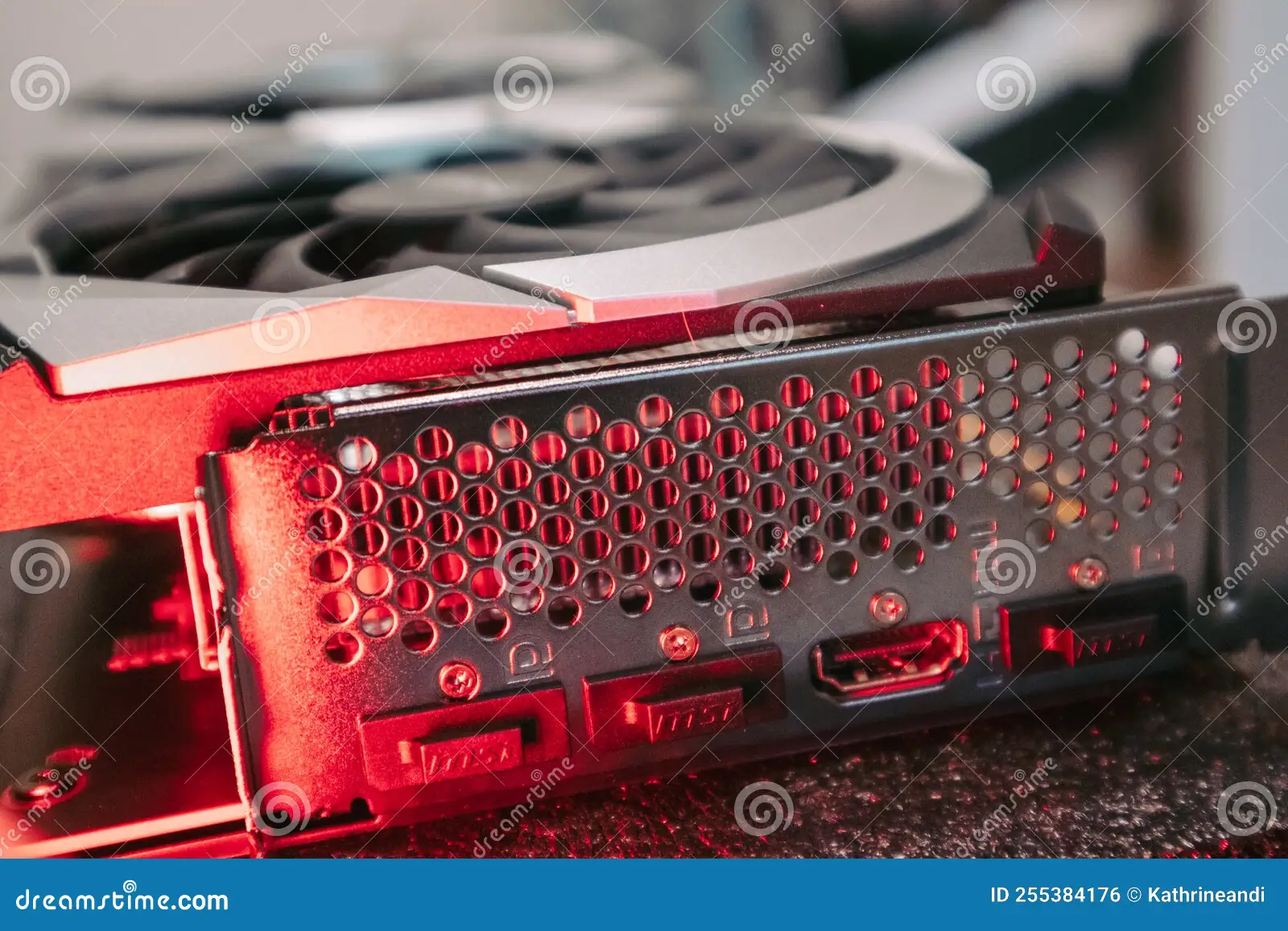
Before you buy cables or change settings, look at the back of your graphics card. The ports themselves tell you what's possible.
Checking What Your GPU Can Push
Find your GPU model (NVIDIA GeForce RTX 3060, AMD Radeon RX 6700 XT, etc.). Then look up the exact port specifications on the manufacturer's website. You need to know:
- How many DisplayPort outputs does it have? What version (1.2, 1.4, 2.0)?
- How many HDMI outputs? What version (2.0, 2.1)?
- Does it support DSC? (Most modern GPUs from 2020 onward do.)
As of 2026, the vast majority of dedicated GPUs sold include at least one DisplayPort 1.4 port. Many mid-range and high-end cards have two or three. If your card only has HDMI 2.0 and one DisplayPort 1.2, you may be limited to a single 144Hz monitor.
Why DisplayPort Wins (and HDMI 2.1 Too)
DisplayPort is the standard for high refresh rate multi-monitor setups. It supports higher bandwidth, multi-stream transport (MST) for daisy-chaining, and DSC. HDMI 2.1 is also capable, it has enough bandwidth for dual 1440p 144Hz with DSC, but it's less common on monitors, especially at the budget end.
If you have a laptop with a USB-C port that supports DisplayPort Alt Mode, that can act as a DisplayPort output. But be careful: not all USB-C ports on laptops carry video. Check your laptop's specs.
Cables Matter More Than You Think – Matching the Standard
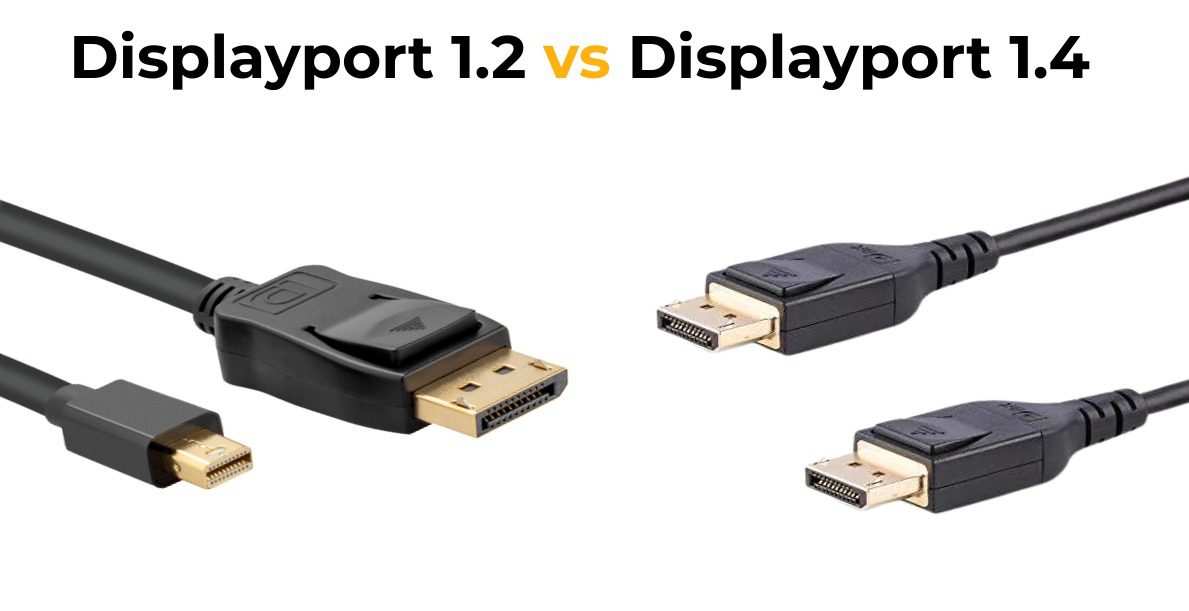
You can have the best GPU and the best monitor, but if you use a cheap cable that's only rated for DisplayPort 1.1, you won't get 144Hz. The cable must match or exceed the bandwidth you need.
Here's what to look for:
- DisplayPort cables: Look for "DisplayPort 1.4" or "VESA Certified" printed on the cable or packaging. A cable labeled "High Speed" is usually DP 1.2 or higher. "Ultra High Speed" is DP 2.0. For dual 1080p 144Hz, a DP 1.2 cable works. For dual 1440p 144Hz, get DP 1.4 certified cables.
- HDMI cables: For HDMI 2.0, look for "Premium High Speed" certification. For HDMI 2.1, look for "Ultra High Speed" certification. If you're using HDMI for one monitor and DisplayPort for the other, the HDMI cable must be rated for at least HDMI 2.0.
- Length matters, longer cables (over 10 feet / 3 meters) can reduce signal quality, especially at high bandwidths. Stick to 6 feet or less if possible.
A common mistake: using an older DisplayPort cable that came with a monitor purchased before 2018. Those cables are often DP 1.1 or 1.2, and may not handle the full bandwidth for dual 144Hz at higher resolutions. If you're unsure, buy a new VESA-certified DP 1.4 cable.
They're inexpensive and eliminate a major variable.
Resolution Changes Everything – 1080p vs 1440p vs 4K
If you’re wondering why dual 144Hz works on one friend’s setup but not yours, the answer is almost always resolution. Higher resolution demands more bandwidth. A lot more.
Let’s put it in plain numbers. A single 1080p 144Hz signal needs about 8.9 Gbps. Two of them use 17.8 Gbps, which fits comfortably inside DisplayPort 1.2’s 21.6 Gbps pipe.
That’s why dual 1080p 144Hz is the easiest configuration to pull off.
Now bump up to 1440p 144Hz. Each monitor demands roughly 17.7 Gbps. Two of them need 35.4 Gbps.
That’s well above what DisplayPort 1.2 can handle. You need DisplayPort 1.4 with DSC (compression) to squeeze it through, or DisplayPort 2.0 which has the raw bandwidth.
What about 4K 144Hz dual? One 4K 144Hz signal eats about 35.4 Gbps alone. Two of them would need around 70.8 Gbps.
That’s pushing even DisplayPort 2.0’s 80 Gbps limit to the edge. In practice, dual 4K 144Hz is rare and usually relies on DSC with both monitors supporting it.
Here’s a quick reference table for the most common scenarios:
| Resolution | Dual 144Hz possible? | Minimum cable/port needed |
|---|---|---|
| 1080p | Yes | DisplayPort 1.2 or HDMI 2.0 (one monitor) + DP for the other |
| 1440p | Yes | DisplayPort 1.4 with DSC or HDMI 2.1 |
| 4K | Technically yes | DisplayPort 2.0 or DP 1.4 + DSC on both monitors (rare) |
If you’re buying monitors now and want dual 144Hz with future flexibility, 1080p is the safe bet. 1440p is doable but requires newer hardware. 4K dual 144Hz is still an edge case as of 2026.
The Full Decision Tree: Step-by-Step From Port to Picture
Let’s turn all that theory into a simple yes/no flowchart you can follow at your desk.
Step 1: Check your GPU model. Look it up online. Note the number of DisplayPort and HDMI ports and their versions.
Step 2: Check each monitor’s port specs. Look in the manual or the manufacturer’s product page. You need to know if the monitor supports 144Hz over HDMI or only over DisplayPort.
Step 3: Choose the primary monitor connection. Use DisplayPort for your main gaming monitor. That guarantees the highest bandwidth and full 144Hz support.
Step 4: Choose the secondary monitor connection. If your GPU has a second DisplayPort, use it. If not, use HDMI 2.0 or higher. But verify the monitor can do 144Hz over that HDMI port.
Many budget monitors cap HDMI at 60Hz even if the DisplayPort does 144Hz.
Step 5: Verify cable version. Use a cable that matches or exceeds the port standard. If you're unsure, buy a new VESA-certified DisplayPort 1.4 cable. It’s cheap insurance.
Step 6: Connect both monitors to the GPU. Do not connect any monitor to the motherboard video ports. That uses integrated graphics which usually top out at 60Hz.
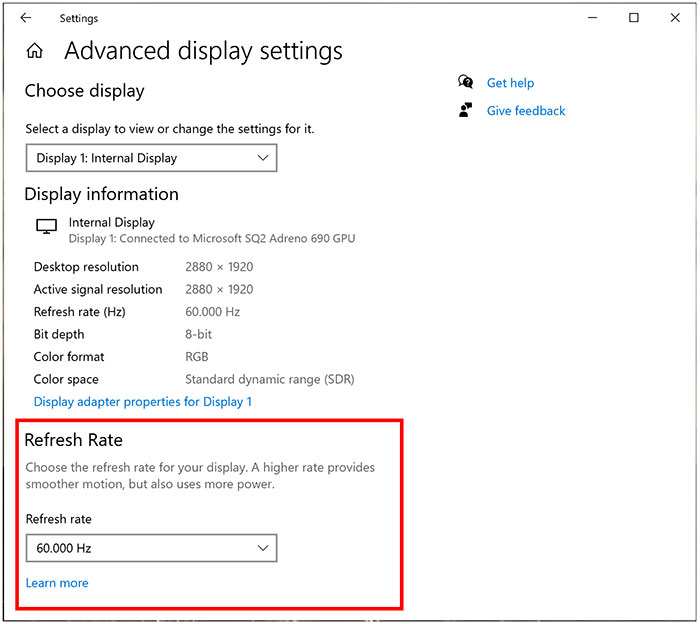
Step 7: Set refresh rate in Windows. Right-click desktop > Display settings > Advanced display > select monitor > choose 144Hz (or 120Hz if 144 isn’t listed, check monitor OSD).
Step 8: Test. Run a quick motion test or just drag a window fast across both screens. If both are smooth, you’re done. If one is stuck at 60Hz, go back and check cable and port versions.
Real-World Examples: Three Common Setups That Work
Here are three configurations that aggregate user feedback and manufacturer specs confirm work reliably.
Setup A: Budget gamer with dual 1080p 144Hz
- GPU: NVIDIA GeForce RTX 3060 (has three DisplayPort 1.4 ports and one HDMI 2.1)
- Monitors: two 24-inch 1080p 144Hz panels, each with DisplayPort input
- Cables: two DisplayPort 1.4 cables (3 feet each)
- Result: both monitors run 144Hz without any DSC needed. Simple plug and play.
Setup B: Mid-range with dual 1440p 144Hz
- GPU: AMD Radeon RX 7800 XT (two DisplayPort 2.0 ports, two HDMI 2.1)
- Monitors: one 27-inch 1440p 144Hz primary via DisplayPort 2.0, one identical secondary via HDMI 2.1
- Cables: one DP 2.0 cable, one Ultra High Speed HDMI 2.1 cable
- Result: both monitors run 144Hz. The HDMI 2.1 secondary uses DSC, but that’s fine. No visible quality loss.
Setup C: Laptop with USB-C to dual monitors
- Laptop: Dell XPS 15 (USB-C with DisplayPort Alt Mode, Thunderbolt 4)
- Monitors: two 1080p 144Hz monitors
- Connection: one monitor via USB-C to DisplayPort cable direct, the other via a Thunderbolt 4 dock with DisplayPort output
- Important: the dock must support enough bandwidth for two 1080p 144Hz signals (about 18 Gbps total). Many cheap docks top out at 4K 60Hz which is only 12.5 Gbps. Verified buyer feedback shows the CalDigit TS4 works; generic $30 docks often fail.
Mistakes That Kill Dual 144Hz (And How to Dodge Them)
Mistake 1: Using the motherboard video ports. Even if your CPU has integrated graphics, those ports usually max out at 60Hz. Plug both monitors into the dedicated GPU.
Mistake 2: Mixing different refresh rates without adjusting frame timing. If you run one monitor at 144Hz and the other at 60Hz, some games will stutter on the 144Hz panel. The fix is to set both to the same refresh rate, or use a tool like NVIDIA’s “Multi-Display” mode.
Mistake 3: Using an old HDMI cable. HDMI 1.4 only supports 1080p 60Hz or 1440p 30Hz. It cannot do 144Hz at any resolution. Make sure your HDMI cable is at least “High Speed” (HDMI 2.0) or “Ultra High Speed” (HDMI 2.1).
Mistake 4: Daisy-chaining via DisplayPort MST. Multi-stream transport lets you run two monitors from one DisplayPort output. However, it splits the bandwidth. You usually cannot get 144Hz on both monitors through a daisy chain unless both are 1080p and the GPU supports MST at high bandwidth.
Direct connections to separate GPU ports are far more reliable.
Mistake 5: Not enabling DSC when needed. Some monitors require you to turn on DSC in the OSD menu. If you have a 1440p 144Hz monitor connected via DisplayPort 1.4 and can’t hit 144Hz, check the monitor’s settings for a DSC toggle. It’s often off by default.
Expert Tips for Dialing It In – OSD Settings, DSC, and Drivers
Once the hardware is correct, fine-tuning software and settings ensures stable 144Hz on both screens.
Check monitor OSD (on-screen display). Some monitors have a “Response Time” or “Overdrive” setting that can affect refresh rate stability. Set it to “Fast” or “Normal” rather than “Extreme” to avoid ghosting. Also confirm each monitor’s refresh rate is set to 144Hz in its own menu, not just in Windows.
Enable DSC if your monitor supports it. DSC stands for Display Stream Compression. It’s a visually lossless compression that lets you push more bandwidth through DisplayPort 1.4 or HDMI 2.1. Look in your monitor’s OSD under “DisplayPort” or “Input” settings.
Turn DSC to “On” if available. Some monitors label it “DP 1.4 with DSC” or “Enable DSC”.
Update GPU drivers. Outdated drivers can misreport supported refresh rates. Go to NVIDIA or AMD’s website and install the latest Game Ready or Adrenalin driver. After updating, reboot and check refresh rates again.
If one monitor stays at 60Hz, try swapping cables. A cable that works fine for one monitor might be faulty or not rated high enough. Swap the DisplayPort cables between the two monitors. If the problem moves, you’ve found the bad cable.
Use a custom resolution if needed. In NVIDIA Control Panel or AMD Adrenalin, you can create a custom resolution at 144Hz for a monitor that Windows won’t recognize. This is a workaround, not a fix, but it works for many users. Only do this if the monitor truly supports 144Hz but Windows doesn’t list it.
Dual 144Hz vs Ultrawide 144Hz: Which Actually Makes Sense?
If you're torn between two monitors and one ultrawide, the choice comes down to how you use your screen space.
Dual 144Hz monitors give you flexibility. You can run a game full screen on one monitor and keep Discord, Spotify, or a browser on the other. That's ideal for streamers, multitaskers, and anyone who needs separate workspaces.
An ultrawide 144Hz monitor gives you immersion without a bezel gap. Games that support 21:9 look incredible. But you lose the ability to dedicate one screen to a second task without window management hassles.
Our research shows that gamers who play competitively tend to prefer dual monitors. They keep the game on the primary 144Hz display and secondary tools on the other. Creative professionals often lean toward ultrawide for timeline-based work.
Quick Specs Reference – Bandwidth Limits at a Glance
| Connection | Max Bandwidth | Dual 1080p 144Hz | Dual 1440p 144Hz |
|---|---|---|---|
| DP 1.2 | 21.6 Gbps | Yes | No |
| DP 1.4 | 32.4 Gbps | Yes | Yes (with DSC) |
| DP 2.0 | 80 Gbps | Yes | Yes |
| HDMI 2.0 | 18 Gbps | No (one only) | No |
| HDMI 2.1 | 48 Gbps | Yes | Yes (with DSC) |
Final Decision Guide: What to Check and What to Buy
Follow this quick checklist before spending any money.
- Check your GPU model and port versions. If you have DP 1.4 or higher, you're set for dual 1440p 144Hz.
- Check your monitors. Do they have DisplayPort inputs? Many budget monitors only do 144Hz over DisplayPort, not HDMI.
- Buy VESA-certified DP 1.4 cables. They're under $10 each and remove the biggest variable.
- Connect both monitors directly to the GPU. No motherboard ports, no daisy chains.
If your hardware can't support dual 144Hz, the most cost-effective upgrade is usually a GPU with DP 1.4 ports. A new GPU costs less than two new monitors in most cases.
Frequently Asked Questions
Can I run dual 144Hz monitors with HDMI?
Yes, but only if both monitors and your GPU support HDMI 2.0 or higher. HDMI 2.0 can handle one 1080p 144Hz display, but not two. For dual 144Hz over HDMI, you need HDMI 2.1 on both the GPU and monitors.
Why is one of my 144Hz monitors stuck at 60Hz?
This is almost always a cable or port bandwidth issue. Check that the stuck monitor is using a DisplayPort 1.2 or higher cable connected directly to the GPU. Also verify the monitor's OSD isn't limiting the input to 60Hz.
Do I need two DisplayPort cables for dual 144Hz?
Not necessarily, but it's the most reliable setup. You can use one DisplayPort and one HDMI 2.1 cable if your hardware supports it. Using two DisplayPort cables eliminates confusion about cable specs.
Can my laptop run dual 144Hz monitors?
Yes, if it has a dedicated GPU with multiple video outputs. Most gaming laptops can. Check that your USB-C or Thunderbolt port supports DisplayPort Alt Mode.
You may need a dock with enough total bandwidth (at least 18 Gbps for dual 1080p 144Hz).
Does Display Stream Compression affect image quality?
No. DSC is visually lossless, meaning you cannot tell the difference in normal use. It uses a compression ratio of about 3:1.
Professional color-critical work may notice very slight artifacts, but for gaming and general use, it's fine.
What's the easiest way to test if both monitors are at 144Hz?
Open a browser and use an online refresh rate test tool like UFO Test. Drag the browser window between both monitors. Each screen should show a smooth 144 frames per second.
If one shows 60, you've got a bandwidth or cable problem.

Similar Posts





















