How to Use Claude for Coding
If you've tried pasting a block of code into a chatbot and getting back something that looks plausible but doesn't actually run, you're not alone. The trick with figuring out how to use claude for coding isn't about finding the right button. It's about learning a conversational workflow that matches how you actually develop, debug, and ship software.
Claude's 200K-token context window means it can hold entire files, project documentation, and error traces in a single conversation. That alone changes the game compared to older tools that kept losing your code after a few turns. Let's walk through how to set it up, what to watch for, and where different approaches work better depending on your situation.
Quick Answer
How to use claude for coding:
Describe your task in plain English and paste your relevant code. Claude analyzes the context and generates working code or explanations. Iterate by refining your prompts and reviewing the output.
Test the code in your actual project before shipping.
The Core Workflow: How to Actually Use Claude for Code

Most people jump straight to "write me a login system" and either get gold or garbage. The difference is almost always how you set up the conversation first. Think of it like pair programming.
You wouldn't start by throwing a senior engineer into your codebase with zero explanation of what the project does.
The workflow has four phases, and skipping any one of them is where most frustration comes from.
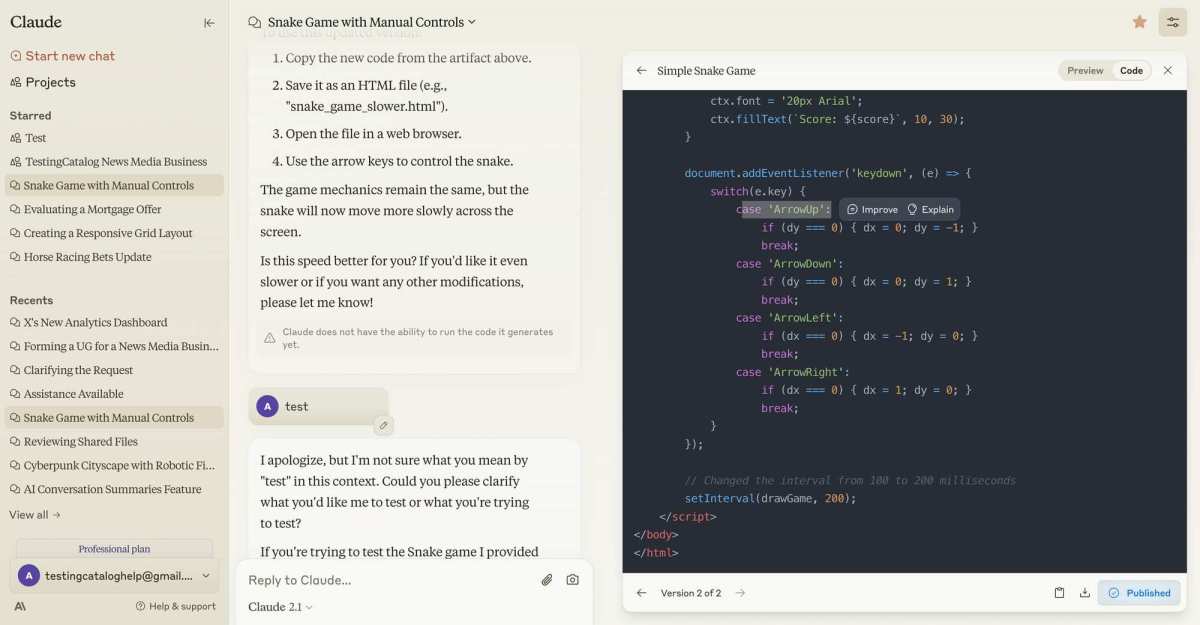
Step 1: Set Up Your Context Before You Ask for Code
This is where the most time gets wasted. If you just say "write a function," Claude has to guess everything. What language, what framework, what your variables are called, what edge cases matter.
Set context by doing these things before your first coding request.
- Name the language and version you're working in
- Describe what the broader function or file is supposed to do
- Paste the relevant surrounding code or error output
- Note any constraints, like performance needs or API limits
A solid opening prompt looks like this: "I'm writing a Python 3.11 script that processes CSV files. The file has columns for name, email, and date_joined. Write me a function that reads the file and returns a list of dicts.
The date column might have null values, so handle those gracefully."
That's specific enough to get usable code on the first try.
Step 2: Write Prompts That Get You Working Code, Not Fluff
Claude tends to be a bit wordy by default. It'll explain what it's about to do, then do it, then summarize. That's fine when you're learning.
When you want output, you need to direct the format.
Use these prompt patterns for different situations.
- "Write code only. No explanation.", Skips the preamble, gives just the snippet to drop into your file.
- "Give me a step-by-step plan before you write any code.", Helps you verify the logic is right before committing to the implementation.
- "Refactor this for readability. Keep the functionality identical.", Great for cleaning up code you already have working.
- "Generate unit tests for this function using pytest.", Forces Claude to think about edge cases you might've missed.
Chain your prompts too. Ask for the plan first, review it, then say "go ahead and implement step one." This breaks big tasks into verifiable chunks instead of rolling the dice on a massive output.
Step 3: Iterate, Don't Accept the First Output
The first draft from Claude is rarely the last. That's not a weakness. That's how code review works everywhere.
If the output is close but not right, don't start a new conversation. Stay in the thread and say "the imports are wrong for Flask 3.0, can you update those?" The context carries over, and adjustments usually take seconds.
Common iteration moves.
- Ask for a diff or specific change, not a full rewrite
- Point to a line number or variable name directly
- Ask "why did you choose X over Y?" to catch logic issues early
- Request inline comments if you'll hand this to another developer
Step 4: Test and Debug the Loop
Claude can't run your code. That's the critical boundary. It can reason about what should happen, but it doesn't have your environment, your data, or your dependencies.
So your real workflow is a loop. Generate code in Claude, paste it into your editor or terminal, see what breaks, then paste the error message back and ask what happened.
This loop works surprisingly well when you treat Claude like a debugger. Share the failing code, the exact error text, and the expected behavior. Phrases like "I expected X but got Y" give it the clearest signal to find the bug.
Which Claude Model Should You Use for Coding?
Anthropic ships multiple model tiers under the Claude name, and they're not equal for coding tasks. Picking the wrong one means either overpaying or underperforming.
Opus vs. Sonnet vs. Haiku: When Each One Makes Sense
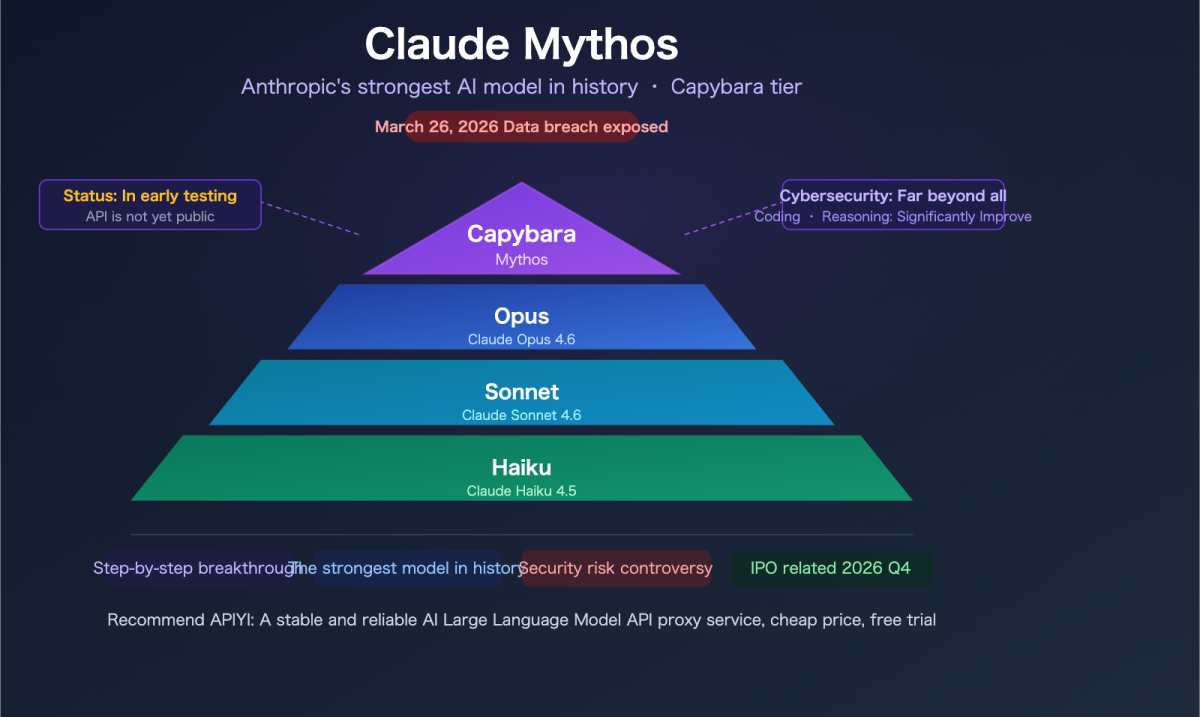
Here's how the Claude model tiers compare for coding workloads.
| Model | Best For | Speed | Cost via API (per 1M tokens input) | Notes |
|---|---|---|---|---|
| Claude Opus 4 | Complex architecture decisions, large refactoring, tricky debugging | Slowest | Highest | Best reasoning, worth it for hard problems |
| Claude Sonnet 4 | Daily coding tasks, writing new features, standard debugging | Fast | Mid-range | Best balance for most developers |
| Claude Haiku 4 | Simple functions, boilerplate, formatting fixes | Fastest | Lowest | Good for bulk low-complexity tasks |
Sonnet is the workhorse. If you're using Claude Pro on the web interface, Sonnet is what you get by default, and it handles the vast majority of coding questions well. Claude Pro gives you five times more usage per hour than the free tier.
Save Opus for when you feel stuck. If Sonnet keeps giving you code that's almost right but has subtle logic flaws, switch to Opus and let it work through the harder reasoning.
Haiku makes sense via the API when you're building something that generates lots of small code pieces. Think auto-completion engines or bulk linting, where speed matters more than deep thinking.
What Claude Does Well (and Where It Falls Short)
Every tool has a range where it shines and a range where you're fighting it. Claude is no exception.
Strengths That Matter for Developers
- Long context window. 200K tokens means you can paste entire medium-sized files and still have room for the conversation. That's huge compared to earlier models that choked on anything over a few thousand words.
- Reasoning quality. Claude tends to think through problems before outputting. Ask it to explain why a bug happens, and you'll usually get a clear walkthrough, not a guess.
- Conversational refinement. Because state carries across the thread, you can iterate naturally. "Change that to use a list comprehension" works because it remembers what "that" is.
- Multi-language support. Strong in Python, JavaScript, TypeScript, Go, Rust, and Java. Decent in C-family languages and SQL.
- Explanation and documentation. Ask it to comment your code or write a README, and the output is usually clean and useful.
Limitations You'll Hit in Real Projects
- No native code execution. Claude can write code but can't run it to verify. That's on you.
- Hallucinated libraries or methods. Sometimes it invents a function name that sounds right but doesn't exist. Always check unfamiliar APIs against official docs.
- Context drift in very long threads. While the window is 200K tokens, accuracy degrades near the upper limit. Start fresh when the conversation gets unwieldy.
- Rate limits. Free and Pro tiers cap how much you can send per hour. API usage is metered. Heavy workloads add up.
- Date knowledge cutoff. Claude has a training cutoff. Library-breaking changes or new frameworks after that point may be unknown unless you paste the documentation.
- Cautious refusals. Claude sometimes won't write code it interprets as anything close to malware, network exploits, or scraping tools, even for legit use cases like security research or learning.
Claude vs. Other AI Coding Tools: Where It Fits
Claude isn't the only option, and depending on your workflow, it might be your primary tool or something you pair with others.
Claude vs. ChatGPT for Code
Both handle general coding tasks, but the feel is different. ChatGPT tends to be more eager and gives longer responses faster. Claude tends to be more careful and analytical, which often means more accurate code on the first pass.
Claude's context window is significantly larger than ChatGPT's free tier. If you're working with pasted codebases or configuration files, that matters. ChatGPT Plus gets competitive on context, but Claude edges it out on reasoning depth for many coding tasks.
Verdict: If you want careful, accurate outputs and long conversations, Claude wins. If you want fast brainstorming and don't mind more iteration, ChatGPT is fine.
Claude vs. GitHub Copilot and Cursor
This is the real comparison most developers care about. Copilot and Cursor live inside your IDE. They see your files, your imports, your cursor position.
Claude lives in a browser tab or API call.
That difference defines when each one makes sense.
- Copilot is best for inline autocomplete. You start typing, it finishes the line. It's ambient and fast.
- Cursor is best for IDE-level refactoring. It can edit multiple files, run commands, and understand your project structure.
- Claude is best for planning, explaining, and generating larger blocks of code from scratch. It's where you go when you don't know what to write yet.
Many developers use both. They plan and prototype in Claude, then move to Copilot or Cursor for the actual file editing.
When to Use Claude Instead of an IDE Plugin
Reach for Claude when you're in these situations.
- You're starting a new feature and need to think through the approach
- You're reading someone else's code and need it explained
- You're debugging a complex issue and want a second opinion
- You're writing tests, documentation, or configuration files
- You're learning a new language or framework and want examples
Stick with Copilot or Cursor when you're deep in a file and need fast, context-aware completions. The tools complement each other more than they compete.
Real Workflows by Skill Level
How you use Claude for coding depends a lot on where you are in your career. A junior dev needs different things from an AI than a staff engineer.
If You're Learning to Code
Claude is genuinely useful as a tutor, not just a code generator. The mistake most beginners make is asking it to write everything for them without understanding what comes back. You learn more when you ask it to explain.
- Ask for explanations first. "Why does this loop work?" teaches you more than "write me a loop". Use the explanation, then try writing it yourself.
- Request examples with comments. "Write a Python function that sorts a list, with comments on every line" forces Claude to break down the logic.
- Challenge it to quiz you. "Give me a simple coding challenge for a beginner learning JavaScript, then check my answer" creates a real feedback loop.
- Break errors down piece by piece. Paste your traceback and ask "what does each line of this error message mean?" instead of just "fix it".
If You're a Working Developer Speeding Up Daily Tasks
At this level, the goal is velocity. You know how to write code. You just want to write less of the boring kind.
Use Claude for these high-frequency tasks that eat time without adding value.
- Boilerplate generation. CRUD endpoints, form handlers, config files. Stuff you've written a hundred times.
- Test scaffolding. Ask for unit test templates based on your function signatures. Claude's decent at covering edge cases you'll forget.
- Regex and parsing. Describe what you need to extract, and Claude will build the regex with an explanation. That alone saves tons of time.
- SQL queries. Paste your schema and ask for complex joins. Often faster than writing them from scratch.
- Documentation. Feed it your function list and ask for API docs or README sections. Clean up the output, but the first draft is quick.
If You're Building a Prototype or MVP
When you're moving fast and the architecture doesn't need to be perfect yet, Claude can compress days of work into hours.
- Plan the structure first. Ask "suggest a file structure for a Next.js app with auth, a dashboard, and a Stripe integration". Review the plan, then build piece by piece.
- Generate components in bulk. Describe a UI and ask Claude to spit out the starter components. You'll tweak styling, but the scaffolding is instant.
- Write configuration files. Dockerfiles, CI pipelines, environment templates. This is the stuff nobody likes writing and Claude does it well.
- Bridge stack gaps. If you're a backend dev writing frontend code, Claude helps you write React or Vue that's at least functional, even if it's not your strong suit.
Common Mistakes That Waste Your Time

Knowing what not to do is arguably as useful as the workflow tips.
)
Here are the patterns that trip people up most often.
- Vague prompts. "Make this better" or "optimize this code" without specifying what better means. Performance? Readability? Fewer lines? You need to say which.
- Accepting the first output. Claude's first attempt is a draft, not a final answer. A single refinement request often produces noticeably better code.
- No verification. Copy-pasting Claude's code without reading it line by line. Hallucinated method names look right until you run the file.
- Pasting credentials. API keys, secrets, passwords into chat. This is the Anthropic chat interface, not your local machine. Don't put sensitive data there.
- Monolithic requests. Asking for an entire app in one prompt. Break it into pieces, validate each one, and stack the context as you go.
- Ignoring the cutoff date. Claude's knowledge has a training release date. If you're working with a totally new library version, check the docs yourself.
Costs, Limits, and What You're Actually Paying For
The free tier of Claude.ai works fine for light use, but serious coding sessions hit limits fast. Here's a practical breakdown of the pricing tiers as of 2026.
- Free Claude.ai. Includes Sonnet by default, with hourly message limits. Good for occasional questions, not sustained coding sessions.
- Claude Pro ($20/month). Higher message rates, access to Opus, more daily usage. Enough for most individual developers who use Claude daily.
- API pricing. Charged per million tokens, with separate rates for input and output. Sonnet works out to roughly $3 per million input tokens and $15 per million output tokens. Haiku is cheaper, Opus is pricier. Heavy use adds up, so monitor your dashboard.
- Claude Team and Enterprise. Designed for companies that need admin controls, longer context, and compliance features. SOC 2 and data privacy options are available at the Enterprise level.
The key metric to watch isn't just token cost. It's how many iterations you need per task. If you're going back and forth ten times because your prompts were vague, that's where the real cost hides.
Expert Tips That Make Claude Way More Useful for Code
Once you've got the basics down, these tips squeeze more value out of every interaction.
- Use system-level instructions in the API. Set a default persona like "You are a senior Python engineer who writes clean, commented PEP 8 compliant code". Every response follows that style automatically.
- Ask for the tradeoffs. "What are the pros and cons of using a list vs a dict for this?" forces Claude to think beyond the first solution that comes to mind.
- Chain prompts deliberately. Ask for the approach, then the implementation, then the tests. Three short prompts beat one massive one every time.
- Paste documentation for new libraries. If Claude doesn't know a library's latest API, paste the relevant docs excerpt first. Then ask your question with perfect accuracy.
- Save proven prompts as templates. If you loved how Claude structured a particular prompt for refactoring, save it. Reuse and tweak the format for future tasks.
- Use the Projects feature. On Claude.ai Pro, you can keep related conversations organized under project tabs so context persists across sessions.
When Not to Use Claude for Coding
There are real situations where Claude is the wrong tool, and admitting that saves you trust and safety.
- When you're working with regulated data. Healthcare records, financial data, anything governed by HIPAA or similar frameworks. Even with Enterprise contracts, validate compliance before pasting data into any cloud-based AI tool.
- When you need a guaranteed correct solution. Life-critical code, financial calculations handling real money, or anything where being 95% right is unacceptable. AI output should always be verified in those cases.
- When you're in a tight deadline with no margin for debugging. If you can't afford to debug hallucinated code, write it yourself or pair with a human reviewer.
- When Claude refuses and won't budge. If it's walling off a request you believe is legitimate, rephrase the context. If it still says no, it might be enforcing a real policy boundary. Don't try to jailbreak it.
Final Decision Guide: Is Claude the Right AI Coding Tool for You?
Claude is the right pick if you value careful reasoning, long conversational context, and clean explanations alongside code generation. It's especially strong if you're a solo developer, a freelancer juggling stacks, or anyone who spends as much time thinking through problems as writing code.
It's less ideal if you need IDE-level autocomplete or you're in a regulated environment where cloud AI is off-limits. Pair it with Copilot or Cursor for the best of both worlds.
Frequently Asked Questions
Is Claude good for coding beginners?
Yes. Claude explains concepts clearly and can walk through code line by line. Beginners get the most value when they ask for explanations first, then try writing the code themselves before checking back.
Which Claude model is best for coding?
Claude Sonnet 4 is the sweet spot for most coding tasks. It balances speed and reasoning quality. Switch to Opus for complex architecture problems, and use Haiku via the API for bulk simple tasks.
Can Claude write code in any language?
Claude handles mainstream languages well, including Python, JavaScript, TypeScript, Go, Rust, Java, and SQL. Niche or newer languages may produce less accurate output.
Is Claude better than ChatGPT for coding?
It depends on the task. Claude tends to produce more accurate code on the first pass and handles longer contexts better. ChatGPT can be faster for brainstorming.
Many developers use both.
Can I use Claude for free for coding?
The free tier works for light use, but message limits kick in fast during real coding sessions. Claude Pro at $20/month gives you enough headroom for daily development work.
Is it safe to paste my code into Claude?
Avoid pasting proprietary code, API keys, or sensitive data. For regulated industries, use the Enterprise tier with proper data agreements. For general code, the risk is low, but stay cautious with anything confidential.

Similar Posts





















