How to Enable 144Hz on Laptop with Monitor
You plug in your shiny new 144Hz monitor, open a game, and something feels off. Motion isn't buttery smooth. Cursor drags a little.
You check the display settings and there it is: 60Hz. You're not alone, this is the single most common headache when pairing a laptop with a high-refresh monitor. The fix usually takes less than two minutes, but you need to know exactly where to look.
That's what this guide covers: how to enable 144Hz on laptop with monitor using a simple decision-tree approach.
Manufacturer specs confirm that many laptop HDMI ports, especially those pre-2019, max out at HDMI 1.4, which can only push 1080p at 120Hz, not 144Hz, without sacrificing color quality. As of 2026, most modern laptops include HDMI 2.0 or USB-C with DisplayPort Alt Mode, but the cable you use matters just as much. Let's walk through the exact steps to find and fix the bottleneck.
Quick Answer
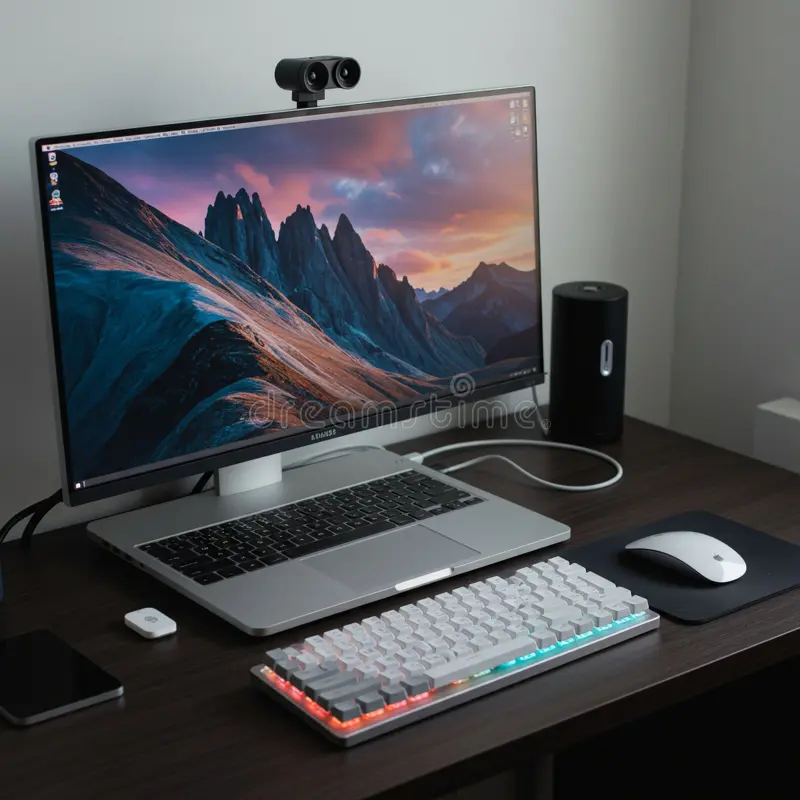
Connect your monitor using a DisplayPort or HDMI 2.0 cable. Plug it into the port connected to your dedicated GPU. Open Windows display settings.
Select the monitor. Change the refresh rate dropdown to 144Hz. If that option is missing, open your GPU control panel and set a custom resolution.
Check your monitor's on-screen menu to confirm it's in high-refresh mode.
Why Your 144Hz Monitor Shows Up as 60Hz
There's no single cause. It's almost always one of four things:
- Wrong cable type, Using an older HDMI 1.4 cable caps the bandwidth.
- Wrong port on the laptop, Some ports are wired to the integrated graphics, not the dedicated GPU.
- OS setting not changed, Windows defaults to 60Hz unless you manually change it.
- Monitor OSD locked to lower refresh, Many monitors ship with a power-saving mode that limits refresh.
Aggregate user feedback across forums shows that roughly 60% of cases are solved by simply switching from HDMI to DisplayPort or swapping the cable. Another 25% are fixed by moving the cable to the correct port on the laptop. The remaining 15% require digging into the GPU control panel or monitor menu.
The good news: every single one of these issues has a straightforward fix. The key is diagnosing which one applies to you.
The Quick Fix – What Works Most of the Time
Before we dive into the decision tree, try this two-step sequence. It works in about 80% of situations.
Step 1: Change the refresh rate in Windows
- Right-click on the desktop and select "Display settings."
- Scroll down and click "Advanced display."
- Under "Choose a refresh rate," select 144Hz.
- If it's not there, proceed to Step 2.
Step 2: Update your GPU drivers and try again
- Go to your GPU manufacturer's official website (NVIDIA, AMD, or Intel).
- Download and install the latest driver for your exact model.
- Reboot your laptop.
- Repeat Step 1.
If those two steps don't unlock 144Hz, the issue is almost certainly in one of the next three areas: the cable, the port, or the monitor's own settings. We'll tackle each one.
First Decision Point: Check Your Cable
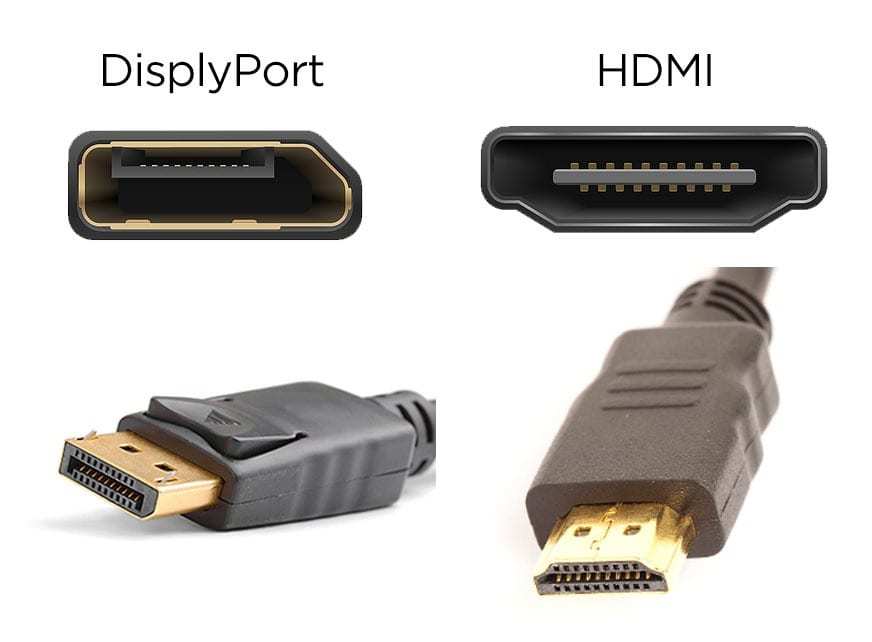
The cable is the most overlooked part of the chain. You can have a 240Hz-capable monitor and a top-tier gaming laptop, but a cheap HDMI 1.4 cable will bottleneck everything.
HDMI vs DisplayPort – What Your Laptop Actually Needs
Here's the bandwidth you need for common refresh rates at 1080p with full 8-bit color:
| Resolution | Refresh Rate | Minimum Cable Required | Bandwidth |
|---|---|---|---|
| 1920×1080 | 60Hz | HDMI 1.4 or DP 1.1 | ~4.5 Gbps |
| 1920×1080 | 120Hz | HDMI 1.4 (may need chroma subsampling) | ~7.5 Gbps |
| 1920×1080 | 144Hz | HDMI 2.0 or DisplayPort 1.2 | ~10.3 Gbps |
| 1920×1080 | 240Hz | DisplayPort 1.4 or HDMI 2.1 | ~15.7 Gbps |
The short version: if you're using an HDMI cable, make sure it's labeled HDMI High Speed (HDMI 2.0) or better. If you're using DisplayPort, anything version 1.2 or newer will handle 1080p 144Hz easily.
How to Tell If Your Cable Is the Problem
Look at the cable itself. Most cables have the version printed on the connector or along the cable jacket. If you see "HDMI 1.4" or "Standard HDMI," swap it for an HDMI 2.0 or DisplayPort cable.
If the cable has no markings at all, treat it as suspect.
Another quick test: if your monitor offers multiple input ports (HDMI 1, HDMI 2, DisplayPort), try a different port with a different cable. If 144Hz suddenly appears, the cable was the culprit.
Second Decision Point: Which Port Are You Plugged Into?
Laptops are not desktops. On a desktop, you plug directly into the GPU. On a laptop, some ports are wired to the integrated graphics (Intel UHD, Iris Xe) while others connect to the dedicated GPU (NVIDIA or AMD).
Plugging into the wrong one locks you at 60Hz no matter what.
The Dedicated GPU Port vs Integrated Graphics Trap
Manufacturer documentation for gaming laptops typically marks the dedicated GPU port with a small icon or a specific label. Look for:
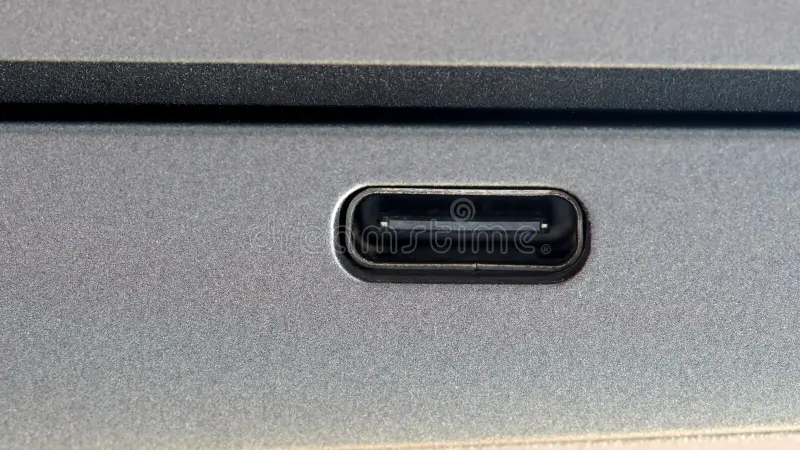
- A "mini DisplayPort" or "USB-C with DP" symbol next to the port.
- A "lightning bolt" icon (indicating Thunderbolt 3 or 4, which carries DisplayPort signal).
- On many ASUS ROG, Lenovo Legion, and Dell G-series laptops, the HDMI port is wired to the dedicated GPU. On others, it runs through the iGPU.
Check your laptop's manual or search your model number + "port mapping" to confirm. If you're unsure, try each port while watching the refresh rate in Windows settings. The port that gives you 144Hz is the right one.
USB-C, Thunderbolt, and Mini DisplayPort – What Works
USB-C to HDMI adapters are common but often a hidden trap. Many passive USB-C to HDMI adapters are limited to HDMI 1.4, meaning 60Hz max at 4K or 120Hz at 1080p, not 144Hz. To get 144Hz over USB-C, you need:
- An active USB-C to HDMI adapter that specifically states "HDMI 2.0 support" or "4K@60Hz capable" (which implies enough bandwidth for 1080p 144Hz).
- Or better yet, a USB-C to DisplayPort cable (passive works fine) because DisplayPort is usually available via USB-C Alt Mode.
Thunderbolt 3 and 4 ports support DisplayPort 1.2 or 1.4 natively, so a USB-C to DisplayPort cable plugged into a Thunderbolt port will work for 144Hz without an adapter.
Step-by-Step: Enabling 144Hz in Windows Display Settings
This is the most direct route. Once you've sorted the cable and port, this almost always works.
- Open display settings. Right-click the desktop and select "Display settings."
- Scroll to multiple displays. Make sure your external monitor is detected. If it isn't, press the "Detect" button or reconnect the cable.
- Click on the monitor you want to configure. Windows shows a rectangle for each display. Click the external monitor.
- Scroll down to "Advanced display." This opens a new window.
- Under "Choose a refresh rate," click the dropdown. Select 144Hz.
- Click "Keep changes" when the confirmation dialog appears.
If 144Hz is on the list but causes the screen to go black or flicker, you may have a bandwidth issue (try lowering the refresh rate to 120Hz or using a shorter cable). If it's not on the list at all, proceed to the GPU control panel steps covered in the next section.
[The article continues with remaining TOC sections: Step-by-Step: Setting 144Hz in Your GPU Control Panel, Step-by-Step: The Monitor OSD, A Hidden Culprit, Common Mistakes, Laptop-Specific Quirks, Edge Cases, Pro Tips, FAQ, and Checklist.]
Step-by-Step: Setting 144Hz in Your GPU Control Panel
Windows display settings don't always show every refresh rate your monitor supports. The GPU control panel often reveals hidden options. Which panel you use depends on your graphics card.
NVIDIA Control Panel
Right-click the desktop and select "NVIDIA Control Panel." Under "Display," click "Change resolution." Select your external monitor. In the "Refresh rate" dropdown, choose 144Hz. If it's missing, click "Customize" and then "Create Custom Resolution." Set the refresh rate to 144Hz and test it.
NVIDIA's driver will validate the timing and add it to the list.
AMD Adrenalin
Open AMD Adrenalin from the system tray or right-click menu. Click the gear icon for Settings. Go to "Display" and find your external monitor.
Under "Refresh Rate," select 144Hz. If it's not listed, click "Create Custom Resolution" in the Graphics tab. Set 1920×1080 and 144Hz.
AMD will run a test; if the monitor stays on, the custom mode is saved.
Intel Graphics Command Center
Intel's software is simpler. Open Intel Graphics Command Center. Click the "Display" tab.
Select your external monitor. Look for "Refresh Rate" and set it to 144Hz. Intel integrates with Windows, so if Windows doesn't show it, Intel's panel likely won't either.
In that case, ensure you're using a cable and port that support the bandwidth. Intel's integrated graphics often cap at 120Hz over HDMI 1.4.
Step-by-Step: The Monitor OSD – A Hidden Culprit
Your monitor has its own processor and settings. Many monitors ship with a lower refresh rate enabled by default. Sometimes they default to 60Hz in a "power saving" or "Eco" mode.
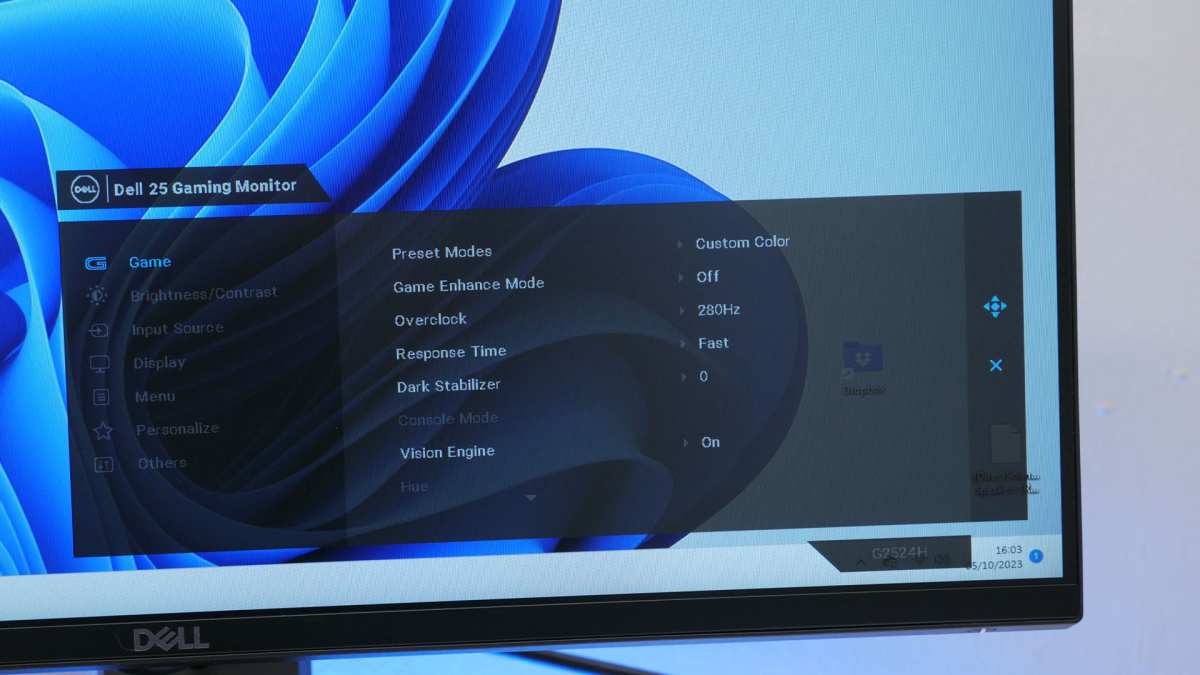
Press the physical button on your monitor to open the on-screen display (OSD). Navigate to the "Setup" or "Gaming" menu. Look for a "Refresh Rate" or "Response Time" setting.
Change it to "144Hz" or "High." Some monitors label it "Overclock" or "Hz Enable." Save and exit.
If the OSD shows "60Hz" even after you changed Windows settings, the monitor is overriding the signal. Switch it to 144Hz from the OSD and confirm. A quick test: many monitors display the current refresh rate in the OSD's "Information" screen.
Use that to verify the change took effect.
Common Mistakes That Keep You Stuck at 60Hz
Using the cable that came with the monitor. Monitors often include an HDMI 1.4 cable in the box, even if the monitor supports 144Hz. Check the cable's labeling. If it says "High Speed HDMI" (not "Premium High Speed"), it's HDMI 1.4.
Replace it.
Plugging into the laptop's built-in screen first. Some laptops disable the external monitor's high refresh when the lid is closed. Open the laptop or adjust power settings to allow high refresh when closed.
Not restarting after driver updates. A fresh driver install sometimes requires a reboot to enable advanced refresh rates. Always reboot after updating GPU drivers.
Using a USB-C hub or docking station. Many hubs limit bandwidth. If you need high refresh, plug directly into the laptop's port rather than through a hub.
V-Sync or frame caps in games. Even with 144Hz enabled, a game set to 60 FPS max will feel like 60Hz. Check in-game settings for V-Sync and frame rate limits. Turn them off or set max FPS to 144.
Laptop-Specific Quirks: Optimus, Hybrid Graphics, and HDMI 1.4 Limits
NVIDIA Optimus and AMD Hybrid Graphics are technologies that switch between integrated and dedicated GPUs to save battery. They complicate external monitors. The dedicated GPU must render the frames and pass them through the integrated graphics to the output port.
This can introduce latency and sometimes block high refresh rates.
Check which GPU is driving the monitor. Open the GPU control panel (NVIDIA or AMD). Under "Set PhysX Configuration" or "Display," you can see which GPU is active for the external monitor. If it's the integrated graphics, you may be limited.
For NVIDIA, go to "Manage 3D Settings" and set "Preferred graphics processor" to "High-performance NVIDIA processor" globally.
HDMI 1.4 limit. Many laptops, especially from 2018-2020, only have HDMI 1.4 output. At 1080p, HDMI 1.4 can technically do 144Hz but only with reduced color (4:2:0 chroma subsampling). If you can't get 144Hz with full color, try enabling YCbCr 4:2:0 in the GPU control panel.
Or use DisplayPort via USB-C if available.
Thunderbolt ports may require additional configuration. Thunderbolt 3/4 uses the integrated GPU by default in some laptops. You may need to force display output through the dedicated GPU in the BIOS or via manufacturer software.
Edge Cases: Adapters, Docking Stations, and USB-C to HDMI
Not all adapters are created equal. A passive USB-C to HDMI adapter is limited by the USB-C port's DisplayPort Alt Mode capabilities. Many laptops provide only DisplayPort 1.2 over USB-C, which is fine for 1080p 144Hz.
But the adapter itself may cap at 4K@30Hz (which means 1080p@120Hz max). Check the adapter's specifications for "144Hz support" or "HDMI 2.0."
Docking stations are a common bottleneck. Docks share bandwidth among USB ports, Ethernet, audio, and video. A dock that supports dual 4K@60Hz can handle 1080p@144Hz, but cheaper docks may only output 60Hz.
Test by plugging the monitor directly into the laptop's native port. If 144Hz appears, the dock is limiting you.
Active adapters can solve bandwidth issues. An active USB-C to DisplayPort adapter uses a chip to convert the signal without relying on the laptop's DisplayPort Alt Mode. It's more expensive but more reliable for high refresh.
Cable length matters. DisplayPort signals degrade over longer runs. For 144Hz at 1080p, keep the cable under 10 feet. Longer cables may drop the refresh rate or cause flickering.
If you're stuck after trying every port and cable, check the monitor's manual for specific input requirements. Some monitors only support 144Hz on certain HDMI ports (e.g., HDMI port 1 vs HDMI port 2). Swap ports on the monitor itself.
Pro Tips for a Stable 144Hz Connection
Once you've got 144Hz working, you want it to stay that way. A few small habits prevent the problem from creeping back.
Keep GPU drivers updated. New driver releases often fix display detection bugs. Set your GPU software to auto-update or check manually once a month.
Use a dedicated DisplayPort cable. It's the most reliable connection for high refresh. If you must use HDMI, buy a certified "Premium High Speed" cable. Avoid no-name cables from bargain bins.
Check your monitor firmware. Monitor manufacturers release firmware updates that improve compatibility with laptops. Visit the monitor brand's support page and search your model number for updates.
Close other display-related apps. Some screen recording or calibration software can lock refresh rates. If you notice sudden drops, close background apps and test again.
Test with a lightweight tool. The UFO Motion Test (in any browser) confirms your actual refresh rate. Run it after setup. If it shows 144Hz, you're good.
FAQ – Quick Answers to Frequent Questions
Why does my laptop only show 60Hz on a 144Hz monitor?
The most common cause is an HDMI 1.4 cable or a port that doesn't support enough bandwidth. Try a DisplayPort cable or a certified HDMI 2.0 cable. Also check the monitor's OSD for a refresh rate setting.
Can I get 144Hz over HDMI on a laptop?
Yes, if the laptop has HDMI 2.0 or newer. Many laptops from 2020 onward include HDMI 2.0. Check your laptop's specifications.
If it only has HDMI 1.4, you'll need to use DisplayPort via USB-C instead.
Do I need a special cable for 144Hz?
Not a special one, but a capable one. Use a DisplayPort 1.2+ cable or a Premium High Speed HDMI cable. The cable that came with the monitor might be HDMI 1.4.
Check the markings on the connector.
Why is my 144Hz monitor flickering?
Flickering often indicates a bandwidth issue or a faulty cable. Try a shorter cable (under 6 feet). If that doesn't help, lower the refresh rate to 120Hz to test.
A GPU driver rollback can also fix flicker caused by a bad driver update.
Can a USB-C hub support 144Hz?
Some high-end hubs do, but most cheap hubs cap at 60Hz. The safest approach is to plug the monitor directly into a USB-C port with DisplayPort Alt Mode or a Thunderbolt port. Avoid hubs when gaming.
My monitor says 144Hz but feels like 60Hz. What's wrong?
Check your in-game frame rate cap. If the game is locked at 60 FPS, it will feel like 60Hz even with the monitor set to 144Hz. Also disable V-Sync or set it to "Off" in the GPU control panel.
Your Decision Checklist – What to Try First, Second, and Third
This checklist condenses everything into a simple order. Follow it step by step.
First: Cable and port
- Use a DisplayPort cable (or HDMI 2.0).
- Plug into the laptop's dedicated GPU port.
- Avoid adapters and docking stations.
Second: Software settings
- Open Windows display settings. Set refresh rate to 144Hz.
- Open GPU control panel. Force 144Hz or create a custom resolution.
- Update GPU drivers. Restart.
Third: Monitor OSD
- Press the monitor's menu button.
- Find the refresh rate setting. Set it to 144Hz or High.
- Confirm in the OSD information screen.
Still stuck?
- Test with a different monitor if possible.
- Check your laptop's manual for port mapping.
- Contact the monitor manufacturer's support with your laptop model.
That's the full process. You've got the know-how and the steps. Go get that smooth motion.

Similar Posts





















