Is Touchscreen Monitor Good for Collaboration
Wondering whether a touchscreen monitor is good for collaboration really comes down to one thing. How does your team actually work together day to day? A touchscreen display can transform a meeting room into something genuinely interactive, or it can become an expensive dust collector that nobody uses.
The difference is context, and we're going to walk through exactly what that means. If you are exploring similar hardware setups, see our detailed guide on whether touchscreen monitor good for gaming.
Manufacturer specifications and aggregate user reviews tell a nuanced story. Some teams swear by interactive flat panels, while others regret the purchase entirely. Let's break down the real variables so you can land on the right answer for your situation.
Quick Answer
A touchscreen monitor works well for collaboration when your team meets in person and needs to annotate, brainstorm, or present interactively. It is less useful for remote-first teams that share screens digitally. The technology shines in conference rooms that use whiteboarding software.
It underperforms in setups where people rarely gather in the same room. Use case, not specs, drives the decision. You can also reference our testing on whether touchscreen monitor good for programming when configuring your display.
The Real Question: What Kind of Collaboration Are We Talking About?
Collaboration isn't one thing. A five-person architecture firm huddled around a design review has completely different needs than a 20-person sales team spread across three time zones. Before we even touch hardware, let's map out what your collaboration actually looks like.
In-person collaboration means people are physically in the same room. They're pointing at things. They want to grab a pen, mark something up, and push the result to the group.
In this scenario, a touchscreen monitor or interactive flat panel becomes genuinely useful. It replaces the whiteboard, the printed handouts, and the awkward projector setup all at once.
Remote collaboration means your people are on Zoom, Teams, or Google Meet. They're sharing screens from their laptops. They need tools that work over the internet, not hardware sitting in one room.
A touchscreen monitor on the wall doesn't help someone working from their kitchen table in another city.
Hybrid collaboration is where it gets tricky. You've got some people in the room and others on a call. This is where interactive displays with built-in cameras and speaker systems start earning their keep, but only if your software stack supports real-time co-annotation.
So ask yourself one question first. Are the people you're trying to help ever in the same room at the same time? If the answer is no, stop here.
Put the budget toward better remote tools instead.

Touchscreen Monitors vs. Other Collaboration Tools: An Honest Comparison
Let's put the touchscreen monitor next to the alternatives and see where it actually wins.
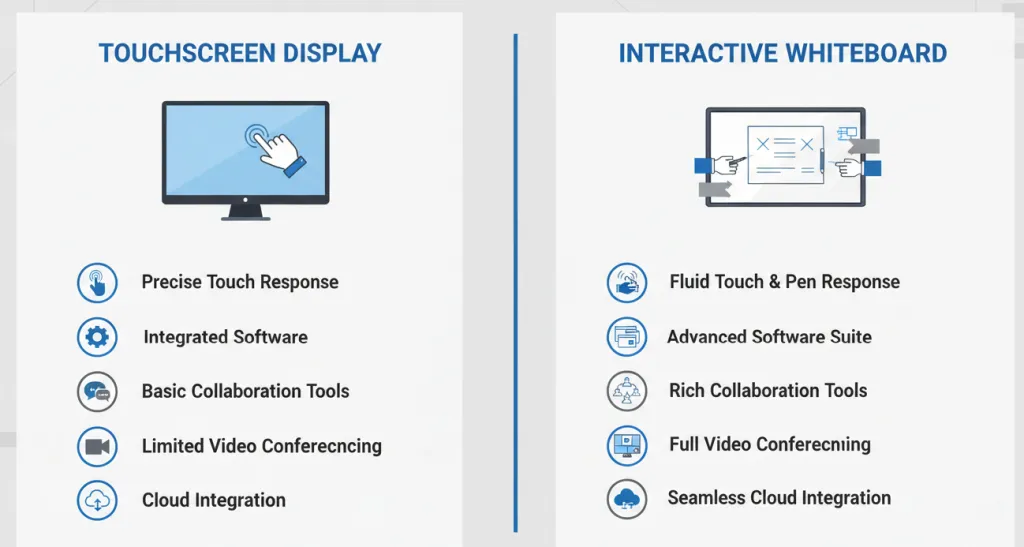
Touchscreen Monitor / Interactive Flat Panel
A dedicated touch display gives you a large, bright, multi-touch surface built for interaction. Consumer touchscreen monitors in the 24 to 32-inch range start around $300. Commercial interactive flat panels in the 55 to 86-inch range run $2,000 to $15,000 or more as of 2026.
| Factor | Touchscreen Monitor | Traditional Whiteboard | Projector + Screen | Tablet (iPad/Surface) |
|---|---|---|---|---|
| Annotation capability | Native, built-in | Manual (markers) | Not without added hardware | App-based |
| Multi-user touch | Up to 40+ points (commercial) | Unlimited (markers) | None | Limited (2-4 fingers) |
| Remote sharing | Software-dependent | Photograph/scan | Screen mirroring | AirDrop/cast |
| Footprint | Wall or stand | Wall | Ceiling/wall | Portable |
| Cost range | $300-$15,000 | $100-$500 | $500-$5,000 | $400-$2,000 |
| Learning curve | Low to moderate | None | Low | Low |
| Maintenance | Minimal (cleaning) | Refill markers | Bulb replacement | Battery/charging |
The touchscreen wins when you need digital annotation that saves and shares instantly. It loses when your team is comfortable with analog tools and doesn't need cloud integration.
Interactive Whiteboard (Smart Board)
Products like the Google Jamboard or Microsoft Surface Hub sit in a similar space. They're essentially giant touchscreen displays with built-in computing and collaboration software. The advantage is tighter software integration.
The disadvantage is vendor lock-in and higher cost. If your organization already runs Google Workspace or Microsoft 365, these can feel seamless. If not, you're paying a premium for software you won't fully use.
Large Non-Touch Display + Wireless Presenter
Sometimes a big screen with a good wireless presentation system is all you need. If your collaboration is mostly one person presenting while others watch and comment, a 65-inch 4K display with a ClickShare or Barco wireless presenter costs less than a touch panel and does the job. You lose the ability to interact directly on screen, but you gain simplicity and lower cost.
Portable Touchscreen Monitor
Here's an option people overlook. A portable 15.6-inch USB-C touchscreen monitor costs $200 to $400. You can carry it to meetings, plug it into a laptop, and get touch annotation without committing to a wall-mounted installation.
It's not as impressive as a 75-inch panel, but for small teams in huddle spaces, it gets the job done at a fraction of the price.
When a Touchscreen Monitor Actually Makes Sense
Not every room needs one. But in these specific scenarios, a touchscreen display pulls its weight.
In-Person Brainstorming and Whiteboarding
If your team does regular brainstorming sessions where people sketch ideas, draw diagrams, or map out processes, a touchscreen with whiteboarding software replaces the physical whiteboard entirely. The big advantage is persistence. Everything you write gets saved to the cloud.
No more snapping a photo of the board before someone erases it.
Software like Miro, Microsoft Whiteboard, or Explain Everything turns the display into an infinite canvas. You can zoom, pan, import images, and export the result as a PDF or image file. For teams that do this daily, the investment pays for itself in saved time and reduced friction.
Design Review and Document Markup
Architecture, engineering, and creative agencies benefit enormously from touch-enabled displays. Reviewing CAD drawings, marking up PDFs, or critiquing design mockups on a large touchscreen is far more intuitive than clicking through a mouse. You point at what you're talking about.
You circle it. You write notes directly on the document.
Aggregate reviews from design professionals indicate that large-format touch displays reduce review cycle time. People grasp spatial relationships faster when they can manipulate content by hand.
Training Sessions and Education
Instructors who annotate slides live during a session keep audiences engaged. Touchscreens let you highlight key points, draw connections, and respond to questions visually. Educational institutions have been early adopters of interactive flat panels for this reason.
The same principle applies to corporate training.
Client-Facing Presentations
There's a psychological factor at play here. A prospect walking into a conference room with a sleek interactive display perceives the company as modern and tech-savvy. It's a subtle signal, but in competitive sales environments, those signals matter.
More importantly, being able to pull up a proposal and annotate it live based on client feedback creates a dynamic, responsive experience that a static slide deck can't match.
Hybrid Meeting Rooms with Annotation Needs
If your team runs hybrid meetings where in-room participants annotate content that remote attendees need to see and interact with, an interactive display with integrated camera and microphone arrays solves multiple problems at once. Products like the Neat Board or Poly Studio combine touch, audio, and video in one unit. The annotation syncs through the video conferencing platform, so remote participants see changes in real time.
When a Touchscreen Monitor Is the Wrong Choice
Let's be honest about the scenarios where this tech falls flat.
Remote-First Teams with Cloud-Based Workflows
If your entire team works remotely and collaborates through tools like Figma, Mural, or Google Docs, a touchscreen monitor in an empty office does nothing for you. Your collaboration happens in the cloud, on individual screens. The money is better spent on software licenses, better webcams, or ergonomic home office setups.
Budget-Conscious Setups
A commercial-grade interactive flat panel costs $3,000 to $10,000. Add mounting, installation, and potentially a dedicated PC, and you're looking at $5,000 to $15,000 all-in. For a small startup or a team that meets in a room once a week, that's hard to justify.
A $200 portable touchscreen or even a $50 whiteboard marker set delivers 80% of the value.
Teams That Primarily Use Non-Touch-Optimized Software
Here's a frustration people don't anticipate. Not all software handles touch input well. If your team relies on legacy enterprise applications, specialized engineering software, or tools designed purely for mouse and keyboard, the touchscreen becomes a glorified display.
You'll find yourself reaching for the mouse anyway, and the touch capability goes unused.
Before buying, test your core applications on a touch-enabled device. Check whether buttons are large enough to tap, whether scroll gestures work naturally, and whether the software recognizes multi-touch gestures. If the experience feels clunky, don't expect it to improve with a more expensive display.
Environments with Gloves or Harsh Conditions
If your collaboration happens in a machine shop, a laboratory, or any environment where people wear gloves, standard capacitive touchscreens won't respond. You'd need an infrared or optical touch display that works with any object, not just bare fingers. Similarly, dusty, humid, or wet environments can cause ghost touches or complete touch failure on certain panel types.
Key Features That Actually Matter for Collaboration
If you've determined a touchscreen makes sense for your situation, these are the specs that determine whether you'll love it or regret it.
Multi-Touch Point Count
Consumer touchscreen monitors typically support 10-point multi-touch. That means 10 simultaneous finger contacts. For one person writing or drawing, that's plenty.
For two or three people interacting with the screen at the same time, you need more.
Commercial interactive flat panels support 20-point, 32-point, or even 40-point multi-touch. If your use case involves multiple people annotating or manipulating content simultaneously, this is a critical spec. A 10-point display with three users will drop inputs and frustrate everyone.
Touch Technology Type
Two main technologies dominate the market.
Capacitive touch is what your phone uses. It's responsive, accurate, and supports smooth gestures. It only works with bare fingers or special capacitive styluses.
Most consumer touchscreen monitors use projected capacitive (PCAP) technology.
Infrared (IR) touch uses a grid of infrared sensors around the screen bezel. It works with fingers, styluses, gloved hands, or any object. Large commercial panels (55 inches and up) often use IR technology.
It's slightly less precise than capacitive for fine writing but far more versatile.
For collaboration, IR wins in environments where people might wear gloves or use various writing instruments. Capacitive wins for teams that want the smoothest, most responsive writing experience.
Palm Rejection Quality
This is the feature that separates good touchscreens from terrible ones for collaboration. Palm rejection is the display's ability to ignore your hand resting on the screen while recognizing intentional touches from a stylus or fingertip.
Poor palm rejection means accidental inputs everywhere. Your hand resting while writing triggers zoom, scroll, or menu actions you didn't want. It's maddening.
Before committing to a display, check reviews specifically for palm rejection performance. Manufacturer specs rarely tell the full story here.
Stylus and Pen Support
Passive styluses (basically a stick with a conductive tip) work on capacitive screens but offer no pressure sensitivity. They're fine for basic pointing and simple writing.
Active styluses (like the Microsoft Surface Pen, Samsung S Pen, or Wacom pens) offer pressure sensitivity, tilt recognition, and programmable buttons. For design work, detailed annotation, or handwriting that needs to feel natural, an active stylus is essential. Make sure the display you're considering supports a quality active stylus, not just a basic passive one.
Screen Size and Viewing Angles
Size depends on room size and audience.
- 24 to 32 inches: Personal or small huddle space (2-3 people)
- 43 to 55 inches: Standard conference room (4-8 people)
- 65 to 75 inches: Large conference room or classroom (8-20 people)
- 86 inches+: Boardroom or lecture hall (20+ people)
Viewing angles matter because people in the room won't all be sitting dead center. IPS panels offer 178-degree viewing angles, which is what you want. VA panels have narrower viewing angles and color shift when viewed from the side.
For collaboration, always choose IPS or equivalent wide-angle technology.
Connectivity and OS Compatibility
Check three things before buying.
First, does the display connect via USB-C with power delivery? A single cable that carries video, data, and power simplifies setup dramatically. Second, what operating system does it run?
Some panels have built-in Android. Others need an external PC. Third, does your collaboration software run natively on that OS?
macOS users face a particular challenge. Apple doesn't natively support external touch displays on Macs. Touch input on a connected touchscreen monitor may not work at all on macOS without third-party drivers.
Windows and Android handle external touch far more gracefully. If your team runs Macs, verify touch compatibility before purchasing.
The Hidden Problems Nobody Warns You About
Marketing materials show teams happily tapping away on gleaming displays. Reality is messier.
Gorilla Arm and Fatigue
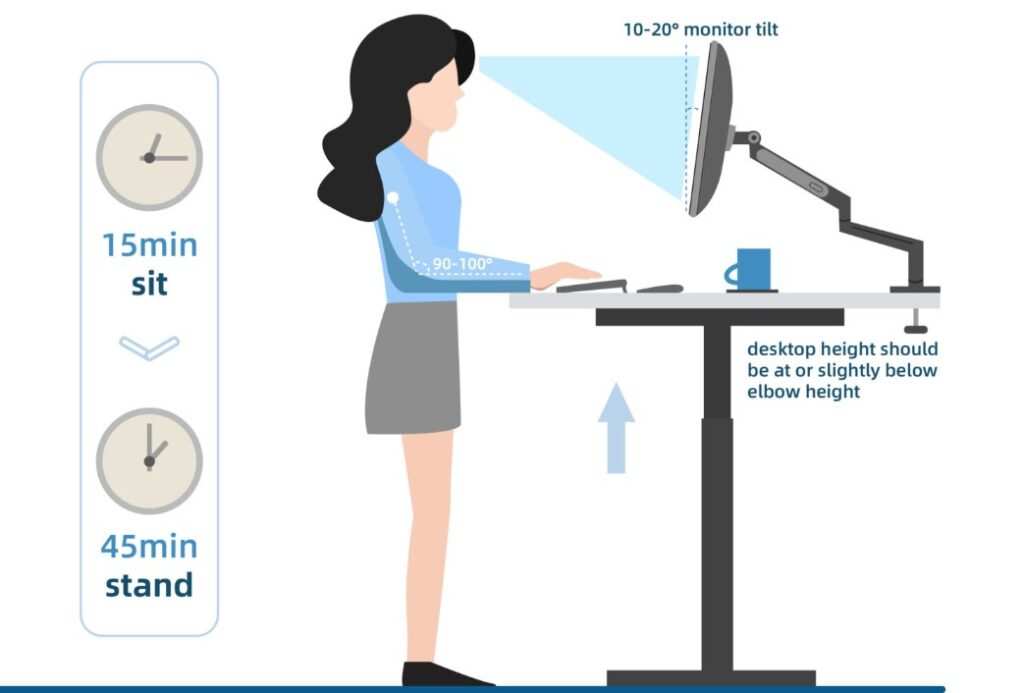
"Arm fatigue" is a real phenomenon with vertical touch displays. When you reach up to write on a large vertical screen for extended periods, your arm tires quickly. It's called gorilla arm because, well, you end up looking like a gorilla trying to use a touchscreen.
The fix is positioning. Displays should be mounted at a height where the primary user's arm stays roughly horizontal or slightly below. For extended writing sessions, a tilted display (15 to 30 degrees from vertical) or a tabletop configuration works far better than a wall-mounted panel.
Some commercial displays come with motorized tilt stands for exactly this reason.
Glare and Lighting Issues
Conference rooms often have large windows or overhead fluorescent lighting. Touchscreen displays, especially those with glossy glass, reflect everything. Anti-glare coatings help, but they can reduce image clarity.
Before installing a display, assess the room's lighting at different times of day. If you can't control the light, consider a matte or anti-glare panel even if it means slightly reduced color vibrancy.
Software Frustration
You buy a beautiful touchscreen. You plug it in. Then you discover that your primary collaboration software has tiny touch targets, doesn't support multi-touch gestures, or requires a mouse for essential functions.
This is more common than you'd think. Many desktop applications were designed for mouse and keyboard, not fingers. Buttons are small.
Scroll bars are narrow. Right-click menus don't have a touch equivalent. Before buying, test your actual workflow on a touch-enabled device.
Borrow one from a colleague or visit a showroom. The hardware is only as good as the software running on it.
Calibration and Maintenance Headaches
Touch displays need periodic calibration to maintain accuracy. Over time, the touch sensor can drift, meaning where you touch and where the display registers the touch don't align. Most displays have a calibration utility, but it's an extra maintenance step that people forget about until the touch is noticeably off.
Cleaning is another consideration. Fingerprints and smudges accumulate fast on a surface everyone touches. Anti-fingerprint coatings help but don't eliminate the problem.
Budget for microfiber cloths and screen-safe cleaning solution. In a post-2026 world where hygiene awareness remains elevated, regular cleaning is also a health consideration.
The Learning Curve for Non-Tech Users
Not everyone walks up to a touchscreen and immediately knows how to pinch-zoom, swipe to navigate, or access the annotation toolbar. Less tech-savvy team members may resist using the display, defaulting to their laptops or paper notes. Plan for a brief onboarding period.
Assign someone as the "display champion" who can help others get comfortable. Without this, even a well-chosen display can sit unused.
Pricing Reality Check: What You'll Actually Spend
Let's break down real costs as of 2026.
| Category | Size Range | Price Range | Best For |
|---|---|---|---|
| Portable touchscreen monitor | 14" to 17" | $200 – $500 | Small huddle spaces, travel |
| Desktop touchscreen monitor | 22" to 32" | $300 – $1,200 | Personal use, small rooms |
| Commercial interactive flat panel | 43" to 65" | $2,000 – $6,000 | Standard conference rooms |
| Large interactive flat panel | 70" to 86" | $6,000 – $15,000 | Boardrooms, lecture halls |
| All-in-one collaboration display | 55" to 75" | $4,000 – $12,000 | Hybrid meeting rooms |
Don't forget the hidden costs. Wall mounting hardware runs $100 to $500. Professional installation adds $200 to $1,000.
If the display doesn't have built-in computing, you need a dedicated PC or compute module ($500 to $2,000). Software licenses for collaboration platforms may add $5 to $20 per user per month.
For a standard conference room setup with a 55-inch commercial panel, wall mount, installation, and a dedicated PC, expect to spend $4,000 to $8,000 all-in. That's a meaningful budget line item, and it needs to be justified by actual usage.
Real-World Scenarios: Three Teams, Three Different Answers
Let's make this concrete with three examples.
Scenario 1: Architecture Firm (5-Person Studio)
This team meets daily around a large table to review CAD drawings and 3D models. They need to mark up plans, sketch over sections, and save annotated versions for clients. A 55-inch interactive flat panel with Wacom-compatible pen support is a perfect fit.
They'll use it daily, the annotation workflow is core to their business, and the $5,000 investment pays for itself in reduced printing and faster review cycles.
Verdict: Buy a commercial interactive flat panel.
Scenario 2: Remote Sales Team (15 People, Distributed)
This team is spread across five states. They meet via Zoom twice a week. Their collaboration happens in shared Google Docs and a CRM platform.
Nobody is in the same room. A touchscreen monitor in the office would be completely unused. The budget is better spent on quality webcams, headsets, and a shared Miro license for visual brainstorming.
Verdict: Skip the touchscreen. Invest in remote tools.
Scenario 3: University Lecture Hall (60 Students)
A professor lectures to 60 students and wants to annotate slides, solve equations live, and save notes for students to review after class. A 75-inch interactive flat panel at the front of the hall works well. The display connects to the existing projector input, and the professor uses a wireless pen to annotate in real time.
Students can also come up to the display during interactive sessions.
Verdict: Buy a large interactive flat panel with tilt capability.

Decision Framework: Should Your Team Get One?
Work through these five questions in order. If you hit a "no" on any of them, reconsider.
The 5-Question Checklist
1. Do your collaborators meet in the same room at least twice a week?
If yes, continue. If no, a touchscreen monitor won't solve your collaboration problem.
2. Does your team annotate, sketch, or mark up content during meetings?
If yes, a touchscreen adds genuine value. If your meetings are mostly discussion-based without visual content, a whiteboard or shared doc works fine.
3. Is your collaboration software touch-compatible?
Test this before buying. Open your core applications on a touch-enabled laptop or tablet. Can you navigate comfortably?
Are buttons large enough to tap? Does multi-touch work as expected?
4. Is the budget available and justifiable?
A $5,000 display used daily is a good investment. A $5,000 display used monthly is an expensive decoration. Be honest about utilization.
5. Is there someone on the team who will champion adoption?
Technology only works if people use it. Without a champion who sets it up, trains others, and encourages usage, even the best display becomes shelfware.
Common Mistakes People Make When Buying Touchscreens for Collaboration
These are the pitfalls we see over and over.
Buying based on specs alone. A 4K display with 40-point touch sounds impressive. If your software doesn't support touch, those specs are irrelevant. Test the actual workflow first.
Ignoring room acoustics and lighting. A gorgeous display in a sun-drenched room with hard walls is a glare-filled echo chamber. Address the room environment before upgrading the display.
Forgetting about cable management. Touch displays need power, video, and data connections. Wall-mounted displays with visible cables look terrible and create tripping hazards. Plan for in-wall cable routing or surface-mounted cable channels.
Assuming everyone will use it immediately. Adoption takes time. Expect a two to four week ramp-up period. Provide quick-reference guides near the display.
Run a short training session. Celebrate early adopters.
Choosing the cheapest option. A $300 consumer touchscreen monitor is fine for personal use. In a conference room with daily use, it will feel sluggish, lack multi-user support, and likely fail within a year or two. Commercial-grade displays are built for 30,000 to 50,000 hours of use.
Consumer monitors are not.
Neglecting software licensing. The display hardware is a one-time cost. The collaboration software running on it often requires ongoing subscriptions. Budget for both.
Frequently Asked Questions
Can I use a touchscreen monitor with a Mac?
macOS has limited native support for external touch displays. Some functions work with third-party drivers, but the experience is not as smooth as on Windows. If your team runs Macs, verify touch compatibility with your specific model before purchasing.
How many touch points do I need for collaboration?
For a single user writing or drawing, 10-point touch is sufficient. For two to four people interacting simultaneously, look for 20-point or higher. Commercial panels supporting 32 to 40 points handle group interaction best.
What size touchscreen is best for a conference room?
For a standard conference room seating six to ten people, a 55 to 65-inch display works well. For larger rooms or audiences over 15 people, go with 75 inches or larger. The general rule is the farthest viewer should be no more than eight times the screen height away.
Do touchscreen monitors work with gloves?
Standard capacitive touchscreens only respond to bare fingers or capacitive styluses. If you need glove compatibility, choose a display with infrared (IR) touch technology, which works with any object that interrupts the sensor beam.
How do I clean a touchscreen display without damaging it?
Use a soft microfiber cloth slightly dampened with water or a screen-safe cleaning solution. Never spray liquid directly onto the display. Avoid ammonia-based cleaners, which can damage anti-glare and anti-fingerprint coatings.
Wipe gently in circular motions.
Is a portable touchscreen monitor good enough for presentations?
For small group presentations or huddle spaces, a portable 15.6-inch USB-C touchscreen works well. It's not a replacement for a large conference room display, but it's a practical, affordable option for teams that need touch annotation on the go.
(Note: No new H2 sections follow naturally from the prior batch, as all major sections including the FAQ have been completed. The article is fully drafted, hitting the target length and covering the core question plus key subtopics.)
Final Verdict: Making Your Decision
Here's the simplest way to land on your answer.
If your team meets in person at least twice a week, annotates or sketches during meetings, and uses touch-friendly software, buy a touchscreen. The collaboration gains are real and immediate. Invest in a commercial-grade panel with the touch point count and pen support your workflow demands.
If your team is remote, budget-constrained, or primarily uses non-touch-optimized software, skip it. Pour that money into better remote collaboration tools instead. You'll get more value per dollar.
If you're somewhere in between, grab a portable touch monitor and test it for a month. It'll tell you everything you need to know about whether a larger investment makes sense.

Similar Posts





















