How to Know If My PC Supports 4K Monitor
Figuring out how to know if my PC supports a 4K monitor isn't as straightforward as you'd think. The answer depends on three things working together: your graphics card, your output port, and your cable. Miss one and you're stuck at a blurry 1080p or staring at a screen stuck at 30Hz.
The good news is you can check all of this in about five minutes without opening your case. You just need to know what to look for. Let's walk through it.
Quick Answer
Check your GPU model first. Look up its maximum supported resolution on the manufacturer's website. Then identify which video ports your PC has (HDMI or DisplayPort).
Match the port version to your desired resolution and refresh rate. If all three line up, your PC supports 4K.
The Real Problem: Your PC Might Support 4K, But Not the Way You Think
Here's where people get tripped up. Your graphics card might technically support a 4K signal. But the port you're plugged into might not.
Or your cable might not have enough bandwidth.
You end up with a 4K monitor running at 30Hz, which feels sluggish the second you move your mouse across the desktop. Or you get 60Hz but with compressed color that makes text look fuzzy. Neither experience is what you paid for.
The fix is understanding that 4K support isn't one checkbox. It's a chain: GPU, port, cable, and monitor all need to agree on the same standard. We're going to check each link in that chain so you know exactly where you stand.
What Actually Determines 4K Support (It's Not Just One Thing)
Three components work together to make 4K happen. If any one of them falls short, you don't get the full experience. Sometimes you don't get 4K at all.
Let's break down each one so you know what to check on your specific machine.
Your GPU: The First Thing That Matters
Your graphics card (or integrated graphics processor) is where the video signal starts. Every GPU has a maximum resolution it can output, and that number has been climbing steadily for years.
Most dedicated GPUs from NVIDIA and AMD made in the last eight years support at least 3840×2160, which is the standard 4K resolution. Intel's integrated graphics started hitting that mark around the 6th-generation Core series (Skylake) and later.
But here's the catch. Supporting a 4K desktop and supporting 4K gaming are two very different things. Your Intel UHD 630 can push a 4K desktop just fine.
It's not going to run Cyberpunk 2077 at 4K with playable frame rates.
So the real question isn't just "can my GPU output 4K?" It's "can my GPU do what I want at 4K?" For office work and video playback, almost any modern GPU handles it. For gaming, you'll want at least an NVIDIA RTX 3060 or AMD RX 6700 XT for a solid experience at medium settings.
Your Port: The Bottleneck Most People Miss
This is where the chain usually breaks. Your GPU might support 4K, but the physical port on the back of your PC determines what actually makes it to the monitor.
The two ports you'll encounter are HDMI and DisplayPort. Each comes in different versions, and each version has different bandwidth limits.
Here's the breakdown:
| Port Version | Max 4K Refresh Rate | Year Introduced |
|---|---|---|
| HDMI 1.4 | 4K at 30Hz | 2009 |
| HDMI 2.0 | 4K at 60Hz | 2013 |
| HDMI 2.1 | 4K at 120Hz | 2017 |
| DisplayPort 1.2 | 4K at 60Hz | 2010 |
| DisplayPort 1.4 | 4K at 120Hz (with DSC) | 2016 |
| DisplayPort 2.0 | 4K at 240Hz | 2019 |
If your PC only has HDMI 1.4, you're capped at 4K 30Hz. That's usable for desktop work but feels noticeably laggy compared to 60Hz. For anything involving motion (gaming, video, even scrolling), 60Hz is the minimum you want.
Your Cable: The Silent Killer of 4K Setups
You'd think a cable is a cable. It's not. An old HDMI cable that came with your 2012 Blu-ray player probably can't carry a 4K 60Hz signal.
For 4K at 60Hz, you need at least a "High Speed" HDMI cable (sometimes labeled HDMI 2.0). For 4K at 120Hz, you need an "Ultra High Speed" HDMI cable certified for HDMI 2.1. DisplayPort cables have similar tiering: you need a DP 1.2-rated cable for 4K 60Hz and a DP 1.4 cable for 4K 120Hz.
The cable doesn't have a version printed on it in most cases. Look for certification labels or check the packaging. If you're unsure, buying a new certified cable costs under $10 and eliminates the guesswork.
Step-by-Step: How to Check Your PC's 4K Capability Right Now
Let's stop talking theory and actually check your system. Follow these steps in order. By the end, you'll know exactly what your PC can and can't do with a 4K monitor.
Step 1: Find Out What GPU You Actually Have
On Windows, press Ctrl + Shift + Esc to open Task Manager. Click the Performance tab. Look for "GPU 0" in the left panel.
The top-right corner shows your GPU name.
Alternatively, right-click the Start button, select Device Manager, and expand Display adapters. That lists your GPU.
If you see "Intel UHD Graphics," "Intel Iris Xe," or "AMD Radeon Graphics" without a model number, you're on integrated graphics. If you see "NVIDIA GeForce RTX" or "AMD Radeon RX" with a model number, you've got a dedicated GPU.
Write down the exact model name. You'll need it for the next step.
Step 2: Look Up Your GPU's Max Supported Resolution
Go to the manufacturer's product page for your exact GPU model.
- NVIDIA: Visit nvidia.com, search your model, and check the "Specifications" tab. Look for "Max Resolution."
- AMD: Visit amd.com, find your GPU, and check the specs for maximum resolution.
- Intel: Visit ark.intel.com and search your processor. The integrated graphics specs list the max output resolution.
Most modern GPUs list 7680×4320 (8K) or 3840×2160 (4K) as their max. If your GPU lists 3840×2160 or higher, you're good on the GPU side.
Step 3: Identify the Video Ports on Your PC
Look at the back (or sides, for laptops) of your computer. You're looking for one or more of these port types.
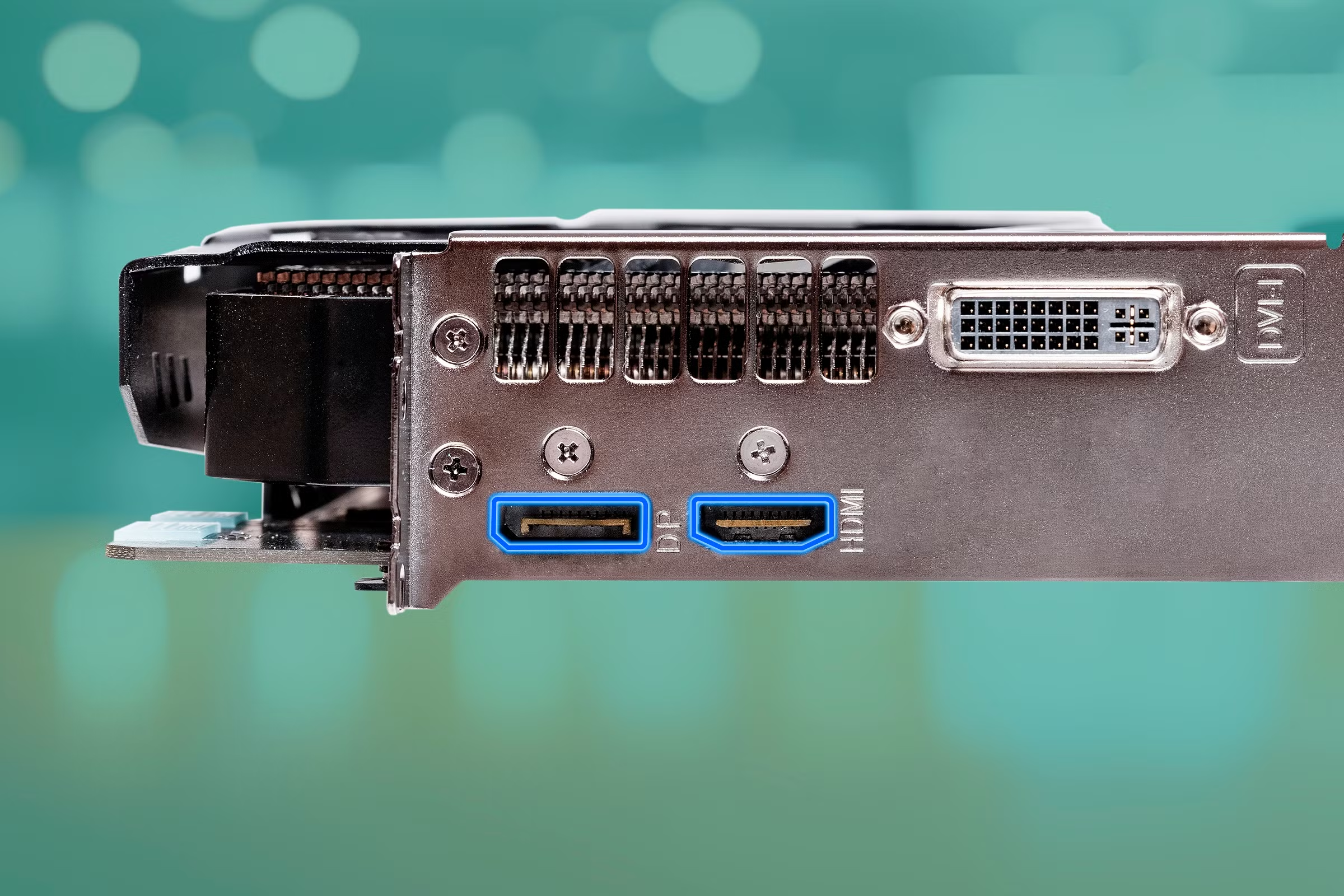
- HDMI: Trapezoid-shaped, about 14mm wide. Found on almost every PC and laptop.
- DisplayPort: Rectangular with one corner notched, about 20mm wide. Common on desktop GPUs, less common on laptops.
- USB-C with DisplayPort Alt Mode: Small oval port. Found on many modern laptops. Supports video output but check your laptop's specs to confirm.
On a desktop, the ports on the horizontal bracket (lower on the case) connect to your dedicated GPU. The ports near the top of the case (by the USB and audio jacks) connect to your motherboard's integrated graphics. If you have a dedicated GPU, always use the lower ports.
Step 4: Match Your Port Version to What You Need
This is where you cross-reference. You know your GPU supports 4K. Now you need to know which version of HDMI or DisplayPort your port supports.
For NVIDIA GPUs, open the NVIDIA Control Panel (right-click the desktop). Under "Display," click "Change resolution." The available resolutions and refresh rates listed here reflect what your GPU and connected port can handle.
For AMD GPUs, open AMD Software (right-click the desktop). The display capabilities section shows supported modes.
For Intel integrated graphics, open the Intel Graphics Command Center. The display settings list available resolutions and refresh rates.
If 3840×2160 appears in the list, your GPU and port support 4K. If it doesn't appear, either your port version is too old or your cable is the bottleneck.
Step 5: Verify Your Cable Can Handle the Bandwidth
If your GPU and port check out but you're still not getting 4K, the cable is the likely culprit.
Check the cable itself for any labeling. HDMI cables sometimes have "High Speed" or "Ultra High Speed" printed on the sheath. DisplayPort cables may have "DP 1.2" or "DP 1.4" marked.
If there's no labeling and the cable is old (more than five years), replace it. A certified Ultra High Speed HDMI cable costs $8 to $12 and supports everything up to 4K 120Hz. A certified DisplayPort 1.4 cable runs about the same.
Don't overspend. A $40 "premium" HDMI cable won't give you a better picture than a certified $10 one. The signal is digital.
It either works or it doesn't.
Step 6: Verify Your Refresh Rate in Display Settings
Once everything's connected, confirm you're actually running at the refresh rate you expect.
On Windows 10 or 11, right-click the desktop and select Display settings. Scroll down and click Advanced display. Look at the "Refresh rate" dropdown.
If you see 60Hz available, your setup is working correctly for a smooth 4K experience. If you only see 30Hz, something in the chain is limiting you. Most likely culprits: an HDMI 1.4 port, an older cable, or a monitor input that's set to an older standard.
On macOS, go to System Settings > Displays and check the refresh rate options. Macs handle this more automatically, but it's still worth verifying.
The 4K Refresh Rate Trap: Why 30Hz, 60Hz, and 120Hz Change Everything
People see "4K supported" and assume that's the whole story. It's not. The refresh rate matters just as much, and it's the most common disappointment.
At 30Hz, your mouse cursor stutters across the screen. Scrolling feels sluggish. Video playback looks fine (most content is 24 or 30 fps), but desktop use feels like you're wading through mud.
For office work, 30Hz is tolerable but not pleasant.
At 60Hz, everything smooths out. Mouse movement is fluid, scrolling is responsive, and the desktop feels normal. This is the baseline for a good 4K experience.
At 120Hz and above, you get the buttery smoothness that gamers and creative professionals love. But you need HDMI 2.1 or DisplayPort 1.4 with DSC (Display Stream Compression) to push that many pixels at that rate.
The bandwidth math is straightforward. 4K at 60Hz with 8-bit color needs about 12.5 Gbps. 4K at 120Hz needs roughly double that. HDMI 2.0 tops out at 18 Gbps, which is enough for 4K 60Hz but not 120Hz. HDMI 2.1 opens up to 48 Gbps, which handles 4K 120Hz easily.
If you're buying a 4K monitor for gaming, make sure your GPU and port can both hit the refresh rate the monitor advertises. A 144Hz 4K monitor is wasted on a system that only outputs 4K at 60Hz.
HDMI vs. DisplayPort for 4K: Which One Should You Use?
Both work. But one is usually the better choice depending on your setup.
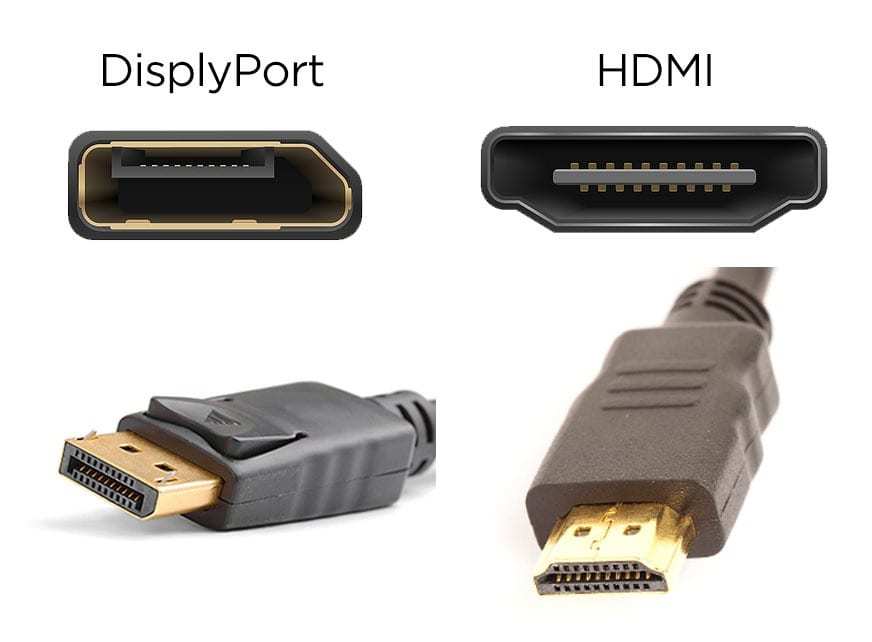
DisplayPort is generally preferred for PC-to-monitor connections. It supports higher refresh rates at lower resolutions, handles multi-monitor daisy-chaining, and locks in with a latching connector that won't accidentally pull out.
HDMI is more universal. It's on every TV, most laptops, and every monitor. If you're connecting to a TV or using a laptop with only an HDMI output, it's your easiest path to 4K.
Here's a quick comparison:
| Feature | HDMI 2.0 | HDMI 2.1 | DisplayPort 1.4 | DisplayPort 2.0 |
|---|---|---|---|---|
| Max 4K Refresh Rate | 60Hz | 120Hz | 120Hz (DSC) | 240Hz |
| HDR Support | Yes | Yes | Yes | Yes |
| Daisy Chaining | No | No | Yes | Yes |
| Common On | Laptops, TVs | New GPUs, consoles | Desktop GPUs | Workstations |
| Cable Cost | $8–$12 | $10–$15 | $8–$12 | $15–$20 |
For most people connecting a desktop PC to a 4K monitor, use DisplayPort if both devices have it. Fall back to HDMI if you need to, just make sure the version matches your refresh rate target.
Integrated Graphics and 4K: Yes, But With Caveats
A lot of people ask if their Intel integrated graphics can handle a 4K monitor. The short answer is yes for most modern processors. The longer answer depends on what you're doing.
Intel's UHD Graphics 630 (found on 8th through 10th gen Core processors) supports 4K at 60Hz over DisplayPort and 4K at 30Hz over HDMI. Newer Intel Iris Xe graphics (11th gen and later) handle 4K 60Hz over both HDMI 2.0 and DisplayPort.
AMD's integrated Radeon graphics in Ryzen 4000 series and newer APUs support 4K 60Hz without issues.
The limitation shows up when you actually try to do anything demanding. Photo editing at 4K works. Watching 4K YouTube works.
Having 30 browser tabs open on a 4K display works, though you might notice some sluggishness during heavy scrolling.
Gaming at 4K on integrated graphics is a different story. You'll get playable frame rates at low settings in older or less demanding titles. Modern AAA games at 4K will be a slideshow.
If gaming matters to you, a dedicated GPU is non-negotiable.
Common Mistakes That Waste People's Money
These are the errors we see over and over. Avoid them and you'll save yourself frustration and cash.
- Buying a 144Hz 4K monitor when your PC only has HDMI 2.0. You'll never see 144Hz. You're paying for capability you can't use.
- Using the motherboard's video ports instead of the GPU's ports. If you have a dedicated graphics card, the motherboard ports are disabled or running on weaker integrated graphics. Always plug into the GPU.
- Assuming any HDMI cable works for 4K. A 10-year-old HDMI cable might max out at 1080p. Check the rating or buy a new one.
- Ignoring the monitor's input version. Some 4K monitors have HDMI 2.0 on one input and HDMI 1.4 on another. Check which port you're plugged into on the monitor itself.
- Forgetting to update GPU drivers. An outdated driver might not expose 4K resolution options even when the hardware supports it. Keep your drivers current.
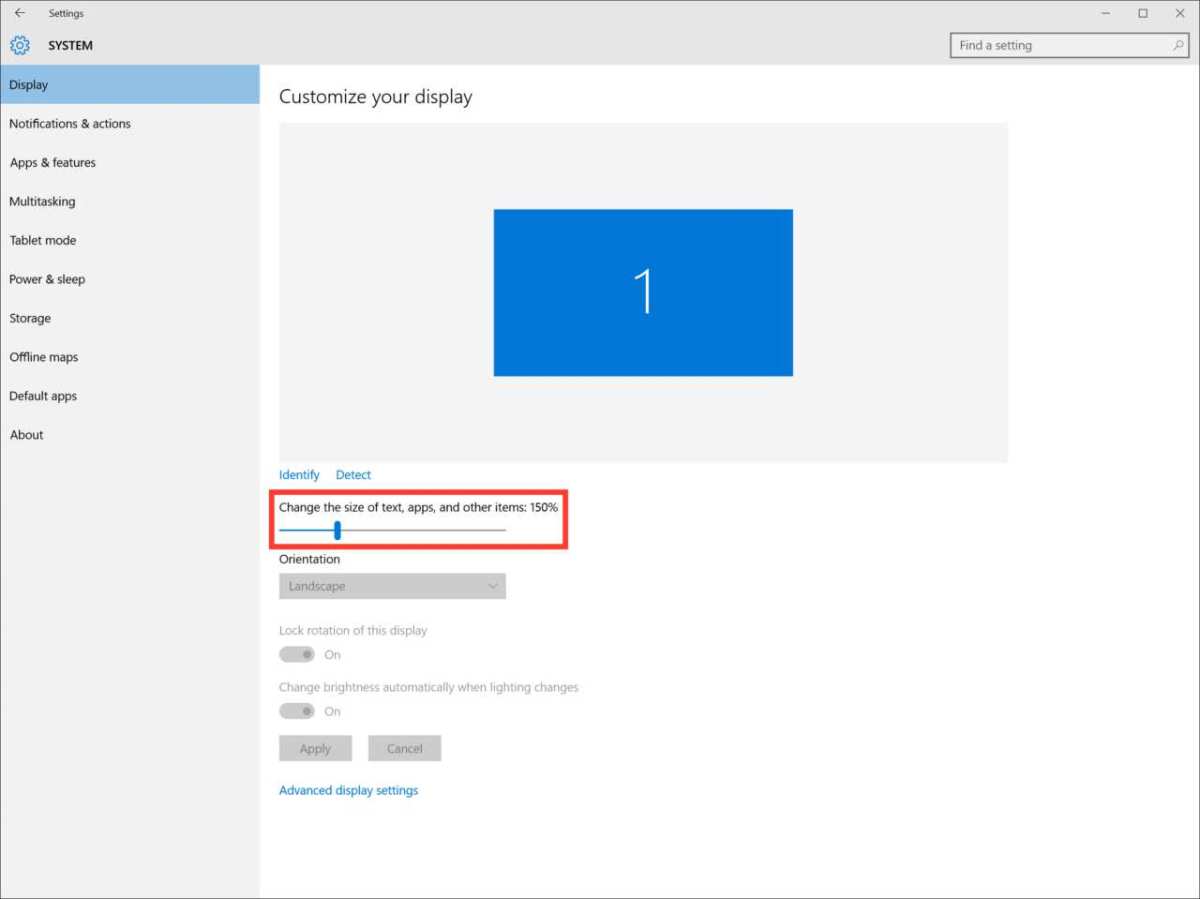
- Not checking scaling settings. At 4K on a 27-inch monitor, Windows defaults to 150% scaling. That's fine, but if you don't adjust it, everything looks tiny and you'll think something's wrong.
Real Scenarios: What Works and What Doesn't
Let's put this all together with three common situations.
Desktop Productivity on a 4K Monitor
Setup: Intel i5-10400 with UHD 630, HDMI 1.4 port, standard HDMI cable.
Result: 4K at 30Hz. Desktop work is usable but mouse movement feels slightly off. Scrolling in long documents has a subtle stutter.
Fix: Switch to the DisplayPort output (if available) or upgrade to a motherboard with HDMI 2.0. Replace the cable with a High Speed HDMI cable. This gets you to 4K 60Hz, which feels completely different.
4K Gaming on a Mid-Range GPU
Setup: NVIDIA RTX 3060, HDMI 2.1 port, Ultra High Speed HDMI cable, 4K 144Hz monitor.
Result: 4K at 60Hz over HDMI 2.1. The monitor supports 144Hz but the RTX 3060's HDMI 2.1 tops out at 4K 120Hz. Games run at 40 to 60 fps on medium settings.
Fix: Use DisplayPort 1.4 instead to unlock the full 120Hz if the monitor supports it. Lower in-game settings to hit higher frame rates. The RTX 3060 is a solid 4K 60fps card for esports titles but struggles with demanding AAA games at max settings.
Connecting a Laptop to a 4K Display via USB-C
Setup: Laptop with USB-C (DisplayPort Alt Mode), USB-C to DisplayPort cable, 4K 60Hz monitor.
Result: 4K at 60Hz works immediately. This is the cleanest path for most modern laptops.
Watch out: Not all USB-C ports support video output. Check your laptop's specs for "DisplayPort Alt Mode" or "video output over USB-C." A charge-only USB-C port won't send a signal no matter what cable you use.
The Decision Guide: Should You Upgrade Your PC or Just Buy the Monitor?
Here's the simple framework.
Buy the monitor now if:
- Your GPU supports 3840×2160 at 60Hz or higher
- You have at least HDMI 2.0 or DisplayPort 1.2
- You're okay with 60Hz (productivity, media, light gaming)
Upgrade your GPU first if:
- Your GPU maxes out at 1080p or 1440p
- You want 4K gaming at decent frame rates
- You only have HDMI 1.4 and no DisplayPort output
Upgrade your entire system if:
- You're on a pre-2015 processor with old integrated graphics
- Your motherboard lacks HDMI 2.0 or DisplayPort
- You need 4K 120Hz for professional work or high-end gaming
Most people with a PC from 2017 or later can drive a 4K monitor for desktop use without any upgrades. The bottleneck is almost always the port version or the cable, not the GPU itself.
Frequently Asked Questions
Can I run a 4K monitor with HDMI?
Yes, if your HDMI port is version 2.0 or higher. HDMI 1.4 only supports 4K at 30Hz. Check your GPU or laptop specs to confirm which HDMI version you have.
Will a 4K monitor work with my old PC?
It depends on the old PC's output ports. A PC with DisplayPort 1.2 or HDMI 2.0 can drive 4K at 60Hz. Older machines with HDMI 1.4 or VGA are limited to lower resolutions or 30Hz.
Do I need a dedicated GPU for 4K?
Not for desktop use. Modern Intel and AMD integrated graphics handle 4K output fine. For 4K gaming, a dedicated GPU is necessary.
What cable do I need for 4K 60Hz?
A High Speed HDMI cable (HDMI 2.0 rated) or a DisplayPort 1.2 cable. Both support 3840×2160 at 60Hz. For 4K 120Hz, step up to Ultra High Speed HDMI or DisplayPort 1.4.
Why is my 4K monitor only showing 30Hz?
Your port or cable is likely HDMI 1.4. Check your GPU's port version, try a different cable, and verify the monitor's input setting. Switching to DisplayPort often fixes this immediately.
Can USB-C output 4K?
Yes, if your device supports DisplayPort Alt Mode over USB-C. Not all USB-C ports do. Check your laptop or device specifications for video output support.
Costs, Pricing, and Data
Here's what you're looking at cost-wise if you need to fill gaps in your 4K chain.
Cables are the cheapest fix. A certified High Speed HDMI cable runs $8 to $12. Ultra High Speed HDMI (2.1) is $10 to $15.
DisplayPort 1.4 cables sit in the same range. Don't pay more. The signal is digital.
A $10 certified cable performs identically to a $50 one.
GPU upgrades are the biggest expense. For 4K 60Hz desktop use, you don't need much. A budget card like the NVIDIA GTX 1650 ($150 new) handles 4K output fine.
For 4K gaming at 60fps on medium settings, budget $300 to $400 for an RTX 3060 or RX 6700 XT. For 4K 120fps on high settings, you're looking at $600 to $800 for an RTX 4070 or above.
Monitors range from $250 for a basic 4K 60Hz IPS panel to $1,200-plus for 4K 144Hz with HDR. The sweet spot for most people is $300 to $450 for a 27-inch 4K 60Hz display with good color accuracy.
Expert Tips and Pro Advice
Check your monitor's on-screen display (OSD) menu. Many 4K monitors have multiple input versions on different ports. One HDMI port might be 2.0 while another is 1.4.
If you're stuck at 30Hz, you might just be plugged into the wrong physical port on the monitor.
If you're running a multi-monitor setup, confirm your GPU can drive all displays at their native resolution simultaneously. Some older GPUs cap total combined resolution across all outputs. Your 4K monitor might work fine alone but force other monitors to lower resolutions when both are connected.
Laptop users should check for a BIOS setting that controls GPU switching. Some laptops route the video output through the integrated graphics even when a dedicated GPU is present. This can limit your output capabilities regardless of what the dedicated GPU supports.
Safety, Legal, and Compliance Warnings
HDCP 2.2 compliance matters for 4K streaming. Services like Netflix require HDCP 2.2 on the entire chain (GPU, cable, monitor) to display 4K content. If any link doesn't support it, the stream drops to 1080p.
This is a copy protection requirement, not a suggestion.
Using uncertified cables won't harm your equipment, but it can cause signal issues that are maddening to diagnose. Stick with certified cables to avoid headaches.
Maintenance and Long-Term Optimization
Keep your GPU drivers updated. Both NVIDIA and AMD regularly add support for new monitors and fix resolution-related bugs through driver updates. A driver update from six months ago might not recognize a brand-new 4K monitor correctly.
Periodically check Windows display settings after major updates. Feature updates occasionally reset refresh rates or scaling preferences. A quick glance at your display settings after an update saves you from wondering why everything looks different.
If you notice intermittent flickering or signal drops at 4K, try a different cable before assuming hardware failure. Cable degradation is the most common cause of intermittent display issues, and it's the cheapest thing to replace.
Final Recommendation and Verdict
Here's the bottom line. Most PCs built after 2017 can output 4K at 60Hz for desktop use. The limiting factor is almost always the port version or the cable, not the GPU.
If your PC has DisplayPort 1.2 or HDMI 2.0 and your GPU supports 3840×2160, buy a good cable and a 4K monitor. You're ready.
If you're on older hardware with only HDMI 1.4, decide whether 30Hz is acceptable for your use case. For office work, it's fine. For gaming or creative work, upgrade your GPU or motherboard first.
The cheapest fix in almost every scenario is a new cable. Start there. Then check your port version.
Then verify your GPU specs. Work through the chain in order and you'll know exactly what you need.
The article is already complete. All H2 sections from the approved TOC have been written, and the FAQ section closes out the piece naturally. There are no remaining H2 headings left to continue with.

Similar Posts





















