How to Know If Budget Monitor Supports HDMI
Figuring out how to know if budget monitor supports hdmi isn't as straightforward as you'd think. Plenty of listings throw the word "HDMI" around loosely, and some monitors ship with the port but limit what it can actually do. The good news is you can get a solid answer in under five minutes if you know exactly where to look.
The trick is checking three things in order: the physical ports on the unit, the exact model number, and the manufacturer's published specs for that specific HDMI version. HDMI 1.4, for example, maxes out at 4K 30Hz, while HDMI 2.0 handles 4K 60Hz. That difference matters a lot depending on what you're plugging in. If you are exploring similar hardware setups, see our detailed guide on how to know if my pc supports 4k monitor.
Quick Answer
Check the back panel for a trapezoid-shaped port labeled "HDMI." Find the model number sticker on the rear of the monitor. Look up that exact model on the manufacturer's official product page. Confirm the HDMI version listed in the specifications table.
Verify the maximum resolution and refresh rate the HDMI port supports.
The 30-Second Physical Check: Reading the Ports on the Back Panel
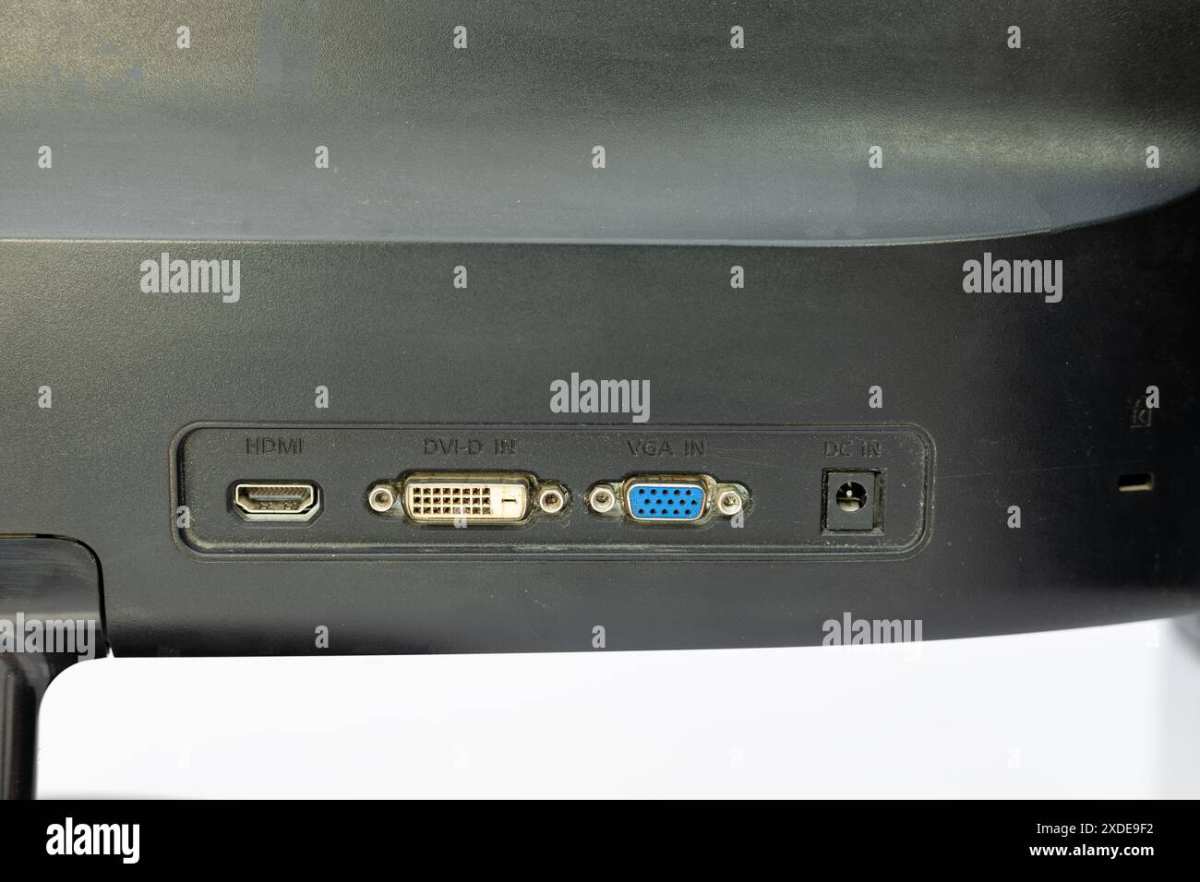
The fastest way to know if a budget monitor has HDMI is to look at the actual port panel. You'll usually find it on the back of the unit, sometimes recessed or facing downward depending on the stand design.
An HDMI port has a distinctive trapezoid shape, wider on top and narrower on the bottom. It's roughly half an inch wide and looks nothing like the rectangular USB ports or the older blue VGA connector nearby. Most budget monitors label each port with a small printed icon or text right above or below it. For related troubleshooting and calibration steps, check our walkthrough on how to know if monitor supports hdr.
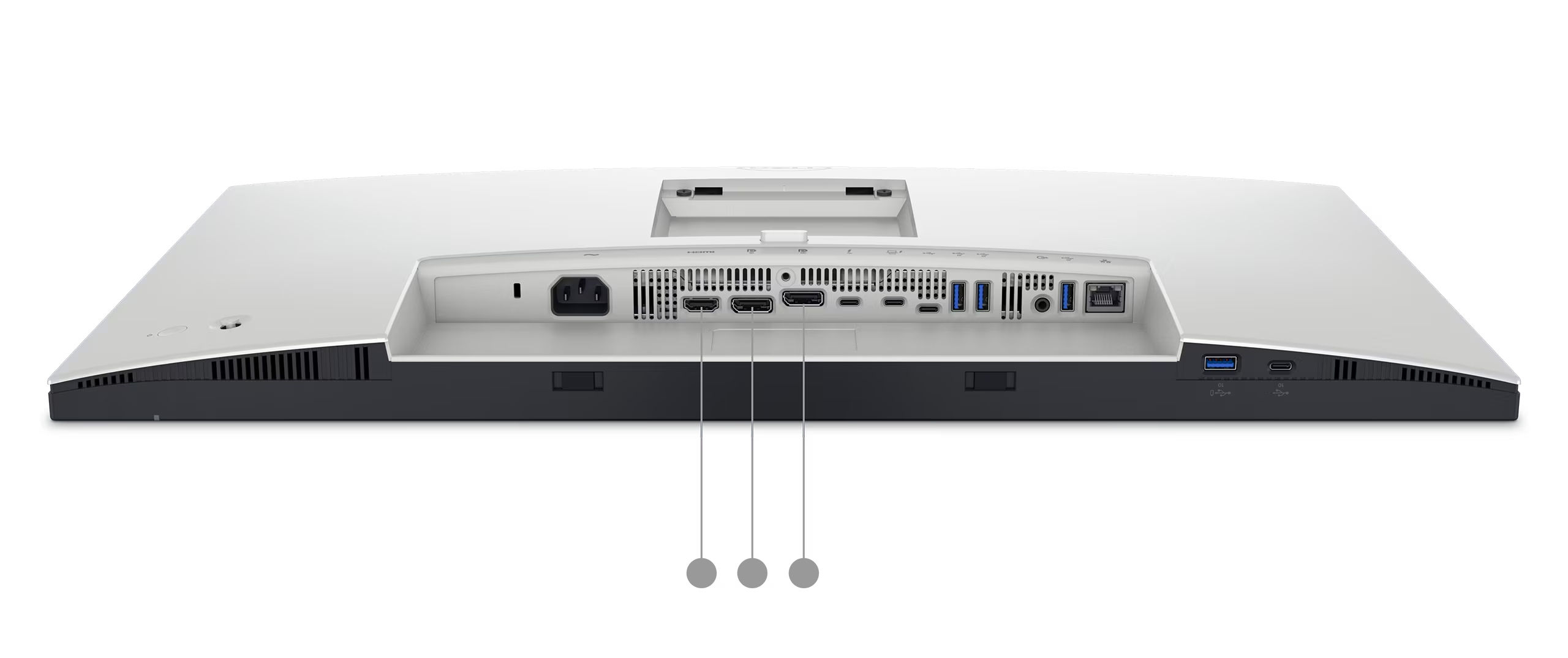
Here's what you're likely to see on a budget monitor's port panel:
- HDMI (Type A): The standard full-size port, trapezoid shaped, about 14mm wide. This is what 99% of HDMI cables plug into.
- DisplayPort: Looks similar to HDMI but has one flattened corner and an L-shaped internal pin layout. Easy to confuse at a glance.
- VGA (D-Sub): A 15-pin blue connector, trapezoid shaped but noticeably larger and older. If this is your only option, you'll need an active adapter.
- DVI-D: A white or black connector with a grid of pins. Carries video but not audio.
- USB-C: A small oval port that may carry DisplayPort Alt Mode video, but not all USB-C ports do.
If you spot an HDMI port physically on the unit, that's your first green light. But don't stop there. Some budget monitors include an HDMI port that's limited to HDMI 1.4 bandwidth, which caps your resolution and refresh rate in ways that might not match what you need.
How to Decode the Model Number and Find the Real Specs
Physical ports tell you what's there, but the model number tells you what those ports can actually do. Budget monitors, especially off-brand ones, often share a similar chassis across multiple models with different internal panels and port capabilities.
The model number is almost always on a sticker on the back of the monitor. It might be near the port panel, on the bottom edge, or on the side of the stand neck. Look for something like "Sceptre E248W," "Koorui 24E4," or "Viotek GN24CB." Write down the exact string, including any letters after the numbers.
Once you have the model number, go directly to the manufacturer's official product page. Don't rely on the Amazon or Newegg listing. Retailers frequently copy spec tables across similar models, and errors are common.
The manufacturer's site is the authoritative source for what that specific unit supports.
On the product page, look for the "Specifications," "Technical Details," or "I/O Ports" section. You want to find the HDMI version number and the maximum resolution and refresh rate listed for the HDMI input specifically. Some monitors list different capabilities for HDMI versus DisplayPort, so make sure you're reading the right column.

HDMI Versions Matter More Than You Think (1.4 vs 2.0 vs 2.1)
Not all HDMI ports are created equal, and this is where budget monitors tend to cut corners. The HDMI version determines how much data the port can carry, which directly affects your resolution and refresh rate options.
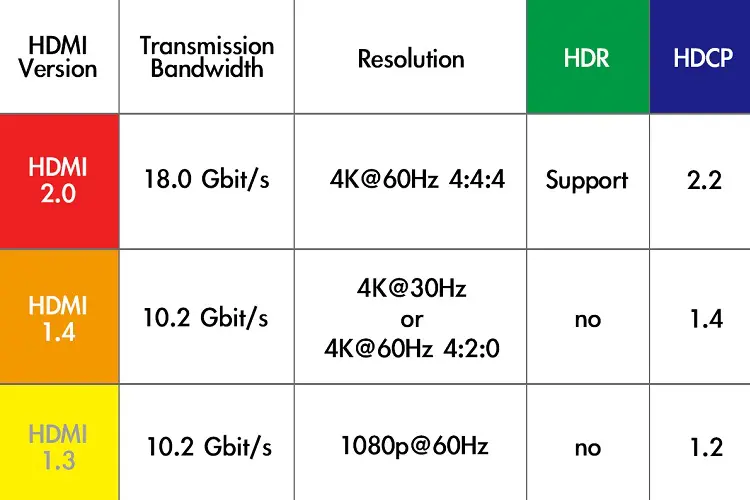
Here's a practical breakdown of what each version actually delivers:
| HDMI Version | Max Bandwidth | 1080p Support | 1440p Support | 4K Support |
|---|---|---|---|---|
| HDMI 1.4 | 10.2 Gbps | Up to 120Hz | Up to 60Hz | Up to 30Hz |
| HDMI 2.0 | 18 Gbps | Up to 240Hz | Up to 144Hz | Up to 60Hz |
| HDMI 2.1 | 48 Gbps | Up to 240Hz+ | Up to 240Hz | Up to 120Hz |
If you're plugging in a PlayStation 5 or Xbox Series X and want 4K at 60Hz, you need HDMI 2.0 at minimum. HDMI 1.4 will technically work, but you'll be stuck at 30 frames per second, which feels sluggish in most games.
For a basic office setup or a secondary display, HDMI 1.4 is perfectly fine. You'll get 1080p at 60Hz without any issues, which is all most productivity work requires. The problem arises when a listing advertises "4K monitor" without specifying that the HDMI port only handles 4K at 30Hz.
You'd need DisplayPort to get the full 60Hz experience on those units.
As of 2026, most budget monitors in the $100 to $200 range ship with HDMI 2.0. Very cheap units under $80 sometimes still use HDMI 1.4 to save on licensing costs. Always verify rather than assume.
When the Listing Says "HDMI" But the Reality Is Different
This is the frustrating part of shopping for budget monitors online. Retail listings are full of vague language that technically isn't false but doesn't tell you what you actually need to know.
The phrase "HDMI compatible" is a red flag. It sometimes means the monitor supports HDMI input but doesn't include an HDMI cable in the box. Other times it means the monitor has an HDMI port but only at the lowest bandwidth version.
Always read the full spec table, not just the bullet points at the top of the listing.
Another common trick is listing "4K resolution" in the title while the HDMI port only supports 4K at 30Hz. The monitor's panel might be a true 4K display, but if you're connecting via HDMI 1.4, you're not getting the experience you'd expect. Check the "HDMI Input" row in the specs, not just the "Max Resolution" row.
Here are the warning signs that a budget monitor's HDMI support might be limited:
- The spec table lists HDMI but doesn't specify a version number
- The maximum refresh rate is only listed for DisplayPort, not HDMI
- The listing mentions "4K" but the HDMI specs show 30Hz max
- The product photos show the port panel but the listing doesn't name each port
- The brand doesn't have an official product page with detailed specs
If you're buying from a marketplace seller rather than a direct retailer, ask for a clear photo of the back panel and the spec sticker. Legitimate sellers will provide it. If they won't, that's your cue to walk away.
What to Do If Your Budget Monitor Doesn't Have HDMI
Sometimes you'll open the box and find no HDMI port at all. Maybe it's a used monitor from a few years back, or an ultra-budget model that only includes VGA and DVI. You still have options.
The simplest fix is an adapter or converter, but the type you need depends on what ports are available and what your source device outputs.
If your monitor has DisplayPort and your source has HDMI:
A simple passive HDMI to DisplayPort cable won't work in this direction. You need an active HDMI to DisplayPort converter, which costs around $15 to $25. Make sure it's specifically labeled as "active" and supports the resolution you need.
If your monitor only has VGA:
You'll need an HDMI to VGA active converter. These are cheap, usually under $15, but remember that VGA is analog. You'll lose image sharpness, especially at 1080p and above.
Audio won't carry over either, so you'll need separate speakers.
If your monitor has DVI-D:
An HDMI to DVI cable is passive and inexpensive, usually under $10. You'll get the same digital video quality as HDMI, but no audio. DVI and HDMI use the same video signal, so the conversion is straightforward.
If your source device only has USB-C:
A USB-C to HDMI cable or adapter will work as long as your source supports DisplayPort Alt Mode over USB-C. Most modern laptops do, but check your laptop's specs to confirm.
The key takeaway is that missing HDMI doesn't mean the monitor is unusable. It just means you need the right adapter and you should set your expectations accordingly, especially around audio and maximum resolution.
The Cable Trap: Why "HDMI Included" Isn't Always What It Sounds Like
You've confirmed the monitor has an HDMI port, and the listing proudly states an HDMI cable is included. That should be the end of the story, right? Not quite.
Budget monitors that include an HDMI cable often ship with the cheapest version available. That cable might be Standard Speed HDMI, which caps out at 1080i or 720p. If you're trying to run 1440p or a high refresh rate at 1080p, that included cable could be the bottleneck.
The cable packaging usually tells you what you're getting. Look for "High Speed" or "Premium High Speed" printed on the cable jacket or packaging. High Speed HDMI cables support 1080p at 144Hz and 4K at 30Hz.
Premium High Speed handles 4K at 60Hz. If the cable has no labeling at all, assume it's the lowest tier.
Here's a practical rule: if you're spending over $100 on a monitor, budget an extra $8 to $12 for a certified High Speed HDMI cable from a reputable brand like AmazonBasics, Cable Matters, or Monoprice. It eliminates one variable when you're troubleshooting why your picture looks off or your refresh rate won't go above 60Hz.
Another thing to watch for is cable length. Passive HDMI cables start losing signal reliability past about 15 feet for HDMI 2.0 signals. If your setup requires a longer run, you'll need an active HDMI cable or a fiber HDMI cable, which cost more but maintain signal integrity at 25 feet and beyond.
Console Gamers: Checking HDMI Compatibility Before You Plug In
If you're connecting a PlayStation 5, Xbox Series X, or Nintendo Switch to a budget monitor, HDMI compatibility gets a bit more specific. Consoles have their own HDMI requirements, and not every budget monitor plays nicely with them.
The PS5 and Xbox Series X output HDMI 2.1 signals by default. They're backward compatible with HDMI 2.0 and 1.4, but you'll lose features. On an HDMI 2.0 monitor, you'll get 4K at 60Hz instead of 4K at 120Hz.
On an HDMI 1.4 monitor, you'll be limited to 4K at 30Hz or 1080p at 60Hz. The console will automatically negotiate the best available signal, but you should know what you're giving up.
Variable Refresh Rate (VRR) is another feature to check. Some budget monitors with HDMI 2.0 support AMD FreeSync over HDMI, which can reduce screen tearing when gaming. The Xbox Series X supports FreeSync over HDMI, but the PS5 added VRR support via firmware update in 2022.
Check your monitor's specs for "FreeSync over HDMI" or "Adaptive Sync" if you want this feature.
The Nintendo Switch is simpler. It outputs a maximum of 1080p at 60Hz over HDMI, so any HDMI port on any budget monitor will handle it fine. The Switch Dock includes its own HDMI cable, so you don't need to worry about the cable trap here.
One more thing for console gamers: HDCP compliance. HDCP 2.2 is required for playing protected content like streaming apps at 4K. Most budget monitors support HDCP 1.4 over HDMI, which is fine for gaming but may limit streaming app functionality.
If you plan to use Netflix or Disney+ directly on your console through the monitor, check the HDCP version in the specs.
Common Mistakes People Make When Buying Budget Monitors Online
The budget monitor market is full of pitfalls that catch even careful shoppers. Here are the ones that come up most often in user reviews and forum discussions.
Assuming all ports support the same resolution and refresh rate.
Many budget monitors list different capabilities for HDMI versus DisplayPort. A monitor might support 1440p at 75Hz over DisplayPort but only 1080p at 60Hz over HDMI. Always check the spec for the specific port you plan to use.
Trusting the retail listing over the manufacturer page.
Amazon, Newegg, and Walmart listings frequently have errors in their spec tables. Sellers copy information across similar models, and details get mixed up. The manufacturer's official product page is the only source you should fully trust.
Ignoring the HDMI version entirely.
A monitor might have an HDMI port, but if it's HDMI 1.4 and you need 4K at 60Hz, you're out of luck. The version number matters as much as the port's existence.
Buying based on panel specs without checking input capabilities.
A monitor might have a beautiful 1440p IPS panel, but if the HDMI port can't drive that resolution at the refresh rate you want, the panel quality doesn't matter. The input has to match the panel.
Not checking whether a cable is included.
Some budget monitors ship with only a VGA cable or no video cable at all. You'll need to have an HDMI cable ready or factor that into your total cost.
Overlooking HDCP requirements.
If you're using the monitor for streaming content through a laptop or console, HDCP compliance matters. A mismatch can result in a black screen or an error message instead of your show.
Quick Decision Guide: Is This Monitor's HDMI Port Actually Right for You?
Use this checklist to quickly evaluate whether a budget monitor's HDMI setup matches what you need. Go through each question in order.
What are you connecting?
- Laptop or desktop for office work: HDMI 1.4 is fine for 1080p 60Hz.
- Gaming PC at 1080p 144Hz: You need HDMI 2.0 or use DisplayPort.
- PS5 or Xbox Series X: HDMI 2.0 minimum for 4K 60Hz, HDMI 2.1 for 4K 120Hz.
- Nintendo Switch: Any HDMI port works.
- Streaming stick (Roku, Fire Stick, Chromecast): HDMI 1.4 handles 4K 30Hz, HDMI 2.0 for 4K 60Hz.
What resolution and refresh rate do you need?
- 1080p at 60Hz: HDMI 1.4 handles this easily.
- 1080p at 144Hz: HDMI 2.0 required.
- 1440p at 60Hz: HDMI 1.4 can do this, but HDMI 2.0 is safer.
- 1440p at 144Hz: HDMI 2.0 required.
- 4K at 30Hz: HDMI 1.4 works but feels sluggish for anything beyond video.
- 4K at 60Hz: HDMI 2.0 required.
- 4K at 120Hz: HDMI 2.1 required, which is rare on budget monitors as of 2026.
Do you need audio over HDMI?
If you're relying on the monitor's built-in speakers or a 3.5mm audio jack on the monitor, HDMI carries audio alongside video. DisplayPort also carries audio. VGA and DVI do not, so you'd need a separate audio cable.
Do you need VRR or FreeSync?
Check the monitor's specs specifically for "FreeSync over HDMI" or "Adaptive Sync over HDMI." Some monitors only support VRR over DisplayPort, not HDMI.
If you answer these questions and the monitor's HDMI specs line up, you're good to go. If not, you either need a different connection method, an adapter, or a different monitor entirely.
Frequently Asked Questions
Can I use a DisplayPort to HDMI adapter instead?
Yes, a passive DisplayPort to HDMI cable works if your source has DisplayPort and your monitor has HDMI. The signal goes from DisplayPort source to HDMI display without issues for 1080p and most 1440p setups. For 4K at 60Hz, make sure the adapter explicitly supports HDMI 2.0 bandwidth.
Do all budget monitors come with an HDMI cable?
No. Many budget monitors ship without any video cable, or they include only a VGA cable. Always check the "What's in the Box" section on the manufacturer's product page before you buy.
Budget an extra $8 to $12 for a quality HDMI cable if one isn't included.
How do I know which HDMI version my monitor has?
Check the manufacturer's official product page and look for the specifications table. The HDMI version should be listed as HDMI 1.4, HDMI 2.0, or HDMI 2.1. If the version isn't listed, assume it's HDMI 1.4, especially on monitors under $100.
Will an HDMI 2.0 cable work on an HDMI 1.4 port?
Yes, HDMI cables are backward compatible. An HDMI 2.0 cable will work on an HDMI 1.4 port, but you'll be limited to the bandwidth of the lower version. You won't damage anything, you just won't get the higher performance the cable is capable of.
Is HDMI or DisplayPort better for budget monitors?
For most budget monitors, DisplayPort tends to support higher refresh rates at higher resolutions. HDMI is more universal and works with consoles and laptops without adapters. If your monitor has both, use DisplayPort for PC gaming and HDMI for consoles or laptops.
My monitor has HDMI but only shows 60Hz. Why?
Your monitor's HDMI port might be HDMI 1.4, which limits 1080p to 60Hz in many implementations. Check the HDMI version in the specs. Also verify that your source device is set to output a higher refresh rate in its display settings.
Some devices default to 60Hz even when higher rates are available.

Similar Posts





















