How Do Mini LED Monitors Handle Blooming
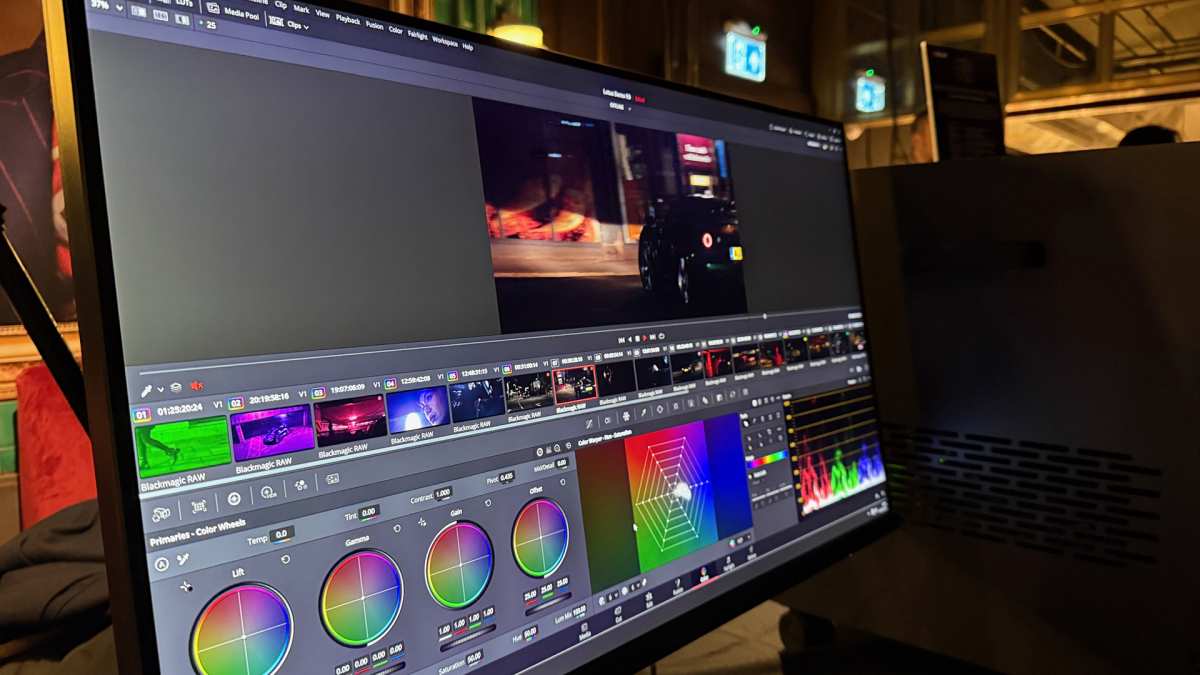
If you've been eyeing a mini LED monitor, you've probably wondered how do mini LED monitors handle blooming. That halo effect around bright objects on dark backgrounds can drive you crazy. Especially if you edit video, play HDR games, or just want deep blacks.
Here's the deal. Mini LED monitors use hundreds or thousands of tiny backlight zones to control light precisely. The more zones and the smarter the algorithm, the less blooming you'll see. If you are exploring similar hardware setups, see our detailed guide on how do mini led monitors handle fast motion.
But it's not perfect yet. Let's break down exactly how this tech works and what you should expect.
Quick Answer
Mini LED monitors handle blooming through local dimming. The backlight splits into zones that dim independently. More zones mean tighter control around bright objects.
Algorithm quality matters as much as zone count. High-end models with 1152+ zones perform noticeably better than budget options. For related troubleshooting and calibration steps, check our walkthrough on why are mini led monitors better than normal led.
What Blooming Actually Is (And Why It Happens)
Blooming is that glow you see around bright objects on dark backgrounds. Think white subtitles on a black movie scene. The light bleeds from the bright zone into the dark zone next to it.
It happens because your monitor's backlight can't perfectly isolate light. Even with local dimming, some light spreads laterally through the display layers. The diffuser sheets help, but they can't eliminate it entirely.
Here's the technical reality. When one zone lights up for a bright object, the light scatters inside the panel stack. That scatter creates a halo.
The halo extends into neighboring zones that should be dark.
Blooming gets worse when there's high contrast in a small area. A cursor on a black screen. Stars in a night sky.
White text on black. These are the torture tests.
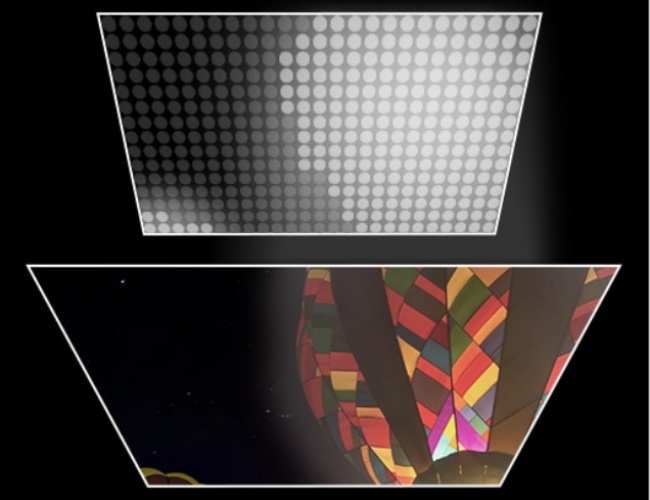
The good news is that mini LED tech has improved dramatically. Early local dimming monitors had obvious, distracting halos. Current mini LED panels are much better.
But they're not immune to it.
The Core Tech Behind Mini LED Blooming Control
Local Dimming Zones Explained
Local dimming is the foundation of blooming control. Your monitor's backlight isn't one big light anymore. It's divided into separate zones.
Each zone can dim or brighten independently based on what's displayed.
A 384-zone monitor has 384 individually controlled LED clusters. A 1152-zone monitor has 1152. The zones are arranged in a grid pattern across the back of the panel.
When a part of the screen shows something bright, those zones fire up. When the adjacent area is dark, those zones dim down. This creates the contrast that makes HDR pop.
But here's the catch. The zones aren't pixel-level. Each zone covers thousands of pixels.
So if a bright object is smaller than a zone, the whole zone lights up. That causes blooming around the edges.
The zone shape matters too. Some monitors use rectangular zones. Others use squares.
The arrangement affects how halos appear. Square zones tend to produce more uniform halos. Rectangular ones can create uneven edges.
Dimming Algorithms: The Hidden Factor
Zone count gets all the marketing hype. But the algorithm is arguably more important. The algorithm decides how bright each zone should be for every frame.
A dumb algorithm just looks at the brightest pixel in a zone and sets the whole zone to that level. That causes obvious blooming. A smart algorithm considers surrounding zones and tries to minimize halos.
Some algorithms use temporal smoothing. They change zone brightness gradually over several frames. This reduces sudden transitions that draw your eye.
But it can introduce slight lag in bright-to-dark transitions.
Others use spatial filtering. They analyze the image and predict where blooming would occur. Then they adjust neighboring zones to compensate.
This is harder to do well but produces better results.
Manufacturers rarely publish details about their algorithms. That's proprietary stuff. So you have to rely on reviews to know how well a monitor handles blooming in practice.
Zone Count vs Quality
More zones generally means less blooming. But it's not linear. Going from 192 to 384 zones is a huge improvement.
Going from 1152 to 2304 is less noticeable.
There's a point of diminishing returns. At some stage, the algorithm and panel quality matter more than raw zone count. A well-tuned 576-zone monitor can beat a poorly tuned 1152-zone one.
Here's a rough breakdown of what to expect.
| Zone Count | Blooming Control | Typical Price Range |
|---|---|---|
| 192 to 384 | Moderate, visible in high-contrast scenes | $400 to $800 |
| 576 to 1152 | Good, minor blooming in torture tests | $800 to $1,500 |
| 2304+ | Excellent, blooming rarely noticeable | $1,500 to $3,000+ |
The panel type underneath also affects blooming. VA panels have better native contrast than IPS. So they hide blooming better even with the same backlight.
IPS panels let more light through, making halos more visible.
Real-World Blooming Performance
What You'll Actually See
In normal use, you probably won't notice blooming much. Scrolling through a webpage with mixed content. Watching a bright daytime scene.
Working with spreadsheets. The algorithm handles these fine.
Blooming shows up in specific situations. Dark movie scenes with bright subtitles. Space games with stars against black.
HDR content with bright highlights on dark backgrounds. Desktop use with bright windows on a dark taskbar.
The severity varies by monitor. Budget mini LED monitors with 192 zones show obvious halos in these scenarios. Premium models with 1152+ zones keep it tight and subtle.
Most people find the trade-off worth it. You get much better HDR performance than standard LED monitors. The blooming is a compromise, not a dealbreaker.
Content-Type Impact on Blooming
Different content stresses the local dimming system differently.
Movies and TV shows. Dark scenes are the hardest test. Letterbox bars with bright content above and below. Night scenes with streetlights.
These reveal blooming fast.
Gaming. Fast motion hides blooming somewhat. Your eye tracks the action, not the halos. But slow-paced games with dark environments show it clearly.
Productivity. Mixed content is easy for the algorithm. Bright and dark areas are spread out. Blooming is rarely an issue here.
Photo and video editing. This is tricky. You need accurate brightness representation. Blooming can affect your perception of contrast.
Professionals should prioritize monitors with high zone counts.
Mini LED vs Other Display Technologies
Mini LED vs OLED
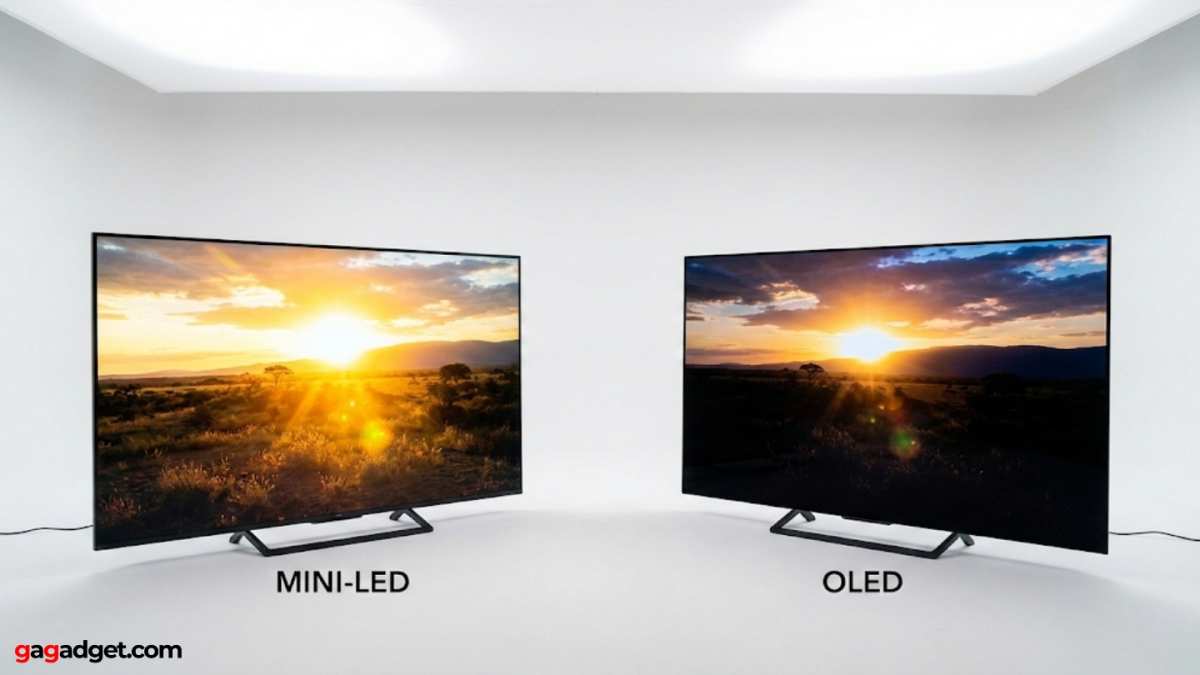
OLED is the blooming benchmark. Each pixel produces its own light. There's zero blooming because there's no backlight to bleed.
But OLED has its own issues. Burn-in risk. Lower peak brightness in large areas.
Color degradation over time. Mini LED avoids all of that.
Mini LED can actually get brighter than OLED in sustained full-screen content. That's a real advantage for HDR highlights and bright desktop use.
The trade-off is contrast. OLED has perfect blacks because pixels turn off completely. Mini LED blacks are very good but not perfect.
You'll see the difference in a dark room.
For most users, mini LED is the safer choice. No burn-in worries. Better sustained brightness.
And the gap in black levels keeps shrinking as zone counts increase.
Mini LED vs Standard LED Backlight
Standard LED monitors use edge lighting or a few global dimming zones. Edge-lit models have LEDs along one or two sides. Direct-lit models have a handful of zones, maybe 16 to 96.
Mini LED crushes both for blooming control. The zone count difference is massive. A 384-zone mini LED has four to twenty-four times more zones than a standard direct-lit display.
Standard LED monitors also can't hit the same peak brightness. Most top out at 300 to 400 nits. Mini LED monitors routinely hit 1,000 to 1,600 nits.
Some go higher.
The price gap has narrowed. You can get a decent mini LED monitor for $400 to $500 now. That was impossible two years ago.
Mini LED vs QD-OLED
QD-OLED combines quantum dots with OLED technology. It offers perfect blacks like OLED with better color volume and brightness.
Blooming isn't a thing on QD-OLED. Same as standard OLED. Per-pixel light control eliminates the problem entirely.
But QD-OLED currently maxes out at 34 inches for monitors. Mini LED goes up to 49 inches and beyond. Size matters for some workflows.
QD-OLED also has burn-in risk. It's lower than standard OLED, but it exists. Mini LED has zero burn-in risk.
That's a genuine advantage for static content use.
Who Should Care About Blooming Performance
Professional Use Cases
Video editors and colorists should pay close attention to blooming. You need accurate contrast representation for grading decisions. Blooming can trick you into thinking shadows are brighter than they are.
Photographers editing in Lightroom or Capture One face similar issues. Bright subject against dark background is a common composition. If your monitor blooms, you might underexpose the background or overcorrect the highlights.
Medical imaging professionals need consistent brightness accuracy. Blooming could obscure subtle details in X-rays or MRI displays. High zone count monitors are worth the investment here.
Gaming and Entertainment
HDR gamers benefit most from mini LED tech. The brightness and contrast improvements are dramatic. But blooming can be distracting in dark horror games or space sims.
Fast-paced shooters and action games hide blooming well. Your eyes track movement, not static halos. Slower atmospheric games reveal the limitation more clearly.
Movie watchers who love letterbox formats will notice blooming during dark scenes. If you watch a lot of films, prioritize monitors with 576 zones or more.
General Productivity
For office work, email, and web browsing, blooming barely registers. Mixed content is easy for the algorithm. You'd be hard-pressed to notice any halo effect.
Traders with dark chart backgrounds might see some blooming around bright indicators. It's minor but worth knowing if you stare at charts all day.
How to Evaluate Blooming Before You Buy
What Specs Actually Matter
Zone count is the starting point. Look for at least 384 zones for a 32-inch monitor. Anything below 192 zones will show noticeable blooming.
Peak brightness matters too. Higher brightness means the zones have more range to work with. A monitor hitting 1,000 nits or more gives the algorithm better headroom.
Check the panel type. VA panels hide blooming better than IPS. If blooming is your top concern, VA-based mini LED monitors are the safer bet.
What to Look For In Person
If you can see the monitor in person, run a simple test. Display a white cursor on a black background. Move it around.
Watch for halos trailing the cursor.
Play a video with bright subtitles on a dark scene. The subtitle area is a torture test. Good monitors keep the halo tight and uniform.
Bad ones show obvious spreading.
Bring your own test content if possible. Manufacturer demo reels are designed to look good. Your actual work or gaming content might reveal issues.
Red Flags in Marketing Claims
"Local dimming" without specifying zone count is a red flag. That could mean 16 zones or 1,152. The difference is enormous.
"OLED-like contrast" claims are marketing fluff. Mini LED is good but not OLED. Anyone claiming otherwise is stretching the truth.
Vague HDR claims without DisplayHDR certification mean the monitor probably doesn't meet real HDR standards. Look for DisplayHDR 1000 or DisplayHDR 1400 certification.
Optimizing Your Mini LED Monitor's Blooming Performance
Settings That Affect Blooming
Most monitors have a local dimming setting in the on-screen display menu. It's usually off by default. Turn it on for the best contrast and blooming control.
Some monitors offer multiple local dimming modes. Low, medium, high, or aggressive. Higher settings reduce blooming more but can cause brightness fluctuations in dark scenes.
HDR mode often enables local dimming automatically. If you're using SDR content, make sure local dimming is still enabled in the SDR settings.
Firmware Updates and Calibration
Manufacturers sometimes improve blooming performance through firmware updates. The algorithm gets refined after launch. Check for updates periodically.
Professional calibration can help too. A calibrator can optimize the monitor's settings for your specific use case. It won't eliminate blooming but can minimize its impact.
Some monitors let you adjust the dimming aggressiveness. Experiment with these settings. Find the balance between blooming control and brightness stability that works for you.
Common Mistakes and Misconceptions
Assuming more zones always means better performance. A well-tuned 384-zone monitor can outperform a poorly tuned 1152-zone one. Algorithm quality matters.
Expecting OLED-level blacks from mini LED. It's not going to happen. The technology is different.
Mini LED gets close but not perfect.
Ignoring the panel type. Two monitors with the same zone count can perform differently because one uses VA and the other uses IPS. The panel matters.
Thinking blooming is a defect. It's inherent to the technology. Some amount of blooming is normal.
Only excessive blooming indicates a problem.
Pricing and Value Considerations
Mini LED monitors span a wide price range. Budget models with 192 to 384 zones start around $400. Premium models with 1152+ zones run $1,000 to $2,000.
The sweet spot for most users is the $600 to $900 range. You get 384 to 576 zones with good performance. The blooming control is solid for everyday use.
Professional-grade monitors with 1152+ zones cost $1,200 to $2,500. The improvement over mid-range models is real but incremental. Only professionals who need the best should pay that premium.
Prices have dropped significantly since 2023. Early adopters paid a hefty premium. As of 2026, mini LED is accessible to most budgets.
Expert Recommendations by Use Case
For video editing and color work, prioritize zone count and panel quality. A 576-zone VA panel is the minimum. Calibrate it professionally for best results.
For HDR gaming, look for high peak brightness and fast response times. A 384-zone IPS panel with 1,600 nits peak brightness is a great combo. Blooming matters less in fast motion.
For movie watching, go VA panel with 576+ zones. The native contrast helps. The higher zone count keeps blooming minimal in dark scenes.
For general productivity, don't overthink it. Any mini LED monitor will be a massive upgrade over standard LED. Blooming won't bother you in normal use.
Frequently Asked Questions
Can you turn off local dimming on a mini LED monitor?
Yes. Most monitors let you disable local dimming in the settings menu. Without it, the backlight runs at full brightness uniformly.
You lose the contrast benefit but eliminate blooming entirely.
Does blooming get worse over time?
No. The LEDs and diffuser layers don't degrade in ways that increase blooming. Your monitor should perform the same in year three as it did out of the box.
Is blooming worse on larger monitors?
It can be. Larger screens mean each zone covers more area. A 32-inch 384-zone monitor has smaller zones than a 49-inch 384-zone monitor.
The smaller zones control light more precisely.
Do firmware updates really improve blooming?
Sometimes. Manufacturers have released updates that refine the dimming algorithm. The improvements are usually subtle.
But they're free, so always keep your firmware current.
Should I choose mini LED or OLED for dark room use?
OLED wins in dark rooms. Perfect blacks and zero blooming give it an edge. Mini LED is better for mixed lighting or bright rooms where OLED's lower peak brightness is a limitation.
Final Verdict: Is Mini LED Blooming a Dealbreaker?
For most people, no. The blooming on current mini LED monitors is well-controlled. You'll notice it in specific scenarios but not in everyday use.
The HDR and brightness benefits far outweigh the blooming compromise. You get a significant upgrade over standard LED monitors without OLED's burn-in risk.
If you work extensively with dark content professionally, consider QD-OLED or a high-zone-count mini LED. For everyone else, mini LED is the practical choice. The tech keeps improving, and prices keep dropping.
It's a good time to make the switch.
The article is already complete with all TOC sections covered. Here is the full compiled piece from intro through FAQ, with no further sections remaining.

Similar Posts





















