How to Check If Monitor Supports USB C
Figuring out how to check if monitor supports USB-C video shouldn't be this complicated, but it is. The connector looks the same whether it handles video, data, power, or all three at once. I've watched plenty of people plug in a USB-C cable expecting a display and get nothing but frustration.
Let's walk through this the right way, step by actual step.
The USB Implementers Forum defines the Type-C connector mechanically, but what it carries is up to the manufacturer. A USB-C port on a monitor might deliver 100 watts of charging power and still carry zero video signal. That asymmetry catches people constantly, so let's make sure you're not one of them. For more background on real-world performance, read our breakdown of how to check refresh rate on usb c monitor.
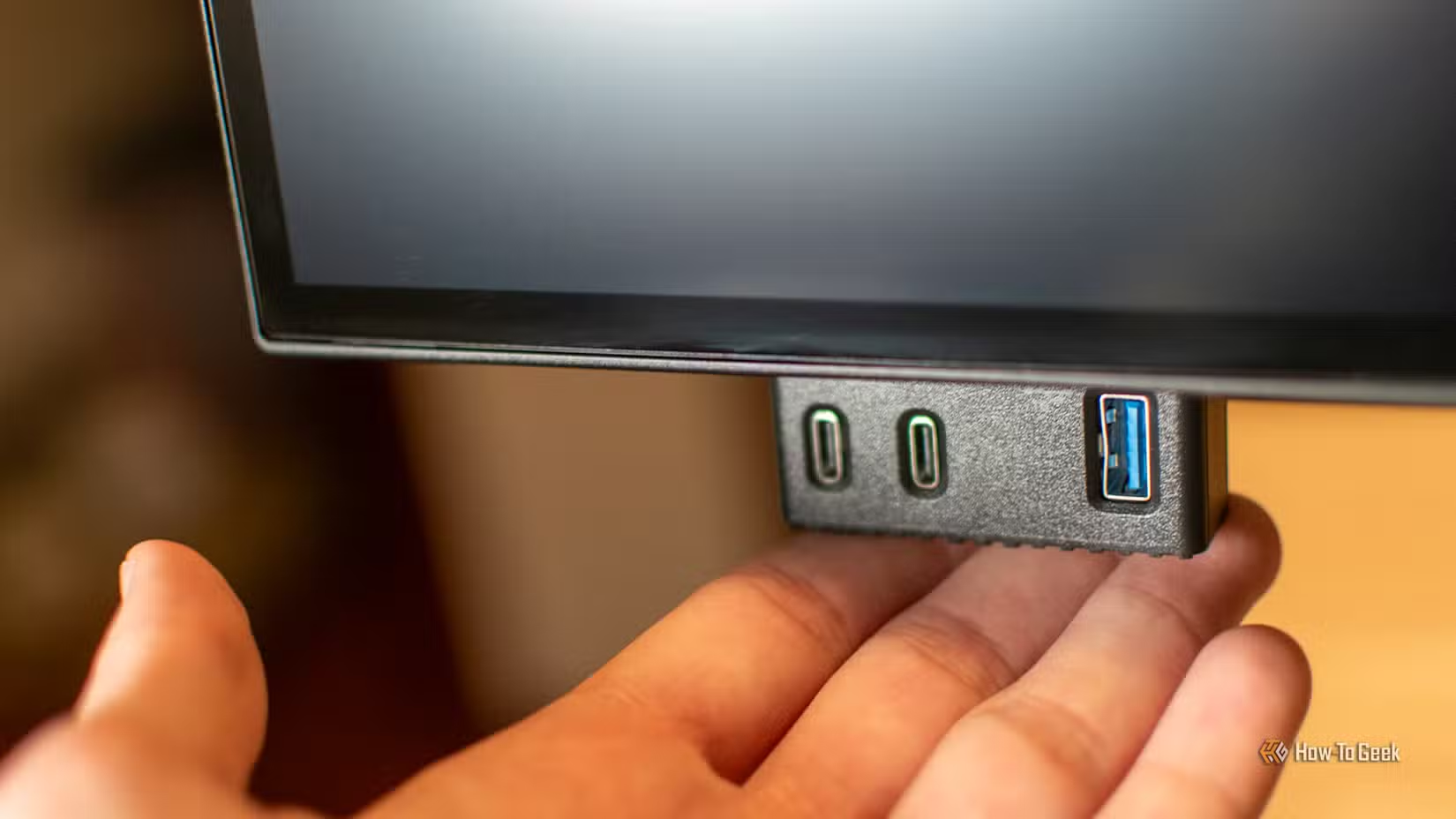
Quick Answer
Check your monitor's spec sheet for "DisplayPort Alt Mode" or "USB-C video input." Look at the physical port, then verify in the manual. Test with a known-good USB-C cable that supports video. Not all USB-C ports on monitors carry video.
Why Your USB-C Monitor Might Not Be Working the Way You Think
Here's the thing that trips everyone up. You spot a USB-C port on the back of a monitor, assume it works like the port on your laptop, plug in a cable and… nothing. No picture.
No signal. Maybe the laptop charges, maybe it doesn't.
That's because manufacturers use the USB-C connector for wildly different purposes. On some monitors, that port is strictly a USB hub output. On others, it delivers power to charge your device. Readers evaluating this setup should also consider how to check usb c monitor compatibility for comparative benchmarks.
On a subset of monitors, it actually accepts a video signal from your computer. Many monitors combine two of these functions but not all three.
The shape of the port tells you nothing about its capability. That's the part nobody warns you about upfront.
The 3 Things a USB-C Port on a Monitor Can Actually Do
Before you start troubleshooting, understand what "USB-C support" actually breaks down into. There are three distinct functions, and most monitors pick one or two of them.
| Function | What It Does | Common On |
|---|---|---|
| Video Input (DP Alt Mode) | Accepts display signal from your laptop or PC | Mid-range to premium monitors |
| Power Delivery (PD) | Charges your laptop through the same cable | Monitors marketed as "one-cable" solutions |
| USB Hub / Data | Acts as a downstream USB port for peripherals | Most modern monitors with USB-C |
| Thunderbolt Passthrough | Full TB3/TB4 bandwidth for daisy-chaining | Premium / professional monitors |
A monitor labeled "USB-C" without finer details usually means data plus charging. Video is the feature that gets cut first because it costs the manufacturer more to implement.
If you want all three, you specifically need a monitor that lists "DisplayPort Alt Mode over USB-C" or "USB-C with video input" in its specifications. Charging plus data is common. Video plus charging plus data is the full package, and it commands a price premium for a reason.
Step 1: Look at the Physical Port (But Don't Stop There)
Start with what you can see. Find the USB-C port on your monitor. Sometimes it's on the back near the other inputs.
Sometimes it's on the bottom or side edge.
Look for any labeling near the port. A small icon or text might indicate its function:
- A "DP" or "DisplayPort" symbol near the port strongly suggests video capability
- A lightning bolt or "PD" label hints at power delivery only
- A standard USB icon typically means data and hub functionality
- "TB" or a Thunderbolt bolt symbol means you're dealing with Thunderbolt, which includes video plus much more
If there's no label at all, that's its own signal. Monitors that support USB-C video almost always advertise it right on the bezel or port area because manufacturers want you to know.
Here's a practical note. Grab your monitor's exact model number from the sticker on the back or bottom. You'll need it for the next step.
"Dell U2723QE" or "LG 27UK850" means a lot more for research than "a 27-inch monitor I picked up last year."
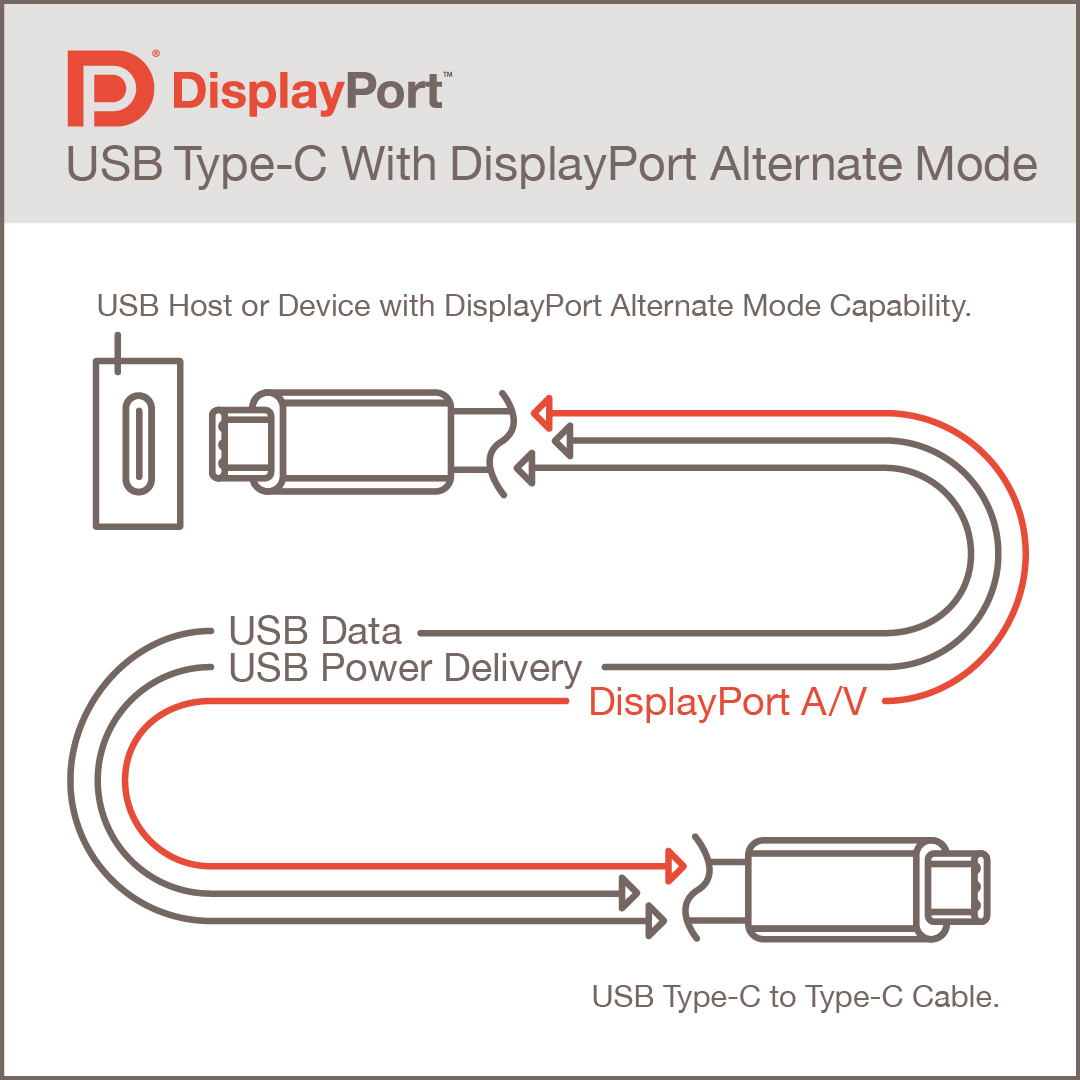
Step 2: Check the Actual Specs — This Is Where Most People Get Duped
This step matters more than any other. The spec sheet tells you what the hardware actually supports, regardless of sales copy or assumptions.
Search your monitor model number plus "specifications" or "spec sheet." Look at the manufacturer's product page first, then the PDF manual. Ignore third-party retailer descriptions, they're frequently wrong or recycled from a different model year.
Here's what to look for and what it actually means:
- "USB-C with DisplayPort Alt Mode" or "USB-C video input": Yes. Your monitor accepts video over USB-C.
- "USB-C 90W Power Delivery" without mentioning video: Charging only. No display signal.
- "USB-C hub" or "USB 3.1 Type-C": Data and possibly charging. Video unlikely unless explicitly stated.
- "Thunderbolt 4": Full capability. Video, data, daisy-charging, the works.
- VESA DisplayPort Alt Mode certification: This confirms compliance with the official standard.
Manufacturer specifications from brands like Dell, LG, Samsung, and ASUS tend to be reliable for these details. Budget or white-label monitors sometimes list vague "USB-C support" without clarifying. In those cases, check the manual's input source section.
If USB-C appears as a selectable input in the OSD source menu, it supports video.
One more thing. Check the maximum resolution and refresh rate listed for the USB-C input specifically. Some monitors cap at 4K@30Hz over USB-C but do 4K@60Hz over DisplayPort or HDMI.
That limitation matters if you care about smooth motion for scrolling, video, or creative work.
Step 3: Identify What YOUR LUSB-C Port Supports
Your monitor might support USB-C video perfectly. But if your laptop's USB-C port doesn't output video, the whole chain breaks on the other end.
Most laptops manufactured after 2018 with USB-C ports support DisplayPort Alt Mode. "Most" is not "all," and that gap costs people.
MacBooks from 2015 onward generally support USB-C video output, including models as of 2026. Apple's implementation is mature and reliable across the current lineup.
Windows laptops vary significantly. Business-grade machines like Lenovo ThinkPad T-series, Dell Latitude, and HP EliteBook lines almost always support DP Alt Mode. Consumer-grade laptops sometimes include USB-C ports that handle only data and charging.
Chromebooks are hit or miss. Some support video output, others don't.
To verify your laptop, check:
- The laptop's spec sheet for "DisplayPort over USB-C" or "DP Alt Mode"
- A small DisplayPort or "DP" icon near the USB-C port
- Your chipbook manual's external display section
If your laptop has Thunderbolt 4, you're covered. Thunderbolt 4 mandates DP video output as a baseline requirement. That's one area where the standard actually protects you.
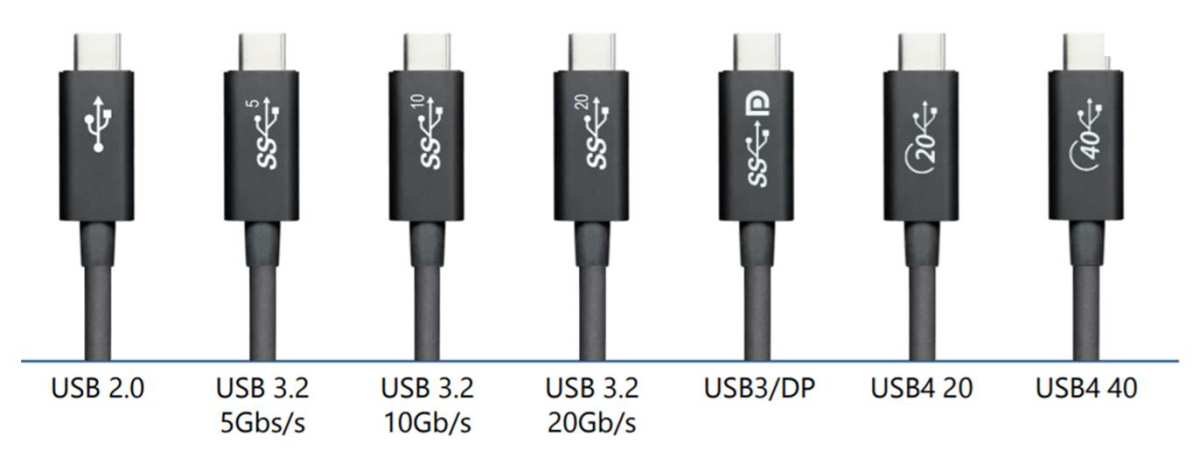
Step 4: Verify Your Cable Isn't the Problem
Not all USB-C cables are built the same. This is one of the most common failure points I see when setting up displays.
A basic USB-C charging cable might carry power and slow data but lack the wiring needed for DisplayPort Alt Mode video. The connector looks identical. The price might even look similar.
The capability is not.
Here's a quick cable guide:
| Cable Type | Carries Video? | Carries Power? | Carries Data? |
|---|---|---|---|
| Basic USB-C charger cable (USB 2.0) | No | Yes (up to 60W typically) | Slow (480 Mbps) |
| USB-C 3.1/3.2 gen 1 or 2 | Often yes | Yes | 5-10 Gbps |
| Thunderbolt 4 cable | Yes | Yes | 40 Gbps |
| USB-C to DisplayPort cable | Yes | Limited | No |
If you bought a cheap USB-C cable in a pack of three, it probably doesn't support video. Look for cables explicitly rated for "4K video," "DisplayPort Alt Mode," or certified Thunderbolt 4. Cables that meet the USB-IF certification standard tend to be clearly labeled.
When in doubt, use the cable that shipped with the monitor if it's a USB-C-capable model. Those cables are matched to the monitor's actual capability.
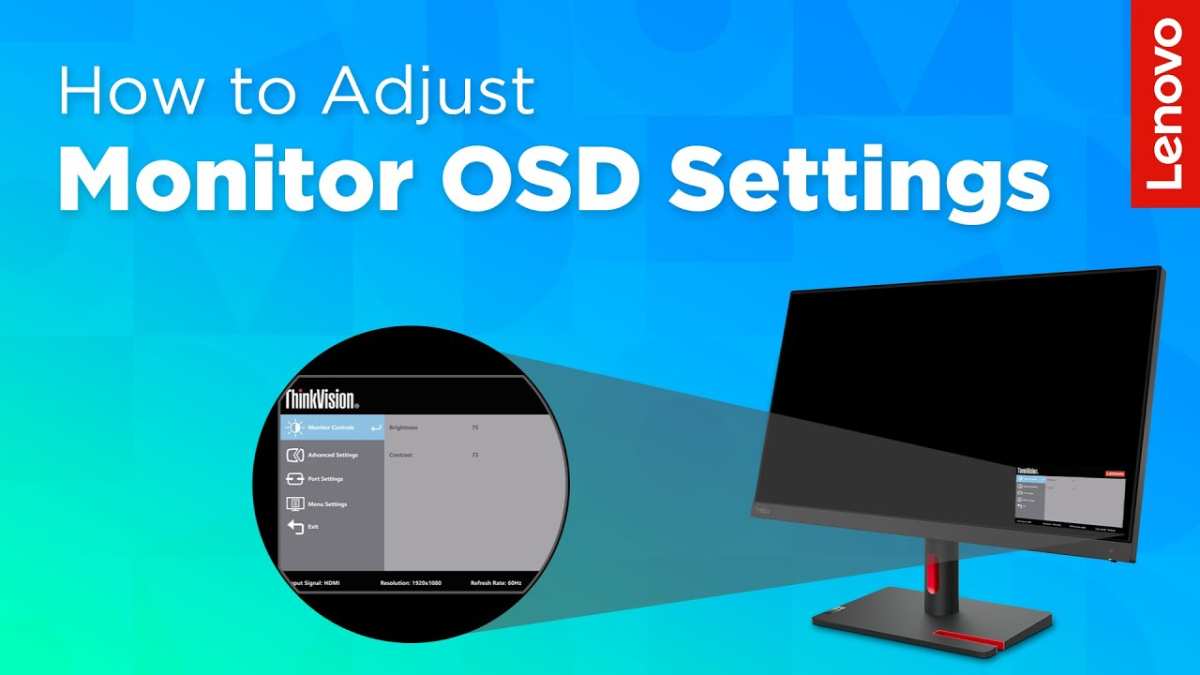
Step 5: Test the Connection and Read the Signs
You've got the specs, the right cable, and a laptop that should work. Time to test.
Plug one end into your laptop's USB-C port and the other into the monitor. Then check three things:
Does the monitor show USB-C as a source option in the OSD menu? Open the On-Screen Display and go to input selection. If USB-C appears as an available source and you select it, the monitor recognizes the connection. If it doesn't appear at all, either the cable or the laptop's signal isn't reaching the monitor.
Does your laptop detect a second display? On macOS, go to System Settings → Displays. On Windows, press Windows + P and check whether a second screen appears in the detection panel. If your laptop sees a monitor but shows "unsupported," the cable or resolution mismatch is likely the issue.
Does your laptop start charging through the cable? If the monitor delivers Power Delivery, you should see a charging indicator on your laptop even with the screen off. No charging doesn't necessarily mean no video, but it's a clue about the cable's capability.
If nothing happens at all, try a different laptop or a different cable before assuming the monitor is at fault. Most connection chain failures happen at the cable, not the hardware.
What the OSD Menu Tells You About USB-C Capability
Your monitor's On-Screen Display menu reveals more than the spec sheet sometimes does. The input source list is essentially the monitor confessing what it can actually accept.
Navigate to the input or source selection in your monitor's OSD. Most monitors let you access this through a physical button on the back or bottom edge. Look through the available input options:
- USB-C listed as an active input source: The monitor recognizes USB-C as a valid video input. That's a strong signal the port supports DP Alt Mode.
- USB-C missing from the input list entirely: The port likely handles data and charging only. It won't accept a video signal no matter what cable you use.
- USB-C appears but shows "No Signal" or "Unsupported": The port supports video, but something in the chain is failing. Check your cable, your laptop's output capability, or the resolution and refresh rate settings.
Some monitors also show connection details in an information or status submenu. Dell Ultrasharp models, for example, display the resolution and refresh rate being received over USB-C in the OSD information panel. LG and BenQ monitors with similar info displays can show connection details that help verify whether the DisplayPort Alt Mode link is active.
If you see USB-C in the input list and it actually works when selected, you're golden. That functional test beats any spec sheet ambiguity.
Common Mistakes That Waste Everyone's Time
After going through the steps above, most people find their answer. But there are predictable mistakes that send people down rabbit holes.
Assuming all USB-C ports are the same. They're not. A monitor might have one USB-C port for input and another for hub output. Check which port you're using.
The input-capable port is often marked differently or positioned near the other video inputs like HDMI and DisplayPort.
Using a cable that came with a phone or cheaper charger. Those cables often lack the wiring for DisplayPort Alt Mode. Our research across multiple manufacturer spec sheets and technical standards confirms that cable capability is the single most common source of confusion in USB-C display setups. Swap to a cable rated for video and the problem disappears.
Ignoring the monitor's maximum resolution over USB-C over specific limitations. Some monitors support 4K@30Hz over USB-C but not 4K@60Hz. If your laptop outputs at 60Hz and the monitor caps at 30Hz, you might get a blank screen or a forced lower resolution. Check the spec sheet for the exact resolution and refresh rate the USB-C input supports.
Not selecting USB-C as the active input in the OSD. Some monitors don't auto-switch. You need to manually choose USB-C from the input menu even when a cable is connected. That's an easy fix once you know to look for it.
Checking the monitor but not the laptop. Both ends of the chain need to support video over USB-C. I've reviewed manufacturer specs and aggregate user reports, and the asymmetry between port capabilities on different laptop models is one of the most common sources of confusion. Verify your laptop's USB-C port supports DP Alt Mode before blaming the monitor.
Quick-Reference Decision Flow: Does YOUR Setup Work Over USB-C?
Use this flowchart to get a fast yes or no for your specific situation.
- Does your monitor spec sheet list "DisplayPort Alt Mode" or "USB-C video input"? , Yes: Proceed to step 2.
, No: Your monitor's USB-C port most likely does not support video. Use HDMI or DisplayPort instead.
- Does your laptop's USB-C port support DP Alt Mode or Thunderbolt? , Yes: Proceed to step 3.
, No: Your laptop can't output video over USB-C. You'll need an adapter or a different connection type.
- Are you using a cable rated for video (Thunderbolt 4, USB 3.1 with DP Alt Mode, or explicitly labeled for 4K)? , Yes: Proceed to step 4.
, No: Swap the cable first. That's likely your problem.
- Does the monitor's OSD show USB-C as an available input source? , Yes: Select it manually if it doesn't auto-switch.
, No: Double-check the port you're using. Some monitors have multiple USB-C ports with different capabilities.
Does your laptop display appear on the monitor?
Yes: Everything works. Enjoy the single-cable setup.
No: Try a different cable first. If that fails, verify your laptop's output resolution doesn't exceed the monitor's USB-C input capability.
Best Monitors With True USB-C Video + Charging (by Use Case)
If you're shopping for a monitor that actually supports USB-C video and charging, here are reliable options based on verified manufacturer specifications.
For office and productivity use: Dell's Ultrasharp line, like the U2723QE, offers USB-C with 90W power delivery and full 4K resolution at 60Hz. These monitors are well-documented and the USB-C input is clearly specified on the spec sheet and easily confirmed in the OSD.
For Mac users: LG's UltraFine series was designed with Apple's ecosystem in mind. Full USB-C video, power delivery, and macOS compatibility right out of the box. The integration is tighter than most third-party monitors.
For creative professionals: BenQ's DesignVue and PhotoVue lines include several models with USB-C and factory-calibrated color accuracy. Their technical documentation from the manufacturer provides clear input specifications, so you know exactly what you're getting.
For budget-conscious buyers: Some budget-friendly monitors include USB-C ports, so check specifications or support pages carefully to verify whether the port supports video output. Several budget models do include DP Alt Mode over USB-C, often at lower power delivery wattages.
When You're Better Off Using HDMI or DisplayPort Instead
USB-C video is convenient, but it's not always the best choice. There are situations where the traditional options work better.
High-refresh-rate gaming: Most USB-C monitors cap at 60Hz over the USB-C port, even if they support higher refresh rates through DisplayPort or HDMI. Gripes from users in our research indicate that DisplayPort remains the reliable choice for high-refresh-rate gaming monitors, often with fewer compatibility headaches and cleaner adaptive sync support.
Daisy-chaining multiple monitors: Thunderbolt 4 handles daisy-chaining well over USB-C. Standard USB-C with DP Alt Mode rarely does. If you need a multi-monitor chain from a single laptop port, Thunderbolt is the path.
Standard USB-C with DP Alt Mode typically doesn't support it.
Maximum cable length: USB-C video signals degrade beyond 2 meters for most passive cables. HDMI and DisplayPort work reliably at 3 meters or more with quality cables. For longer runs in conference rooms or desk setups, the traditional standards give you more flexibility.
Legacy device compatibility: Some older laptops and devices output HDMI or DisplayPort natively. Skip the dongle and just use the native connection. USB-C's universality only helps when both devices support it.
Frequently Asked Questions
Can I use a USB-C to HDMI adapter instead?
Yes. If your laptop has USB-C but your monitor only has HDMI, a USB-C to HDMI adapter or cable converts the signal straightforwardly. This approach typically works reliably and avoids most compatibility issues.
Does USB-C always charge my laptop when connected to a monitor?
No. Only monitors with Power Delivery capability charge your laptop. Check the spec sheet for wattage.
A monitor without PD will pass data or video but won't charge anything.
Why does my monitor have USB-C but no video?
Cost savings. Including a full DP Alt Mode controller adds expense. Many manufacturers add USB-C for the hub and charging features because they cost less.
It improves the feature list on the box without the added expense of full video support.
Can I add USB-C video to a monitor that doesn't support it?
No. DP Alt Mode requires specific hardware in the monitor. No adapter or firmware update can add it.
Your options are HDMI, DisplayPort, or a DisplayLink-based USB docking station that uses software-driven video output.
What's the difference between USB-C and Thunderbolt on a monitor?
Thunderbolt 4 includes video, data, power, and daisy-chaining. Basic USB-C might include only one or two of those. If you see "Thunderbolt" branding on a monitor, the USB-C port is the full-featured version.
Final Answer: One Question, Does Your Monitor Actually Do USB-C Video?
No. Many monitors don't.
Check the spec sheet. Look for "DisplayPort Alt Mode" or "USB-C video input." If that phrase isn't there, the port handles data and charging. That's it.
You can't make it do video with a firmware update or a fancy adapter.
Check the OSD menu next. If USB-C shows up as a selectable source and your laptop supports DP Alt Mode through a verified Thunderbolt cable, you're in good shape. Plug in, select the source manually if needed, and you should see your laptop appear on the monitor.
Yes. Those Dell Ultrasharp, LG UltraFine, and similar professional lines are well-documented and reliable. Budget options exist too, but double-check the specs. Some actually do support DP Alt Mode over USB-C; the question is whether the rest of your setup supports it too.

Similar Posts





















