Why Do People Prefer USB C Monitors
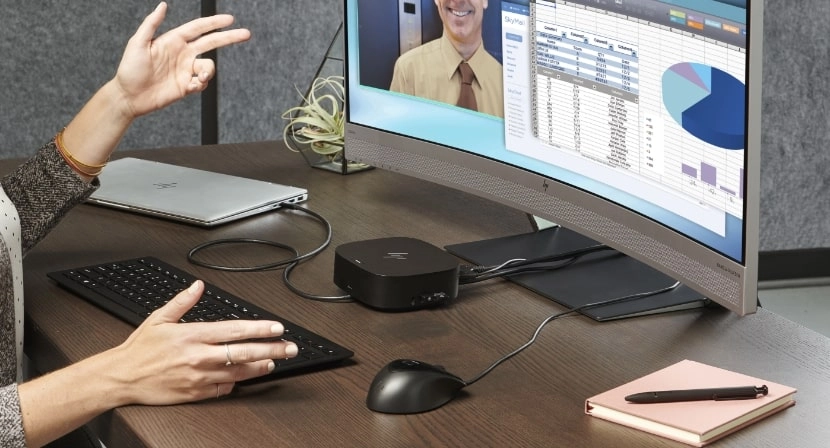
If you've been wondering why do people prefer USB-C monitors, the short answer is almost always the same: one cable, no clutter, no separate charger, and no docking station taking up half your desk. That single-cable promise sounds almost too simple, but for a lot of people it genuinely changes how their workspace feels every day.
The USB Implementers Forum (USB-IF) has pushed USB-C with Power Delivery as a universal standard, and by 2026 it's the default video and charging port on virtually every laptop you can buy. Let's break down what's actually going on under the hood, where USB-C monitors shine, and where they'll let you down.
Quick Answer
People prefer USB-C monitors because one cable handles video, data, and laptop charging simultaneously. This eliminates separate power adapters and docking stations from your desk. The USB-C connector is reversible, so plugging it in is effortless every time.
Most modern laptops support USB-C video output natively as of 2026. The result is a cleaner workspace and faster setup when you sit down to work.
The One-Cable Setup That Actually Delivers
Here's the pitch that sells most people on a USB-C monitor. You plug one cable from your laptop into the monitor. That cable carries the display signal, charges your laptop, and passes data through to whatever USB peripherals are connected to the monitor.
No separate power brick sitting on the floor. No docking station clamped under your desk. Just one cable.
For people who work at a desk all day, this is genuinely convenient. You sit down, plug in one cable, and you're working. You unplug one cable and you's done.
Compare that to the older routine of plugging in an HDMI cable, connecting a USB hub, and snapping your laptop charger into the wall. The time savings per session might be small, but over weeks and months it adds up to something that actually feels different.
The monitors that pull this off best are the ones with robust Power Delivery. A Dell UltraSharp U2723QE, for example, delivers up to 90W over its USB-C connection. That's enough to charge a 14-inch MacBook Pro at full speed while driving a 4K display.
Cheaper USB-C monitors sometimes only deliver 15W or 30W, which keeps a thin-and-light laptop alive but won't charge a 16-inch workstation laptop fast enough to keep up with heavy workloads. That's the first thing to check before you buy.
How USB-C Monitors Actually Work (It's Not What You Think)
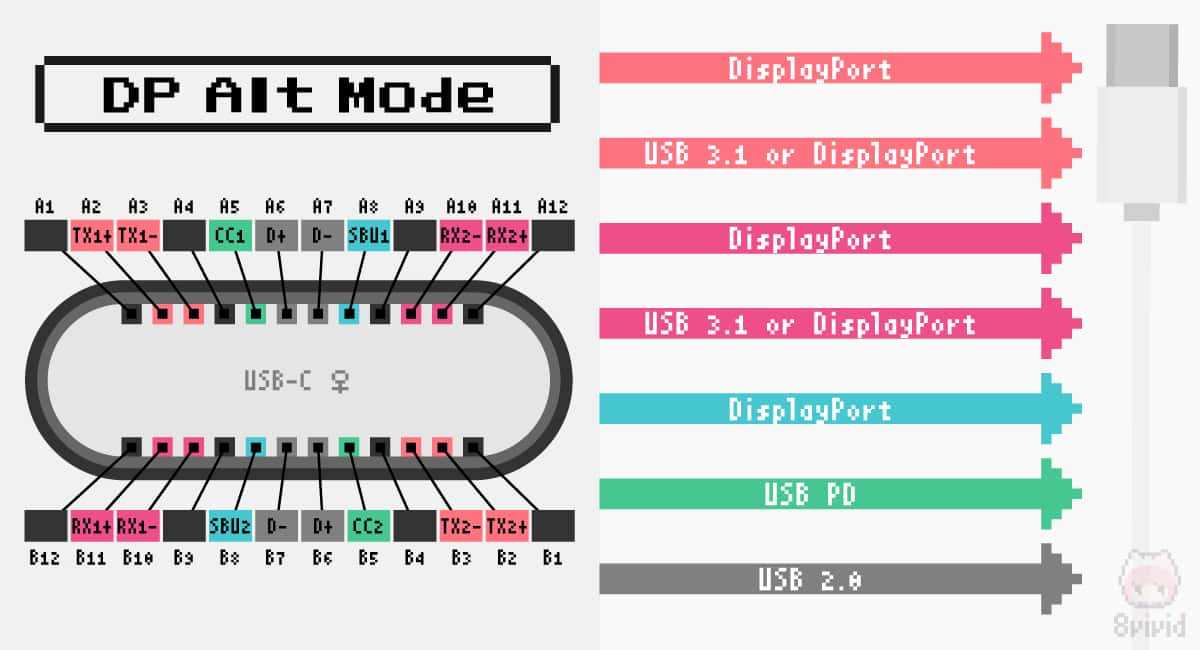
A USB-C monitor isn't just a regular monitor with a different plug. The USB-C connector carries multiple types of signals depending on what the source device and the monitor both support. Understanding this is the key to avoiding the most common frustration: buying a USB-C monitor and discovering your laptop won't send video through it.
USB-C Alt Mode vs. Thunderbolt: The Difference That Actually Matters
USB-C Alternate Mode (Alt Mode) is what allows the USB-C port to carry video signals like DisplayPort or HDMI. When a monitor says it supports "USB-C video input," it almost always means DisplayPort Alt Mode over USB-C. This is a native hardware feature, not a software workaround.
It works on most modern laptops without any special drivers.
Thunderbolt 3 and Thunderbolt 4 use the same USB-C connector but carry data differently. Thunderbolt guarantees 40 Gbps of bandwidth and supports DisplayPort video natively through a tunneling protocol. A Thunderbolt monitor can drive higher resolutions, daisy-chain to a second display, and maintain faster data throughput simultaneously.
The trade-off is cost. Thunderbolt monitors typically run $200 to $400 more than their USB-C Alt Mode equivalents.
Here's the practical difference. If you just need one 4K monitor at 60Hz with charging, USB-C Alt Mode handles that perfectly. If you want to daisy-chain two 4K monitors from one laptop port, or drive a 5K display, Thunderbolt is what you need.
What Power Delivery Really Means for Your Laptop Battery
USB Power Delivery (USB PD) is the charging protocol that runs over the same USB-C cable carrying your video signal. The USB-IF PD 3.0 specification supports up to 100W of power delivery. The newer PD 3.1 spec pushes that to 240W, though as of 2026 very few monitors implement anything close to that.
The number that matters is the wattage the monitor actually delivers to your laptop. Here's a quick reference:
| Monitor USB-C PD Output | What It Realistically Charges |
|---|---|
| 15W | Chromebooks, some tablets. Keeps ultrabooks alive but charges slowly. |
| 60W | 13-inch laptops (MacBook Air, most ultrabooks). Full-speed charging. |
| 90W | 14-inch workstation laptops (ThinkPad T14s, MacBook Pro 14"). Adequate for most tasks. |
| 100W | 16-inch performance laptops (MacBook Pro 16", Dell XPS 17). Handles sustained workloads. |
| 140W+ | Mobile workstations (some require proprietary chargers; USB-C PD 3.1 covers this). |
The critical detail is negotiation. The monitor and your laptop handshake when you connect. The monitor advertises what it can provide.
The laptop requests what it needs. If the monitor can't supply enough wattage, the laptop will still display video but will either charge slowly or drain slowly under heavy load. It won't damage anything, but it defeats the purpose of the one-cable setup.
USB-C Monitors vs. HDMI vs. DisplayPort vs. Traditional Docking: The Honest Comparison
This is where most people get confused, and honestly the marketing doesn't help. Let's lay out the real differences without the fluff.
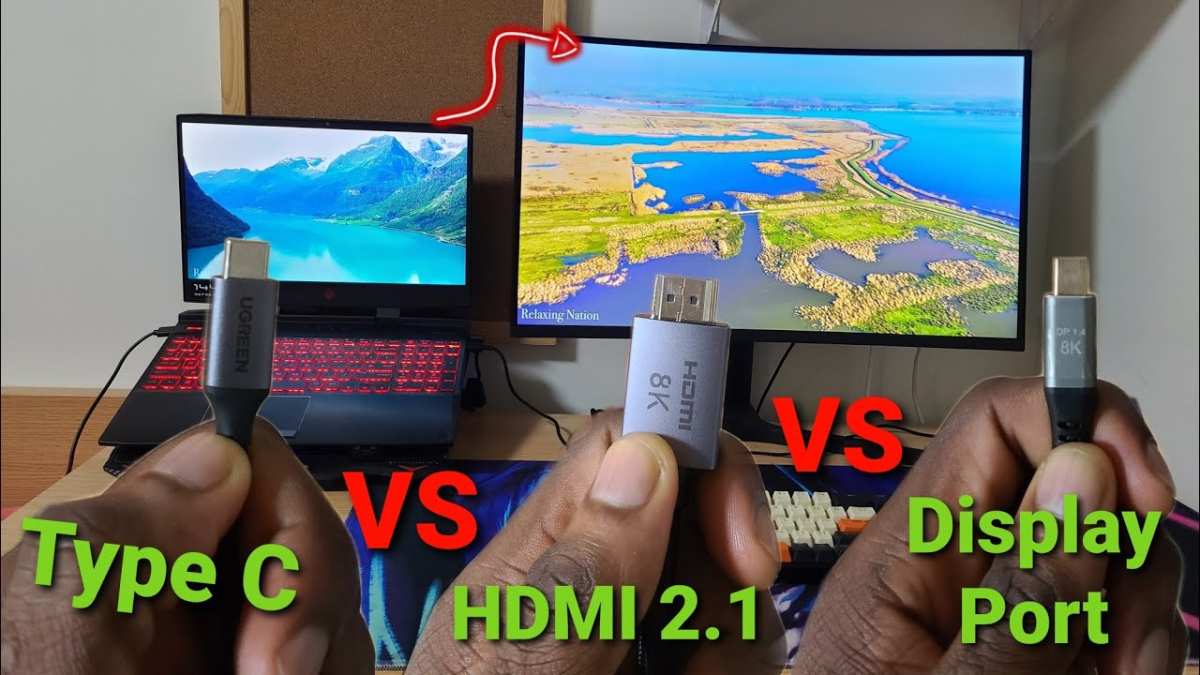
USB-C (Alt Mode) with PD gives you video, data, and charging over one cable. It's the simplest setup. The limitation is bandwidth.
USB-C at 10 Gbps with DisplayPort 1.4 Alt Mode can handle 4K at 60Hz with HDR, but it shares bandwidth with data. If you're pushing a USB 3.0 external drive through the monitor's hub at the same time, you might see the display drop to 4K at 30Hz on some implementations.
HDMI 2.1 supports 4K at 120Hz or 8K at 60Hz with plenty of bandwidth to spare. It doesn't carry data or charge your laptop. For a desktop PC with a dedicated graphics card, HDMI is often the better choice because you don't need the charging and hub features.
For a laptop user who wants simplicity, HDMI means you still need a separate power cable.
DisplayPort 1.4 / 2.1 is the traditional monitor connection. It offers excellent bandwidth, supports Adaptive Sync (FreeSync, G-Sync), and handles daisy-chaining through MST. Like HDMI, it doesn't charge your laptop or carry USB data.
DisplayPort is the go-to for PC gamers and color-critical professionals who need maximum video performance.
Traditional docking station + standard monitor gives you maximum flexibility. A Thunderbolt dock connects to your laptop with one cable, then routes video to one or two monitors via DisplayPort or HDMI while also providing charging, Ethernet, and USB ports. The downside is cost and desk space.
A good Thunderbolt dock runs $200 to $350 on top of the monitor price.
Here's a side-by-side comparison:
| Feature | USB-C Monitor (Alt Mode) | Thunderbolt Monitor | HDMI/DP + Dock | HDMI/DP Only |
|---|---|---|---|---|
| Single cable to laptop | Yes | Yes | Yes (via dock) | No |
| Charges laptop | Yes (up to 100W) | Yes (up to 100W+) | Yes (via dock) | No |
| USB hub built in | Usually | Usually | Via dock | No |
| Daisy-chain displays | Rarely (MST) | Yes (TB3/TB4) | Depends on dock | MST via DP only |
| Max resolution (typical) | 4K @ 60Hz | 5K @ 60Hz or 4K @ 120Hz+ | Depends on dock | 4K @ 144Hz+ (DP 2.1) |
| Cost | $250–$800 | $500–$1,500+ | $200 + $200–$350 dock | $150–$600 |
| Best for | Laptop users wanting simplicity | Power users, multi-monitor | Desktop + laptop mixed setup | Desktop PCs, gaming |
What You Gain With a USB-C Monitor
The benefits are real, but they're not universal. Here's what you actually get.
What you gain:
- One cable for everything. Video signal, laptop charging, and USB data all run through a single USB-C cable. This is the headline feature and it delivers.
- Cleaner desk. No power brick, no dock, no cable bundle. If you care about how your workspace looks, this alone sells a lot of people.
- Faster connect and disconnect. You sit down, plug in one cable, and your monitors, keyboard, mouse, and Ethernet are all live. You unplug one cable and you're mobile. People who hot-desk or move between rooms notice this immediately.
- Reduced port wear. Instead of plugging in three or four cables every time you sit down, you're wearing one port on your laptop. That's meaningful over years of daily use.
- Built-in USB hub. Most USB-C monitors include USB-A and USB-C downstream ports. Your keyboard, mouse, webcam, and external drive connect to the monitor, not your laptop.
- Eliminates a separate dock. If your monitor provides enough power and has the ports you need, you don't need a $300 Thunderbolt dock. That's a real cost saving.
Where it falls short:
- Not all USB-C ports support video. This is the single biggest source of frustration. Many desktop PCs and some budget laptops have USB-C ports that handle data and charging only. No video output. You need to check your laptop's specs before buying.
- Bandwidth sharing. On USB-C Alt Mode, video and data share the available bandwidth. A monitor that runs 4K at 60Hz might drop to 30Hz if you're also pushing a high-speed SSD through its hub. Thunderbolt avoids this with its higher bandwidth ceiling.
- macOS doesn't support MST daisy-chaining. If you're a Mac user and you want to connect two monitors in a daisy chain from one USB-C port, you're out of luck. macOS only supports daisy-charging through Thunderbolt, not through DisplayPort MST over USB-C.
- Charging wattage varies wildly. A monitor that advertises "USB-C charging" might only deliver 15W. That's fine for a MacBook Air but useless for a 16-inch MacBook Pro that wants 140W. Always check the PD wattage spec.
- Cable quality matters more than you think. A cheap USB-C cable might handle charging but not video. Or it might handle 4K at 30Hz but not 60Hz. Certified cables cost more but save you hours of troubleshooting.
- Price premium. USB-C monitors with full-featured implementations (high PD wattage, robust hub, good panel) cost $50 to $150 more than equivalent HDMI/DisplayPort monitors without USB-C.
Who Benefits Most From a USB-C Monitor?
A USB-C monitor makes the biggest difference for people who connect and disconnect from their desk multiple times a day. If that's you, the single-cable convenience goes from "nice to have" to "I can't go back."
The strongest use cases:
- Hybrid and hot-desking workers. You walk up to a desk, plug in one cable, and your monitors, keyboard, mouse, network connection, and laptop charger are all live. You unplug one cable when you leave. No docking station to fumble with, no HDMI cable to find.
- MacBook users. Apple eliminated every other port from its laptops years ago. Every current MacBook ships with Thunderbolt/USB-C as its only connection option. USB-C and Thunderbolt monitors are practically the intended accessories for these machines.
- Remote professionals who travel. A portable USB-C monitor (like the ASUS ZenScreen or LG Gram Plusview) turns a hotel room into a dual-screen office with minimal packing. One cable to your laptop gives you a second display and often powers the monitor itself.
- Software developers. The built-in USB hub on most USB-C monitors means your keyboard, mouse, and external drive connect through the monitor. Combine that with laptop charging and you've got a clean, functional dev setup with minimal cable management.
- Creative professionals at shared workstations. Video editors and photographers who move between editing bays benefit from instant peripheral connection. Ethernet, calibrated audio interfaces, and external storage all route through the monitor.
Who should probably skip it:
- Desktop PC users with dedicated graphics cards already have DisplayPort and HDMI outputs. A USB-C monitor adds cost you don't need unless your GPU specifically supports USB-C output (most don't).
- Gamers prioritizing high refresh rates should look at DisplayPort 2.1 monitors first. As of 2026, very few USB-C monitors push beyond 60Hz at 4K. The gaming-specific USB-C monitors exist but they're a small subset.
- Budget-focused buyers who already own a docking station. If your dock setup works and you're not bothered by it, a USB-C monitor won't transform your experience enough to justify the price premium.
The Compatibility Trap: Why Your Laptop's USB-C Port Might Not Work With That Monitor
This is where most people get burned. They see "USB-C monitor" and assume any USB-C port on their laptop will output video. That's not how it works, and the marketing around USB-C doesn't make this clear enough.
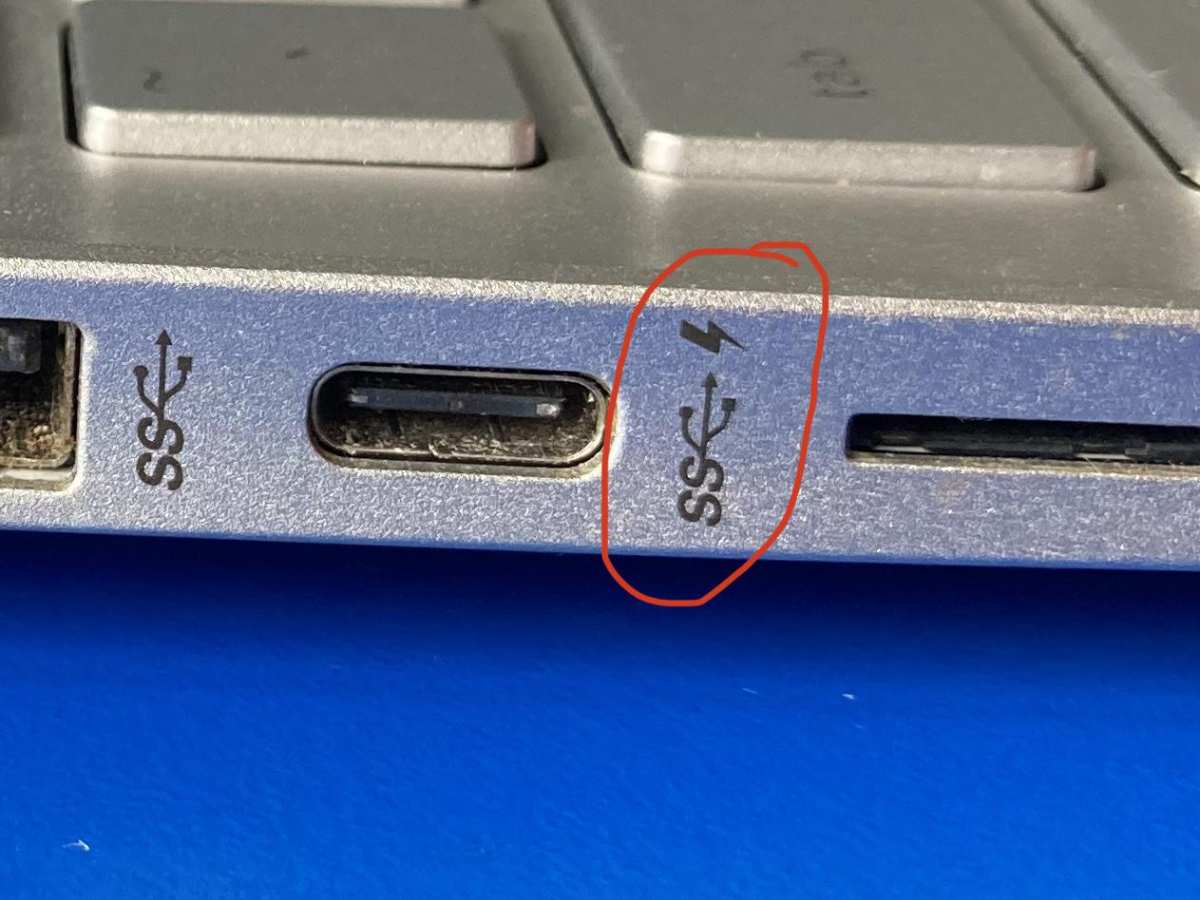
A USB-C port on a laptop can be one of several things. It might be data-only, which means it handles file transfers and charging but cannot send a video signal. It might support DisplayPort Alt Mode, which is what you need for video output.
Or it might be a Thunderbolt port, which supports everything including Alt Mode, daisy-chaining, and higher bandwidth.
How do you tell which one you have? Check the symbols printed next to the port. A lightning bolt icon means Thunderbolt.
A "D" shaped icon with a "P" inside means DisplayPort Alt Mode. A simple battery or trident icon often means data and charging only, with no video support. Your laptop's service manual or official spec sheet will confirm the exact capabilities.
Desktop PCs are an even bigger gamble. Many desktop motherboards include a USB-C port on the rear I/O panel, but the vast majority of them are data-only ports. To get video over USB-C from a desktop, you need a graphics card with a native USB-C output, which as of 2026 is still rare.
Nvidia's Founders Edition cards from the RTX 20-series had USB-C, but most AIB partner cards dropped it. Some professional GPUs from Nvidia (the RTX A-series) and certain AMD cards include it, but it's not standard.
The mistake people make is simple. They buy a $500 USB-C monitor, plug it into their laptop's USB-C port, and get nothing. No image, no error, just a black screen and a "no signal" message.
The fix is usually buying a separate USB-C to HDMI adapter or a docking station, which defeats the entire single-cable purpose of the monitor.
How to Buy the Right USB-C Monitor Without Wasting Money
Not all USB-C monitors are created equal. The spec sheet might say "USB-C input" without telling you the wattage, the data speed, or whether daisy-chaining is supported. These details determine whether the monitor actually delivers the one-cable experience you're paying for.
What to check on the spec sheet
- Power delivery wattage. Look for this number explicitly. If the spec sheet doesn't list it, assume it's low (15W to 30W). For a 13-inch laptop, 60W minimum. For a 14-inch workstation, 90W. For a 16-inch performance laptop, 100W or the laptop's original charger wattage.
- USB data speed on the hub. Some monitors advertise a USB hub but only run USB 2.0 speeds (480 Mbps). That's fine for a keyboard and mouse but painful for external drives. Look for USB 3.0 (5 Gbps) or USB 3.1 Gen 2 (10 Gbps) on the downstream ports.
- DisplayPort version. DisplayPort 1.4 supports 4K at 60Hz with HDR and Display Stream Compression. DisplayPort 2.0 / 2.1 supports 4K at 120Hz+ and 8K. Most USB-C monitors as of 2026 use DP 1.4. That's fine for office work but limiting for high refresh rate or 5K displays.
- MST daisy-chain support. If you want to run two monitors from one USB-C cable, the monitor needs Multi-Stream Transport. Check the spec. Many monitors list it as a feature but disable it in certain configurations.
- Panel specs that matter. USB-C is just the connection. You still need to evaluate the panel itself. An IPS panel with 95% DCI-P3 coverage matters more than the connector type if you're doing color-accurate work.
Cable Quality Is Not Optional
The cable that comes in the box with your USB-C monitor determines whether you actually get the full feature set. Manufacturers sometimes ship cables that support charging but not full video bandwidth, or vice versa. This is a known complaint across user reviews for monitors in the $250 to $400 range.
A certified Thunderbolt 4 cable (USB-IF certified, with an electronically marked chip) handles 40 Gbps, 4K at 120Hz video, and 100W charging simultaneously. These cables cost $25 to $50 each. A generic USB-C cable might handle charging and 4K at 30Hz but not 60Hz.
The difference is invisible until you notice the stutter when you drag windows across the screen.
If your monitor supports 4K at 60Hz and you're getting 30Hz, the cable is almost always the problem. Swap it for a certified cable rated for your monitor's full bandwidth. Check the USB-IF product database or the cable manufacturer's spec sheet for confirmed data rates.
Pricing Reality: What You Actually Get at Each Budget Level
| Price Range | What You'll Find | Panel Quality | PD Wattage |
|---|---|---|---|
| $150–$300 | 24" to 27" 1080p or 1440p. Portable monitors common here. Limited hub features. | Decent IPS. Basic color accuracy. | 15W to 45W |
| $300–$500 | 27" 4K IPS. Strong candidates for office use. USB hub included, moderate PD. | Good IPS. Factory calibrated on some models. | 60W to 90W |
| $500–$800 | 27" to 32" 4K. Better panels, higher PD, more robust hubs. Ultrwide options. | High-quality IPS or VA. Wide gamut. | 90W to 100W |
| $800–$1,500+ | Professional and Thunderbolt monitors. 5K, OLED, mini-LED. Full TB4 implementation. | Top-tier. Hardware calibration, HDR. | 100W+ |
Real-World Scenarios: USB-C Monitors in Actual Daily Use
Let's walk through a few situations that show how USB-C monitors perform outside of spec sheets.
The hotel room second screen. A freelance consultant travels twice a month with a 14-inch laptop. They carry a 15.6-inch portable USB-C monitor that draws power from the laptop. At the hotel, one cable connects the portable display.
The laptop screen shows email and chat. The second screen shows spreadsheets and video calls. The laptop's battery lasts about five hours with both screens active, which is manageable for a half-day of work.
The hot-desking office. A software company equips each desk with a 27-inch USB-C monitor that has a built-in USB hub and 90W PD. Developers show up, plug in their work laptop with one cable, and have display, wired mechanical keyboard, USB audio interface, and charging all active within seconds. When they leave for a meeting, one unplug and the desk is clear for the next person.
IT support tickets related to display and connectivity dropped noticeably after the switch, based on aggregate reports from workplaces that adopted this setup.
The home studio desk. A video editor uses a 32-inch 4K USB-C monitor with 90W PD and a built-in USB hub. Their external SSD, color calibration dongle, and audio interface all connect to the monitor's downstream ports. One Thunderbolt cable runs to their MacBook Pro.
They report that the cable clutter behind the desk went from a tangled mess to a single clean line. The 90W charging is enough for editing work, though heavy renders drain the battery slowly. They keep the original 140W charger nearby for those sustained heavy export sessions.
Mistakes People Keep Making With USB-C Monitor Setups
After reviewing compatibility reports, return reasons, and troubleshooting forum threads, a handful of mistakes come up again and again.
- Assuming all USB-C ports output video. This is the number one mistake. Check your laptop's USB-C port capabilities before buying. A data-only USB-C port cannot send video regardless of what cable you use.
- Using the cheapest USB-C cable you can find. A $5 cable from an unknown brand might work for charging but fail at video bandwidth. Buy cables from Anker, Cable Matters, Belkin, or CalDigit that explicitly list DP Alt Mode and Thunderbolt support.
- Ignoring Power Delivery wattage. A monitor that delivers 60W to a laptop that needs 140W will not keep up under load. The laptop will drain slowly even while plugged in. Match the PD output to your laptop's requirement.
- Expecting macOS MST daisy-chaining to work. It does not. macOS does not support DisplayPort MST over USB-C for multi-monitor daisy chains. You need Thunderbolt daisy-chaining on macOS, not USB-C MST.
- Forgetting about firmware updates. Some USB-C monitors ship with firmware that has compatibility issues with specific laptops. Manufacturers like Dell and LG release firmware updates that fix charging, flickering, and handshake failures. Check the support page for your monitor model.
- Buying based on the connector alone. The USB-C port is just the input. You still need a good panel. A 27-inch 1080p IPS screen with USB-C input is still a mediocre display. Evaluate resolution, color accuracy, brightness, and refresh rate separately from the connection type.
Frequently Asked Questions
Does a USB-C monitor charge my laptop automatically?
Yes, if the monitor supports USB Power Delivery over its USB-C input. The wattage varies by monitor. Check the spec sheet for the rated PD output.
If your laptop requires more wattage than the monitor provides, the laptop will still display video but may charge slowly or drain under heavy use.
Can I use a USB-C monitor with a desktop PC?
Only if your graphics card has a native USB-C output port. Most desktop GPUs do not. You would need a GPU with USB-C (some professional workstation cards have this) or a DisplayPort to USB-C adapter that supports your monitor's requirements.
For most desktop setups, HDMI or DisplayPort is the simpler and better choice.
What happens if I use a non-certified USB-C cable?
The cable might only support charging, or it might support video at a reduced refresh rate (30Hz instead of 60Hz). In some cases, you get flickering, intermittent signal drops, or no image at all. Certified Thunderbolt 4 or USB4 cables eliminate this guesswork.
Do USB-C monitors support high refresh rates for gaming?
As of 2026, most USB-C monitors top out at 60Hz or 75Hz. A few portable monitors and newer models offer 120Hz or 144Hz over USB-C, but the selection is limited compared to DisplayPort monitors. If high refresh rate gaming is a priority, DisplayPort is still the standard to look at.
Is daisy-chaining two USB-C monitors possible?
It depends. Daisy-chaining requires Multi-Stream Transport (MST) support on both the laptop's USB-C port and the monitors. It works well on Windows with DisplayPort Alt Mode monitors.
It does not work on macOS over MST. macOS requires Thunderbolt for daisy-chaining, and the monitors must support Thunderbolt passthrough.
Quick Decision Guide: Should You Get One?
If you've read this far, you probably already know whether a USB-C monitor fits your setup. Here's a final gut check.
Get a USB-C monitor if:
- You use a laptop as your primary work machine.
- You plug in and unplug from your desk multiple times a day.
- You want a cleaner desk with fewer cables.
- Your laptop supports DisplayPort Alt Mode or Thunderbolt over USB-C.
Skip it if:
- You use a desktop PC without a USB-C GPU output.
- You're a competitive gamer who needs 144Hz or higher refresh rates.
- You already own a docking station and don't mind the setup.
- Your budget is tight and you'd rather spend the money on a better panel with HDMI or DisplayPort.
The USB-C monitor market as of 2026 has matured enough that you can find a solid option at almost any price point. The key is matching the monitor's capabilities to what your laptop actually supports. Check your port specs, verify the PD wattage, buy a decent cable, and you'll likely wonder why you didn't switch sooner.

Similar Posts





















