Why Are Touchscreen Monitors More Expensive
If you've shopped for a monitor recently, you've probably noticed the price jump once you filter for touch capability. So why are touchscreen monitors more expensive? The short answer: you're not just paying for a screen.
You're paying for a layered touch sensor system, a dedicated controller, more complex manufacturing, and lower production yields. If you are exploring similar hardware setups, see our detailed guide on why are ips monitors more expensive.
That extra hardware typically adds 30% to 100% to the price compared to an equivalent non-touch display. As of 2026, a solid 24-inch 1080p IPS monitor might run you $150, while its touch-enabled counterpart sits closer to $300 or more. Let's break down exactly where that money goes.
Quick Answer
Touchscreen monitors cost more because they require additional hardware layers. A touch sensor panel, controller digitizer, and bonding process all add manufacturing complexity. Production yields drop when integrating touch, which raises per-unit costs.
The technology involved, such as capacitive sensing and touch controller ICs, requires specialized components that standard monitors simply do not need. To see how this holds up against alternate models, explore why are ultrawide monitors more expensive.
The Real Cost Breakdown: Where Your Money Goes
When you pay extra for touch, the price premium comes from several distinct components stacked on top of an already expensive display panel.
A standard monitor is essentially a panel, a backlight, and a driver board. A touchscreen monitor adds a touch sensor layer, a touch controller, bonding adhesive or optical bonding material, and often a toughened glass surface. On top of that, manufacturing yields drop because any defect in any layer can scrap the entire assembly.
Industry analysis suggests that touch integration increases total production cost by 25, 50% depending on the technology used. That premium passes directly to the buyer. You're not just paying for the ability to tap your screen.
You're paying for the accumulated cost of every extra step in the factory line.
The Touch Sensor Layer Isn't Just a Screen Add-On
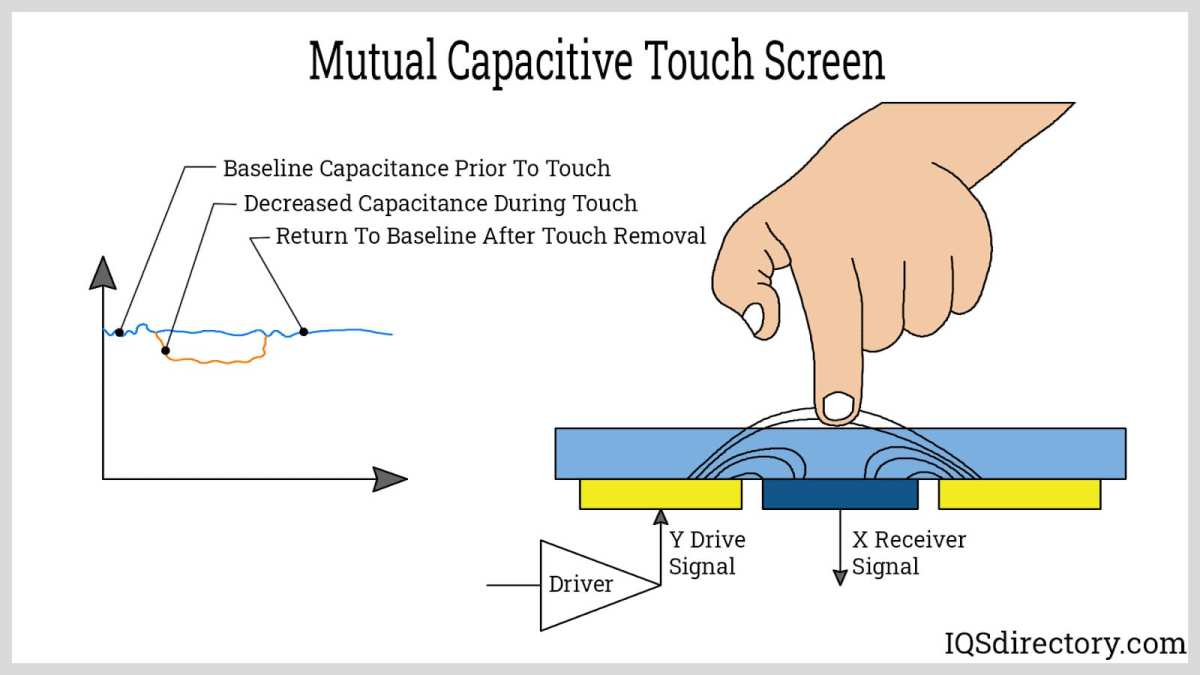
The touch sensor is a separate physical component laminated onto or embedded into the display. The most common technology used in modern monitors is projected capacitive touch (PCAP). This relies on a grid of transparent electrodes, typically made from indium tin oxide (ITO), deposited onto a glass or film substrate.
Here's where cost starts stacking up fast.
The ITO layer itself is expensive to produce consistently. Indium is a rare material, and the sputtering process that creates the electrode pattern requires cleanroom conditions. Any inconsistency in the sensor grid creates dead zones, which means rejected units.
Touch sensor designs vary significantly in complexity and cost:
- Resistive touch uses two flexible layers pressed together. It's cheaper but less durable and less responsive.
- PCAP (capacitive) is the standard for modern monitors. It supports multi-touch, offers better clarity, but costs substantially more.
- Infrared touch uses an array of IR sensors around the bezel. Common in large-format displays but rare in desktop monitors.
- Surface Acoustic Wave (SAW) relies on ultrasonic waves across the glass surface. High clarity but sensitive to contaminants.
Most consumer and professional touchscreen monitors as of 2026 use PCAP technology. It delivers the best user experience but also carries the highest cost among touch methods.
Controller Technology and Integration Complexity
Every touch sensor needs a controller IC that interprets the raw signals from the sensor grid and translates them into usable touch events. This is a dedicated processor, and it's not cheap.
The controller handles several critical tasks simultaneously. It scans the sensor grid hundreds of times per second, filters out noise, calculates touch coordinates, tracks multiple touch points, and communicates the data to your computer via USB or I2C interface.
Higher-end controllers support features like:
- Palm rejection algorithms
- Gesture recognition
- Stylus tilt and rotation tracking
- Pressure sensitivity levels (up to 8192 levels on professional models)
Controllers from companies like Wacom, EETI, and Ilitek vary widely in capability and price. A basic single-touch controller might cost a few dollars. A professional-grade multi-touch controller with active stylus support can add $15 or more to the bill of materials.
Then there's the integration challenge. The controller must be calibrated to the specific sensor panel it's paired with. This calibration happens at the factory and adds another step to production.
Mismatched calibration leads to inaccurate touch response, which means returns and warranty claims.
Panel Yield Rates and Manufacturing Overhead
This is the cost factor most people never think about. When you laminate a touch sensor onto a display panel, you're combining two components that each have their own defect rates.
If the display panel has a 90% yield rate and the touch sensor has a 90% yield rate, the combined yield drops to roughly 81%. In practice, the numbers are often worse because the bonding process itself introduces additional failure modes.
Common manufacturing defects include:
- Air bubbles in optical bonding adhesive
- Misalignment between sensor grid and pixel matrix
- Dead touch zones from micro-fractures in the ITO layer
- Delamination over time, especially in humid environments
Every defective unit that gets caught in quality control represents wasted materials and labor. Manufacturers price these losses into the units that do pass inspection. That's a significant reason why touchscreen monitors carry a premium that seems disproportionate to the visible hardware.
Touchscreen Monitor vs. Standard Monitor: Side-by-Side Comparison
Let's put the two options next to each other and see exactly where the differences show up.
| Feature | Standard Monitor | Touchscreen Monitor |
|---|---|---|
| Price (24" 1080p IPS) | $120–$200 | $250–$500 |
| Panel layers | Panel + backlight | Panel + touch sensor + cover glass |
| Weight | 5–7 lbs typical | 7–10 lbs typical |
| Brightness | 250–350 nits | 200–300 nits (touch layer absorbs light) |
| Power consumption | 15–30W | 20–40W |
| Input options | HDMI, DisplayPort, USB-C | Same + USB upstream for touch data |
| Touch latency | N/A | 5–20ms depending on controller |
| Fingerprint visibility | Minimal | High on glossy surfaces |
| Repair cost | Lower (single panel) | Higher (touch layer replacement) |
| Color accuracy (out of box) | Often better | Slightly reduced due to touch layer |
The brightness difference is worth noting. The touch sensor and cover glass absorb roughly 8, 15% of the backlight output. Manufacturers compensate by using brighter LEDs, which increases power consumption and heat.
It's a cascading cost effect that ripples through the entire design.
Touchscreen Monitor vs. Graphics Tablet vs. Pen Display
If you're considering a touchscreen monitor, you're probably also looking at graphics tablets and pen displays. Here's how the three categories compare.
| Touchscreen Monitor | Graphics Tablet (No Screen) | Pen Display (Screen Tablet) | |
|---|---|---|---|
| Price range | $250–$1,500 | $50–$400 | $400–$3,500+ |
| Primary use | General computing + touch | Drawing, design (look at separate monitor) | Drawing, design (look at tablet screen) |
| Stylus support | Basic to advanced (AES/EMR) | EMR (Wacom standard) | EMR or AES |
| Multi-touch | Yes (10–20 point) | Limited or none | Varies |
| Works as standalone monitor | Yes | No | Some models (e.g., Wacom Cintiq Pro) |
| Best for | Mixed use, presentations, accessibility | Budget-conscious artists | Professional illustrators, photographers |
A touchscreen monitor gives you a full computer monitor that happens to accept touch input. A graphics tablet like a Wacom Intuos is a separate input device. You draw on the tablet while looking at your monitor.
It's a different workflow entirely.
Pen displays like the Wacom Cintiq line are purpose-built for creative professionals. They include high-pixel-density screens, professional-grade stylus technology, and factory color calibration. They cost more than touchscreen monitors because they're specialized tools, not general-purpose displays.
If you need touch for occasional use, a touchscreen monitor makes sense. If you're a professional illustrator, a pen display is worth the investment. If you're on a budget and just want to draw, a standard graphics tablet paired with your existing monitor is the smartest move.
What You Actually Get for the Extra Money
The price premium isn't just theoretical. You're getting tangible features that change how you interact with your computer.
Benefits That Justify the Price
Touch input fundamentally changes the way you interact with a screen. Instead of routing every action through a mouse or keyboard shortcut, you can tap, swipe, pinch, and draw directly on the content.
Here's what you gain with a touchscreen monitor:
- Direct manipulation. Dragging files, zooming images, and scrolling documents feels more natural with a finger than a mouse.
- Stylus precision. Models with active stylus support (AES or EMR) offer pressure sensitivity and tilt recognition for drawing and annotation.
- Multi-touch gestures. Pinch-to-zoom, three-finger swipe, and other gestures work natively on touch-enabled displays.
- Reduced peripheral clutter. If you use a stylus instead of a drawing tablet, you eliminate a separate device from your desk.
- Accessibility. Users with motor impairments or repetitive strain injuries often find touch input easier than mouse navigation.
- Collaborative work. Multiple people can interact with the same screen during meetings or classroom sessions.
- Faster annotation. Marking up documents, signing PDFs, and sketching ideas happens faster with a stylus than with a mouse.
For creative professionals, the stylus integration is often the deciding factor. Drawing with a mouse is like writing with a brick. A pressure-sensitive stylus on a touchscreen monitor restores the natural hand-eye coordination that paper provides.
Drawbacks That Might Surprise You
Touchscreen monitors aren't perfect. There are real trade-offs that the marketing materials don't always highlight.
- Glare. The glass surface reflects more light than a matte monitor finish. Working near windows can become frustrating.
- Fingerprints. Every touch leaves a mark. If you're particular about a clean screen, you'll be wiping it constantly.
- Reduced brightness. The touch layer absorbs light. You might need to crank brightness higher to compensate, which uses more power.
- Parallax. There's a small gap between where your finger touches and where the pixels sit. On cheaper monitors, this offset is noticeable.
- Accidental touch. Brushing the screen with your hand while reaching for something else can trigger unwanted input. Palm rejection helps but isn't flawless.
- Heavier weight. The additional glass and sensor layers add half a pound or more. Wall mounting requires a sturdier bracket.
- Higher repair cost. If the touch layer fails but the display is fine, you're still looking at a significant repair bill. Sometimes replacement is cheaper than repair.
- Driver compatibility. Some touch monitors have spotty driver support on Linux or older Windows versions. Always check compatibility before buying.
The parallax issue deserves special mention. On monitors with air-gap bonding (where a small gap exists between the touch sensor and the display panel), your finger appears slightly offset from the actual touch point. Optical bonding eliminates this by laminating the layers together, but it adds cost.
Budget touch monitors almost always use air-gap construction.
Who Should (and Shouldn't) Buy a Touchscreen Monitor
Not everyone needs touch on their desktop. The value depends entirely on how you use your computer.
Touchscreen Monitors Are Worth It If You
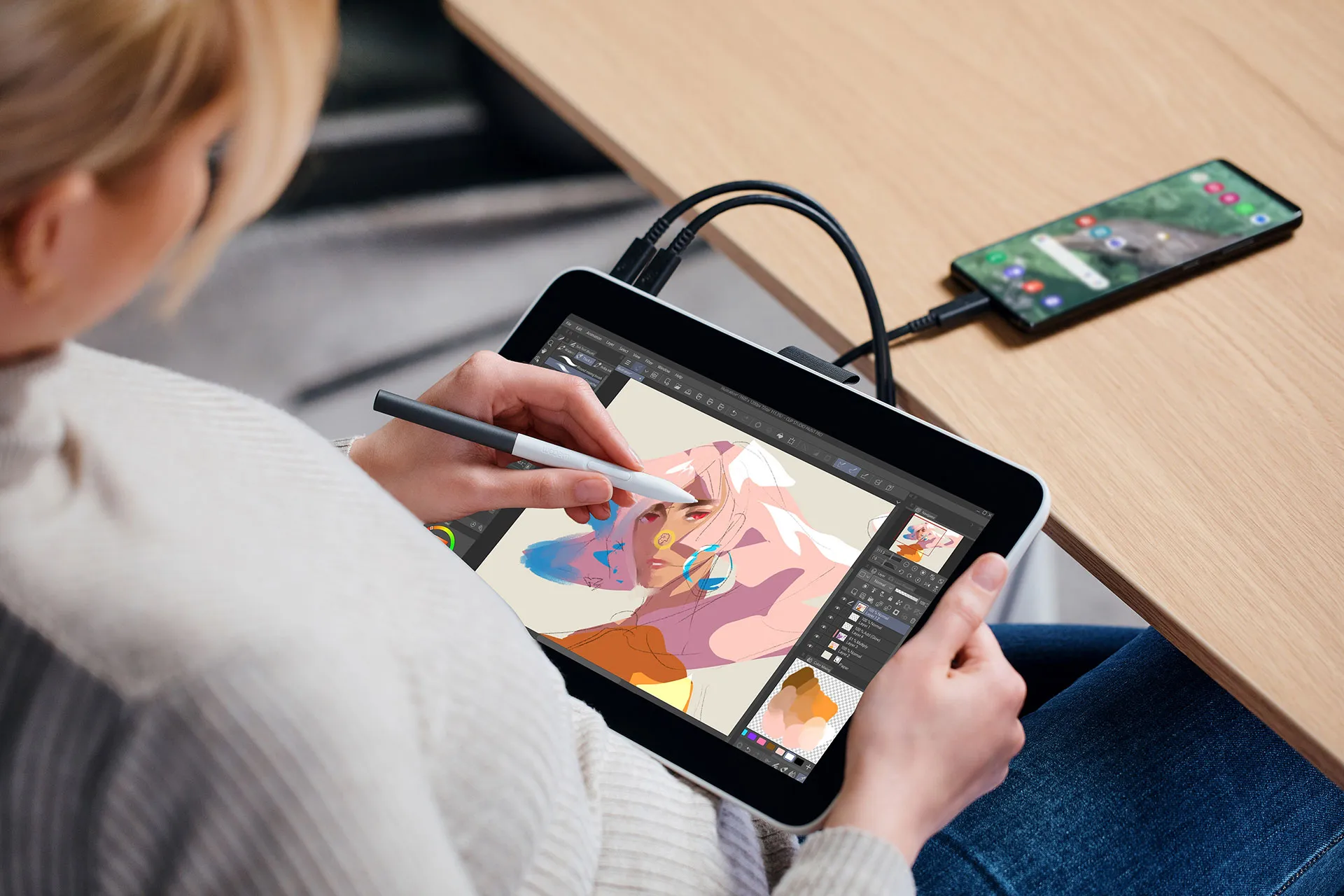
- Digital artists and illustrators who want a single device that serves as both monitor and drawing surface. A touchscreen monitor with stylus support eliminates the need for a separate graphics tablet.
- Architects and engineers who frequently annotate CAD drawings and markup documents. Direct pen input on the screen speeds up review cycles.
- Educators and presenters who interact with content while facing an audience. Touch makes presentations more dynamic and engaging.
- Medical professionals who need to manipulate imaging data quickly during consultations. Touch-enabled displays are increasingly common in radiology and pathology.
- Accessibility users who find mouse and keyboard navigation difficult. Touch provides a more intuitive input method for many motor impairments.
- Retail and hospitality businesses deploying point-of-sale systems or interactive kiosks. Touchscreen monitors are built for constant public interaction.
- Home users who simply enjoy the convenience of tapping and swiping on a desktop display. If the price premium doesn't bother you, the experience is genuinely nice.
You're Better Off With an Alternative If You
- Primarily game. Most desktop games don't use touch input. A high-refresh-rate standard monitor delivers better gaming performance per dollar.
- Do basic office work. Email, spreadsheets, and web browsing don't benefit much from touch. A standard monitor saves you money.
- Need color-critical work without compromise. The touch layer can slightly affect color accuracy and brightness uniformity. For professional photo editing or print design, a calibrated non-touch display is still the gold standard.
- Are on a tight budget. If the 30, 100% price premium strains your wallet, a standard monitor plus a basic graphics tablet gives you drawing capability for less money.
- Work in a bright environment. Glare from the touch glass can be a real problem in sunlit rooms or near windows.
How Much More Do You Actually Pay?
Let's look at real pricing tiers so you know what to expect at each budget level.
Price Tiers and What Each Gets You
| Price Range | What You Get | Typical Specs |
|---|---|---|
| $250–$400 | Budget touch monitor | 21–24", 1080p, IPS, 10-point capacitive, basic USB touch, air-gap construction |
| $400–$700 | Mid-range touch monitor | 24–27", 1440p or 4K, IPS, optical bonding, better stylus support, USB-C with power delivery |
| $700–$1,200 | Professional touch/pen display | 27–32", 4K, factory color calibration, EMR or AES stylus, 8192 pressure levels, tilt support |
| $1,200–$3,500+ | High-end professional display | 32"+, OLED or mini-LED, HDR, medical or industrial grade, multi-touch, advanced stylus features |
Entry-level touch monitors from brands like ASUS, ViewSonic, and Acer start around $250 for a 24-inch 1080p panel. These are fine for basic touch interaction but often lack stylus support and use cheaper capacitive sensors with noticeable parallax.
Mid-range options from Dell, HP, and Lenovo add optical bonding, higher resolutions, and better build quality. This is the sweet spot for most professionals who want touch without spending four figures.
Professional pen displays from Wacom, Huion, and XP-Pen sit at the top of the price range. These are specialized creative tools with pixel-perfect stylus tracking, wide color gamuts, and factory calibration. They're not general-purpose monitors.
They're investments for working artists and designers.
Common Mistakes People Making When Buying
Even people who know they want touch make these errors.
- Ignoring stylus compatibility. Not all touchscreen monitors support active styluses. Some only work with basic capacitive styluses that lack pressure sensitivity. If you want to draw, confirm the monitor supports AES or EMR stylus technology before buying.
- Overlooking the cable situation. Touch functionality often requires a separate USB upstream cable in addition to the video connection. Some monitors support USB-C single-cable operation for both video and touch, but not all do. Check the specs.
- Assuming plug-and-play on every OS. Windows has decent native touch support. macOS has limited touch optimization. Linux support varies wildly by model. Verify compatibility with your operating system.
- Buying based on touch alone. A touch sensor on a poor display panel is a bad monitor. Evaluate the underlying display quality first. Panel type, brightness, color accuracy, and response time matter more than the touch layer.
- Not checking palm rejection quality. Cheap touch monitors often suffer from accidental touch registration when your palm rests near the screen. Read reviews specifically about palm rejection performance.
- Forgetting about glare. If your desk faces a window, the glossy glass on a touch monitor will reflect everything. Anti-glare coatings help but aren't perfect. Consider your room layout before committing.
Expert Tips Before You Spend the Extra Cash
A few things worth knowing before you click "buy."
- Optical bonding matters. Monitors with optically bonded panels have less parallax, better clarity, and fewer reflections. It's worth paying extra for this if you'll use the touch features daily.
- USB-C simplifies everything. A monitor that delivers video, touch data, and power charging over a single USB-C cable reduces desk clutter dramatically. This is especially useful if you're connecting a laptop.
- Check the stylus protocol. Wacom's EMR technology is the industry standard for professional drawing. AES (Active Electrostatic) is common in pen displays. Some monitors support both. Know which stylus ecosystem you're buying into.
- Consider a touch overlay as a test. If you're unsure whether you'll use touch regularly, aftermarket touch overlay kits cost $50, $150 and can be added to existing monitors. They're not as elegant as built-in touch, but they let you test the workflow before committing to a full touchscreen monitor.
- Look at refurbished professional models. Wacom Cintiq and Dell Touch monitors often appear on refurbished markets at 40, 60% off retail. These are built to last, so a used unit in good condition is a solid value.
- Factor in the total cost. A $400 touch monitor plus a $100 stylus costs $500 total. Compare that against a $500 pen display that includes the stylus and might offer better drawing performance. Do the math before deciding.
Frequently Asked Questions
Why are touchscreen monitors more expensive than regular monitors?
Touchscreen monitors cost more because they include additional hardware layers. A touch sensor panel, a touch controller IC, and bonding materials all add manufacturing complexity. Production yields also drop when combining these components, which increases per-unit costs passed on to buyers.
Does a touchscreen monitor work with any stylus?
No. Basic capacitive styluses work on any capacitive touchscreen, but they lack pressure sensitivity. Active styluses require compatible hardware inside the monitor.
Check whether the monitor supports AES or EMR stylus technology before buying a premium stylus.
Can I add touch to a regular monitor?
Yes. Aftermarket touch overlay kits attach to existing monitors and add basic touch functionality. They're not as seamless as built-in touch, and they don't support advanced stylus features.
But they're a low-cost way to test whether touch is useful for your workflow.
Do touchscreen monitors have worse image quality?
Slightly. The touch sensor and cover glass absorb some backlight output, reducing effective brightness by 8, 15%. Color accuracy can also be marginally affected.
Higher-end models with optical bonding minimize these issues, but they're still present to some degree.
Is a touchscreen monitor good for gaming?
Most desktop games don't use touch input, so a touchscreen monitor offers no gaming advantage. Standard monitors at the same price point typically offer higher refresh rates and faster response times. Touch monitors are better suited for productivity, creative work, and casual use.
How long do touchscreen monitors last?
The display panel itself lasts 30,000 to 60,000 hours, similar to standard monitors. The touch sensor layer is generally durable, though the surface glass can scratch over time. Touch controllers rarely fail.
With normal use, a quality touchscreen monitor should last five to eight years.
The Bottom Line: Is a Touchscreen Monitor Worth the Premium?
It depends on your workflow. If you draw, annotate, or present regularly, the price premium pays for itself in productivity. Touch and stylus input create a direct connection to your work that a mouse simply cannot match.
If you mostly browse, type documents, and watch video, save your money. A standard monitor at the same screen size and resolution costs significantly less and performs just as well for those tasks. Spend the savings on a dedicated graphics tablet if you occasionally need to sketch or markup documents.
For everyone in between, consider a mid-range touch monitor with USB-C single-cable operation and optical bonding. That combination gives you the best balance of touch quality, display performance, and desk simplicity without venturing into professional-grade pricing.
Match the tool to the task. That's the whole game.

Similar Posts





















