How to Fix USB C Monitor No Signal Issue
Learning how to fix usb c monitor no signal issue starts with understanding one uncomfortable truth: not every USB-C port can output video. That catches people off guard constantly. You plug in a single cable expecting a clean desktop setup, and instead you get a black screen and a "No Signal" message staring back at you.
The good news is that most of these issues come down to a handful of specific causes. A cable that doesn't support video. A port that's data-only. This directly compares with our findings on how to fix usb c monitor not detected.
A driver that's out of date. We'll walk through each one in order, starting with the most likely culprit and working our way down to the less obvious fixes.
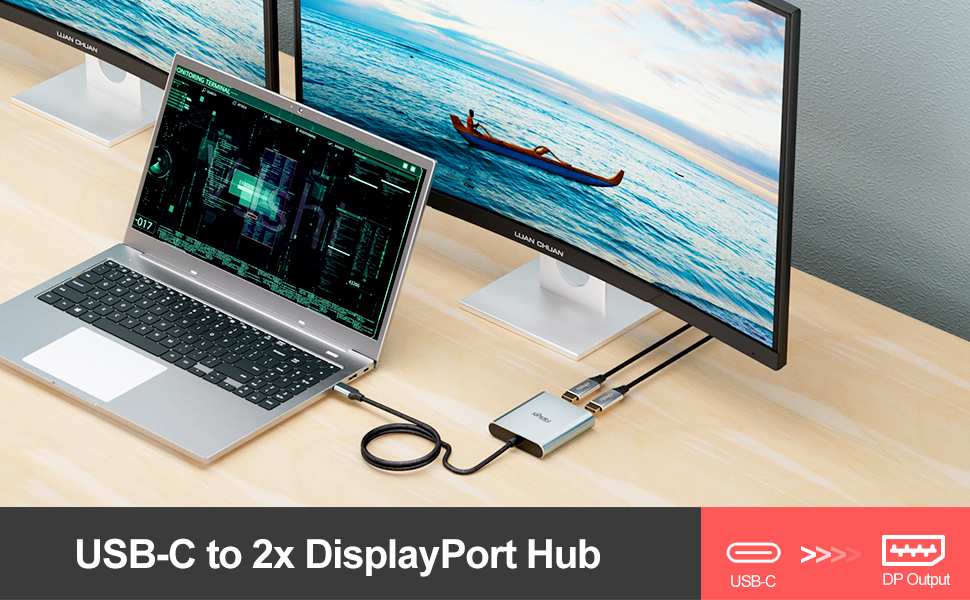
Quick Answer
Check your cable first. Most USB-C cables only charge and don't carry video. Make sure your laptop's USB-C port supports DisplayPort Alt Mode.
Update your graphics drivers. Try a different cable or port to isolate the problem. If using a dock, connect the monitor directly to the laptop first. For related troubleshooting and calibration steps, check our walkthrough on how to fix usb c monitor flickering.
The #1 Thing Most People Miss: Does Your USB-C Port Even Support Video?
This is where the majority of troubleshooting falls apart. People assume every USB-C port can output video. That's not how it works at all.
USB-C is just a connector shape. What matters is what's behind it. Some ports handle video, power, and data.
Others only do power and data. A few only charge.
The key technology here is DisplayPort Alt Mode. That's the protocol that lets a USB-C port send a video signal to a monitor. If your laptop's port doesn't support it, no cable swap in the world will fix your no signal problem.
Here's how to figure out what you're working with:
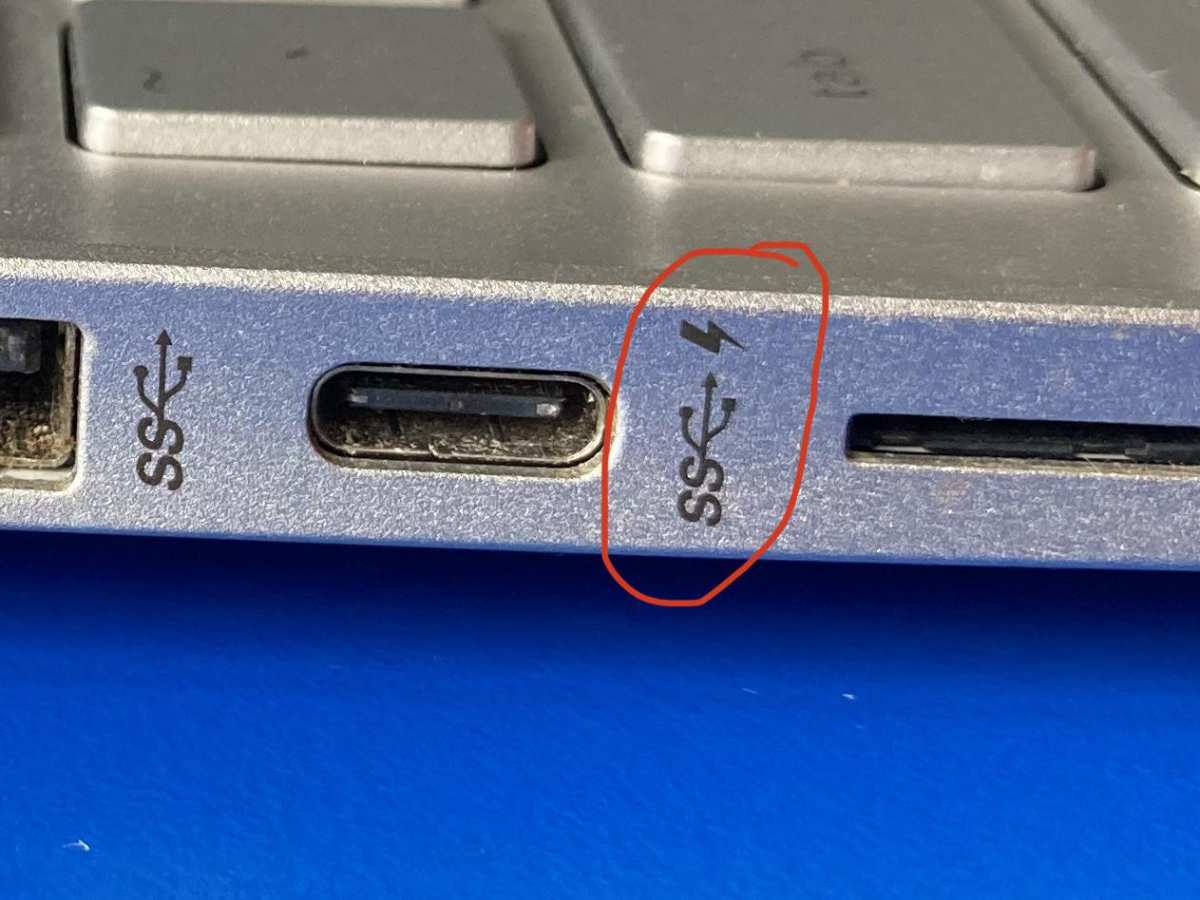
- Check for a lightning bolt or "DP" symbol next to the port. Thunderbolt 3 and 4 ports always support video output.
- Look up your laptop's exact model specs on the manufacturer's website. Search for "DisplayPort over USB-C" or "DP Alt Mode" in the specifications sheet.
- Check your BIOS or UEFI settings. Some laptops let you disable DisplayPort Alt Mode at the firmware level, which would block video even on a capable port.
Per USB-IF specifications, USB-C ports are not required to support video output. It's an optional feature. Budget laptops and some business models ship with USB-C ports that handle charging and data transfer only.
If that's your situation, you'll need to use an HDMI or DisplayPort connection instead, or add a Thunderbolt dock if your system supports it.
Quick-Fix Checklist: Try These 5 Things Before Going Deeper
Before diving into deeper diagnostics, run through these five checks. They solve the problem more often than you'd expect.
- Reseat the cable. Unplug both ends, wait ten seconds, and reconnect firmly. A loose connection causes handshake failures.
- Try a different USB-C port. If your laptop has two, the second one might have different capabilities.
- Select the correct input on your monitor. Sounds obvious, but many USB-C monitors have multiple inputs. Cycle through them using the monitor's on-screen display.
- Restart your laptop with the monitor connected. Sometimes the graphics driver needs a fresh handshake at boot.
- Test with a different device. Plug a different laptop or even a phone (if it supports video output) into the same monitor with the same cable. This tells you whether the problem is the monitor, the cable, or the original laptop.
If none of those work, it's time to get systematic.
Step 1: Check Your Cable — This Is Where Most People Get Stuck
The cable is the single most common point of failure. Here's why.
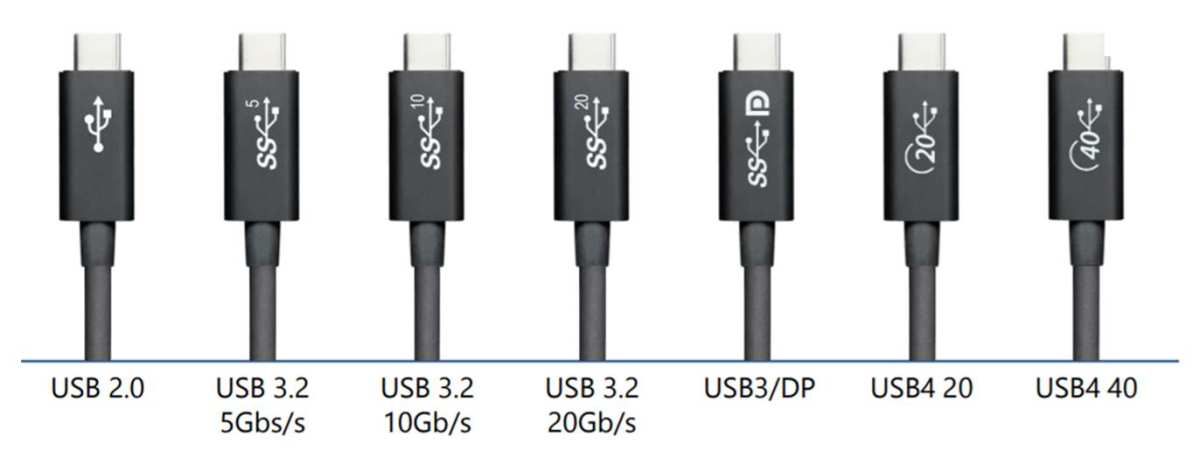
Not all USB-C cables are created equal. A cable that charges your phone perfectly might have zero ability to carry a video signal. USB-C cables come in several configurations, and the cheap ones bundled with phone chargers are almost always USB 2.0 cables.
They handle power and basic data. That's it.
For video output over USB-C, you need at minimum a USB 3.1 Gen 1 or Gen 2 cable that explicitly supports DisplayPort Alt Mode or Thunderbolt. A full-featured USB-C cable will support video, data, and power delivery simultaneously.
Here's a quick reference:
| Cable Type | Data Speed | Video Support | Power Delivery |
|---|---|---|---|
| USB 2.0 USB-C | 480 Mbps | No | Up to 60W |
| USB 3.1 Gen 1 | 5 Gbps | Yes (if DP Alt Mode) | Up to 100W |
| USB 3.1 Gen 2 | 10 Gbps | Yes (if DP Alt Mode) | Up to 100W |
| Thunderbolt 3 | 40 Gbps | Yes | Up to 100W |
| Thunderbolt 4 | 40 Gbps | Yes | Up to 100W |
Manufacturer specifications indicate that cables without an e-marker chip often default to USB 2.0 speeds. The e-marker tells the devices what the cable can handle. No e-marker, no video.
What to do:
- Look for markings on the cable itself. "USB 3.1," "10Gbps," "Thunderbolt," or "4K" printed on the cable are good signs.
- If the cable has no markings at all, assume it's a charge-only cable.
- Try a cable you know works for video. Borrow one from a coworker or use the cable that came with the monitor.
- Keep cable length under 2 meters for passive cables. Longer runs may require active cables to maintain signal integrity.
Step 2: Verify Your USB-C Port Supports DisplayPort Alt Mode
Let's say you've confirmed your cable is good. The next question is whether your laptop's port can actually send video.
This is where things get frustrating. Manufacturers don't always make it obvious which ports support what. Two USB-C ports on the same laptop can have different capabilities.
How to check:
- Windows: Open Device Manager. Expand "Display adapters" and "Universal Serial Bus controllers." If you see "Thunderbolt" listed, that port supports video. You can also check your laptop's official product page or user manual for port specifications.
- macOS: Click the Apple menu, then "About This Mac," then "System Report." Under "Hardware" look for "Thunderbolt" or "USB" and check the listed capabilities. Every Thunderbolt Mac supports video output over USB-C.
- Linux: Run
lsusb -tin a terminal to see port capabilities. Look for "DisplayPort" in the output.
If your port doesn't support video:
- Use a direct HDMI or DisplayPort connection instead.
- Add a Thunderbolt 3 or 4 dock if your laptop has a Thunderbolt port (different from a standard USB-C port).
- Use a USB-C to HDMI adapter that contains its own DisplayLink chip. These adapters create a video signal through data transfer rather than relying on DP Alt Mode. They require a driver but work on data-only USB-C ports.
Step 3: Update Your GPU Drivers and Monitor Firmware
Outdated drivers cause more display issues than most people realize. This is especially true after a major operating system update.
For Windows:
- Open Device Manager, expand "Display adapters," right-click your GPU, and select "Update driver."
- Better yet, download the latest driver directly from NVIDIA, AMD, or Intel's website. Windows Update doesn't always have the newest version.
- If you recently updated a driver and the problem started, roll back to the previous version. Right-click the GPU in Device Manager, select "Properties," then "Driver," then "Roll Back Driver."
For macOS:
- macOS updates include graphics driver updates. Make sure you're running the latest version of your macOS release.
- On Apple Silicon Macs, the GPU is integrated. There are no separate drivers to update. A system update is the only path.
Monitor firmware:
This one gets overlooked constantly. USB-C monitors from Dell, LG, and Samsung occasionally need firmware updates to fix handshake issues with specific laptops. Check the manufacturer's support page for your exact monitor model.
Dell, for example, has released firmware updates specifically addressing USB-C no signal problems on their UltraSharp monitors.
BIOS or UEFI updates:
Some laptops require a BIOS update to properly enable DisplayPort Alt Mode on their USB-C ports. This is common on business laptops from Lenovo, HP, and Dell. Check your laptop's support page for BIOS updates and read the release notes for any mention of USB-C display fixes.
Step 4: Check Your Monitor's Input Source and Settings
This sounds too simple to matter. It matters more than you'd think.
Many USB-C monitors have multiple input sources. HDMI, DisplayPort, USB-C, sometimes even VGA. If the monitor is set to HDMI and you're plugged into USB-C, you'll get "No Signal" every single time.
What to check:
- Open the monitor's on-screen display (OSD) menu using the physical buttons on the monitor.
- Navigate to "Input Source" or "Input Select."
- Make sure it's set to USB-C. Some monitors auto-detect, but auto-detection fails more often than manufacturers admit.
- If your monitor has multiple USB-C ports, confirm you're plugged into the correct one. Some models have one USB-C port for data and a separate one for video.
Also check whether your monitor has a deep sleep or eco mode that disables ports to save power. This setting varies by brand. Dell calls it "Deep Sleep." LG and Samsung have similar features under different names.
When this mode is active, the monitor may not wake up properly when you connect a laptop.
Disable deep sleep in the OSD, then try the connection again.
Step 5: Test With a Different Device to Isolate the Problem
At this point, you've checked the cable, the port, the drivers, and the monitor settings. Time to figure out which piece of hardware is actually at fault.
The fastest way to do this is substitution testing. Swap one component at a time until the problem follows a specific device.
Try these combinations:
- Plug a different laptop into your monitor using the same cable. If it works, your original laptop's port is the problem.
- Plug your laptop into a different USB-C monitor using the same cable. If it works, your monitor may have a firmware issue or a hardware fault.
- Plug your laptop into your monitor using a different cable. If it works, your original cable was bad.
This process of elimination tells you exactly where to focus. Aggregate user reviews on tech forums consistently show that cable failure and port incompatibility account for the majority of USB-C no signal complaints. Monitor hardware failure is relatively rare.
If the problem follows the laptop, check for a BIOS update. If it follows the monitor, check for a firmware update. If it follows the cable, replace the cable with one rated for video.
When a USB-C Hub or Dock Is Causing the No Signal Issue
Hubs and docks add another layer of complexity. They also add another layer of potential failure.
A USB-C dock has to negotiate power delivery, data transfer, and video output simultaneously. If any part of that chain breaks, you get no signal. The dock might not support your monitor's resolution.
It might not have enough bandwidth for video and data at the same time. It might need a firmware update of its own.
Common dock-related problems:
- The dock doesn't support DisplayPort Alt Mode passthrough. Some cheap USB-C hubs are data and power only.
- The dock's firmware is out of date. DisplayLink-based docks in particular need regular driver and firmware updates.
- The dock can't deliver enough power to the laptop, causing the system to throttle or disable video output.
- Daisy-chaining two monitors through a single dock exceeds the available bandwidth.
What to do:
- Connect the monitor directly to the laptop first. If that works, the dock is the bottleneck.
- Check the dock's specifications for maximum resolution and refresh rate. A dock limited to 4K at 30Hz won't drive a 4K 60Hz monitor properly.
- Update the dock's firmware and any required drivers. DisplayLink docks need the DisplayLink driver installed on the computer.
- If using a Thunderbolt dock, make sure it's connected to a Thunderbolt port, not a standard USB-C port. Thunderbolt docks won't function correctly on non-Thunderbolt ports.
Common Mistakes That Waste Hours of Troubleshooting
After covering the main fixes, let's talk about the traps people fall into. These mistakes turn a 10-minute fix into an afternoon of frustration.
- Using the cable that came with a phone charger. Those cables are almost always USB 2.0. They charge. They do not carry video.
- Assuming all USB-C ports on the same laptop are identical. Many laptops mix a data-only port with a Thunderbolt port. Check the symbols next to each port.
- Skipping the input source selection on the monitor. The monitor won't always auto-switch. Manually select USB-C in the OSD.
- Ignoring firmware updates. Monitor firmware and dock firmware fix handshake issues constantly. People rarely think to update them.
- Buying an expensive cable and assuming it's good for video. Price doesn't guarantee video support. A $50 cable that's USB 2.0 still won't carry a video signal. Check the specs, not the price tag.
- Forgetting to check power delivery negotiation. Some monitors require the laptop to send power back through the USB-C cable to complete the handshake. If your laptop doesn't support USB-C Power Delivery in the right direction, the monitor may refuse to display anything.
- Not restarting after driver updates. GPU driver updates for USB-C display output often require a full restart to take effect. A sleep/wake cycle isn't enough.
USB-C vs Thunderbolt vs HDMI: Which Connection Should You Use Instead?
If USB-C video isn't working and you need a reliable connection right now, here's how the alternatives stack up.
USB-C (DisplayPort Alt Mode) is the cleanest solution when it works. One cable for video, power, and data. But it requires specific port support and a compatible cable.
It's ideal for minimalist setups and travel.
Thunderbolt 3 and 4 are the most capable option. They carry video, data, and power at up to 40 Gbps. They support daisy-chaining multiple monitors.
The catch is that both the laptop and the monitor or dock need Thunderbolt ports. Not all USB-C ports are Thunderbolt ports.
HDMI is the fallback that always works. It's universal, cheap, and requires zero troubleshooting. The downside is you lose the single-cable convenience.
You'll need a separate power cable for the laptop. HDMI also caps at 4K 60Hz on older versions. HDMI 2.1 supports 4K at 120Hz, but most laptops still ship with HDMI 2.0.
DisplayPort offers the best pure video quality. It supports higher refresh rates and resolutions than HDMI on most implementations. Like HDMI, it doesn't carry power, so you'll need a separate charging cable.
| Connection | Max Resolution (Typical) | Power Delivery | Data Transfer | Troubleshooting Difficulty |
|---|---|---|---|---|
| USB-C (DP Alt Mode) | 4K at 60Hz | Yes | Yes | High |
| Thunderbolt 3/4 | 5K at 60Hz | Yes | Yes | Medium |
| HDMI 2.0 | 4K at 60Hz | No | No | Low |
| HDMI 2.1 | 4K at 120Hz | No | No | Low |
| DisplayPort 1.4 | 4K at 120Hz | No | No | Low |
For most people who just need a working display right now, grabbing an HDMI cable is the fastest path. You can come back to USB-C troubleshooting later when you have time.
Real-World Scenarios: What Fixed It for Different Setup Types
Let's look at how this plays out in common setups.
Scenario 1: Dell UltraSharp USB-C monitor with a Windows laptop. Dell's UltraSharp line is one of the most popular USB-C monitors. Aggregate user reports show that firmware updates on these monitors resolve a significant portion of no signal complaints. Dell provides a firmware update tool on their support site.
Updating the monitor's firmware fixed the issue for many users after months of intermittent problems.
Scenario 2: Portable USB-C monitor with a MacBook. Apple Silicon Macs handle USB-C video well in most cases. When problems occur, it's usually a cable issue. Switching from a generic USB-C cable to a Thunderbolt-certified cable resolved the problem for most users in this category.
Scenario 3: USB-C dock with dual monitors. Dual monitor setups through a single USB-C dock push the bandwidth limits of the connection. Many users found that reducing one monitor from 4K 60Hz to 1080p 60Hz freed enough bandwidth for both displays to work. Others needed to upgrade from a USB-C dock to a Thunderbolt 4 dock to get full resolution on both screens.
Scenario 4: Budget laptop with USB-C charging. This is the hardest scenario. Many budget laptops include a USB-C port for charging only. No amount of troubleshooting will produce a video signal from a port that doesn't support it.
The only fix is using HDMI or adding a DisplayLink adapter, which creates a video signal through the data bus rather than through native DisplayPort Alt Mode.
Frequently Asked Questions
Can all USB-C cables carry video?
No. Only USB-C cables that support DisplayPort Alt Mode or Thunderbolt can carry a video signal. USB 2.0 cables, which are common with phone chargers, cannot.
Look for cables rated at USB 3.1 or higher, or cables explicitly labeled for video.
How do I know if my laptop supports USB-C video output?
Check for a lightning bolt or DP symbol next to the port. Look up your laptop's specifications on the manufacturer's website and search for "DisplayPort over USB-C" or "DP Alt Mode." On a Mac, any Thunderbolt 3 port supports video output.
Why does my USB-C monitor work sometimes but not others?
Intermittent USB-C video connections are often caused by a loose cable, a failing cable, or a power delivery negotiation issue. Try a different cable first. If the problem persists, check for firmware updates for both the monitor and the laptop BIOS.
Do I need a special cable for a 4K USB-C monitor?
Yes. Driving a 4K display at 60Hz requires a cable that supports at least USB 3.1 Gen 1 with DisplayPort Alt Mode. For 4K at higher refresh rates, you need a Thunderbolt 3 or 4 cable, or a USB4 cable rated for the required bandwidth.
Will a USB-C to HDMI adapter fix my no signal problem?
It can, if your USB-C port supports data transfer. A USB-C to HDMI adapter that uses DisplayLink technology creates a video signal through the data bus. This bypasses the need for DisplayPort Alt Mode entirely.
You will need to install the DisplayLink driver on your computer for it to work.
Final Recommendation
Start with the cable. Then check your port. Then update drivers.
That sequence solves most USB-C no signal problems.
If your port doesn't support video, skip the frustration. Use HDMI or a DisplayLink adapter. Come back to USB-C when you upgrade your hardware.
The single-cable dream is great when it works. But knowing the fallback options saves you hours of troubleshooting.

Similar Posts





















