Can USB C Monitor Replace Docking Station
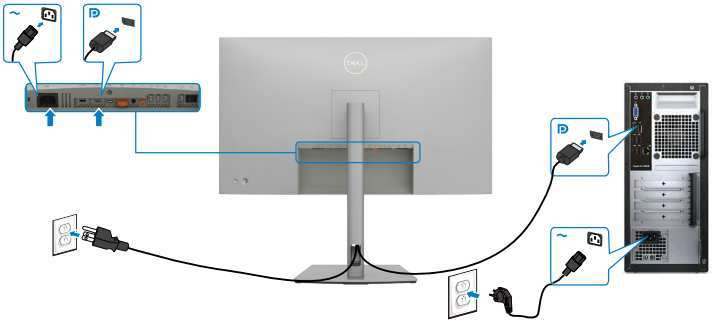
Can a USB-C monitor replace a docking station? It's one of those questions that sounds like it should have a simple answer, but the reality depends entirely on what your laptop can do and what you need from your desk setup.
The short version is that a USB-C monitor can handle video, power, and data through a single cable, but whether that's enough for you comes down to your specific hardware. Let's break down what actually matters so you can figure out which setup makes sense for your situation.
Quick Answer: Yes, But Only If Your Setup Lets It
A USB-C monitor can replace a docking station for many users. The monitor must support DisplayPort Alt Mode and Power Delivery. Your laptop's USB-C port needs video output capability.
You still need only one external display. Docking stations remain necessary for multi-monitor setups and extra ports.
Why This Comparison Actually Matters for Your Desk
Here's the thing. Both USB-C monitors and docking stations promise to simplify your workspace. They both let you run a single cable from your laptop to get video, power, and peripherals working.
But they solve different problems, and picking the wrong one means frustration or wasted money.
A USB-C monitor is an all-in-one display with a built-in hub. You plug one cable into your laptop, and you get a screen plus charging plus a few USB ports. It's elegant.
It's clean. And for a lot of people, it's genuinely enough.
A docking station is a dedicated box that sits on or under your desk. It connects to your laptop via one cable but provides multiple display outputs, more USB ports, Ethernet, and sometimes an audio jack or card reader. It's more capable, but it's also more clutter and more cost.
The question isn't which one is "better." It's which one actually covers what you need.
What a USB-C Monitor Actually Does
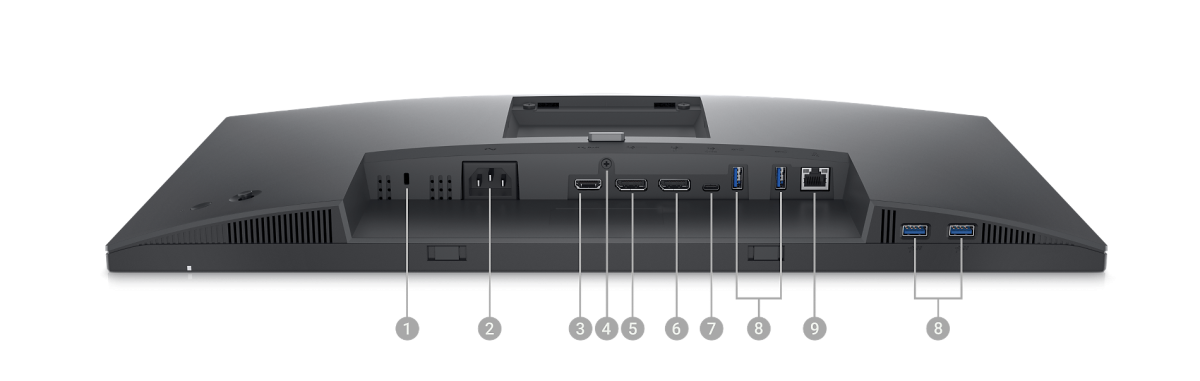
A USB-C monitor with full functionality does three things through one cable. It receives a video signal from your laptop using DisplayPort Alt Mode. It sends power back to your laptop through USB Power Delivery.
It acts as a basic USB hub for peripherals like a keyboard, mouse, or external drive.
Not all USB-C monitors do all three of those things. Some only accept video and power, with no downstream USB ports at all. Others have USB-A ports on the back but don't provide much charging wattage.
You need to check the specs carefully before assuming a given model will replace your dock.
Here's what to look for in a USB-C monitor that can genuinely replace a docking station:
- DisplayPort Alt Mode over USB-C: This is the video signal standard. Without it, your monitor can't receive display data through USB-C.
- USB Power Delivery (PD) at 60W or higher: Most laptops that charge via USB-C need at least 45W to 65W. Some high-performance laptops want 90W or 100W.
- Downstream USB ports: At least two USB-A or USB-C ports on the monitor itself so you can plug in peripherals.
- USB upstream port: A USB-B or USB-C upstream port that connects to your laptop and enables the hub functionality.
Monitors like the Dell U2723QE, LG 27UK850, and Samsung M80B fit this profile. They deliver solid power, have multiple downstream ports, and work as a genuine single-cable solution.
What a Docking Station Does That Monitors Typically Don't
Docking stations exist because monitors have limits. A good dock gives you capabilities that most USB-C monitors simply can't match.
The biggest difference is multi-monitor support. Most USB-C monitors can only drive their own built-in display. A docking station can typically output to two or even three external displays simultaneously through HDMI and DisplayPort outputs.
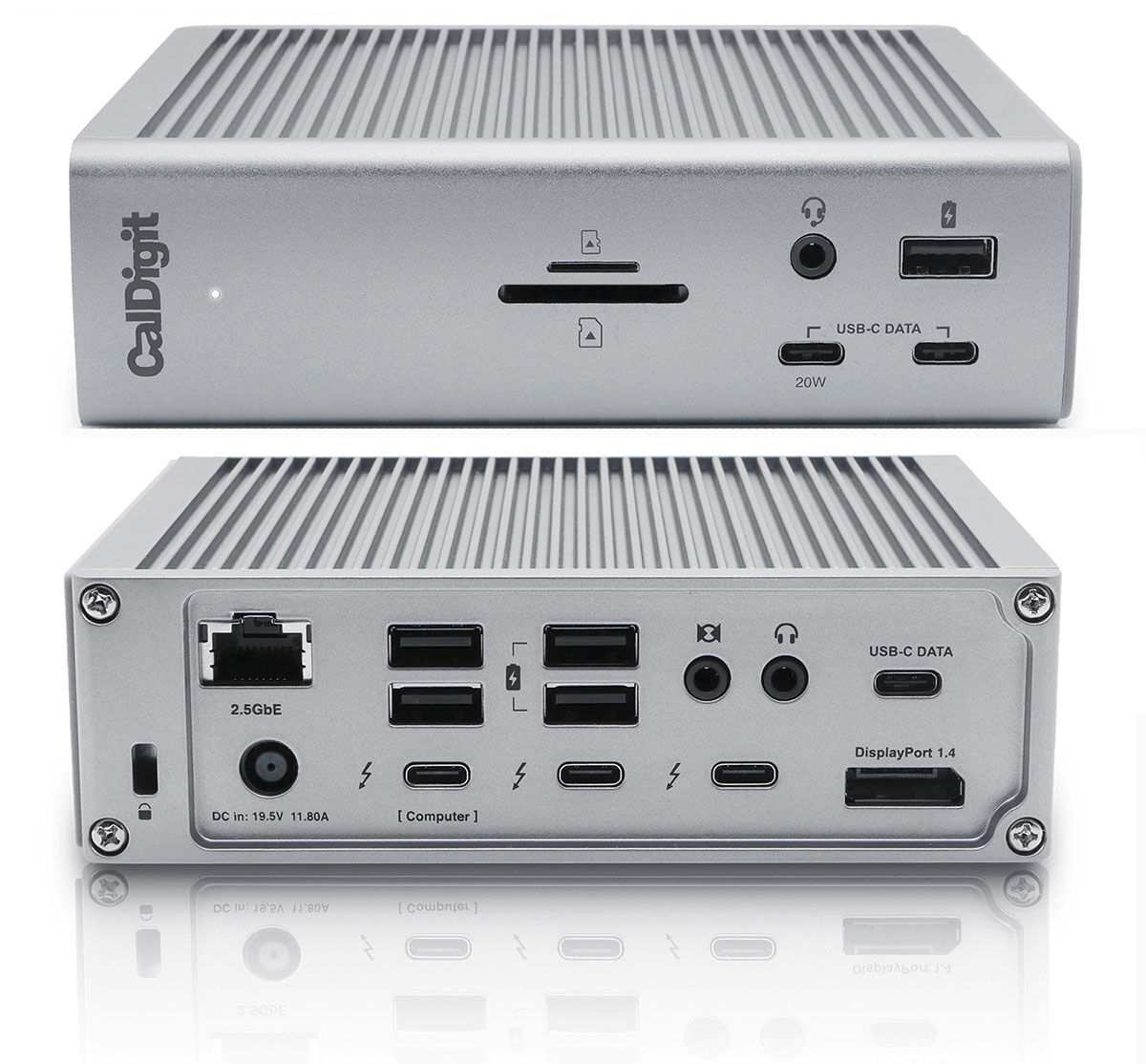
Docking stations also pack in more connectivity. You'll commonly find:
- Four to eight USB-A and USB-C ports
- Gigabit Ethernet
- 3.5mm audio output
- SD or microSD card readers
- Higher power delivery (often 85W to 100W)
A dock like the CalDigit TS4 or Dell WD29P gives you a full workstation from a single Thunderbolt or USB-C connection. That's something no monitor on the market can fully replicate.
The tradeoff is that a dock is another device on your desk. It needs its own power supply. It adds cables between the dock and your monitors.
It's less elegant than a single-cable monitor setup, but it's far more flexible.
Side-by-Side Comparison: USB-C Monitor vs. Docking Station
| Feature | USB-C Monitor | USB-C Docking Station |
|---|---|---|
| Single cable to laptop | Yes | Yes |
| Charges laptop via USB-C | Varies by model (45W to 100W) | Usually higher wattage (60W to 100W) |
| External video output | No | Yes (HDMI, DisplayPort) |
| Multiple displays | Limited (one built-in) | Yes (two to four displays) |
| USB-A / USB-C downstream ports | Fewer (two to four) | More (four to eight) |
| Ethernet port | Rare | Common |
| SD card reader | Rare | Common |
| Price range | $300 to $900 | $100 to $350 |
| Desk clutter | Minimal | More cables and a separate box |
When a USB-C Monitor Is Enough
A USB-C monitor makes perfect sense if you only need one external display. If your workflow involves a laptop plus a single screen, and you're happy using wireless peripherals or plugging just a couple of devices into the monitor's built-in hub, you can ditch the dock entirely.
This setup works especially well for remote workers who want a clean desk. You plug in one cable when you sit down. Your screen turns on, your laptop charges, and your keyboard and mouse connect through the monitor.
When you leave, you unplug one cable and go.
It's also a great fit for hot-desking environments. If you move between desks throughout the day, carrying a USB-C monitor isn't practical, but having one at your primary desk means you connect in seconds. No fumbling with a dock, no wondering if the dock supports your laptop.
The key requirement is that your laptop's USB-C port supports DisplayPort Alt Mode. Not every laptop does. Some USB-C ports are data-only or charge-only.
Check your laptop's technical specifications before committing to this setup.
When You Still Need a Docking Station
You'll want a docking station if you run two or more external monitors. USB-C monitors can't output video to another screen. They're a display endpoint, not a display source.
If your workflow depends on multiple screens, a dock is the only practical solution.
You should also stick with a dock if your laptop needs more power than the monitor can provide. Many USB-C monitors deliver 45W to 65W through their USB-C connection. If you're running a mobile workstation that needs 90W or 100W, the monitor alone won't keep it charged under heavy load.
Wired Ethernet is another reason. If your office requires a wired network connection for security or speed reasons, most USB-C monitors don't have an Ethernet port. A dock almost always does.
Finally, if you regularly use SD cards, external drives, or more than two or three USB peripherals, a dock gives you the port count and bandwidth that a monitor's built-in hub can't match.
How to Check If Your Laptop Will Work With a USB-C Monitor
Before you buy anything, verify four things about your laptop.
First, look up your laptop's USB-C port specifications. You need to confirm that the port supports DisplayPort Alt Mode. This is the standard that carries video over USB-C.
Without it, no USB-C monitor will work for display output through that port.
Second, check what wattage your laptop needs to charge. A MacBook Air typically needs 30W to 35W. A ThinkPad or Dell XPS usually wants 45W to 65W.
A mobile workstation might need 90W to 100W. Make sure the monitor you're considering can deliver enough power.
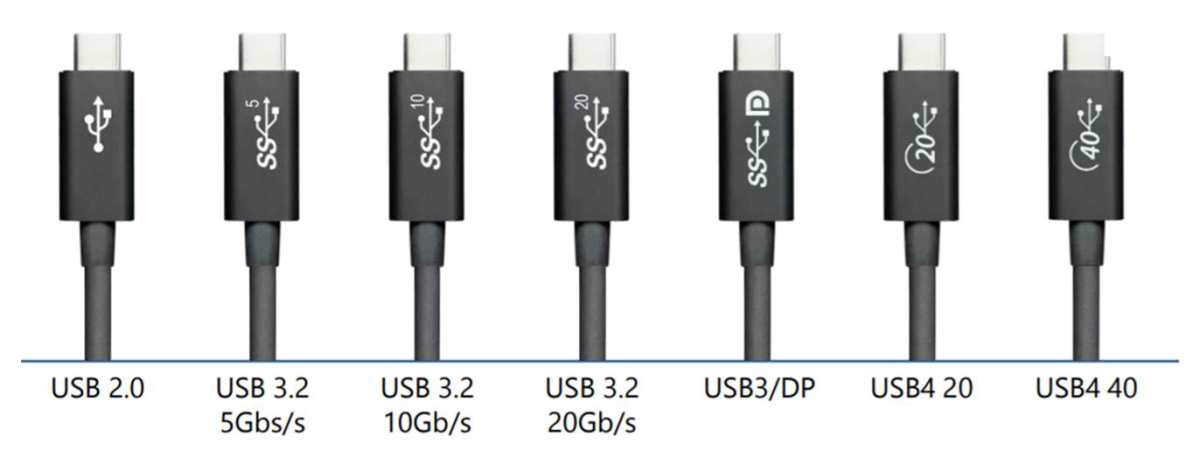
Third, verify your USB-C cable. Not all USB-C cables are created equal. Some are charge-only and don't carry any data or video signal.
You need a full-featured USB-C cable that supports DisplayPort Alt Mode and the appropriate power delivery wattage.
Fourth, check if your laptop has any display limitations. Base model MacBooks with M1 or M2 chips only support one external display through USB-C. If you need two external screens, you'll need a dock with DisplayLink technology or a MacBook with M1 Pro, M1 Max, or newer chips.
Common Mistakes People Make
The most common mistake is assuming all USB-C ports support video output. Many laptops have USB-C ports that handle data and charging but cannot output a display signal. Plugging a monitor into one of these ports will give you power and hub functionality but no picture.
Another frequent error is using the wrong USB-C cable. A cheap cable that only supports USB 2.0 data and basic charging won't carry a video signal. You need a cable rated for DisplayPort Alt Mode or Thunderbolt, depending on what your setup requires.
People also overlook power delivery wattage. A monitor that only delivers 15W or 27W might keep a thin-and-light laptop trickle-charged, but it won't power a heavier machine or charge it quickly. Always match the monitor's PD output to your laptop's charging requirements.
Finally, some buyers forget about their specific laptop's display limitations. If your laptop only supports one external display and you buy a USB-C monitor expecting to daisy-chain a second screen, you'll be disappointed. Check your laptop's GPU and port capabilities before planning a multi-monitor setup.
Real-World Setups That Work
A remote worker using a MacBook Air with an M2 chip and a Dell U2723QE has a solid single-cable setup. The monitor delivers 90W of power, which is more than enough for the Air. The built-in USB hub handles a wireless receiver for a keyboard and mouse.
One cable, clean desk, done.
A software developer with a ThinkPad T14s and a LG 27UN850-W gets 4K display, 60W charging, and a couple of USB ports through one USB-C connection. They plug in at their desk, work all day, and unplug when they leave. No dock, no extra power brick, no cable mess.
A student in a dorm room with limited desk space benefits hugely from this approach. A single USB-C monitor replaces a separate display, a hub, and a charger. When it's time to pack up and go home for break, they disconnect one cable instead of five.
Real-World Setups That Need a Dock
A financial trader running three 4K monitors needs a docking station. No USB-C monitor can drive three external displays. A Thunderbolt dock like the CalDigit TS4 can handle dual 4K output, and a DisplayLink dock can add a third screen.
A video editor who regularly pulls footage from SD cards will appreciate a dock's built-in card reader. Most USB-C monitors don't include one, and constantly plugging a separate card reader into a hub defeats the purpose of a clean setup.
An IT administrator managing multiple machines might use a KVM switch or a dock with multi-device support. USB-C monitors are tied to a single laptop connection. A dock with the right features can switch between devices more flexibly.
Cost Breakdown: What You'll Actually Spend
A quality USB-C monitor with good power delivery and a built-in hub typically runs between $400 and $700. Models like the Dell U2723QE or LG 27UK850 sit in this range. You're paying for the display panel, the USB-C controller, and the power delivery circuitry all in one device.
A good USB-C or Thunderbolt docking station costs between $150 and $350. The CalDigit TS4 retails around $350. The Dell WD19S runs about $200.
These prices don't include a monitor, so your total setup cost with a dock is often higher.
A full-featured USB-C cable that supports video and high-wattage charging adds $15 to $40 depending on length and certification. Don't cheap out here. A bad cable causes flickering, dropped connections, and slow charging.
If you go with a separate monitor and dock combo, expect to spend $500 to $1,000 total depending on the monitor you choose. A USB-C monitor with a built-in hub can sometimes save you $100 to $200 compared to buying a monitor and dock separately.
Final Verdict: Which Should You Choose?
Choose a USB-C monitor if you want the simplest possible setup and one external display is all you need. It's the cleaner solution, the more portable solution, and often the cheaper solution when you factor in that you're buying one device instead of two.
Choose a docking station if you need multiple monitors, more USB ports, wired Ethernet, or guaranteed high-wattage charging. It's the more capable option, and for many professional workflows, it's the only option that actually works.
Consider both if you want maximum flexibility. Some people use a USB-C monitor as their primary display and keep a dock connected for occasional use with additional peripherals. It's not the minimalist approach, but it covers every scenario.
The right answer depends on your laptop, your workflow, and how many screens and devices you need to connect. There's no universal winner here. There's only what works for your specific situation.
Frequently Asked Questions
Can any USB-C monitor charge my laptop?
No. Only monitors with USB Power Delivery can charge a laptop. The wattage varies by model.
Some deliver 45W, others up to 100W. Always check the monitor's PD rating against your laptop's charging requirements before buying.
Do all laptop USB-C ports support video output?
No. Some USB-C ports are data-only or charge-only. You need a port that explicitly supports DisplayPort Alt Mode or Thunderbolt to output video.
Check your laptop's technical specifications to confirm.
Can I connect two USB-C monitors to my laptop?
It depends on your laptop. Most laptops can drive one external display through USB-C. Some support two if you use both USB-C ports or if your laptop supports Thunderbolt daisy chaining.
Check your laptop's display output capabilities.
Is a USB-C monitor better than a Thunderbolt dock?
They serve different purposes. A USB-C monitor is a display with a built-in hub. A Thunderbolt dock is a connectivity hub with no display.
If you need a screen, buy the monitor. If you need maximum ports and display outputs, buy the dock.
What happens if my USB-C cable doesn't support video?
Your monitor won't display an image. You might still get power delivery and USB hub functionality, but no video signal. Always use a cable rated for DisplayPort Alt Mode or Thunderbolt to ensure full functionality.

Similar Posts





















