Can USB C Monitor Replace Docking Hub
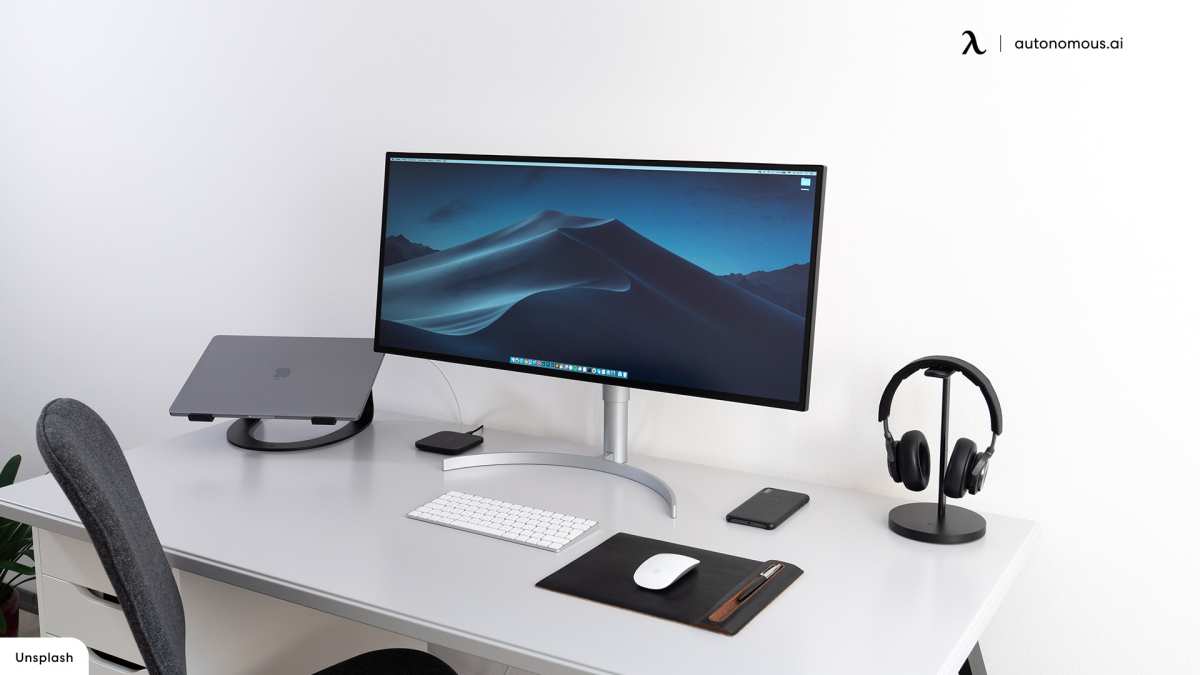
Can a USB-C monitor replace a docking hub? Yes, in many real-world setups it absolutely can. The catch is that your monitor needs the right combination of ports, power delivery, and DisplayPort Alt Mode support to actually pull it off.
Most USB-C monitors with built-in downstream ports can handle video, charging, and data over a single cable. But whether that's enough for your specific workstation depends on what you're plugging in and what your laptop supports. Per the USB-IF specifications, a single USB-C connection can carry DisplayPort 1.4 video, USB 3.2 data, and up to 240W of power delivery. For more background on real-world performance, read our breakdown of whether usb c monitor replace docking station.
Let's break down exactly when this swap works and when it falls short.
The Short Answer: Yes, But Only If Your Monitor Has the Right Ports
A USB-C monitor can replace a docking hub if it includes downstream USB ports and delivers enough power to charge your laptop. You'll get video, data, and charging through one cable.
But most USB-C monitors only offer two to four downstream ports. That's far fewer than a dedicated dock provides.
If you need Ethernet, SD card access, audio jacks, or multiple external displays, a standalone dock still wins. For related troubleshooting and calibration steps, check our walkthrough on how to connect usb c monitor through hub.
Why This Question Actually Matters
Here's the real situation most people find themselves in. You've got a laptop with one or two USB-C ports, a desk full of peripherals, and a cable situation that's spiraling out of control. You're wondering whether that new USB-C monitor you're eyeing could eliminate the dock entirely.
It's a fair question. Docking stations add cost, clutter, and another thing to troubleshoot. If your monitor can do the same job, that's one fewer device on your desk and one fewer thing to remember when you pack up for the day.
But the answer isn't a simple yes or no. It depends on three things: what your laptop's USB-C port supports, what your monitor actually offers beyond the display itself, and what peripherals you need connected at any given time. Let's walk through each piece so you can figure out where you stand.
How USB-C Monitors And Docking Hubs Actually Work
Before we compare them, it helps to understand what each device is actually doing when you plug in that single USB-C cable.
What a USB-C Monitor Really Gives You
A USB-C monitor isn't just a display with a different port. When you connect your laptop via USB-C, the monitor acts as a small hub. It receives video through DisplayPort Alt Mode, and it can pass data back and forth through USB 3.0 or USB 3.2 downstream ports built into the monitor's body.
Many USB-C monitors also send power back to your laptop through USB Power Delivery (USB PD). This means your laptop charges while it drives the display. The wattage varies a lot though.
Some monitors deliver 60W, others push 90W or even 100W. If your laptop needs 100W to charge at full speed, a 60W monitor will charge it slowly or not at all under heavy load.
The downstream ports on a USB-C monitor typically include one or two USB-A ports and maybe a USB-C port. Some models add an Ethernet jack or a headphone jack, but that's less common. The monitor essentially functions as a basic hub built into the display chassis.
What a Docking Hub Really Gives You
A docking station, on the other hand, exists solely to expand your laptop's connectivity. It doesn't have a screen. It sits on your desk (or hides under it) and gives you a full suite of ports that your laptop probably lacks.
A typical USB-C or Thunderbolt dock includes multiple USB-A and USB-C ports, one or two HDMI or DisplayPort outputs for external monitors, a Gigabit Ethernet jack, an SD or microSD card reader, and a 3.5mm audio jack. Higher-end docks push 85W to 100W of power delivery to your laptop.
The key difference is sheer volume. Where a USB-C monitor gives you two to four extra ports, a dock gives you seven to twelve. If you're running a full workstation with external drives, wired networking, a webcam, a keyboard, a mouse, and a second monitor, a dock handles all of that without breaking a sweat.
The Real Difference Between the Two
Think of it this way. A USB-C monitor is a display that happens to have a basic hub built in. A docking hub is a dedicated expansion device that can drive one or two external displays plus every peripheral you own.
The monitor wins on simplicity. One cable from laptop to monitor, and you've got video, charging, and a couple of USB ports. The dock wins on capability.
You can connect far more devices, often including multiple displays, wired networking, and fast card readers.
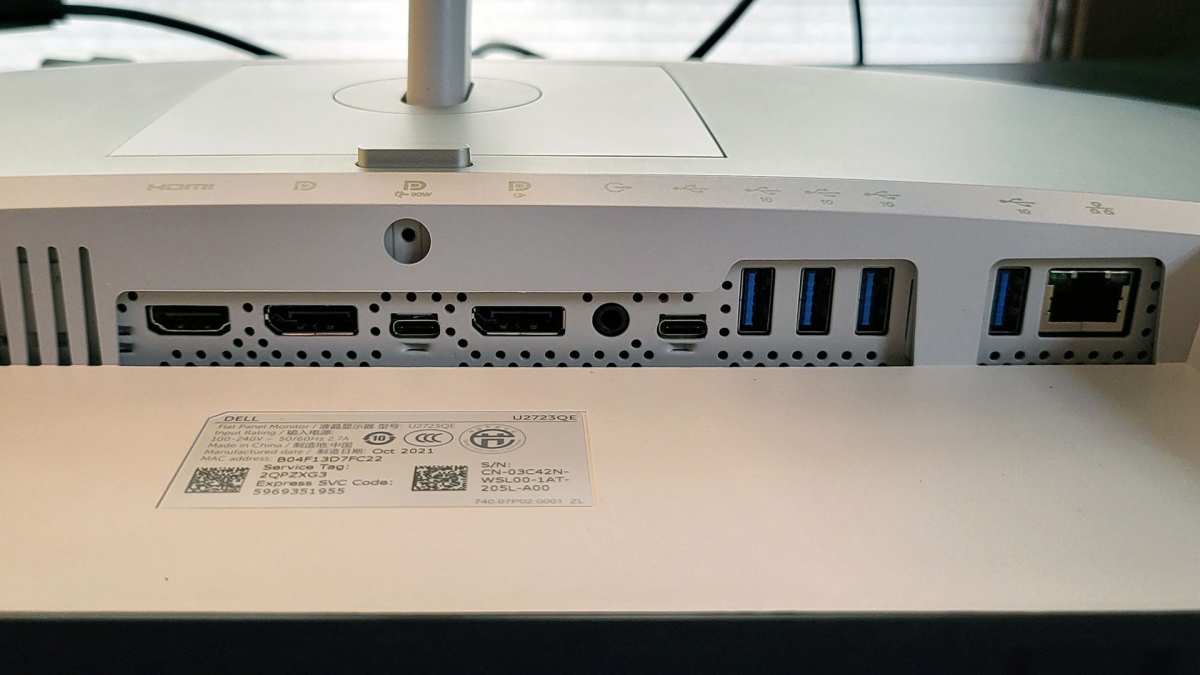
Here's where it gets interesting though. Some newer USB-C monitors are blurring this line. Models like the Dell U2723QE or the LG 40WP95C include multiple downstream USB ports, Ethernet, and 90W or 96W power delivery.
These are genuinely close to dock-level functionality, just without the dedicated video outputs for a second external screen.
Side-by-Side Comparison: USB-C Monitor vs Docking Hub
This table lays out the practical differences so you can see exactly what you gain and what you lose with each option.
| Factor | USB-C Monitor with Hub | Traditional Docking Hub |
|---|---|---|
| Single cable to laptop | ✅ | ✅ |
| Charges laptop | ⚠️ Varies (60-100W) | ✅ Usually higher wattage |
| Number of USB ports | ⚠️ Usually 2-4 | ✅ Often 5-10+ |
| External monitor support | ❌ Usually one (unless MST) | ✅ Often dual monitor |
| Ethernet port | ❌ Rarely included | ✅ Commonly included |
| SD card reader | ⚠️ Sometimes | ✅ Often included |
| Audio jack | ⚠️ Sometimes | ✅ Usually included |
| Cost | Fewer devices to buy | Additional purchase needed |
The pattern is clear. If you need more than a couple of USB devices and a single display, a dock still does more. If you just need your laptop charged, your keyboard and mouse connected, and one big screen, a USB-C monitor handles that beautifully.
When a USB-C Monitor CAN Replace Your Dock
There are specific situations where dropping the dock entirely makes perfect sense.
You're a Minimalist Home Office Worker
If your setup is basically a laptop, a keyboard, a mouse, and one external screen, a USB-C monitor covers everything. You plug in one cable and you're done. No dock cluttering up your desk, no extra power brick, no second cable run.
This is the ideal USB-C monitor scenario. Clean, simple, and it works exactly the way you'd hope it would.
You Travel Light (Coffee Shop, Hot Desk)
If you move between locations regularly, carrying a dock gets old fast. A USB-C monitor at your primary desk means you just grab your laptop, come home, plug in one cable, and you're back to full productivity. No fumbling for the dock in your bag.
Some people keep a small USB-C hub in their bag for on-the-go use and rely on the USB-C monitor at home. That hybrid approach works really well.
You Use a Chromebook or Single-Monitor MacBook Setup
Chromebooks tend to play very nicely with USB-C monitors. Most Chrome OS devices support DisplayPort Alt Mode and USB PD over a single connection, and they don't need the extensive port selection a dock provides.
MacBook users running a single external display are also in a good spot. As long as the monitor delivers enough wattage to charge your MacBook (61W for a 13-inch, 96W for a 14-inch, 140W for a 16-inch with the MagSafe adapter), you can skip the dock entirely for a one-screen setup.
You Don't Need Ethernet or SD Card Access
If you're on Wi-Fi and you don't pull SD cards from a camera regularly, you're not giving up much by ditching the dock. The Ethernet and card reader are two of the biggest reasons people still need a dedicated docking station.
Photographers and videographers who ingest SD cards daily will miss that dock port everyone else forgets about. For everyone else, it's a non-issue.
When a USB-C Monitor CANNOT Replace Your Dock
Now let's be honest about the situations where a USB-C monitor just doesn't cut it.
You Run Two or More External Monitors (Especially on Mac)
This is the biggest limitation. Most USB-C monitors can only drive themselves. They don't have video outputs to chain a second screen.
If you need two external displays, you need a dock that supports dual monitor output, or you need a monitor with MST (Multi-Stream Transport) support.
Here's the problem for Mac users specifically. macOS does not support MST daisy-chaining over DisplayPort. So even if your USB-C monitor has MST capabilities, you can't use it to chain a second display from a MacBook. You'd need a Thunderbolt dock that handles dual displays natively.
Windows and Linux users have it easier here. MST works on those platforms, so daisy-chaining two monitors from a single USB-C port is possible if both monitors support it.
You Need 100W+ Charging for a Power-Hungry Laptop
Many USB-C monitors cap out at 60W or 90W power delivery. That's fine for ultrabooks and most 13-inch laptops. But if you're running a 16-inch MacBook Pro, a gaming laptop, or a mobile workstation that pulls 100W to 140W under load, a USB-C monitor won't keep up.
Your laptop might still charge slowly, or it might drain while you're working hard. In those cases, a dock that delivers 100W or your laptop's dedicated power adapter is the safer bet.
You Require Ethernet, Audio, and Multiple Peripherals
If your workflow depends on wired Gigabit Ethernet (common in corporate environments and for large file transfers), a USB-C monitor probably doesn't have that port. Same goes for a 3.5mm audio jack if you're running desktop speakers or a professional headset.
And if you're connecting more than two or three USB devices (external drive, webcam, keyboard, mouse, DAC, etc.), the two or three downstream ports on a USB-C monitor won't be enough. A dock gives you room to grow.
You Use macOS (MST Limitation Problem)
We touched on this above, but it deserves its own callout. If you're on a Mac and you want multiple external displays, a USB-C monitor alone won't get you there. Apple's Thunderbolt architecture handles multi-display setups differently than MST, and most USB-C monitors can't bridge that gap.
A Thunderbolt dock is the right tool for Mac multi-monitor setups. It's not the cheapest solution, but it's the one that actually works.
The Cable Problem Nobody Talks About
Here's where things get frustrating. You buy a USB-C monitor, you grab a cable, you plug it in, and… only the display works. Or only charging works.
What happened?
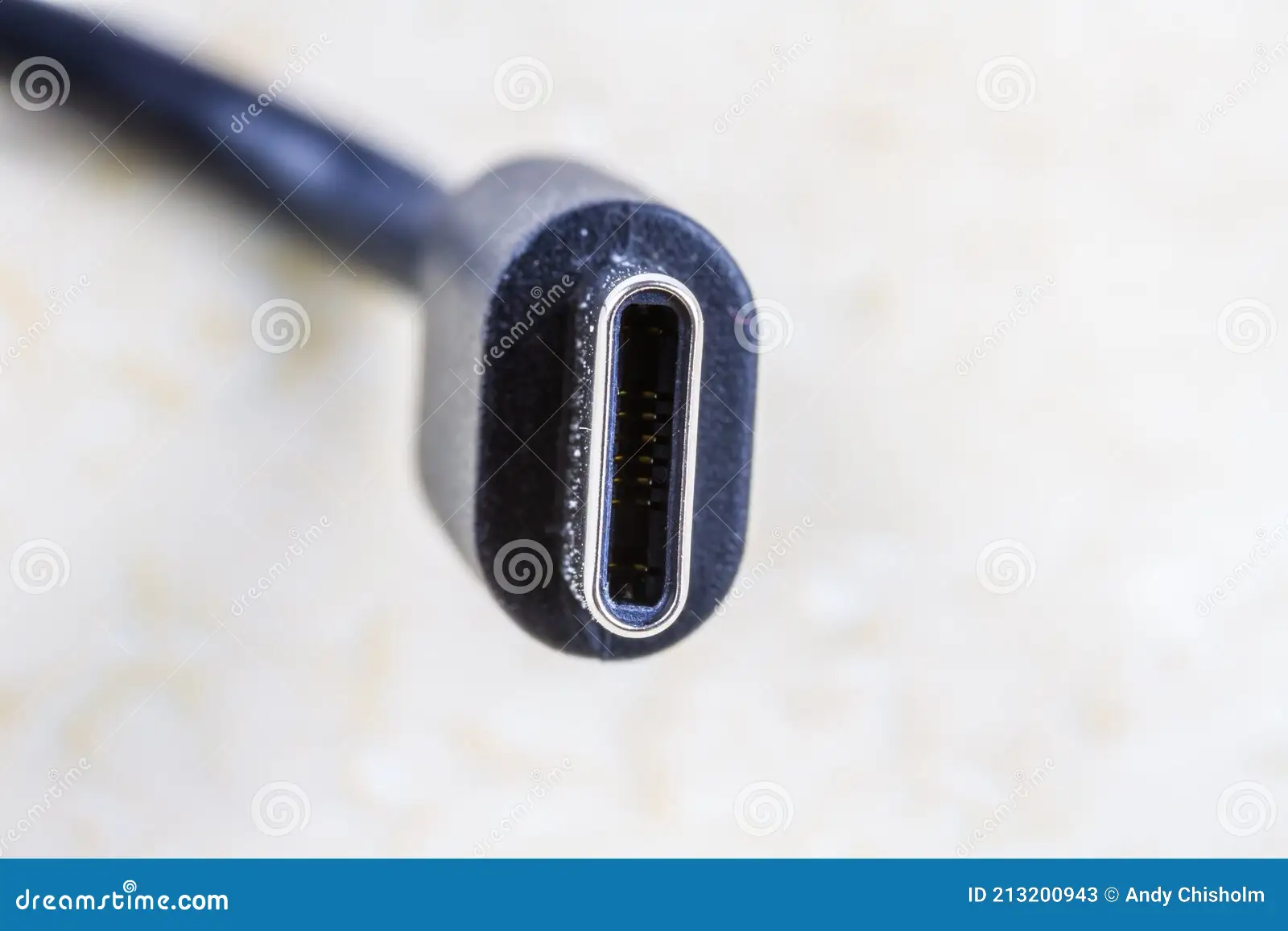
The answer is almost always the cable. Not all USB-C cables are created equal. A cable that handles charging might not support DisplayPort Alt Mode.
A cable that does video might only be USB 2.0 speed for data. And a cable that claims to do everything might be lying.
USB-C cables are rated for different capabilities. A USB 2.0 USB-C cable handles charging and basic data but can't carry video. A USB 3.1 Gen 1 cable adds faster data.
A "full-featured" USB-C cable supports charging, USB 3.1 Gen 2 data (10 Gbps), and DisplayPort Alt Mode all at once.
For a USB-C monitor to work as a dock replacement, you need a full-featured cable that supports all three: power delivery, DisplayPort Alt Mode, and USB data. The cable that ships with most decent USB-C monitors handles this. Random cables from a junk drawer often don't.
Look for cables certified by USB-IF. These have been tested to meet the spec. Uncertified cables might work fine, or they might give you a headache with intermittent connections, slow charging, or no video signal.
Cable length matters too. For full functionality at USB 3.2 speeds with DisplayPort 1.4, keep the cable at two meters or shorter. Longer runs can cause signal degradation, especially with passive cables.
Active cables can go further but cost more.
What to Check Before You Ditch Your Dock Ently
Before you sell your dock or leave it in a drawer, verify these three things.
On Your Laptop
Check your laptop's USB-C port specifications. You need a port that supports both DisplayPort Alt Mode and USB PD. Most modern ultrabooks and MacBooks do, but some budget laptops only support charging over USB-C, not video output.
Look for a lightning bolt icon (Thunderbolt) or a "D" icon (DisplayPort) next to the port. If you see either of those, you're in good shape. If not, check your laptop's spec sheet or manual.
On Your Monitor
Read the monitor's spec sheet carefully. Look for:
- DisplayPort Alt Mode over USB-C
- USB PD wattage (how many watts it sends to your laptop)
- Number and type of downstream USB ports
- USB data speed (USB 3.0, USB 3.1, USB 3.2)
If the monitor only lists "USB-C charging" without mentioning DisplayPort Alt Mode or downstream data ports, it's just a monitor that charges your laptop. It won't function as a hub at all.
On Your Cable
Make sure you're using a full-featured USB-C cable. The one included with the monitor is usually the right choice. If you need a replacement, look for cables explicitly rated for "USB 3.1 Gen 2" and "DisplayPort Alt Mode" with USB-IF certification.
Avoid cables that only list "charging" or "USB 2.0" in their specs. These won't carry the video signal or the data connection your monitor's hub needs to function.
Real-World Scenarios: Three People, Three Right Answers
Let's put this all together with three common setups.
Scenario 1: The Hybrid Worker (Sarah)
Sarah works from home three days a week and goes into the office the other two. At home, she uses a 27-inch USB-C monitor with two downstream USB ports and 90W power delivery. She plugs in her keyboard and mouse to the monitor, connects her laptop with one cable, and she's set.
At the office, she has a basic USB-C hub for the same laptop when she needs a second screen.
For Sarah, the USB-C monitor completely replaces the dock at home. She doesn't need Ethernet (she's on Wi-Fi), she doesn't need an SD card reader, and she only runs one external display. The single-cable setup makes it effortless to connect and disconnect when she moves between rooms.
Scenario 2: The Developer (Marcus)
Marcus runs a 16-inch MacBook Pro, two external monitors, a wired mechanical keyboard, a mouse, a webcam, and a USB DAC for his headphones. He also needs Gigabit Ethernet because his office network requires it.
A USB-C monitor can't handle this. Marcus needs two video outputs, Ethernet, and more USB ports than any single monitor provides. A Thunderbolt dock like the CalDigit TS4 is the right fit here.
It connects to his MacBook with one cable and gives him everything else he needs.
Scenario 3: The Business Traveler (Priya)
Priya travels almost every week. She carries a 14-inch Dell XPS with a single Thunderbolt 4 port. At her hotel, she plugs directly into the room's TV or a portable USB-C monitor with one cable.
At her home office, she has a full USB-C monitor setup with 96W power delivery.
Priya doesn't carry a dock at all. She relies on Bluetooth peripherals when she's traveling and her USB-C monitor at home. For her workflow, the monitor-as-dock approach is perfect because portability matters more than maximum connectivity.
Common Mistakes People Make
Even when the setup should work, people run into the same handful of problems.
Using the wrong cable. This is the number one issue. Grabbed a charging-only cable from a drawer and wondering why the monitor's USB ports don't work. Always use the cable that came with the monitor or a certified full-featured replacement.
Assuming all USB-C ports are the same. Your laptop might have one USB-C port that supports DisplayPort Alt Mode and another that only does charging. Check which port does what before troubleshooting everything else.
Expecting MST on macOS. We've covered this, but it catches people every time. If you're on a Mac and you want two external screens, you need a Thunderbolt dock. MST daisy-chaining won't work.
Ignoring power delivery wattage. Buying a USB-C monitor with 60W PD for a laptop that needs 100W. It'll charge slowly or not at all under heavy workloads. Match the monitor's PD output to your laptop's power requirements.
Forgetting about monitor firmware. Some USB-C monitors need firmware updates to properly support certain laptops or to fix PD negotiation issues. If your monitor isn't charging your laptop correctly, check for a firmware update on the manufacturer's website.
Best USB-C Monitors That Actually Work as Dock Replacements
Based on manufacturer specifications and aggregate user feedback, these monitors come closest to true dock replacement functionality.
Dell U2723QE, 27-inch 4K IPS display with USB-C 90W power delivery, built-in USB hub (4x USB-A 3.2 Gen 2, 1x USB-C 3.2 Gen 2), Gigabit Ethernet, and a USB-C downstream port that supports 15W charging. This is one of the closest things to a true dock replacement in monitor form. The 90W PD handles most ultrabooks and even some 14-inch workstation laptops without issue.
LG 40WP95C-W, 40-inch 5K2K ultrawide with Thunderbolt 4, 96W power delivery, downstream USB-C and USB-A ports, and enough screen real estate to replace a dual-monitor setup. The Thunderbolt 4 connection means 40 Gbps data throughput, which is a significant step up from standard USB-C.
Samsung M8 (M80B), 32-inch 4K smart monitor with USB-C 65W PD, built-in USB hub, and a clean aesthetic that works well in home office environments. The 65W PD is enough for most ultrabooks but may struggle with power-hungry laptops under load.
HP Z27k G3, 27-inch 4K with Thunderbolt 4, 100W power delivery, integrated USB hub, and Ethernet. The 100W PD is a standout here, matching what many dedicated docks offer.
Best Docking Hubs Worth Keeping If You Need More
If your setup demands more than a USB-C monitor can provide, these docks are worth the investment.
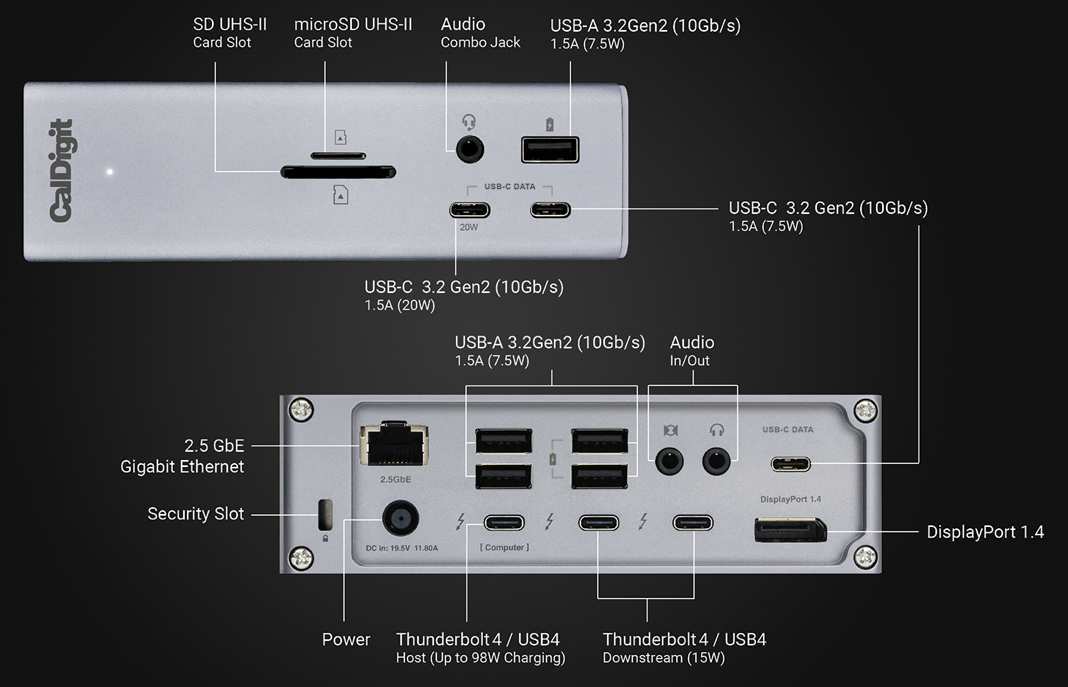
CalDigit TS4, Thunderbolt 4 dock with 18 ports, 98W power delivery, dual DisplayPort outputs, Gigabit Ethernet, SD card reader, and audio I/O. This is the gold standard for Thunderbolt docking as of 2026. It handles dual 4K displays, charges even power-hungry laptops at full speed, and gives you enough USB ports for virtually any peripheral setup.
Dell WD19DCS, A more affordable USB-C dock with 130W power delivery (the highest in its class), dual HDMI/DisplayPort outputs, Ethernet, and multiple USB ports. The 130W PD is overkill for most laptops but ensures compatibility with demanding workstation machines.
Anker 577 (PowerExpand 13-in-1), A solid mid-range option with 85W PD, dual HDMI outputs, Ethernet, SD card reader, and a good selection of USB ports. It's a strong choice for users who need more than a monitor provides but don't want to spend on a Thunderbolt dock.
Frequently Asked Questions
Can a USB-C monitor charge my laptop at the same time as displaying video?
Yes, if the monitor supports USB Power Delivery over its USB-C input. The wattage varies by model. Check the monitor's spec sheet for its PD output rating.
Do I need a Thunderbolt dock instead of a regular USB-C dock?
If you need to drive two external monitors from a single port, especially on a Mac, Thunderbolt is the more reliable path. For a single external display with peripherals, a standard USB-C dock works fine.
Will a USB-C monitor work with my MacBook Air?
Yes, most USB-C monitors work with MacBook Air models. The M1 and M2 MacBook Air support one external display natively. The M3 MacBook Air supports two external displays when the lid is closed.
Make sure the monitor's PD wattage matches your MacBook's charging needs.
What happens if my USB-C cable doesn't support DisplayPort Alt Mode?
You'll get charging and possibly USB data, but no video signal. The monitor won't display anything from your laptop. Swap to a full-featured USB-C cable that explicitly supports DisplayPort Alt Mode.
Can I daisy-chain two USB-C monitors from one laptop port?
On Windows and Linux, yes, if both monitors support MST (Multi-Stream Transport). On macOS, no. Apple does not support MST daisy-chaining.
Mac users need a Thunderbolt dock for dual external displays.
Is a USB-C monitor with 60W PD enough for a 14-inch MacBook Pro?
It's borderline. The 14-inch MacBook Pro ships with a 70W or 96W adapter depending on the chip. A 60W monitor will charge it slowly and may not keep up under sustained heavy workloads.
A monitor with 90W or higher PD is a better match.
Final Verdict: Which One Is Right for You
The answer comes down to counting your ports and knowing your laptop's capabilities.
Stick with your dock if:
You need two or more external displays, wired Ethernet, an SD card reader, or more than three or four USB peripherals. A dock is purpose-built for this, and no monitor can match that port count in a single device.
Replace your dock with a USB-C monitor if:
You run a single external display, you need only a keyboard and mouse beyond the screen, your laptop charges fine at 60W to 90W, and you don't need Ethernet or card readers. The single-cable simplicity is genuinely hard to beat.
The hybrid approach (monitor + small hub) if:
You want the clean single-cable monitor connection but occasionally need an extra port or two. A small USB-C hub tucked behind the monitor gives you flexibility without the bulk of a full dock. This is what a lot of people end up settling on, and it works well.
The USB-C monitor as dock replacement is real and practical for a lot of people. Just make sure your specific monitor, cable, and laptop all support the full feature set before you commit. Check the specs, use the right cable, and you'll likely end up with a cleaner desk and fewer things to worry about.

Similar Posts





















