How to Connect USB C Monitor Through Hub
Figuring out how to connect a USB-C monitor through a hub shouldn't be this confusing. You plug everything in, and sometimes it just works. Other times, you get nothing.
No signal. No display. Just frustration.
The problem usually isn't your monitor or your hub. It's that USB-C ports aren't all the same, and most people have no idea what their specific port can actually do. This directly compares with our findings on how to connect usb c monitor to laptop.
Here's the thing. The USB-C port on your laptop might support video output, or it might only handle data and charging. The USB-IF confirms that DisplayPort Alt Mode is optional in the USB-C specification.
That means your port might not send a video signal at all. Before you buy anything or change any settings, let's figure out exactly what you're working with and get your monitor connected the right way.
Quick Answer
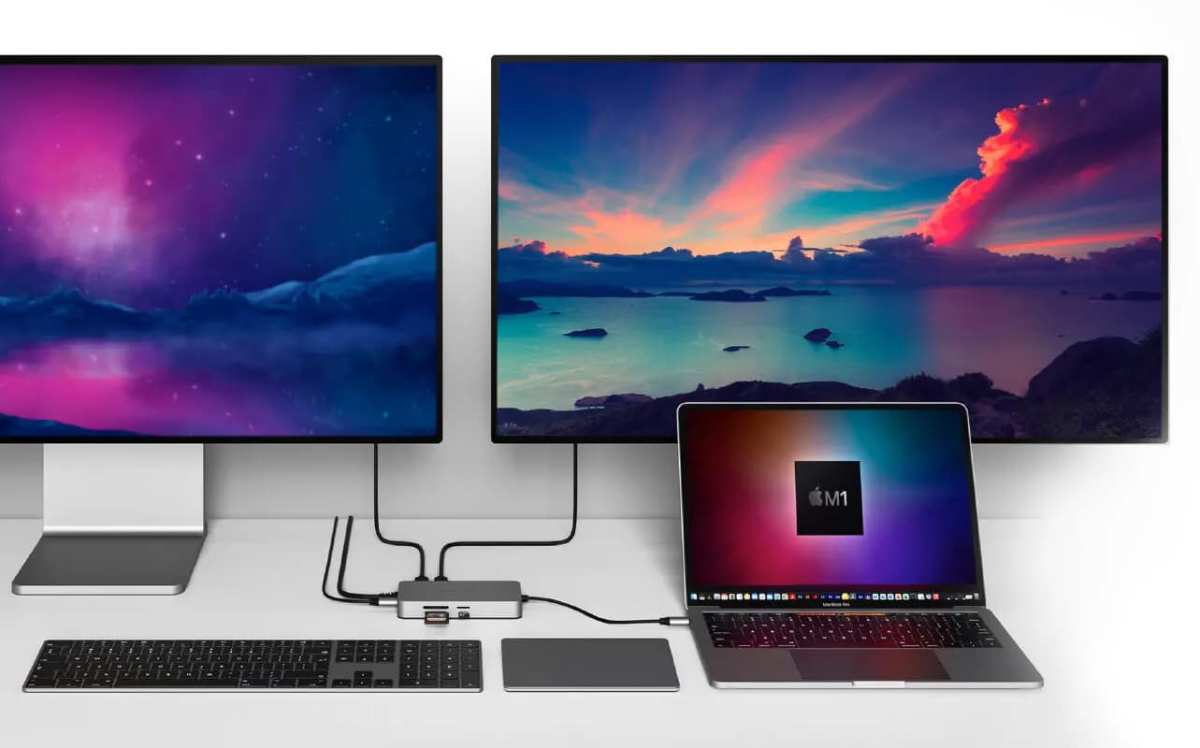
Connect your hub to your laptop's USB-C port. Plug your monitor into the hub's video output, HDMI, DisplayPort, or USB-C. Make sure your laptop's USB-C port supports DisplayPort Alt Mode or Thunderbolt. You can also reference our testing on how to connect usb c monitor with hdmi adapter when configuring your display.
If it does not, you will need a DisplayLink hub with driver software. Check your laptop specs first.
Why Your USB-C Hub Might Not Drive Your Monitor (And How to Fix It)
Most connection failures come down to one mismatch. Your hub has a video output, but your laptop's USB-C port doesn't send video. It's a data-only port.
You plug in the hub, connect the monitor, and nothing happens.
Another common issue is the cable. Not every USB-C cable carries video. Some are charge-only.
Others handle data at USB 2.0 speeds with no video capability at all. If you're using a random cable from a drawer, that could be the entire problem.
Here's a quick troubleshooting checklist:
- Check your laptop's USB-C port specs. Look for a lightning bolt icon (Thunderbolt), a "D" icon (DisplayPort), or check your manual.
- Try a direct USB-C to USB-C connection first. Connect your monitor straight to your laptop. If that works, the hub is the bottleneck.
- Swap the cable. Use a certified USB-C cable that explicitly supports video.
- Check the hub's power delivery. Some hubs need external power to drive a display. If the hub isn't plugged into its own power adapter, video might not work.
- Look at your display settings. Windows might not auto-detect the monitor. Press Windows + P and select "Extend" or "Duplicate." On macOS, go to System Settings > Displays and check for the external screen.
If none of that works, your hub probably uses DisplayLink. That requires installing DisplayLink driver software. More on that in a bit.
Understanding What Your USB-C Port Can Actually Do
This is where most people get tripped up. USB-C is a connector shape, not a capability standard. Two USB-C ports on the same laptop can have completely different capabilities.
Not All USB-C Ports Are Created Equal
Your laptop's USB-C port might support any combination of these:
- Data transfer only. USB 3.2 speeds, no video. Common on budget laptops.
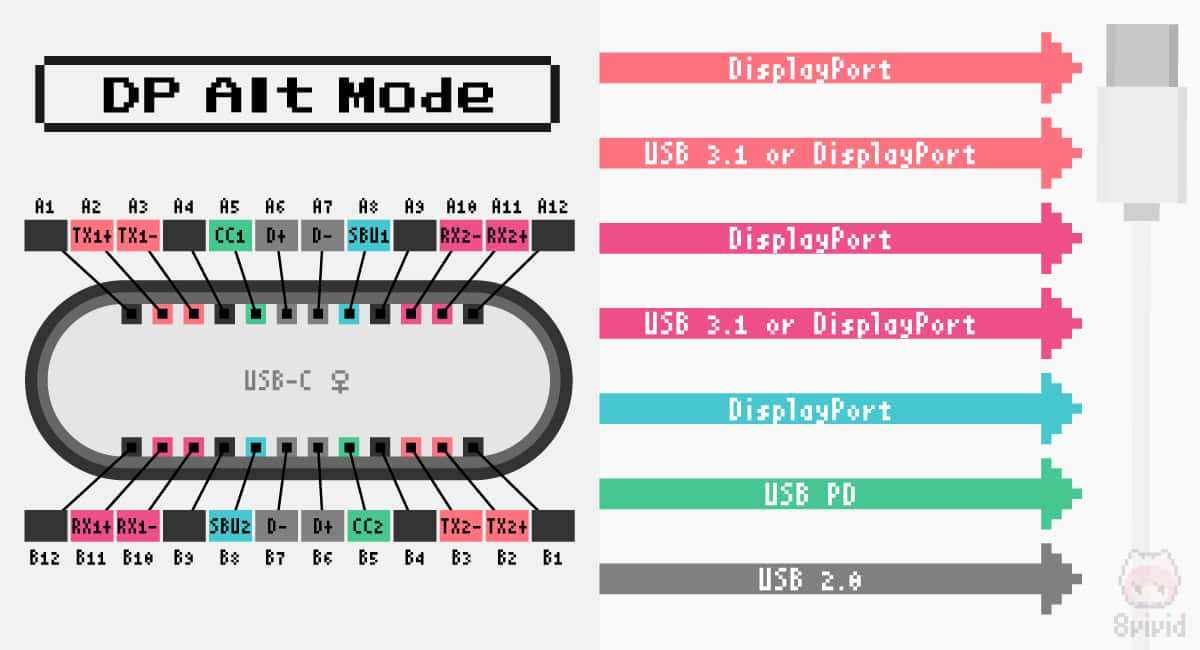
- USB-C with DisplayPort Alt Mode. Sends video and audio through the USB-C connector. This is the most common video-capable setup.
- Thunderbolt 3 or 4. Uses the USB-C connector but delivers 40 Gbps bandwidth. Supports video, data, and charging simultaneously.
- USB4. The newer standard. Similar to Thunderbolt 4 with up to 40 Gbps. Supports DisplayPort tunneling.
- Power delivery only. Rare, but some devices have USB-C ports that only charge.
The frustrating part? Manufacturers don't always label these clearly. Sometimes there's a tiny icon next to the port.
Sometimes there's nothing at all.
DisplayPort Alt Mode vs. Thunderbolt vs. Data-Only USB-C
Here's the breakdown that actually matters for your setup:
| Feature | DisplayPort Alt Mode | Thunderbolt 3/4 | Data-Only USB-C |
|---|---|---|---|
| Video output | Yes | Yes | No |
| Max resolution | 4K at 60Hz (DP 1.4) | Dual 4K at 60Hz or single 8K | N/A |
| Bandwidth | Uses DP lanes, not USB data | 40 Gbps | Up to 10 or 20 Gbps |
| Daisy chaining | Yes, with MST | Yes | No |
| Power delivery | Up to 100W | Up to 100W (TB4) | Varies |
| Common on | Most modern laptops | MacBooks, premium Windows laptops | Budget laptops |
If your laptop has Thunderbolt, you're golden. Almost any Thunderbolt dock will drive your monitor without issues. If it has DisplayPort Alt Mode, you need a hub that specifically supports DP Alt Mode output.
If it's data-only, your only option is a DisplayLink hub, which uses software to compress and send video over a standard USB data connection.
The 30-Second Answer: Does Your Setup Actually Work?
Before you do anything else, run through this quick check. It'll save you an hour of troubleshooting.
Step 1: Look up your laptop's exact model specifications. Go to the manufacturer's product page. Find the port specifications. You're looking for one of these phrases: "DisplayPort over USB-C," "DP Alt Mode," "Thunderbolt 3," or "Thunderbolt 4."
Step 2: Check the port icon. Look at the USB-C port on your laptop. A lightning bolt means Thunderbolt. A "D" shape means DisplayPort.
A battery icon means charging only. No icon means you need to check the manual.
Step 3: Verify your hub supports video. Not all USB-C hubs have video outputs. If your hub has an HDMI or DisplayPort port, it likely supports video. If it only has USB-A ports, SD card slots, and a USB-C passthrough charging port, it almost certainly does not.
Step 4: Check your cable. If connecting a USB-C monitor through a USB-C hub, the cable between the hub and monitor needs to support video. Cables marked "USB 2.0" or "charging cable" won't work for video.
If all four check out, your setup should work. If any one of them fails, that's your problem.
Step 1: Check What Your Laptop's USB-C Port Supports
This is the single most important step. Everything else depends on it.
How to Find Your Port's Capabilities
On Windows:
- Check your laptop manufacturer's support page. Look up your exact model number.
- Look at the Intel or AMD processor specs. Intel's ARK database lists Thunderbolt support per processor.
- Check Device Manager. Under "System Devices," look for "Thunderbolt Controller." If it's there, you have Thunderbolt.
On macOS:
- Click the Apple menu > About This Mac > System Report.
- Look under "Hardware > Thunderbolt." If you see entries there, your Mac supports Thunderbolt.
- All MacBooks with USB-C ports from 2015 onward support DisplayPort Alt Mode through USB-C.
Quick reference by brand:
| Brand | Typical USB-C Video Support |
|---|---|
| Apple MacBook (2015+) | Thunderbolt 3/4 or USB-C with DP Alt Mode |
| Dell XPS series | Thunderbolt 4 on most models |
| Lenovo ThinkPad T/X series | Thunderbolt 4 or USB-C DP Alt Mode |
| HP Spectre/EliteBook | Varies by model, check specs |
| ASUS ZenBook | Often USB-C DP Alt Mode, some with TB4 |
| Acer Swift | Usually USB-C DP Alt Mode |
| Budget laptops (under $500) | Often data-only USB-C |
What Happens When Your Port Doesn't Support Video
If your USB-C port is data-only, you have two options:
Use a DisplayLink hub or adapter. DisplayLink is a technology that installs a driver on your computer and compresses the video signal over standard USB data. It works with any USB port. The downside is it uses CPU resources and can have slight latency. For office work, it's fine. For gaming or video editing, it's not ideal.
Connect the monitor directly. If your laptop has an HDMI or DisplayPort output, use that instead. Skip the hub for video and use the hub only for data and peripherals.
DisplayLink is a legitimate workaround. DisplayLink (owned by Synaptics) has been around for years. Their DL-6000 series chips support dual 4K at 60Hz.
You'll need to download the DisplayLink driver from Synaptics' website and keep it updated.
Step 2: Choose the Right Hub for Video Output
Not all hubs are built for this job. Picking the wrong one is the number one reason people fail to get video through a hub.
Hubs With DisplayPort Alt Mode (The Simple Path)
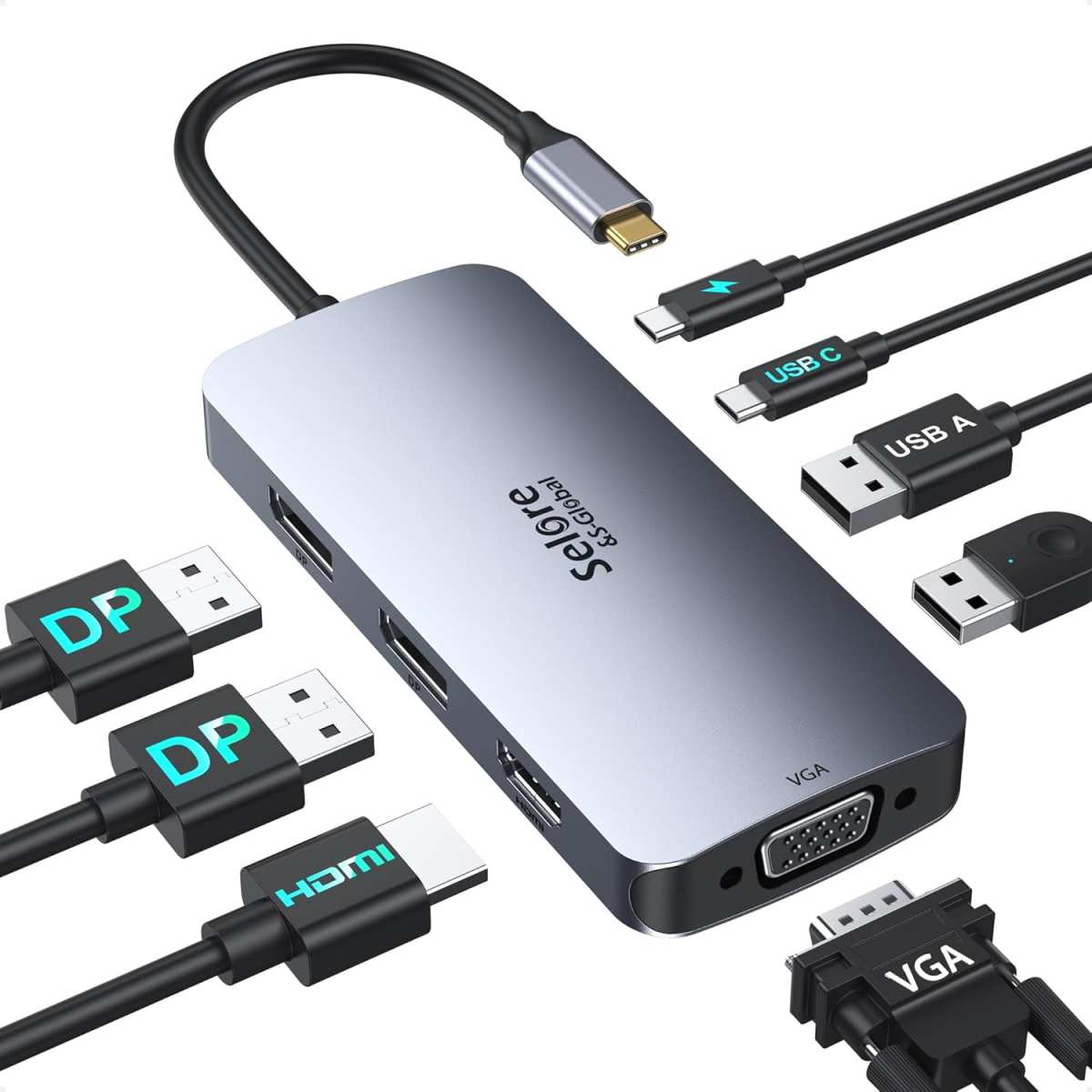
These hubs take the DisplayPort signal from your laptop's USB-C port and route it to an HDMI or DisplayPort output. They're simple, reliable, and don't need extra software.
What to look for:
- The hub listing explicitly says "4K HDMI output" or "DisplayPort Alt Mode"
- It mentions DP 1.2 (supports 4K at 30Hz) or DP 1.4 (supports 4K at 60Hz)
- It has its own power delivery passthrough so your laptop stays charged
Limitations:
- The hub can only pass through what your laptop sends. If your laptop's port only supports DP 1.2, you're capped at 4K 30Hz even if the hub supports DP 1.4.
- These hubs use your laptop's GPU directly. No extra drivers needed.
Thunderbolt Docks (The High-Performance Path)
Thunderbolt docks are the premium option. They have massive bandwidth, support dual monitors, and deliver full power delivery.
What to look for:
- Thunderbolt 4 certification (ensures minimum performance standards)
- Dual DisplayPort or HDMI outputs
- At least 85W power delivery to your laptop
- Downstream Thunderbolt ports for daisy chaining
Limitations:
- More expensive. Expect to pay $150 to $300 or more.
- Your laptop must have a Thunderbolt port. A regular USB-C port won't work with a Thunderbolt dock for video.
DisplayLink Hubs (The Workaround Path)
DisplayLink hubs work with any USB port. They compress the display signal in software and send it over standard USB data.
What to look for:
- Explicit mention of "DisplayLink" in the product description
- DisplayLink DL-6000 or newer chipset for best performance
- Driver support for your operating system
Limitations:
- Requires installing and maintaining DisplayLink software
- Uses CPU resources. On lower-end laptops, you might notice performance impact
- Not suitable for gaming or color-critical video work
- macOS users: DisplayLink has had compatibility issues with macOS updates in the past. Check current compatibility before buying.
Step 3: Connect Your Monitor Through the Hub
Now that you've confirmed your port capabilities and chosen the right hub, let's get everything connected.
USB-C Monitor to Hub (USB-C Out)
If your monitor has a USB-C input and your hub has a USB-C video output:
- Connect the hub to your laptop using a USB-C cable that supports video.
- Connect a USB-C cable from the hub's USB-C output to your monitor's USB-C input.
- Plug in the hub's power adapter if it has one.
- Turn on the monitor and select the correct input source.
Important: The USB-C cable between the hub and monitor must support video. Use the cable that came with your monitor or a certified USB-C cable rated for DisplayPort Alt Mode.
HDMI or DisplayPort Monitor to Hub
If your monitor only has HDMI or DisplayPort:
- Connect the hub to your laptop via USB-C.
- Plug an HDMI or DisplayPort cable into the hub's corresponding output.
- Connect the other end to your monitor.
- Power on the hub and monitor.
- Select the correct input on the monitor.
Resolution and refresh rate notes:
| Connection | Max Typical Resolution | Notes |
|---|---|---|
| HDMI 1.4 | 4K at 30Hz | Common on budget hubs |
| HDMI 2.0 | 4K at 60Hz | Most common on mid-range hubs |
| HDMI 2.1 | 4K at 120Hz or 8K | Found on premium docks |
| DisplayPort 1.2 | 4K at 60Hz | Good for most office monitors |
| DisplayPort 1.4 | 4K at 120Hz or 8K | Needed for high-refresh or 5K monitors |
| USB-C (DP Alt Mode) | Depends on DP version | Check both hub and laptop specs |
Dual Monitor Through a Hub
Running two external monitors through a hub is possible, but it depends on your setup:
- Thunderbolt 4 dock: Most support dual 4K at 60Hz natively. Check the dock's specs for dual-display configurations.
- DisplayPort Alt Mode with MST: If both your laptop and hub support Multi-Stream Transport, you can daisy chain two monitors or run dual outputs from a single dock. Note that macOS does not support MST. This is a Windows-only feature.
- DisplayLink dock: DisplayLink DL-6000 series chips support dual 4K at 60Hz. You'll need the DisplayLink driver installed.
Common dual-monitor configurations that work:
- Two 1080p monitors at 60Hz through almost any video-capable hub
- Two 4K monitors at 30Hz through a DP 1.2 hub
- Two 4K monitors at 60Hz through a Thunderbolt 4 dock or DisplayLink DL-6000 dock
- One 4K at 60Hz plus one 1080p at 60Hz through most mid-range hubs
Common Problems and How to Solve Them
Even with the right gear, things can go sideways. Here are the most common issues and their fixes.
Monitor Detected but Stuck at 30Hz
This is a bandwidth issue. Your connection can't push enough data for 4K at 60Hz.
Fixes:
- Check if your hub supports HDMI 2.0 or DisplayPort 1.4. HDMI 1.4 caps 4K at 30Hz.
- Try a different cable. Older HDMI cables may not have enough bandwidth.
- Lower the resolution to 1440p or 1080p if 60Hz matters more than sharpness.
- If using a USB-C to HDMI adapter, make sure it's rated for 4K 60Hz, not just 4K.
Hub Charges Your Laptop but No Video Signal
This usually means the hub supports power delivery but not video output. Or your laptop's USB-C port doesn't support DisplayPort Alt Mode.
Fixes:
- Verify your hub has a video output port. A USB-C passthrough charging port is not a video output.
- Check your laptop's port specs. If it's data-only, you need a DisplayLink solution.
- Try connecting the monitor directly to your laptop first to confirm the monitor and cable work.
DisplayLink Driver Issues
DisplayLink is software-dependent. If the driver isn't installed or is outdated, video won't work.
Fixes:
- Download the latest DisplayLink driver from Synaptics' official website.
- On Windows, check Device Manager for any yellow warning triangles under "Display adapters."
- On macOS, go to System Settings > Privacy & Security and allow the DisplayLink kernel extension if it's been blocked.
- Restart your computer after installing the driver.
macOS Users: MST Won't Daisy Chain
Apple does not support Multi-Stream Transport on macOS. If you're trying to daisy chain two monitors via MST on a Mac, it won't work.
Fixes:
- Use a dock with dual HDMI or DisplayPort outputs instead of daisy chaining.
- Connect one monitor directly to your Mac and the other through the hub.
- Use a DisplayLink adapter for the second monitor if your Mac only has one video-capable USB-C port.
Quick Comparison: Hub Types and What They Deliver
Here's a side-by-side look at your main options:
| Hub Type | Best For | Max Video | Power Delivery | Price Range | Driver Needed |
|---|---|---|---|---|---|
| USB-C DP Alt Mode hub | Single 4K 60Hz monitor | 4K at 60Hz (DP 1.4) | Up to 100W | $25–$80 | No |
| Thunderbolt 4 dock | Dual monitors, pro setups | Dual 4K at 60Hz | Up to 96W (TB4 standard) | $150–$300 | No |
| DisplayLink hub | Laptops without video USB-C | Dual 4K at 60Hz (DL-6000) | Varies by model | $50–$150 | Yes |
| USB-C hub (no video) | Data and charging only | None | Up to 100W | $15–$50 | No |
The right choice depends entirely on your laptop's capabilities and what you need from the display.
Real-World Setups That Work (And What They Need)
Let's walk through three common scenarios and what each one requires.
The Traveler's Portable Setup
Goal: Connect a laptop to a portable USB-C monitor at a hotel or coffee shop.
What works: A compact USB-C hub with HDMI output and power delivery passthrough. Something like a 3-in-1 hub with HDMI, USB-A, and USB-C PD. Connect the hub to your laptop, plug the monitor into the hub's HDMI port, and keep your charger connected to the hub's PD port.
Requirements: Your laptop's USB-C port must support DisplayPort Alt Mode. The hub must support at least HDMI 2.0 for 4K at 60Hz.
The Home Office Dual-Screen Setup
Goal: Run two external monitors from a laptop, with a clean single-cable connection.
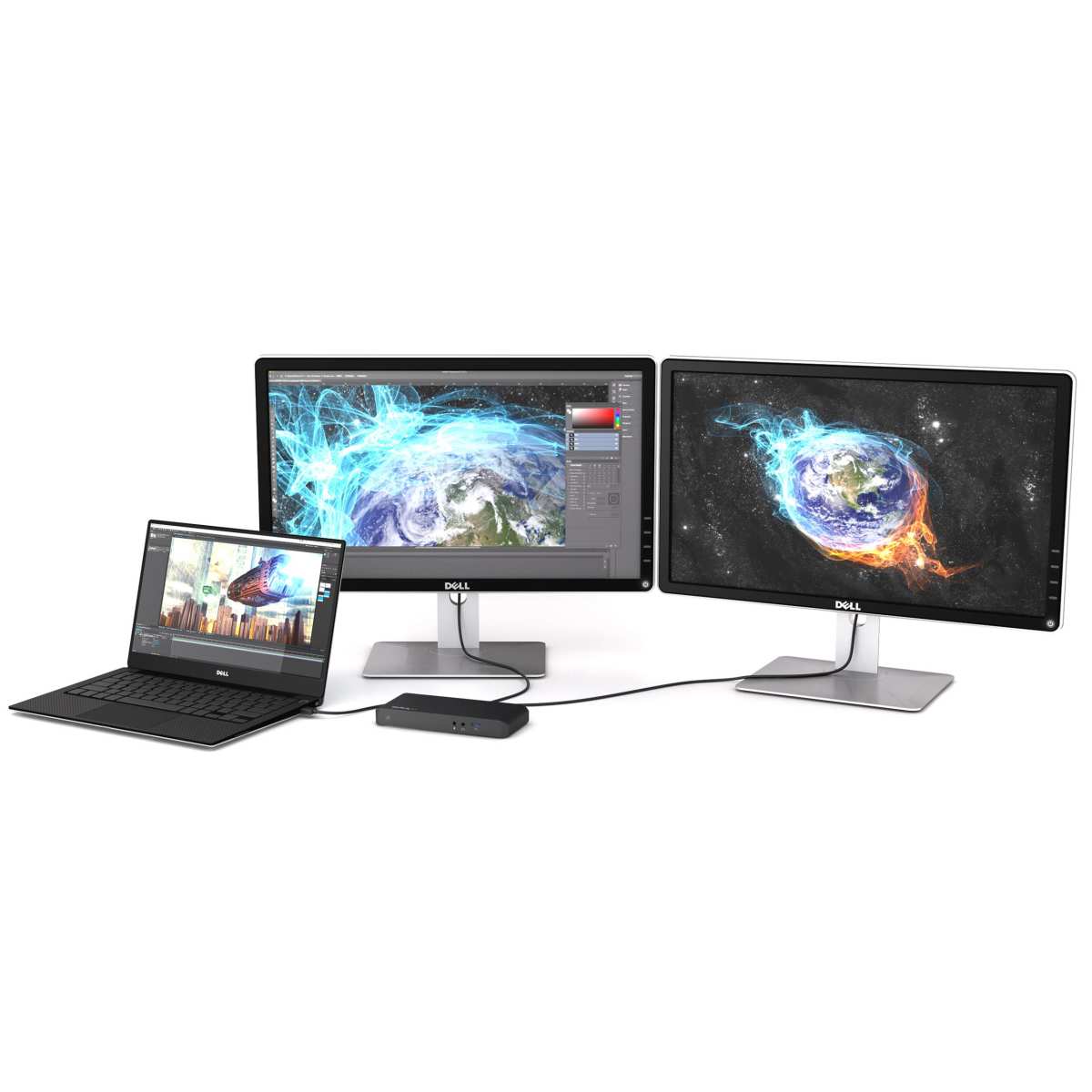
What works: A Thunderbolt 4 dock with dual DisplayPort or HDMI outputs. Connect the dock to your laptop with one Thunderbolt cable. Connect both monitors to the dock.
The dock charges your laptop simultaneously.
Requirements: Your laptop needs a Thunderbolt port. The dock needs to explicitly support dual displays at your target resolution and refresh rate.
The Designer/Editor High-Refresh Setup
Goal: Drive a high-resolution, high-refresh-rate monitor for design or video work.
What works: A Thunderbolt 4 dock with DisplayPort 1.4 output, or a direct USB-C to DisplayPort cable connection. For 4K at 120Hz or higher, you need DP 1.4 with Display Stream Compression (DSC) or Thunderbolt bandwidth.
Requirements: Both your laptop and dock need to support DP 1.4. A direct cable connection (USB-C to DisplayPort) often works better than going through a hub for high-refresh displays.
Mistakes People Make When Buying a USB-C Hub for Monitors
After reviewing hundreds of user reports and product specs, these are the most common mistakes:
- Assuming all USB-C hubs support video. Most budget hubs only handle data and charging. If the product listing doesn't explicitly mention video output, HDMI, or DisplayPort, it probably doesn't support it.
- Buying a charge-only USB-C cable. These cables have no data or video wires inside. They'll charge your device but won't transmit a display signal.
- Ignoring the laptop's port capabilities. Buying a $200 Thunderbolt dock for a laptop with a data-only USB-C port is a waste of money. The dock won't work for video.
- Expecting 4K 60Hz from an HDMI 1.4 hub. HDMI 1.4 maxes out at 4K 30Hz. You need HDMI 2.0 or DisplayPort 1.4 for 4K 60Hz.
- Forgetting about power delivery. Some hubs with video outputs don't pass through enough power to charge your laptop under load. If your laptop needs 65W, make sure the hub delivers at least that much.
- Not checking macOS compatibility. MST daisy chaining doesn't work on Mac. DisplayLink has had recurring macOS compatibility issues. Mac users need to research current OS compatibility before buying.
- Using the cheapest cable available. Cheap USB-C cables often don't meet spec. They might work for charging but fail at video. Use certified cables from reputable manufacturers.
Final Decision Guide: What Should You Actually Buy?
Here's a simple decision tree based on your situation:
If your laptop has Thunderbolt 3 or 4:
Buy a Thunderbolt 4 dock with the video outputs you need. You'll get the best performance, dual display support, and reliable power delivery. Expect to spend $150 to $250.
If your laptop has USB-C with DisplayPort Alt Mode:
Buy a USB-C hub with HDMI 2.0 or DisplayPort 1.4 output and power delivery passthrough. This is the simplest, most reliable option. Budget $30 to $80.
If your laptop's USB-C port is data-only:
Buy a DisplayLink hub or adapter. Install the DisplayLink driver from Synantpics' website. This works with any USB port but uses CPU resources.
Budget $50 to $120.
If you only need one 1080p monitor:
Almost any video-capable hub will work. Even budget options handle 1080p at 60Hz without issues. Don't overspend.
If you need dual 4K monitors at 60Hz:
You need either a Thunderbolt 4 dock or a DisplayLink DL-6000 series hub. There's no cheaper way to get this working reliably.
Frequently Asked Questions
Can I use any USB-C hub for a monitor?
No. The hub must explicitly support video output through DisplayPort Alt Mode, Thunderbolt, or DisplayLink. Most budget USB-C hubs only handle data and charging.
Check the product specifications for HDMI, DisplayPort, or "video output" before buying.
Why is my USB-C hub not outputting video?
The most common cause is that your laptop's USB-C port doesn't support DisplayPort Alt Mode. Check your laptop's specifications. If the port is data-only, you'll need a DisplayLink hub instead.
Also verify your cable supports video, not just charging.
Does USB-C to HDMI work through a hub?
Yes, if the hub has an HDMI output and supports DisplayPort Alt Mode. The hub converts the DisplayPort signal from your laptop into HDMI for your monitor. Make sure the hub's HDMI version matches your resolution and refresh rate needs.
Can I daisy chain two monitors through a USB-C hub?
On Windows, yes, if your laptop and hub support Multi-Stream Transport (MST). On macOS, no. Apple does not support MST.
Mac users need a dock with dual video outputs or a DisplayLink adapter for the second monitor.
Do I need to install drivers for a USB-C hub with video?
For DisplayPort Alt Mode and Thunderbolt hubs, no. They work natively through your operating system's display drivers. DisplayLink hubs require installing DisplayLink driver software from Synantpics' website.
How many monitors can I connect through a USB-C hub?
It depends on your setup. A single DisplayPort Alt Mode hub typically supports one external monitor. Thunderbolt 4 docks support two.
DisplayLink DL-6000 series hubs support two 4K monitors. Some setups allow three monitors including the laptop's built-in display.

Similar Posts





















